
Test players define the viewing, displaying, and evaluation options of tests from the perspective of learners. Multiple settings allow to visualize multiple scenarios for tests, e.g. tests with sample solutions and hints, examination tests without sample solutions but with a detailed evaluation, etc. Settings can be defined individually for each test or test template.
Alternatively, the test players that are assigned to tests or test templates can be managed. This facilitates the definition of unified settings. If the settings are adopted by a test or test template via the test player, they can be modified further.
Definitions can be made in the "Task" (e.g. display hints), "Navigation" (e.g. show back button), "Feedback", "Results" (adding up questions per folder, accounting of negative points), "Display" (question names, show number of processed questions, random order of possible answers, display only the questions that the learner answered incorrectly in their previous attempts.), "Processing time" (enable, show an alert when X minutes remain), "Caching" and "Certificate upon passing/failing" sections.
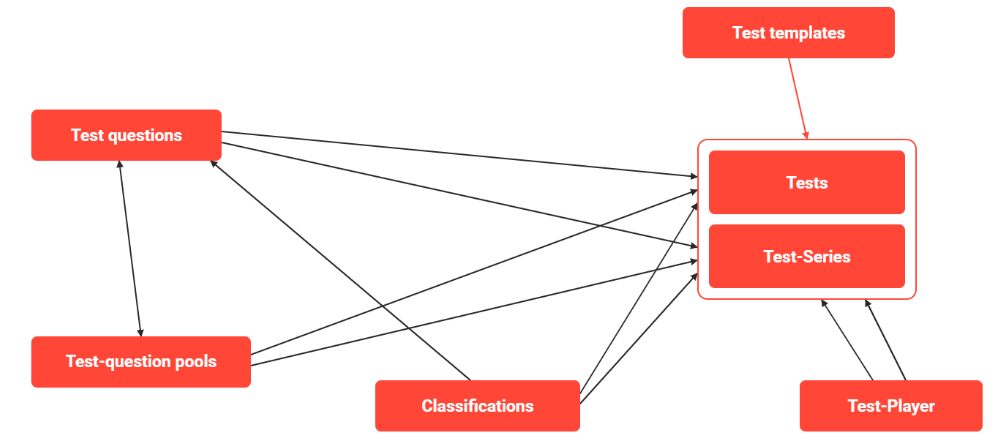
Functions of the Test Player
Assignment
The section “Assignment” includes settings that affect access to the test itself.
|
Setting |
What does the setting do? |
|
Show privacy policy before processing |
Privacy policy is shown before the test can be started. Displays a privacy notice the first time the test is launched. The test can only be started once the terms and conditions have been accepted. The text is created in the backend under ‘System Texts’. The title and text are stored in separate system texts.
|
|
Show question overview before processing |
It is possible to configure an overview of all questions to be displayed before the first question appears. In this case, the questions can all be at the same level or displayed in their original folder structure. |
|
Show questions in their folder structure |
The folder structure is also visible with the assigned questions in the structure. |
|
Always show and enable "Table of contents" button |
The learner can return to the table of contents at any time while processing the test. |
|
Regenerate test on each launch |
This option ensures that in the case of a test series, different randomly assigned questions will be asked for the same learner each time the test is started. |
|
Display only questions which have wrong answers provided by the learner |
The “Display only questions which have wrong answers provided by the learner” function allows admins to choose whether learners can only answer the questions they answered incorrectly in previous attempts when a re-submission of the test will take place. This option is incompatible with the Regenerate test on each launch option (It will be deactivated when one or the other is selected and a message will be displayed to the administrator) 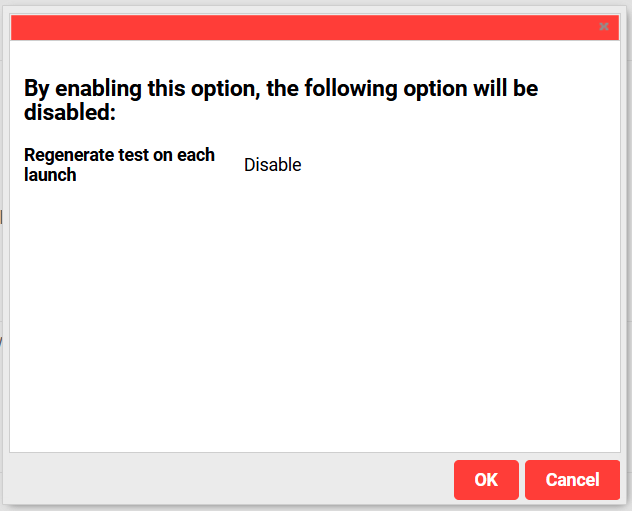
|
|
Can be used offline |
Tests can only be used offline, if this setting is active. |
|
Lock with personal access code |
This option allows the possibility to define that the test will only be available to the learner when the correct personal access code is provided. The personal access code will be automatically generated per course per test per participant and can be accessed by administrators in the course instruction area. |
Navigation
The section "Navigation" enables the processing order to be established.
|
Setting |
What does the setting do? |
|
Disable return to previous page (button will be hidden, navigation will be adjusted) |
If the back buttons are deactivated, the test questions can only be processed in exactly the originally established order. For this reason, it is also no longer possible to select questions directly in the question overviews, e.g. in the navigation area. |
|
Show hint when "Back" button is hidden |
Upon request, a note displayed after an unanswered question show that the question can no longer be edited at a later stage. |
|
Start automatically |
This setting is incompatible with the automatic or manual saving of the test and will always trigger a new test start when the test is opened. This setting is also incompatible with the privacy policy of tests and is limited to the processing in the front end (does not have effect in preview mode). |
|
Require answer before proceeding to the next question |
If activated, answering of the question is mandatory. |
Feedback
The section “Feedback” determines how learners will receive a notification about their answers.
|
Setting |
What does the setting do? |
|
Enable detailed feedback for questions |
The detailed feedback provides a review and correction of the questions, which can be consolidated at the end of the test. It is also possible to determine whether only the correction or also the sample solution should be displayed. In addition, correction reasons for individual questions, feedback texts and learning information for the test can also be globally activated or deactivated. |
|
Display answers |
Configuration, if the correct answer should be shown or not and not only that the question was answered wrongly. |
|
Show question-specific feedback |
Shows a text if the answer was right or wrong. |
|
Show answer-specific explanations |
The specific feedback could give a hint how to answer the question correctly. |
Results
The section "Results” controls the display of the test results and the information they contain about how the points are awarded and test rates are displayed.
|
Setting |
What does the setting do? |
|
Show "Submit" button during processing |
Here the user can also decide whether it should be possible to submit the test early and therefore view the test results. |
|
Allow downward correction of results upon test repetition |
If a lower score is submitted, the previous result will be overwritten. If the checkbox is not ticked and a lower score is submitted, this will be ignored and a message will be displayed to the learner. |
|
Count negative points |
When this option is enabled, negative marks are applied per question, which affect the result of the test. If negative marks are not applied, incorrect answers can reduce the score for that question to 0. This effect can be limited to folders. |
|
Show points obtained per question |
|
|
Show table of results after processing |
Shows the question overview, including a brief analysis, after the test has been submitted. If the option "Enable detailed feedback for questions" under "Feedback"
|
|
Show score per folder (pts.) |
Shows the number of points that can be earned per question. This is shown when editing the question and on the overview page. |
|
Display the file status |
Indicates that the minimum number of points for the folder has been achieved. The option is displayed to the left of the folder name and can only be selected if the option to display questions in a folder structure (section: Assignment) is selected. |
|
Allows the extension/reduction of the folder structure in the detail evaluation |
Allows you to view the results for individual questions in the overview (Correct / Incorrect). Points per question can be added via a further option. |
|
Show overall test score (pts.) |
Shows the achieved score for the test in the course syllabus. |
|
Show score per folder (%) |
Shows the score achieved as a percentage of the mark required to pass. This option can only be enabled if, under "Assignment", the option to display questions in a folder structure has been selected. |
|
Show overall test score (%) |
Shows the achieved score for the test in the course syllabus in percentage. |
|
Include test in report "Individual test report" |
Adds the test to the "Individual Test Evaluation" report”. This can be found in the backend using the search function under "Reports" and then "Individual Test Evaluation". |
|
Display test result as "concluded" rather than "passed" or "not passed" |
The test result can be hidden from the learner in the course syllabus. In this case a test will be displayed as “concluded” instead of “passed” or “failed”. |
|
Show points required to pass (.pts) |
Shows the required points for the test in the course syllabus. |
|
Show points required to pass (%) |
Shows the required points in percentage for the test in the course syllabus. |
|
Show maximum points (.pts) |
Shows the maximum number of points that can be achieved in the test. |
|
Show points reached (.pts) |
Shows the score achieved in the current test and the maximum possible score. |
|
Show points reached (%) |
Shows the score achieved in relation to the total score. |
Display
The "Display" section contains options for displaying question-specific information.
|
Setting |
What does the setting do? |
|
Arrange potential answers to single-response and multiple-response questions randomly |
Randomises the order of the answer options. This can be used if a test is taken repeatedly so that the learner does not simply memorise the position of the correct answer. |
|
Show question name in header |
Shows the name of the question above the question. Also allows the question name to be viewed on the overview page. |
|
Show question number |
The question number is displayed above the question and refers to the order in which the question was created, not to its order in the test. |
|
Show number of processed questions |
Displays the number of questions and the position of the current question |
|
Show all questions on the same page |
By enabling the display of all questions on the same page option, several settings of the test player will be rendered as not considered anymore:Save automatically after each question. Restriction of navigation back to the previous question.The display of all the questions on the same page is optimal for a reduced number of questions (20-30). A higher number of questions will generate a higher loading time, based on the browser’s and device’s performance. |
Processing time
The “Test Settings” section summarises the settings relating to the test itself.
|
Setting |
What does the setting do? |
|
Processing-time limit |
The heading "Processing time" serves to stipulate a maximum processing time for the test. If processing times were defined at question level, these are overwritten. If no total processing time is defined, the total of the processing times defined at question level can be used. |
|
Show tip when remaining processing time is |
Remind the student that there are still X minutes remaining to complete the test. The warning is also displayed if the test is paused and then resumed. |
|
Enable timer per question based on the question processing time |
By enabling the timer per question option, the value defined as processing time for the question will be used as a timer to limit the access to the given question to the configured amount of time. |
|
Display of the processing time |
Sets a time limit of X minutes for completing the test. |
Saving
|
Setting |
What does the setting do? |
|
Save automatically after each question |
Test progress is saved when a question is answered. If a time limit has been set, progress is only saved when the test is submitted. If the test is cancelled, progress will be lost. |
|
Show button to save manually |
Test progress is saved only by clicking the "Save test" button. |
Certificate
The section “Certificates” enables participation certificates to be saved.
A differentiation is made between certificates for passing and certificates when courses have not been passed. The test will be regarded as “Not passed” if the user achieves a number of points which corresponds to the lowest assessment level for the test. Individual certificates can be saved for each language used. If no certificate is available for the language which the user has completed the test in, the certificate defined as standard will be issued.
|
Setting |
What does the setting do? |
|
Certificate: pass |
Assignment of certificate, which should be used when the learner passed a test |
|
Certificate: attendance/fail |
Assignment of certificate which should be used when the learner failed/attended a test |
|
Access to certificate |
Learners can access certificated after the test evaluation was done, or the can never access. |