
ID=181
Allows task responsible users and task deputies to gain an overview about tasks that they are required to do an action in respect to courses.
The tasks can be marked as completed directly from the panel, but the course's task overview can also be accessed from the panel to mark tasks as completed there. There is also the option to view the course details.
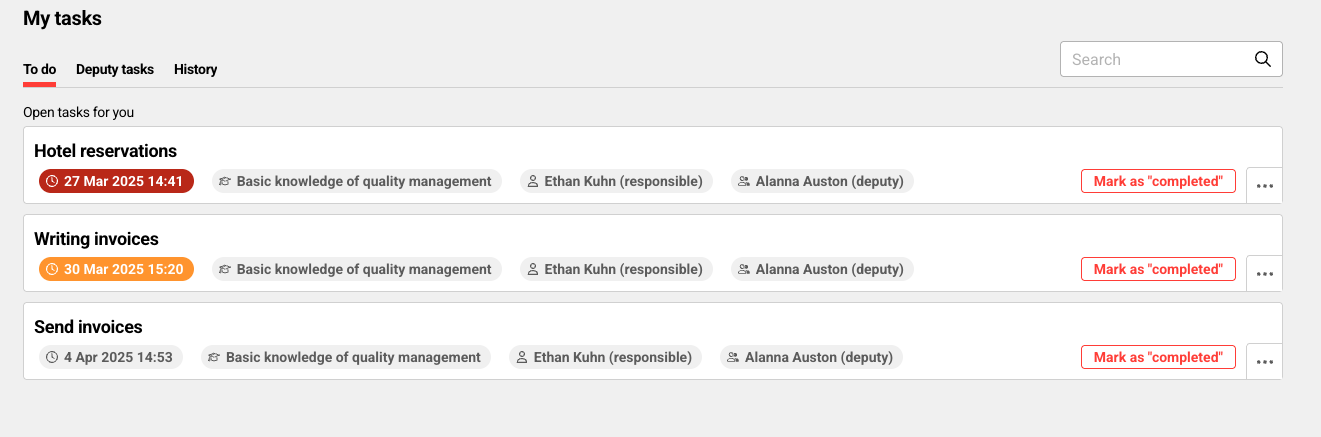
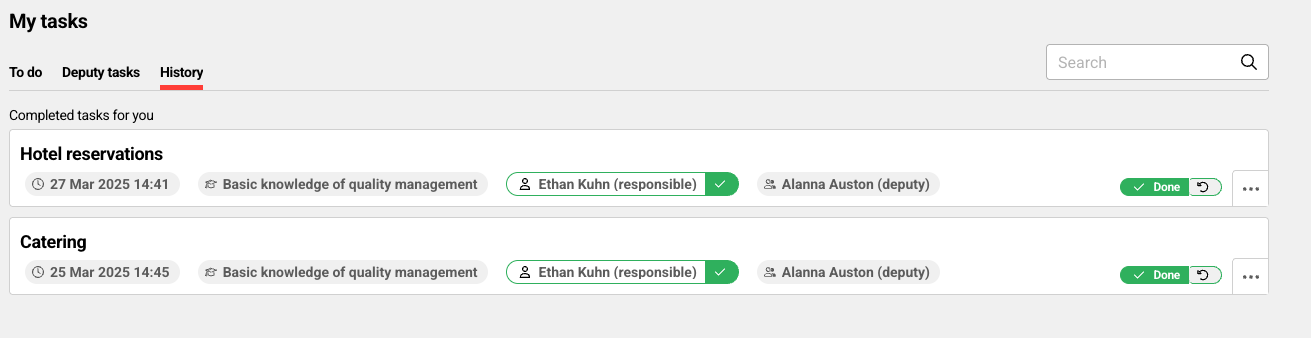
Panel Description
The panel provides three tabs:
|
Tab |
Description |
Displayed information and actions |
|---|---|---|
|
To do |
A list of not yet done tasks. Headline (fixed text which can only be changed by changing the bundle, shown if the focus is on the To do tab): Open tasks for you |
The following information can be displayed (depending on the configuration):
|
|
Deputy |
A list of tasks to be done as deputy (in case responsible is not able to perform the task). Headline (fixed text which can only be changed by changing the bundle, shown if the focus is on the Deputy tab): Open tasks for you as deputy |
The following information can be displayed (depending on the configuration):
In the search field it is possible to search for deputies. |
|
History |
A list of all done tasks. Headline (fixed text which can only be changed by changing the bundle, shown if the focus is on the History tab): Completed tasks for you The history tab displays the forms ordered by completion date, with the most recent completion displayed first. |
The following information can be displayed (depending on the configuration):
|
Configurations that Should be Considered
|
Configuration |
Details |
|---|---|
|
Due date |
The due date is only displayed if a due date has been configured |
|
Course date on hover |
The course date on hover is only displayed if the course is date-dependent and data is available |
|
Responsible and Deputy visibility |
Responsible and Deputy are only displayed if the persons have rights to the task responsible group and rights to the persons (same applies to the task overview in course) |
|
Course templates |
Course templates are not shown in the panel |
Actions
|
Action |
Details |
|---|---|
|
Complete or revert a task |
Via the task list panel the person who is responsible or deputy for a task can complete the task directly without the need to open it or revert the completion. Toggle button with statuses: Complete and Completed |
|
Open course task overview |
Via click on the 3 dots in the tile and selecting “overview course tasks”, the task opens with a course context |
|
Searching |
Searching is also possible in the panel by the following criteria: Task title and course name, in deputy tab also for deputies |
Related Functions