imc Learning Analytics out-of-the-box dashboards follow a recurring layout pattern, as illustrated in the following figure.
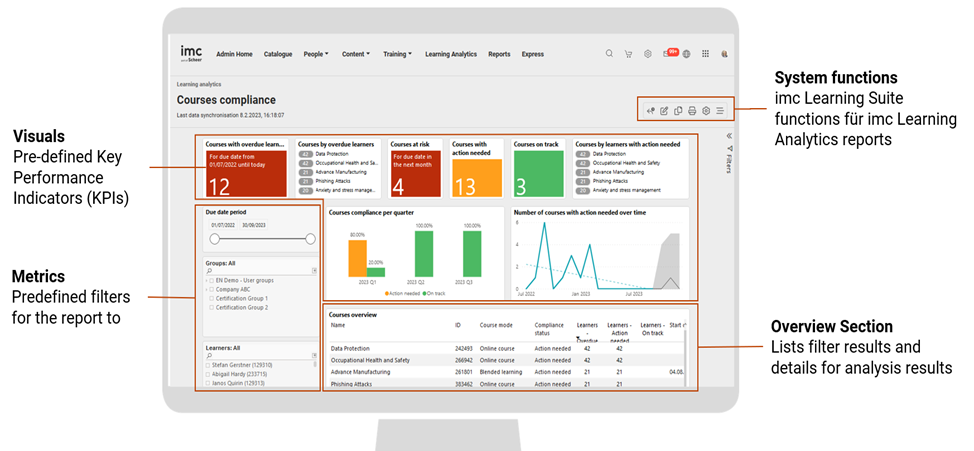
A report regularly consists of one or more of the following report sections:
-
Visuals
Predefined Key Performance Indicators are provided by Scheer imc. These can regularly be used to filter the overall report when selected. Alternatively, they might be provided for information purposes only. In that case, they cannot be used to interact with the report. -
Metrics
Metrics are predefined on-screen filter options for interacting with the reporting data and filtering it according to the metric dimension. Multiple selections in a report can be combined by pressing and holding the Ctrl key (the Windows operating system differs from other operating systems). -
System functions
imc Learning Suite provides the following functions for imc Learning Analytics reports:-
Reset: Sets the report back to its standard values.
-
Edit: Allows switching to edit mode and opens the integrated Power BI Embedded (based on the defined access rights for the role).
-
Duplicate: Uses the displayed report as the basis for creating a new report and further adapting the duplicate. This is the initial step for taking advantage of the out-of-the-box reports provided by Scheer imc.
-
Delete: Allows the report to be deleted by a user with the corresponding rights.
-
Overview section
The overview section in a report lists all search results that fulfil the chosen report criteria. Selecting a list element regularly provides the possibility of viewing details (drill-down) and/or opening the right drawer for available direct interactions with imc Learning Suite (see section 2.6 for details).
imc Learning Analytics Report Detail Pages
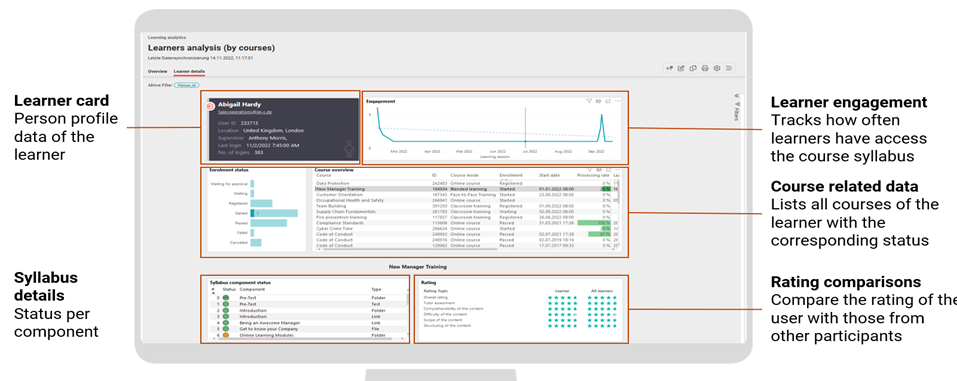
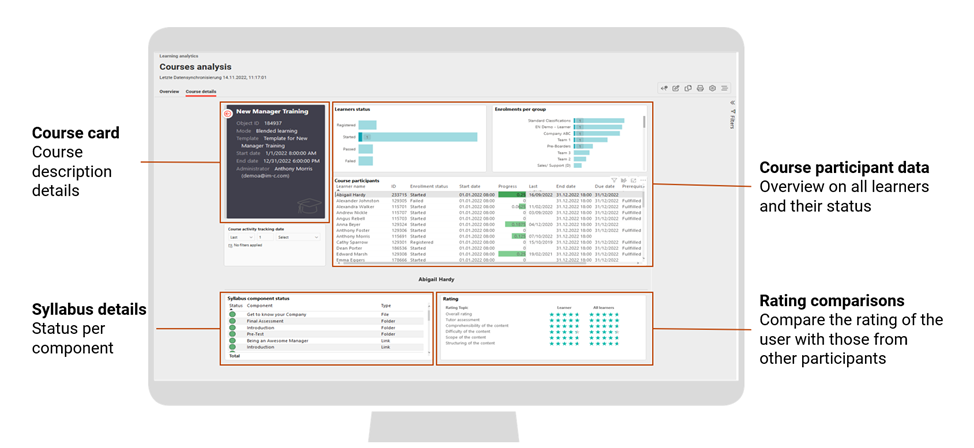
Learner- and content-related dashboards can be drilled down to the level of a single user, learning path, or course. Some layout examples for a learner and a course are shown below.
Learner details
A learner details report in imc Learning Analytics is illustrated in the following figure.
Course details
imc Learning Analytics: From Insights to Action
imc Learning Analytics is designed to facilitate better and faster business decisions and improve learning impact. Therefore, insights from Learning Analytics can be directly converted into actions. The out-of-the-box reports provided with imc Learning Analytics by Scheer imc are enhanced with direct actions based on selected entities.
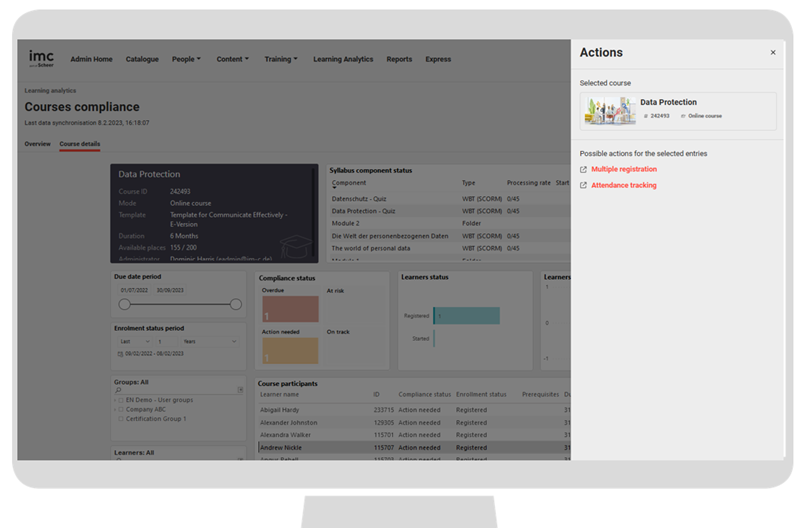
The available actions direct the user to imc Learning Suite, where the action can be processed in the integrated platform. Based on the specific report context and the selected report results, one or more of the following interactions with imc Learning Suite are supported:
-
Access to the learning status area of a learner
-
Enrolment of an employee
-
Multiple registrations
-
Batch registration
-
Viewing course details
-
Viewing course details
-
Moving a registration
-
Replacing a participant
-
Access to attendance tracking
-
Viewing the competency profile of a learner
-
Searching the catalogue for training measures that address skill gaps
imc Learning Analytics Online Help
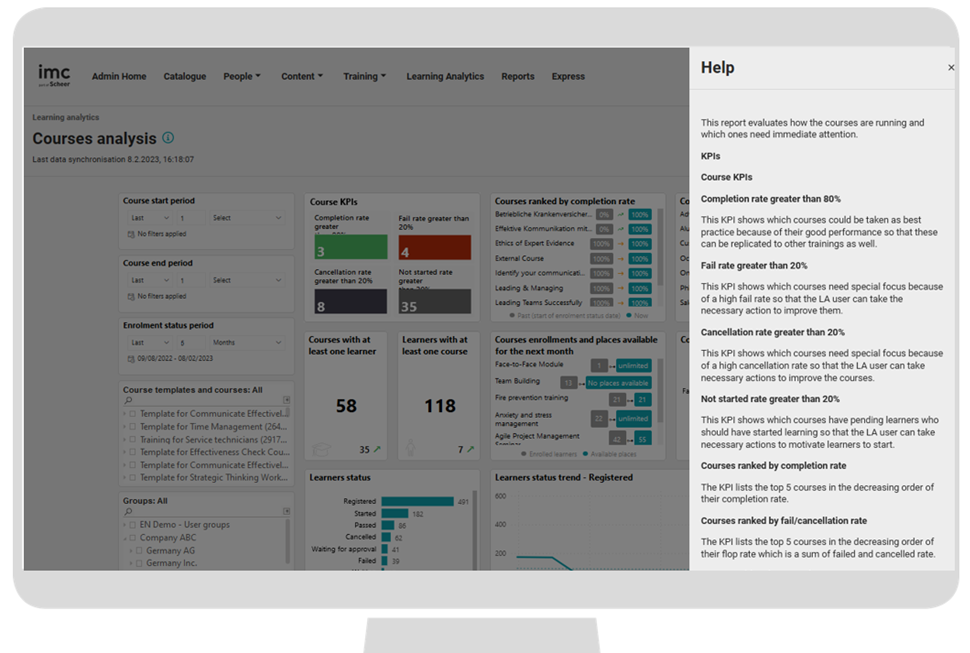
imc Learning Analytics supports users by providing online help, which is accessible via a question mark item for the out-of-the-box reports.