
Seamless Usage of Microsoft Power BI Embedded
Users with corresponding access rights to edit or duplicate a report are provided with the full functionality of Microsoft Power BI Embedded in imc Learning Suite without requiring an additional login. Power BI opens on the right-hand side next to the report from imc Learning Analytics, as shown in the following figure.
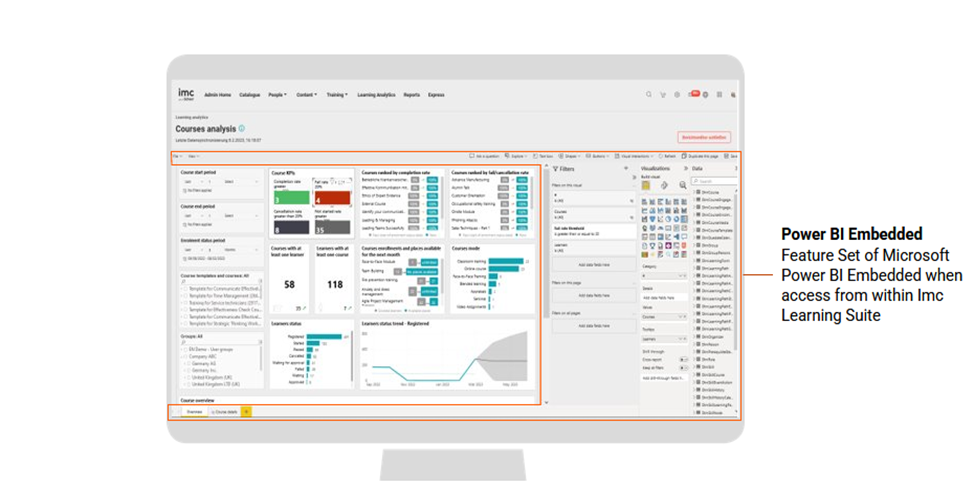
An overview of the possibilities provided by Microsoft Power BI in this context is given
Change Filters or Apply Additional Ones
Filters can be changed or added by referring to the data model provided by imc Learning Analytics. For example, certain Key Performance Indicators provided by Scheer IMC in the out-of-the-box reports can be adapted to specific requirements by changing the filter threshold
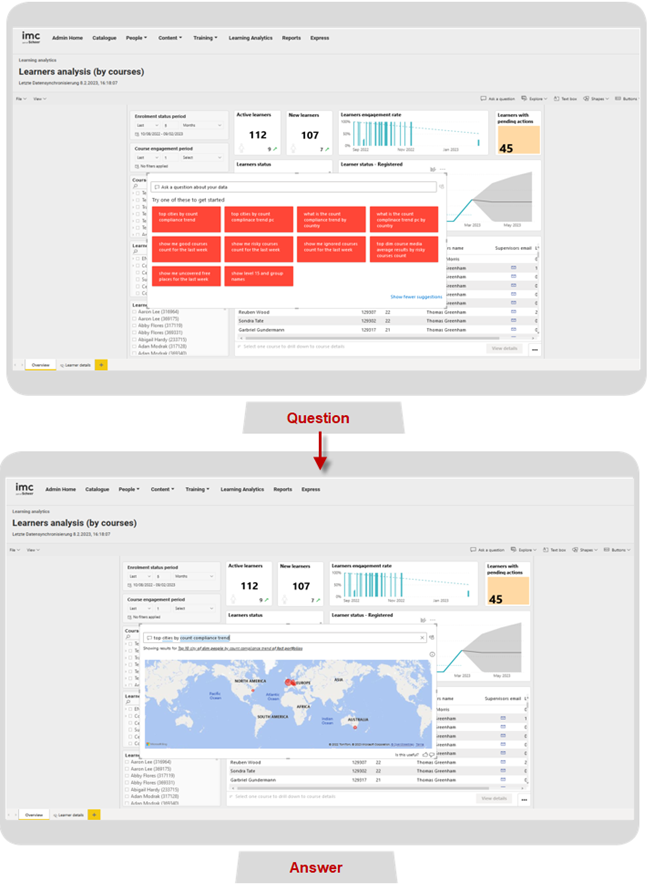
“Ask a Question”
This Microsoft Power BI function enables a free-text question to be entered and answered based on the reported data, or one of the suggestions for questions generated automatically by Microsoft Power BI can be selected. The following figure shows an example based on the imc Learning Analytics out-of-the-box report “Learner’s analysis (by courses)”.
Filter Area
Filters can be changed or added per report, per page, or per report visual by referring to the available data in the data section on the right.
Visualisations
Access is provided to a wide range of chart options for use in imc Learning Analytics reports. In addition, the canvas size per page can be defined.
Data
Access is provided to all data tables supplied by Scheer IMC with imc Learning Analytics. These can be used to define visuals, metrics, overview lists, and other content, or to create a completely new report.
Microsoft Power BI Related Notes
This section outlines details about the general functions available in Microsoft Power BI Service. These functions are not provided by Scheer IMC but by Microsoft and are outlined in this document for informational purposes.
Data Refresh Scheduling
In imc Learning Analytics, data is transferred via ETL processes from the imc Learning Suite production database to the imc Learning Analytics database. The synchronization interval can be scheduled per customer. A refresh can also be triggered manually from the Microsoft Power BI desktop app by the imc Learning Analytics customer administrator with the Power BI Premium license provided by Scheer IMC as part of the service.
Please note automatic refresh would be automatically paused if any of the report or dashboard in Power BI workspace of the customer has not been visited in the past two months.
To avoid this, it is recommended to visit at-least once in two months any of the report or dashboard in the Power BI workspace to make sure that the automatic refresh on the imc Learning Analytics semantic model is not paused by Microsoft Power BI.
External Data Integration
Power BI supports external data integration from a variety of external data sources. A screenshot of the application is shown in the following figure.
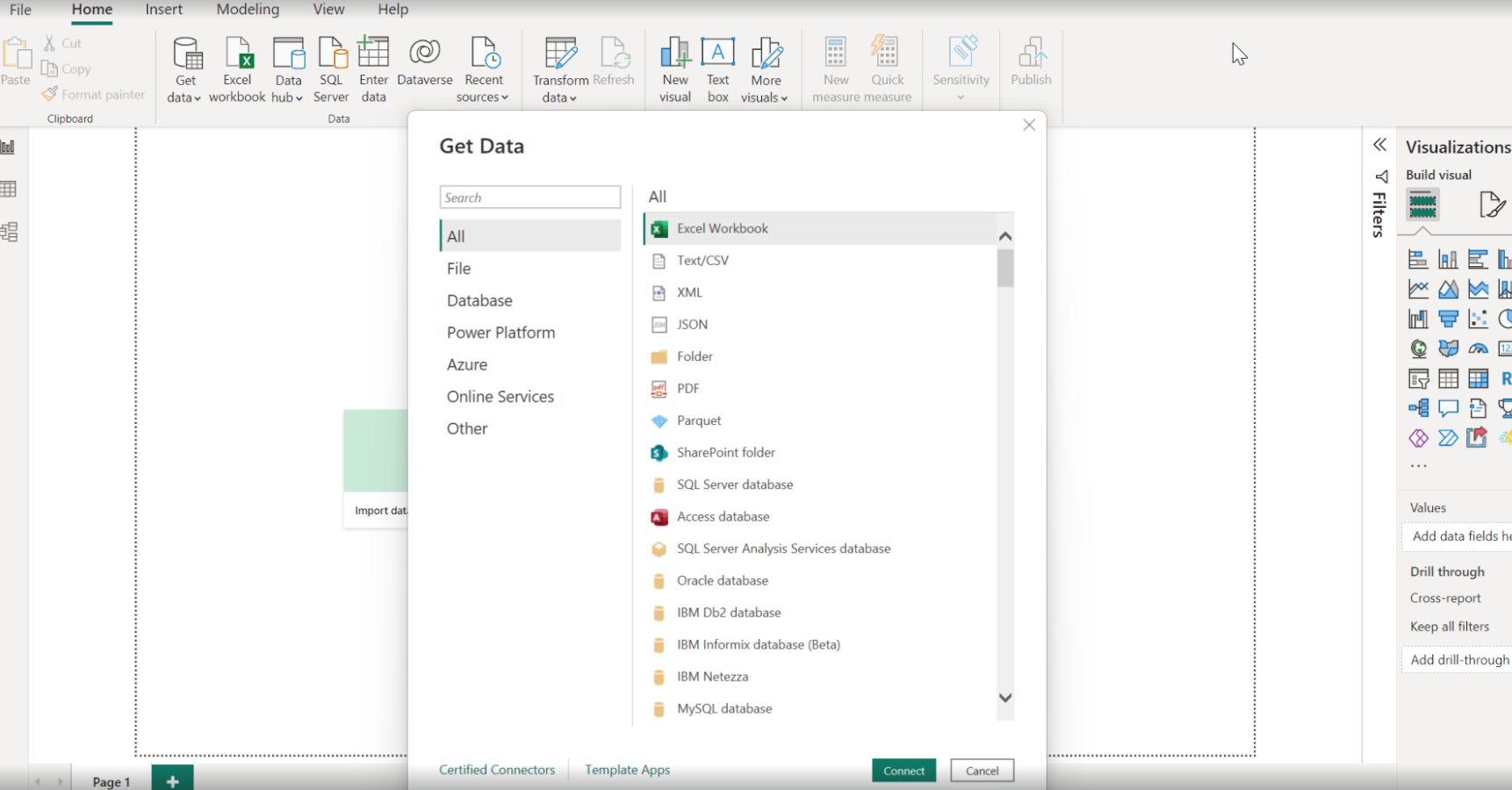
For a complete list of supported data formats, see Power BI data sources.
Further steps are required to use the data from the selected resources effectively in Microsoft Power BI, create and publish the report, and use it in the context of imc Learning Analytics. These steps are outlined briefly below.
-
ETL processes must be defined for the selected target source to achieve the intended data table layout in Microsoft Power BI. Data can then be imported and used for report creation in Power BI.
-
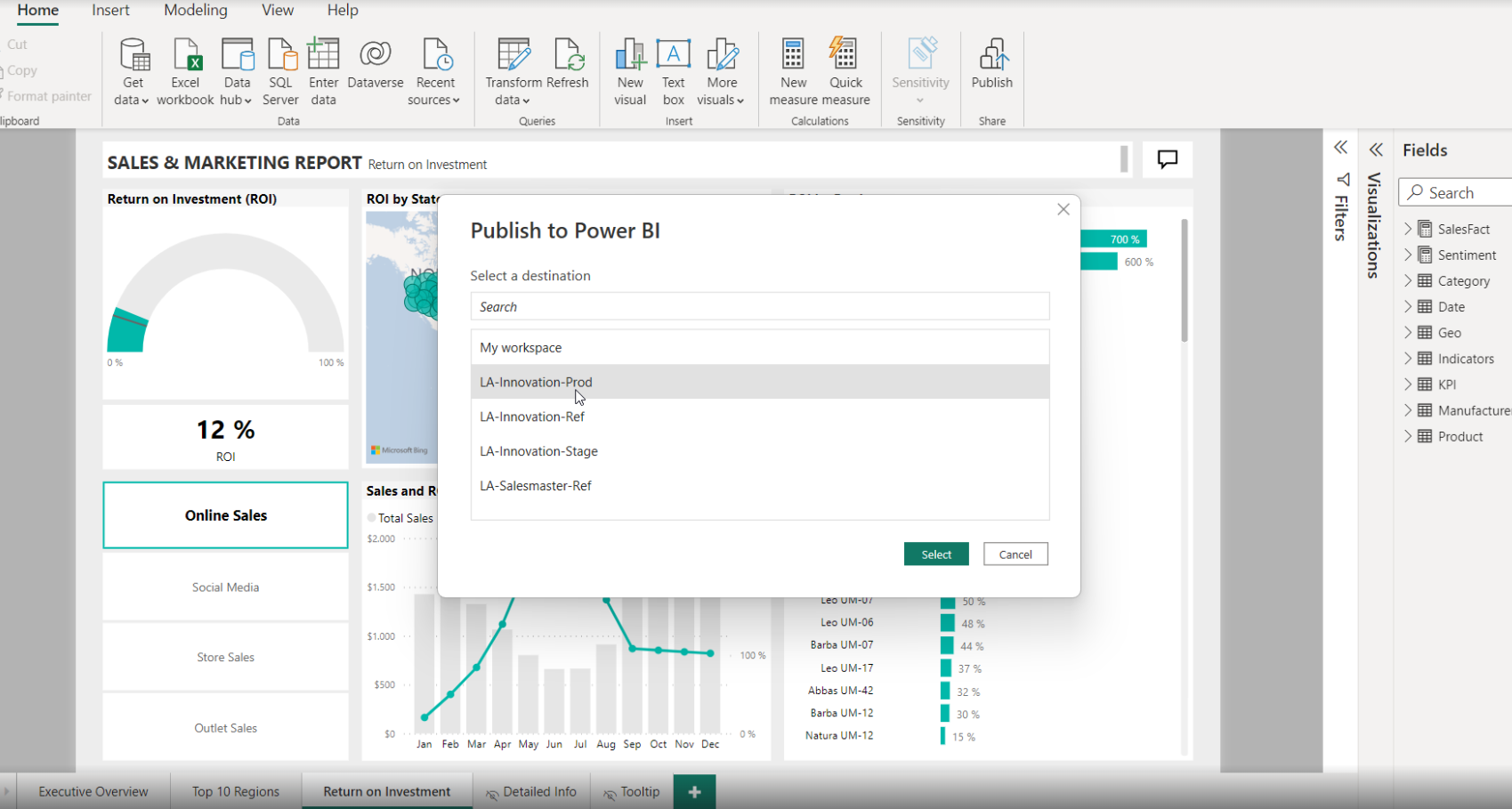
A report intended for use in imc Learning Analytics must be set up and published in the Microsoft Power BI workspace using the Microsoft Power BI Premium account included by Scheer IMC in the imc Learning Analytics services. (Please note that existing Microsoft Power BI accounts cannot be used.) If the system landscape contains more than one system instance, the target destination for report publishing can be selected within Microsoft Power BI. The following figure shows an example.
-
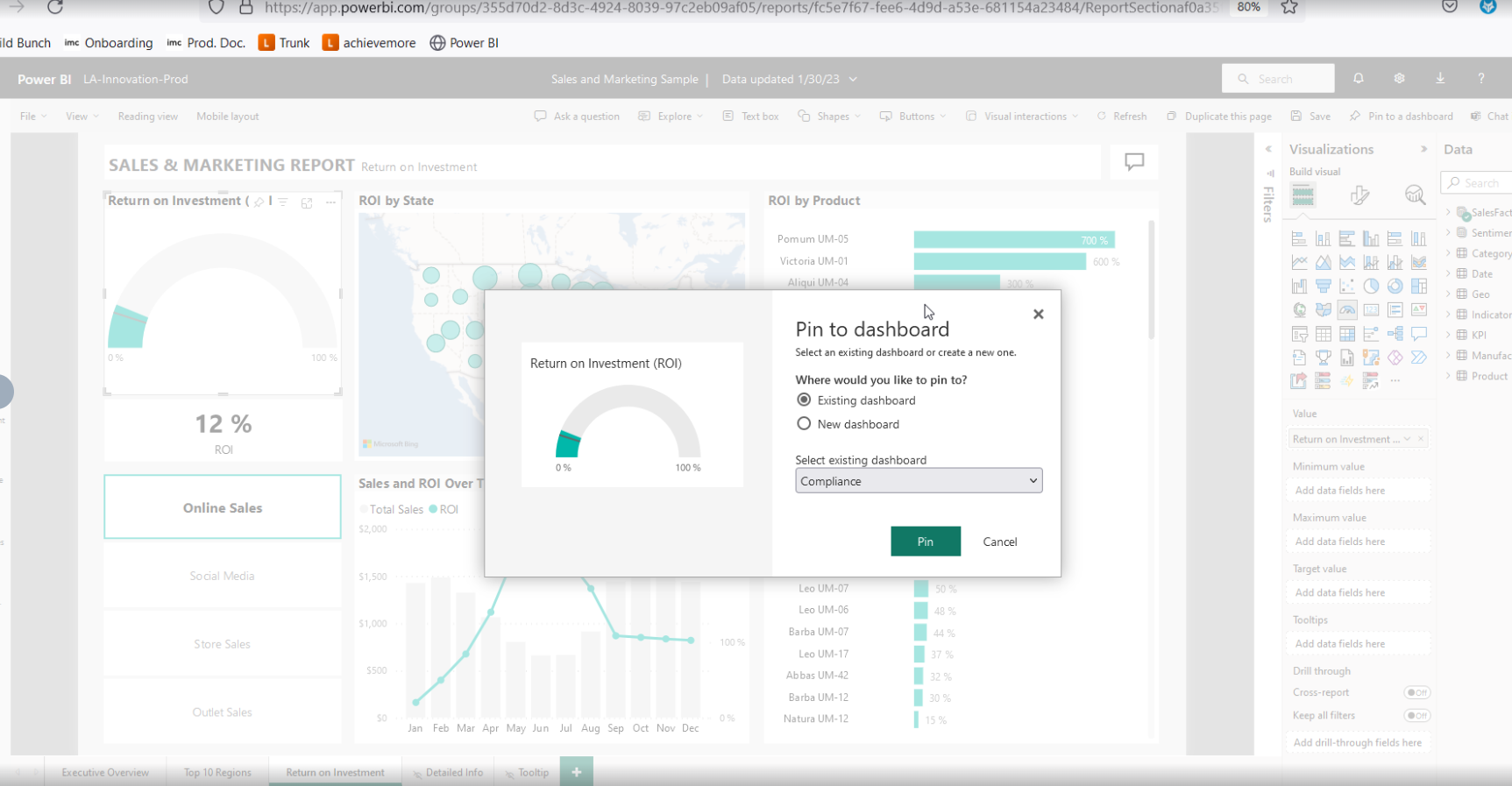
As a next step, the report can be accessed via Power BI Service within the workspace where it was published. The created report can be opened in edit mode, and visuals from that report can be selected for pinning to a Microsoft Power BI dashboard. The following screenshot shows the corresponding dialog in Microsoft Power BI.
-
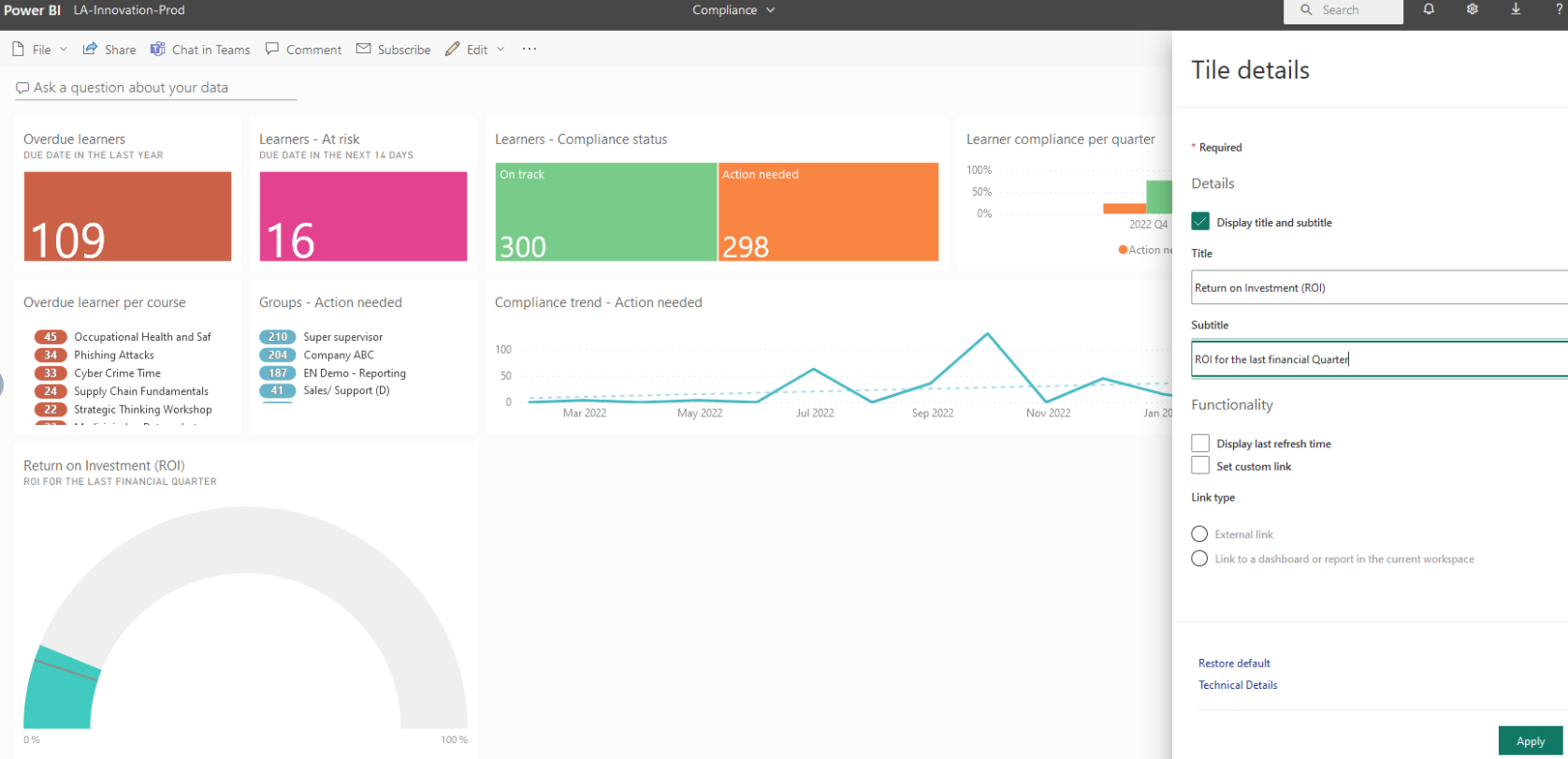
Pinned visuals can be arranged to a dashboard layout as needed.
-
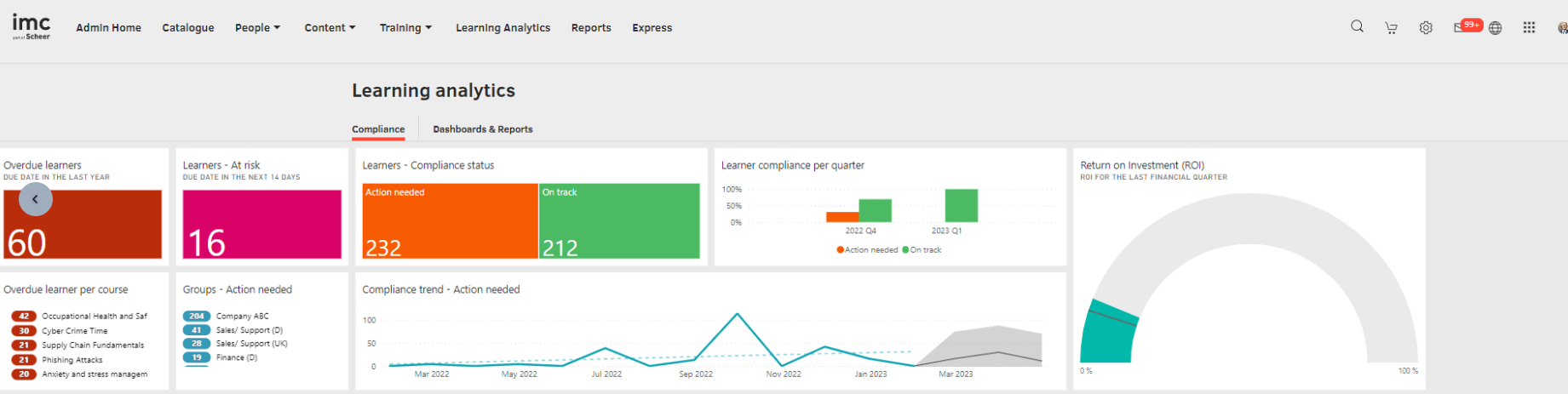
The dashboard is updated automatically in imc Learning Suite within the LA manager and displayed to persons with defined access rights in imc Learning Suite, as shown in the following figure.
Supported Data Sources
The data available within Scheer IMC Learning Analytics is limited to data sources supported by Microsoft. For a comprehensive list of compatible data sources, please refer to the official Microsoft documentation:
Power BI Supported Data Sources
Data Source Credentials
To ensure a successful semantic model refresh and deployment, the credentials for your data sources will need to be shared with Scheer IMC. Our team will handle these securely as part of the setup process.
Security
Security is managed natively within Microsoft Power BI. Scheer IMC does not apply an additional security layer on top of the built-in Microsoft framework, which follows Microsoft's enterprise-grade standards.
Subscription
To stay up to date on the most important dashboards and reports, the Power BI user can subscribe oneself to Power BI reports and dashboards in Power BI Service.
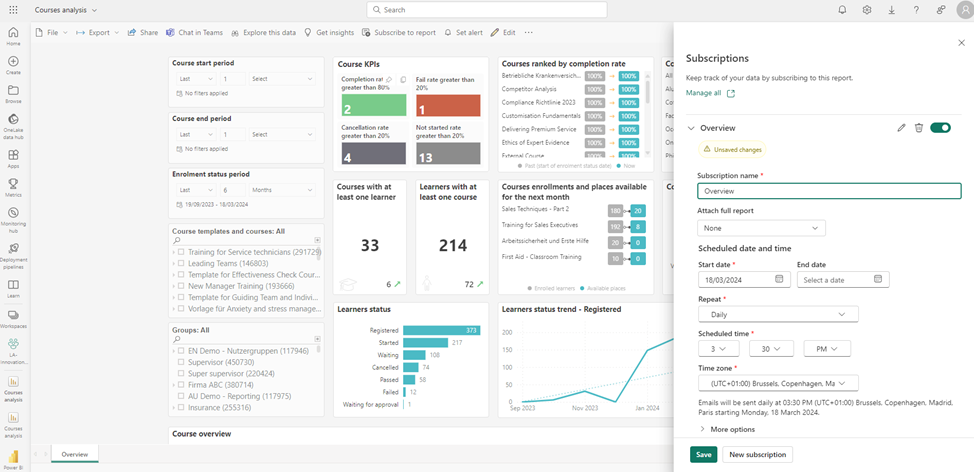
An email containing a snapshot and link to the report or dashboard, a full attachment of the report (PDF or PPT), or a dashboard is sent according to a schedule set in Power BI Service.
If the recipient has a Microsoft Power BI Pro or Premium account, the report or dashboard can be viewed in Power BI Service; otherwise, only a snapshot of the report or dashboard can be viewed.
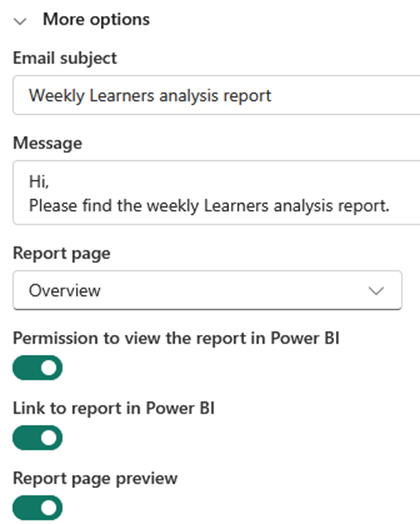
The “More options” configuration enables the subscriber's access privileges to the report to be controlled. This includes granting permission to view the report directly within Power BI Service, access a link to the report, or preview the report page.
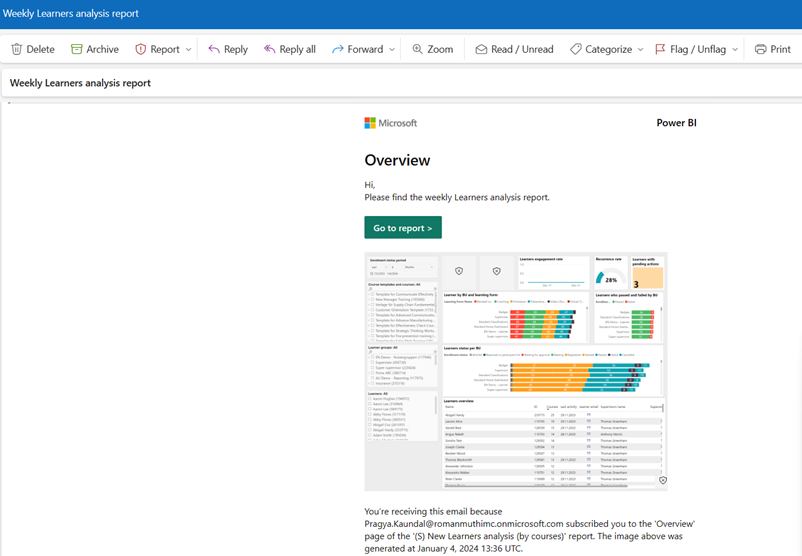
With the subscription option, the subscriber can review the Key Performance Indicators as required. If action is required, the provided link can be selected to open the report in Power BI Service and navigate further to conduct the root cause analysis, enabling the necessary and relevant actions to be taken.
Please note that only the standard Microsoft Power BI visualizations support subscriptions. Custom visualizations cannot be viewed in PDF or Microsoft PowerPoint format; a Power BI account is required to view them in Power BI Service.
Not supported functionalities
-
Editing of the imc Learning Analytics semantic model in Power BI Service or Power BI Desktop
-
Bookmark pane in imc Learning Analytics
-
Adding or modifying row-level security in Power BI reports connected to the imc Learning Analytics semantic model
-
Subscription to others by an external B2B guest user