
The overview serves as an entry point for various functions connected with personnel management. It enables searching for staff pool and tutors covered by a viewing clearance, including the display of profile information, as well as for users with job profiles and skills.
Functions available in the overview include accessing and editing course and learning path overviews of staff members and their wishlist, accessing a job profile and skill overview of displayed staff members, the assignment of job profiles, suitability comparison according to the staff member's job profiles and skills, accessing and editing development plans and assigning on-the-job training.
If the multi-client context is configured, then Clients can be selected in the headline thereby displaying client-specific search fields and table columns.
The competencies function is only available with the licence or the "Competency Management" add-on component.
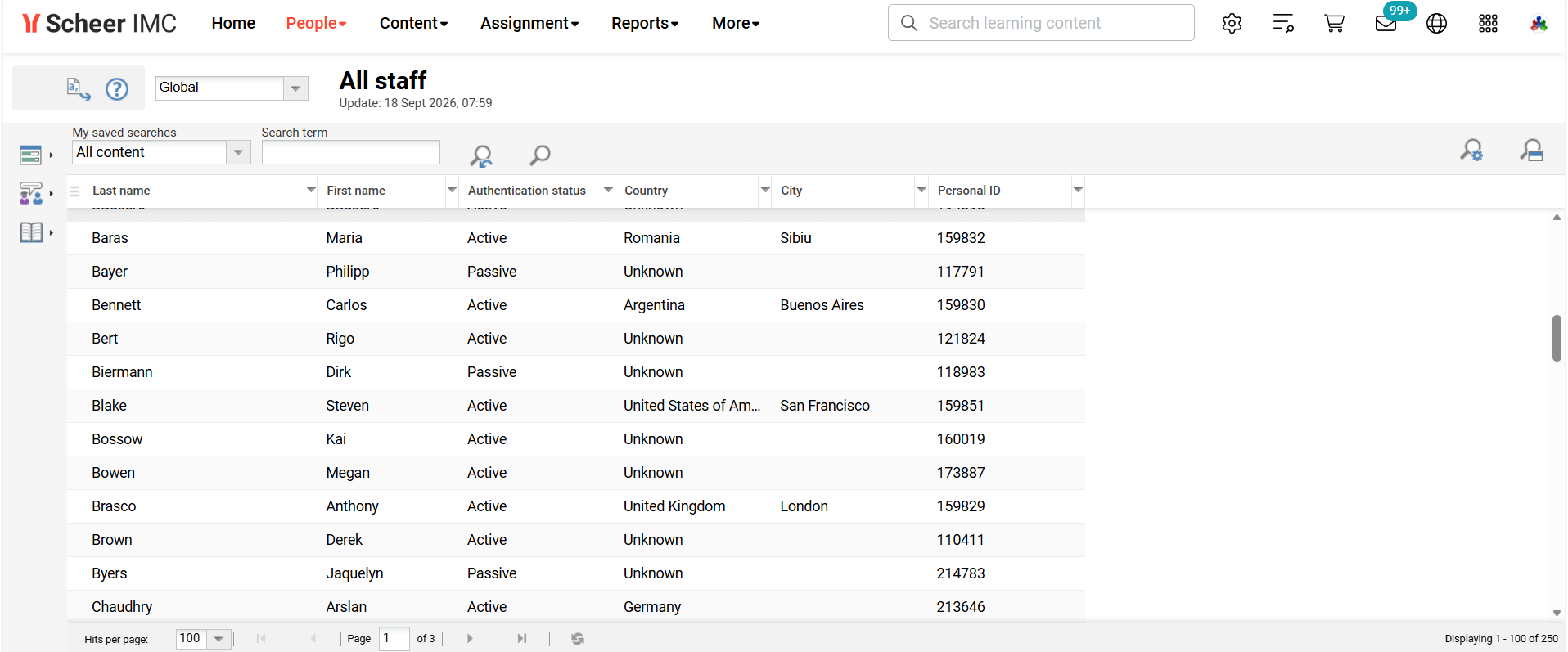
Functions of Staff Pool
The Staff Pool provides three groups of functions: competency management, on-the-job training, and learning-area reporting for the displayed staff members. Each group is accessed via one of three icons on the left edge of the staff list.
Staff List Columns
By default, the staff list displays last name, first name, number and login name. Individual columns can be replaced with others through the underlying user list configuration; the login name column, for example, can be replaced with authentication status, country or city.

Competences
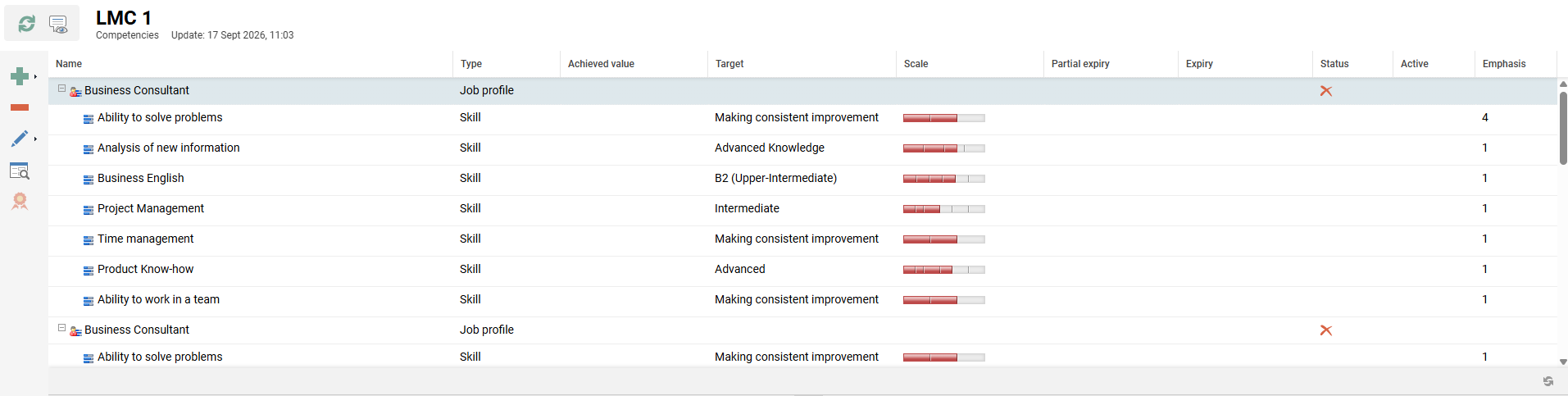
This overview shows staff skills and job profiles as well as assigned certifications and certification sets. Certifications are only displayed if the corresponding licence is active.
Job Profiles and Skills
Job profiles are made up of skills, which in turn are listed directly below job profiles, along with achieved levels and job-profile requirements. Next to it is a bar that shows the gap between the two values, if applicable.
Administrators/supervisors and HR staff can add further skills to which they can assign an achieved value and a target value regardless of job profile. Staff members can add further skills themselves, perform self-assessments and declare personal goals. Self-assessments can be submitted to supervisors for confirmation; the supervisor, administrator, HR staff member and the staff member themselves can record comments for a skill. Achievement of skills can also be documented by uploading files that include, for example, external certificates or additional licences. Confirmed self-assessments become the new actual values.
For job profiles and skills, three confirmation modes are available:
|
Confirmation mode |
Description |
|---|---|
|
No confirmation |
Skills or job profiles are set to be confirmed automatically. |
|
Automatic confirmation |
Skills or job profiles are set to confirmed until an administrator/supervisor denies confirmation. |
|
Manual confirmation |
Skills or job profiles are not set to be confirmed until they are confirmed by an administrator/supervisor. |
If enabled, notifications alert the involved parties of required actions.
A catalogue search for contents that improve the skill values of a staff member can be performed for each skill or job profile. A skill and job profile history can be accessed to follow any developments.
Staff members can choose which data to make available to administrators/supervisors. The required clearances can be unlocked gradually.
A global setting allows skill evaluations in the overview to be modified so they can only be used for staff self-assessment purposes.
Changes to the displayed job profiles, skills and skill achievements are consolidated automatically by the system, e.g. to prevent achieved skills in a job profile from being lost when staff members lose their job profiles, or when job profiles are deleted.
Each job profile assignment carries a small set of configuration values, shown together with the skill overview:
-
Confirmation mode – shows which of the three confirmation modes above applies to the job profile.
-
Allow self-assignment – determines whether staff members can add the job profile to their own profile without administrator or supervisor action.
-
Show completion rate – determines whether the percentage of completion is displayed for the job profile.
-
Emphasis – controls how strongly an individual skill's achievement counts toward the job profile's overall completion rate.
New entries are added through the green add icon in the toolbar, which opens a menu with the following options:
-
Add job profile – adds a job profile to the selected staff member's profile.
-
Add skill – adds an individual skill to the selected staff member's profile, independent of any job profile.
-
Add certification – adds a certification to the selected staff member's profile.
-
Add certification set – adds a certification set to the selected staff member's profile.
Each row provides a context menu with the following actions:
-
History – displays the change history of the entry.
-
Edit history – allows an administrator or supervisor with the required access rights to manually correct data for a running certification period, for example the achieved value or the certification dates.
-
Move achieved points/hours – transfers achieved points or hours to a different entry.
-
Comment – records a comment for the entry.
-
Confirm / Decline – confirms or declines a pending self-assessment or assignment.
-
Mark as default job profile – sets the job profile as the staff member's default job profile.
-
Activate certification / Deactivate certification – activates or deactivates a certification.
The Viewing options function controls what is displayed in the skill and job profile overview:
-
Show skills in job profiles – displays the skills contained in each job profile, with a nested Show gaps option to display the gap between achieved and required skill levels.
-
Show personal assessment and goals – displays staff members' self-assessments and personal goals alongside the confirmed values.
Certification Sets
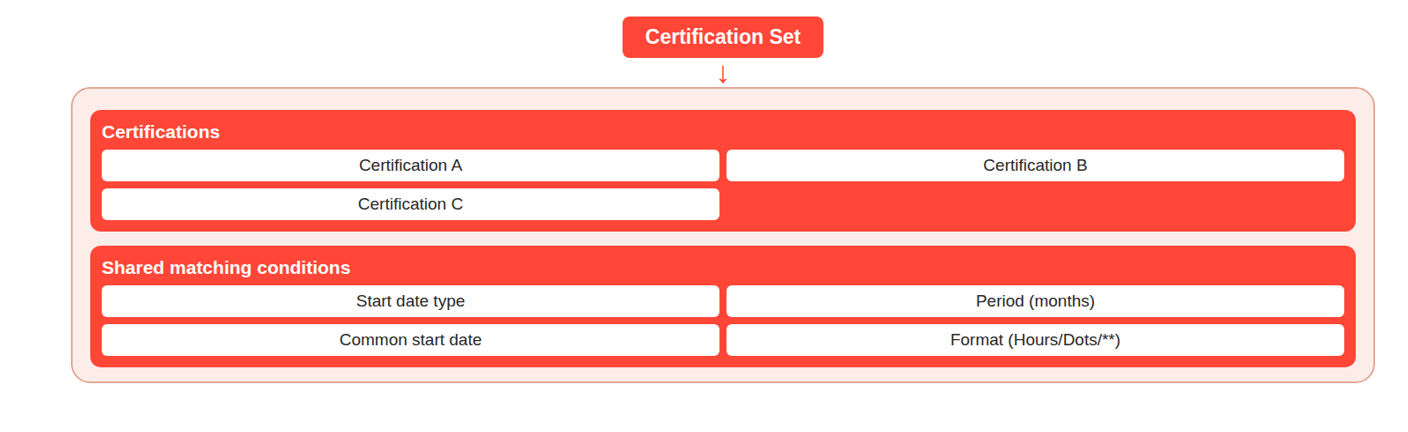
Certifications can be combined into certification sets. This "meta-certification" can be assigned to existing certifications of the same type if the following conditions are met:
-
Start date: Same type of start date as for meta-certification (i.e. either uniform General Start Date or Individual Start Date).
-
Same period in months as for meta-certification
-
Same common start date as meta-certification
-
Same certification format
-
Hours/Minutes
-
Dots
-
**
-
Job Profile Assignments
This function allows job profiles to be assigned to all selected staff. Job profiles can be assigned without opening the overview "Job Profiles and Skills" and repeating the process for each appropriate staff member. In parallel with this functionality, there is an option to assign job profiles via the user import.
Staff Comparison
This function allows the comparison of staff through their skills or job profiles to determine who is best suited for a given task. The comparison can be made to include selected staff members or all displayed staff members. Currently, confirmed skill values are contrasted with a standard value. The standard value can be determined manually through the selection of skills and desired target values, but also through the selection of a job profile that has skills including minimum requirements by definition.
Results are displayed in a list, including a Suitability percentage for each staff member. The results page provides an options menu with the following functions:
-
Competencies – opens the skill and job profile overview for the selected staff member.
-
Job profile assignment – opens the job profile assignment function for the selected staff member.
-
Adjust criteria for comparisons – modifies the comparative criteria and the number of displayed staff members.
Import Skill Assignments
The import is performed through a three-step wizard: Configuration, Simulation and Processing. The Configuration step defines the import file and import mode, and includes a checkbox stating "If enabled, existing assignments will not be overwritten", which prevents the import from overwriting skill assignments already present for a user. The Simulation step validates the file content and reports errors before any data is written. The Processing step performs the import.
Skills that already exist in the system can be assigned to users (ADD) or withdrawn. The skill level for the skill can also be specified and imported for each individual user. The CSV file must be coded UTF-8. A semi-colon (;), vertical dash (|) and the Tab key can be used as separators. The following attributes can be used in the CSV file:
-
Mode: Permitted values are "ADD" to add and "DELETE" to delete a skill assignment.
-
Skill ID (mandatory): When creating a skill, the system automatically assigns an ID, which can be used as a unique identifier for importing (skill_id). Alternatively, the external skill ID (external_object_id) can also be used. The administrator records this when editing skills.
-
User ID (mandatory): The following field values can be used to define the user: person_id, ext_id_csv, external_id, ext_id_ldap, login, email
-
External system ID (optional): If this column is used, users and skills are identified using a combination of user ID/skill ID and external system ID. If this column does not exist, users and skills are only identified using the user ID/skill ID combination.
-
Skill level (scale) (optional): The skill level scale defined in the skill scale must be specified. For example, a skill scale with three levels is depicted as follows: 1 = interval 1-33, 2 = interval 34-66, 3 = interval 67-100.
-
Skill level (percentage value) (optional): The percentage value of the skill achieved is specified for the user. Whole numbers from 1 to 100 can be entered.
-
Expiry date (optional): If this column is used, it specifies when a skill for a user expires. Dates must be entered in the format YYYY-MM-DD.
-
Comments (optional): Free text on the skill assessment can be imported.
On-the-job Training
This section covers the creation and tracking of on-the-job training sessions for selected staff members.
New On-the-job Training
A three-step wizard creates on-the-job training sessions for selected staff members: Template, Settings and Finish.
-
Template – selects the on-the-job training template. All templates are available for which the user has execution authorisation. Templates configured to allow learners to select their own mentor are not available in this step.
-
Settings – defines the duration, with an optional start date and end date, and the mentor for the training. If no mentor is specified, the staff member's own supervisor is selected by default.
-
Finish – lists the selected staff members with editable start date, end date and mentor values for each, and creates the training sessions.
Overview
This is an overview of all the on-the-job training sessions for a selected staff member. In addition to direct information on the right-hand side of the screen, it can also be clicked on an on-the-job training from the list and change the status and the details (start date, end date and mentor) for the training. There is also a function available here to create new on-the-job training.
Learning Area
This section covers course-related reporting for the displayed staff members.
Course Status
All courses of the displayed staff members are listed, with statistics on the number of individuals who registered for, started or concluded each course. A selection dialog limits the list to all courses or to individual courses chosen from a picker.
The course list shows Name, Course start, End date, Planning status, Total, Enrolled, In progress and Concluded for each course, and can be exported to Excel or CSV.
Selecting a course opens the Attention to details view, which compares the course progress of the course's participants. The participant table lists Last name, First name, Country, Cost centre, Supervisor, Progress display (as a percentage bar) and Course progress for each participant.
The Attention to details view provides three icons:
-
Certificate – downloads the completion certificate for selected participants.
-
Send message – sends a message to selected participants, for example using a message template.
-
Batch processing – adds or deletes participants and updates course progress for selected participants, and exports participants as ERP export (CSV) or based on a template.
This is the overview of courses in progress, concluded courses and cancelled courses of a staff member. If functions for supervisors (such as confirmation of external courses submitted by learners) are available as per the course settings, they can be performed here. The feature for requesting an exception is only available for automatically registered courses / pre-booked course templates that were bookmarked. Supervisors or personnel administrators can view a staff member's course progress here. The function is mainly informational, with a view to evaluating the learning performance of the staff, e.g. for the evaluation of a development plan.
Supervisors cannot edit skills or certifications that a staff member obtained through a course directly. To correct such values, a supervisor requires explicit Staff Pool access rights. Once a correction request has been confirmed, the originating course can no longer be edited.
Configuration
Staff Pool behaviour can be configured at client level and per staff list.
Global Settings
The filter area of the staff list is enabled per client in Client Manager, under the client's global settings, in the "Manage staff" section, via the Show filter area in 'My Staff' checkbox.
Filter Settings

The filters offered in the staff list are configured per client through the User List Manager, on the staff list's advanced settings tab. The Job Profiles filter and the Staff filter are fixed and cannot be removed; other filters can be added or removed.
Configure filters for a specific client only after selecting that client first. Editing the settings without selecting a client changes the global configuration for all clients.
Hints and Tips
The expiry date of a skill is always calculated from the current date, i.e. the date the skill is confirmed, not from the date of attainment. Keep this in mind when correcting skill data retroactively, since a later correction does not shift the expiry date back to match the original attainment date.
Global Functions and Related Topics
The following topics describe functions used across several managers, including Staff Pool.