
The "Course Instruction" function is a detailed grade book in which tutors assess the progress of course participants.
Tutors facilitate the course through three tabs: "Participants", "Syllabus", and "Social Media".
-
Participants: Displays a progress summary for each participant, participant enrolment details, and functions to communicate with participants by e-mail, mark progress, award certificates, and export participant lists.
-
Syllabus: Displays the course syllabus and progress per component, and provides functions to generate attendance QR codes, grade tests, assess on-the-job tasks, launch virtual classroom meetings, view feedback, and run reports.
-
Social Media: Moderates forums assigned to the course.
The range of functions available to a tutor in the "Course Instruction" function varies according to the "Tutor Role" assigned in the course "Tutors" tab.
Participants Tab
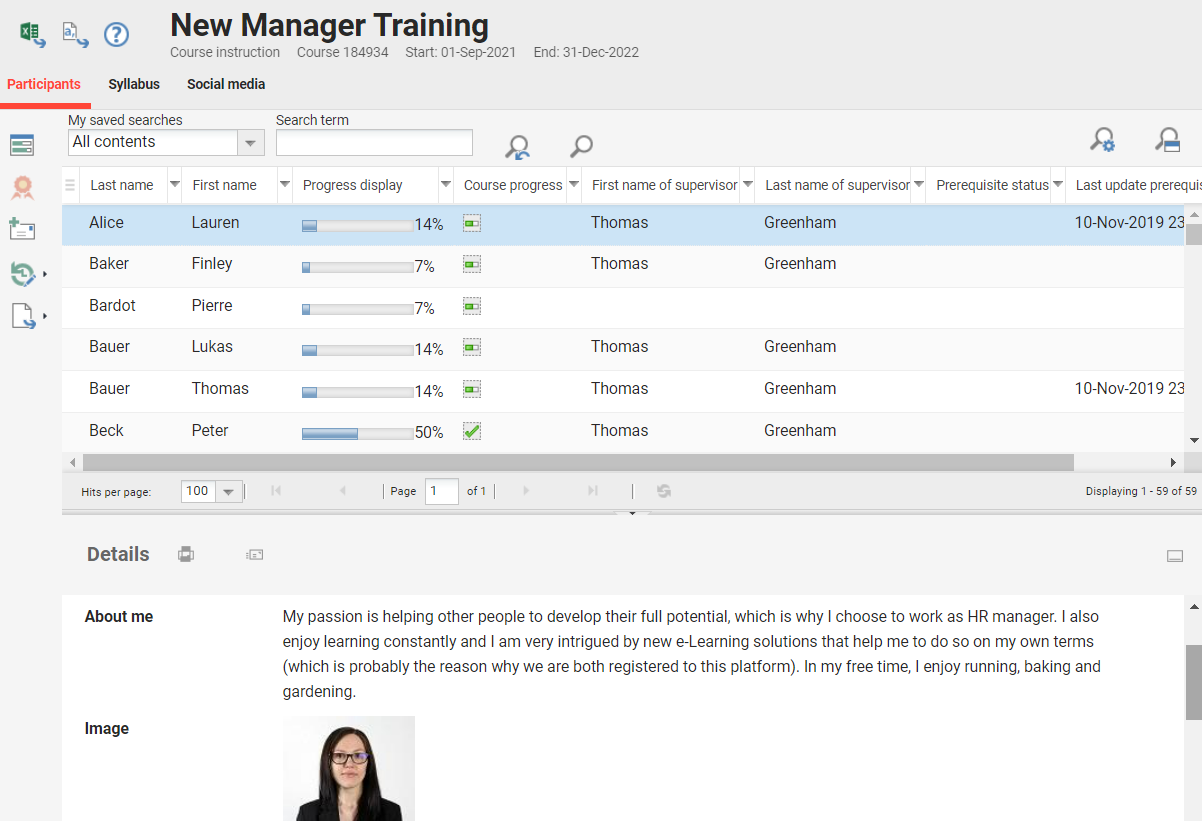
The "Participants" tab provides a progress summary for each participant, including status and the percentage of weighted component completion. Selecting a participant record displays further information in the "Details" section, and the participant can be contacted directly using the "Send E-Mail" icon.
Course Progress per Participant
The "Course Progress per Participant" function displays the course component overview and progress for a selected participant.
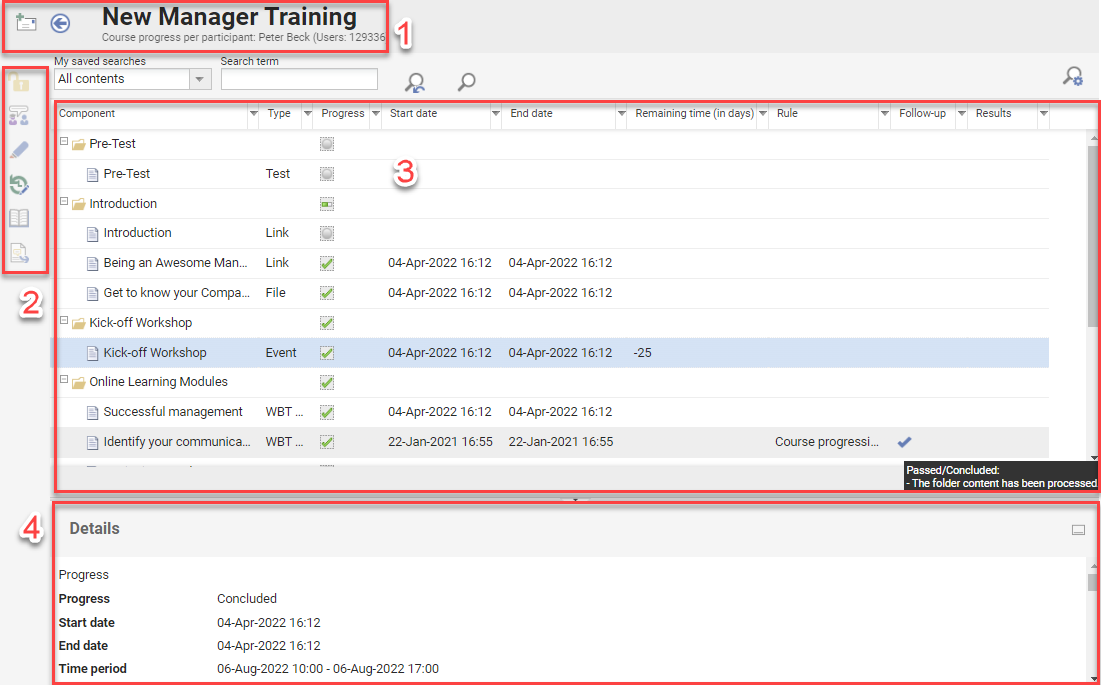
Header (1)
Displays the course name, the participant name, and buttons for "Send Message" and "Back". Changes are saved automatically, so navigating "Back" does not lose any changes.
Sidebar Icons (2)
Six icons allow the tutor to interact with a highlighted component. Each icon is greyed out and only becomes active when a relevant component is selected.
-
Confirm Processing: Confirms the processing of a component for which learning logic rules require tutor confirmation after participant processing, releasing the configured follow-up action, typically a follow-up component or the course conclusion.
-
Supervise On-the-job Training: Allows assessment of tasks marked as complete by the participant for components with "On-the-job Training" enabled. Assessing a task before it is marked complete requires the participant to have an "In Progress" status on the course.
-
Free-Text Question Submitted for Correction: Opens submitted tests for grading free-text questions, normally against a rubric with a sample answer.
-
Edit Learning Progress per Component and User: Opens a pop-up to change the participant's status for the component, enter start and end dates, and flag whether completion was confirmed by the tutor or the participant.
-
Sub-Course Overview: Opens the "Course Instruction" function of the sub-course. There is no function to navigate back to the main course from here.
-
Effectiveness Check: Opens a feedback form, the "Effectiveness Check", in which the tutor can view or provide feedback comparing before-and-after reviews by the tutor, the participant, and the supervisor.
Main Area (3)
Displays the course components in structured, expandable folders, with the following columns:
|
Column |
Description |
|---|---|
|
Component |
Name of the media component. |
|
Type |
The media type the component was created from. |
|
Progress |
The participant's current status, for example "Not Started", "In Progress", "Concluded: Passed", or "Concluded: Failed". |
|
Start Date |
The date the participant first opened the component. |
|
End Date |
The date the participant concluded the component. |
|
Last Access |
The date the participant last opened the component. |
|
Accesses |
The number of times the participant accessed a component of type Test, WBT, or On-the-job Training. |
|
Remaining Time |
The number of days remaining for the participant to complete the component, displayed when scheduling is active. |
|
Points / Results |
The percentage score for graded tests, WBTs with tests, and On-the-job Training. |
|
Rule |
An instructional comment shown when learning logic rules are configured for the component. |
|
Follow Up |
A tick indicates a learning logic rule with a follow-up action; hovering displays the action. |
Details (4)
Displays the description and general information of the component highlighted in the main area, for example the number of requests for the component and the learner's start date.
Learning logic configured for the component, including any follow-up hierarchy and the follow-up action triggered by a tutor, is also displayed here in table form. The "Confirm Processing" toolbar function executes both the confirmation of processing and the release of the follow-up action.
Certificate
Certificates of completion or attendance can be assigned to a course and downloaded as PDF files. Certificate distribution can be configured to make a certificate directly available to the participant on completion, or to require it to be awarded by the tutor or administrator. In the latter case, the tutor selects the "Certificate" icon to print a certificate for a participant with a "Concluded" status.
Send Message
The "Send Message" icon opens a pop-up to compose an e-mail to the selected participants, with their e-mail addresses pre-filled in the "Recipients" field. Selecting multiple participants sends a single e-mail to all of them. Further settings allow other users, including other tutors, to be added in CC, marking the message as "Urgent", uploading attachments, and disabling replies.
Edit
The "Edit" icon provides three functions to view and change participant enrolment and learning progress.
Enrolment History
Displays a log of enrolment status changes for the highlighted participant, including the date, the enrolment change event, and how the last update occurred.
Edit Course Registration Information per Participant
Opens a pop-up displaying the participant's enrolment information, including any order data captured in self-enrolment forms and enrolment notes. A tutor can change the "Participant Status" (for example from "Enrolled" to "Passed"), set "Due Dates", amend "Start Dates" and "End Dates", and change pricing fields.
Learning History
Displays a log of the participant's learning progress, including every processed component and status change, the date of change, who triggered the last update, and, for tests, the number of accesses and the result.
Export (CSV)
The "Export (CSV)" function provides the tutor with two options to export the list of course participants:
|
Option |
Description |
|---|---|
|
Participant |
A standard CSV export in raw format, including all details shown in the "Participants" tab. |
|
Export Based on Template |
An export using a mail-merge template, for example a branded participant list in Microsoft Word. Templates are created by administrators in the "Export Templates" function, and the "Tutor" group requires the "Execute" clearance to use them. |
Syllabus Tab
The "Syllabus" tab summarises course progress per syllabus component across all participants. Course syllabus components are displayed in a structured, expandable folder format, with columns for processing rate, average score, dates, and learning logic rules. Folders and components marked as a "Tutor Folder" are visible only to tutors. The processing rate indicates how many participants concluded a component, and the response rate indicates how many participants accessed it.
Depending on the tutor role and the component types used, up to 13 functional icons are available in the sidebar.
Progress per User
Opens a new tab with an overview of the learning progress of all participants on the selected component. This view includes options for assessing components that require tutor confirmation, such as tests with free-text responses or On-the-job Training.
Test Results
Allows the tutor to download three CSV reports for a highlighted test:
|
Report |
Description |
|---|---|
|
No Structure |
A summary of each submission without participant details. |
|
With Structure |
A single-row overview with the number of attempts, averages, mean, and variation. |
|
Test Results and Course Status per Participant |
One row per course participant, regardless of whether the test was attempted. |
Feedback-Form Results
Allows the tutor to access three report views for a highlighted feedback form. Results are anonymous and sorted randomly, and a configurable minimum number of submissions, normally three, is required before results can be retrieved anonymously.
|
Function |
Description |
|---|---|
|
Feedback Form |
Displays each anonymous feedback form individually in the feedback form player, using the left and right arrow buttons to move between forms. Suited to reviewing qualitative free-text responses. |
|
Feedback-Form Report |
Generates an on-screen summary of the feedback form with results per question, response percentages, and downloadable comments, and can be exported to CSV. |
|
Missing Feedback |
Exports a list of participants who have not yet submitted the highlighted feedback form. |
Date Solutions Are Displayed
Configures a date from which solutions to test questions become accessible to participants. This setting applies only to the older, non-responsive test player.
The Universal Test & Feedback Player (UTFP) does not support this setting.
Learning-Progress History per Component
Displays a pop-up listing all participants with one row per status change, including the new status, the date of change, the component version, and how the last update occurred.
Preview
Displays the course content as it appears to a learner, allowing the tutor to verify that content is displayed and functions correctly.
Open
Opens the course content with the special settings and configurations available to tutors, which may not be visible to learners.
Sub-Course Overview
Available only when a course set is selected. Displays all component courses of the course set with the number of participants broken down by status, for example to assess demand across classroom meetings. The same toolbar functions are available here as in the course overview.
Generate QR Code
Generates a QR code for an "Event" component, which participants scan on entry to a classroom to register their attendance. The "Event" component is usually created as a course-specific media item in the course "Components" tab.
Send Personal Access Codes via Email
Distributes personal access codes to participants for locked tests, which must be entered before the test can be accessed, for example after a tutor has verified the participant's identity in a classroom. This function is only available for a highlighted test created with the access code option enabled.
Proctoring Dashboard
Displays a portal, linked to the Meazure Learning exam-proctoring add-on licence, for tests with a connected Meazure Learning proctoring provider.
Export Participant List per Event
Exports a participant list for "Event" components. A pre-configured export template must be selected.
Export OJT Task Log
Exports the on-the-job training log for tasks with a limited number of attempts.
Library and Social Media Tabs
These tabs are displayed only if the course has components assigned to the "Library" or "Social Media" tabs.
Library
Supports any media component. No participant processing or access is tracked here.
Social Media
Displays "Forum" and "Virtual Classroom" components. For forums, a tutor listed as "Moderator" can monitor the forum and make changes. For virtual classrooms, a tutor assigned the "Host" or "Presenter" role can view details and access the classroom.
Hints & Tips
The progress display is calculated from the completion of course components, weighted so that some components count for more than others. For example, if the total component weighting in a course is 8 and component 4 is completed, this accounts for 5/8 of the course progress:
-
Component 1 → Weighting 1
-
Component 2 → Weighting 1
-
Component 3 → Weighting 1
-
Component 4 → Weighting 5
To be selectable as a "Moderator" of a forum, a tutor must belong to a group with the "Moderator" function enabled. This can be added to the standard "Tutor" group by editing the group.
For information about add-on modules such as Vitero, Meazure Learning, GoToMeeting, Adobe Connect, and WebEx, contact a Scheer IMC account manager or submit a support ticket.