
Feedback form questions are content components assigned within feedback forms for learners to complete; assignment to feedback form templates is also possible. Questions can exist in multiple languages, versioning keeps existing feedback forms unaffected when a new version is created, and classification supports quick selection when assigning questions to feedback forms and feedback form templates.
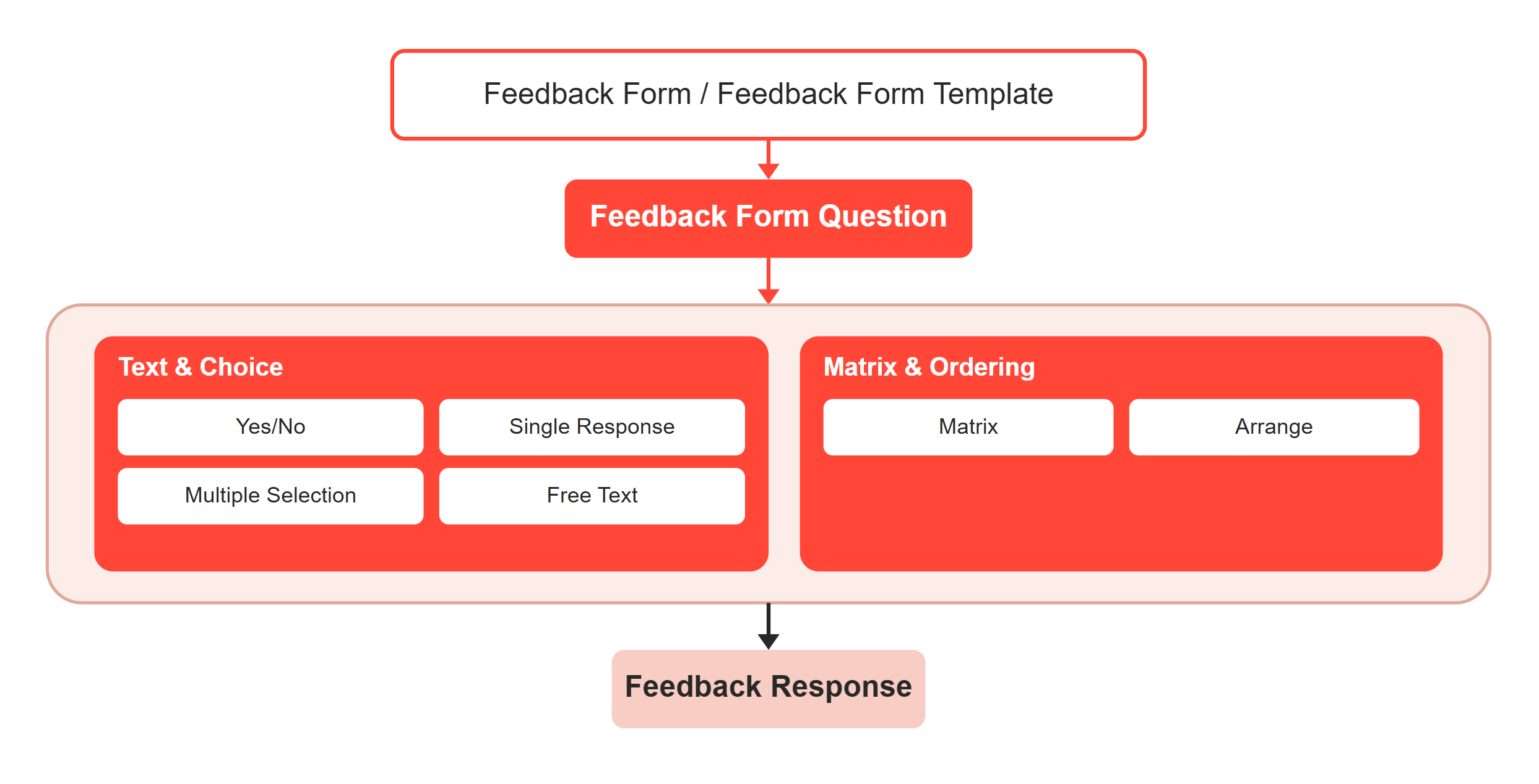
Use and Application of Feedback Form Questions
Feedback form questions are incorporated into feedback forms for learners to work through, and can also be assigned to feedback form templates. Questions support multiple languages, so learners can be shown the language appropriate to them. A versioning system means that creating a new version of a question does not automatically update feedback forms that already use an earlier version, which avoids overwriting existing entries. Existing questions can be duplicated to create similar questions quickly, without repeating every setting individually. Classification of feedback form questions makes it easier to select the right questions when assigning them to feedback forms and feedback form templates.
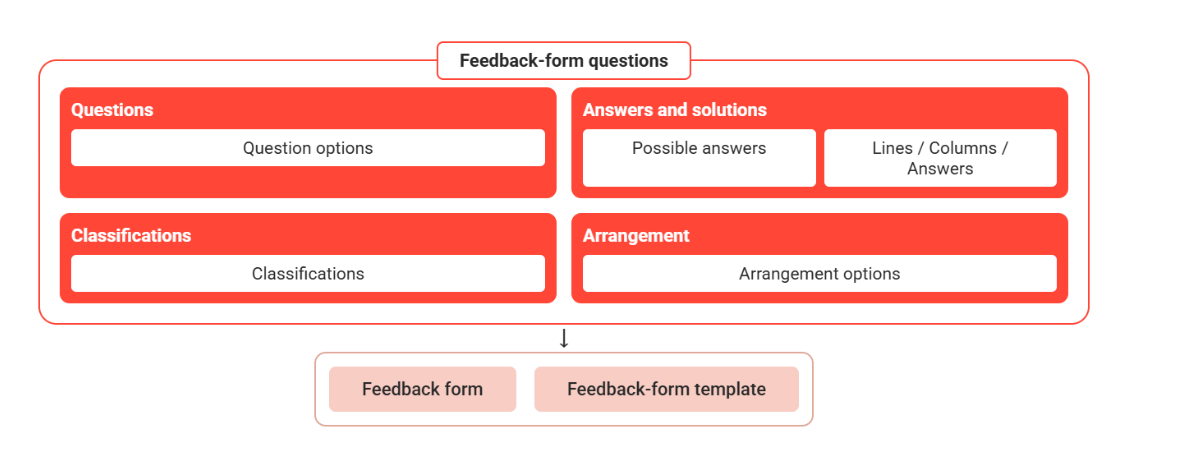
Where a feedback form is used in a course, a question can appear more than once if it refers to a resource: the question is duplicated in the feedback form for every resource of the course that belongs to the category the question refers to, for example evaluating every tutor or every room with the same question.
Relations Between Feedback Objects
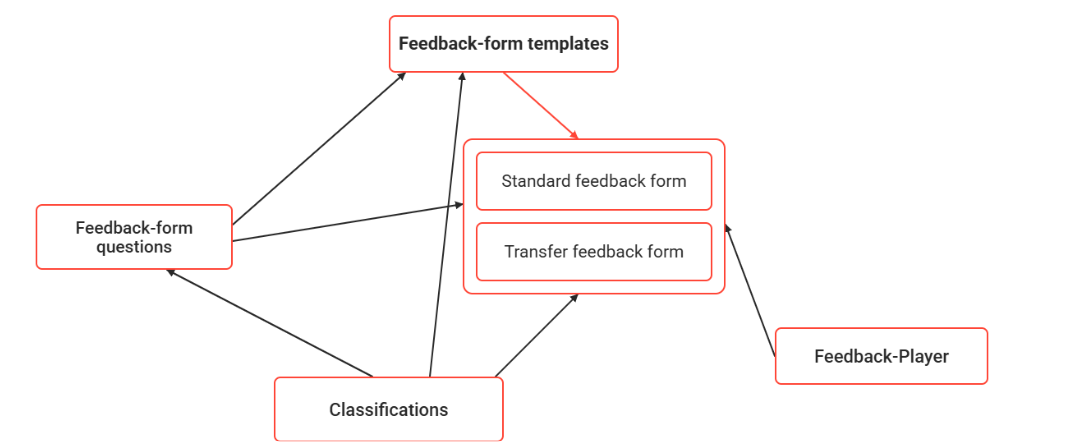
Feedback form questions relate to other feedback objects within the wider feedback framework: they are consumed by feedback forms and feedback form templates, which draw on the Feedback Form Question Manager when questions are assigned.
Functions of the Feedback Form Question Manager
The Feedback Form Question Manager provides the functions used to create, structure, and maintain feedback form questions.
New
A new feedback form question is created through the administration interface, which first asks for the desired question type before presenting a tabbed structure for entering its content and settings. Which tabs are available depends on the question type selected, since each type has its own configuration requirements.
See New
General Structure
The following tabs make up the general editing structure of a feedback form question. Not every tab applies to every question type.
When a question is exported later for offline feedback, only the formatting options provided in the HTML editor fields can be used; other formatting cannot be guaranteed to appear correctly in the exported PDF file.
Description
Holds the question's basic metadata.
|
Setting |
Description |
|---|---|
|
Individual feedback for resource category |
If the question is a component of the feedback which is used in a course, the question will be set for all resources of the category indicated here. In this way, for instance, with a single feedback question several tutors in the same resource category can be assessed by the course participants each with the same question. |
|
Name |
The administrative name will be used during the management of the question and when selecting questions during the creation of a test or feedback. It is based on the name shown to the learner when opening the test/feedback. |
|
Description |
The administrative description will be used during the management of the question and when selecting questions during the creation of a test or feedback. It is based on the name shown to the learners when opening the test/feedback. |
|
Keywords |
Search terms associated with the question, used to find it in the question pool. |
|
Active |
If disabled, the question which was in its previous version added to a test or feedback, will be removed as part of the automatic update process, if configured to run. |
Languages
Manages the languages the question is available in. Each language can be flagged as "Administrative", "Basis", or "Default", and its "Language Translation Status" is tracked (for example "Translated").
Question
The "Question" tab holds all indications connected with the question itself, including the "Question Text". For a resource-specific question, this tab also defines the resource category the question applies to; the resources a question is created for are determined in courses.
|
Setting |
Description |
|---|---|
|
Question Text |
The question as it is presented to the learner. |
|
Resource Category |
For a resource-specific question, the category of course resource the question is duplicated for. |
Possible Answers
The "Possible Answers" tab applies to the Yes/No, Single Response, Multiple Selection, and Arrange question types. It manages the collection of possible answers.
Lines/Columns/Solution
For Matrix questions, the "Lines" and "Columns" tabs define the structural elements of the question. The "Solution" tab establishes which combination of lines and columns represents the intended answer.
Display
The "Display" tab, where applicable to the question type, controls how possible answers are presented (horizontally or vertically) and where media elements belonging to the question or its possible answers are placed.
Classifications
Applies classification categories to the question, supporting its selection and management within the wider feedback framework.
See Classifications
Clearances
Clearances control which users and groups may work with a question. The "Clearance" icon opens a menu with two functions.
-
Edit clearances: Opens the page "Edit clearance" for the selected question. A table lists users and groups with object ID, name, and type. The checkbox "Owner/Unrestricted rights" grants all rights. If it is not set, the column "Specific authorisations" holds the chosen rights.
-
Assign default clearances: Assigns the default clearances to the selected question.
The dialog "Specific authorisations" offers "Execute", "Edit", "Delete", "Release", and "Versioning". Several rights can be selected. The "Details" area below the table shows information on the selected entry, for example type, function, status, type of role, and the number of active and passive users.
See Clearance
Versioning
Questions are versioned. The "Versioning" icon opens a menu with three functions.
-
Versioning: Opens the list of all versions of the selected question. The list shows the identifier, the version number, the version it is based on, the most recent editor, the update date, the published version, the publisher, and the publication date.
-
Publish: Publishes the selected version. The function is not available for a version that is already published.
-
Undo publication: Withdraws the publication of the selected version.
See Versioning
Localisation
The "Localisation" icon opens a menu with the functions for managing the languages and translations of a question.
-
Language administration: Opens the page with the languages of the selected question. Languages are added with the plus icon and removed with the minus icon. The flags "Administrative", "Basis", and "Default" and the "Language translation status" are set here.
-
Add language: Opens the list of languages. A language is added to the question with the plus icon.
-
Change basis: Sets the basis language, which is the starting point for the translation. Several questions can be edited at once. The dropdown then only offers languages that exist in all selected questions and have the status "Translated".
-
Change default language: Sets the default language. It is displayed when the preferred working language of a learner is not available. The same restriction applies to a multiple selection.
-
Change identification: Sets the "Language translation status" of each language to "Do not translate", "Gap in translation", "In translation", or "Translated".
-
Export gaps in translation: Exports all gaps in translation as a ZIP file. An option includes the gaps of subordinate objects. After the download, the checkbox "Change identification" sets the status to "In translation".
-
Import translations: Opens a dialog. A ZIP file is uploaded with "Upload" and imported with "Import".
-
Language dependent files and links: Opens a page with the field "Attachment to questions" for each language.
An external translation takes three steps: export the gaps in translation, translate the exported files, and import the translations.
Preview
The "Preview" icon opens a preview of the selected question.
Specific Question Types
The following question types each build on the general structure above with their own specific configuration. Each type has its own page with the full breakdown of its tabs, creation steps, and evaluation.
|
Type |
Distinctive Tabs |
Evaluation |
|---|---|---|
|
Yes/No |
Possible Answers |
Not specified for this type |
|
Single Response |
Possible Answers |
Per possible answer: weighted or excluded from reporting |
|
Multiple Selection |
Possible Answers |
Per possible answer: weighted or excluded from reporting |
|
Matrix |
Lines, Columns, Solution |
Per combination: weighted or excluded from reporting |
|
Free Text |
None (Possible Answers does not apply) |
Not evaluated statistically |
|
Arrange |
Possible Answers |
Not specified for this type |
Yes/No
The "Yes/No" type highlights one out of two possible answers, offering a straightforward binary choice.
Single Response
The "Single Response" type selects one out of multiple possible answers.
Multiple Selection
The "Multiple Selection" type selects one or more out of multiple possible answers.
Matrix
The "Matrix" type selects one possible answer within a matrix of lines and columns.
Free Text
The "Free Text" type presents an open text field in which a written answer is composed, rather than a predefined set of options to choose from.
Arrange
The "Arrange" type requires objects to be assembled in the correct order.
Global Functions and Related Topics