
Objects such as media, course templates, learning path types, test questions, tests, test templates, feedback-form questions, feedback forms, feedback-form templates, certificates, offline layouts, cost centres and cost types can be versioned in imc Learning Suite. Each time the object properties are edited, the most recent draft is stored in the system as a numbered version and can be published if desired. This allows changes to be traced in chronological order.
Version number samples:
Create object and save as working draft: Version 0.1 (working version)
Publish: Version 1.0
Save again: Version 1.1 (working version)
Publish and replace: Version 2.0
All previous versions of an object can be viewed via "Versioning", together with information on the editing process, the editor, and the current version. Unlike the main administration of versioned objects and the search for versioned objects, this view is not limited to the most current version.
The displayed versions can be edited in the version overview. Editing a version assigns it a new version number. "Publish" publishes any version at any time and makes it the current version. "Undo publication" retracts a published version. Versions can also be created and published at a later time.
Objects linked by assignments can be updated automatically or manually. Automatic updates are carried out via the corresponding checkbox. Courses with a learning logic can only be updated automatically before the course starts. Courses without a learning logic, like all objects except tests, feedback forms, WBT (AICC), and WBT (SCORM), can only be updated before the first processing. This ensures that participants' learning-progress statuses for specific versions are not overwritten.
At various points in the system where versioned objects are assigned to other objects, the administrator can choose whether the currently published version or the initially assigned version is used.
When assigning objects, only published versions can be used.
Version Manager
To open the version manager, you must select one or more objects in a manager that manages versionable objects, such as the Course Template Manager.
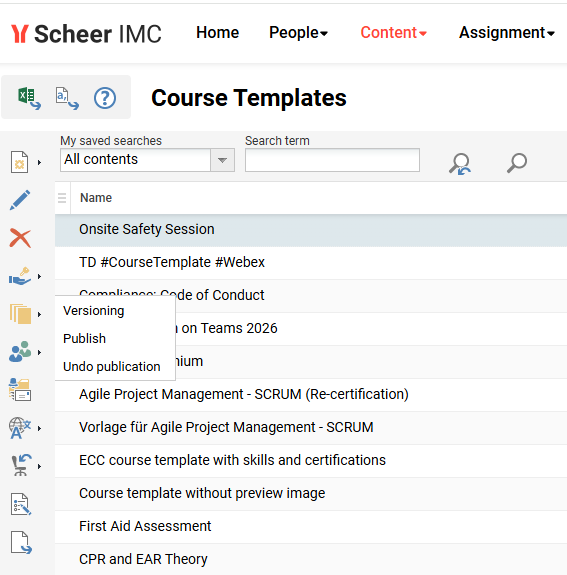
Versioning
Opens the version management/history for this template. Every save can create a new (major) version; the view lists all versions with creator, publisher, and publishing date , and allows switching between or comparing them by editing the specific versions.
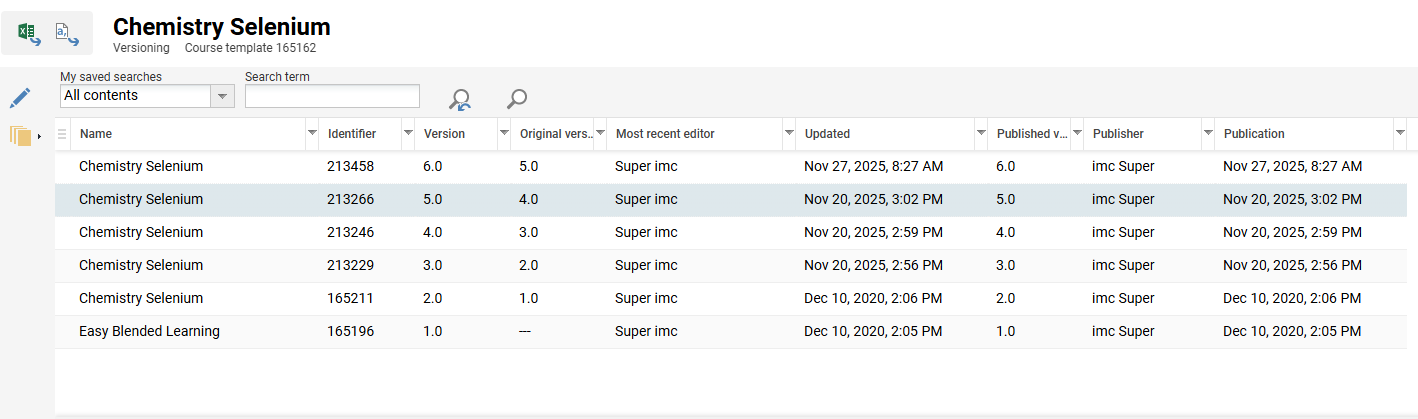
Saving an older version will create a new version. The version number shows whether a version is published: for example, the system assigns version number 7.0 to a published version.
If you simply save the file, a draft version is created, which is then assigned version number 6.1.
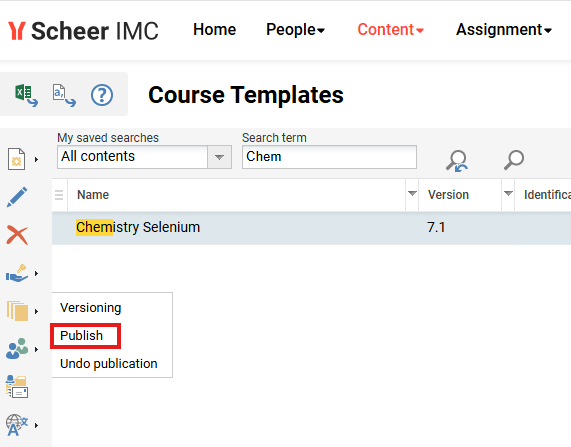
Publish
To publish a draft version, the “Publish” option in the toolbar can be used.
In the example shown in the screen the version 7.1. will become version 8.0.
Undo publication
Reverts the template to unpublished status, withdrawing it as the official published version. The template returns to draft (working) status and is no longer offered when creating new objects, for example new courses.
Hints & Tips
To update an existing course with details from a course template, or to link the course to a different course template, the "Transfer data from template" function in the course administration can be used. Switching the linked course template is only possible if the course has not started yet. The procedure is described in the FAQ Changing the Course Template of a Course.
Related Topics
Course Template Administration