
ID=171
The catalogue panel allows to query courses in a catalogue and display the results on a dashboard.
Panel Settings
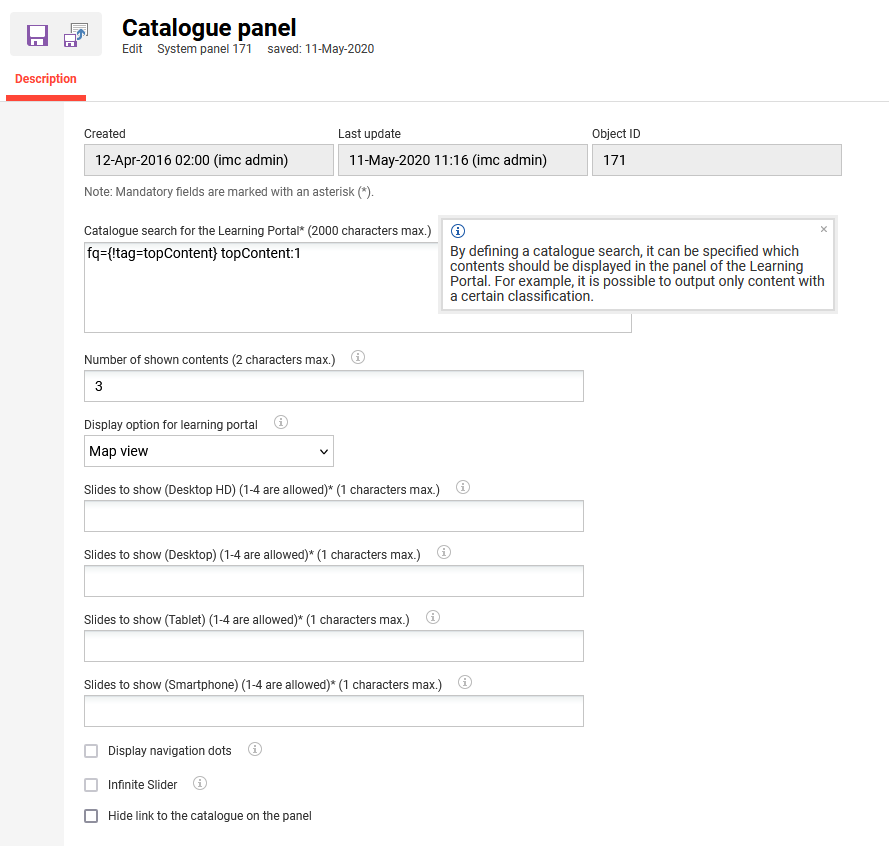
Catalogue search for the Learning Portal
By pre-defining a catalogue search query, it can be specified which contents should be displayed in the panel of the Learning Portal. For example, it is possible to output only content with a certain learning mode. By configuring a catalogue search in ILP a part of the generated URL can be taken as search query. All kind of filter combinations can be used.
Example:
The panel should show courses online courses which are free of charge and on which the learner isn’t enrolled.
Navigate to the catalogue in the learner view and define the search.
-
Activate the quick filters “Not enrolled”, “Free of charge”
-
Learning mode “Online”
Execute the search. The address bar of your browser shows e.g. a link like the following: https://achievemore.imc-ms-deployment.imc-cs.com/ilp/pages/catalogsearch.jsf?catalogId=1700,122832&menuId=1108&locale=en-GB&showbundlekeys=false&client=clients&sidebarExpanded=true&q={!q.op%3DAND} *:*&rows=10&fq={!tag%3DnotBooked} notBooked:1&fq={!tag%3DexternalPriceAmount} externalPriceAmount:(0)&fq={!tag%3DlearningFormId} learningFormId:(113)
The part of the URL beginning with the first “fq=...” is used as the search query. In this example fq={!tag%3DnotBooked} notBooked:1&fq={!tag%3DexternalPriceAmount} externalPriceAmount:(0)&fq={!tag%3DlearningFormId} learningFormId:(113)
This snippet can be entered in the Catalogue search for the Learning Portal field.
Number of Shown Contents
With the help of this option, you can limit how much content is displayed in the panel. If additional content is available, a link to all content (e.g. all current courses) will be displayed. If the field is empty, all available content will be displayed.
The Carousel view display content has additional configurations that can be made for the panel contents in order to display different views in the Learning Portal.
Based on the type screens we can configure up to 4 tiles for the content to be displayed in the Learning portal and 1 character maximum in each section. There are 4 types of screens: Desktop HD, Desktop, Tablet, Smartphone.
Moreover, the Carousel view content display provides 2 more options which can be selected based on the preferred content view: Display navigation dots and Infinite slider.
For learning paths, this option is only available when using content-driven paths in the panel. For level-based learning paths, a single type of display is supported, therefore this setting is shown as disabled.
Display option for learning portal
Panel contents can be displayed in various views in the Learning Portal. Several options are available. Either the map view or the list view can be used. Alternatively, a slider can be displayed with either one or multiple tiles in focus, while other tiles can be controlled using buttons or by swiping on a touchscreen.
List view:

Carousel with one tile in focus:

Carousel with multiple tiles in focus:

Map view:
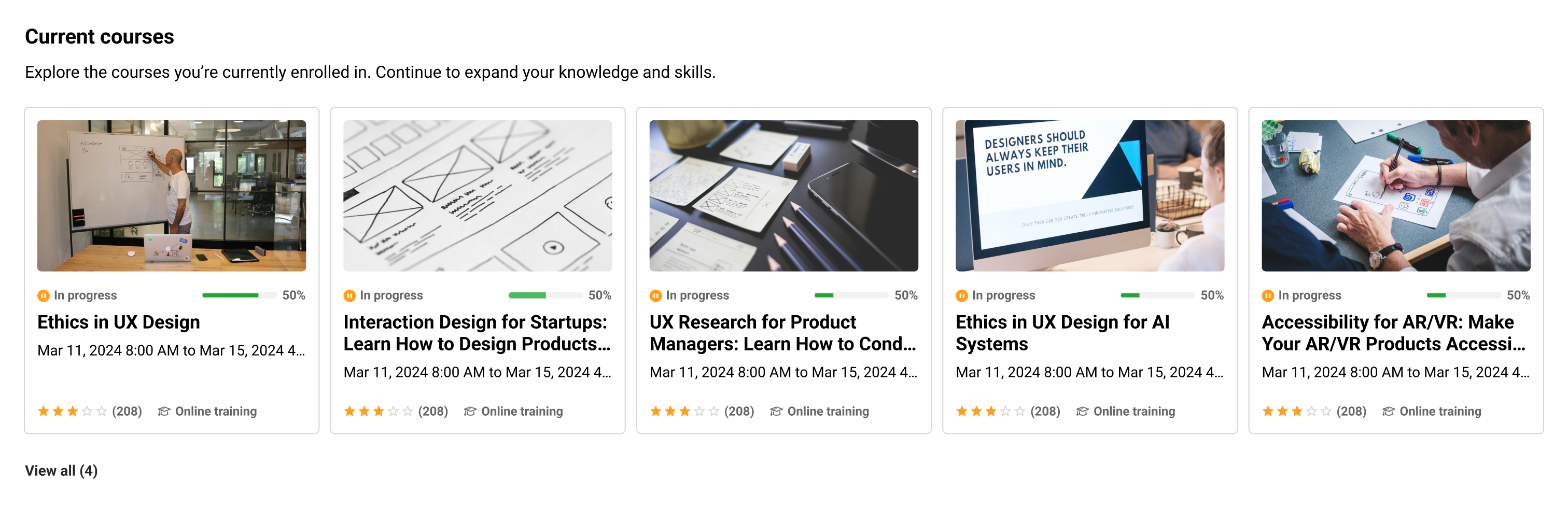
Carousel view:

|
Setting |
What does this setting do? |
|---|---|
|
Slides to show (Desktop HD) (1-4 are allowed) (1 characters max.) |
Defines the number of tiles that will be visible in a Desktop HD (between 1024px - 1280px) when using the Carousel view layout type. For an optimal display you can specify maximum 4 tiles. |
|
Slides to show (Desktop) (1-4 are allowed) (1 characters max.) |
Defines the number of tiles that will be visible in a Desktop (between 800px - 1024px) when using the Carousel view layout type. For an optimal display you can specify maximum 4 tiles. |
|
Slides to show (Tablet) (1-4 are allowed) (1 characters max.) |
Defines the number of tiles that will be visible on tablet (between 500px - 800px) when using the Carousel view layout type. For an optimal display you can specify maximum 4 tiles. |
|
Slides to show (Smartphone) (1-4 are allowed) (1 characters max.) |
Defines the number of tiles that will be visible on smartphone (below 500px) when using the Carousel view layout type. For an optimal display you can specify maximum 4 tiles. |
|
Display navigation dots |
Allows the display of the navigation dots below the panel when the carousel layout type is used. |
|
Hide link to the catalogue on the panel |
|
|
Infinite slider |
Displays an arrow-based navigation at the top of the carousel. The navigation will be continuous, starting again from the beginning when reaching the end of the list. |
Related Functions
Configuration Manager - Enrolment | Enrolment identifiers
Catalogue Manager
Panels
Dashboard Administration