
The search bar in the top navigation enables the user to quickly search for the content he is looking for in catalogues, “My Learning” and channels and is accessible from anywhere in the system.
Users can search for specific topics, such as “leadership”, “Sales Techniques”, to instantly access relevant content without manually browsing through extensive content.
Recent searches
When users click in the search bar in the top navigation, “recent searches” are shown.
Recent searches show the latest search terms searched by the user and allow to revisit previous queries quickly, streamlining repetitive tasks and improving workflow efficiency.
Only relevant successful search queries are saved to recent searches. Entries with no user action or searches with no results are filtered out, ensuring the history remains clean and relevant across different browsers and sessions.
Also data privacy compliance is ensured by automatically deleting search history after 90 days.
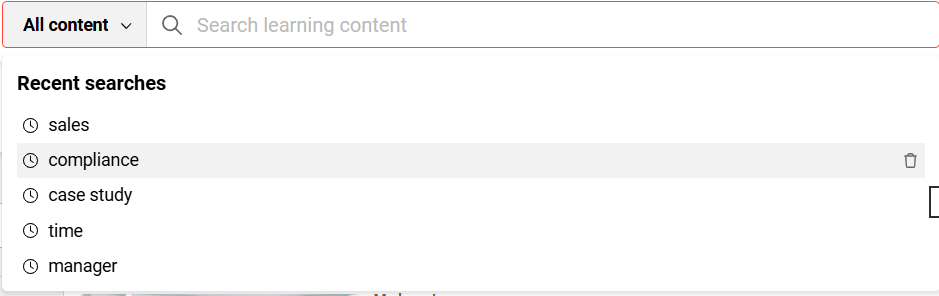
Deleting search history
With the help of the “delete” button, the user can delete the individual search entries in the recent search history.
Filters

The content area filter on the left enables the user to search within a specific content source in either catalogues, channels, My Learning or in all of them. The filter options are equivalent to the plugins added in the data connector. If you have less than two data sources indexed (e.g. only catalogues) the filter won’t show.
Benefit
Channel users can search within channels by choosing “Channels”. If the top 7 results display the expected results the user does not have to navigate away from the channel page (to the search result page).
Channels filter will be shown only if a channel license is available.
Search results in the top navigation (quick search)
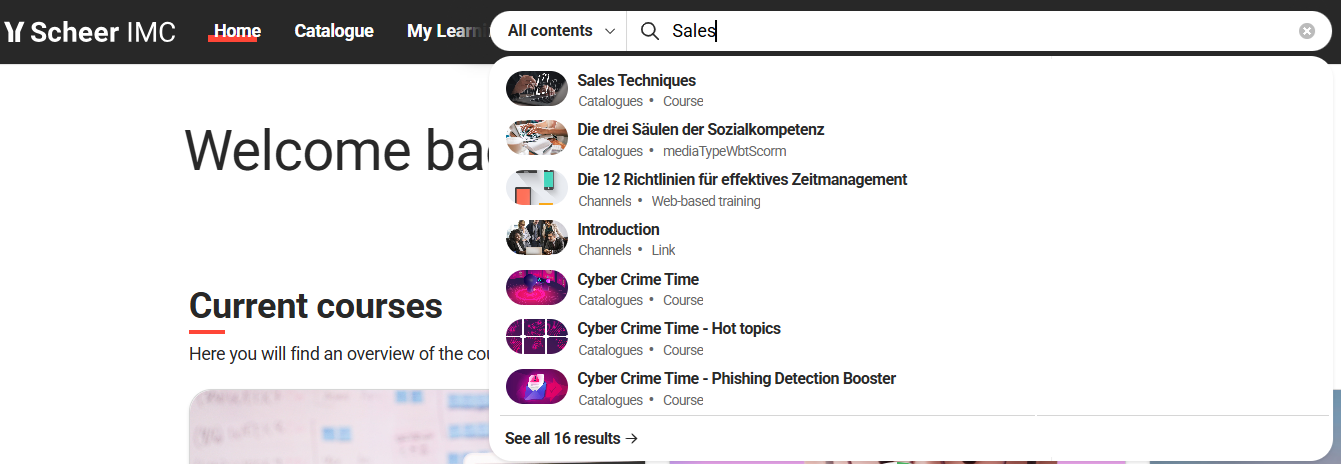
The search results display matching content related to the search term entered by the user, saving time compared to manual browsing.
Users can immediately see a list of relevant content while they are typing.
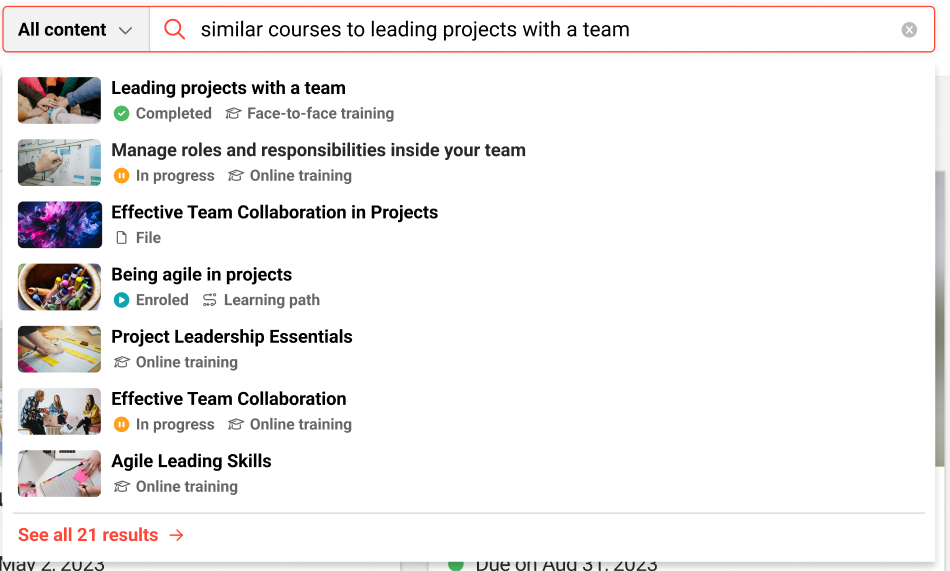
In search results, the title, the status (if the case) and type of the content is shown on each tile which enables the users to choose the format that best suits their needs.
Advanced search
Advanced search enables the user see all results and refine them using the filters on the left side.
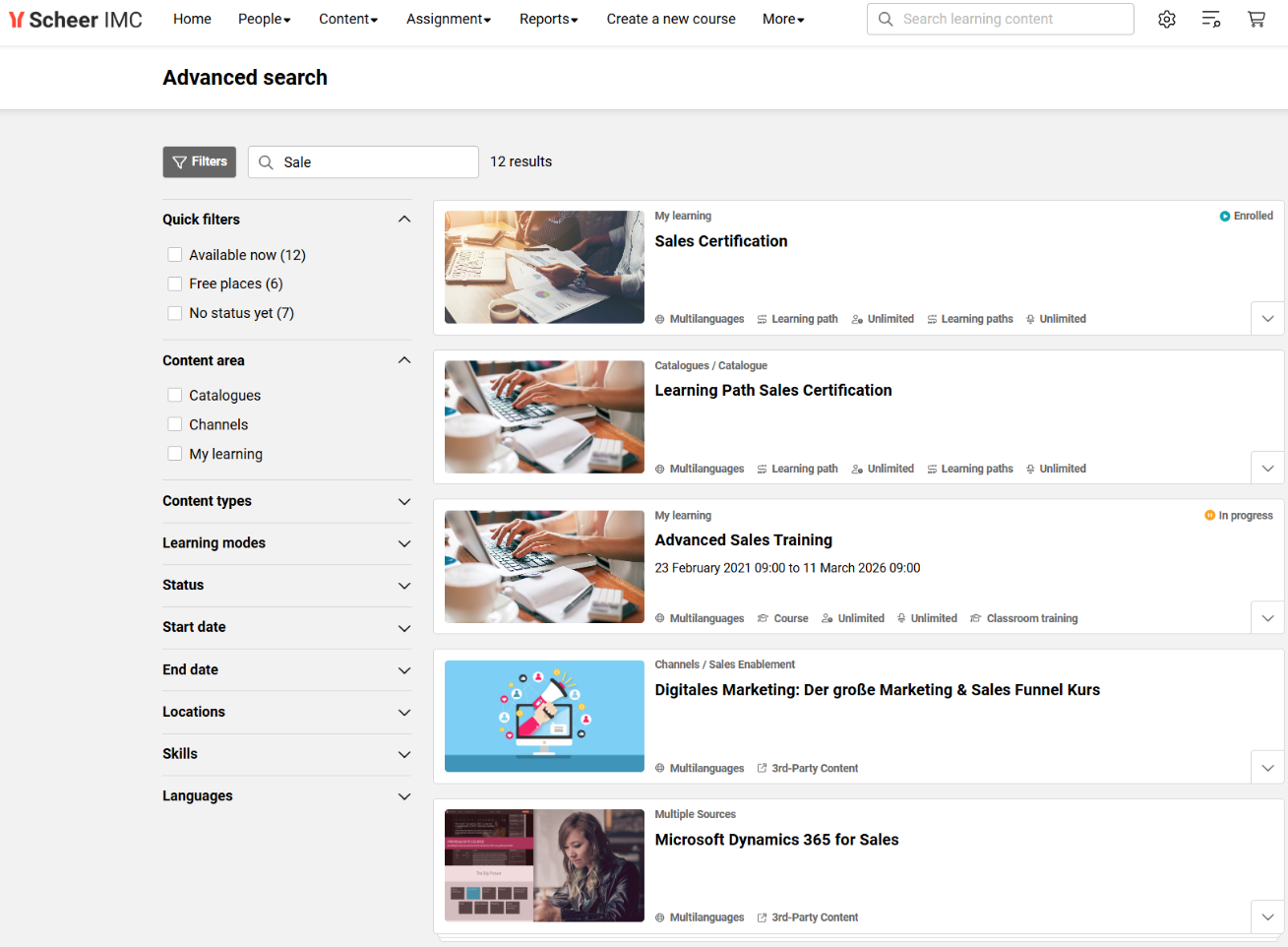
Filters
Filters help to refine and narrow down the number of results to match certain criteria.
The following filters on advanced search are available (fixed - not yet configurable order):
Quick filters
|
Filter |
Description |
|---|---|
|
Available now |
The filter shows the learning objects that can be started right now. These are:
|
|
Free places |
the filter shows learning objects that have no participant limit or the limit is not reached yet. |
|
No status yet |
the filter shows courses and learning paths without a personal learning status of the learner who searches. A personal learning status could be “on waiting list” or “enrolled” or “In progress”… |
Content area
|
Filter |
Description |
|---|---|
|
Catalogue |
|
|
Channels |
|
|
My Learning |
|
Additional filters
|
Filter |
Description |
|---|---|
|
Content types |
e.g. course or file or video |
|
Learning modes |
classroom training or online training |
|
Status |
Course or learning path status like e.g. “In Progress” or “Cancelled” |
|
Start date |
earliest start date defined for the courses/learning paths |
|
End date |
latest end date when the courses/learning paths finish |
|
Locations |
filters by the location the training takes place |
|
Skills |
filter courses or learning paths that help acquire the selected skills |
|
Languages |
shows only content in the selected language |
|
Catalogues |
If only one catalogue is shown, the catalogue filter will not be shown |
Channels filter will be shown only if a channel license is available.
Search results
The search results displays matching content related to the search term entered by the user.
On each tile the user sees the source of the found object. The breadcrumbs on top of the tile show for example the name of the catalogue the object is assigned to.
The title, the object type, the personal learning status (not for media) and further meta information is shown.
Clicking on the "down arrow" will expand the Learning Card and reveal the description of the content.
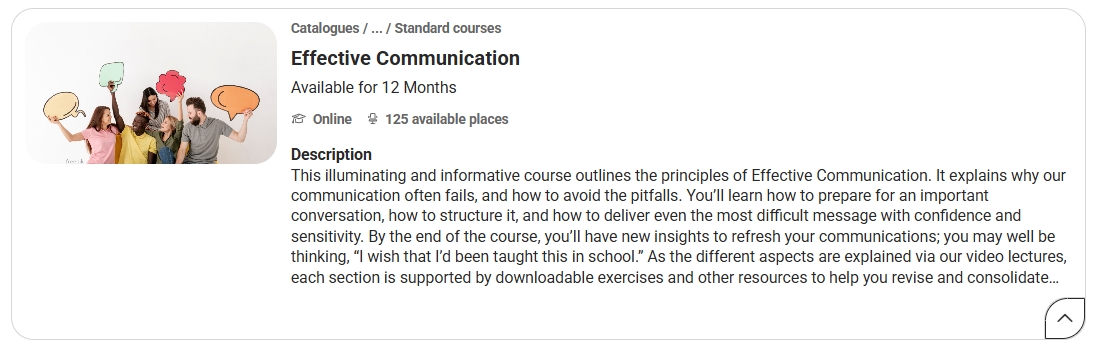

A click on the tile takes the user to the object's detail page.
If the user has one of the following statuses: in progress, enrolled, completed, passed, or failed, then the user will be led directly to the syllabus page of the learning object (not the description page). For the course template/learning path template/learning path, the redirect will be done to the following pages: Available courses/Available learning paths page.
Multiple sources
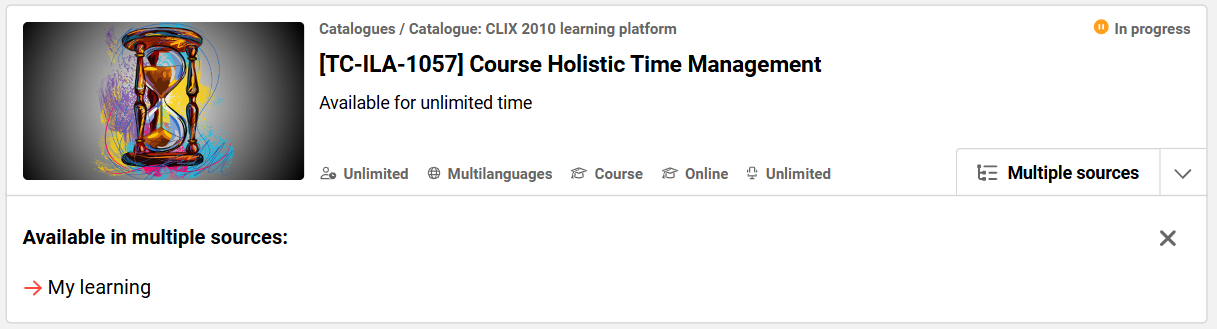
In case there are various sources a content can be found in e.g. the same content is found in multiple channels or multiple catalogues, the tile shows “Multiple sources” button which when is clicked, expands the tile to show the "multiple sources".
If the same content is existing in multiple channels and multiple catalogues, then there would be two search tiles shown - one with multiple channels and other with multiple catalogues.
“Multiple sources” show the content areas where the content is present. Users can decide where they want to be linked to by clicking on one of these multiple sources.
The multiple sources are shown in the order they have ben received from the search service. The list is not influenced by any factor. The first one on the list received would be the data source of the content where the user would be taken if he directly clicks on the tile.
Metadata on tiles
Metadata on tiles can be configured to be shown on the search results in the Configuration manager and the Client settings.
Navigating back to search results
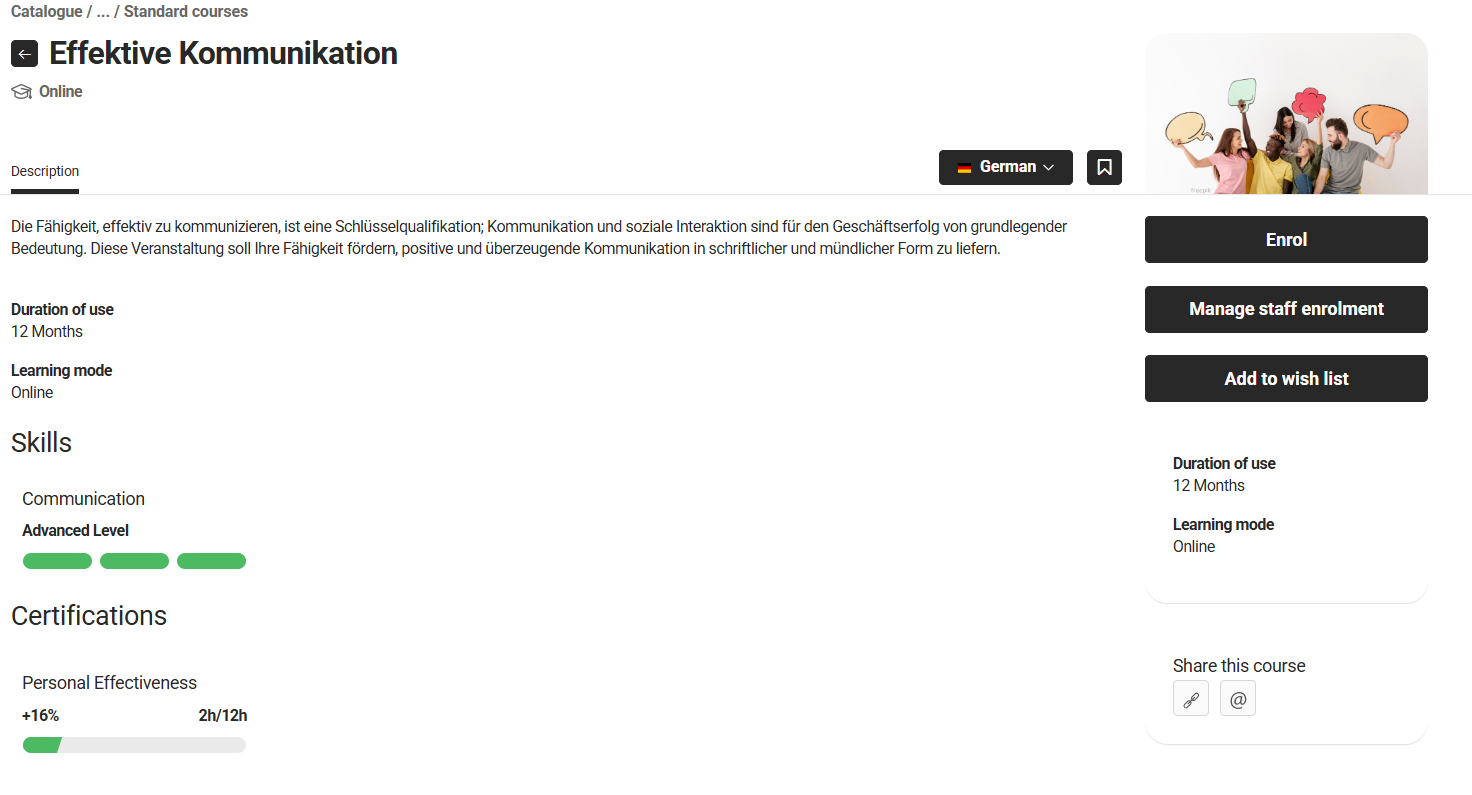
On the detailed page a “back” button (arrow) is present, which facilitates the return to the search results. The breadcrumb above it enables the user to navigate to any parent in the hierarchy.
Multi-language handling
Multi-language handling in global search is in consistence with other parts of the system providing a consistent, user-friendly multilingual experience.
-
Search content is shown in the user's preferred language. If unavailable, it falls back to the content's default language — so users always see results in the most relevant language.
-
Filters, data source of the search content and metadata on tiles are always displayed in the logged-in user's platform language
-
Details page opens in the same language the search result was shown in, avoiding a jarring language switch when clicking through.
Relevance of the search results
Currently the following information is considered for finding relevant search results and has been listed in the order of priority:
-
Title of the content
-
Keywords of the content (only for lexical search)
-
Identification code (only for lexical search)
-
Description of the content
For semantic search, the terms which are semantically similar e.g. Courses and Trainings would be considered at the same level of relevance.
If the search term consists of more than one word, then the content where the both of the words are present would be ranked higher than the content where only one of the word is present.