
The training calendar was implemented in imc Learning Suite for learners and supervisors to view scheduled training in a calendar view (day/week/month/year).
Both learners and supervisors can access the training calendar and check the registered (enrolled), ongoing (in-progress) and completed (passed/failed) courses and learning paths.
Learners can access the training calendar to see their enrolled/in-progress/completed courses and learning paths and navigate to the course syllabus from the training calendar.
Supervisors can access the training calendar to view their learners’ (staff members’) enrolled, in-progress, and completed courses and learning paths and navigate to the staff members’ course progress reports from the training calendar.
Benefits
The training calendar helps multiple stakeholders within the organisation.
The learner can benefit from it by having a better overview of the activities that he will undertake in the future. This can help him to schedule his monthly/ weekly/ daily activities efficiently. Moreover, the learner stays motivated and engaged by the learning activities offered by the company.
The supervisor can benefit from the training calendar by ensuring that all the employees from the department are properly trained on the latest compliance regulations. Furthermore, the supervisor can calculate the capacity of his team based on the schedule of the employees. Additionally, the progress report helps the supervisor to keep track of the progress of the employees and if necessary to take action if some of them are late.
The organisation can keep employees engaged and motivated to learn by scheduling a variety of training activities throughout the year. This helps to ensure that employees retain the knowledge they acquire during training and can apply it effectively in their work.
How Is It Set Up?
To have the training calendar displayed in the navigation bar, a new menu must be added in the navigation manager by the administrator.
-
Create-> Menu-> In the hierarchy below the selected element (My learning) is selected.
-
On the newly opened page, Menu type is set to Default menu.
-
Default menu is selected, Training is searched for, and one of the following 3 options is selected:
-
Training calendar learner
-
Training Calendar (supervisor)- Resource based
-
Training Calendar (supervisor)- Calendar based
-
The Identifier must also be filled out with a name; for example: training_calendar_learner.
-
The “Name” must be filled out; for example: Training calendar Learner.
-
The access rights are then set accordingly from the Access right tab by clicking the plus button and selecting the target group.
-
“Save and close” is selected.
The training calendar can be found in the Navigation tab under “My learning” -> “My Training calendar” (learner)
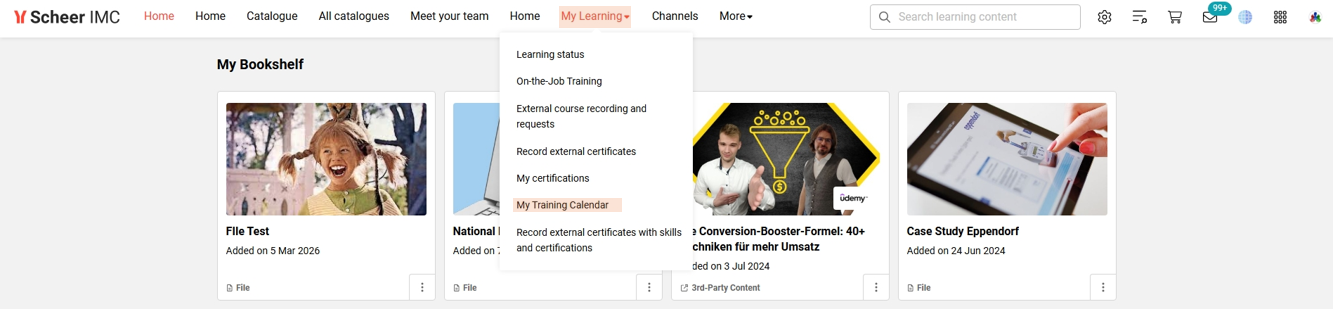
Default View
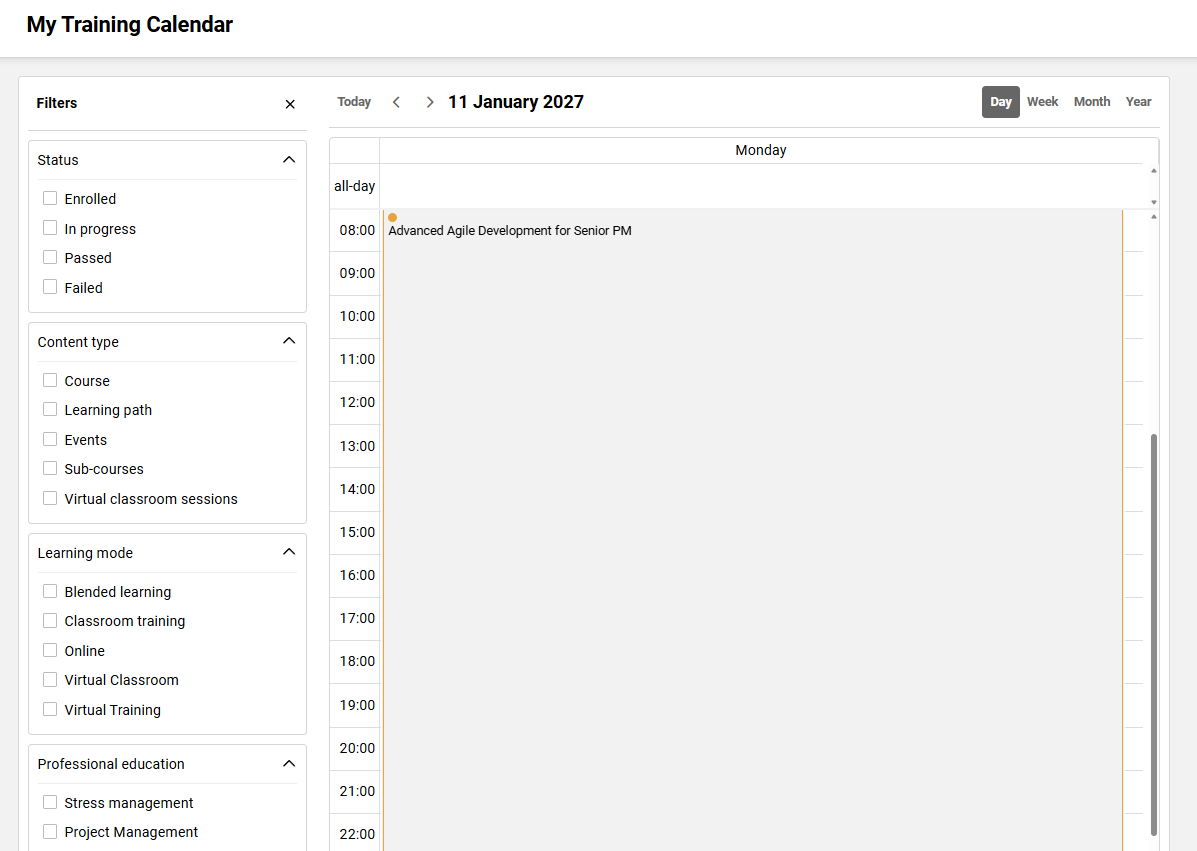
By default, the training calendar is always displayed as follows:
-
Monthly view of the current month
-
Today’s date filter is automatically selected and highlighted in the calendar view
-
Filters’ tab is open
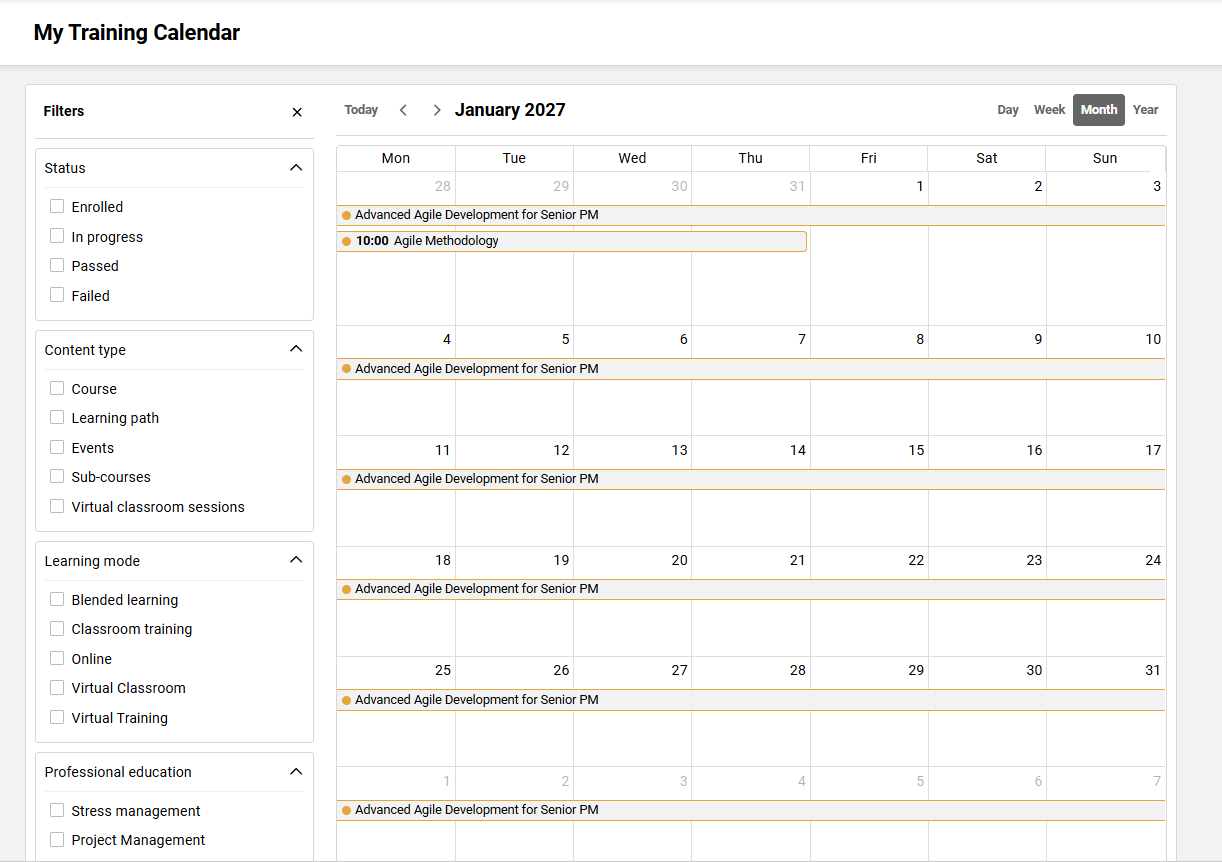
How Is It Used?
Views
Year View
-
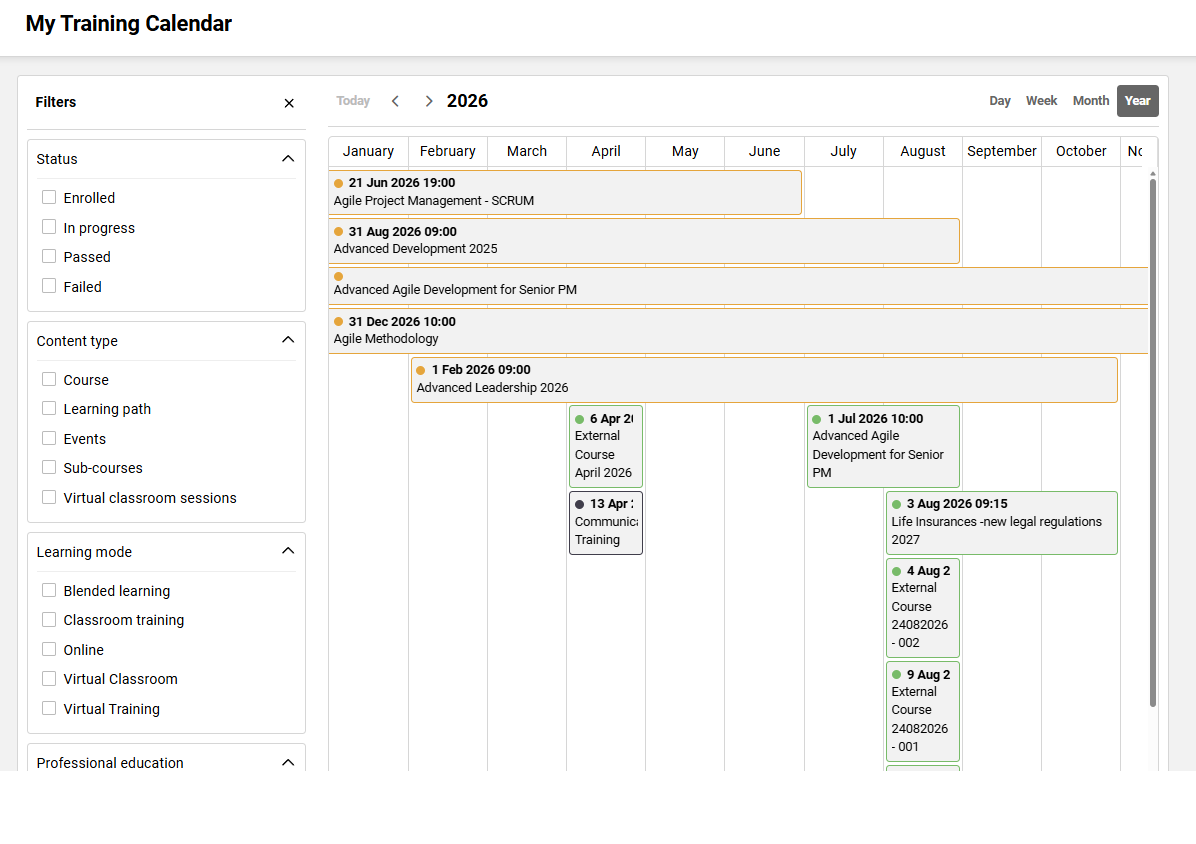
The year button enables the user to switch the calendar display to a yearly view, with each column representing a month in the year.
-
In this view, “<” is selected to navigate to the previous year and/or “>” is selected to navigate to the next year.
-
The applicable year information can be found in the top-left corner of the calendar.
-
The “Today” button enables users to return to the current year view.
Month View
-
The month button enables the user to switch the calendar display to a monthly view, with each column representing a date in the selected month.
-
In this view, “<” is selected to navigate to the previous month and/or “>” is selected to navigate to the next month.
-
The applicable month information can be found in the top-left corner of the calendar.
-
The “Today” button enables users to return to the current month view.
Week View
-
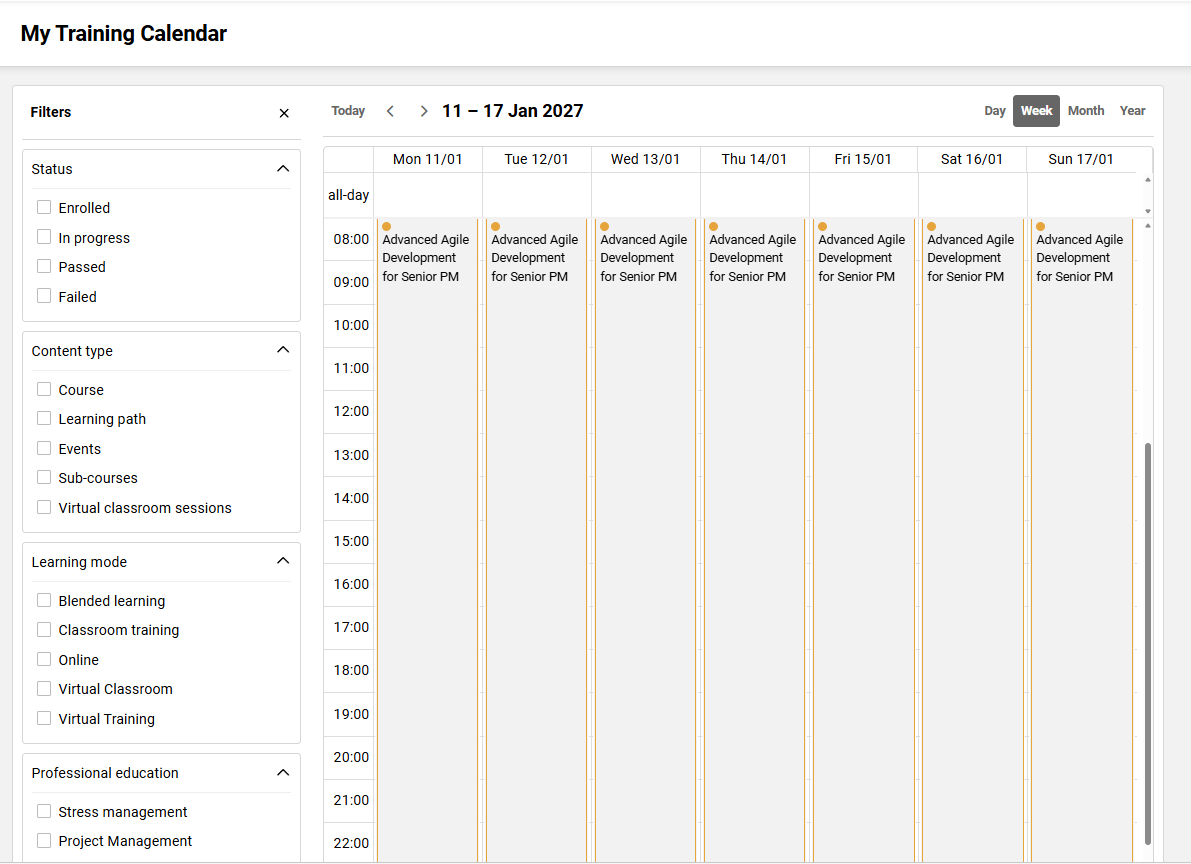
The week button enables the user to switch the calendar display to a weekly view, with each column representing an hour of the day in the selected week.
-
In this view, “<” is selected to navigate to the previous week and/or “>” is selected to navigate to the next week.
-
The applicable week information can be found in the top-left corner of the calendar.
-
The “Today” button enables users to return to the current week view.
Day View
-
The day button enables the user to switch the calendar display to a daily view, with each column representing an hour of the selected day.
-
In this view, “<” is selected to navigate to the previous day and/or “>” is selected to navigate to the next day.
-
The applicable day information can be found in the top-left corner of the calendar.
-
The “Today” button enables users to return to today’s view.
Filters
The filters are displayed automatically in the training calendar. The filters table can be hidden by clicking the “x” button.
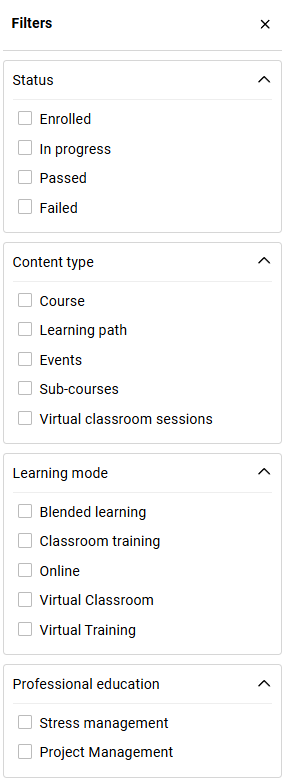
The filters are categorised in four sections: Status, Content type, Learning mode, and Classifications.
Status
-
Enrolled
-
In progress
-
Passed
-
Failed
Content Type
-
Course
-
Learning path
-
Events
-
Sub-courses
-
Virtual classroom sessions
Learning mode
-
Classroom training
-
Blended Learning
-
Online
-
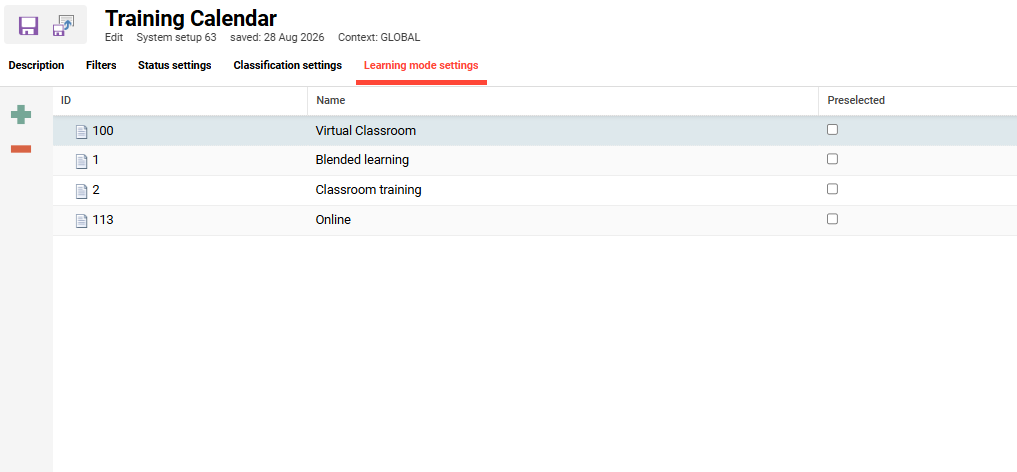
Custom-created learning modes
Classifications
Configurable in the Configuration Manager > Training Calendar
User View for Managers
Learner View
The training calendar displays courses, learning paths, events, sub-courses, and virtual classroom sessions in which the learner has an enrolment relationship, i.e., enrolled, in progress, passed, or failed, for the period from the course start date until the course end date.
The enrolment statuses are displayed in different colours for easy identification:
-
Enrolled

-
In-progress

-
Passed

-
Failed

More information can be found by selecting one of the different content types, such as:
-
The name
-
Content type
-
Date
-
Course Syllabus button for Courses/ Open learning path button for Learning path
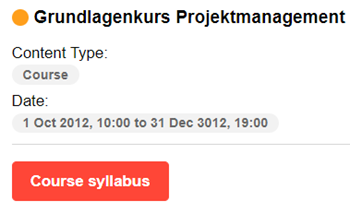
When the course syllabus button is selected, the learner is redirected to the course Syllabus page, where the course components can be accessed and learning can be continued.
When the Learning path button is selected, the learner is redirected to the learning path Syllabus page, where the courses within the learning path can be accessed and learning can be continued.
Manager View
The manager has access to two types of training calendars:
Staff Calendar- Resource Based
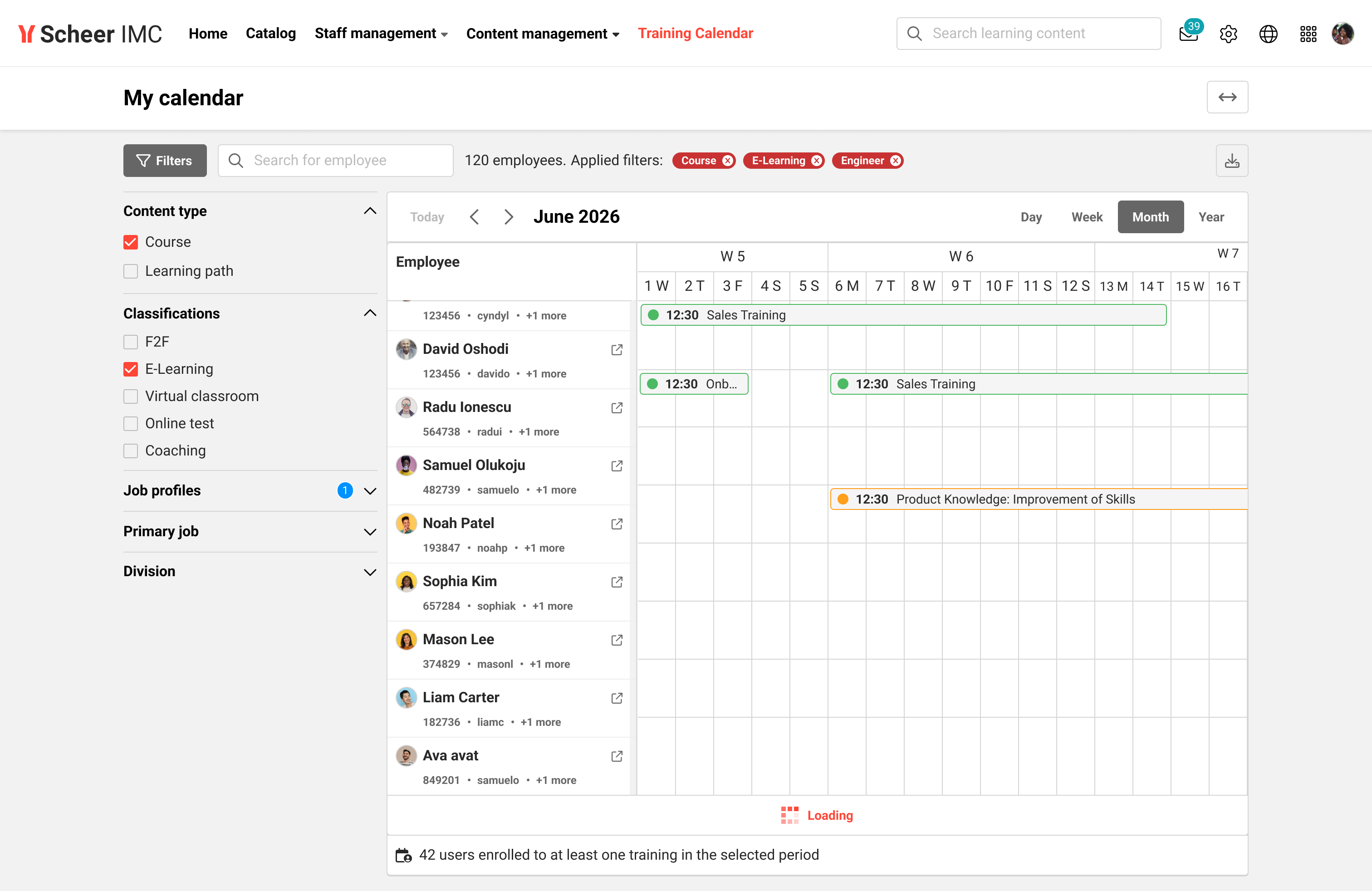
The Resource-Based Staff Training Calendar provides supervisors with an employee-centric matrix where staff members are listed alongside their respective enrolment states and date-bound training components.
Real-Time User Search
A centralized search bar integrated within the resource calendar header enables supervisors to locate specific employees without manual scrolling:
-
Search Scope: Supports partial and exact matching against First Name, Last Name, and Internal Username / Login ID
-
Case-Insensitive Evaluation: Search strings match regardless of capitalization (e.g.,
jOhNresolves toJohn). -
Composite Filtering: Search criteria operate in conjunction with active status, content-type, and attribute filters; only employees satisfying both search terms and filter parameters are rendered.
Personal Attribute Filtering & Dynamic User Cards
To facilitate workforce management across large operational divisions:
-
Attribute Dock: Supervisors can filter staff lists by standard and custom personal attributes. The filter can be activated via Training Calendar Configuration Manager. All the attributes are based on the Staff Training Calendar user list (ID 115).
-
Enhanced User Cards: Staff rows display user attributes as defined in the Staff Training Calendar user list, incorporating a chiplist interface with interactive tooltips for overflow tags.
Active Enrolment Counter & Absence Analysis
To evaluate departmental coverage and absence impact:
-
Enrolled Staff Counter: A fixed footer bar calculates and displays the aggregate number of employees enrolled in at least one training session within the selected calendar window.
Filtered CSV Export
Supervisors can export the active resource calendar layout to a structured .csv file via the toolbar Download button:
-
Dataset Inclusion: The exported file captures complete relational data, including Participant Name, Internal Username, User ID, Course Name, Component Type, Start & End Timestamps, and Virtual Classroom Details.
-
Filter Fidelity: The export pipeline strictly adheres to active search terms, temporal boundaries, and attribute filters.
-
Interactive Tooltip: Hovering over the download control indicates the exact target record count (e.g., "Download all 42 filtered entries as CSV").
Staff Calendar- Calendar Based
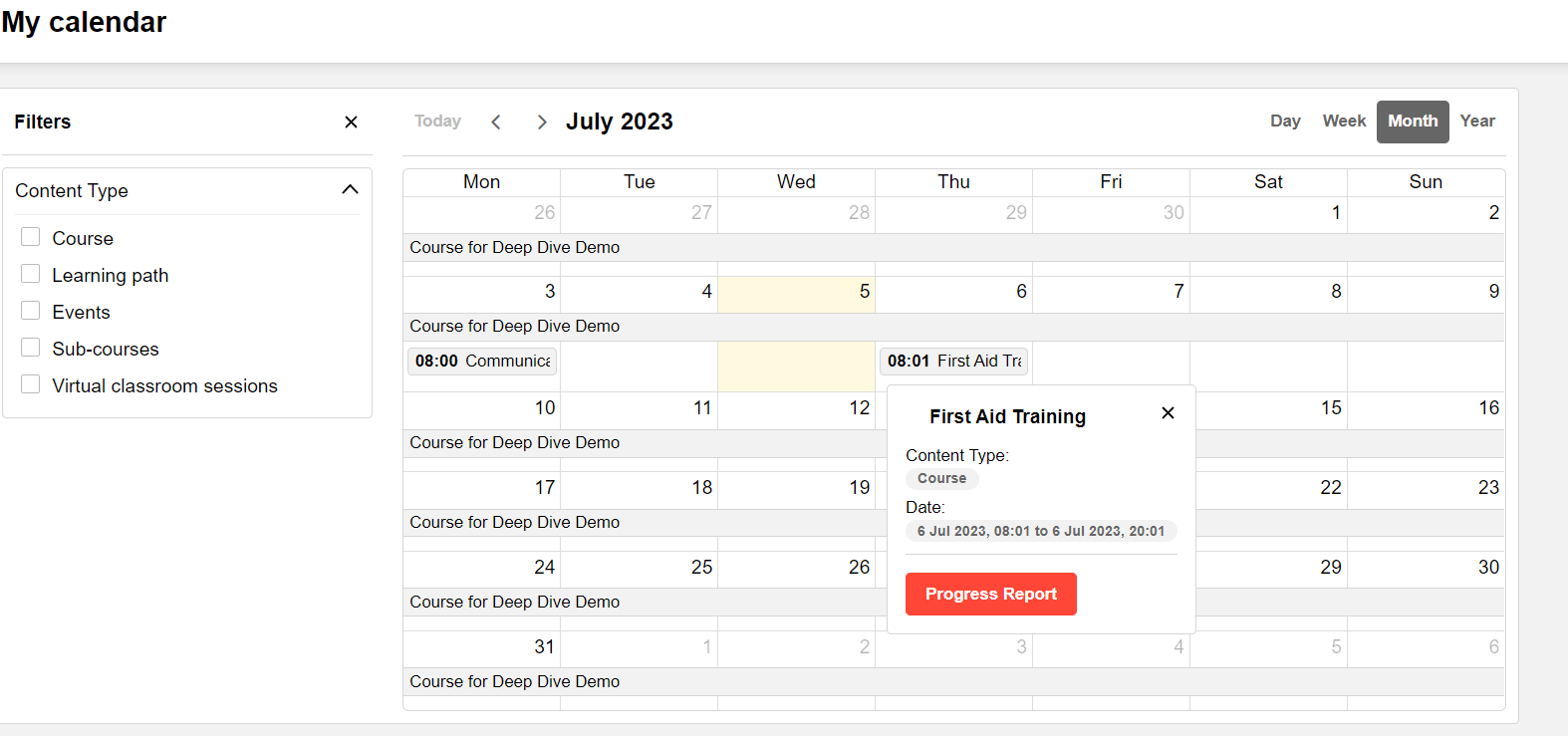
A calendar view with a list of objects is shown, in which the employees are enrolled, in progress, passed, or failed, without showing the names of the employees. This calendar is used when a large number of employees is assigned to a single manager.
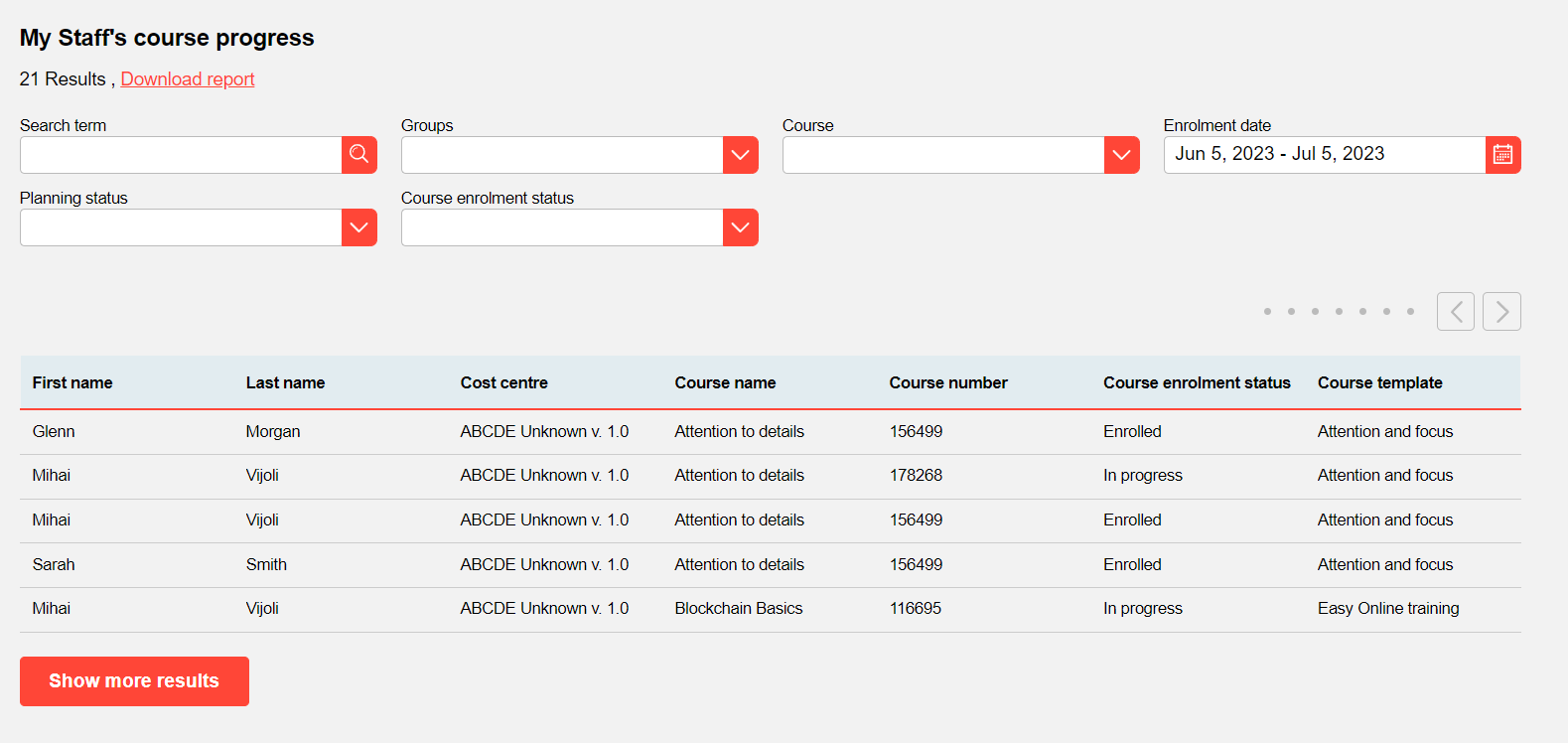
The manager has the possibility to access a dashboard page that provides access to a report page about the specific course/ learning path. If a dashboard page with the course progress report is configured and the supervisor has access to the dashboard, this page can be opened by clicking the “Progress Report” button.
The supervisor is redirected to a new page, where the progress report can be downloaded.
Admin View
The training calendar can be configured from the Configuration manager.
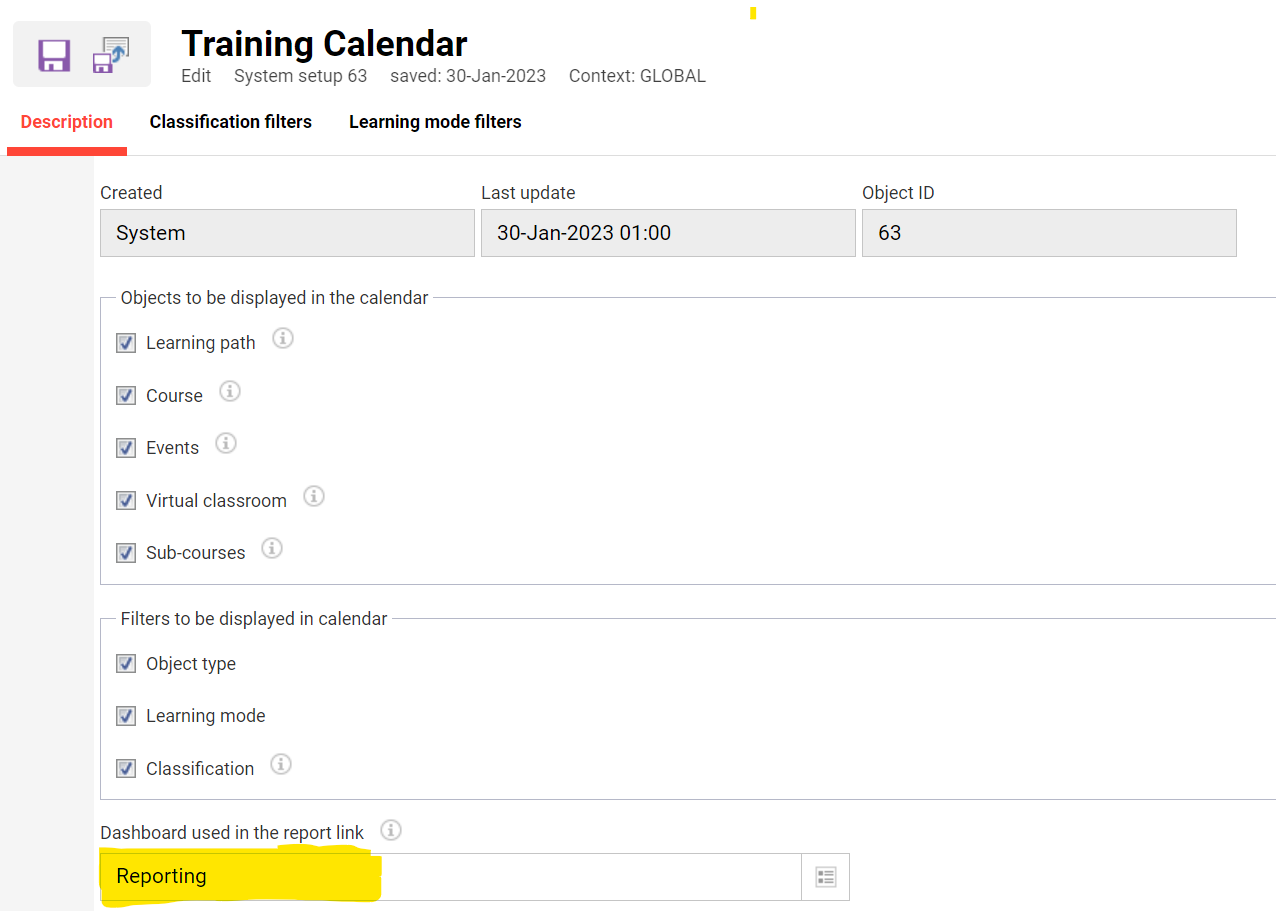
The admin can select what type of objects and filters should be displayed in the calendar.
Additionally, the admin can choose which dashboard is displayed when the “Progress Report” button shown in the training calendar for supervisors is selected. The selected dashboard should contain a course progress report.
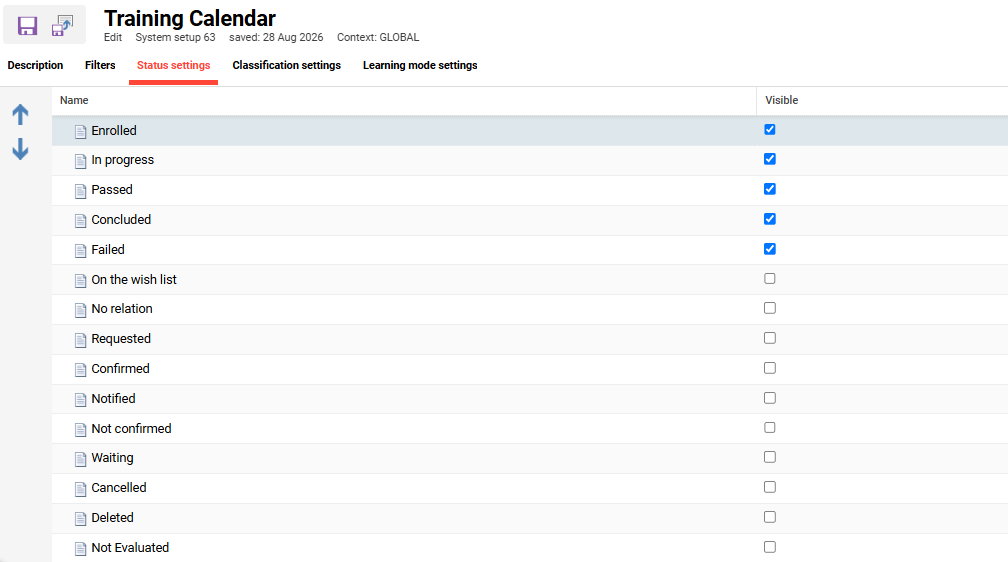
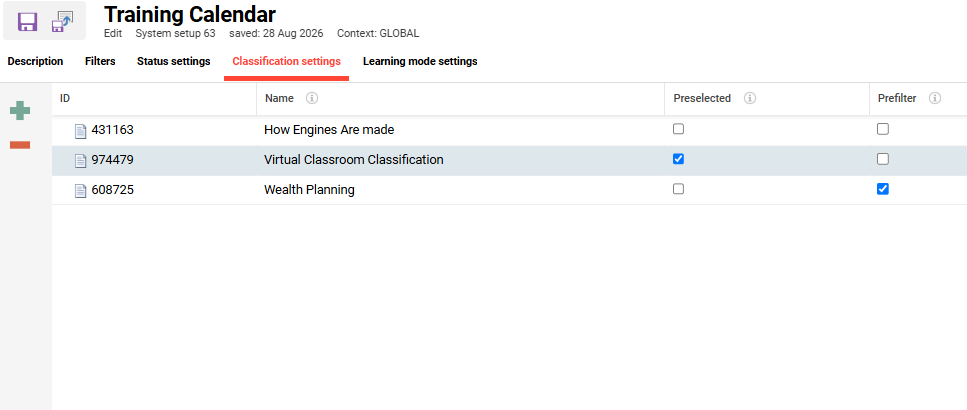
For the “Learning mode” and “Classification” filters, additional tabs are available where the admin can add several items and decide whether these objects should be preselected or visible
Classification-Based Filtering in Training Calendar
The classification-based filtering in the Training Calendar Manager is designed to organise and display data according to specified classifications. This feature aims to optimise performance by filtering content before it is displayed in the training calendar interface.
-
Purpose: To filter and display training calendar content based on specified classifications.
-
Implementation Decision: Pre-filtering content by classification to enhance system performance.
-
Expected Behaviour: If no courses with the specified classification are associated with a user, the Training Calendar will display no content due to pre-filtering.
Scenario: When a supervisor's users are not enrolled in courses with Classification A:
-
Expected Result: The Training Calendar will not display any content as it pre-filters based on courses having Classification A. Consequently, if no courses meet this criterion, no content will be shown.
A Prefilter checkbox column has been added to the classification filter configuration, giving admins control over whether results are prefiltered by classification.
-
Enabled (default): Results are prefiltered by classification — previous behaviour is preserved.
-
Disabled: No prefiltering is applied; all Training Calendar content is shown regardless of classification.