
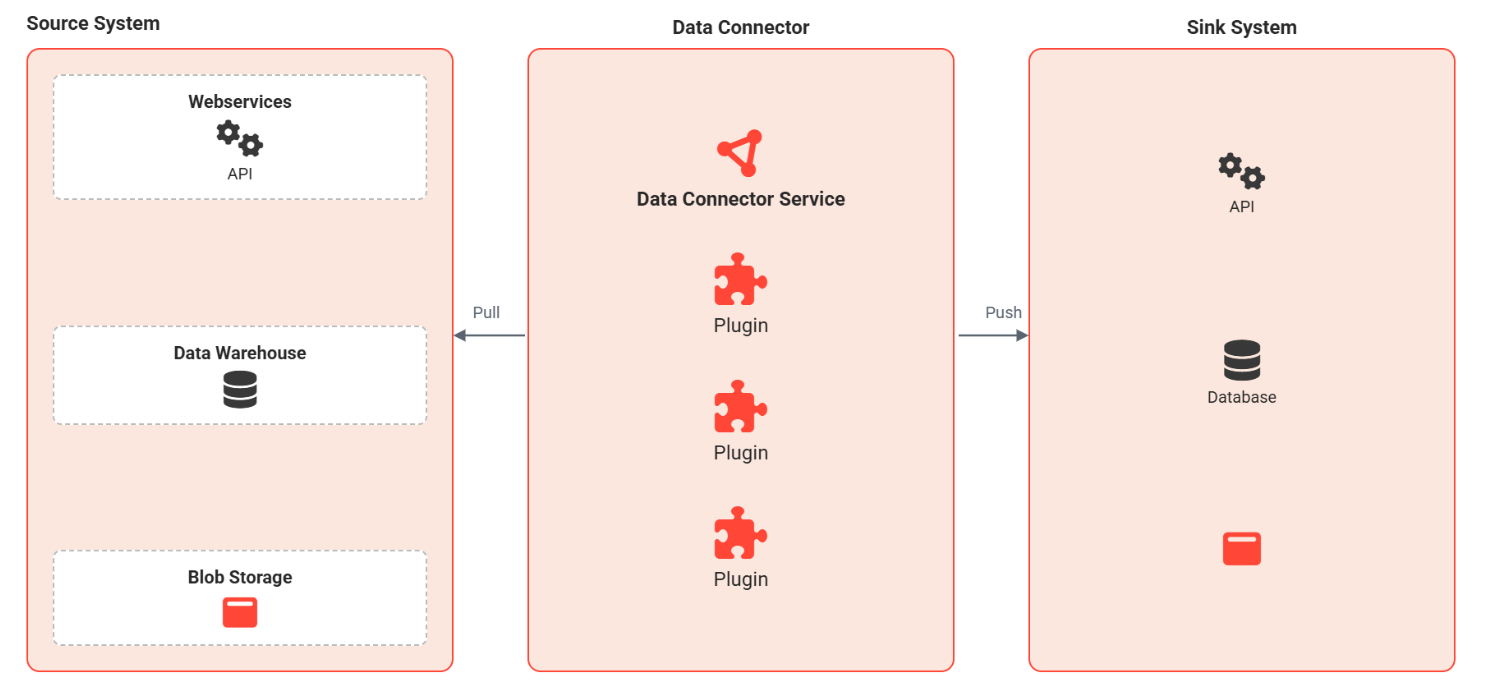
“Data Connector” serves as a bridge between various data sources and target systems, automating the extraction and transfer of data through the use of plugins. Data can be pushed or pulled from a source system to a target system. Its core functions include fetching, aggregating, transforming, and transferring data between systems.
The “Data Connector” allows administrators to manage which content areas (data sources) are included for indexing in the global search, as well as define when the data should be
To enable this, the “Data Connector” provides three tabs for managing plugins, configurations and jobs.
Tab “Plugins”
A Data Connector plugin connects to its designated source system, fetches data, transforms it if necessary, and pushes it to its defined sink system—similar to pure ETL processes
Administrators can manage the content areas considered for indexing for AI-enhanced content search. Content from only these content areas is available for searching by learners.
Currently, catalogue, channels (only if a channel license is active), and “My learning” are provided as three content areas as a standard offering and are configured by default. Additional content areas/data sources can be added by requesting Scheer imc.
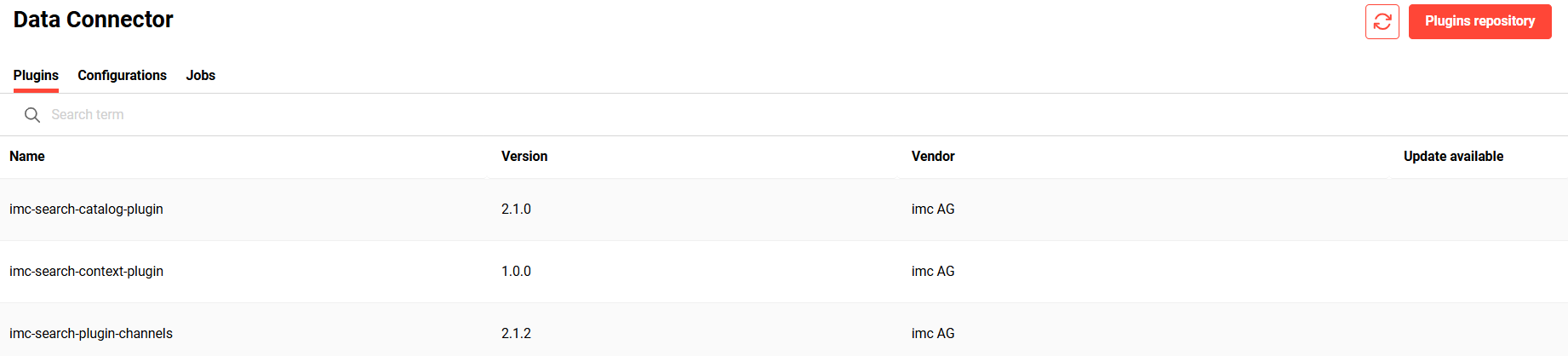
This tab allows users to
-
install plugins from the plugin repository
-
update an already installed plugin if a new version is available
Content accessible in search results
Read replica database
If a read replica database has been configured, the data connector plugins automatically route read queries to the read replica database instead of the ILS production database.
Offloading indexing read queries to the read replica database reduces the load on the primary database, resulting in faster response times for learners and administrators during peak usage.
Settings considered for indexing catalogue plugin
The following settings influence which content is visible to users.
-
Learner only sees the content (Courses, Course templates, Learning paths, Learning paths templates, Medias) in search results from those catalogues where they have been directly assigned and these catalogues are accessible in the personal ILP navigation of the learner and have “Catalogue->Do not show catalogue in front end” disabled.
-
Learner only sees the content in search results which
-
have the type configured in “Catalogues->Displayed object types” and
-
are displayable as defined by the metatag “Display in catalogue until” and
-
have planning status “Released” or “Fixed”
-
-
Indirectly assigned courses are shown in the search results if the following settings are active:
-
Configuration->Catalog->Display of courses from templates based on clearances and
-
Client->Catalogue settings->Show indirectly assigned courses in the catalogue or “Show indirectly assigned courses when using free text search” and
-
Course->Metatag - Viewable via template
-
-
If Client->Catalogue settings->“Take into account the clearances for the display of catalogue content” is active, only if the user has minimum view clearances to the content, then this content is shown in the search results.
Settings considered for indexing channel plugin
Users should have a minimum of viewing rights for a channel to view the content (Medias) of that channel in search results.
Please note that channels themselves are not shown in the search results.
Settings considered for indexing “My learning” plugin
Only the content (Courses, Course templates, Learning paths, Learning paths templates) which is accessible to the user via “My learning” according to the settings defined in Configuration manager and Client settings is shown in the search results.
If a content has been assigned to catalogue and has a status on it, it would still show “My Learning” as one of the parents on the search tile for the content even though it has been defined in the Learning Area settings that the content with this status should not be shown in “My learning”.
Plugin repository
The plugin repository shows the plugins available for installation.

The following information related to a plugin is displayed:
-
Name of the plugin
-
Version of the plugin
-
Vendor of the plugin
-
Description of the plugin
Editing a plugin configuration
Currently, the configurations for the catalogue, channels (only if a channel license is active), and “My learning” are provided by default.
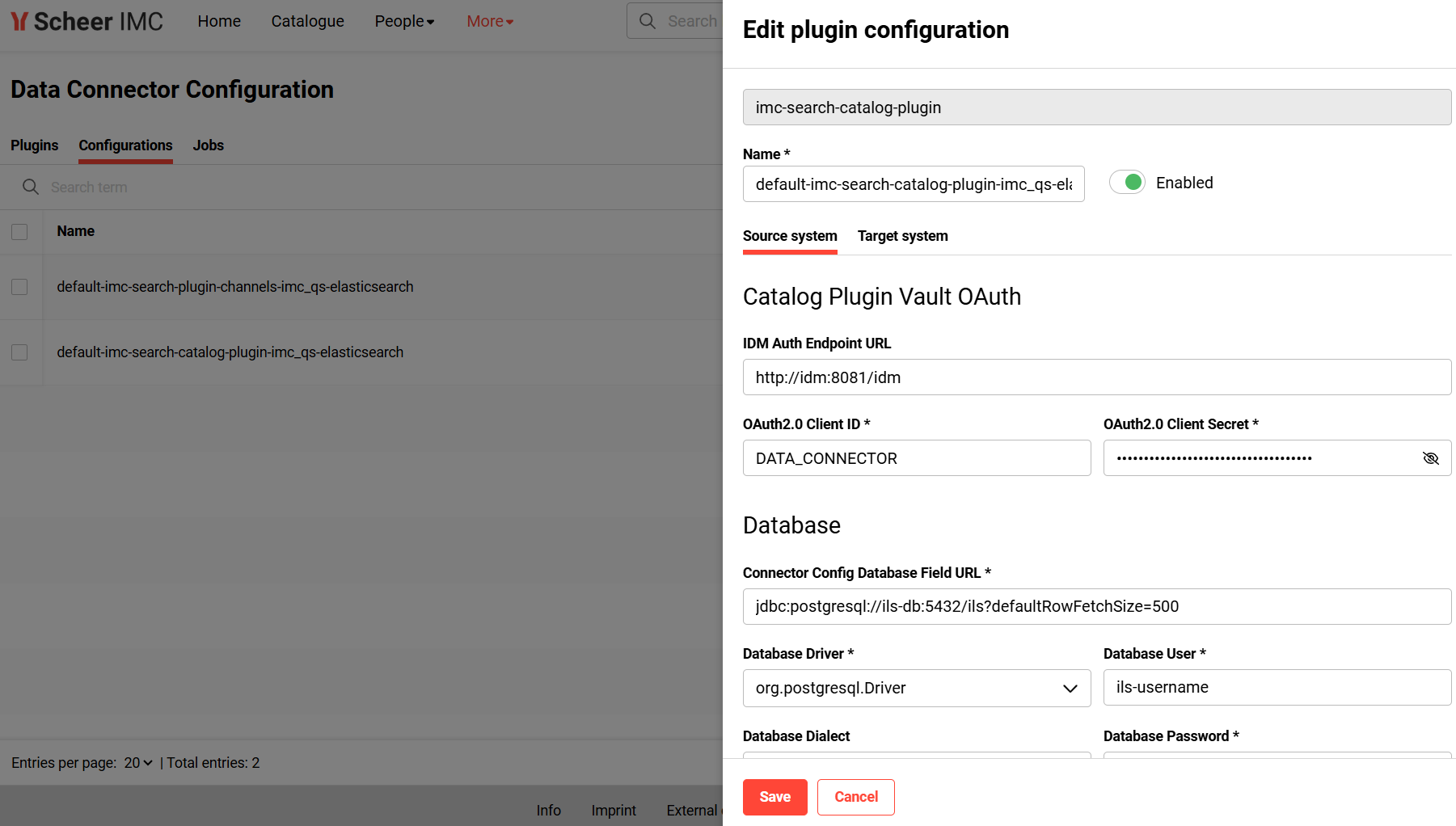
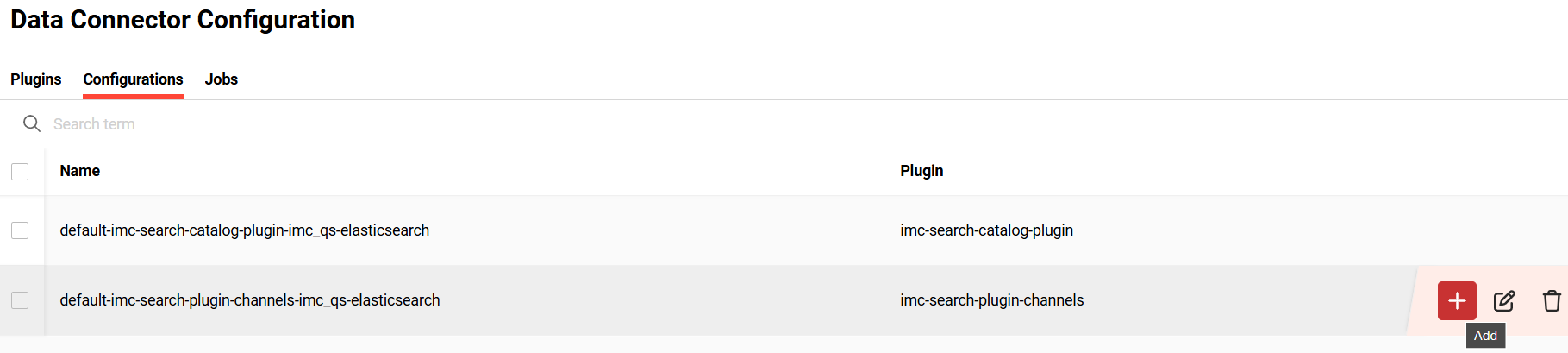
This function enables the administrator to edit a plugin configuration. A plugin configuration represents properties that must or can be configured.
A Data Connector plugin is executed as an asynchronous job based on its schedule and plugin configuration.
Configurations
Plugin Configuration defines the configuration parameters required for the source and sink systems.
By default, jobs have already been scheduled for the catalogue, channels (only if license is available) and “My learning” to run daily in the night. The job for channel plugin has been scheduled to run at 9 p.m. server time, catalogue plugin at 10 p.m. server time and “My learning” plugin at 11 p.m. server time. Please note the user interface shows the regional time zone. Hence it might show a different time than 9 p.m. or 10 p.m. depending on your location. If you want to ensure that the jobs run according to your regional time zone please update the jobs accordingly.
The Configurations tab allows an administrator to perform the following functions:
-
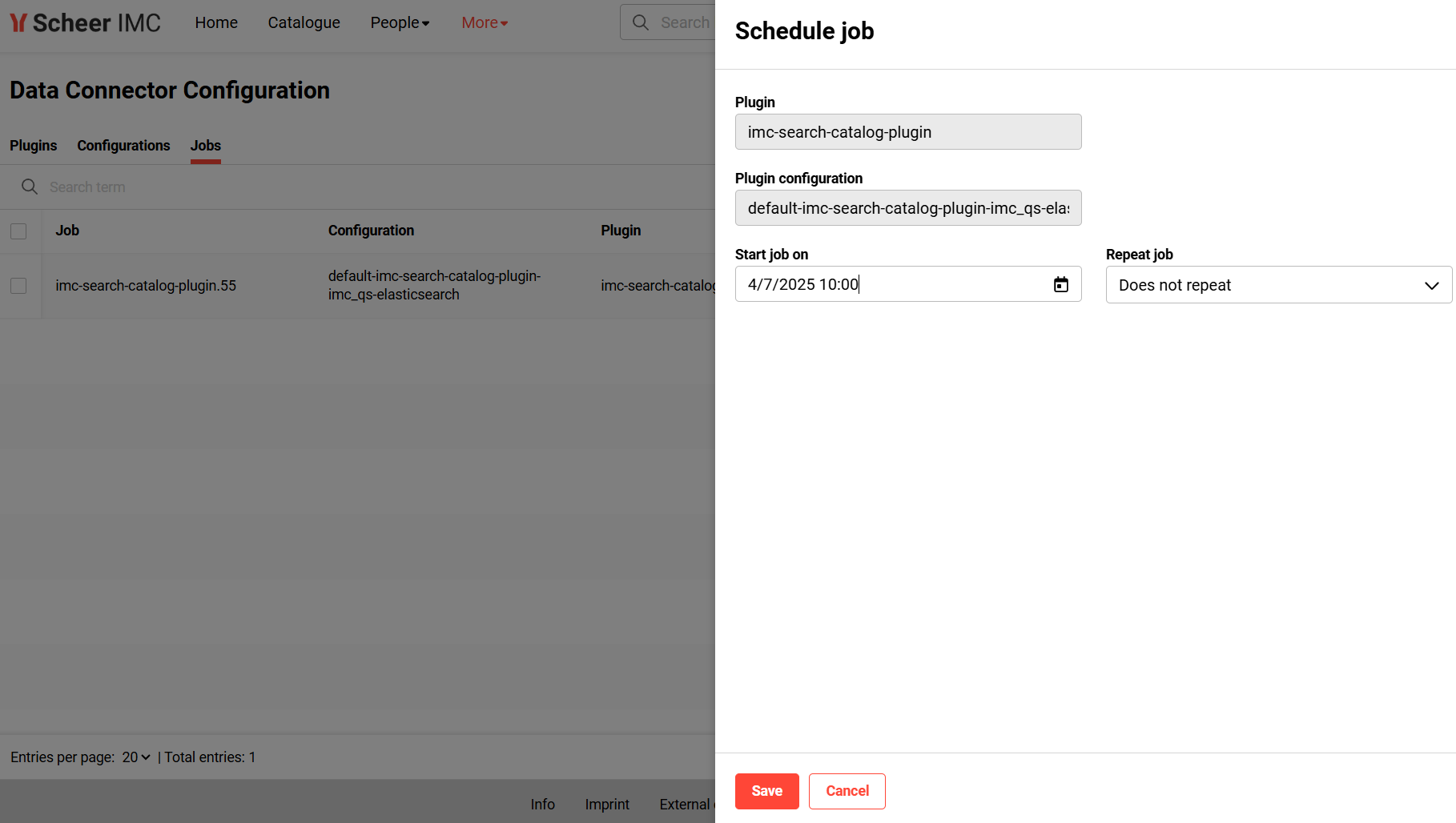
add a scheduled job. This function is only available if a job has not already been added for the selected configuration. The job can be scheduled either one-time, daily or with a cron job expression (e.g. */15 * * * * to schedule every 15 minutes). Please refer to https://en.wikipedia.org/wiki/Cron for more details on cron job expression.
-
edit a plugin configuration. In case a job has been already scheduled for an existing plugin configuration, the job will be updated with the recent changes. For jobs currently executed while updating a configuration, the modification takes effect only with the next execution.
-
delete a plugin configuration. Scheduled jobs will be deleted as well. In case a job is currently executing, that job will nevertheless run to completion.
Plugin and configuration is automatically created for channels, catalogues and “My learning”. Hence it is recommended not to edit/delete them.
For channels, by default, the Service Account User ID (Person ID) in the channels plugin configuration has been set to 2. If automatic scheduling of channel plugin job fails and the Person ID “2” is not existing in the system, it is important to enter a valid super user’s ID so that the channels plugin has access to the channels microservice.

Full-indexing
After the switch of the semantic to lexical search or vice-versa, full-indexing is required for all the plugin configurations to take effect for the user. Please note the full-indexing might take a lot of time depending on the size of the data to be indexed. So it is recommended to run the job in the night.
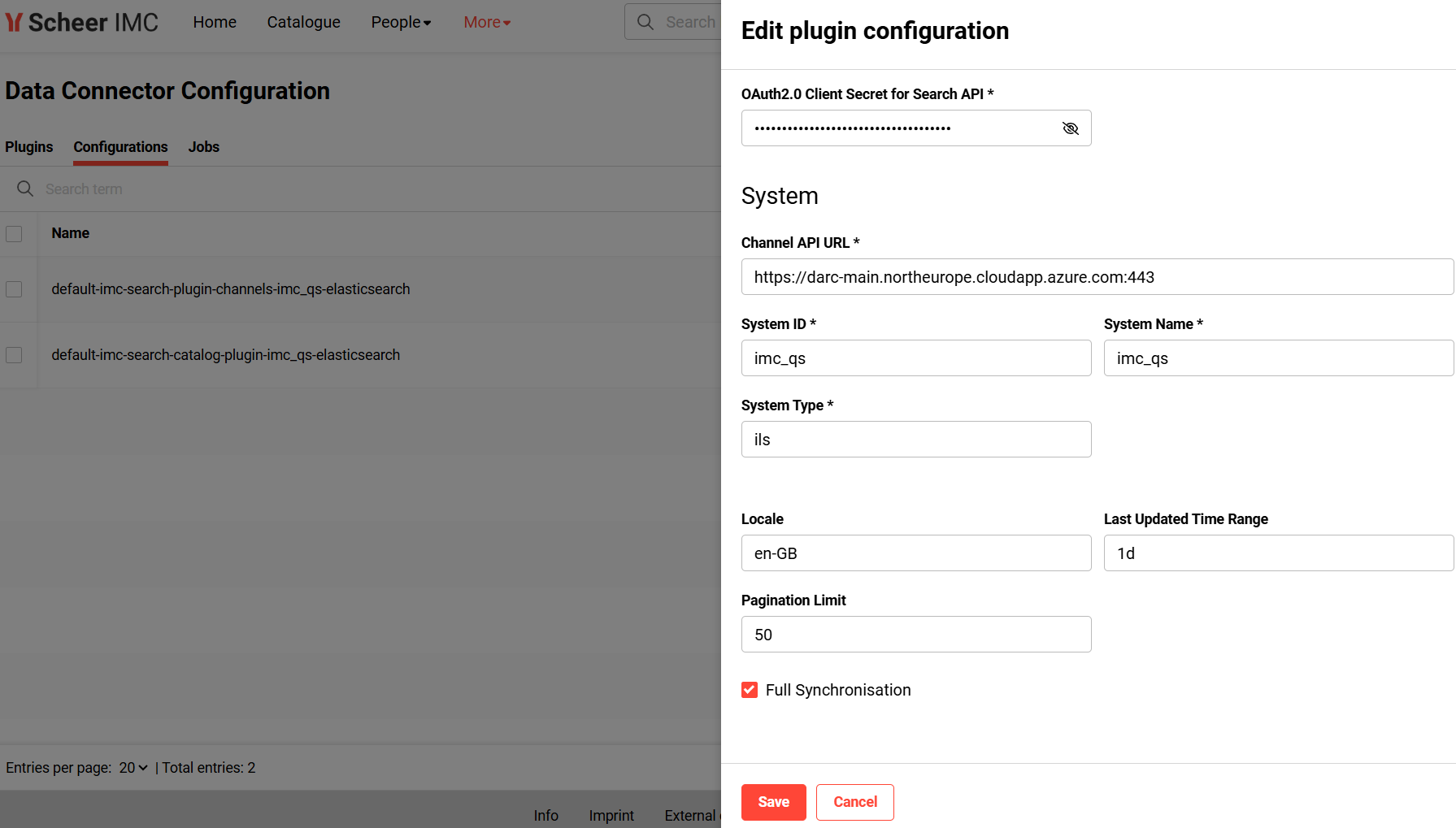
To do full-indexing of the catalogue plugin, edit the plugin configuration and set the property “Number of days to sync back” to 0 (already the default).

To do full-indexing of the channel plugin, edit the plugin configuration and enable the property “Full Synchronisation”.
Jobs
The Jobs tab allows an administrator to manage the jobs for catalogue, channel, and “My learning” plugins.
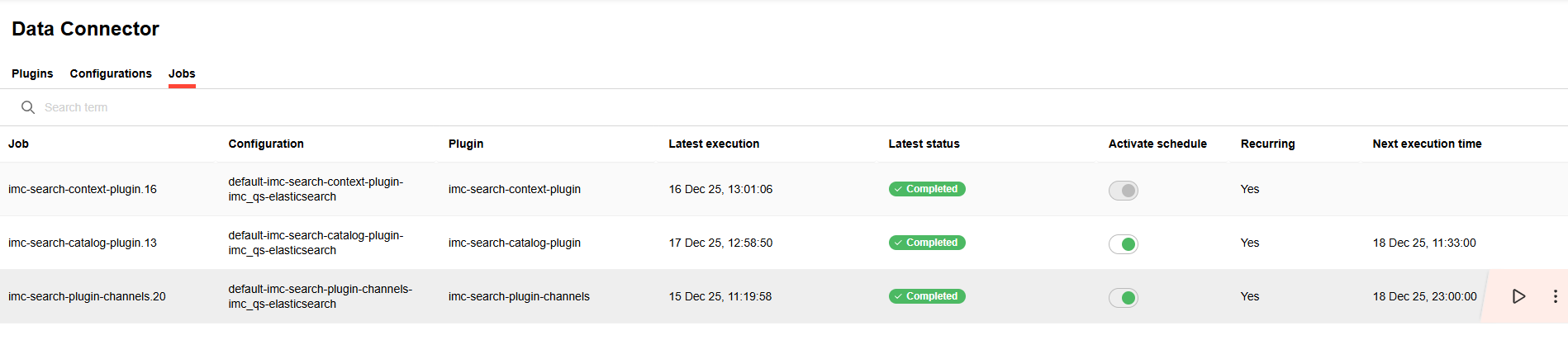
The following functions are supported.
Execute

A job can be triggered to run instantly by selecting the “Execute now” button.
Edit
A job can be edited using the “Edit button”.
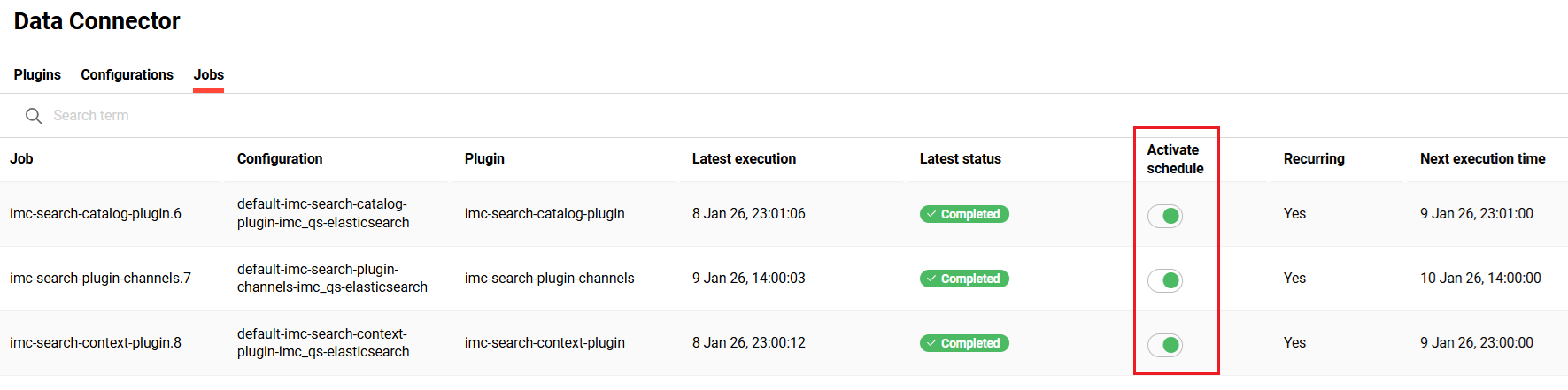
Activate schedule
-
pause a scheduled job via the “activate schedule” toggle
-
resume a scheduled job via the “activate schedule” toggle
Delete

-
delete a scheduled job
Download
-
download log file to check errors for failed jobs
Automatic refresh of the status of the jobs
The status of the jobs is automatically refreshed after a few seconds, so the page does not need to be refreshed manually to display the updated status of the jobs.