
Proctoring with Meazure Learning is a comprehensive solution designed to ensure the integrity of high-stakes online exams. This service combines advanced technology with human oversight to monitor and secure the testing process from start to finish.
Key Features of Meazure Learning's Proctoring
-
Secure Exam Launch: Before the exam begins, a certified live proctor verifies the test-taker's identity using multifactor authentication and conducts a thorough environment check to remove any unauthorized materials.
-
Continuous Live Monitoring (Live+): Throughout the exam, proctors actively monitor test-takers in real-time, ensuring adherence to exam rules and identifying any suspicious behavior.
-
Active Intervention (Live+): If potential misconduct is detected, proctors can intervene immediately to address the issue, maintaining the exam's integrity.
-
Comprehensive Reporting: After the exam, detailed reports are generated, documenting any incidents and providing insights into the test session.
-
Advanced Technology Integration: The system utilizes sophisticated software to assist proctors by flagging unusual activities, which are then reviewed by human experts to determine if any action is necessary.
-
Use of Guardian Browser Extension: Test-takers access their exams through Meazure Learning's Guardian Browser Extension, which locks down the testing environment to prevent unauthorized access to other extensions, websites, use of multiple monitors etc..
The integration of Meazure Learning with learning management system covers automatic proctoring with Record+ and live proctoring with Live+.
The proctoring solution integration enables a quick connector and test setup by an administrator while learners can schedule and take live proctored test sessions. In addition, incidents, reported by the proctors during the live session, can easily be managed by tutors and administrators.
Administrators can easily set up tests/exams in the LMS for live proctoring. Tutors can make fair decisions about the validity of reported proctoring incidents, easily resolve test statuses in the LMS, and provide results to test takers in a timely manner.
For using the proctoring integration the proctoring license (to be created in licence manager) is required as well as a Chrome browser for the installation of the Guardian chrome extension of Meazure Learning.
Steps to Configure a Proctored Meazure Learning Test
Create a Proctoring Licence
Go to licence manager and create a proctoring licence for using the live+ and record+ integration.
Create External Service Provider
-
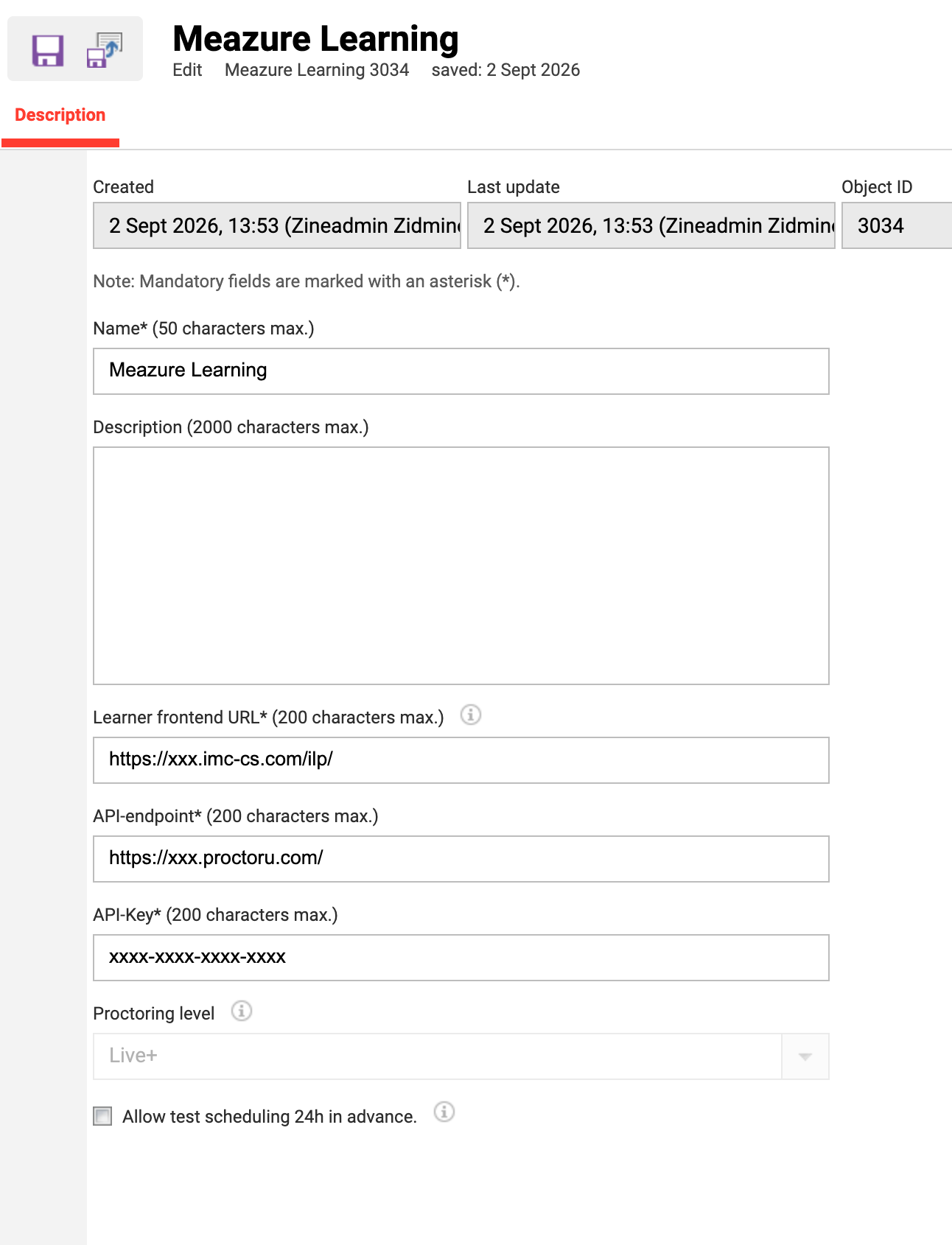
Create “Meazure Learning“ external service provider in the external service provider manager by clicking create in the toolbar on the left side.
-
Enter name, description, learner front-end URL, API-endpoint and API-Key (provided by Meazure Learning) and choose the proctoring option Record+ for setting up for automatic proctoring. For setting up Live+ for live proctored tests, Live+ needs to be selected. Once the external service provider is saved the set proctoring option cannot be changed anymore.
-
The setting “Allow test scheduling 24h in advance“ needs to be adapted according to the system configuration on ProctorU side.
Create Test
-
Create test in test manager and select created Meazure Learning service provider as proctoring service in the description tab of the test.
-
Create a course with the test created in step 1 to a course as a component. To avoid confusion about timezones it is recommended to use the setting “fix timezone “
Cancellation from the course by the user or administrator is possible in LMS, but the proctoring session entry will remain on Meazure learning.
Record+ Test - Automatic Proctoring
Learner Workflow
After a learner is enrolled to a course with a Record+ test, the learner can start the test like a regular test ad-hoc within the course start and end date and will be directed to the Meazure Learning platform (ProctorU) to create a password and will be guided through the exam-prechecks steps, including allowing the screensharing and recording to be started and id-check and will be re-directed to the test start page in ILS.
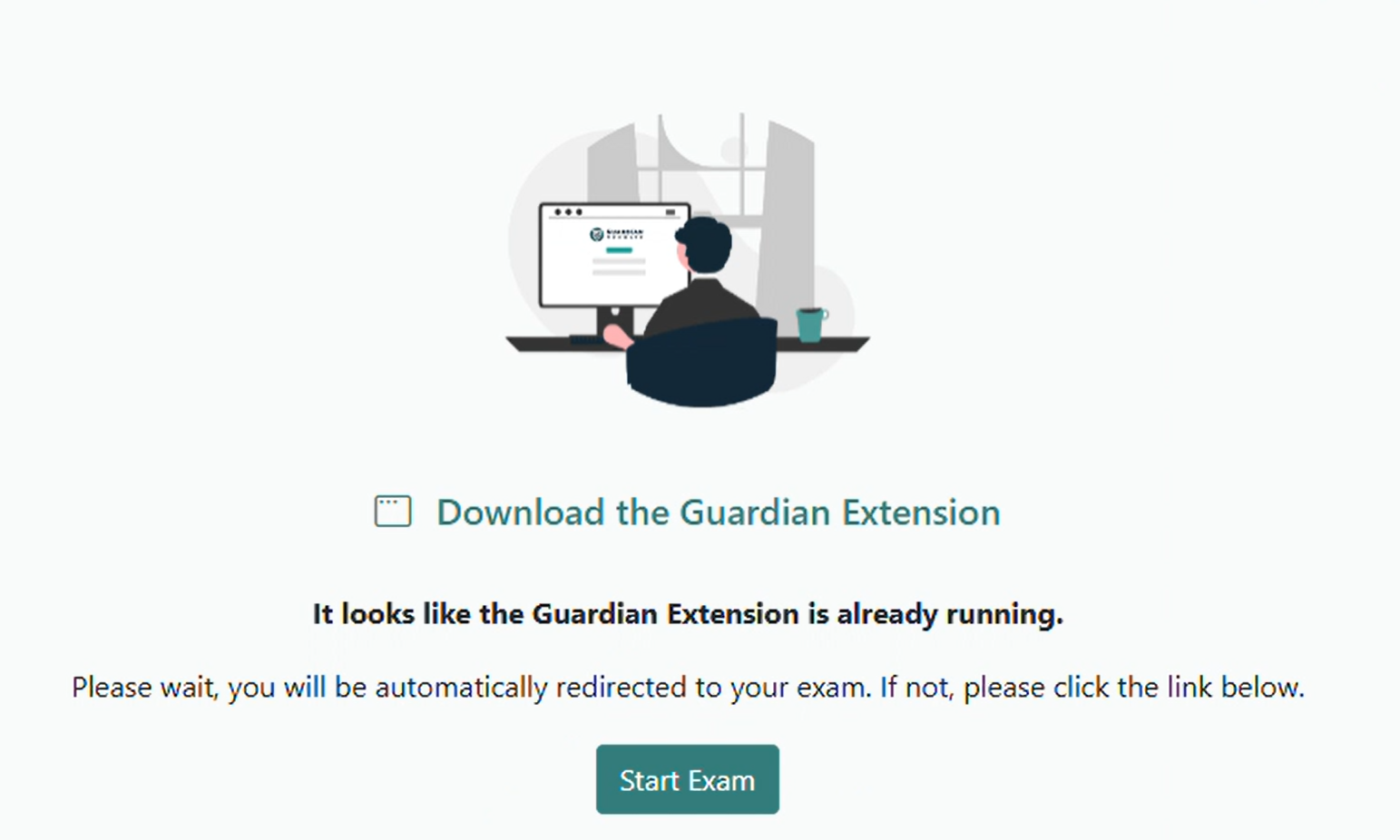
The learner will be guided to install the Guardian browser extension before getting directed to the ProctorU if not done before.
-
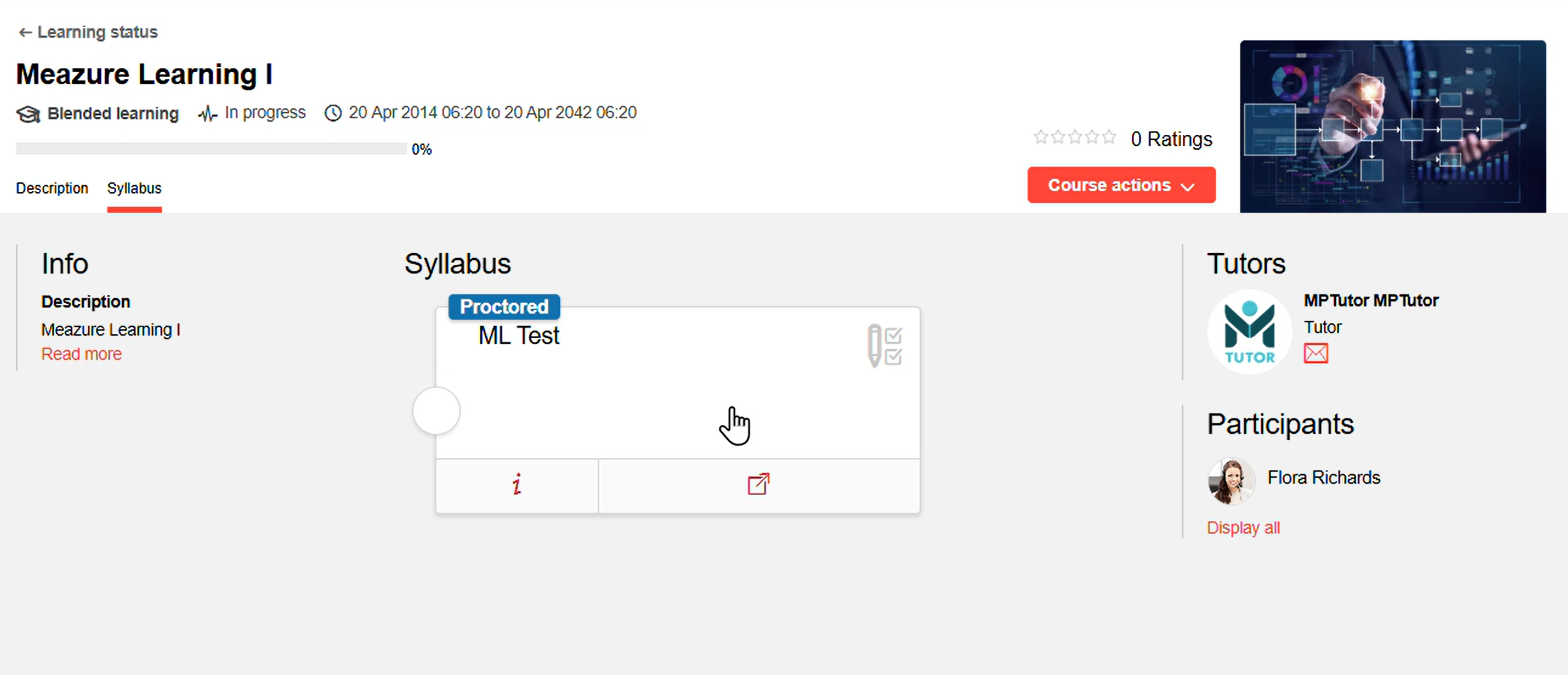
Click test component tile or “Open” button to be directed to ProctorU.
-
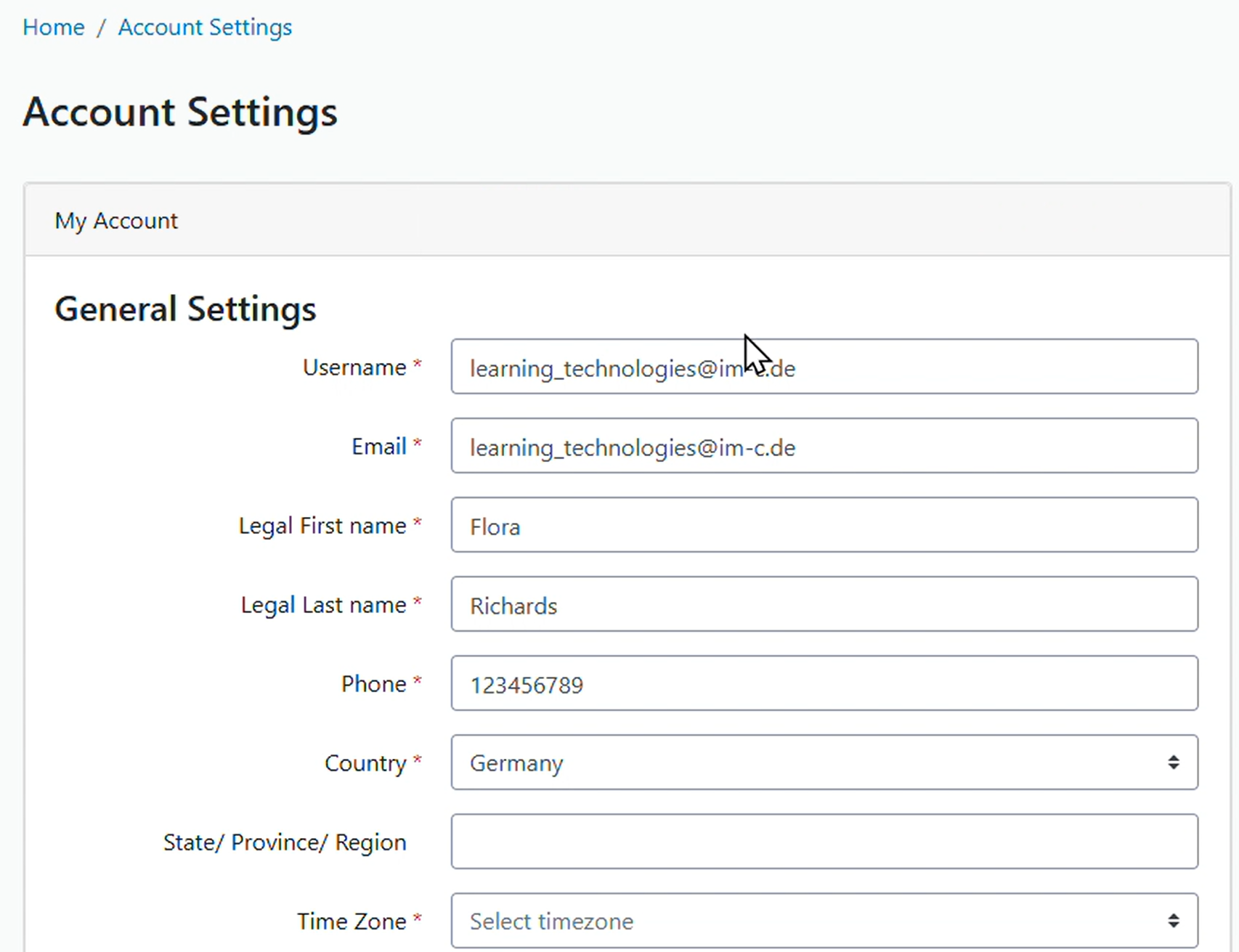
Check the account setting and select the time zone (if this is the first login, a password must be set).
-
Download and install the Guardian Extension and start exam precheck on ProctorU (requires Chrome)
-
Allow recording of screensharing and microphone
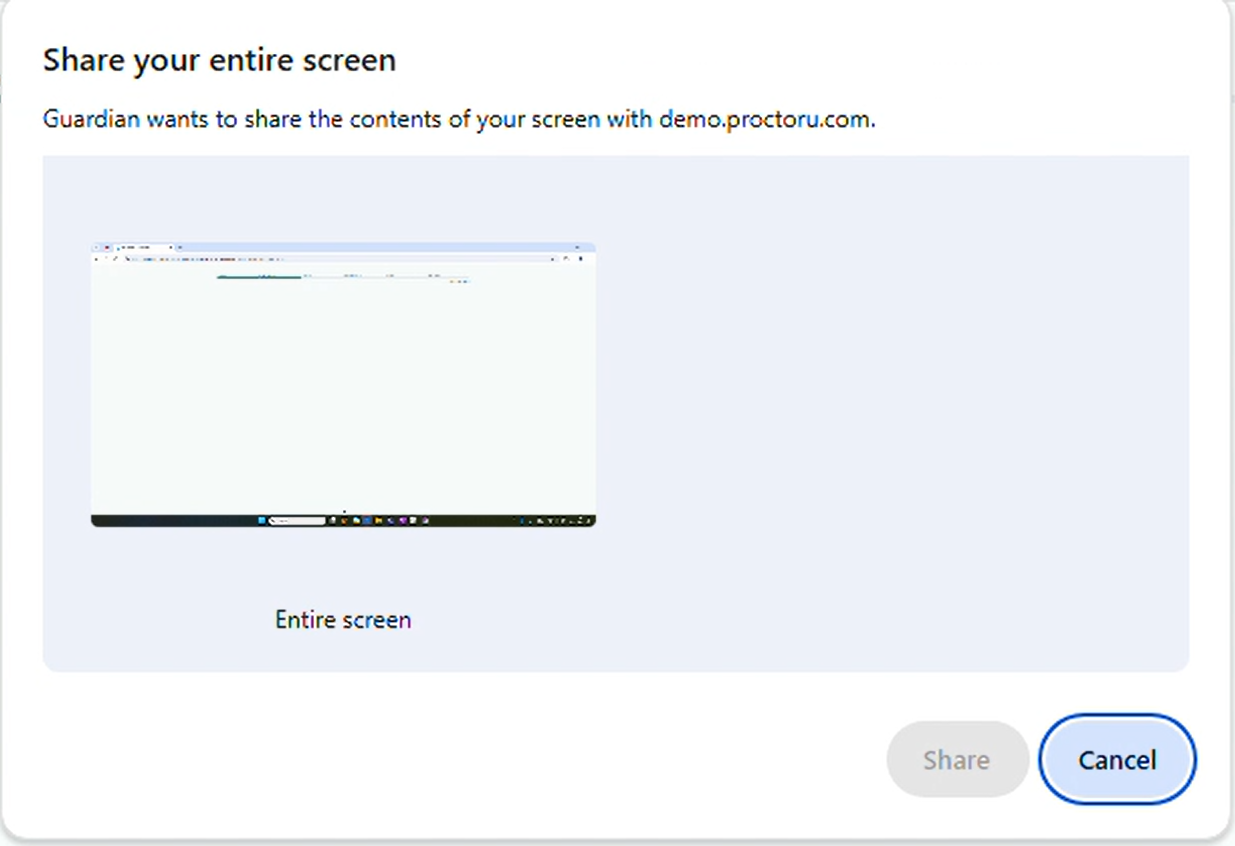
-
complete all steps including reading the exam rules, accommodations and ID verification (web camera required) and press the “Begin Exam“ button to be redirected to LMS.
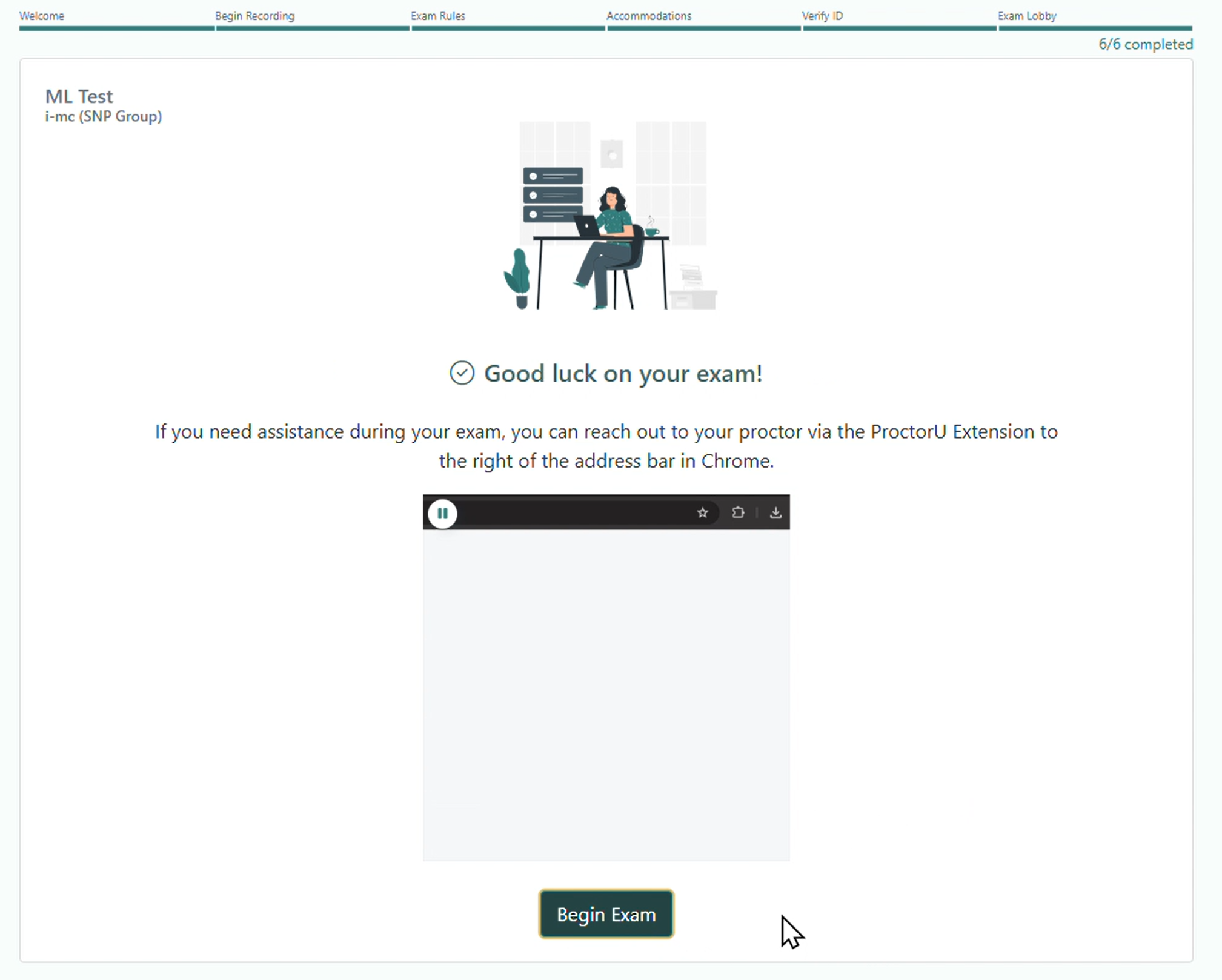
Then the learner can take the test in the learning management system, and after submitting he can stop the screen sharing on the opened pop-up menu and stop the recording.
Tutor Workflow: Proctoring Evaluation
The recordings of the test will be provided by Meazure Learning and are available on ProctorU platform to be checked by the tutor. According to the evaluation of the recordings the tests can be set to failed in LMS.
Live+ Test - Live Proctoring
Learner Workflow for Live Proctoring
The learner workflow from the Live+ integration differs from the Record+ integration. After being enrolled to a course with a live proctored test, the learner will be informed by mail to schedule the live proctored test session.
Scheduling by the Learner
Deprecation info: This workflow is based on the BlueBirdExam API. Learners that are enrolled to courses with Live+ tests in systems until 14.29.x can still be scheduled and started.
The scheduling will be done by the learner and can be done either by following the link in the mail from Meazure Learning or by clicking on the test tile or scheduling button on the test tile in the course syllabus (see screen of LMS and following scheduling on ProctorU below). The valid time for scheduling the test is defined for:
-
date-dependent courses: by the start and end date for a date-dependent course,
-
duration of use course: by the individual course start date of the learner and the duration defined in the course.
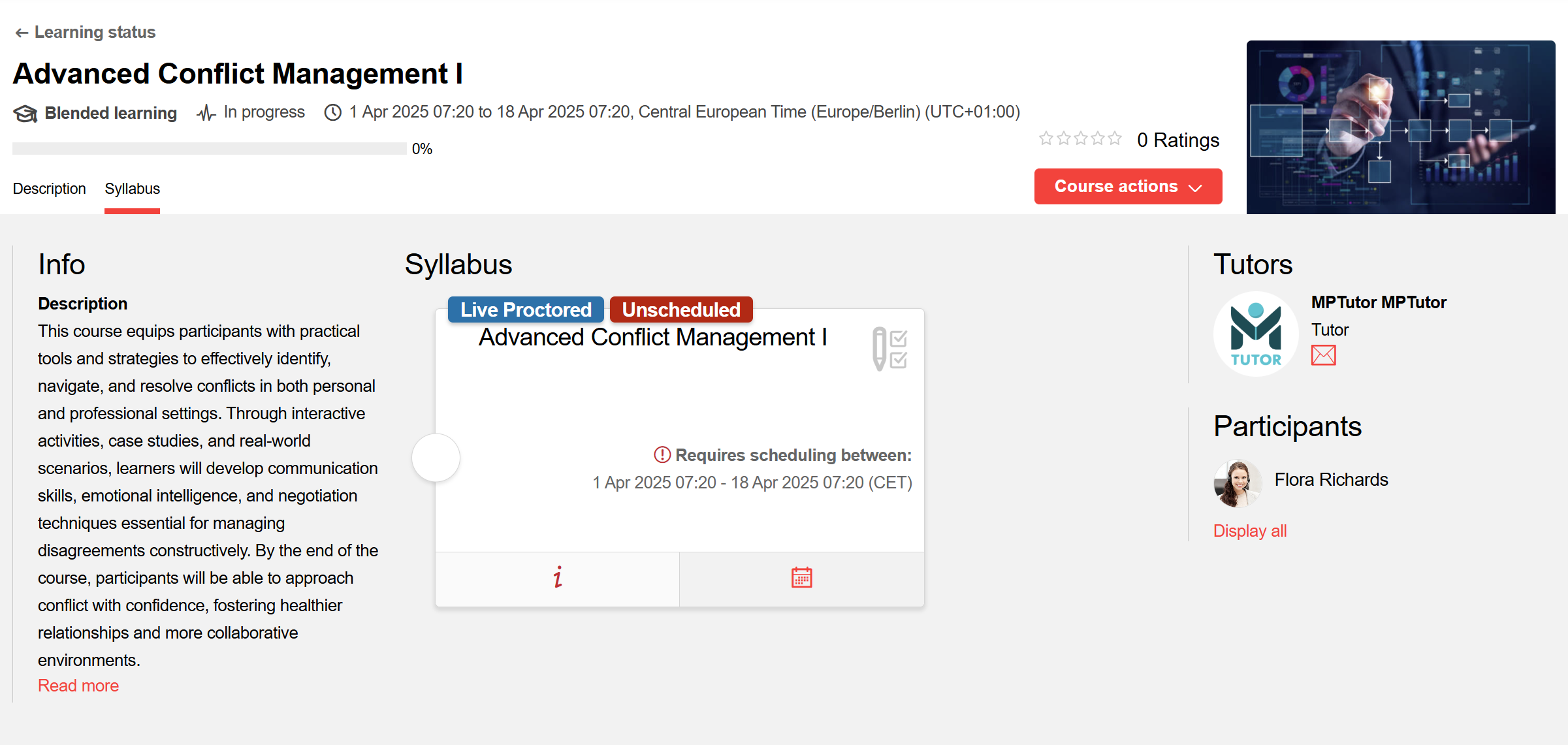
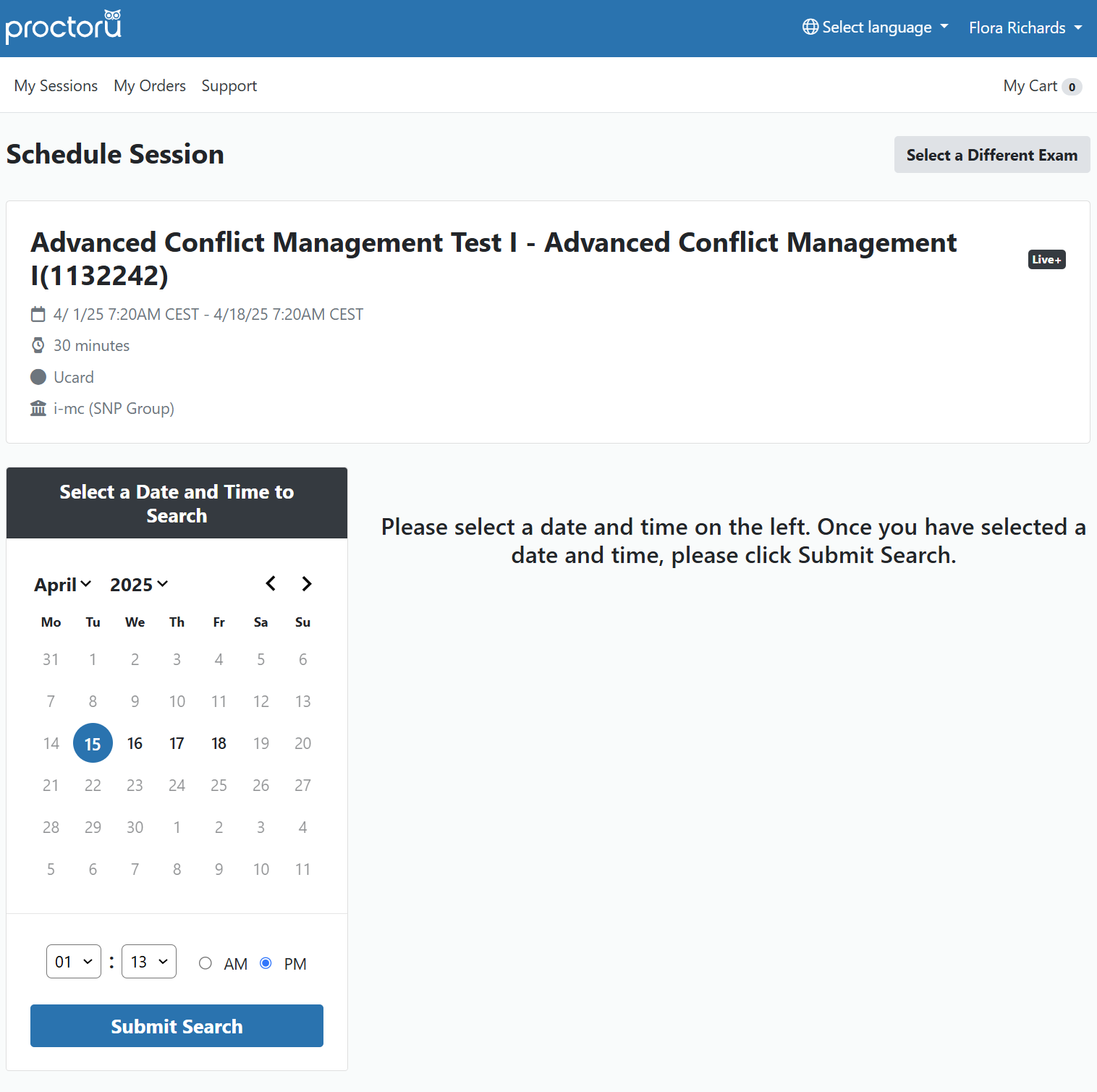
Note: For Learners that have set up CET (Central European Time), “CEST”(Central European Summer Time) is applied for the time zone display on ProctorU during the period of the European summer time.
When the learner accesses the syllabus again, he will see the scheduled time for taking the test.
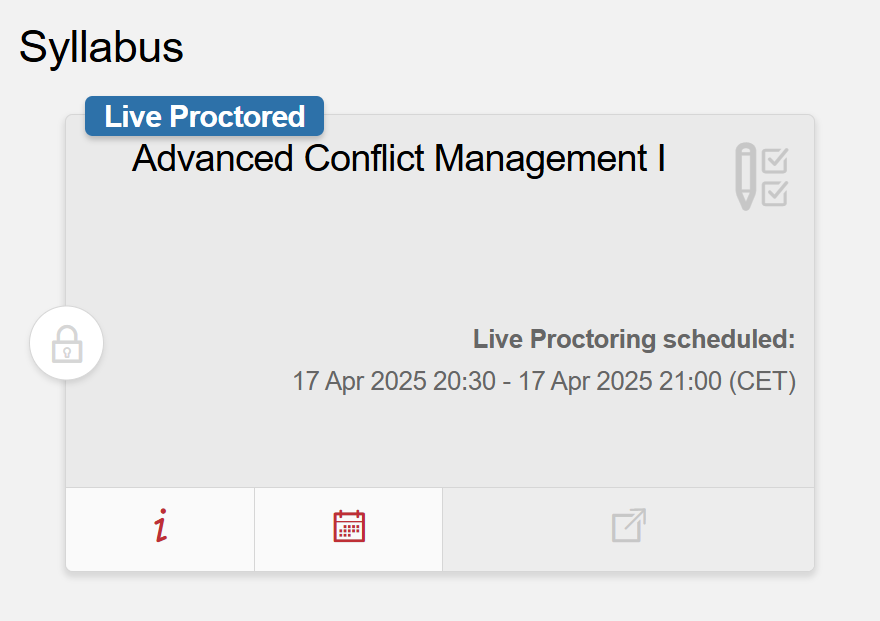
In case of missing the scheduled time the learner must be cancelled and enrolled again to be able to re-schedule the test within the valid time frame.
Scheduling by the Learner (new workflow)
When learner clicks on the calendar icon on the test tile in the course syllabus after enrolling/being enrolled to a course, a window opens in which date and time needs to be selected to get the available times of a live proctored test.
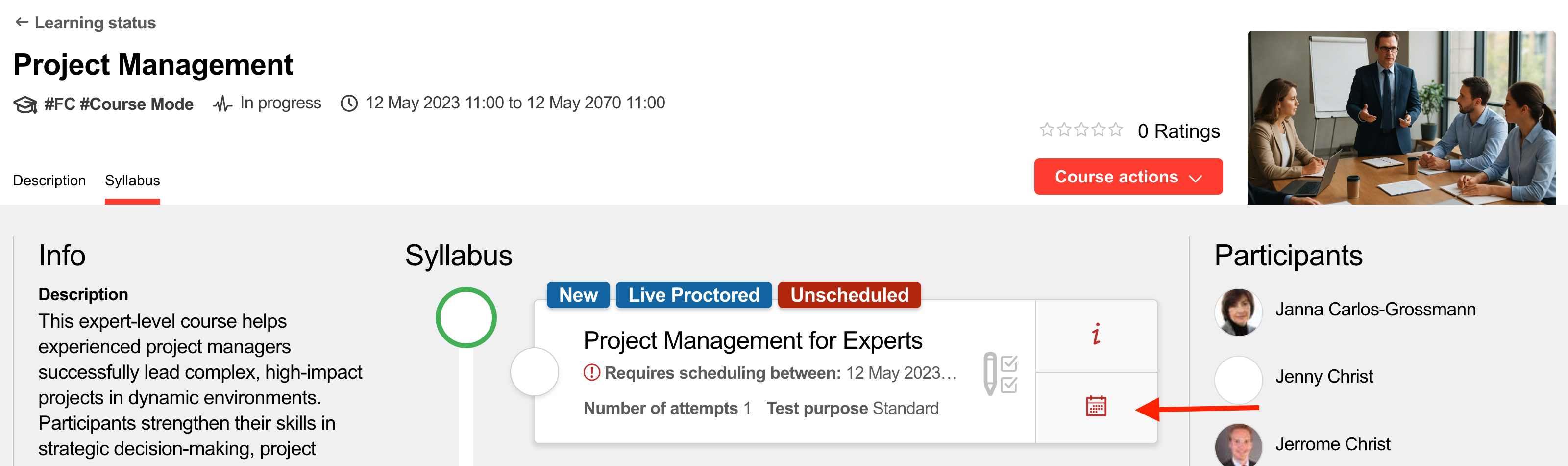
After pressing the “Schedule button“ the appointment will be stored. And the scheduled time will be displayed in the tile.
A learner can reschedule and cancel an appointment during the eligible scheduling window that corresponds to
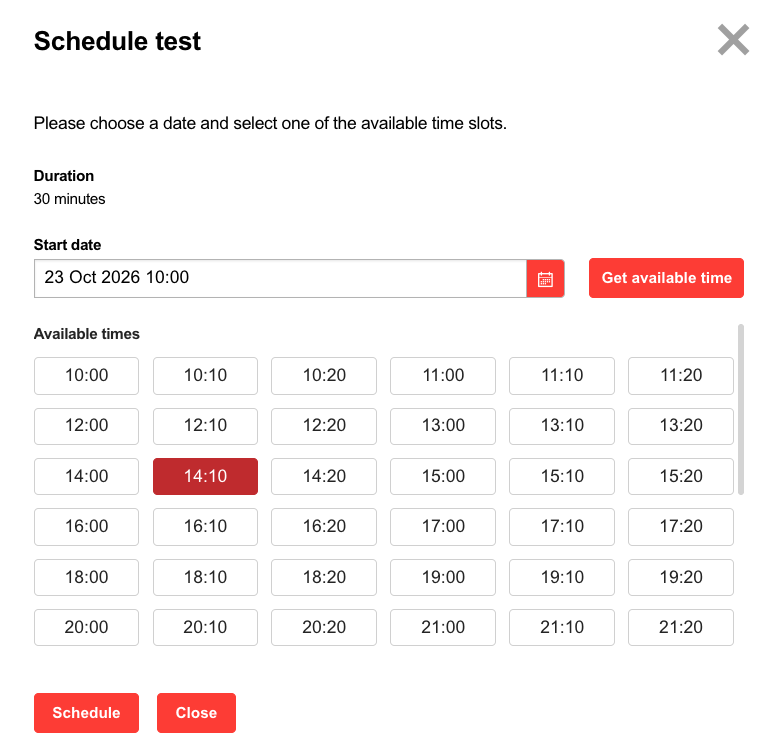
During the eligible enrollment time, possible scheduling actions are rescheduling and cancellation.
In case a learner was not able to submit a test in time due to technical or other reasons, the test remains in the status in progress and the currently final scheduling status “incomplete“. In the future an admin will be able to reset the test and the scheduling status.
The scheduling status of the test can be as listed in following table:
|
Test scheduling status |
Description |
Follow up action |
|---|---|---|
|
unscheduled |
Test not being scheduled |
Test tile displays that the test is unschedule and the scheduling button is enabled |
|
scheduled |
Test scheduled |
Test tile will be unlocked at test start time |
|
missed |
A learner misses a scheduled test |
Test will be set to failed and test result is set to 0 points |
|
incomplete |
Test started but not submitted |
Final status (will later be possible to be resolved by an administrator) |
|
completed |
Test submitted |
Final status |
Scheduling by the Supervisor
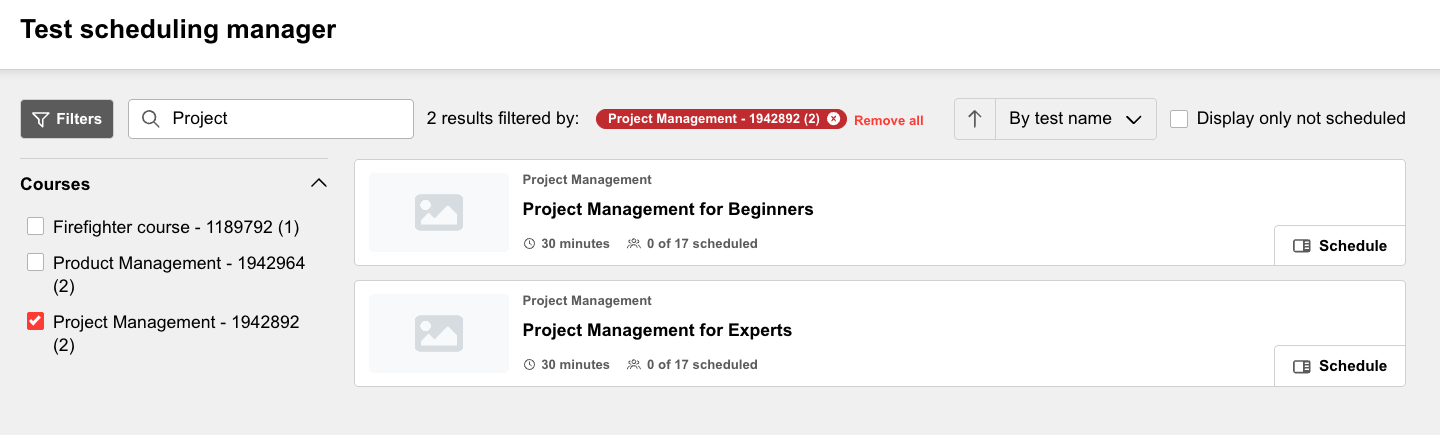
A supervisor can schedule his employees in the Test scheduling manager, which is accessible by a configurable navigation item. He can see all tests of courses, his employees are enrolled to, in the main view of the test scheduling manager. Tests that are contained in hidden folders of the syllabus will not be shown.
Possible actions in the test scheduling manager is:
-
search by test name
-
filter by course name (course ID is displayed after the course name)
-
order by test name and
-
display test that contain not scheduled learners
-
open test drawer to schedule learners
In the learner scheduling window, all learners, which are employees of the supervisor are listed with all informations as it can be seen in the table below.
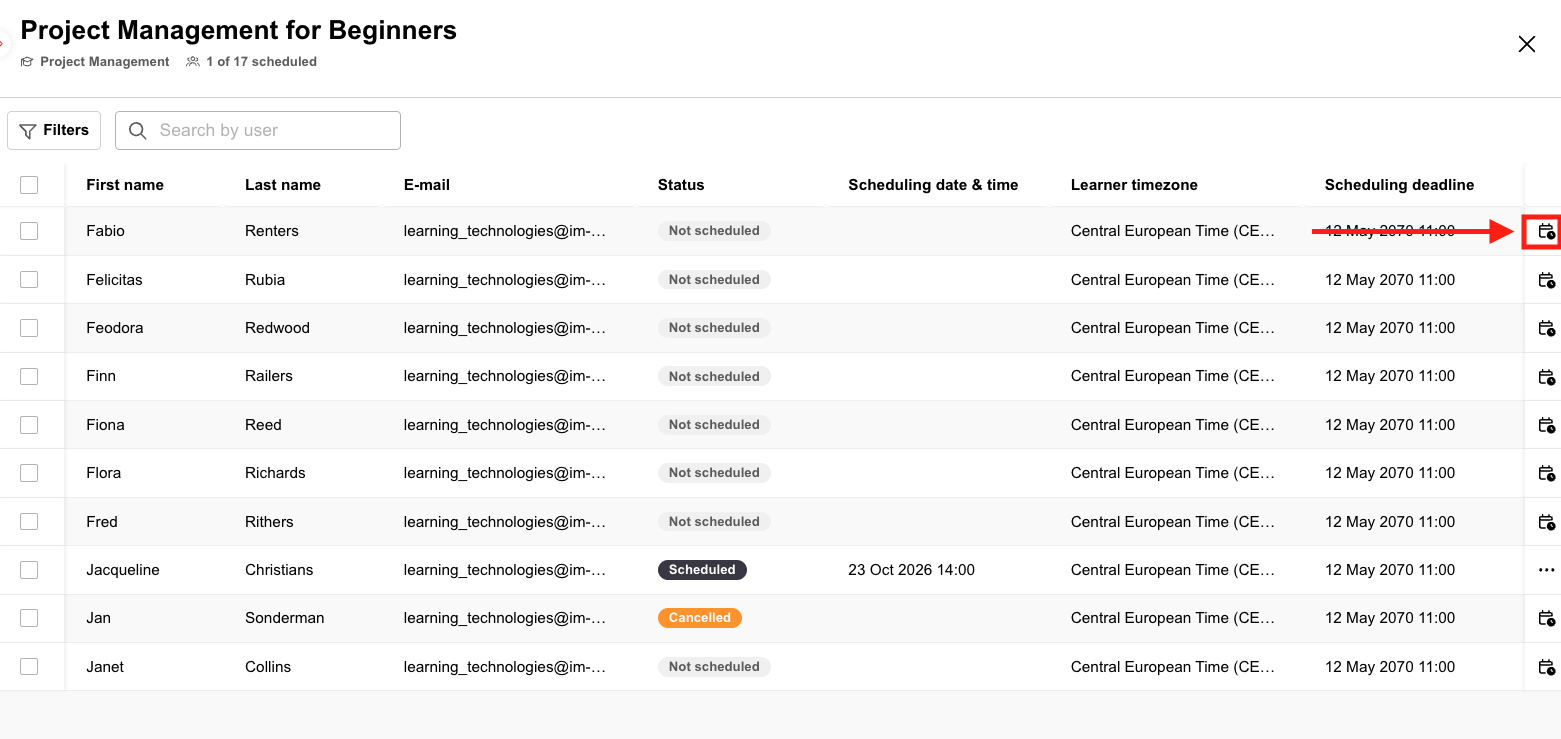
Depending on the status different actions are possible as described in the below table.
|
Test scheduling |
Description |
Possible actions |
|---|---|---|
|
unscheduled |
Test not being scheduled |
Schedule single or multiple learners |
|
scheduled |
Test scheduled |
Reschedule single or multiple learners and cancel |
|
missed |
A learner misses a scheduled test |
No action possible |
|
incomplete |
Test started but not submitted |
No action possible |
|
completed |
Test submitted |
No action possible |
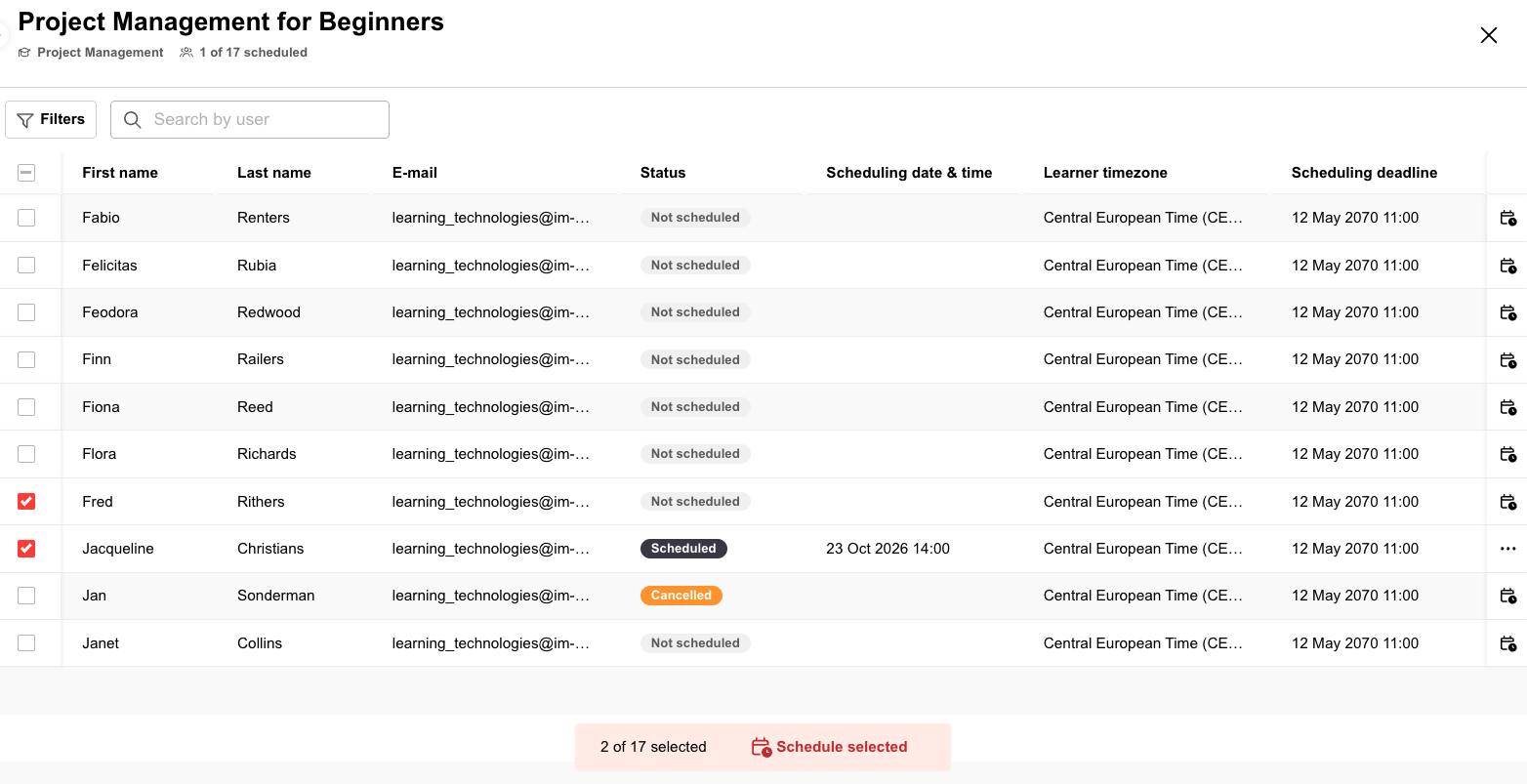
Scheduling a learner (see below) or multiple learners (see second screen) works in the same way.
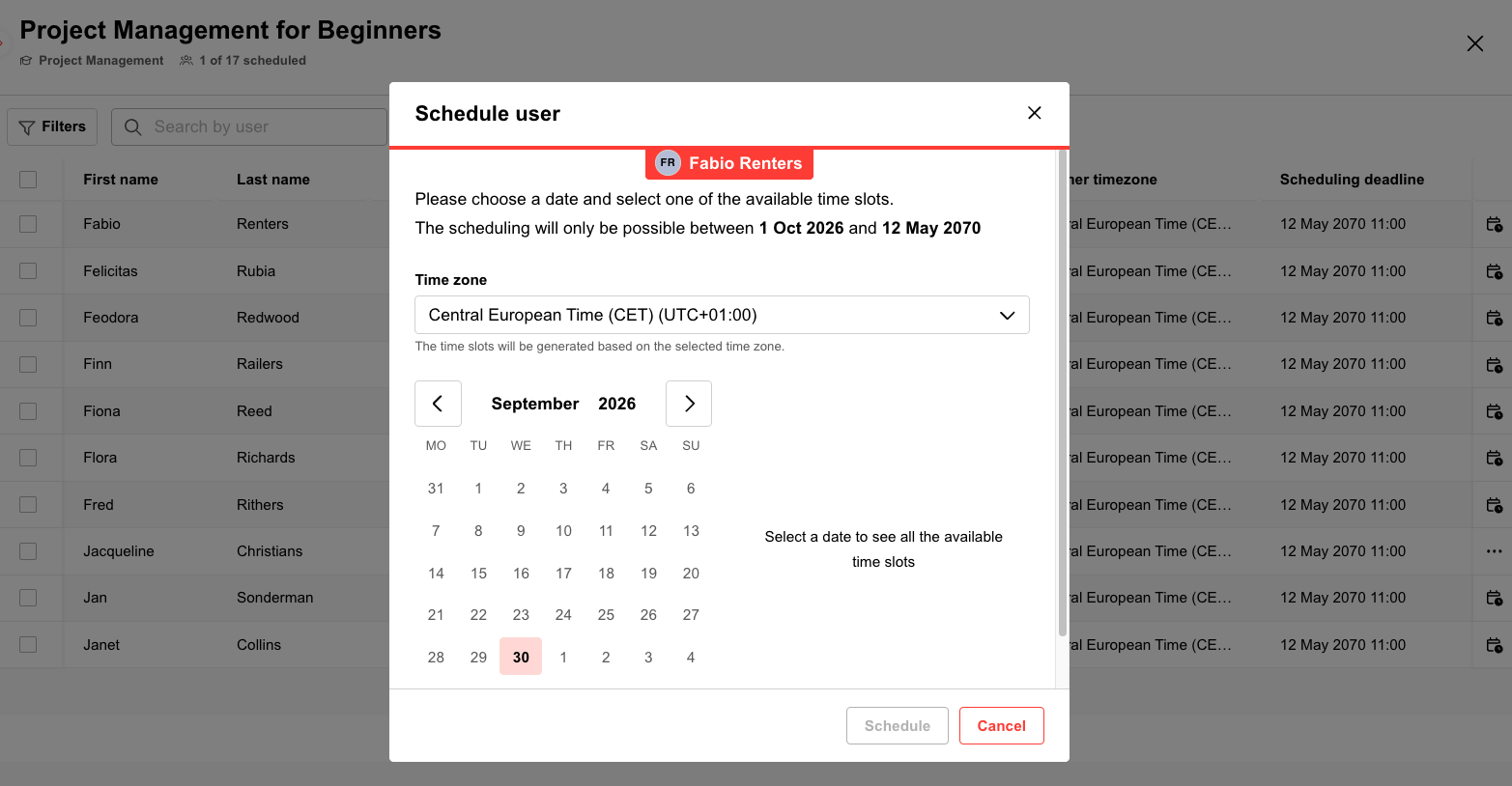
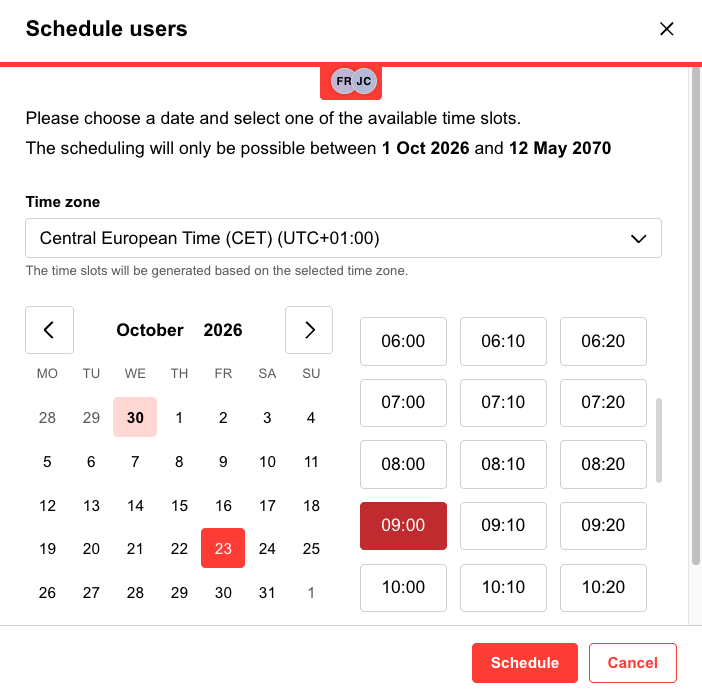
However, for batch scheduling multiple users need to be selected as on the left side of the following screen and the button on the bottom of the page must be clicked.
Taking the Exam
The proctoring session will be conducted similarly to the learner workflow of the Record+ integration see above. However, the learner will be guided through all the steps in the ProctorU platform and will be re-directed to the test. Once the test has been submitted, no second try is possible.
In case no proctoring incident has been raised by the proctor during the test session, the learner can directly see his test results and can download his certificate of completion.
Tutor Workflow: Proctoring Evaluation
If a proctoring incident has been raised by the proctor the test is automatically put into the status “in proctoring evaluation” after the learner submits the test. The responsible tutors are informed by mail about the proctoring incidents per learner and can directly access the records and notes of the test proctor on the ProctorU platform.
In LMS the tutor can find the corresponding course of the test, and in the view “course progress per user” of the course instruction the tutor can see the proctoring infringement status, where he can resolve the proctoring in evaluation status of a test using the flag icon in the tool bar (see screenshot below).
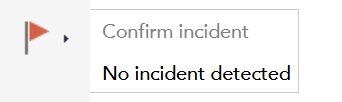
The selection of “confirm incident” sets the test result, percentage, and points to 0 and sets the learner to failed for the particular test. The values can be reset to the actual test result when choosing “no incident detected”.
The learner can only access his test result and download his certificate of completion if the test is resolved to “no incident detected“.
Reports
The test results are now reflected in the report panel for learner und test result and in the following reports:
-
SOLR Test questions per user
-
Test questions per user
-
Test results (learner)
-
Test results (supervisor)
The new column proctoring incident status is added to the report if the proctoring license is active. It describes the current proctoring status for proctored tests. The existing columns assessment level reached, percentage achieved/test result and score also reflect the current status. In case an incident is confirmed, the assessment level reached is set to failed and the percentage achieved and scor is set to 0.0 .
Limitations
-
Proctored tests can only be assigned to courses with administrator
-
Scheduling of live proctored tests cannot be done in components manager
-
Meazure Learning is using user e-mail address as unique identifier, user without e-mail can not be registered on Meazure Learning
-
Proctored tests can not be automatically updated in the course syllabus
-
Proctored test will not work when added via Easy course creation
-
Only one test attempt is available for proctored tests
-
Having a proctored test for the same user in multiple courses is not supported
-
Add/edit accommodations and permitted resources is not supported
-
changes of course start and end date not taken into consideration for scheduling after first user is enrolled
-
proctored tests are not working in courses which are created in the easy course creation
-
when opening the exam it happens that 2 tabs with the same tabs are opened by Meazure Learning (bug on Meazure Learning side)
-
one test can not be taken twice by the same learner, even if the same test is added to another course
-
learning logic and test player settings are reduced to one
-
-
proctored tests can not be automatically updated in the course syllabus when the course is started