
How to enrol Staff in Training
Being a Supervisor of staff entails responsibility for ensuring that required training activities for their roles or compliance are completed and that staff members are challenged with professional development opportunities. For this reason, the imc Learning Suite enables Supervisors to enrol their reporting staff members on Courses and Learning Paths. There are multiple ways to achieve this enrolment of staff, and each method is explored on this page.
Catalogue Enrolment
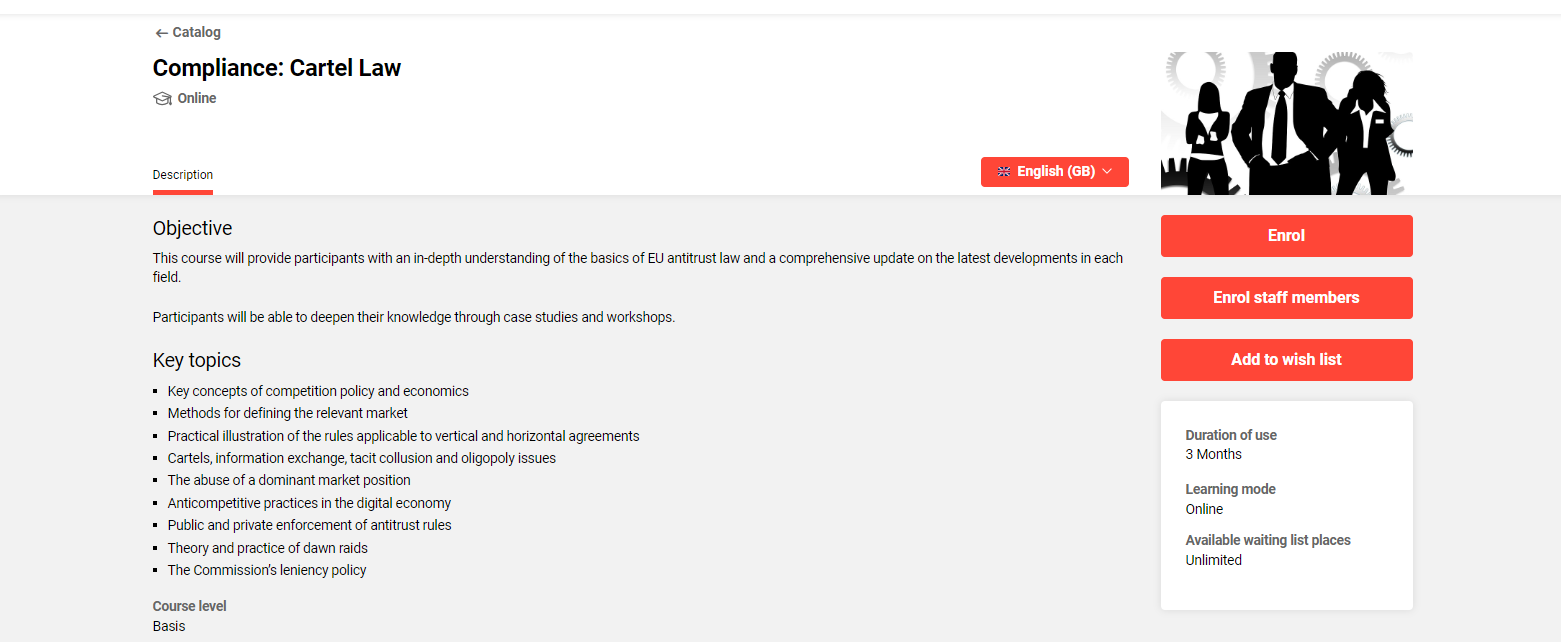
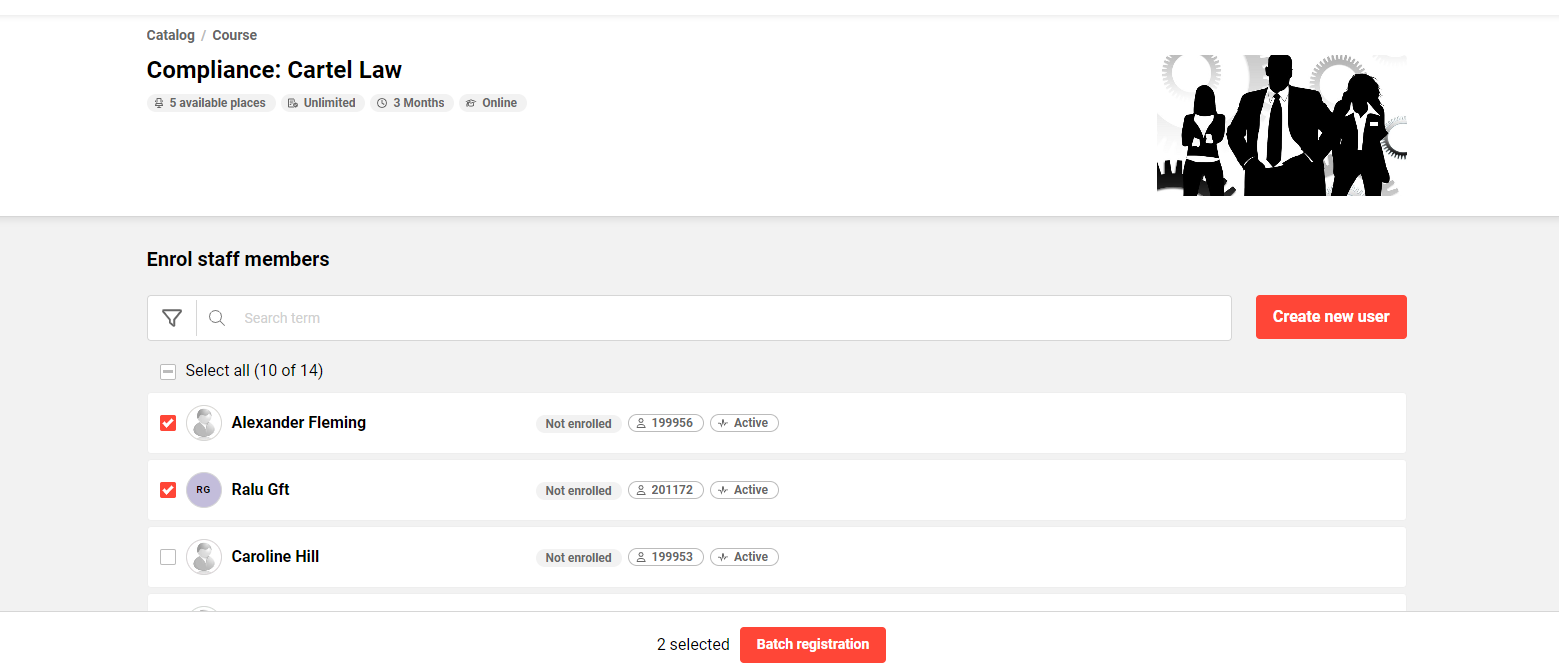
When a Supervisor accesses a training Catalogue, an additional option is available that allows staff to be directly enrolled on Courses and Learning Paths. To do this, a search for desired training is performed, and the detail description page is opened, where, directly below the "Enrol" button, an "Enrol staff members" button is located.
Selecting "Enrol staff members" launches a new window called "Multiple registrations". The drop-down arrow on the "Participants to be booked" field is used to select desired staff for enrolment. Once the desired staff have been selected, a "Due date" can optionally be set for when the training must be completed, and the completion can be identified as optional, mandatory, or for compliance purposes. If a Due Date is set, the staff enrolments are visible to the Supervisor in the "Due date" report and subject to escalation model email reminders for non-completions.
My Staff Single User Enrolment
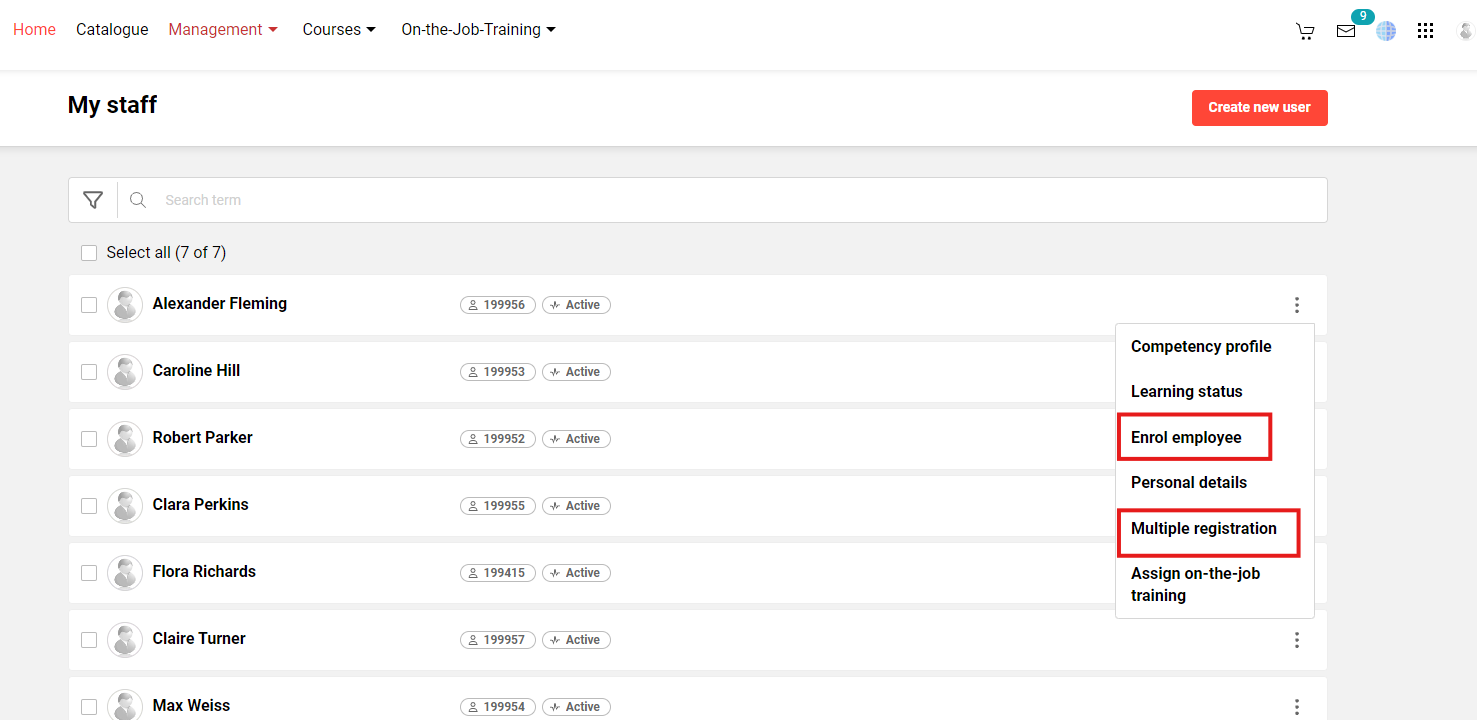
In the "My Staff" menu, the user requiring enrolment is located, and the three dots "..." button on the right is selected to expose various options. Here, two choices are available for enrolling the selected staff member in training: "Enrol employee" and "Multiple registration".
Enrol Employee
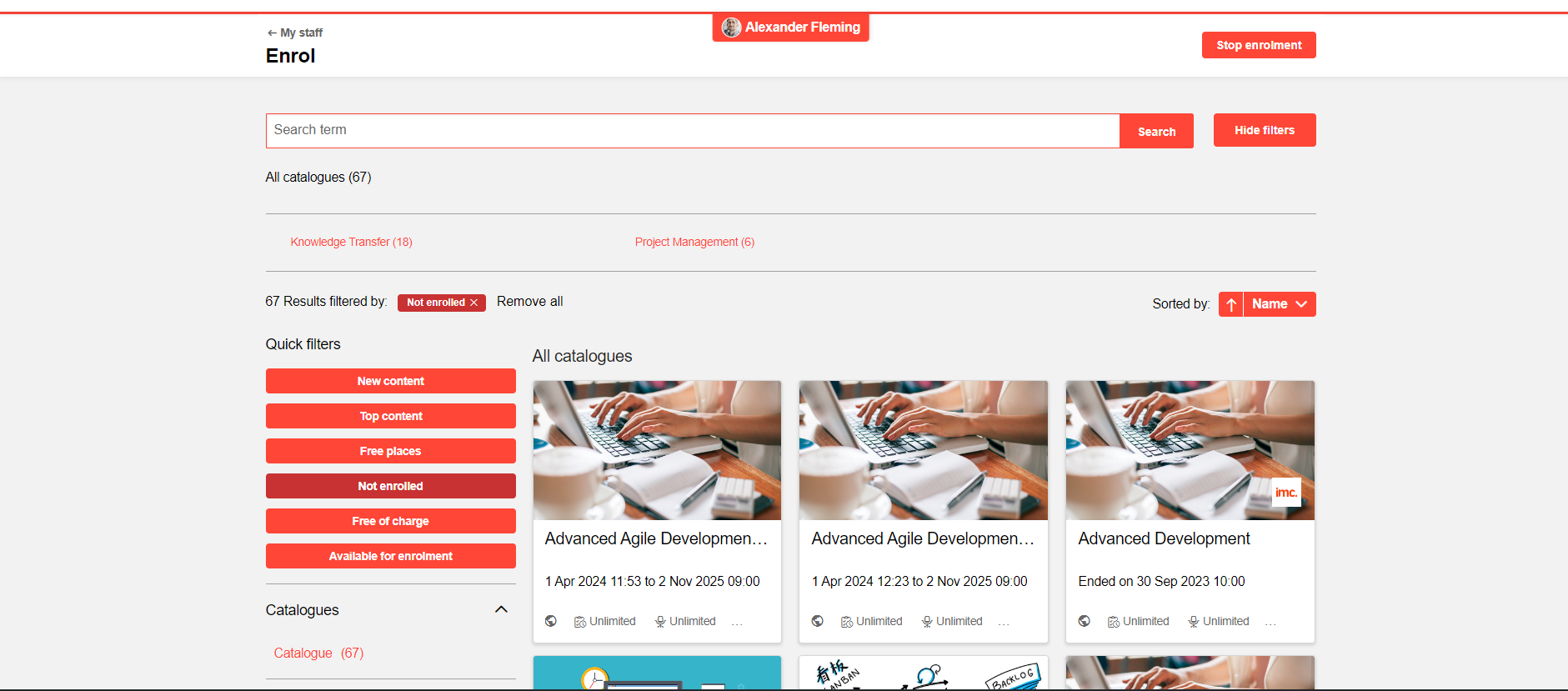
The Supervisor is directed to the Catalogue, where enrolments can be completed on behalf of the selected staff member. The selected staff member's name can be seen at the top of the page, indicating that the enrolment is for the displayed staff member. To complete an enrolment, a search for desired training is performed, the tile is selected to load the description page, and the "Enrol employee" button is selected.
Multiple Registration
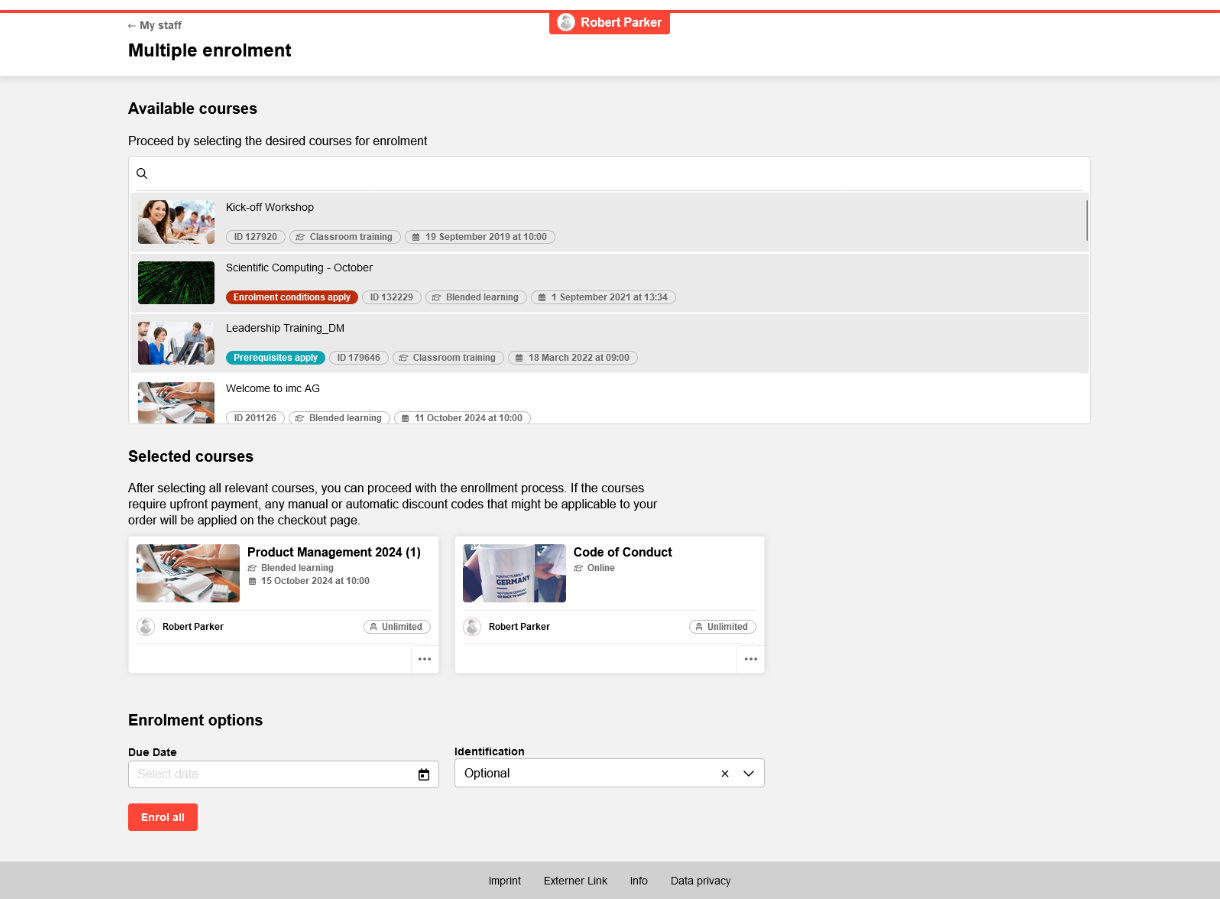
The "Multiple registration" option loads a new screen where one or more Courses can be selected from a selection list for enrolment of the staff member. An optional "Due Date" can be set for the staff member to complete the Course, and the completion requirement can be identified as Optional, Mandatory, or for Compliance. Once the desired Courses are selected and the optional Due Dates populated, the "Enrol" button is selected.
My Staff Bulk User Enrolment
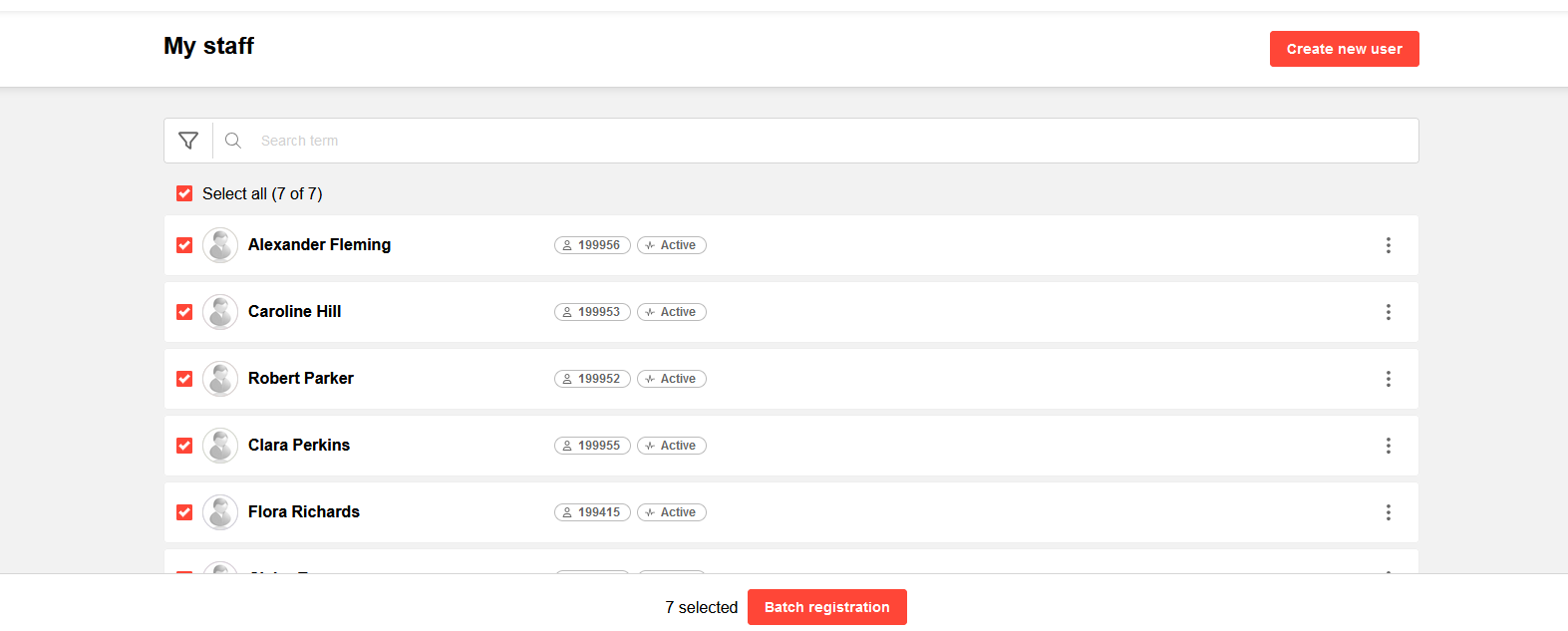
To enrol multiple staff on Courses in the "My Staff" search, the select box for the desired staff is ticked. Once at least one staff record has been ticked, a new button, "Batch registration", appears at the bottom of the screen. The "Batch registration" button is selected to commence the enrolment process for the selected staff members.
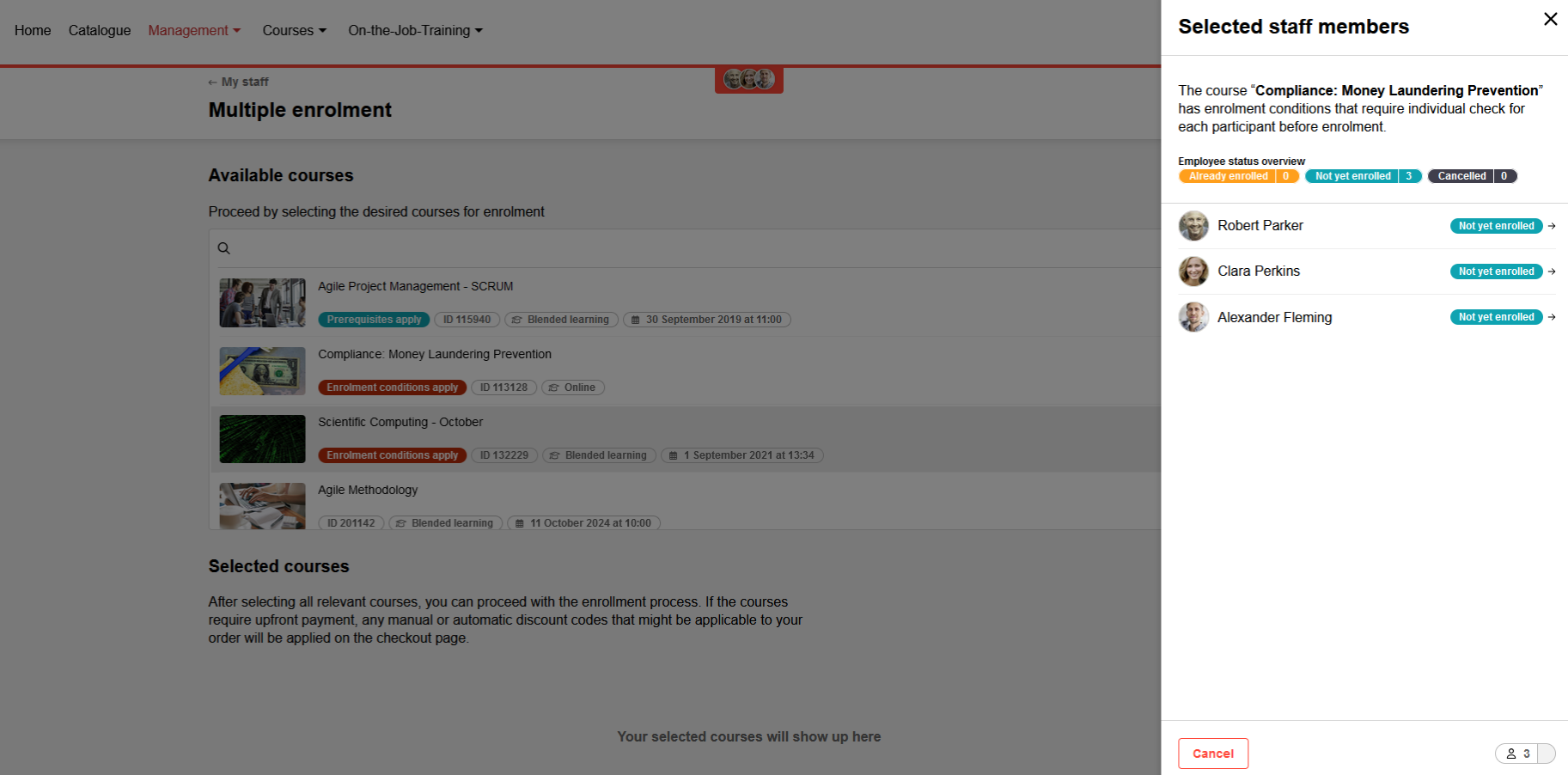
A new "Multiple registration" screen loads, displaying the selected staff members. In the "Courses" field, the Course or multiple Courses are selected for enrolment of the selected staff members. An optional "Due Date" can be set for the staff members to complete the Course/s, and the completion requirement can be identified as Optional, Mandatory, or for Compliance. Once the desired Courses are selected and optional Due Dates populated, the "Enrol" button is selected.
Hints & Tips
-
Enrolments of multiple staff through the catalogue will need to be completed individually when there are enrolment forms or payments to complete.
-
Supervisor enrolments of staff will also consider prerequisite workflows.