
Dashboard pages are integrated into the system navigation. This includes internal dashboard pages, which permit personalised contents and settings, as well as public dashboard pages for the integration in public dashboards, but also in internal navigation sections that do not include personalised data.
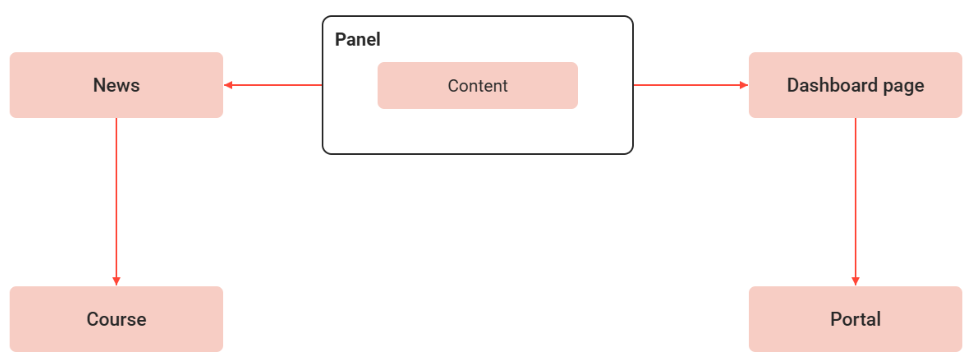
Dashboard pages have panels that include various types of content.
To use a dashboard page in the system, it has to be assigned to a navigation category in the navigation or dashboard manager.
Functions of the Dashboard-pages Manager
New
Internal Dashboard
Internal dashboards can only be displayed to logged-in users. They offer additional settings like access control list (ACL)-based panels or welcome messages
Any number of panels can be integrated. The administrator can configure whether panels without content should be hidden or displayed for the learners. A hidden panel is checked each time it is loaded. If content is then available, the panel is shown again. The report panels are always displayed and cannot be hidden.
Standard panels with freely definable content, new panels, and system panels with user-specific data (e.g. inbox) can be assigned to internal dashboard pages.
Dashboard Page
Standard panels with freely definable content, as well as new panels, can be assigned to public dashboard pages and are shown to all users. Not all panel types are supported; supported panels are:
News (external) - ID 100
News (internal) - ID 103
Top contents - ID 114
Homepage login - ID 160
Header - ID 167
Teaser - ID 168
Info - ID 170
Catalogue panel - ID 171
Courses - ID 172
Page
Pages utilize panels with new design. When creating a new page the page is opened in the page editor. Once the page is saved in the editor, the new page appears in the Dashboard Manager.
The following panels can be configured in the new page editor. The list expands from IP to IP until all panels are covered.
-
Badge Panel
-
Bookshelf panel
-
Catalog Panel
-
Channel Panel
-
Classification Panel (entry into the catalogue)
-
Course Panel
-
Current contents
-
Current Courses
-
Entry into the catalogue
-
Experience Tracks
-
Feature Plugin Panel
-
Homepage login
-
Mandatory courses
-
News and New pages
-
Pending Enrolments
-
Quick Links Panel
-
Recommended Learning
-
Slider Panel
-
Task Management
-
Top Contents
External Page
External Pages utilize panels with a new design. When creating a new external page, the page opens in the page editor. Once the new external page is saved in the editor, it appears in the Dashboard Manager.
Standard panels with freely definable content, as well as new panels, can be assigned to an external page to be a public page and are shown to all users. Not all panel types are supported; supported panels are:
-
Homepage login 160
-
News
-
(external) 100
-
(internal) 103
-
-
Top contents 114
-
Catalog panel 171
-
Courses 172
-
Slider 187
-
In Page Panels:
-
Text Rich
-
File downloads
-
Image Map
-
Note:
-
Header, Teaser and Info cannot be assigned in the new editor for an external page anymore. Please use the In-Page panels mentioend above for new page setups.
Duplicate
Duplicate
Edit
EditDuplicateEdit
Panels and Dashboard with new Design
The updated panel designs offer a modern look and improved functionality and can be enabled via opt-in on existing dashboard pages. All panels support the new design.
To use the new dashboard and panels, check the “Opt-in for the new dashboard & panel design” box on the dashboard description tab. Administrators can add only panels marked "New design support."
Note:
-
New and old panel designs cannot run on the same dashboard.
-
Welcome messages are not supported during page editing
-
When the opt-in is enabled, panels not considering the new design are not displayed
Delete
Clearances
Global Functions and Related Topics
How-to Guides