
Batch enrolment, move and replace enables the supervisor to handle the enrolments of their employees. The functionality relies on the Default menu: “My staff/ Staffpool” , which displays the employees based on direct supervisor relationship, Business Unit (BU) setup, or Access Control Lists (ACLs), so it can also be used by administrators or Human Resources (HR) staff. The supervisor can enrol several people at once into a course or learning path, move an employee from one course to another, or replace the employee enrolled in a course with another employee.
Enrolment via My Staff
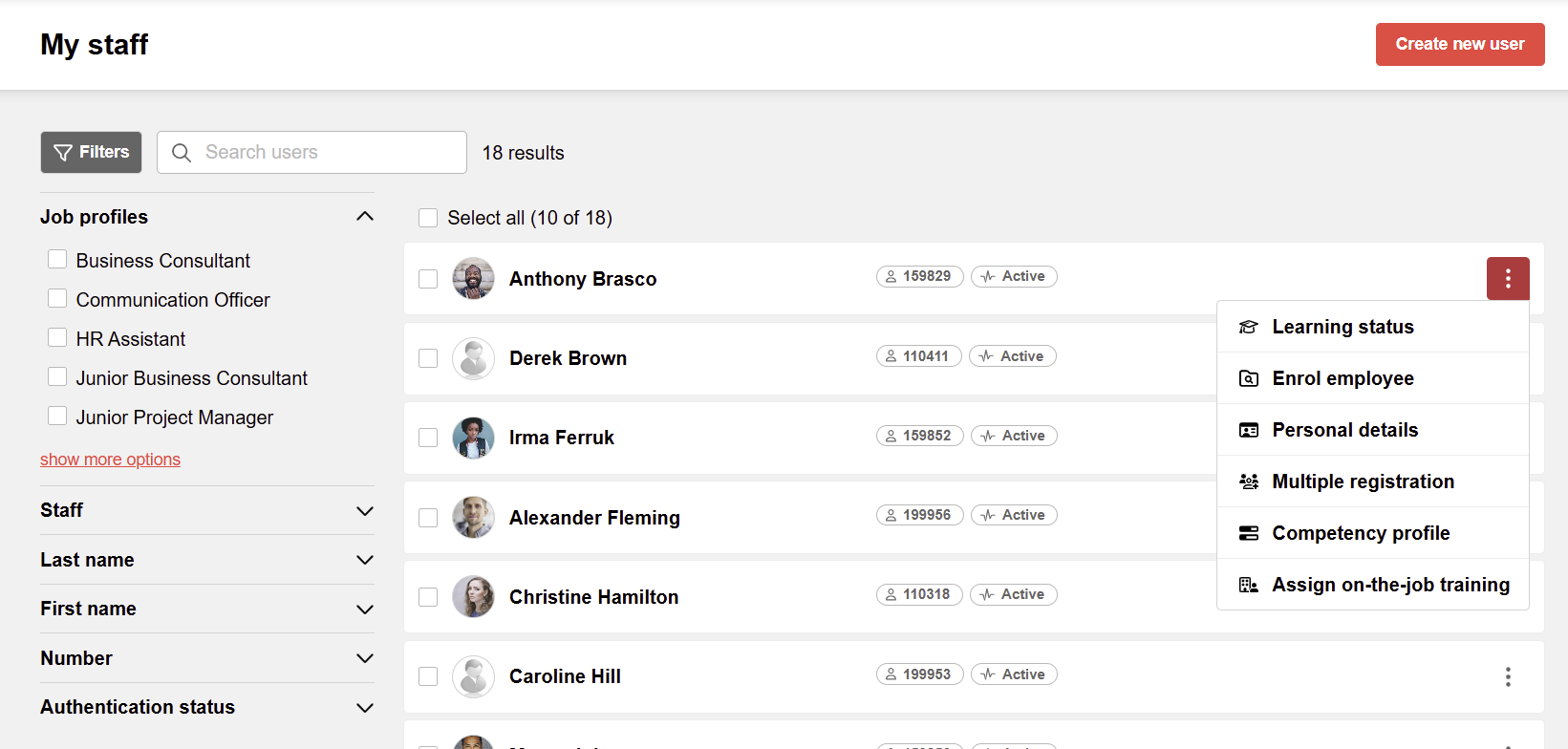
The supervisor can enrol individual users in courses or learning paths. To do this, the supervisor selects the learner for whom the action is to be performed. The points icon is located at the end of the learner tile; clicking it opens a menu with additional functions. To enrol a user in a course, the 'Enrol employee' option is selected.
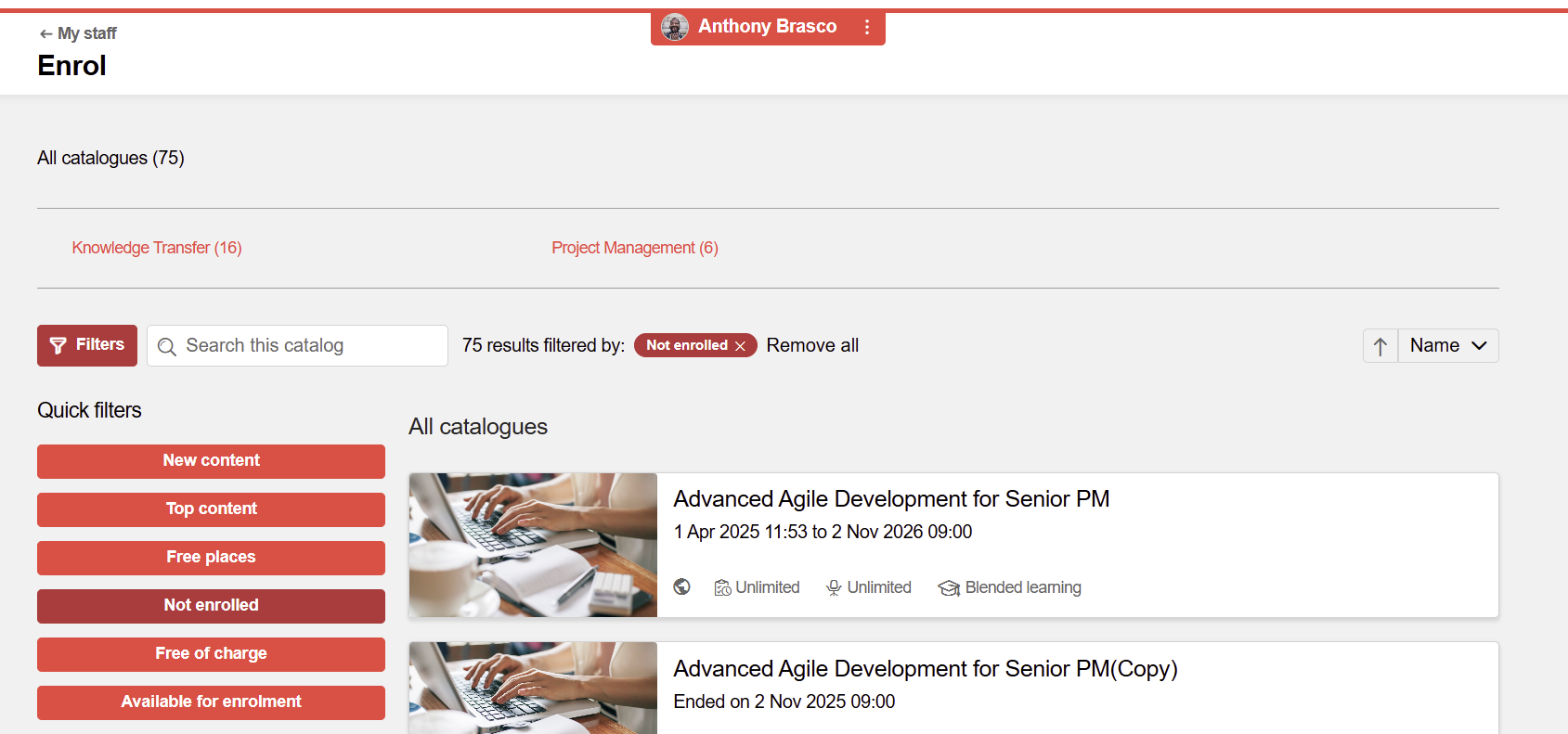
The catalogue view opens in the user context, and the supervisor selects the course or learning path in the catalogue for which the user is to be enrolled.
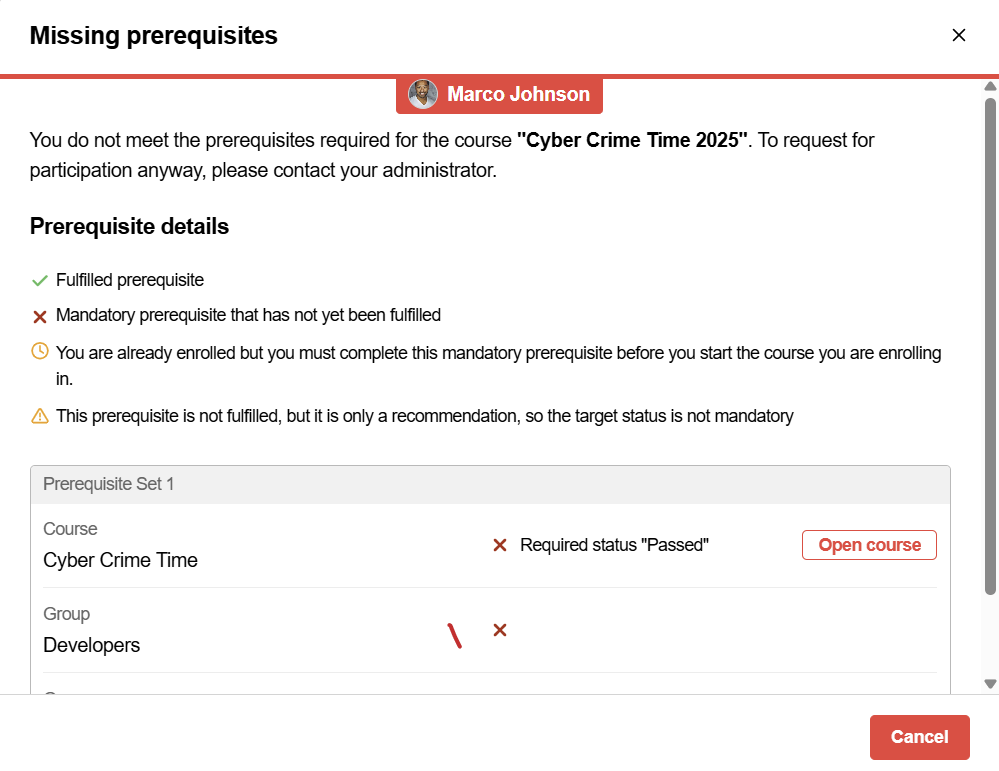
If the user does not meet the prerequisites, the enrolment cannot be finalised.
Multi-Enrolment
The 'Multiple enrolment' page enables supervisors to enrol multiple employees into multiple courses or learning paths in a single workflow, eliminating the need to repeat the enrolment process for each user individually.
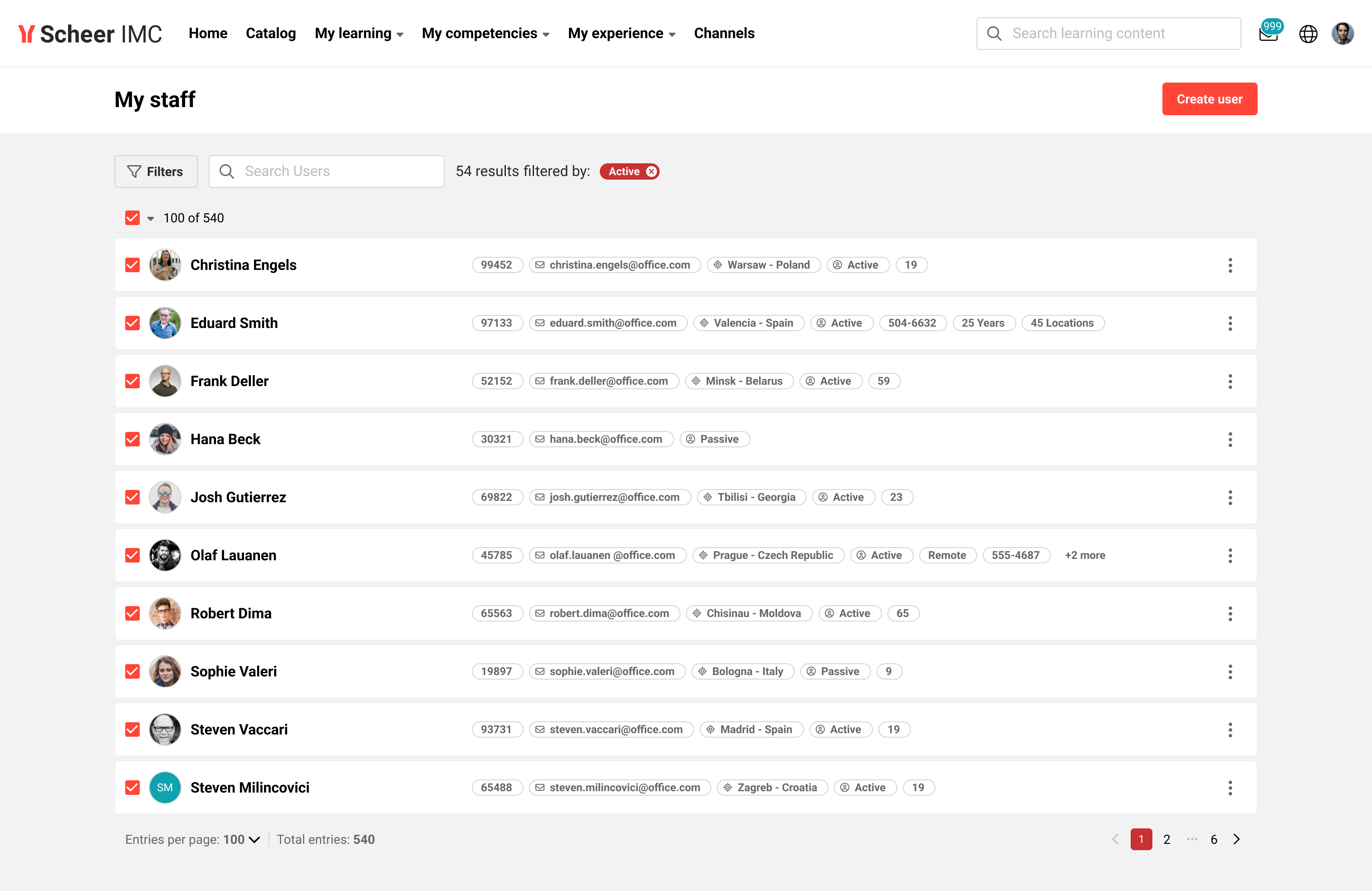

To start a multiple enrolment, the supervisor navigates to Default menu: 'My staff' / 'Staff pool', selects the employees to be enrolled (up to 100), and clicks the 'Batch enrolment' button in the action bar displayed at the bottom of the page. This opens the 'Multiple enrolment' page with the selected employees preloaded
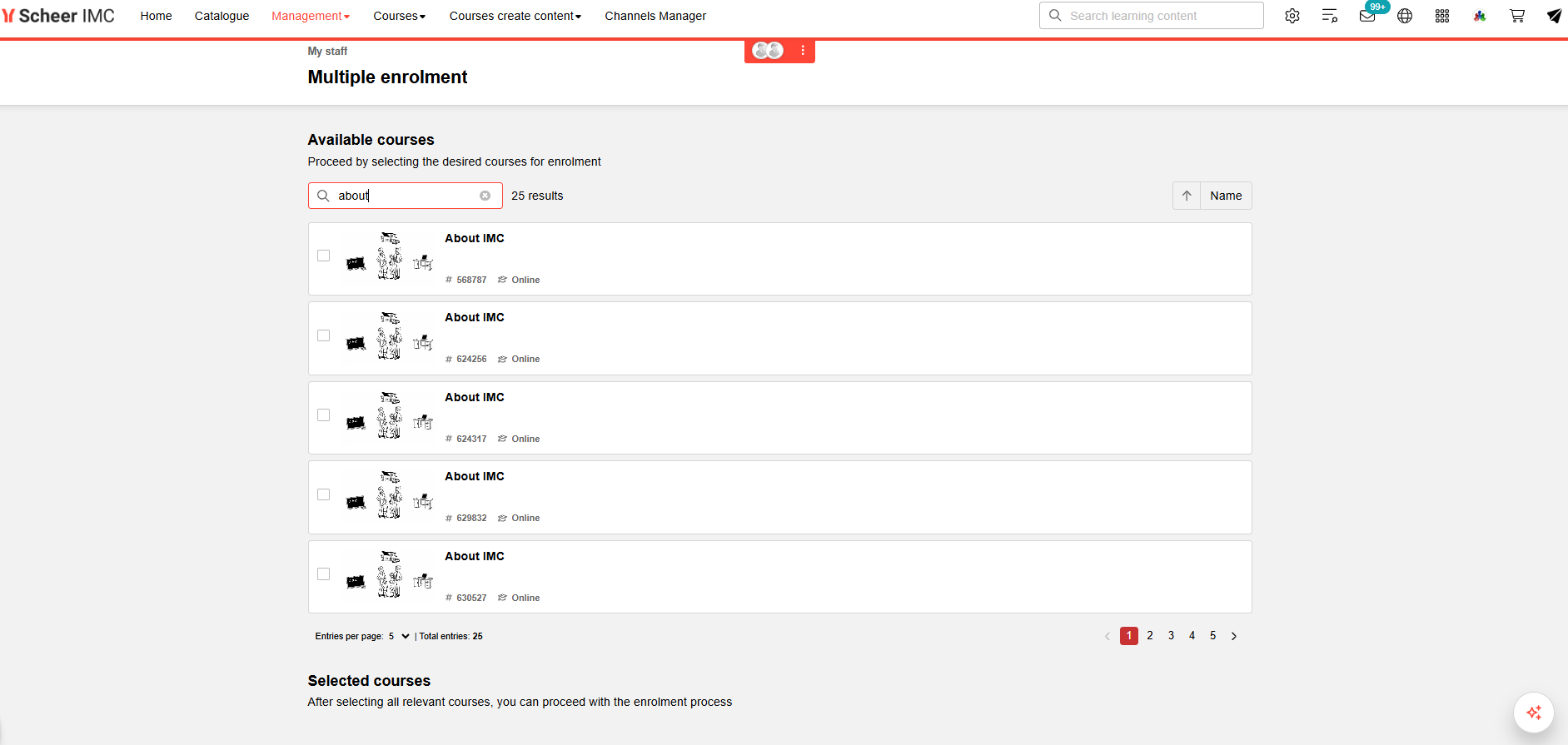
Selecting courses
The 'Multiple enrolment' page displays the available courses and learning paths in a paginated list. The supervisor chooses how many entries to display per page (5, 10, or 20) via the 'Entries per page' dropdown. Courses are selected via a checkbox on each course card. The course list can be sorted alphabetically by name in ascending or descending order using the sort control
Configuring enrolment options
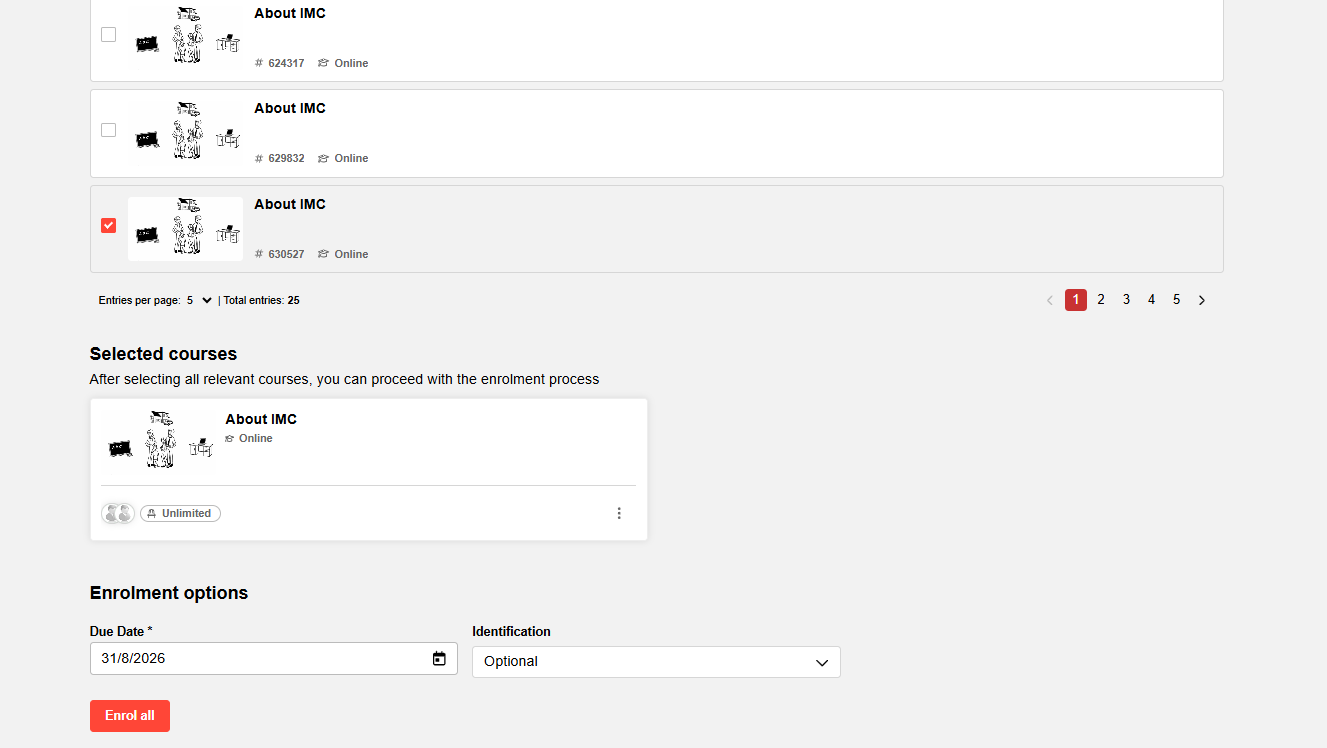
After selecting one or more courses, the supervisor can configure enrolment options before submitting the enrolment.
-
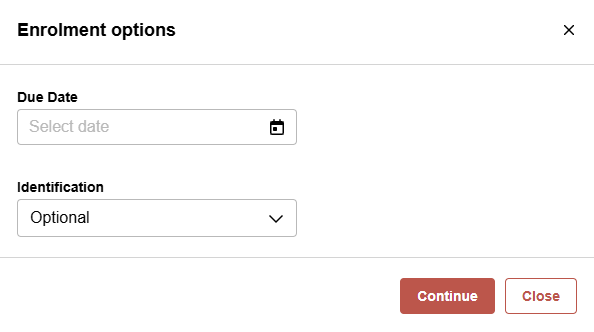
A common due date can be set for all selected users.
-
An identification (for example mandatory or optional) can be assigned via a dropdown, and non-mandatory identification fields include an empty option to allow clearing the selection.
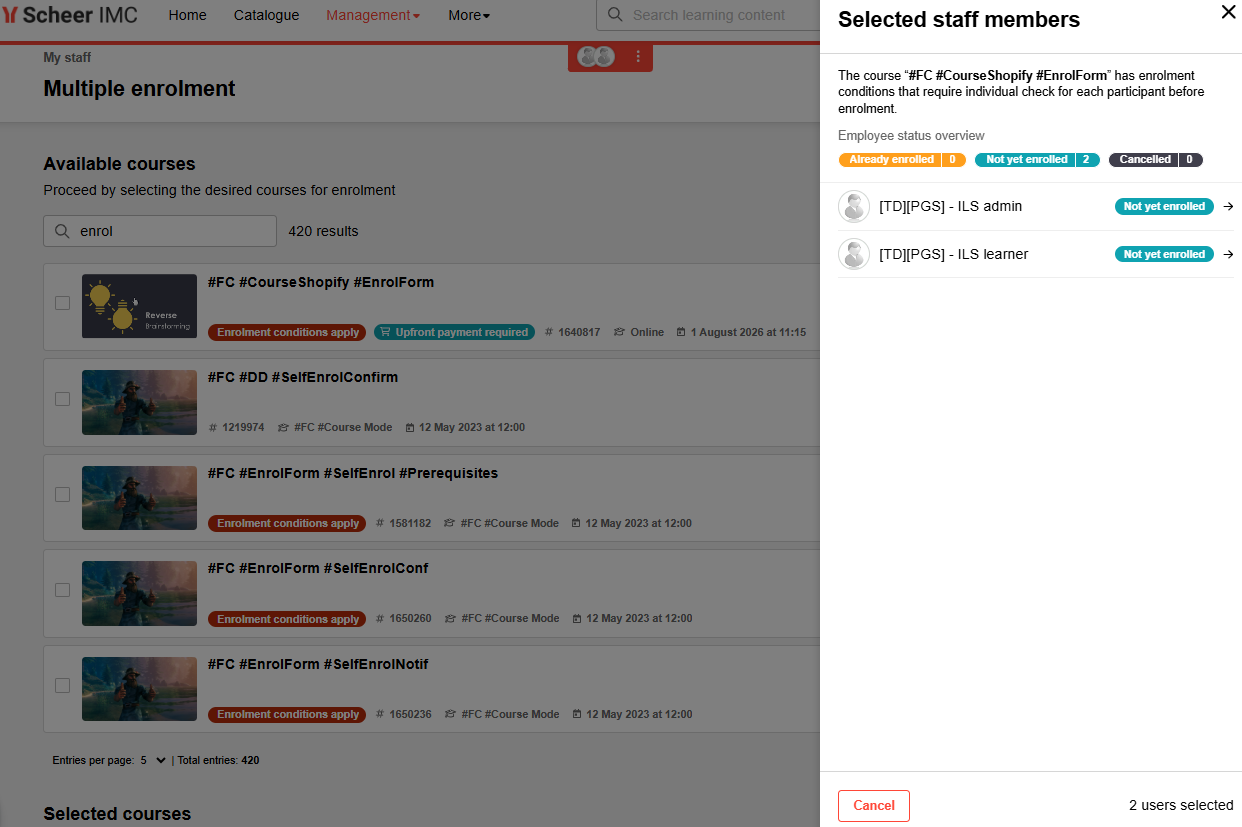
A user drawer displays the number of selected users; if the selected course has a price, the total price is shown alongside the user count, and for courses without a price only the user count is displayed.
Processing
The enrolments are processed. If there are unmet prerequisites or enrolment forms that require individual attention, the respective enrolments are not processed in the batch. In this case, the supervisor proceeds with the enrolment one by one.
Enrolment via the Catalogue by Supervisor
The page displayed after choosing the 'Enrol employee' option from a course or learning path accessed via the catalogue allows selection of multiple users at once. Supervisors choose how many employees to display per page (10, 20, 50, or 100) and select up to 100 people at once; once the limit is reached, further selections are disabled.
To use this function, a page size is picked and a selection of up to 100 employees is made, then the collective enrolment proceeds. The system does not support "select all across pages", but this keeps performance stable and works the same in all three views.
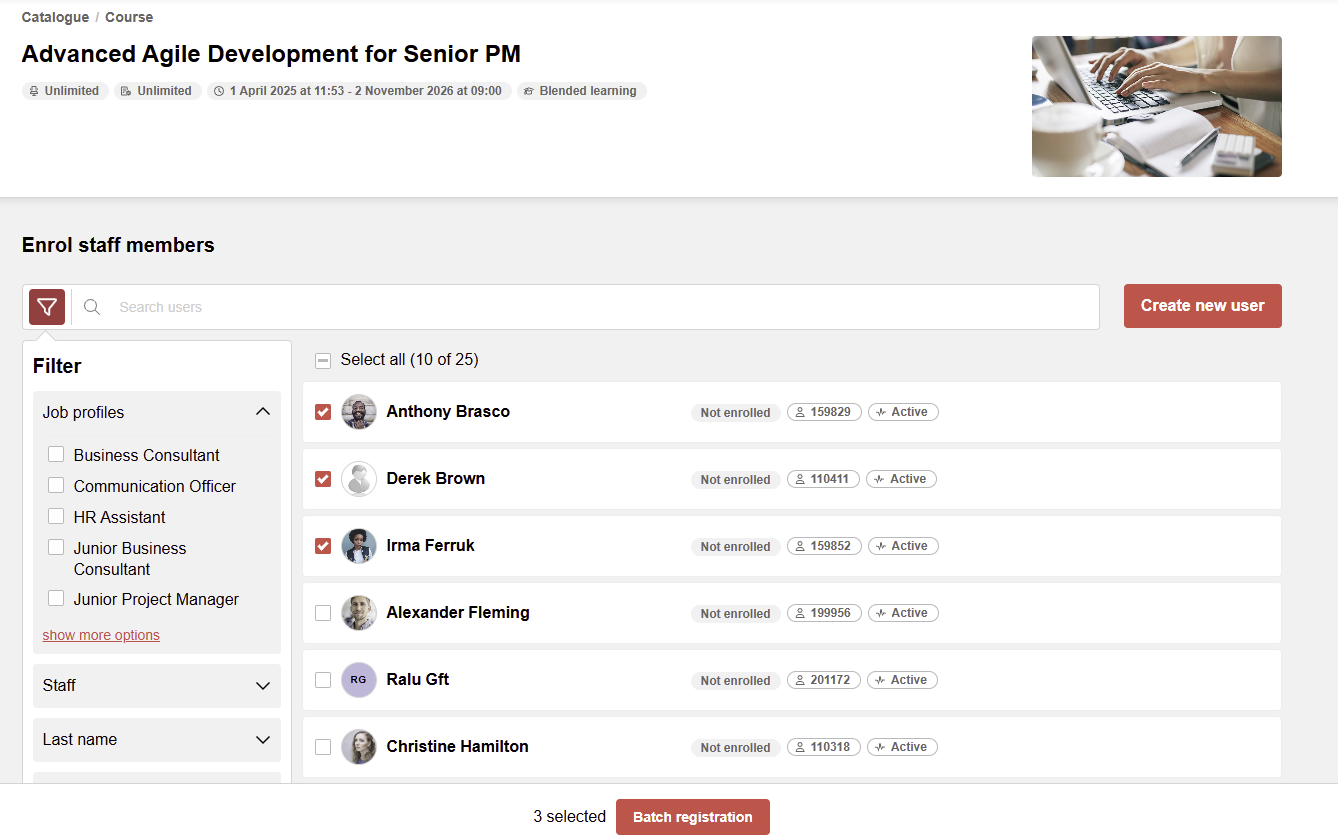
When multiple users are selected, an action bar is displayed at the bottom of the page, allowing enrolment of the selected users at once.
For courses where an enrolment form is defined, only a single user at a time can be enrolled.
During enrolment, the supervisor can define a common due date for the users, as well as an identification indicating whether the course is mandatory or optional.
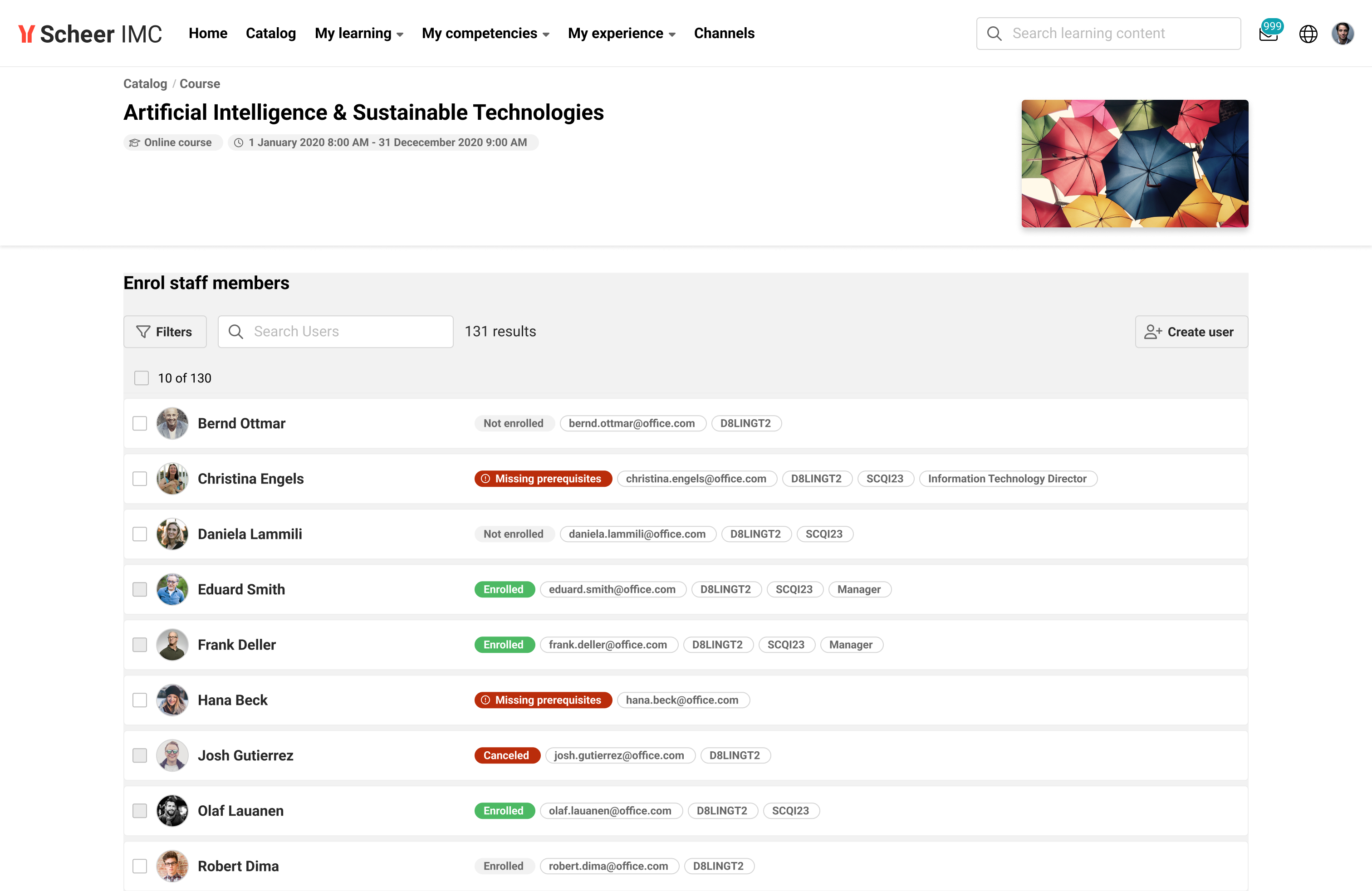
When superivisors enroll staff via the catalog (“Enroll staff members” / “Manage staff enrolment”), the system shows the prerequisite status for each person directly in the staff list.
-
For each selected course or learning path, the system automatically checks mandatory prerequisites for every listed staff member.
-
If prerequisites are not fully met, a “Missing prerequisites” label is shown (covers both partially and completely unfulfilled prerequisites).
-
If all mandatory prerequisites are fulfilled, no prerequisite label is shown.
-
If the course/ learning path has no prerequisites configured, nothing is displayed.
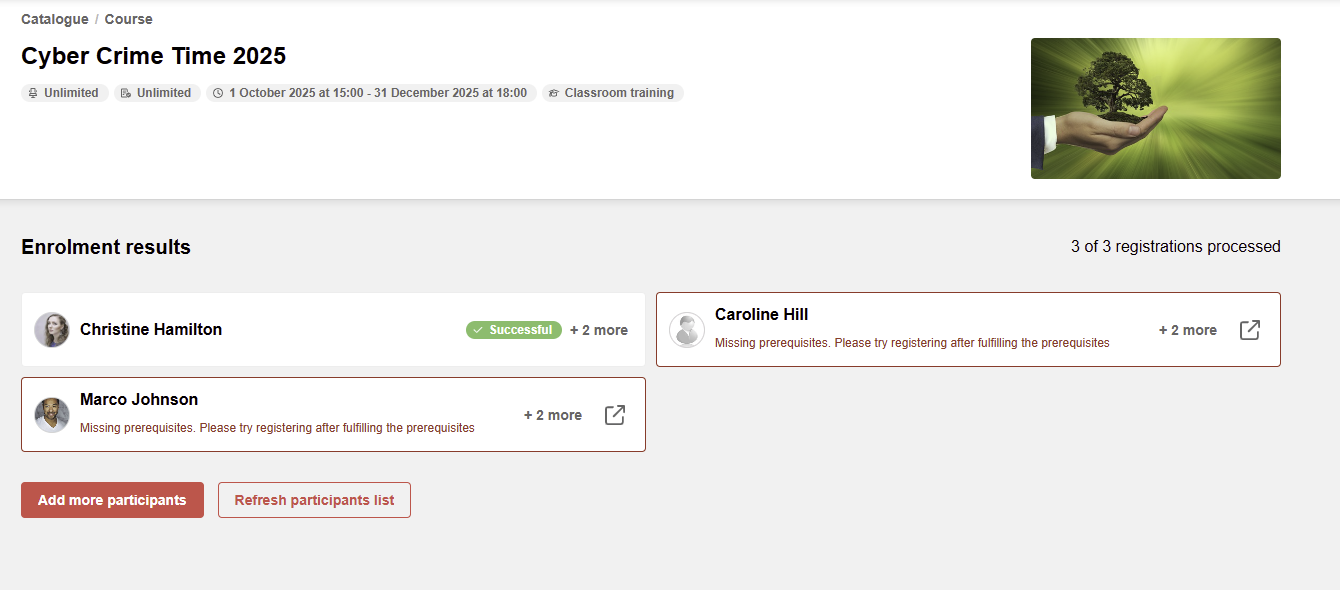
The enrolments are processed one by one. If there are unmet prerequisites or an enrolment form is available, the enrolment is not processed; an option is available to trigger the individual enrolment for the users who could not be enrolled via the bulk process.
For the courses where Edit syllabus is enabled via the course meta tag, the option to Edit the syllabus after the enrollment will also be available.
Based on the "Course enrolemnt" authorization at the Default menu: My staff/ Staff pool, the option to select multiple users on the My staff page is enabled.
Further settings can be done in the client administration.
-
Show due date/identification dialogue while enrolment by supervisor
-
Due date as mandatory input
Move and replace by supervisor
Line managers and dealer groups commit to a specific number of employees attending trainings. To ensure that every employee can attend a course that fits, there needs to be a way to replace employees or move employees from one session to another, for example if one of the employees is unable to participate in the training.
Access to the move and replace options
To replace a participant on a course with another participant, or to move a participant from one course to another, the line manager accesses the list of employees via Default menu: 'My staff' / 'Staff pool', selects the concerned employee, and navigates to the learning status of the employee
In this view, the course for which the change is needed is selected, and the two options are revealed.
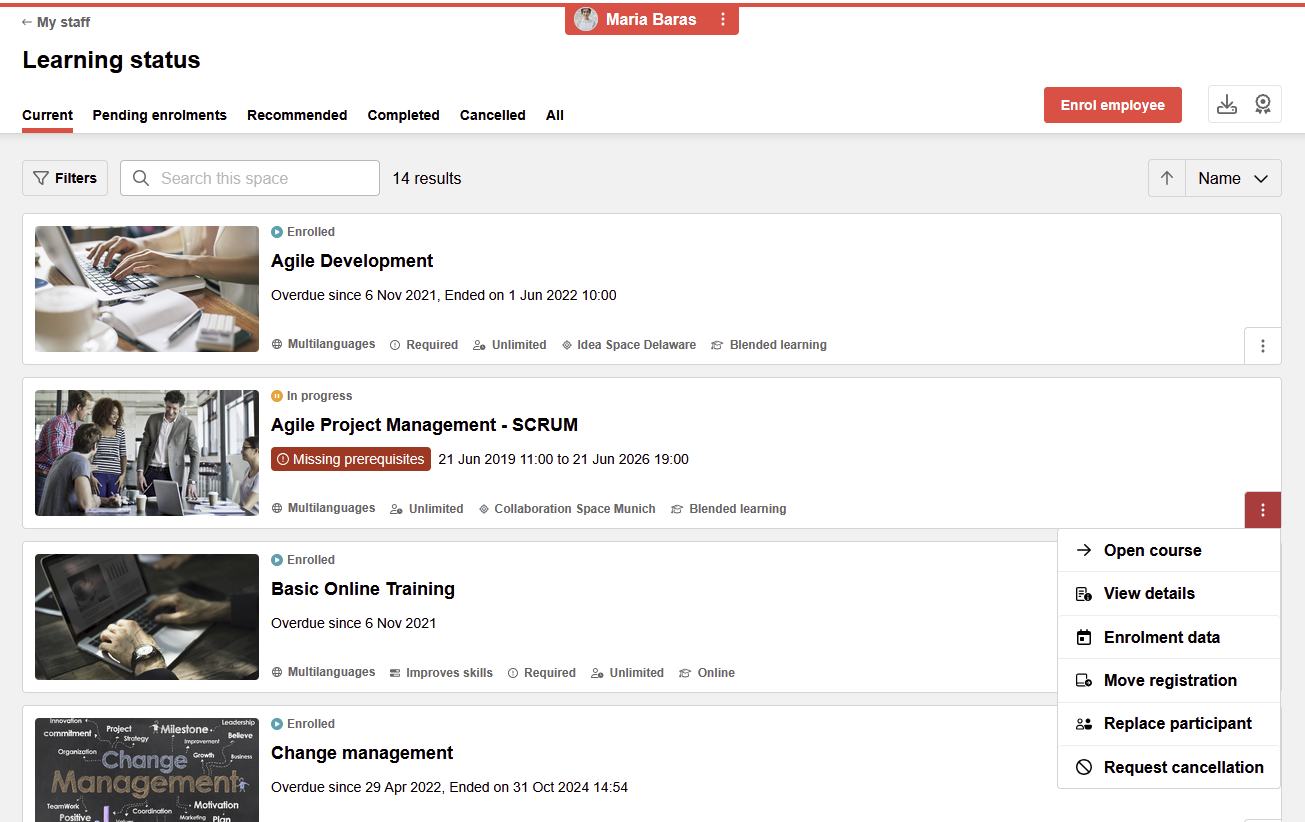
How replace enrolment works
When the Replace enrollment button is selected, the enrollment management workflow will open, with the context of the selected participant and the selected course.
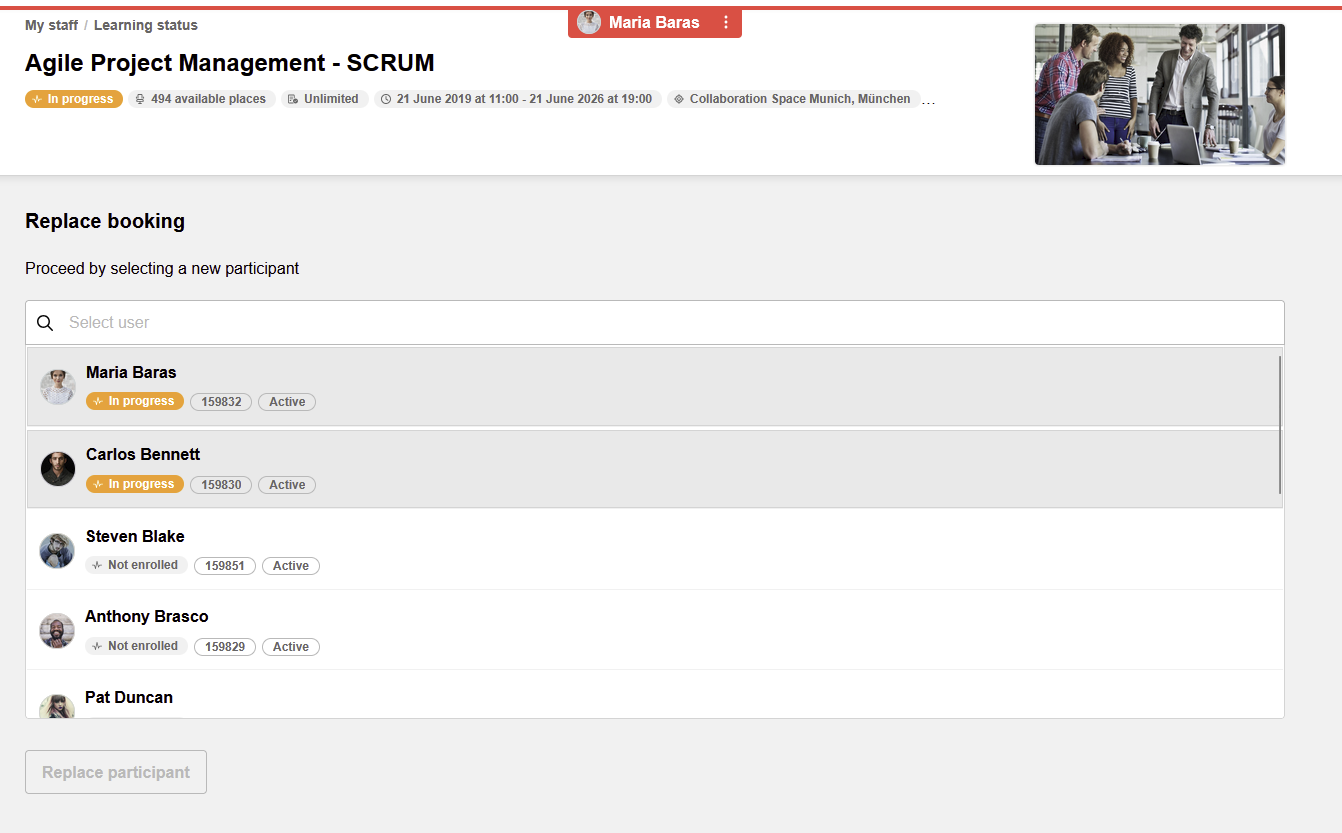
Below the course information, a selection list is available for selecting the user to replace with. The list is composed using the same rules as the 'My staff' list configuration (supervisor relationship and edit rights for the user). Users already enrolled in the selected course are displayed in the list but are greyed out and cannot be selected; their current status is also visible. This list considers the user attributes defined for the staff user list.
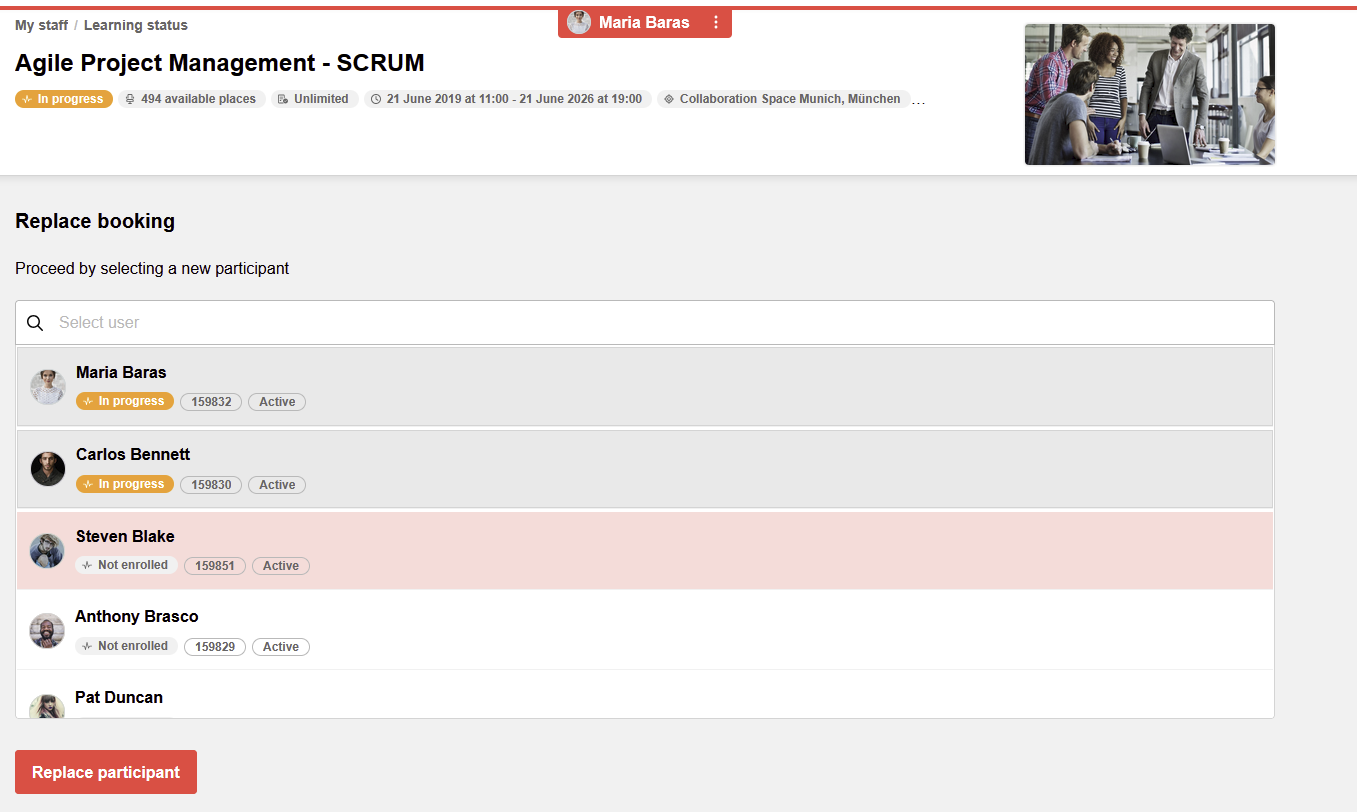
A single user can be selected from the list, since the replace function is a one-to-one process. Once the user is selected, the user tile is displayed, with the option to remove the selection and select another user. Once the selection has been made, the 'Replace' button becomes active and the process can continue.
During the replacement process, if prerequisites are defined on the course and the new user does not fulfil them, or only partially fulfils them, the prerequisite overlay is displayed. It is only possible to proceed with the replacement if the prerequisites are at least partially fulfilled, or the only unfulfilled prerequisites are not mandatory.
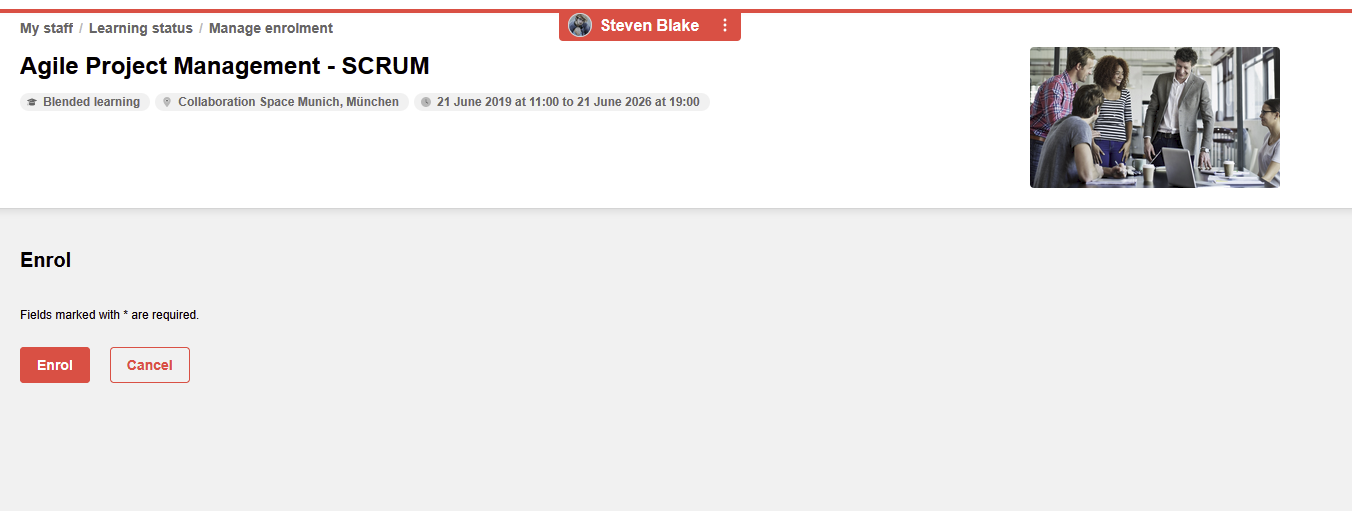
If the process can be continued, the replace process is triggered. If the process is successful, a redirect to the learning status page of the initial user is performed, with a confirmation message that the replacement was successful. If the process fails, an error message is displayed on the same screen, without a redirect.
Move enrollment
When the 'Move enrolment' process is started, the enrolment management workflow opens with the context of the selected participant and the selected course. Here, instead of an option to select another user (as done for replacement), an option to select a target course for the move is available.
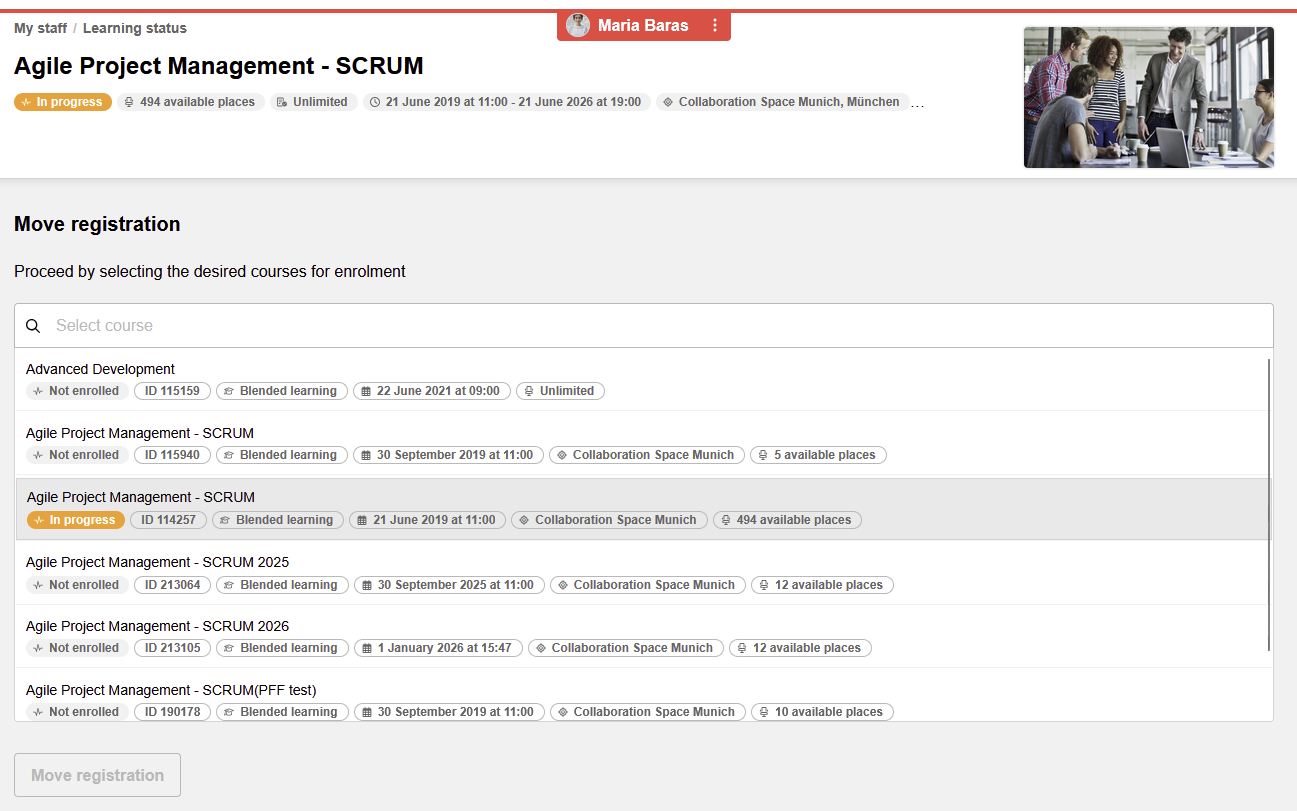
In this list, the following rules apply:
-
Courses from the same course template as the initial course
-
Courses where the selected user is already enrolled are displayed but not available for selection (grayed out)
-
The information displayed for the courses uses the same configuration defined for the course tiles displaye din the learning status of the learner.
-
A single target course can be selected.
-
The list can be searched by: course name, user defined course code, course id, subtitle, location
After selecting a course from the list, the selection list is replaced with the tile for the selected course. If the selected course is not correct, the selection can be removed via the X button and the selection list will be made available again.
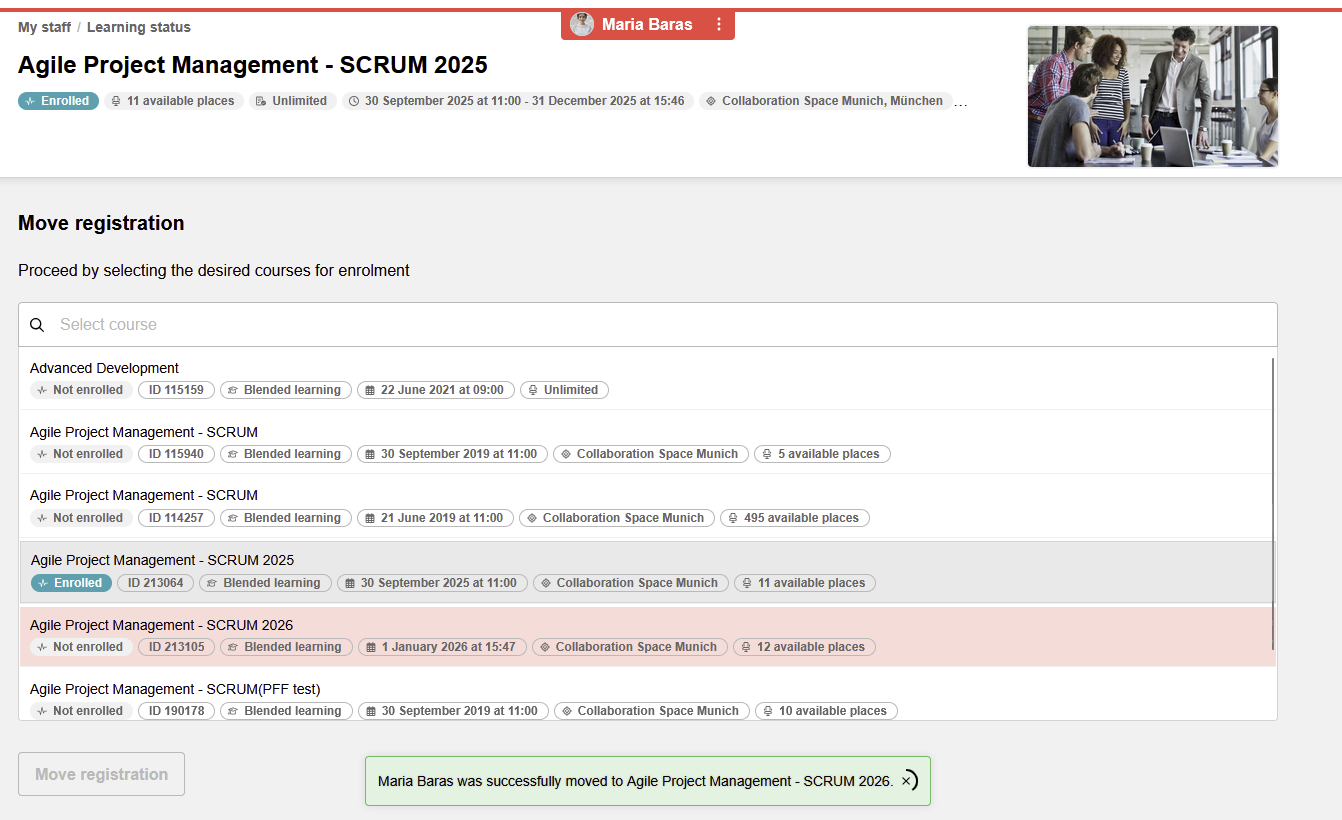
The Move button is enabled as soon as a target course is selected and the move process can be triggered. If the target course has prerequisites, the prerequisite information is displayed if the learner does not fulfill them or only partially fulfills them.
Configuration
-
The move and replace options will be displayed in the following conditions:
-
The line manager has the navigation rights to access the learning area of the user
-
The line manager has the corresponding ACL available at the course level (either Replace enrollment or Move enrollment)
-
-
This list of users considers the user attributes defined for the Staff user list
Further notes and restrictions
-
Both the replace and the move process can be performed if the participant is in one of the following states:
-
User is either on the participant list" (Enrolled, Started, Reserved) or on the "Waiting list" (Waiting, Reserved for waiting list)
-
It will not be possible to move or replace a participant who already completed the course
-
-
It will not be possible to move a participant to a course with the planning status set to Cancelled.
-
When a participant is replaced or moved from a course, he is completely removed from that course and does not go through the cancellation process. Therefore there will be no cancellation fees applied.
-
The move functionality, both by the line manager in the front end and also by the admin in the backend can be restricted in case the course has time dependent cancellation fees defined that would apply at the moment when the move is attempted. Since the move function does not trigger cancellation fees, the move can be restricted in order to avoid bypassing these cancellation fees, and the user is advised to use the cancellation option instead. This restriction can be configured at the client level.
-
On the admin side, he/she can see the Available places when trying to move a participant to another course in the 'Moving enrolment to other course' function. The admin can add a new column in the list which is called "Places" and he can even filter by displaying only the available places or both available and not available places.
-
Enrollment forms must also be considered in the replace and move workflows. If the course has a defined enrollment form, after checking the prerequisites, the enrollment form will be opened, where the manager can fill out the enrollment data.
-
If a user is moved from a learning path to another one
-
user is deleted from learning path #1 and booked for learning path #2
-
user is deleted from all courses of learning path #1 and booked on courses of learning path #2
-
Prebooking for Supervisors
There are 2 Settings which influences the possibility of prebooking by the supervisor
-
"Conditional pre-booking" on coure type level controls the pre-booking button on course template level for employees
-
"Enable pre-booking by supervisor" on Client level enable pre-booking for Templates where "Conditional pre-booking" is true for supervisor"
The possible values are:-
Do not enable
-
Always
-
Consider setting in course template
-
The following list will show under which condition the pre-booking button will be show for learners and for supervisors:
|
Enable pre-booking by supervisor (Client) |
Conditional pre-booking (Course type) |
Pre-book button “Learner” |
Pre-book button “Supervisor → Employee” |
|---|---|---|---|
|
Do not enable |
True |
Displayes |
Not displayed |
|
Always |
True |
Displayed |
Displayed |
|
Consider settings in course template |
True |
Displayed |
Displayed |
|
Do not enable |
False |
Not displayed |
Not displayed |
|
Always |
False |
Not displayed |
Displayed |
|
Consider settings in course template |
False |
Not displayed |
Not displayed |