
To be able to use the feature appropriately, it is necessary to perform various configurations.
Steps to configure Equivalences
-
Navigation entry for learners and administrator need to be created. Select the default menu “Manage Equivalences”.
-
After saving, release this navigation entry to the administrators or user roles authorized to manage equivalences. Users with the appropriate rights, when selecting this menu item, will see the Equivalences Manager.
Steps to create a new equivalence entry
-
Access the Manage Equivalences Manager.
-
Click the Create button to configure a new relation.
-
Select Create covering relation
-
Select Create passing relation
-
-
In the selection dialog, select a single object (course or course template) and click Add button.
-
In edit mode, select one of the three categories to define equivalence relations for the previously selected component.
-
Click the Add button and add one or more items (courses or course templates).
-
Save the changes.
Cronjob for passing users
The cronjob de.imc.clix.eqs.EqsCourseCompletionJob passes learners according to course equivalencies with passing relations, which are defined in the EQS manager. It only sets the learners to passed, but does not reset to the previous status when the passing relation is deleted.
Communication between ILS and the Equivalences Function
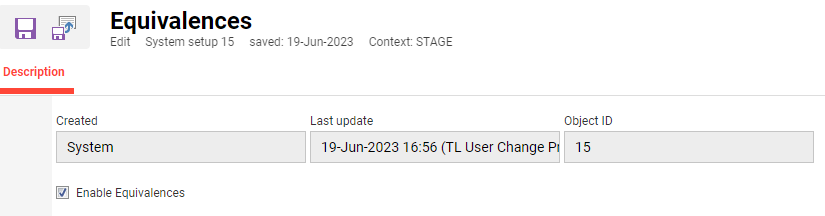
To ensure that the equivalences relations are updated and working properly, it needs to be activated via the Configuration manager → Edit Equivalences → Enable Equivalences is set to TRUE.
To ensure that the configured rules generate in the system the desired behavior, namely that courses are set to covered or are no longer covered because of the rules being deleted or changed, the two services will communicate over API the following events:
Whenever a user completes an object, the Equivalences service will be notified via API about the completion or cancellation event for the given user
The service will in return inform ILS, based on the rules, which objects should be set to Covered for the learner, or which objects should no longer be considered covered.
A cron job will be available at ILS level to ensure that the history of completions for already concluded components is delivered to the Equivalences function (de.imc.clix.eqs.EqsResetCoverageDataJob).