
For each enrolment status change for a user the imc Learning Suite is able to send an enrolment email. The “Enrolment Messages” function is where the triggers to send the “Enrolment Message Texts” are configured. This is a highly detailed configuration area with over 2000 pre-defined enrolment message triggers and the possibility create more individually or duplicate the entire set (e.g. for Provider specific messages). The large number of triggers to send 50 enrolment message templates is due to the amount of different conditions that can be considered. For example, in the standard set there are considerations for 20 enrolment statuses, 8 enrolment types, how enrolment change was triggered (learner, manager, admin, automatically), training type (course or learning path) and the recipient; However, further options such as '“Training mode” and “Provider” can grow the number of triggers very quickly.
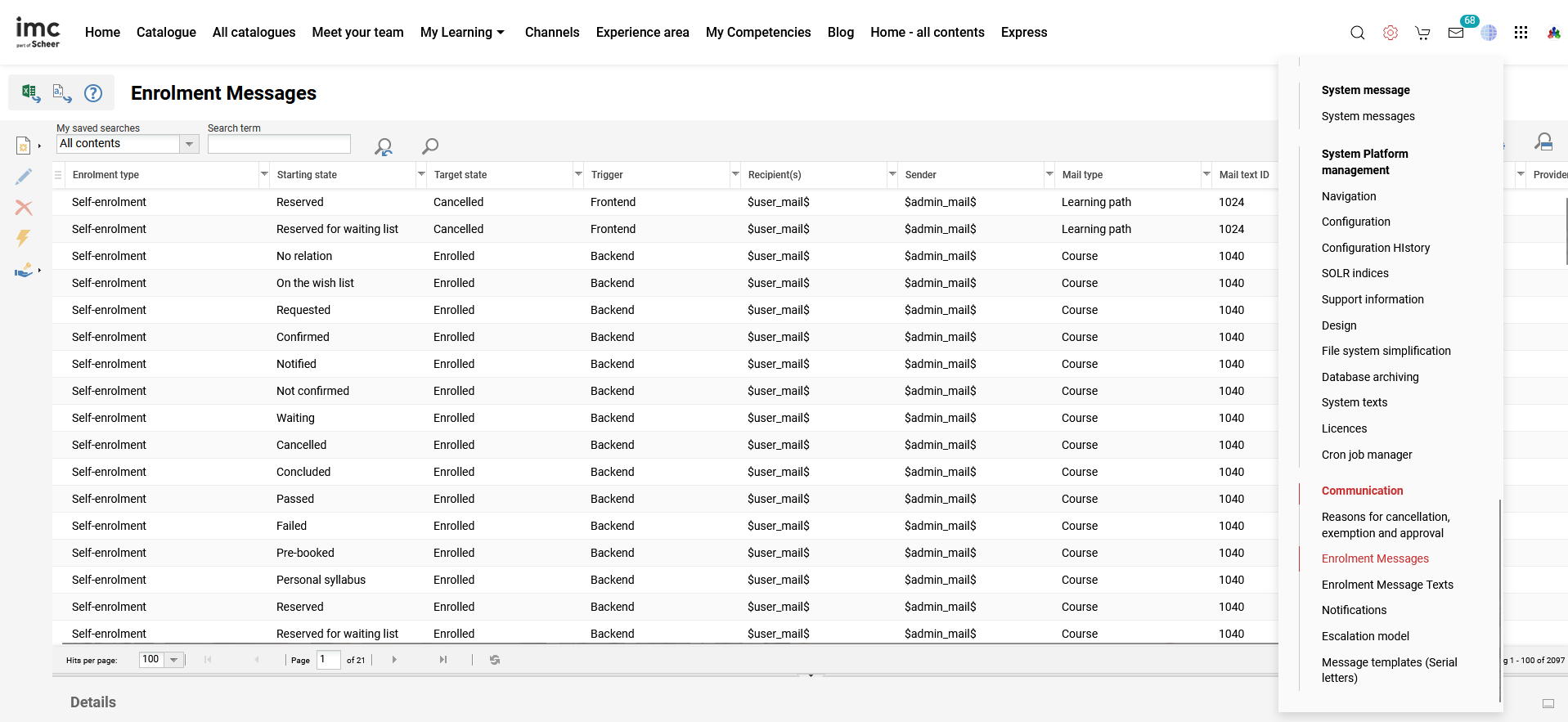
In this function the “Extended search” search is very valuable in determining whether there is an active trigger for a certain condition or to identify under which circumstances a specific “Mail text ID” (Enrolment message text) is sent. The screenshot above shows filter options for an extended search and below are descriptions of each filter:
Enrolment type
Relates to meta tag 10008 that determines the enrolment workflow selected for courses and learning paths.
Mail text ID
Object ID for the email template in “Enrolment Message Texts” function.
Status
“Active” or “Inactive” status of the Enrolment Message triggers.
Starting state
Enrolment status of the user for the training before the change occurred. “No relation” means they had no existing status to the training. Approximately 20 statuses.
Target state
Enrolment status of the user for the training after the change occurred.
Trigger
How the change occurred.
-
Backend: By administrator or automatic course enrolment workflow.
-
Frontend: By participant self-enrolment.
-
ERP interface: By an API from another system.
-
Supervisor: By Supervisor via Catalogue, My Staff or Approval.
-
Learning path auto-booking: Checkbox in Learning Path syllabus is ticked.
-
Automatic cancellation due to unfulfilled prerequisites: By scheduled cron job.
-
Automatic cancellation for inactive users: By scheduled cron job.
Mail type
Type of training object; e.g. Course, Course template or Learning path.
Sender
Who mail will be sent by. Can be manually entered email or standard options:
-
$admin_mail$ will be Course Administrator set in meta tag 10007.
-
$superior_mail$ will be the participant’s Supervisor (Email).
-
$tutor_mail$ will be from a course tutor (can be multiple).
-
$user_mail$ will be the participant whose enrolment has changed.
Recipient(s)
Who mail will be sent to. Can be manually entered email or standard options:
-
$admin_mail$ will be Course Administrator set in meta tag 10007.
-
$superior_mail$ will be the participant’s Supervisor (Email) or BU Supervisor.
-
$tutor_mail$ will be the course tutors with “Email” checkbox ticked.
-
$user_mail$ will be the participant whose enrolment has changed.
Provider
Course or Learning Path Provider defined in meta tag 10069.
Learning mode
Optional filter. Value is set in Types and Templates “Description” tab.
In an out of the box configuration the majority of the standard Enrolment Message triggers are “Inactive” and will need to be set “Active” if desired for use. The activation can be done manually by editing the triggers individually or if desiring all triggers to be “Active” you can request this in an imc Support ticket to be done via script.
The configuration can be made for each provider and enrolment type. The system configuration can be set such that large quantities of messages are automatically sent in smaller sub-quantities and stipulated intervals.
Creating and Editing Enrolment Message Triggers
When creating or editing Enrolment Messages there are five tabs with settings to populate as explained in the following:
Description
Where general distribution settings are applied including:
-
Mail type: Set if trigger is for a Course, Course template or Learning path.
-
Dispatching mode: 'Send messages automatically’ sends in real time, while “Send messages manually (Administrator has to unlock the messages)” must be actioned manually in the Course or Learning Path “Message monitor”.
-
Recipients: Determine who will receive the email. It is also possible for additional email attributes to be created for user profiles and all will be selectable here and in the CC area. “E-mail” allows setting a fixed recipient.
-
CC: Determine who will receive the email as a carbon copy. The option “Send the enrolment message to the supervisor’s e-mail address at the following levels” refers to a user’s supervisors in a BU group structure. By checking the "Send enrolment message to supervisor email address at the following levels, the field for providing the supervisor hierarchy level becomes active and it is possible to specify the supervisor levels by just writing a value between 1 and 3.
-
The default value in the supervisor level field is 1, which keeps the behavior of sending the message to the direct supervisor.
-
All types of supervisor assignment are considered, based on how the system is set-up.
-
For Business Unit groups, the supervisor of each sub group needs to be added to the higher group/subgroup in order to create the supervisor hierarchy
-
The maximum number of supervisor levels is 3.
-
Conditions
-
Enrolment type: Only sends for trainings that have selected value.
-
Starting state: The enrolment status of user before the change.
-
Target state: The enrolment status of the user after the change.
-
Multi approval action: Only active if “Multiple approval” has been selected as enrolment type. Action means whether the approver declines or approves.
Multi Approval Workflow: Exactly which multiple approval workflow should be taken into account.
-
Multi Approval Workflow Step: For which step in the approval process the notification should be sent.
-
Trigger: Condition of how the change occurs; E.g. “Front end” equals learner self-enrolment and “Backend” equals an admin triggered enrolment.
-
Identification: Relates to Identifier set in automatic enrolment workflow.
-
Publishing mode for enrolment e-mail: Relates to meta tag 10730 which can optionally be added to Course Types and Course Templates. Default value is “Not defined”.
Filter
Where distribution can be further restricted based on select training attributes and meta tags.
-
Add attribute: A small list of functional attribute settings including Learning Mode as well as some key functional meta tags such as Learning mode, Release mode, Provider, Training execution, Price, Location, Cancellation type and Planning status.
In case a provider is selected you have the option to send the message for courses based on the following conditions
- Include all providers
- No assigned providers
- Selected a specific provider: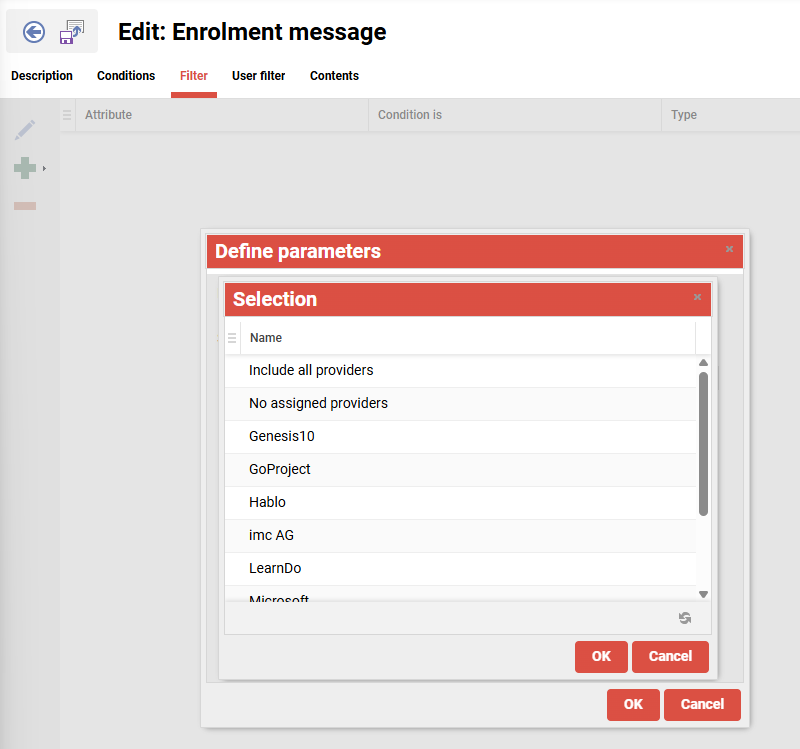
Provider selection for an enrolment message
-
Add meta tag: A larger list of functional and descriptive meta tags that can be used to identify specific trainings.
User Filter
Where distribution can be further restricted based on select person attributes.
-
Add attribute: Can be selected from the list of person attributes
Contents
Where the Enrolment Message text template is selected.
-
Mail text ID: Select field where a single 'Enrolment message text' can be selected to be sent by the trigger. To select an “Enrolment message text” will require clearance to the message text.
Create New Provider Specific Message Set
An existing Enrolment Message email set can actually be duplicated using the “Create new message set automatically” function. The selected provider is used as a template. In addition to a specific provider, all providers or emails from courses that do not have a provider can be considered. All emails that match the settings selected for mail type and enrolment type can be duplicated for a new target provider. The created enrolment message set must be assigned a target provider. An enrolment message is not copied if it already exists for the selected target provider.
Enrolment Statuses
The following table shows the available enrolment statuses for learning paths, courses, course templates and media. It is the changes of these statuses for a user that is considered in the “Starting state” and “Target state” fields. The “Name in REST/Code” column values are used in Enrolment PUT APIs and the “ID” column values in GET APIs.
|
Name in UI (en-GB) |
Name in REST/Code |
Description |
Context |
ID |
|---|---|---|---|---|
|
- |
IN_PROCESS |
Internal state to avoid an over-booking because of too many bookings in parallel, when doing a booking process in the front-end. |
Learning path, Course |
0 |
|
Wishlist |
SELECTED |
On the wishlist of the participant. |
Course |
1 |
|
Requested |
ORDERED |
Requested by participant, Invited by supervisor. |
Learning path, Course |
2 |
|
Confirmed |
AGREED |
Approved by the supervisor, Proposal adopted by the participant. |
Course |
3 |
|
- |
NOTIFIED |
Temporary state which is used to mark that a configured person (admin/supervisor) has been notified. |
Course |
4 |
|
Not confirmed |
REFUSED |
Enrolment has been rejected by supervisor or admin. |
Course |
5 |
|
Waiting |
WAITING |
Waiting, Reserved for waiting list, Not edited. |
Learning path, Course, Media |
6 |
|
Cancelled |
CANCELLED |
Cancelled. |
Learning path, Course |
7 |
|
Enrolled |
BOOKED |
Enrolled to learning path, course, media. Waiting to be started by the participant. |
Learning path, Course, Media |
8 |
|
In progress |
STARTED |
In progress. |
Course, Media |
9 |
|
Finished |
FINISHED |
Finished, as state to hide the outcome (passed or failed) from the user. Currently only used for tests. |
Learning path (deprecated), Course(deprecated), Media |
10 |
|
Passed |
PASSED |
Passed, Successfully completed. |
Learning path, Course, Media |
11 |
|
Failed |
FAILED |
Failed, Not successfully completed. |
Learning path, Course, Media |
12 |
|
Deleted |
DELETE |
Temporary state which is used internally to mark a learning path, course, course template as to be deleted before user is deleted from participant list. |
Learning path, Course, Course template |
13 |
|
Not evaluated |
NOT_EVALUATED |
Being marked, In correction. |
Media |
14 |
|
Unblocked |
UNBLOCKED |
Unlocked by tutor. |
Media |
15 |
|
Pre-booked |
PREBOOKED |
Pre-booked.Please note this is handled internally not as a enrolment state. |
Course template |
16 |
|
Personal syllabus |
INDIVIDUAL_LEARNING_PLAN |
On personal syllabus, Individual learning plan. Please note this is handled internally not as a enrolment state. |
Learning path, Course, Course template |
17 |
|
Reserved |
RESERVED_ON_PARTICIPANT_LIST |
Participant has a reserved place on the participant list. Please note this is internally a combination of the state WAITING and a flag. |
Course |
18 |
|
Reserved for waiting list |
RESERVED_ON_WAITING_LIST |
Participant has a reserved place on the waiting list.Please note this is internally a combination of the state BOOKED and a flag. |
Course |
19 |
|
Successfully completed |
SUCCESSFULLY_COMPLETED |
Used to represent the state of a course template in case the recertification process detects a course of the template in status PASSED or FINISHED. Used in participant learningplan tables. |
Course template |
20 |
|
Not successfully completed |
NOT_SUCCESSFULLY_COMPLETED |
Used to represent the state of a course template in case the recertification process detects a course of the template in status FAILED. Used in participant learningplan tables. |
Course template |
21 |
Hints & Tips
-
When creating a new training that requires an enrolment message to be sent it is recommended to search the “Enrolment Messages” function using the extended search to ensure there is an active trigger.
-
In a new out of the box configuration there are few Enrolment Message triggers active by default and only the “System Administrators” group (ID 1) has Clearance. If there are other roles requiring Clearance a member of the System Administrator group will need to update the Clearances and it is recommended to bulk selecting then update up to 200 triggers at a time.
-
If all triggers are desired to be activated, requesting imc to update via script will be much faster.
Global Functions & Related Topics
Deep Dive Guides