
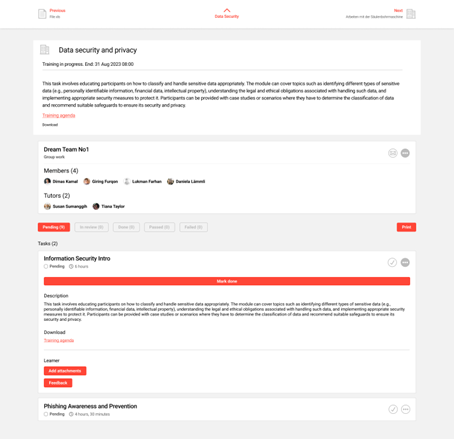
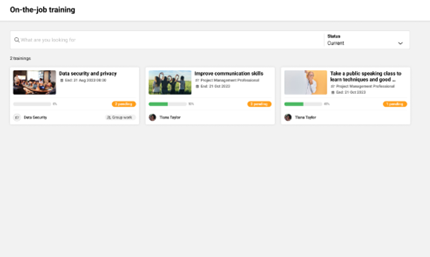
The OJT collaborative group work is an expansion of the On-the-Job Training functionality. This feature allows customers to create tasks for collaborative group work within a course, promoting social learning and collaborative work.
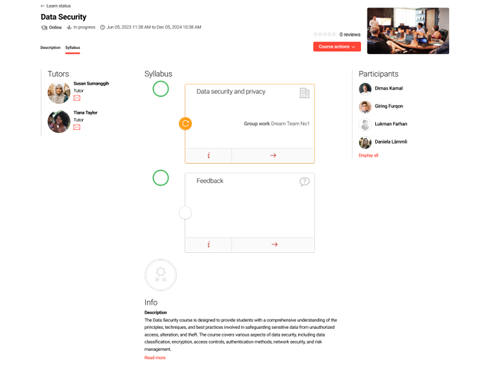
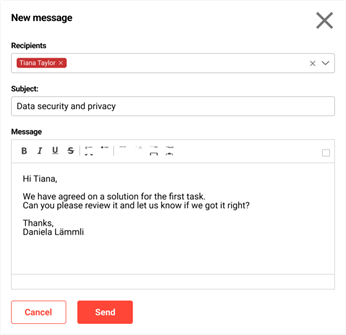
On-the-job training templates can be marked as group work, making it possible to create a "collaborative group work" medium within a course. Groups can be created, and members can be assigned from the course participant list. An integrated messaging feature allows participants and tutors to communicate within the assignment. Task review and final grading can be done once for all participants in a group task. Furthermore, adjustments have been made in handling attachments, giving and editing feedback, and delivering notifications.
To create a new OJT template and enable the group work function, the following steps can be followed:
-
The "Enable group work" checkbox must be selected when creating a new OJT template. The template must then be saved.

-
The desired course must be selected, 'edit' must be clicked, and the 'components' tab opened. 'Create' must be clicked, and "Collaborative Group Work" selected.
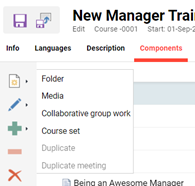
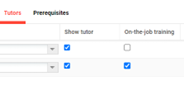
The necessary details must be entered, and the OJT template created in step 1 selected. The desired position for the group work in the course must be chosen. This adds the collaborative group work to the component list as a new type of “Collaborative Group Work”. On the “Tutor” tab, a tutor must be assigned to the course, and the checkbox for On-the-Job Trainings selected.
-
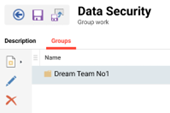
The "Collaborative Group Work" component added in step 2 must be reopened, “Edit” clicked, and the “Group” tab opened. “Create new group” must be clicked, a group name chosen, and the changes saved. Any number of groups can be created as required. The group name is displayed in the tiles in the learner and tutor view.
-
Group members must be assigned to the group created in step 3 by selecting a group name and then clicking the green "Plus" sign. A list of all participants assigned to the course is displayed, and the required participants can be selected. Already assigned users are marked in italics.
-
After all the above steps have been completed, the collaborative group work is ready, and the course can be saved.
Limitations
-
It is not possible to provide different scheduling during bulk assignment via My staff.
-
For OJT Collaborative Group Work:
-
OJT Group Work Template: Only one template enabled as group work can be used within one course
-
Tutor evaluation: no separation of group tutoring possible for e.g. tutor 1 can only mark task 1, tutor 2 marks task 2 etc.
-
Course Room: The simple course room design cannot display additional information on tiles
-
Reports: There are no extra reports available for collaborative group work on-the-job training
-
Attendance tracking: is visible, but it is currently locked and cannot be used
-
My Staff (-Pool): The creation of group work on-the-job training cannot be done through the “Staff Pool” or “My Staff” section
-
Audit log: If user A starts the course with group work OJT, it starts for all participants. (Courses with “Duration of use”)
-
Course Removal: If a user is removed from a course, they will also be removed from the associated group and their progress will not be saved.
-
Group Assignments: If User A is assigned to Group 1 AND is then moved to Group 2 the progress/status for User A from Group 1 is deleted and replaced by the status from Group 2 but ONLY if the move is from a lower status (e.g. not started) to a higher status (in progress)
-
Learning Status: Editing the learning status via “Edit learning progress per component and user” is not supported
-