
The global search is available to all customers with Kubernetes.
Overview and functionality
The global search helps users find learning content across catalogues, channels (if the add-on is in use) and personal learning content with a learning status (“My Learning”). It is available to customers with Kubernetes.
Details of what is found and displayed as results are available here: Data Connector
The content search searches through titles, descriptions, and (for lexical search also) keywording of channel media, courses, course templates, learning paths, and learning path templates.
Please consult the list of language analyzers to determine which languages are supported by Elasticsearch. If a language is not on the list, Scheer IMC can be contacted to discuss
Triggered by the user’s search query, the search finds content objects and ranks them according to their relevance. Relevance can be determined in two ways:
a) lexical search (default setting, without AI)
b) semantic search (upon request, AI-enhanced).
Two search types: lexical vs. semantic search
The global content search is included in the standard product of the imc Learning Suite. Administrators can decide to make it visible to users or keep it hidden. The lexical search type is used by default.
Lexical search
The words in the search query are matched with titles, keywords, user-defined IDs (identification codes) and descriptions of the indexed content. This method does not involve any AI.
Text preprocessing
-
tokenization (splits text into individual units (tokens), usually words or sub-words
-
lowercasing (converts all text to lowercase so capitialization does not affect matching)
-
removing stopwords (removes common words with little distinguishing value (e.g. “and”, “the”…)
-
stemming (reduces words to a common root so different grammatical forms can match)
Analysis techniques
-
Stem-based search reduces words to a common linguistic root (stem) so that different grammatical forms of the same word are matched during search.
Benefit: the search does not only find “running” but also “run” or “ran” -
edge-n-gram search (supported for product version ≥ 14.27.0.0)
An edge-n-gram is a character sequence of length “n” that is generated from the beginning (edge) of a word. Example: Word: “search” => 3-gram: “sea”, 4-gram: “sear”, 5-gram: “searc”….
Text is indexed as word prefixes and user queries are matched against these prefixes/fragments instead of full words. Edge-n-gram search is only applied to title and description. For keywords assigned to content, only the complete keyword is a match. (Keyword “Win10” does not match the query “Win100”)Benefits:
-
Results appear before a full word (stem) is typed, so n-grams bridge incomplete inputs
-
For queries that include an abbreviation (like “LMS”) no word stem or word meaning can be derived, but edge-n-grams enable partial and tolerant matching. It’s ideal for “search-as-you-type” experiences.
-
-
Fuzzy search (disabled for product version ≥ 14.27.1.0)
Fuzziness matches words that are similar in spelling, even if they are different words.
This technique was enabled up to product version 14.27.0.0 because it provided more tolerance for spelling mistakes. However, customer experience showed that it expanded the result list and provided too many irrelevant results. With IP 14.27.1.0, it is therefore disabled.
Lexical search is recommended if…
-
searches mainly conducted using one or a few keywords
-
searches often conducted using specific terms, abbreviations, or numbers
-
the exact wording of the query is expected in the top results (titles)
Semantic search
Semantic search uses AI-enhanced technology to interpret the intent and meaning behind user queries, as well as the content of the indexed data (currently: title and description). It understands natural language and compares the semantic meaning of the query with that of the learning content. The most relevant or closely related information can therefore be retrieved—even when different wording, phrasing, synonyms, or spelling variations are used.
This capability is powered by AI services provided by Scheer IMC, including an embedding service that vectorizes both the indexed content and each user query. See Global Search for further information on how semantic search can be requested and activated.
How semantic search works:
-
Natural language processing (NLP) and machine learning models are used to convert text into vectors that represent meaning.
-
The similarity of vectors between the user query and the indexed documents is compared to find the most relevant results.
-
For the vector representations, also called text embeddings, Scheer IMC uses a self-hosted embedding model (jeffh) operated by Ollama.
Semantic search is recommended if…
-
searches often conducted for topic areas, with closely related content also being relevant
-
difficulty is sometimes experienced in finding the exact search term matching the wording used by content creators in the title
-
the user queries and content provide enough context for the semantic search to “work with”. Course, learning path, and media descriptions are well maintained and add background information to the title. The more input and context, the better the semantic search can be. The more information provided, the better semantic search can interpret the meaning. The relevance of results can be further improved by asking questions instead of using just a single search term.
Those interested in using the semantic search type with AI services enabled should read this AI-enhanced Content Search - Compliance Information.
If exact matches based on the characters typed in the query are wanted, lexical search is the right choice. If the system is meant to understand meaning and tolerate different wording, semantic search is the better option.
Features & Benefits
-
Central entry point to content
The global search can be accessed from anywhere in the system because it is located in the top navigation bar. The navigation search (mainly used by admins) can now be found behind its own icon. In the screenshot, it is shown next to the settings wheel.
Settings wheel -
Extended scope: Search within all catalogues, the channels and (with ≥14.27.1 also) within my learning
Customers with several content sources benefit from a comprehensive search across multiple areas: all catalogues, channels (add-on), and content with a personal learning status (my learning area) that might not be assigned to any catalogue. With the content area filter, users can decide to search in all or selected areas. The “content area” filter only appears for users with access to more than one data source. -
Less clicks for faster access to content
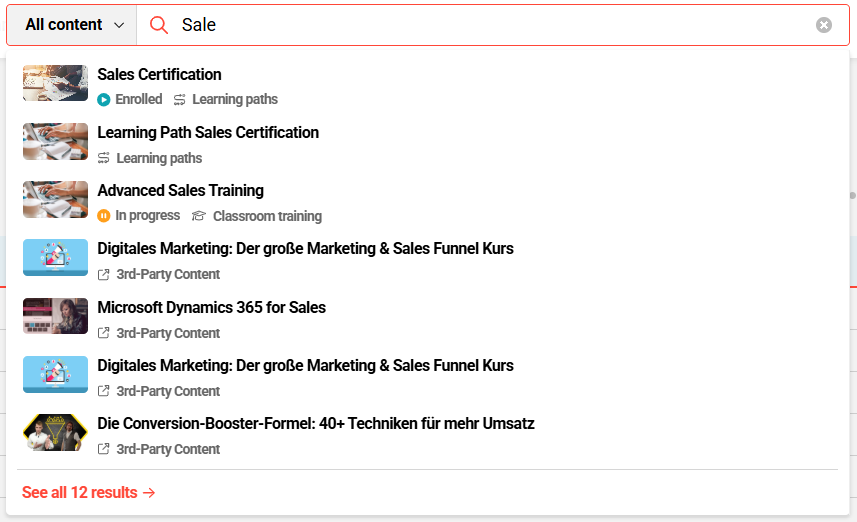
Once users start typing, the top seven results are displayed in a layer. This enables access to the top results without navigating to a search result page. -
Advanced search
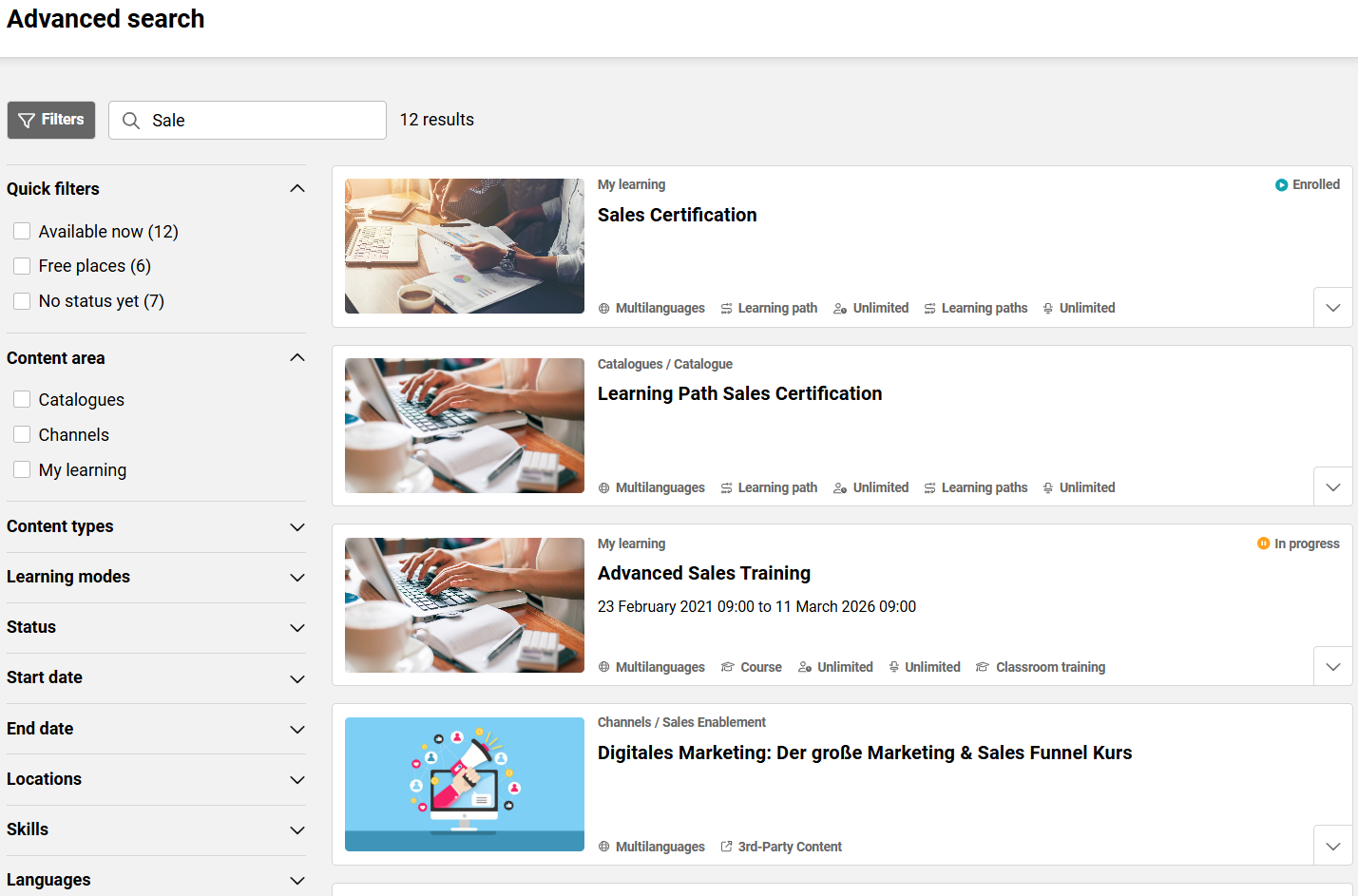
When all results are required, the advanced search can be opened by following the link “see all results” or pressing “enter”. The advanced search page enables users to apply filters, compare results by their descriptions and further criteria. -
New state-of-the-art search technology
Elasticsearch is a powerful, scalable, performant engine that supports multiple languages and provides numerous possibilities for increasing relevance and personalising results.
The search will be further enhanced and will be the basis for more AI features like the learner assistant.
Other searches in the system
-
Existing content search bars, such as those in catalogues, the my learning area, or panels, are not affected by the global search. They are based on different technology, search only within a page or area, will not be replaced by the global search, and can exist in parallel.
-
Users with an overwhelming number of access points to content benefit from simplified access via a central global search bar.
-
Please note: the navigation search (mainly for admins) that used to be in the top navigation will remain in the top navigation but it will be found behind a new icon:

Configuration & settings
First steps
The global search is included in the standard product for version ≥14.25.1.0 delivered as a lexical search. This does not include any AI.
Enable visibility and access to the search bar via navigation entry
-
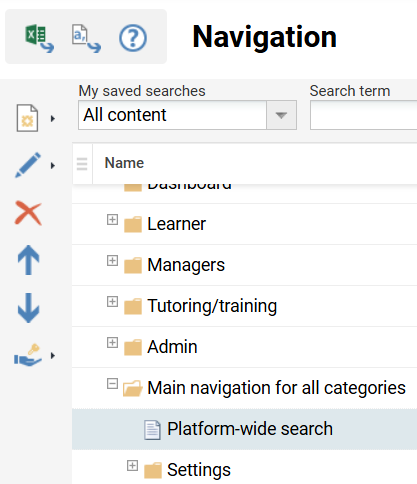
To make the search visible in the top navigation, the navigation point must be configured for the relevant user groups.
-
To edit the access rights, “Navigation” can be opened and “platform_wide_search” located.
For more details, refer to Configuration for the Global Search.
Access to the search configurations
-
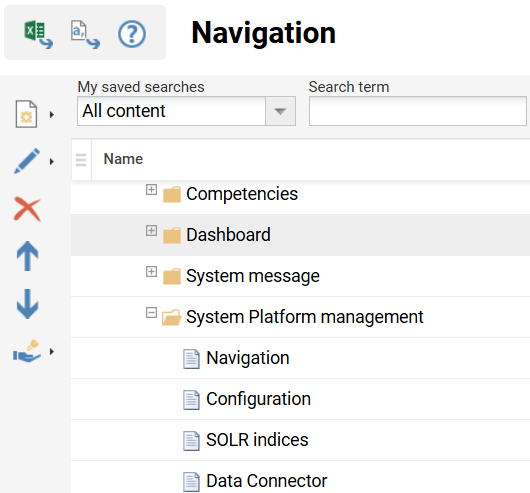
To make the search settings and data connector configuration accessible to administrators, “Navigation” can be opened and “data_connector_configuration” located.
For more details, refer to Configuration for the Global Search.
After these changes, log out and log in again.
Configure the data connectors
Scheer IMC uses a plugin approach, where each plugin represents a different area of learning content that is indexed to enable users to find content from that source. The plugins can be executed by the Data Connector, either time-based (as recurring or one-time jobs) or ad hoc.
Learning content only becomes searchable after a successful initial job. The first job should be a full synchronisation, while each subsequent job adds new or updated content to the search index. Real-time indexing is not supported yet but is planned for a future release.
The data connector configuration allows admins to:
-
add or delete data plugins from the repository
-
configure these data plugins
-
schedule and maintain cron jobs to synchronise the search index with the configured data.
-
run an immediate synchronisation job independently of the schedule
The data plugins that allow searching within catalogs, channels, and personal learning status are already added by default. Also by default, jobs have already been scheduled to run daily during the night. A job can be triggered to run immediately without changing the regular schedule by selecting the “Play”/”Execute now” button.
The following instructions describe how to configure plugins: Data Connector.
Define and check on the jobs
For each job listed here, a specific schedule can be defined. The three-dot menu button on the right can be used to edit the jobs.
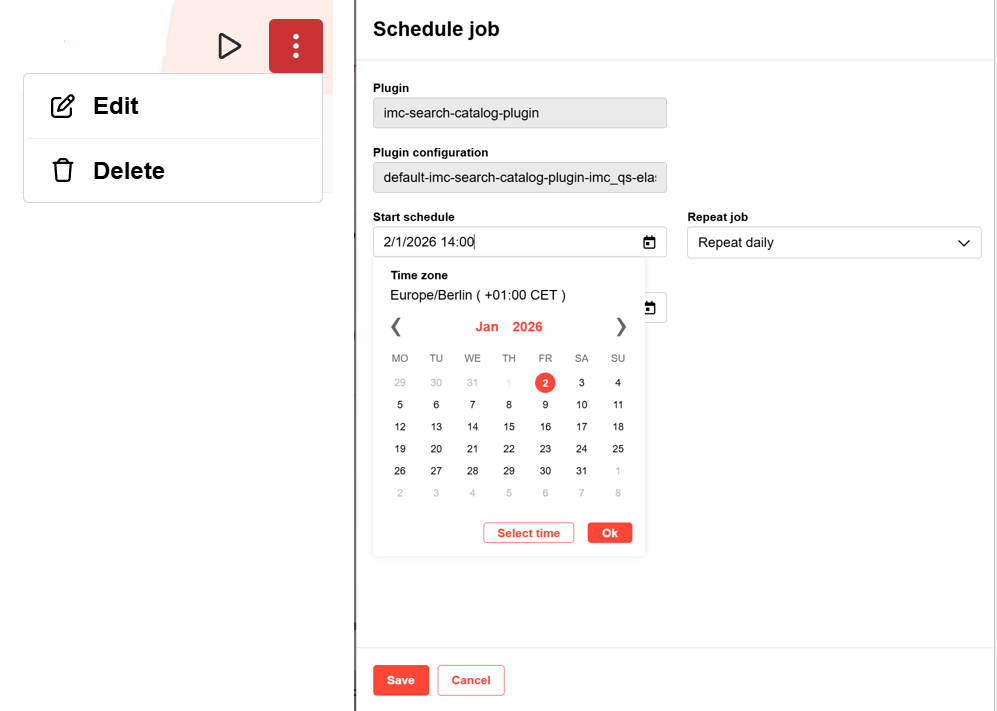
The columns on this page provide the following information:
Job: Name of the job that synchronises the search index with the configured data
Configuration: Name of the configuration of the job
Plugin: Name of the plugin representing a connected data source (e.g. channels, catalogues, or “context” meaning “My Learning” content)
Latest execution: shows the date and time when the last job ended
Latest status: shows the status of the latest executed job
Activate schedule: if a date and time are defined for a future job (recurring or one-time), the schedule is automatically switched on, but it can be switched off manually to pause the defined schedule.
Recurring: shows whether the job runs at the defined time with a defined frequency (“Yes”) or only runs/ran once (“No”)
Next execution time: shows the date and time when the next job will start. If it is empty, no future job is scheduled.
If the job for the channel plugin fails, the cause might be the service account user (see the blue info box). If a job fails, the log files can be downloaded to check what went wrong.
Optional steps
Switch to AI-enhanced semantic search
To enable semantic search for users, Scheer IMC needs to make AI services available.
-
Before deciding on an AI-enhanced, semantic search, confirm that the AI-enhanced Content Search - Compliance Information has been read and accepted.
-
The Scheer IMC Service Helpdesk can be contacted to request deployment of these services without extra costs.
-
As soon as the services are available, semantic search can be activated in the search settings.
The path is “Configuration” > “Search settings”, 2. tab “Global search”; the “Active search type” must be switched to “semantic search”.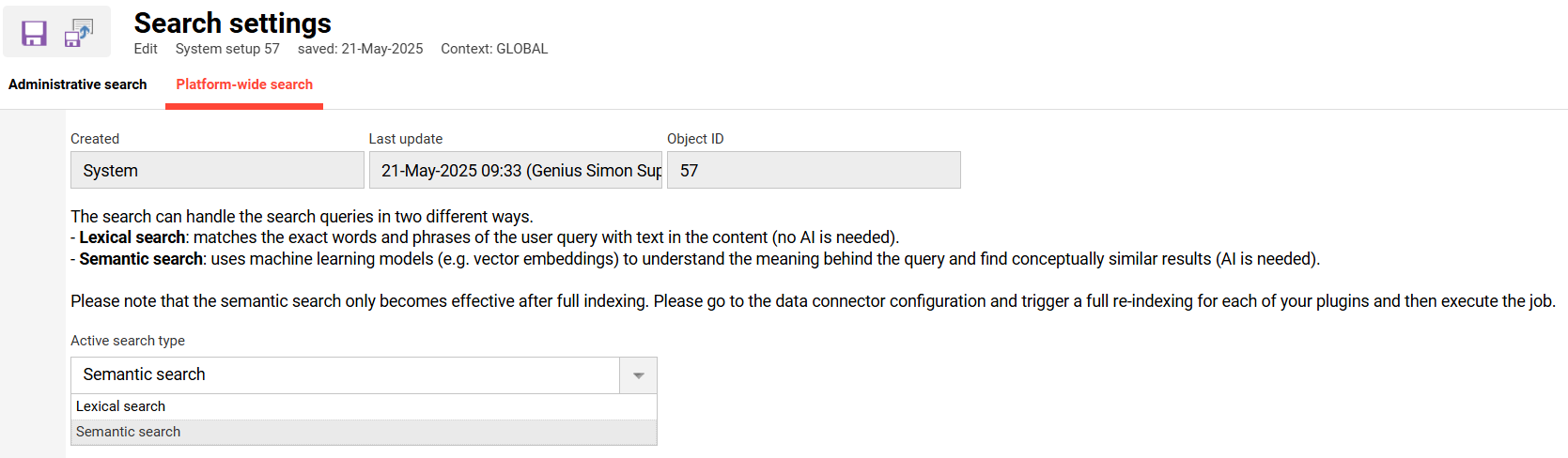
Configuration of plattform-wide search settings
-
A switch requires another full indexing of the data. The embedding service has to create vectors for all content to better interpret its meaning.
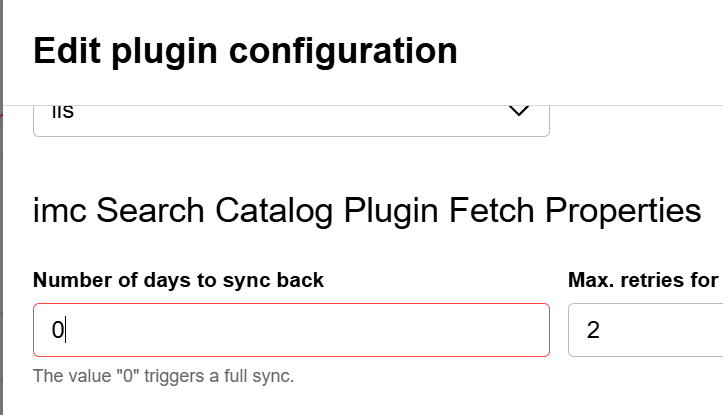
Edit plugin
-
The data connector configuration can be used to request a full synchronisation of the search index with the next job.
-
In the data connector configuration, open the second tab “Configurations”, locate “Catalog Plugin Fetch Properties”, and enter a “0” in the field “Number of days to sync back”.
-
A full synchronisation should be performed outside working hours, as it might take some time (depending on the data volume) and might affect the user search experience for simultaneous search requests. The setting “0” should also be changed back to the preferred period for future synchronisations, as a full synchronisation might not be needed every time afterwards.
-
Please see Configuration Manager - Search Settings for more details.
If the decision about the search type needs to be revoked, the search settings can be used to switch back to lexical search.
Customize the wording on the user interface
A custom corporate wording might have been chosen for “Catalogue”, “Channels”, or “My learning”.
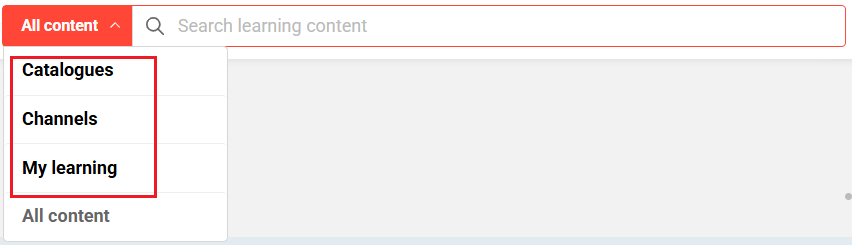
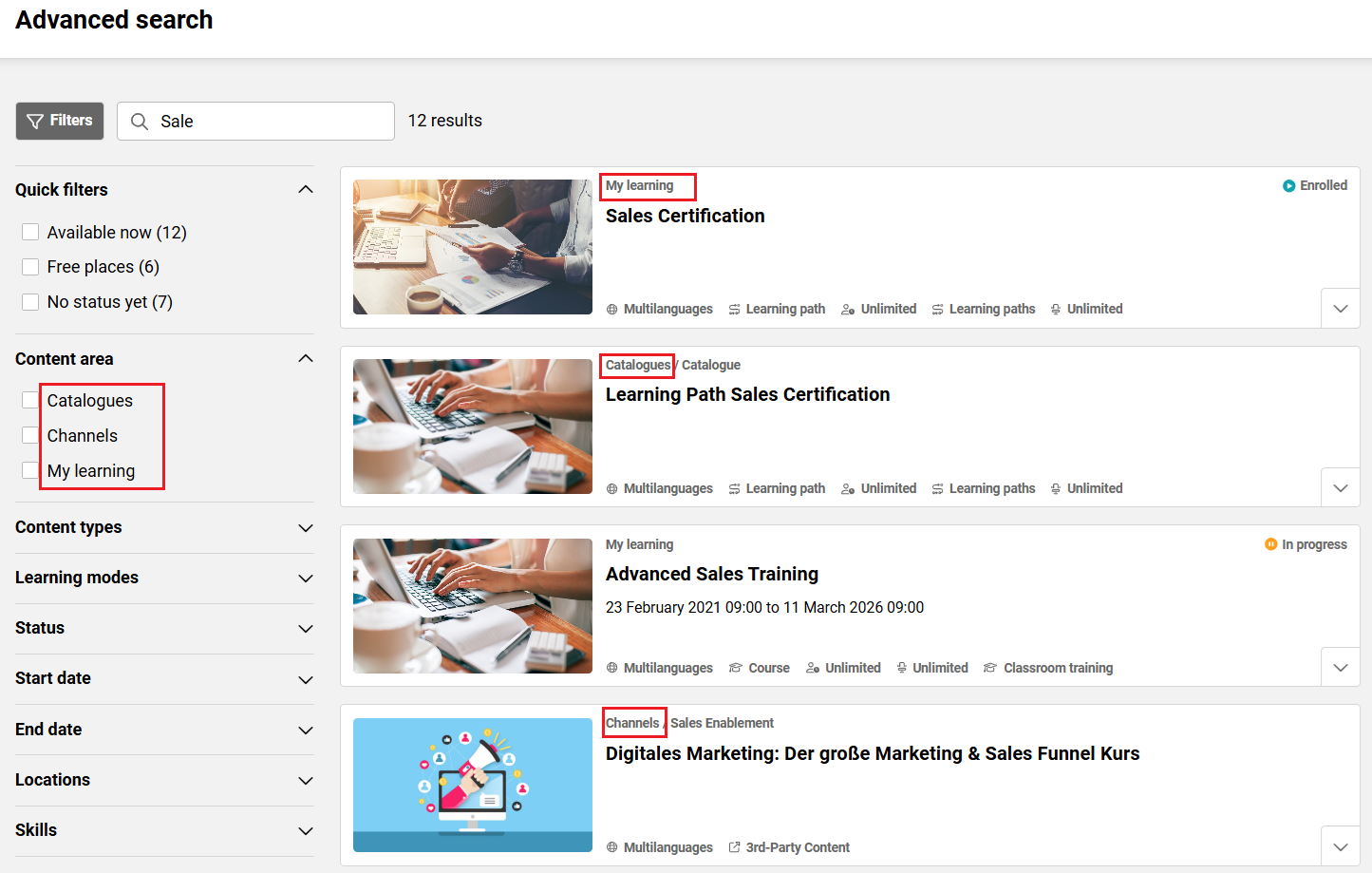
If users are not familiar with the default terms Scheer IMC uses in the search user interface because different terms are used in the system (e.g. “learning offer”), the wording can be changed in the “system texts”.
The following bundle names for Catalogue, Channels, Course Templates, and “My learning” can be updated to reflect the custom wording. Please note that these bundles are specific to global search and affect only global search.
-
Catalogue -> strPlatformSearchContentCatalog
-
Channels -> strPlatformSearchContentChannels
-
Course Templates -> strPlatformSearchContentCourseTemplates
-
My Learning-> strPlatformSearchContentLearningStatus
The default wording for the plugins and data sources is “imc-search-context-plugin” for the “My learning” plugin, “imc-search-catalog-plugin” for the catalogue plugin, and “imc-search-plugin-channels” for the channels plugin; it cannot be changed.
Guidelines & Recommendations
We have summarized some tips for the usage of AI-enhanced content search : Recommendations for the Use of the Global Search
How-to Guides
Using the Platform-wide Learning Content Search