Deep Dive: Wording configuration using System texts
System Texts Overview
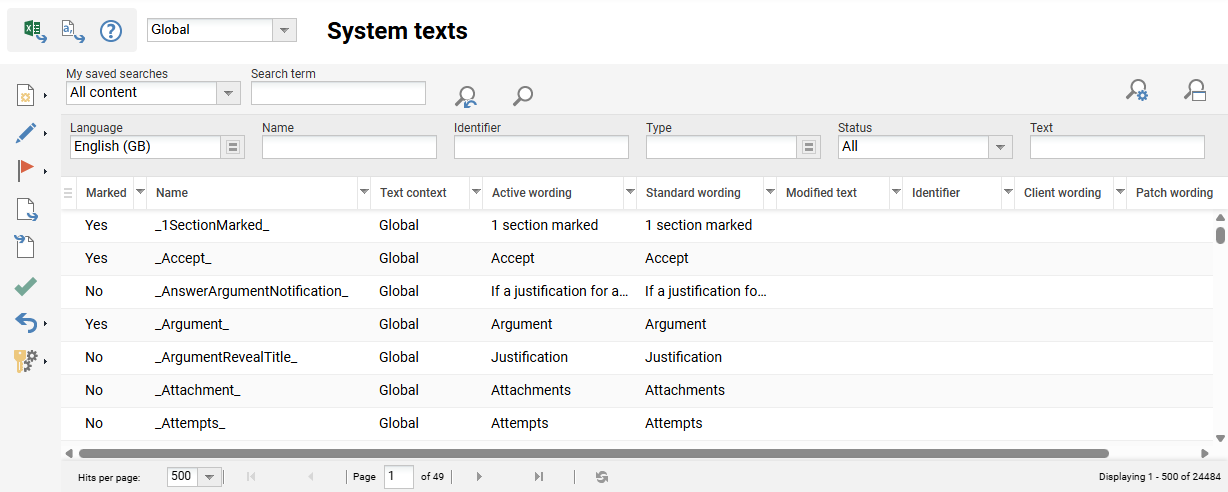
The System texts function controls all the functional wording in the imc Learning Suite. There are over 24,000 wording bundles that can be updated in each system language and per Client in a multi-tenant setup. This article will explain all the System texts function settings and the general behaviour.
What are Wording Bundles?
Wording bundles are the individual strings used to control the majority of functional wording in the imc Learning Suite. These wording strings control wording for:
-
Account related emails
-
Button labels
-
Statuses
-
Alt texts
-
Error messages
-
Browser tab titles
-
Setting names and operating instructions
-
Standard report names
-
Standard navigation labels
-
many other functional descriptions
What are not Wording Bundles?
Some wording displayed in the system is not controlled by wording bundles and therefore cannot be edited within the System Texts function.
Examples include:
-
Updated navigation names
-
Group and panel names
-
Learning object names and descriptions
-
Meta tag names
-
Person attribute names
-
Enrolment messages
-
Event-driven notification texts
System Text Administration and Configuration
The System texts function is located in the section System Platform management of the Settings category and is intended for use by System Administrators. This section will individually explain the available settings and logic.
Searching for System Text Bundles
With over 24,000 wording bundles the search options are very important to help identify correct wording bundles to update. This is because conducting a search on a generic term can yield hundreds of results. Where possible, entering a longer phrase can return more accurate results. When searching for short phrases, or single words, more advanced search options can help reduced the returned results. The search options are explained below:
Search Term Field
The default Search term filter searches each bundle name for matches in the Name (bundle name), Active Wording and Standard wording fields.
Extended Search Options
The Extended search allows you to:
-
Search within specific bundle fields
-
Filter by bundle type
-
Filter by status (e.g. flagged bundles)
These options can help narrow returned results.
Creating new Wording Bundles
Although rarely needed, there is the ability to create new operating instructions or system text wording bundles. New wording bundles may be needed for Privacy Policies or customisations. When creating new a new wording bundle:
-
System text bundles are prefixed with strBPcustom.
-
Operating instruction (help text) bundles are prefixed with strOHcustom.
-
The bundle name must be unique.
-
Text fields are available for each active platform language.
-
Only the default platform language text is mandatory; if other fields are left blank, they inherit the default language text.
Editing Wording Bundles
Editing wording bundles is possible either individually in the GUI or via an Export/Import function. Each method is explained below:
Editing via the GUI
To edit wording bundles:
-
Select one or more bundles.
-
Click the Edit icon and choose Text.
-
Each selected bundle opens in a separate browser tab.
Each tab displays:
-
Bundle name and Bundle type (fixed fields)
-
For each language:
-
Standard wording – Original text (never changes)
-
Client wording – Client-specific text (overrides both Standard and Patch wording)
-
Patch wording – Updates delivered in a patch (overrides Standard wording only)
-
Modified text – Draft changes awaiting activation
-
The bundle texts are updated for each platform language in the Modified text fields. The other text fields have a Transfer text button, which transfers the text to the corresponding Modified text field, where it can be edited further. This is useful for longer texts that require minor changes. Once you have made your text changes, click the Save & close button to save the changes as a draft. The changed wording of the respective wording bundle is now displayed in the Modified text column of the System texts function until it is published via the Activation icon.
If you are editing a wording bundle that contains HTML directly, it is recommended that you first temporarily deactivate the Sanitize request checkbox in the Security menu of the Configuration function. This is because when the HTML sanitizer is active, the HTML headers will be removed for security purposes.
Editing Wording Bundles to be Client-specific
In multi-client systems, most wording bundles can be edited per client. To do this, first change the selection field for the client context from Global to the target client. The Text context column then shows for each bundle whether the global wording or client-specific wording is active. The Text context only changes from Global to the respective client name once the changes to the wording bundle have been saved and then activated.
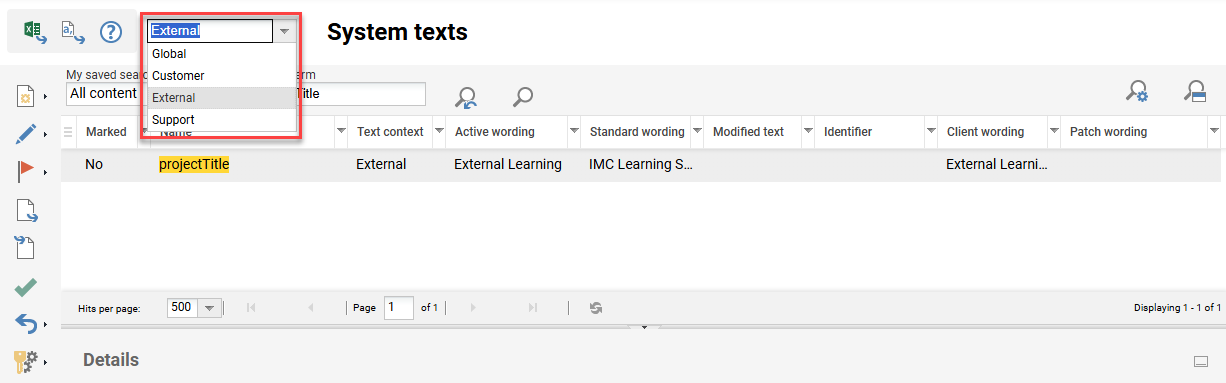
One wording bundle that is commonly changed client-specific is the projectTitle. This wording bundle displays in the browser tab title and generally represents the system name.
The Text context column display is language specific. This means that the same bundle text can display differently in the Text context column depending on whether the bundle has been changed in the current session platform language.
Flagging Wording Bundles
The Flag icon enables setting flags for specific wording bundles; For example, to indicate wording bundles that have been changed or may require change. Flagged wording bundles can be filtered in search results using the Status filter. The Export icon also enables restricting exports to only export flagged bundles. To flag a text bundle simply highlight the bundle, click the Flag icon and select Set flag option.
Exporting and Importing with .txt Files
When large amounts of wording require changes, the most efficient method can be via a file import. This is possible by using the Export and Import icons.
Exporting Wording Bundles
Start by clicking the Export icon which will launch a pop-up where the desired language and bundle types for export can be selected. It’s common to only export the Active wording bundles as it’s quicker given there’ll be less wording.
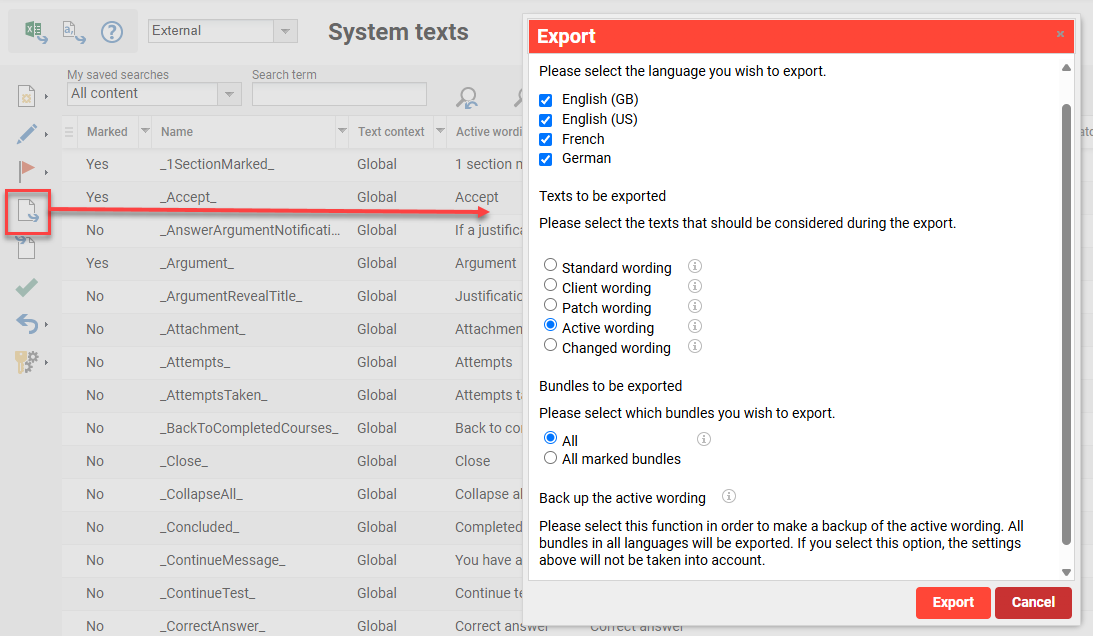
The export will produce a .zip package containing a file for each selected platform language. The file name will look like 'exp_en-GB_YYYYMMDD' where 'exp' represents Export, 'en-GB' represents the language code (differs for each language) and 'YYYYMMDD' represents the export date.
Importing Wording Bundles
To make changes, extract the .txt files from the .zip package and rename the ‘exp_' to ‘imp_'; this represents an Import file. The required file type is a tab delimited text file where a tab space separates the bundle identifier from the bundle text. When editing it’s very important to only change the bundle texts and not the bundle name identifiers. Changing the identifiers will result in bundles not being found on import.
Avoid simple Find then Replace searches of single words like 'Course'. Instead, if needing to replace a word in bulk the recommendation is to use longer case sensitive search terms with spaces; For example, search for 'Course ' or ' course '. This is because bundle names do not have spaces and therefore would not be replaced.
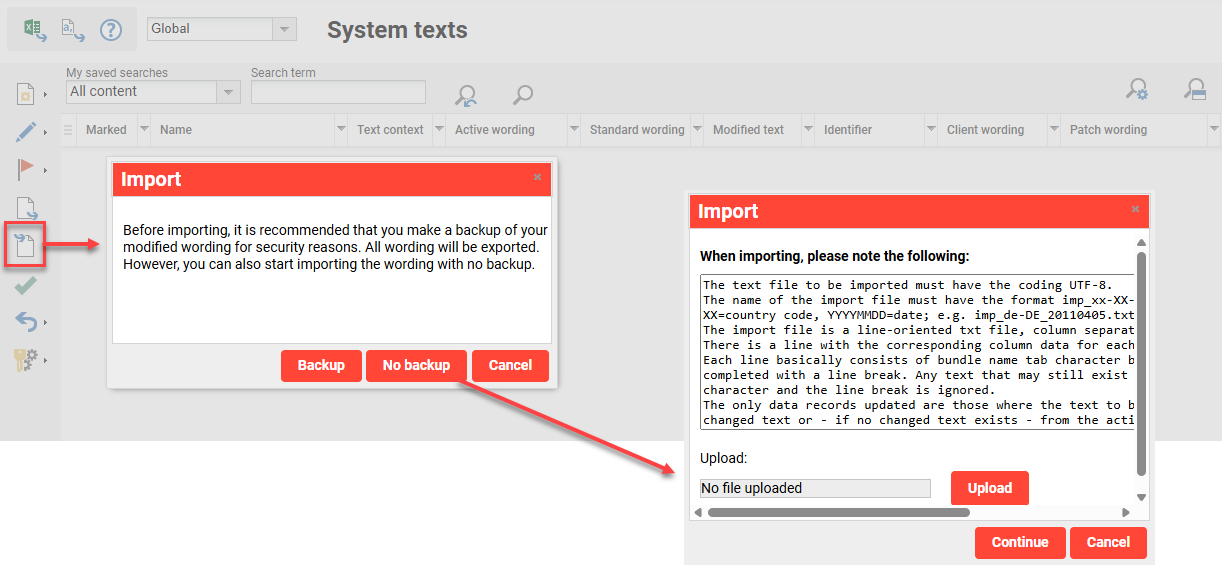
Once the 'imp_' file is ready for import go to the System texts function and click the Import icon. This will launch a pop-up with a suggestion to 'Backup' wording which is recommended if there have been no recent backups, but otherwise the No backup button will commence the import.
Instructions will explain the required file format and it's only possible to import a single text file; meaning one language at a time. Upload the desired file, click the Continue button and the LMS will check the file is valid. If the file is valid the import will commence which can take several minutes to complete if a full wording. Should there be an it will be displayed on screen.
As with manually editing bundles in the GUI, all imported system texts bundles must be activated.
Activating Changes
Edited bundle texts are not directly active and are therefore not displayed in the Active wording column, but in the Modified text column.
To activate the changes, proceed as follows:
-
Highlight the bundle in which changes have been made.
-
Click the Activation icon.
-
In the pop-up window that opens, select the languages and types you want to transfer.
For example, if only one language has been updated, only that language needs to be activated. -
Click the OK button.
Once complete, the updates appear in the Active wording column and the Modified text column is cleared.
Viewing the change live in the system might require logging out then logging back in. It might also require a clearing of browser cache.
Reset Wording Bundles
The Reset icon can be used to either restore all wording bundles or just the Marked bundles. This resets bundles back to the Standard wording. If wording is reset, there is no undo option unless there is a back up.
Administrator Mode
The Administrator mode icon contains two options that switch the display of backend system texts to show the wording string identifier instead of actual text. This function is used for identifying exact wording bundles; this is helpful when needing to update generic wording that is used in multiple locations.
-
Switching the display for online help bundles
This displays the help texts identifiers for setting fields that contain an information 'i' icon. -
Switching the display for system text bundles
This displays the identifiers for all other general system texts excluding messages.
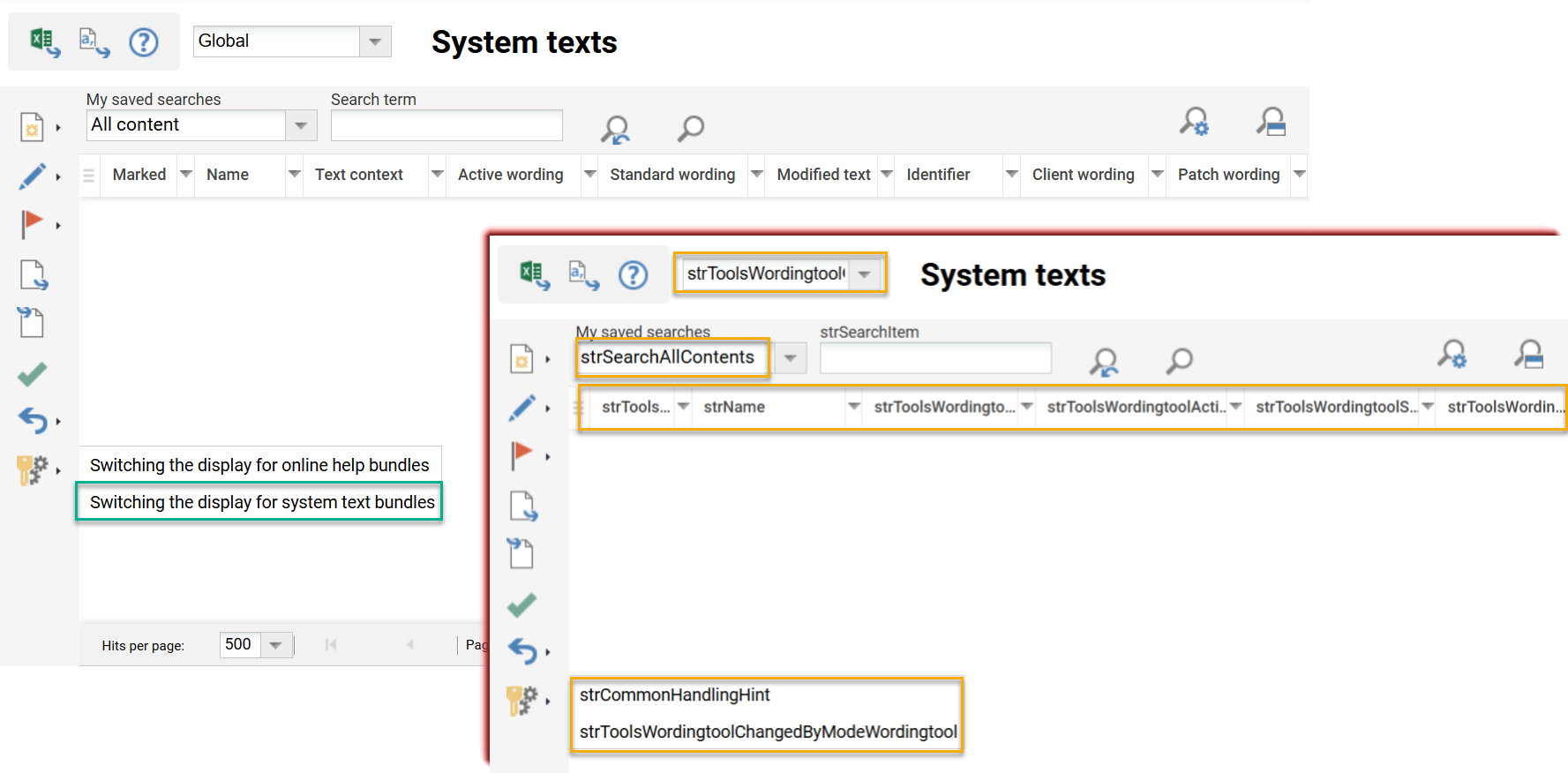
When activating the Administrator mode this will only change wording display for the logged in user’s active session.
Learner Function Identifiers
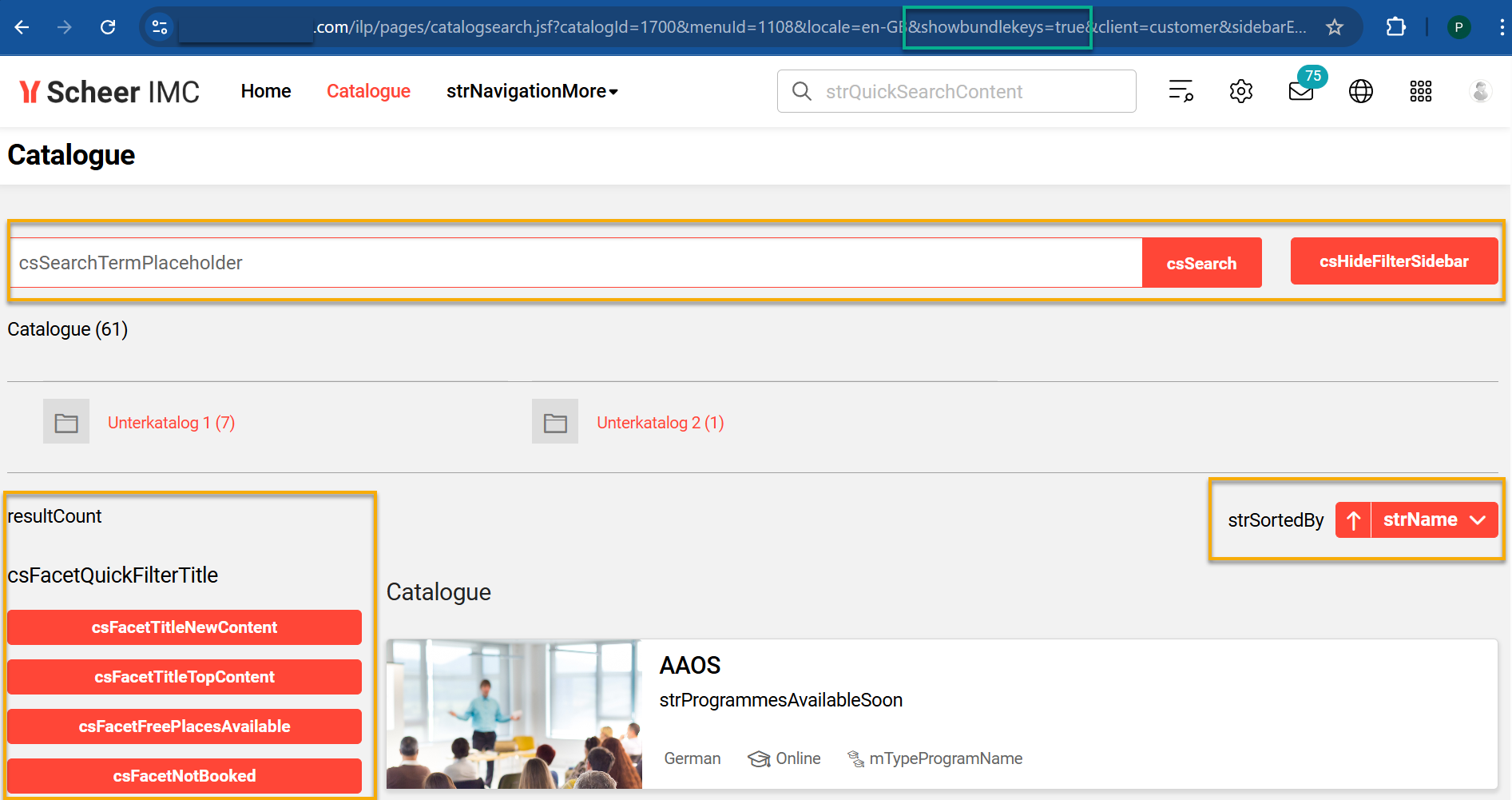
The method to see the bundle identifiers used in frontend Learner functions requires manually amending the URL. Simply add the text &showbundlekeys=true after the locale language entry.