
Deep Dive: How to configure Recertification with common example scenarios
What is Recertification?
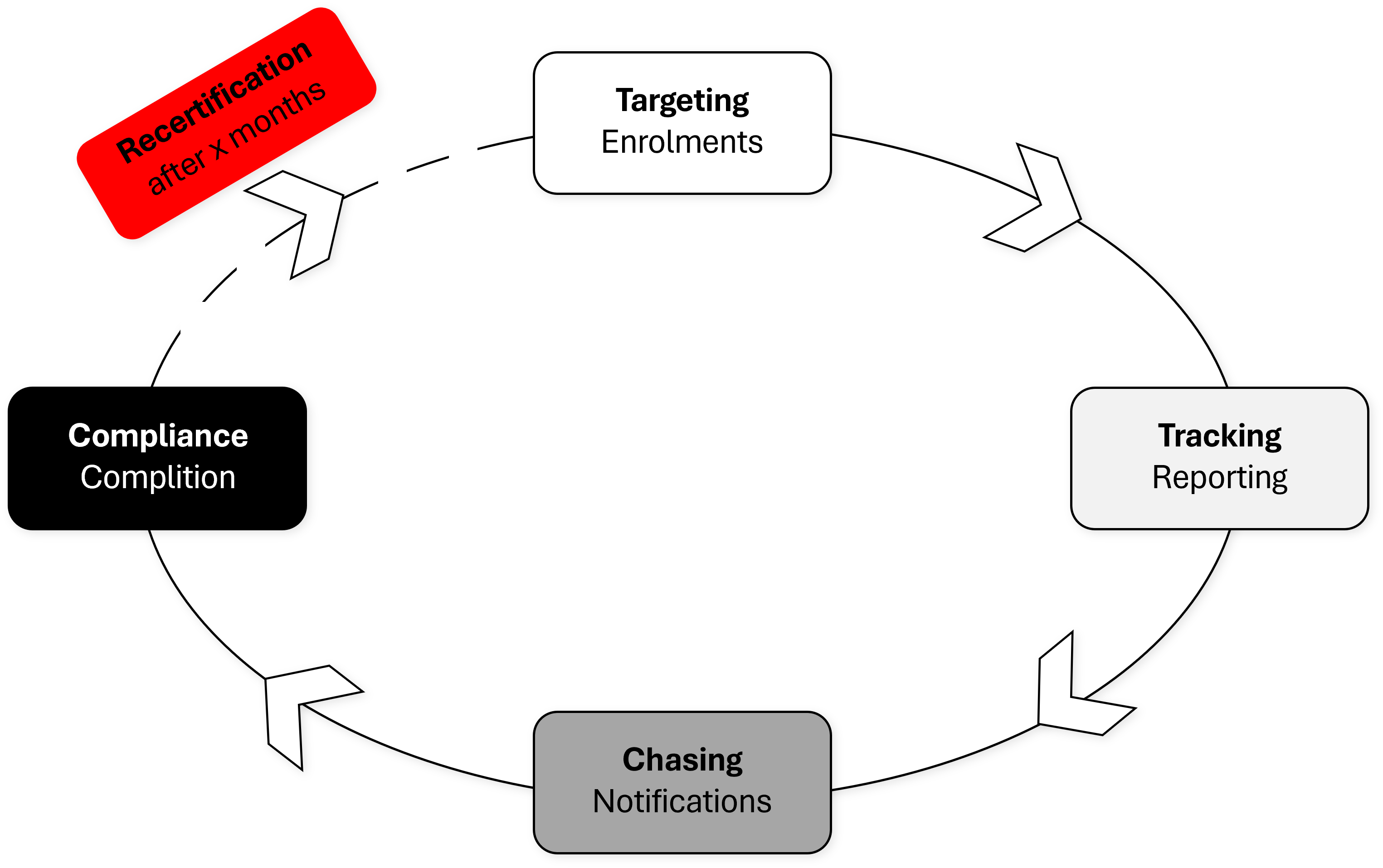
Recertification is a Course template workflow within the Participant administration function Automatic enrolment tab. You can use this functionality for scenarios where learners are required to periodically repeat courses of the same course template, e.g. for compliance purposes or knowledge refreshers. Participants of target groups get automatically enrolled with their expected completion due date advised. The due date can either be the same due date (DD/MM) for all participants or calculated individually per participant based on the initial enrolment and ongoing completion dates.
Benefits of Recertification
Recertification is important where outdated knowledge could lead to compliance issues, safety risks, or decreased effectiveness. The key benefits of using the Recertification workflow include:
-
Efficient automated workflows reduce manual administrative effort.
-
Target group rules can accurately and consistently identify the required participants.
-
Employees are regularly informed of their training requirements with clear time expectations.
-
Supervisors can monitor their staff's upcoming and outstanding training requirements.
-
Accurate training records help ensure organisations remain legally compliant.
Configuration Steps
Configuring a Recertification workflow is relatively straightforward. You can set up a new Recertification scenario by following these key steps:
-
Creation of a Target group with rules defined to identify participants.
-
Creation of a Course template to be used as the basis for Recertification.
-
Creation of a first Course from the Course template (automatic or manual).
-
Set up the Automatic enrolment job in Course templates > Participant administration.
-
Execution of the Automatic enrolment job, either manually or automated using scheduled jobs.
-
Ongoing: Monitoring completions and ensuring courses are created, either automatically or manually, for subsequent Recertification periods.
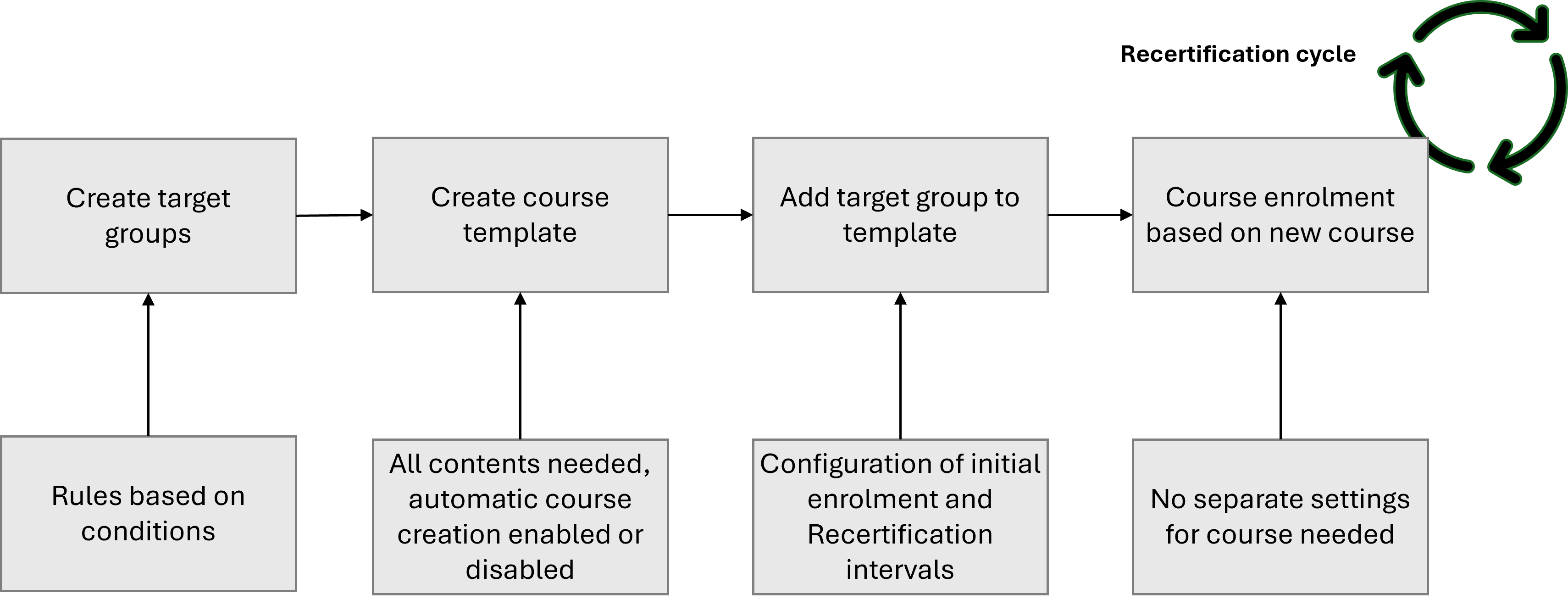
Each of these steps are described in own sections below.
Target Group Creation
The use of Target groups is recommended for Recertification. This is because you can create advanced rules with conditions to determine which users are included. Target groups are created in the Organisational structure and groups function by clicking the Create icon and selecting the Target group option. In the Description tab you need to set a name and describe the group. Next is the Rules tab where you can create a single ‘including’ rule or multiple ‘including’ rules where ‘Or’ scenarios are required. Using multiple conditions in a single rule creates 'And' conditions.
The available condition options include:
-
Personal attribute values
-
Group assignment
-
Learning history (Courses, Course templates and Learning paths)
-
Job profiles assigned
-
Skills achieved
-
Cluster (Classification)
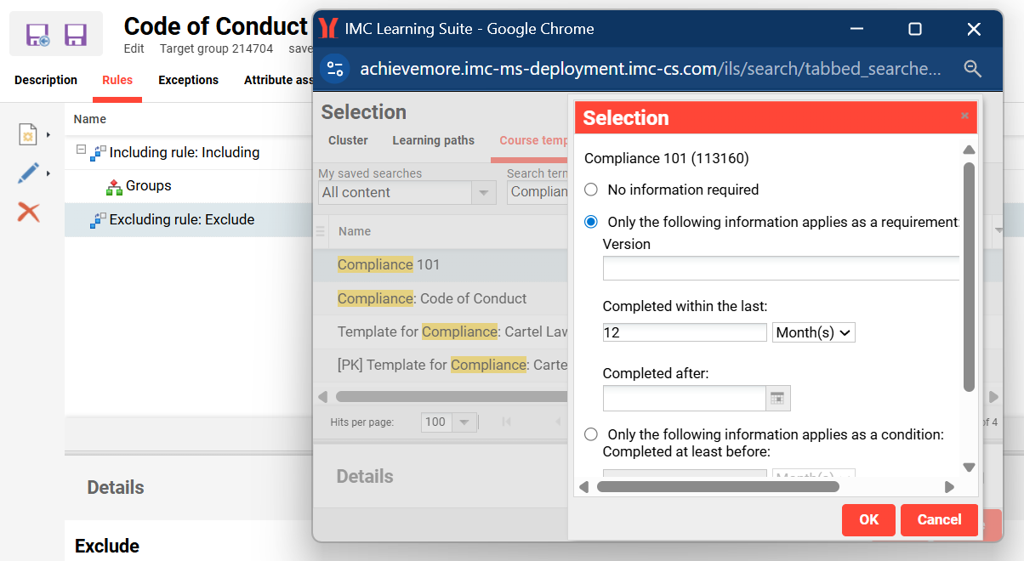
You can also refine the list of included users with exclusion rules and conditions. For example, a Target group for compliance training might include all active users and then exclude users that are not actually staff.
When creating a target group for Recertification, you do not need to tick the Target group with Recertification checkbox. This is for information purposes only.
Testing the Rules
Once the Target group has been created and saved, it is important you test the rules. Testing ensures that the correct users are being assigned prior to finalising the group. You can test in the Organisational structure and groups function by highlighting the group and clicking the Start target group generation icon.
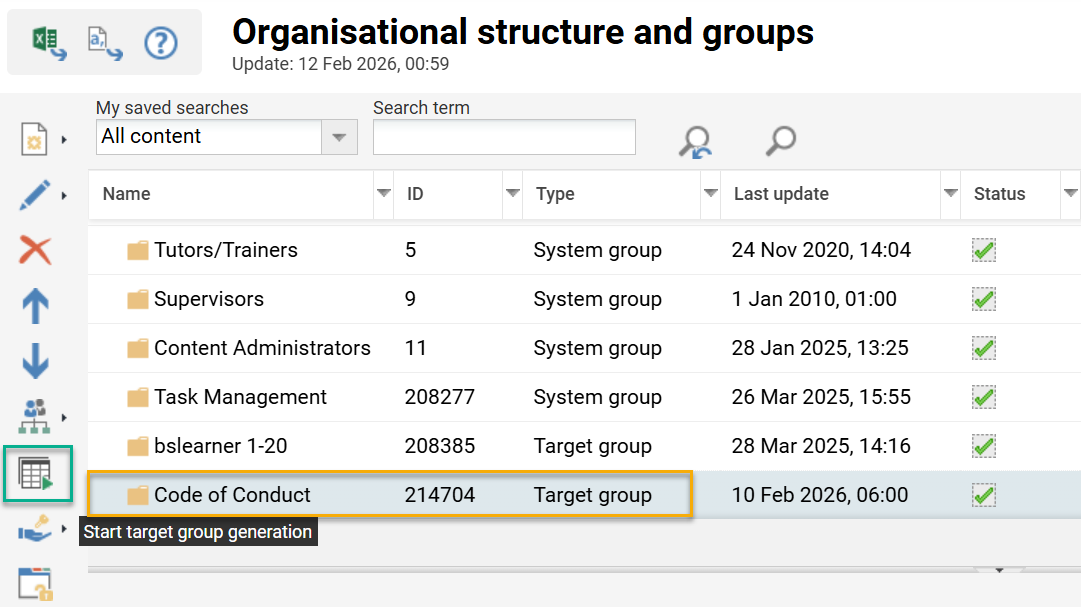
Once the generation is complete, you can check if users have been assigned as expected. To do this, highlight the group, click the User assignment icon and select the Display participant list option. A new tab will load showing all the users that have been assigned to the group.

If the included users are as expected, the Target group can be finalised. If users are not as expected, amend the rules and click the Start target group generation icon once again.
Finalising the Target Group
Once you have confirmed the Target group rules work as expected, you will then need to change the group from Draft version to Final version. This is done by highlighting the group, clicking the Edit icon and selecting the Final version option. When finalised the rules become locked and the group will be available for use throughout the system.
Course Template Creation
The creation of a Course template for Recertification is performed similarly to any other Course template, but there are a couple of key differences. It is important to pre-populate the Course template as much as possible with description information, default settings and content. Two important settings described below for Recertification are Automatic course creation and Automatic enrolment.
The Scheer IMC recommendation is that you create a new Course template for Recertification workflows. This is because when using an existing Course template, any previous participant completions of courses from the template are not considered in the initial enrolment and due date calculations. While using an existing Course template will technically work, it can result in participants who have recently completed a course from the template enrolled to complete another course soon after.
Automatic Course Creation
In the Description tab of Course templates there is an Automatic course creation checkbox. This workflow is recommended for online courses where there is no requirement for exact delivery dates or booking of resources. When you tick the Automatic course creation checkbox, it will allow populating the First course creation date*, the Course creation interval in days* and Planning status change interval fields. These settings determine when a course will first be automatically created, at which interval subsequent courses will be created, and the duration when the planning status will change from Locked to Released (booking allowed).
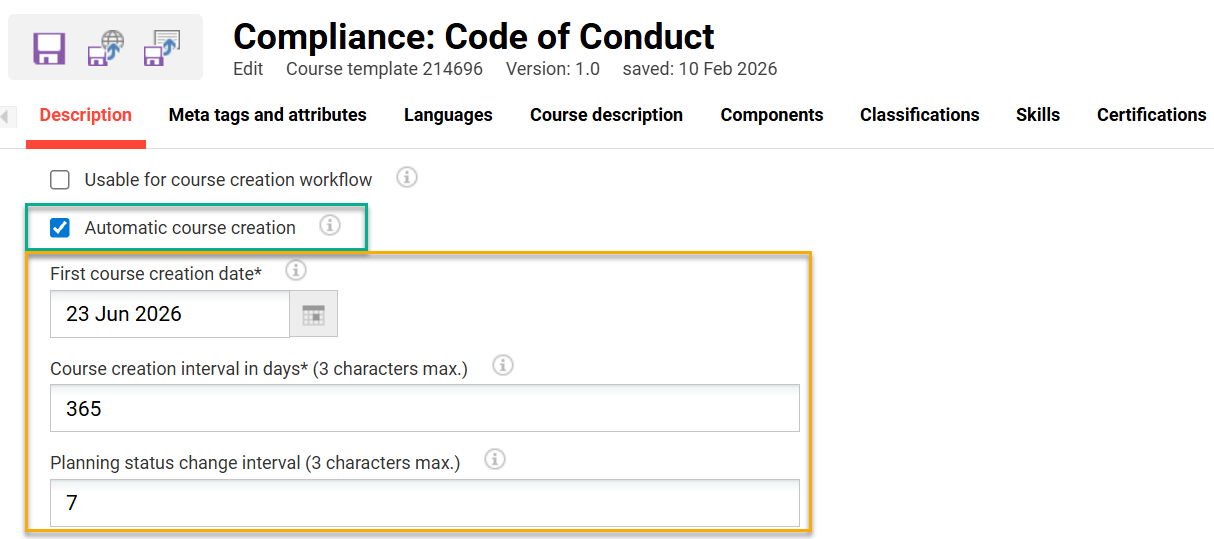
Automatic course creation requires that the AutomaticCourseCreation cron is activated in the Scheduled jobs function.
Meta Tags
For online courses it’s recommended that you add and enable the Clearance for automatic course enrolment (10780) meta tag. This setting is important for online Recertification courses where all participants complete the same course. The meta tag relates to the Automatic course enrolment checkbox in the Participant administration function Automatic Enrolment tab when adding rules.
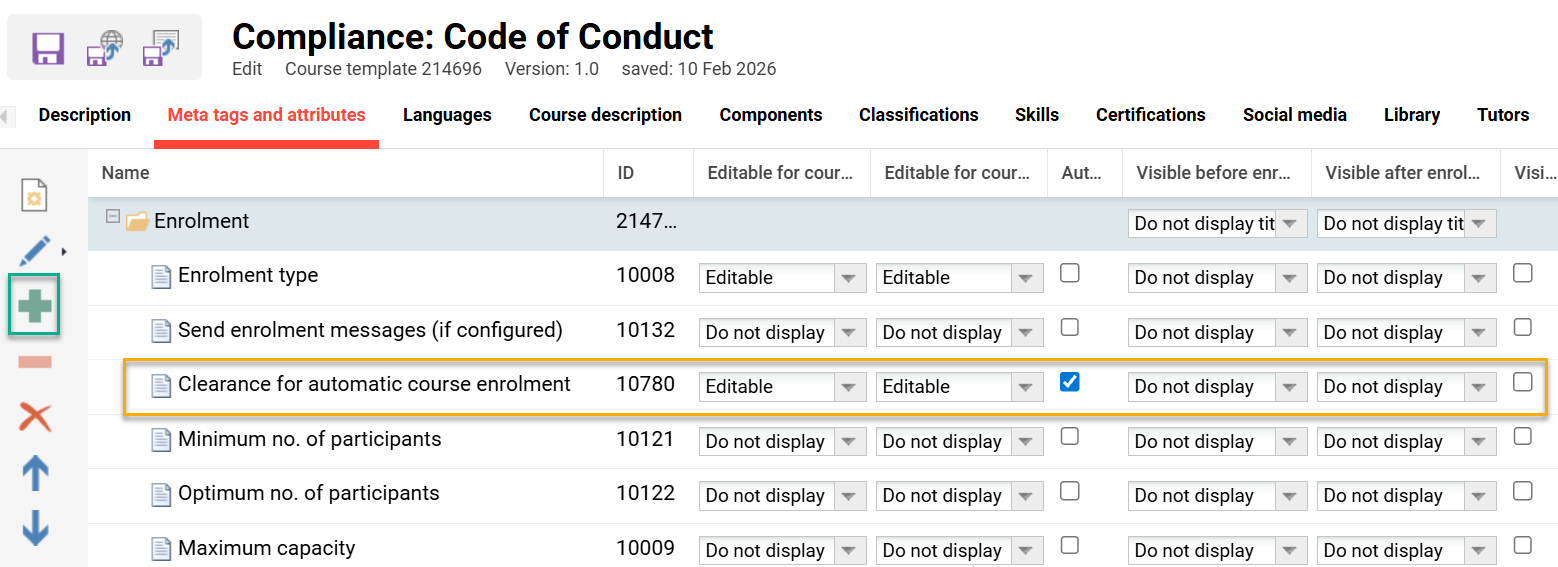
If the checkbox is not enabled, then the Course template would be added to the participant’s Personal syllabus and the participant would need to self-enrol to a course. This is fine for instructor-led training, but creates an extra step for online courses.
Once you have completed the Course template population, be sure to click the Save and Publish button.
Course Creation
Courses can be created either automatically or manually. The recommended method for creating Recertification courses depends on the delivery mode, e.g. duration-of-use online or date-dependent instructor-led. What is especially important is the course creation frequency. This is because participants need to complete a new course from the Course template for each Recertification period. Recommendations for each delivery mode are provided below:
Online Courses (Duration-of-use)
For online courses you can use the Automatic course creation workflow activated in the Course template. The total values of the Course creation interval and Planning status change interval fields in the Course template need to be equal to, or less than, the Recertification intervals. For example, with a 12 month online Recertification interval you could set the Course creation interval of 358 days and a Planning status change interval of 7 days. This frequency would match the 12 month interval to ensure that a new course is available for each Recertification period. It would also provide you with 7 days to confirm the automatically created course is ready for use.
You can decide whether to create the first course manually or automatically. If desiring the first course is automatically created set a future date in the First course creation date* field of the published course template.
In the course, it’s recommended you tick the Clearance for automatic course enrolment (10780) meta tag. This will reduce clicks for the learner by directly enrolling them to the latest available course.
A new course is required for each Recertification period to record history of all completions. For online courses, including the Recertification period year in the name or description can be useful.
Instructor-led Courses (Date-dependent Classroom)
For instructor-led courses it’s recommended that you manually create courses. This is because there are important factors that the Automatic course creation workflow is unable to know including:
-
Required delivery dates and times
-
Required training locations
-
Course sessions required per location
-
Maximum places per location
-
Required Tutor and availability
As an administrator, you will be able to extract useful data from the Due date consideration report and Course template > Participant administration function. This data can help you identify the number of users requiring courses within a select time-period and their locations. Based on this information, the required number of courses and locations can be forecast, then manually created.
The Clearance for automatic course enrolment meta tag is not recommended for use. This is because enrolling a participant to the latest ‘Released’ Course created from the Course template may not be suitable from a time or location perspective.
Set up Automatic Enrolment Rules
Once the Target group is finalised and the Course template is published, you will be ready to set up the Automatic enrolment and Recertification rules. In the Course template function highlight your course template and click the Participant administration icon. Open the Participant administration menu, go to the Automatic Enrolment tab and click the Add '+' icon. In the pop-up, highlight your Target group and click the Add button. A new Rules and status of automatic enrolment pop-up window will display containing many settings.
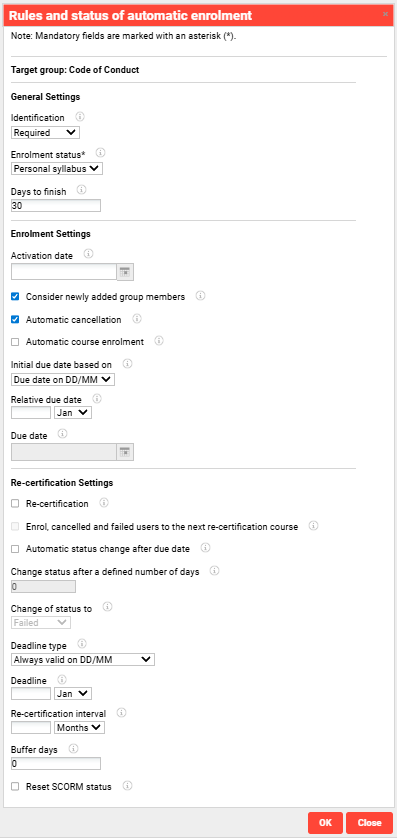
With these settings you can define the rules for the initial enrolment and ongoing Recertification. Each setting is described in the table below:
|
Setting name |
Description |
|---|---|
|
Identification |
There are three standard options that serve as a label to identify the completion requirement. These options are also used to filter reports, escalation messages and course panels. |
|
Enrolment status* |
For Recertification 'Personal syllabus' is required. |
|
Days to finish |
How long the learner will have to complete the course from the enrolment date. |
|
Activation date |
Date when the automatic enrolment will first process. Allows future planning. |
|
Consider newly added group members |
When ticked, new users added to the Target group will be automatically enrolled. |
|
Automatic cancellation |
When ticked, if a user drops out of the Target group they will be cancelled from any active enrolment from the Course template. |
|
Automatic course enrolment |
When ticked, users can be automatically enrolled to the latest ‘Released’ Course from the Course template where the Clearance for automatic course enrolment meta tag is ticked. |
|
Initial due date based on |
Provides two options to determine the due date of the participant’s first enrolment. The selected option will enable one of the following fields to be populated.
|
|
Relative due date |
Enables entering a DD/MM value. If the entered date is already passed at the time of group entry, the initial enrolment will occur on the Days to finish prior to the next DD/MM in the following year. |
|
Due date |
This field is actually optional and can be left blank. If leaving blank or if the Due date is in the past, then the Due Date for new participants will be calculated as Enrolment date plus (+) Days to finish. If a future date is selected, then the initial enrolment date will be calculated as Due date minus (-) Days to finish. |
|
Recertification |
Must be ticked where the Recertification workflow is required. |
|
Enrol, cancelled and failed users on the next recertification course |
Predominantly used for instructor-led training to ensure users receive a PASSED status in a Course per Recertification period. |
|
Automatic status change after due date |
Enables automatic enrolment status changing of ‘Enrolled’ or ‘In progress’ users once their Due date is passed. For example, setting the status to Cancelled or Failed. |
|
Change status after a defined number of days |
Relates to Automatic status change after due date setting. |
|
Change of status to |
Relates to Automatic status change after due date setting. More commonly used for Date-dependent scenarios. |
|
Deadline type |
Important setting to determine whether next Due Dates are defined individually per user or the same for all users.
|
|
Deadline |
Relates to the ‘Always valid on DD/MM’ option. Sets the same due date for future completions of all users. The Due Date year will be based on the closest Recertification interval. |
|
Recertification interval |
Defines the period of time in either months or days that Recertification will be required. The actual interval depends on the Deadline type. Due date based on conclusion will set this interval added to the previous completion date to create the next Due date. Always valid on DD/MM will set the Due Date based on the interval and closest year to the Deadline (DD/MM). |
|
Buffer days |
Buffer days are used to bring forward the automatic enrolment in case of tight time windows for course processing by the learner, or to move the due date back in time if the processing period is too short. Thus, the "Due Date" for this is calculated as follows:
|
|
Reset SCORM status |
Important to activate for online Recertification using SCORM. Resetting the SCORM status will ensure the participant has to complete the module again; otherwise the system will consider previous completions of the SCORM object from other courses. |
Once the Rules and status for automatic enrolment pop-up is complete, click the OK button and then click Save button.
Common Use Cases & Configurations
Three common Recertification examples, along with configuration settings, are provided below:
Scenario 1: Annual Online Compliance Course with Differing Due Dates for Participants
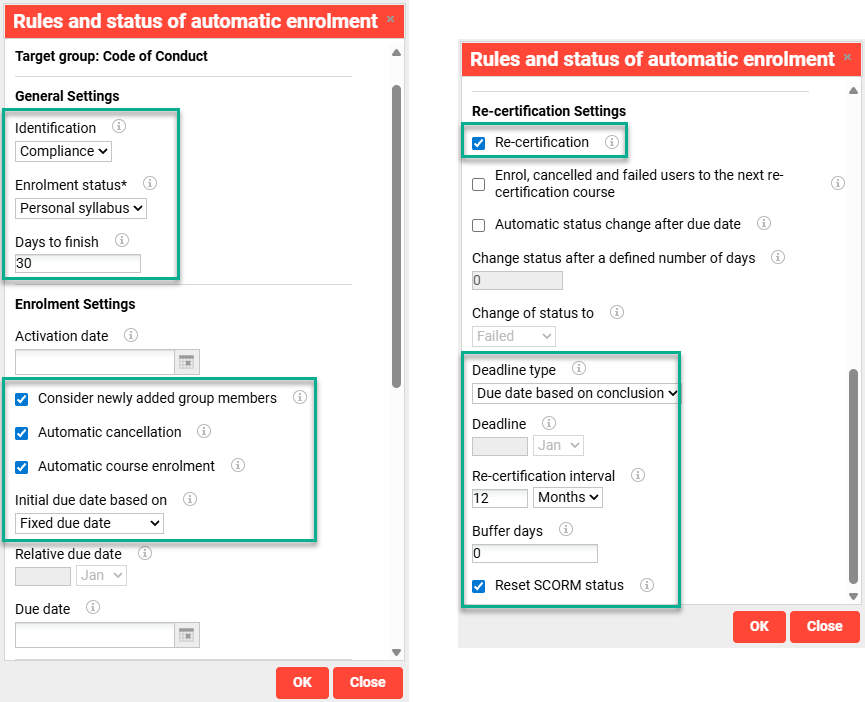
In this scenario, Target group participants are required to complete an online compliance course containing a SCORM module every 12 months. The participants are to be immediately enrolled upon inclusion to the Target group and will have 30 days to complete the course. The participant due date for the subsequent Recertification period will be based on their previous completion date.
-
Course template
-
Enable the Automatic course creation workflow
-
Select a First course creation date*
-
Set the Course creation interval in days* as 358.
-
Set the Planning status change interval as 7.
-
-
Course
Activate the Clearance for automatic course creation meta tag. -
Enrolment rules > General Settings
-
Identification = Compliance
-
Enrolment status* = Personal syllabus
-
Days to finish = 30
-
-
Enrolment rules > Enrolment Settings
-
Consider newly added group members = Active/Ticked to ensure new users are enrolled on an ongoing basis.
-
Automatic cancellation = Active/Ticked to ensure users that no longer meet Target group inclusion criteria are removed. For example, cancelling deregistered/passive users.
-
Automatic course enrolment = Active/Ticked to directly enrol participants on the latest ‘Released’ course.
-
Initial due date based on = ‘Fixed due date’ as this option does not require entering a date meaning the Due date is calculated from enrolment.
-
-
Enrolment rules > Recertification Settings
-
Recertification = Active/Ticked to enable the Recertification workflow.
-
Deadline type = ‘Due date based on conclusion’ to consider participants' previous completion date in the next due date calculation.
-
Recertification interval = 12 months
-
Buffer days = 0 as extending the enrolment window is not required for online courses that are duration of use. Having a large Buffer days can just lead to participants completing compliance modules more often than required.
-
Reset SCORM status = Active/Ticked to ensure participants must re-complete the module and receive no prior recognition of previous completions.
-
These settings will see participants automatically enrolled to the latest ‘released’ Recertification course 335 days after their previous completion. With courses being automatically created annually, this Recertification process requires little administrative effort to maintain.
Scenario 2: Annual ‘Online’ Mandatory Course with ‘Matching’ Due Date for all Participants
In this scenario, Target group participants are required to complete an online compliance course by the same yearly due date (30th June) every 12 months. The participants will be bulk enrolled at a calculated time (45 days) prior to the relative due date. This scenario sees all participants completing the course at a similar time.
-
Course template
-
Enable the Automatic course creation workflow
-
Select a First course creation date*
-
Set the Course creation interval in days* as 358.
-
Set the Planning status change interval as 7.
-
-
Course
Activate the Clearance for automatic course creation meta tag. -
Enrolment rules > General Settings
-
Identification = Required
-
Enrolment status* = Personal syllabus
-
Days to finish = 45
-
-
Enrolment rules > Enrolment Settings
-
Consider newly added group members = Active/Ticked to ensure new users are enrolled on an ongoing basis.
-
Automatic cancellation = Active/Ticked to ensure users that no longer meet Target group inclusion criteria are removed. For example, cancelling deregistered/passive users.
-
Automatic course enrolment = Active/Ticked to directly enrol participants on the latest ‘Released’ course.
-
Initial due date based on = ‘Due date on DD/MM’
-
Relative due date = 30 Jun
-
-
Enrolment rules > Recertification Settings
-
Recertification = Active/Ticked to enable the Recertification workflow.
-
Deadline type = ‘Always valid on DD/MM’ to have participants finishing in a similar time frame.
-
Deadline = 30 Jun
-
Recertification interval = 12 months ensures Recertification is annually
-
Buffer days = 5 as extending the enrolment window is not required for online courses that are duration of use
-
Reset SCORM status = Active/Ticked to ensure participants must re-complete the module and receive no prior recognition of previous completions.
-
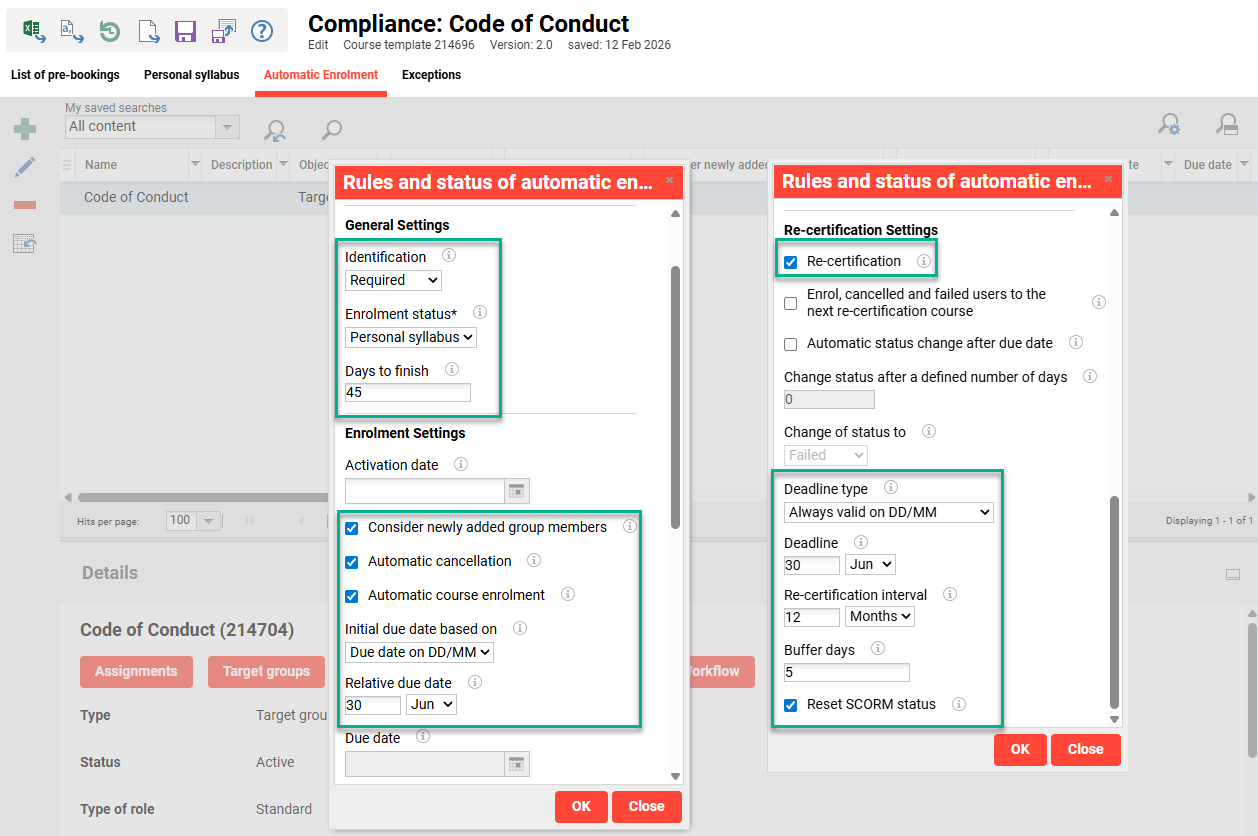
These settings will see participants automatically enrolled to the subsequent Recertification course 50 days prior to the 30th June due date. The enrolment would be 11th May given the 45 days to finish plus a 5 day buffer. With courses being automatically created annually, this Recertification process requires little administrative effort to maintain.
Scenario 3: Two yearly ‘Classroom’ Course with ‘Fixed’ Due Date for All
In this scenario, Target group participants are required to complete an instructor-led course by the same yearly due date (1st May) every two years (24 months). The Course template will be added to the participant's Personal syllabus at least 90 days prior to the relative due date, but some buffer will be provided. Pre-booking is required rather than direct enrolment as there will be many sessions offered at different locations. This would see participants completing the course at a similar time each year.
-
Course template
Disable the Automatic course creation workflow. -
Course
Disable the Clearance for automatic course creation meta tag. -
Enrolment rules > General Settings
-
Identification = Required
-
Enrolment status* = Personal syllabus
-
Days to finish = 90
-
-
Enrolment rules > Enrolment Settings
-
Consider newly added group members = Active/Ticked to ensure new users are enrolled on an ongoing basis.
-
Automatic cancellation = Active/Ticked to ensure users that no longer meet Target group inclusion criteria are removed. For example, cancelling deregistered/passive users.
-
Automatic course enrolment = Disabled/Unticked to Pre-book the participants.
-
Initial due date based on = ‘Due date on DD/MM’
-
Relative due date = 1 May
-
-
Enrolment rules > Recertification Settings
-
Recertification = Active/Ticked to enable the Recertification workflow.
-
Deadline type = ‘Always valid on DD/MM’ to have participants finishing in a similar time frame.
-
Deadline = 1 May
-
Recertification interval = 24 months ensures Recertification is every two years.
-
Buffer days = 30 as extending this extends the window for the participant to locate a course to complete.
-
Reset SCORM status = Active/Ticked only if the course is blended with a combination of instructor-led and online module.
-
-
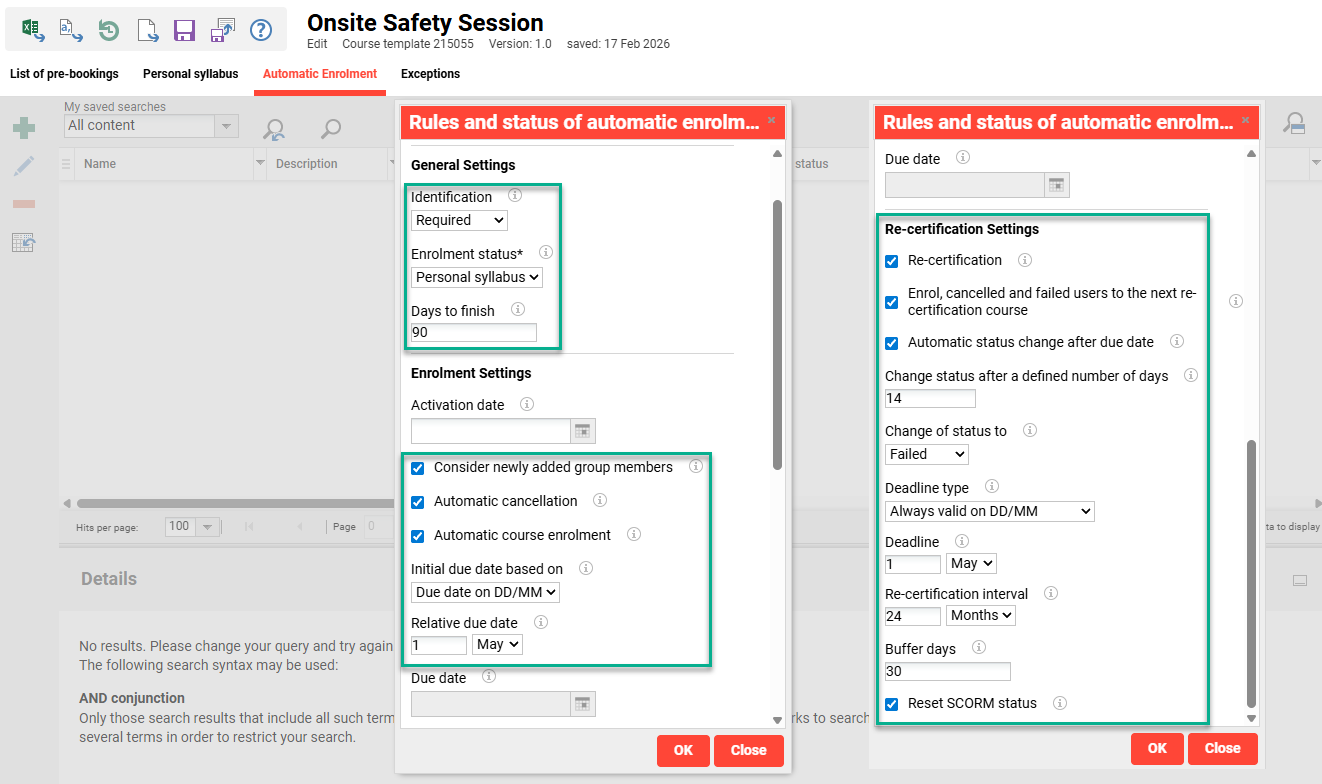
Recommended settings for an instructor-led mandatory course with a 24 month Recertification These settings will see the Course template added to the participants Personal syllabus 120 days prior to their 1st May due date; this will not be every year. The pre-booking would occur on the 1st January given the 90 days to finish plus a 30 day buffer. The participant would need to manually select their preferred Recertification course based on suitable location and date. The important administration aspect is knowing how many sessions will be required in each location and when.
Migration and Legacy Data Considerations
As mentioned earlier, it's recommended to create new Course templates for Recertification workflows. This can result in legacy Course templates and Courses that will only be used for historical purposes. These Courses should be closed by setting the Planning status meta tag to ‘Concluded’. The Target group assignment rules for the new template can consider the previous completions by participant. For example, exclude users that have completed a course from the legacy template in the previous 11 months.
Related Configurations
Hints and Tips
There are many possibilities with Recertification and therefore many frequently asked questions. Scheer IMC have a list of common questions with detailed answers you can access in an FAQ.