
Deep Dive: Defining rules for Syllabus and Component progression
What is Learning Logic?
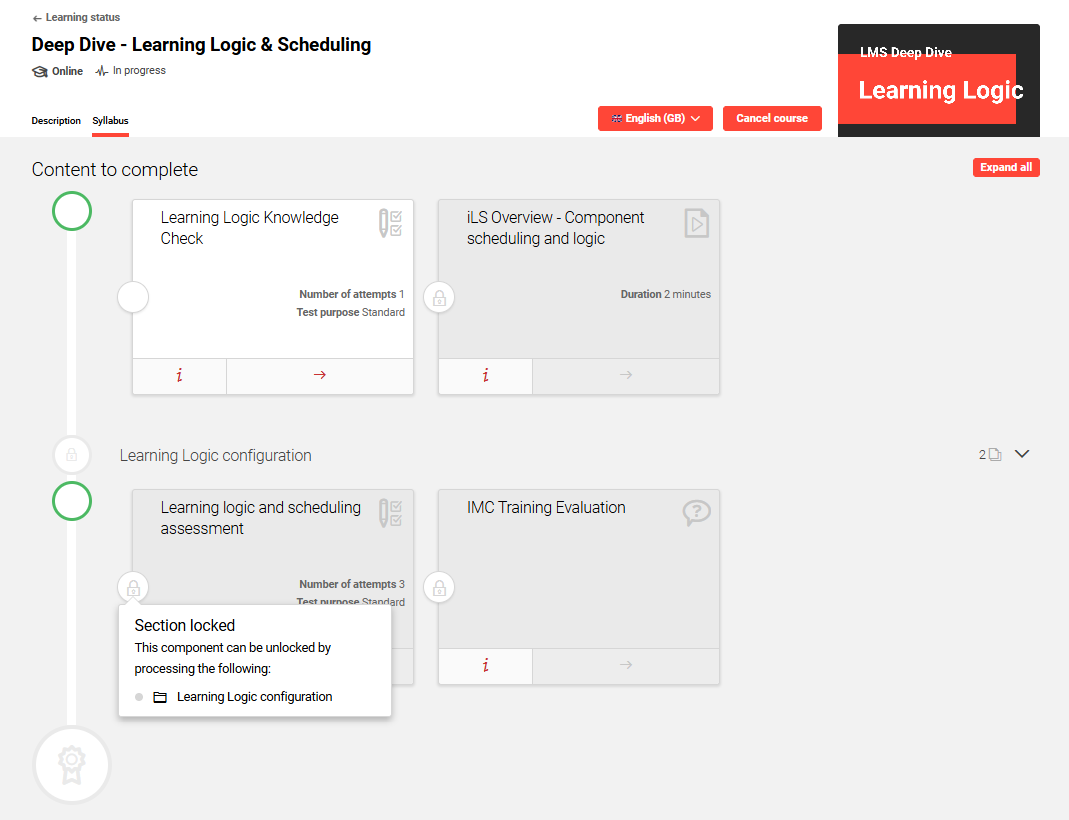
Learning logic enables you to define rules within the syllabus of Courses and Learning paths. These rules determine how syllabus components are progressed and can automatically conclude participants on training. Components with logic often display in a ‘Locked’ state to prevent access. Hovering over the Locked symbol displays hints that describe the rules and required actions to unlock the component.
Use Cases for Learning Logic
There are many possible use cases for learning logic, including:
-
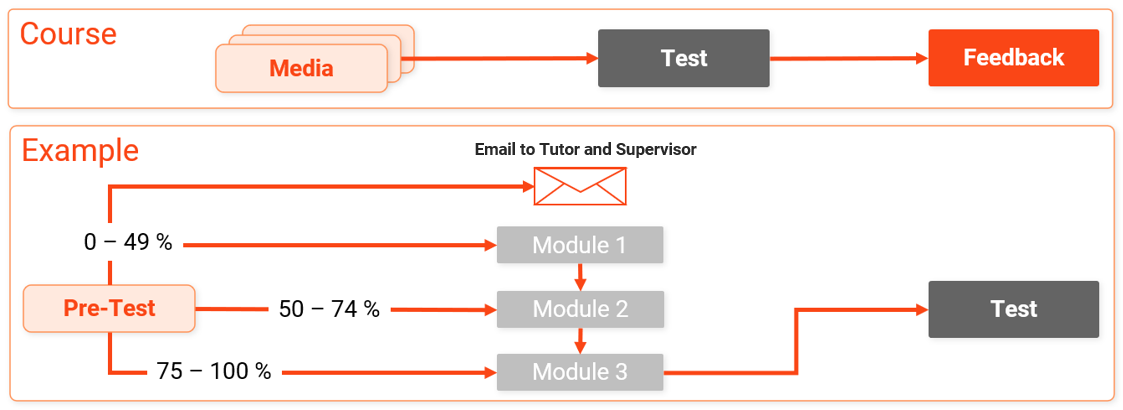
Using pre-tests to determine prior knowledge of participants and set recommended starting points
-
Locking Course components so that participants must complete components in a required order
-
Limiting the number of attempts participants have for Tests
-
Automatically concluding Course participants as Passed or Failed based on results of status-based activities (e.g. Test, WBT, OJT)
-
Cancelling participants from Courses based on component non-completions or failures
-
Notifying supervisors when their staff progress components, including results
-
Providing elective Courses within a Learning path using x of n logic in folders
-
Automatically concluding participants on a Learning path once syllabus folders have been successfully completed
This is useful, as there is no Conclusion by progress option as with Courses.
Configuring Learning Logic
You must enable Learning logic individually for both Courses and Learning paths. The main configuration is found in the Process complexity tab of Course types and Learning path types. Here, all you need to do is tick the Learning logic checkbox.
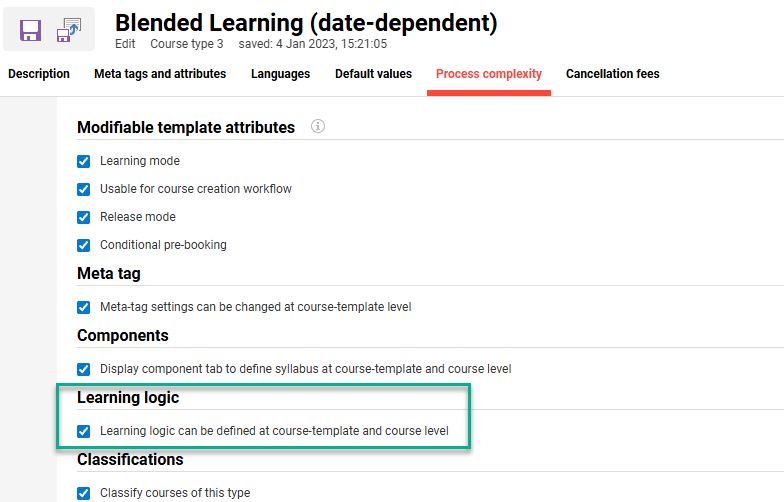
Enabling this setting allows you to define logic rules in the Components tab for Courses and the Syllabus tab for Learning paths. To define rules, highlight a component or folder, click the Edit icon, select Learning logic, and then choose the Define rule option.
Activating the Learning logic checkbox at Type level only enables Learning logic for newly created Templates from that Type object. Therefore, Templates created from the updated Type object prior to Learning logic activation will not show Learning logic settings in the Components tab or Syllabus tab.
As the Learning logic options differ slightly between Courses and Learning paths, each will be described in its own section below.
Learning Logic in Courses
The use of Learning logic in Courses allows defining rules for components (e.g. media, tests, sub-courses, OJTs, feedbacks) and folder completion. Result-based object completion is used in follow-up conditions to determine what action occurs next. Actions could include unlocking components, locking components, sending messages, or triggering Course conclusion (Passed, Failed, Cancelled). Without Learning logic or scheduling, the Course participants can attempt components in any order.
Meta Tags that Impact Learning Logic
There are three meta tags available in Courses related to Learning logic:
-
Course may be concluded by (10080):
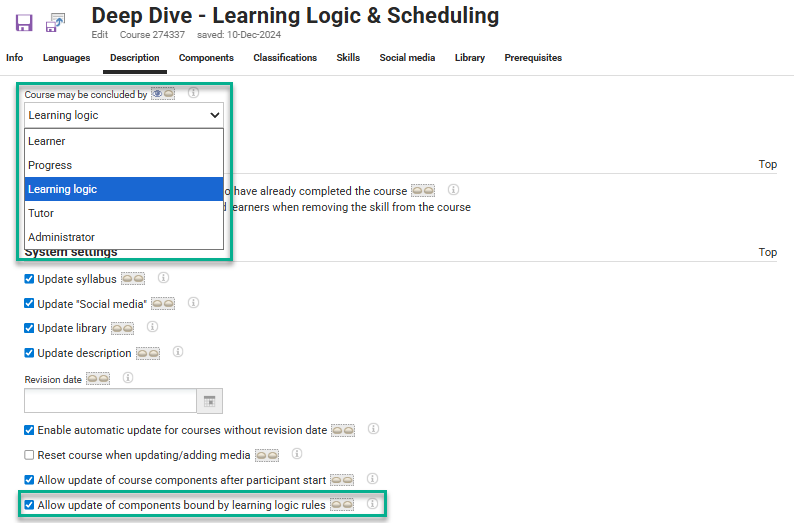
Option Learning logic enables a rule to be defined to conclude participants as either Passed, Failed or Cancelled. -
Cancellation by learning logic (10131):
This checkbox, when ticked, enables Learning logic rule conditions to cancel (remove) participants; for example, if failing a pre-test. -
Allow update of components bound by learning logic rules (11610):
This meta tag is important to tick if you want media to update automatically when new versions become available. Other meta tag setting requirements include:-
Update syllabus checkbox in the Description tab
-
Allow update of Course component after participant start checkbox in the Description tab
-
Enable automatic update for Courses without revision date checkbox in the Description tab
-
Automatic update checkbox in the Components tab (not meta tag)
-
Defining Rules in Courses
You can define learning logic rules in Course templates prior to Course creation, or directly in Courses. In either case, the rule creation process is the same.
If learning logic is required to conclude participants on the Course, set the Course may be concluded by meta tag to Learning logic in the Description tab.
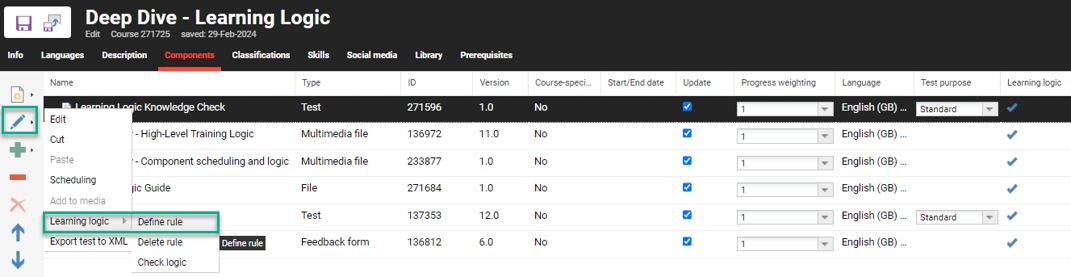
Next, define the learning logic rules in the Components tab by highlighting a single component (or folder), clicking the Edit icon, expanding Learning logic, and selecting the Define rule option.
Rule Conditions
In the Condition step, you can define rules to determine how a component is concluded. The available options depend on the type of component you are configuring. For example, assessed components such as Tests or Web-Based Training (WBT) modules include additional options based on ‘Status’ or ‘Percentage’ grading to determine completion, whereas other components rely on confirmation by the participant or tutor.
You can select from the following conditions as the basis for your rule:
-
Course progression dependent on percentage
Available for Tests, OJTs, and some WBTs with assessment -
Confirmation by tutor
Can be applied to all components, but is typically used for Events or Virtual Classrooms -
Confirmation by participant
Generally used for basic component types such as Documents, Multimedia, and Links -
Course progression dependent on status
Available for Tests, WBTs, OJTs, and Sub-Courses
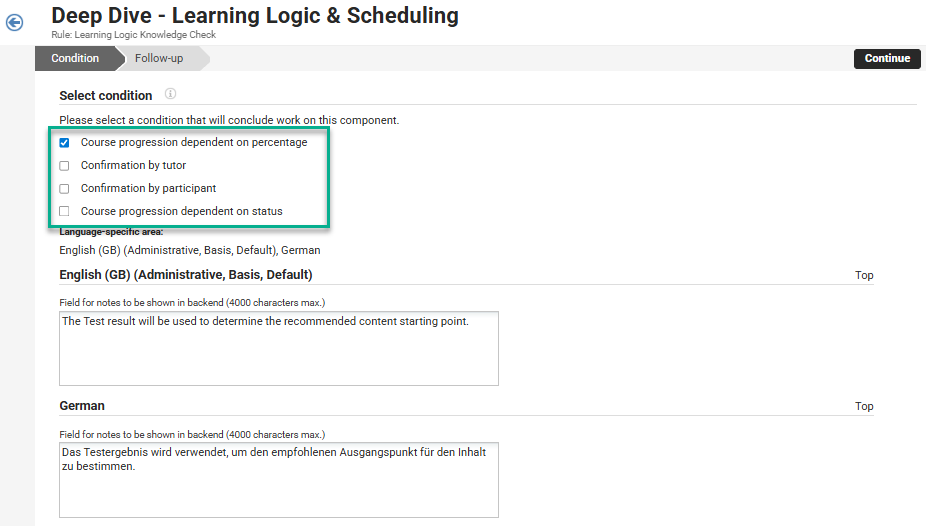
The Field for notes to be shown in the backend field in the Condition tab allows you to provide an explanation of the condition for administrators and participants when they open a test.
Rule Follow-ups
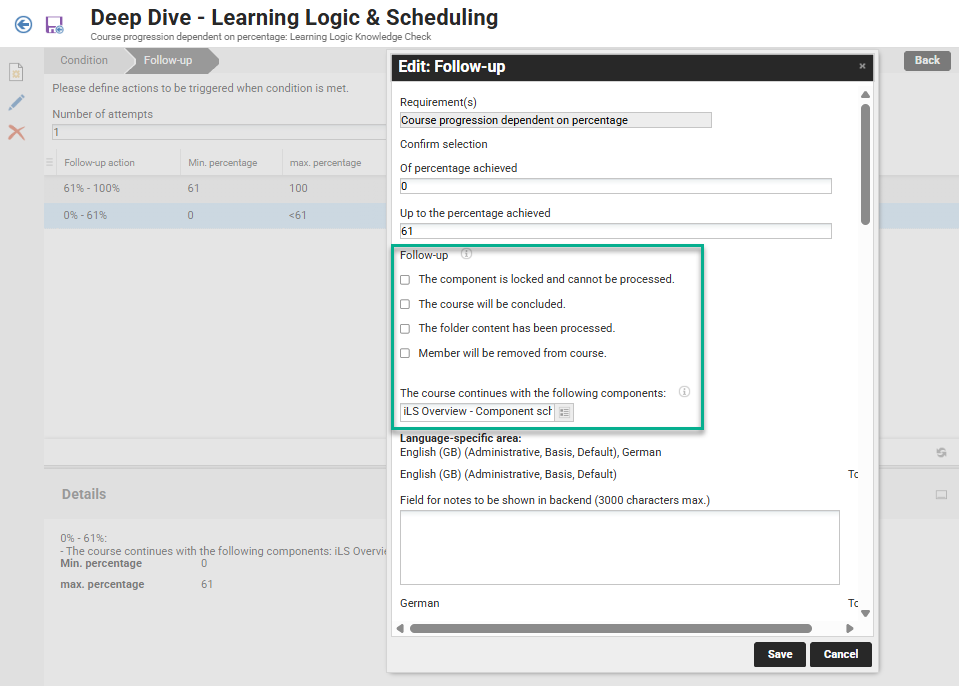
In the Follow-up step, you define what happens once a component has been processed according to the rule conditions. These actions determine the next steps for the learner and the Course. Typically, you can select from the following follow-up actions:
-
The component is locked and cannot be processed
Locks the module that has just been completed, preventing further access by the learner. -
The Course will be concluded
Available if the meta tag 10080 is set to ‘Learning logic’. Concludes the learner on the Course with a Passed or Failed status. -
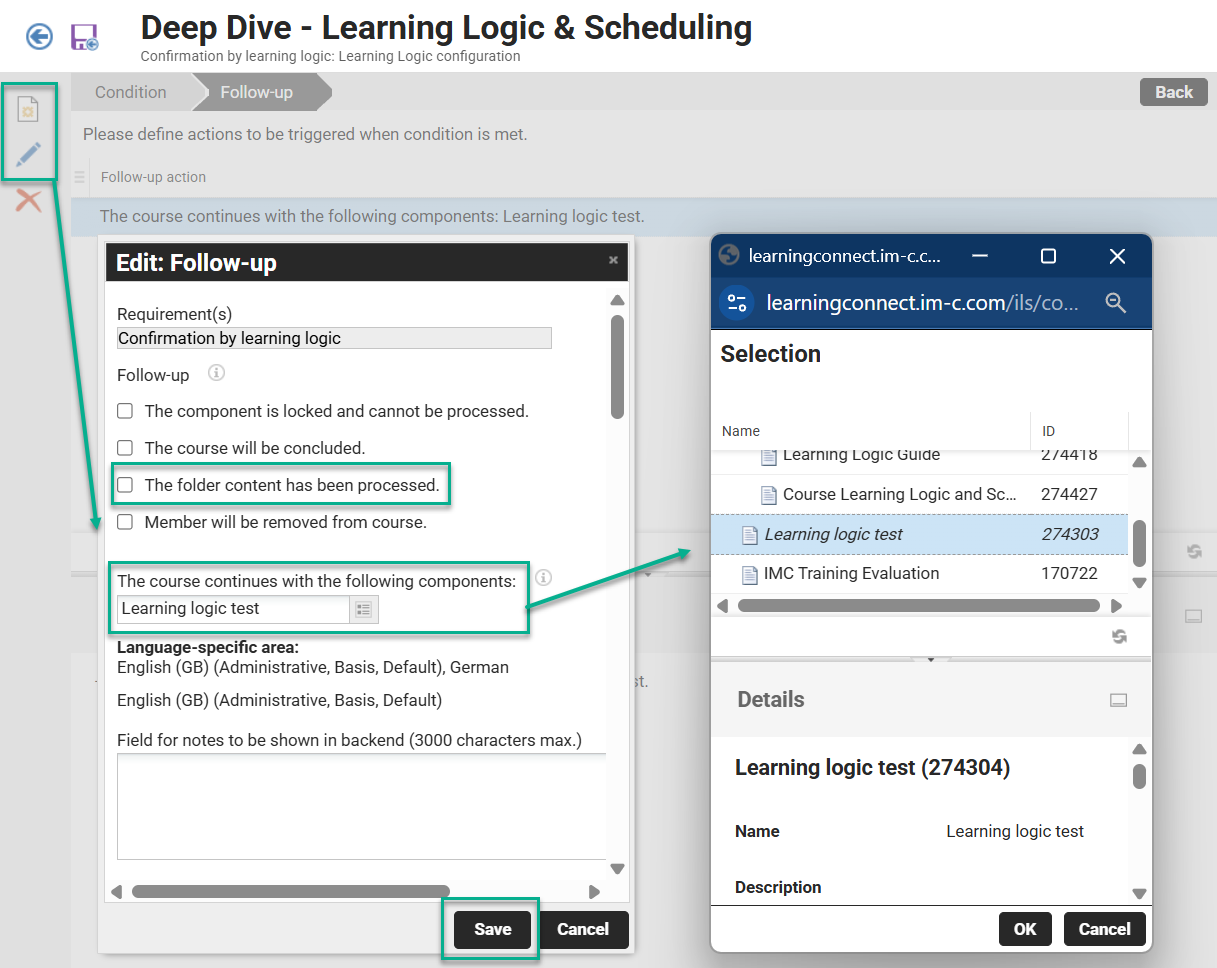
The folder content has been processed
Marks the folder as complete once the component is finished. This is useful when Learning logic requires the completion of a folder to unlock another folder or component. -
Member will be removed from the Course
Cancels a learner’s enrolment in the Course. This is normally used in pre-test scenarios or when a component is not completed. -
The Course continues with the following components:
Locks the selected component and restricts the learning sequence as defined by your rules. -
Field for notes to be shown in the backend
Unlike the Condition tab, the text entered here is only for administrative purposes and is not visible to participants.
Additional Follow-up Options for Tests
For Tests and WBTs with assessments, you have further follow-up options:
-
Number of attempts
Limits the number of test attempts allowed for the learner. -
Percentage achieved (from/to)
Specifies the percentage range achieved by the learner (e.g. from 0 to 61, or 61 to 100). -
Status (if the progression condition is ‘Status’)
Determines whether the learner is marked as Passed or Failed, as set by the Test or WBT.
When using Progress by percentage, the minimum value is 0 and the maximum is 100. Ensure that your follow-up actions cover all possible value ranges (for example, 0–61 and 61–100).
Learning Logic Messages
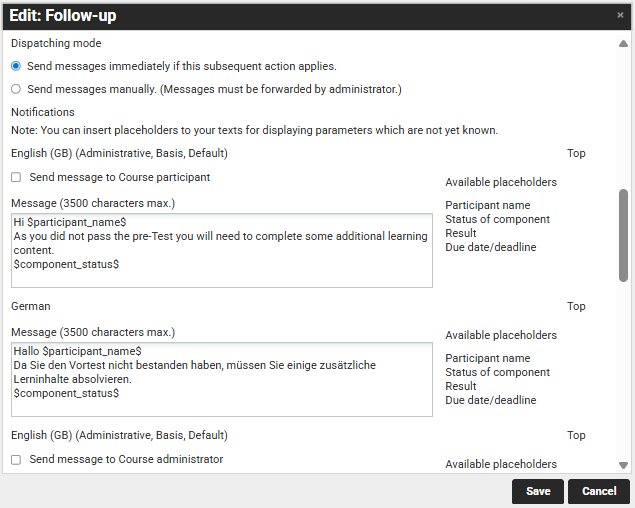
For each follow-up action, you can define messages to be sent by email to the Participant, Course Administrator, Tutors, or the Participant’s Supervisor. To enable an email notification, simply tick the Send message to … checkbox. The Message fields are available in every activated system language.
You can enter plain text in these fields and use selected variables to personalise the message. The available variables include:
-
Participant name
-
Status of component
-
Result
-
Due date/deadline
For example, you might notify a Supervisor or Tutor when a learner fails a test, or alert the Course Administrator if a learner has been cancelled from the Course.
Learning Logic on Course Folders
You can also create rule conditions for Course component folders. When defining a rule condition for a folder, you have the following options:
-
Confirmation by tutor
The tutor confirms completion of the folder. -
Confirmation by participant
The participant confirms completion of the folder. -
Confirmation by Learning logic
Completion is confirmed automatically when a sub-component has a follow-up action set to ‘The folder content has been processed’. This is commonly used for ‘1 of n’ logic.
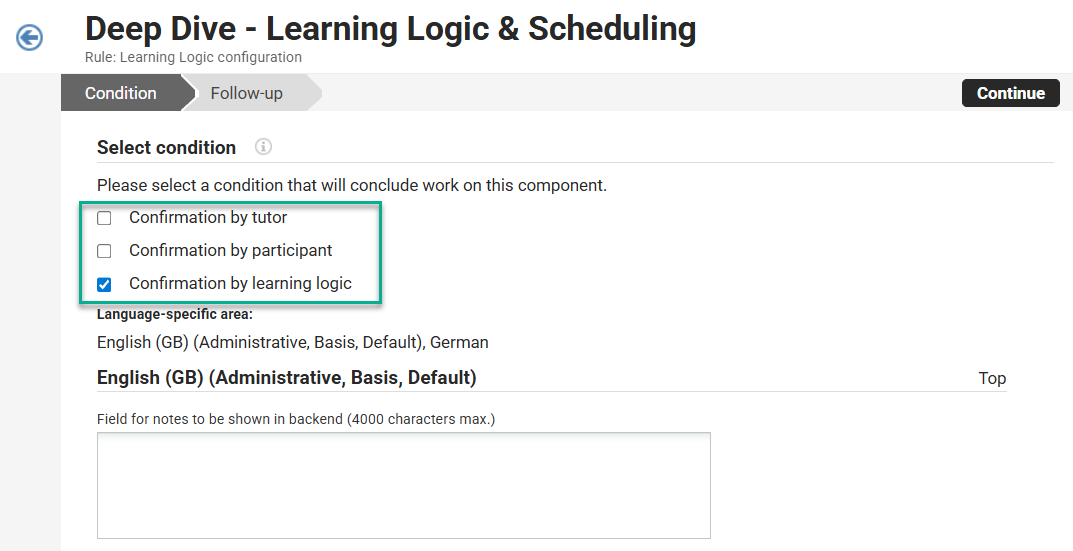
You can add follow-up actions to any component assigned to a folder. This means that either the successful completion of any component, or a specific component, can be used to mark the folder as complete. The available follow-up options for folder conditions are the same as those for individual components.
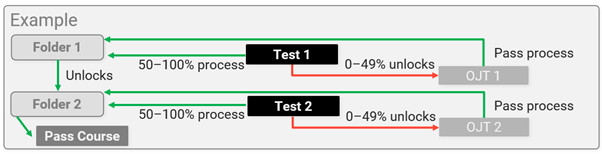
Example Use Case
Suppose you require participants to complete two Tests to pass the Course. If a participant fails a Test, they must complete an On-the-Job Training (OJT) to demonstrate their understanding before they can access the next Test or complete the Course.
To achieve this, you need to use two folders. Each folder contains a Test and a contingency OJT. The rules could be set up as follows:
-
The pass condition for the first Test completes the first folder.
-
The fail condition for the first Test unlocks the OJT.
Passing the OJT also completes the first folder. -
Completing the first folder unlocks the second folder, which contains the second Test.
-
Passing the second Test completes the second folder.
-
Failing the second Test unlocks a second OJT.
Passing this OJT also completes the second folder. -
Completing the second folder awards the participant a Passed status for the Course.
Checking Course Learning Logic
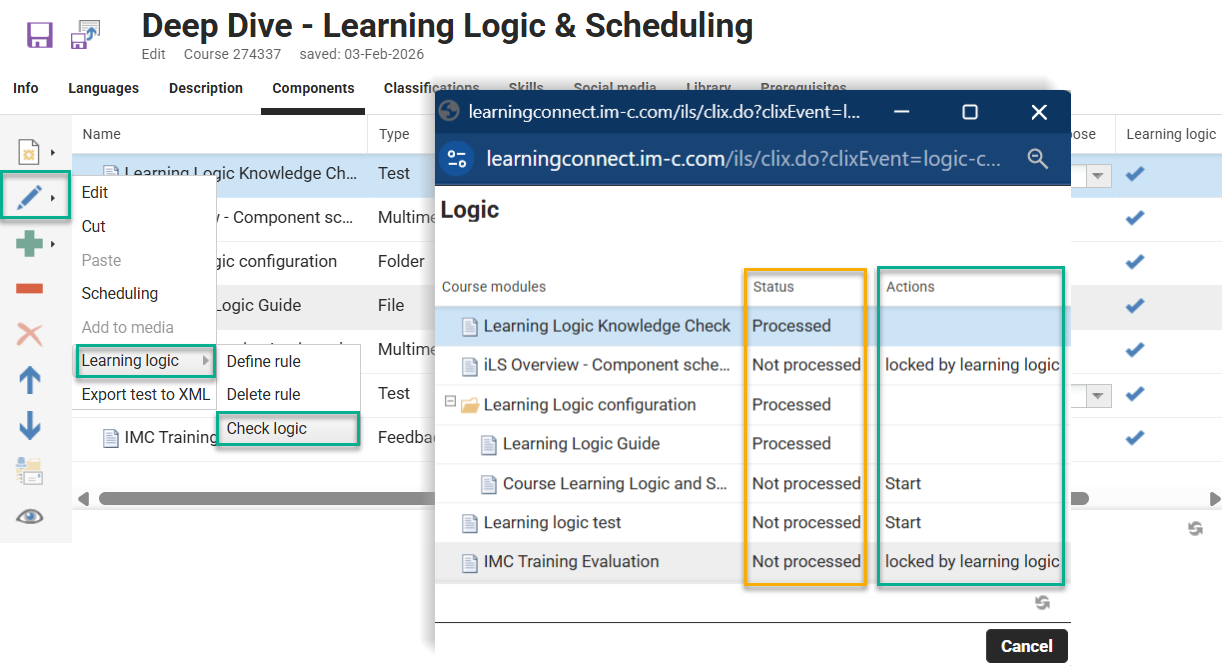
Once you have defined your rules, you can simulate them to ensure that the conditions and follow-up actions work as intended. To do this, highlight any component with Learning logic applied, click the Edit icon, expand Learning logic, and select the Check logic option.
This will launch a pop-up window displaying all components with a Status column and an Actions column. Here, you can simulate the rules by triggering actions in the Actions column. You should test all possible status and percentage scenarios to confirm that your Learning logic behaves as expected.
Hints & Tips within Courses
Where components have Learning logic defined, the participants will be able to view hints. These hints describe the steps to unlock the component by hovering over the Lock symbols. The hints are automatically generated by the system and cannot be changed. Only manually created notes or hints for Tests can be viewed by participants when opening the test.
Further tips include:
-
If you require a rule to conclude the Course, make sure the Course may be concluded by meta tag value is Learning logic; otherwise, the Conclude Course option will not be shown as a possible Follow-up action.
-
When defining rules for non-evaluable components, it requires either a learner, tutor or administrator to manually confirm that the component (e.g. a link, video, document) has been ‘Completed’.
-
In Courses, there is no x of n logic on the Component folders to define a number of component completions needed to satisfy the folder. Only 1 of n logic is possible, where the completion of a component can be used to complete the folder. Rules can be defined at folder level to then continue learning with another folder or component.
-
Use the Check Logic option to first simulate all rule possibilities before publishing Courses for live use. Testing in the learner view is additionally recommended.
If you require further assistance, you can order 2nd level support from the Scheer IMC Consulting team to help implement required Learning logic.
Learning Logic for Learning Paths
Learning logic in Learning paths allows you to control progression based on the completion of a specified number of Courses, Course templates, or sub-folders within a syllabus folder. You can define Learning logic on all main folders and sub-folders. Rules set on the parent folder can be used to automatically conclude the Learning path for participants, while rules on sub-folders are ideal for defining elective Courses. You can also apply rules to Courses or Course templates to specify the order in which participants must complete content.
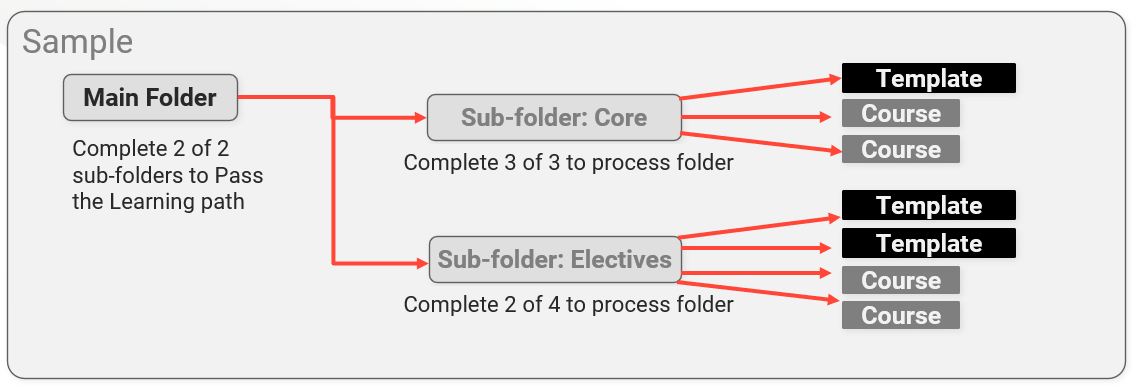
You can select from the following actions:
-
Completion-based component or folder progression
-
Result or percentage-based component progression
-
Unlocking or locking of components
-
Limiting the number of allowed attempts for a test in a Course
-
Course conclusion (only available if the Course is set to be concluded by Learning logic)
-
Cancellation from the Course (for example, if a test is failed after a pre-defined number of attempts)
-
‘x of n’ folder completion in a Learning path
These rules determine what happens next or what is required for a learner to complete an object. Common examples of Learning logic in Learning paths include:
-
Controlling the order in which Courses are taken
-
Using result-based logic (Pass/Fail/Percentage) to determine the next step (not applicable for sub-courses)
-
Requiring completion of ‘x of n’ Courses to process a folder
-
Automatically concluding participants on a Learning path
Learning Logic Meta Tag
For Learning paths to be concluded by Learning logic, the Learning path completion by meta tag (11814) must be available and set to Progress or learning logic. If not available, you can add the meta tag on either Learning path type or Learning path templates in the Meta tags and attributes tab.
Defining Rules in Learning Paths
You can create Learning logic rules either in Learning path templates or directly within Learning paths. If you define rules in a template, they will be carried over to any Learning paths created from that template. The process for creating rules is the same in both cases.
To set up Learning logic that concludes participants on a Learning path, go to the Description tab and set the Learning path may be concluded by meta tag to Progress or Learning logic.
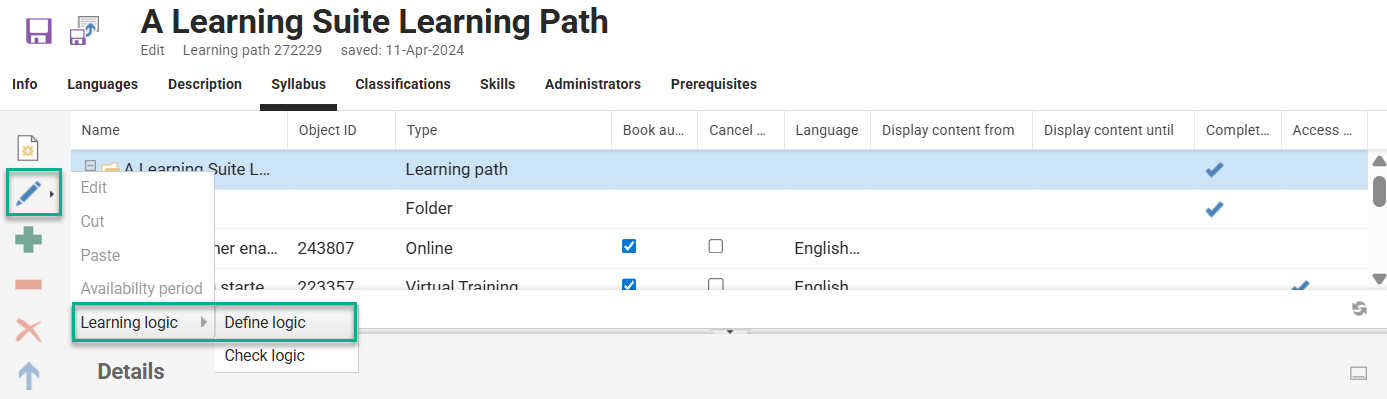
Next, define your Learning logic rules in the Syllabus tab. To do this, highlight a folder or Course, click the Edit icon, expand Learning logic, and then click the Define logic option.
Defining Folder Completion Rules
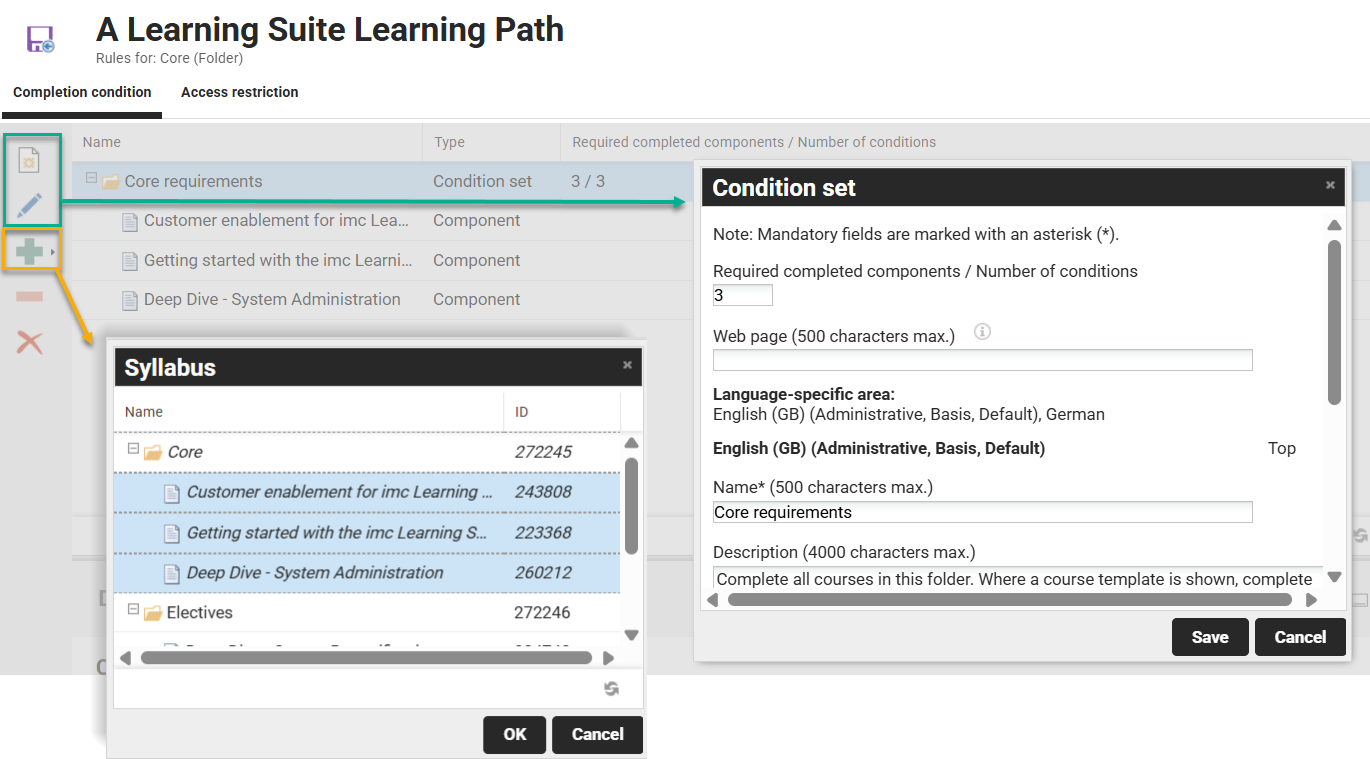
On folders, the Completion condition settings allow you to specify the required number of completed components, as well as a name and description for the condition set. After saving, you can add components to the folder - these can be sub-folders, Course templates, Courses, or group memberships. To add components, highlight the condition set folder and click the Add icon, which will open a pop-up window for selecting components.
Defining Access Restrictions
In Learning paths, you can use Learning logic to control the order in which participants access Courses or Course templates. Unlike in Courses, the logic here is reversed: you define access restrictions on the component to be restricted by specifying which component must be completed first. This will lock the Course or Course template within the Learning path until the prerequisite component is completed. However, if a learner is automatically enrolled in the Course or if the Course is available in a catalogue, they may be able to access it outside of the Learning path.
Checking Logic on Learning Paths
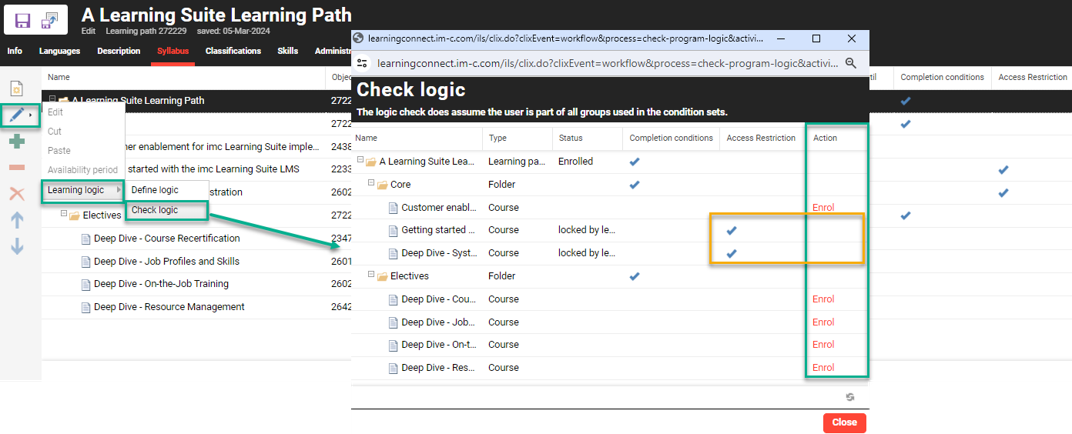
Once you have defined Learning logic rules in a Learning path, you can simulate them to ensure that your conditions and follow-up actions work as intended. To do this, follow these steps:
-
Go to the Syllabus tab of your Learning path.
-
Highlight any folder or component where you have applied Learning logic.
-
Click the Edit icon.
-
Expand Learning logic.
-
Click the Check logic option.
A pop-up window will appear, allowing you to process components and unlock restricted items as if you were a participant. This simulation helps you verify that your rules behave as expected. You should test all possible scenarios to ensure your Learning logic is robust before releasing the Learning path to participants.
Hints & Tips for Learning Path Logic
-
Where Learning path folders or Course components have Learning logic conditions defined, participants will be able to view hints that describe the completion or unlocking requirements by hovering over the Lock symbols.
-
Hints for component access restrictions are automatically generated by the system and and cannot be changed.
-
Hints on folders are actually manually created and drawn from the condition set Name field.
-
If you require a rule to conclude the Learning path automatically, ensure that the Learning path may be concluded by meta tag value is Progress or Learning logic and define the completion condition Learning logic on the parent folder of the Syllabus tab.
-
Access restriction logic is defined on the component to be restricted by determining what component will unlock it; this is the opposite of Courses, where logic determines the component that will be unlocked.
-
Unlike Courses there is no Learning logic emails that can be sent.
-
With Learning paths, prior recognition of Course completions is considered. If the learner has completed a Course or a Course from a Course template listed in the syllabus prior to being enrolled on the Learning Path, the completion will be recognised.
-
In a condition set, the Group membership condition checks whether a learner is assigned to a group rather than completing a component of the Learning path. This option is useful in scenarios where groups can be used to represent an equivalent prior recognition or exception for completing a Course component. Target groups can especially make this option powerful.
Summary
Learning logic has many benefits for use in both Courses and Learning paths. It’s especially useful for automatic rule-based conclusion of participants on Courses and Learning paths. The rules can utilise scores and statuses to determine if participants receive either a Passed or Failed status. In Learning paths, Administrators benefit from improved efficiency, as the need to manually check whether completion criteria is met for each participant can be eliminated.
The use of Locking conditions is ideal for controlling the order in which components in Courses and Learning paths are completed. Component access in Courses can become even more comprehensive when Learning logic rules are combined with Scheduling. In Learning paths, the use of Learning logic can also provide participants with flexibility by offering a choice of Courses.
Once Learning logic conditions are configured, you can use the Check logic option to ensure rules function as expected prior to releasing training to participants.
If you require further assistance, you can order second-level support to engage the Scheer IMC Learning Consulting team. Simply lodge a ticket with the Scheer IMC Service Desk.
Related Articles