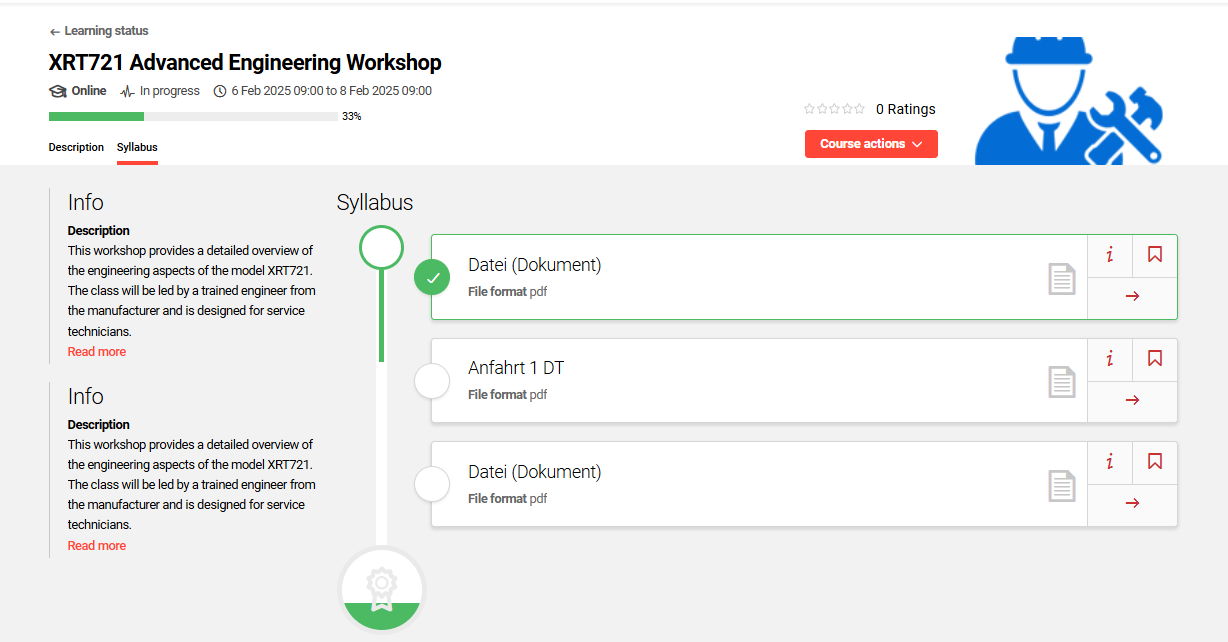
What is the Learning Progress Display?
The Progress display is a visual display option for Courses and Learning paths that represents learner progression through content (Media or Courses). Progress is calculated as the percentage of available content that has been completed. This display can be activated or deactivated system wide per client, or per course and learning path if active system wide.
Activation and Deactivation of the Progress Display per Client
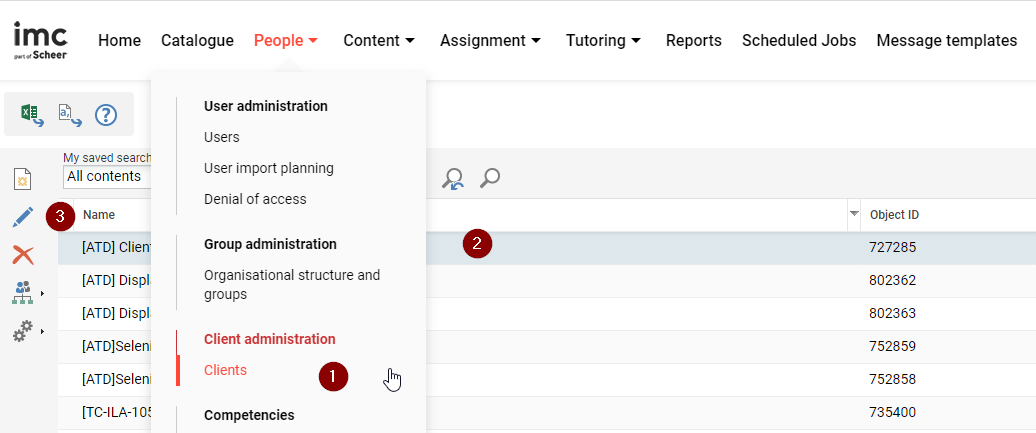
Login in as administrator and open the menu item Clients (1). Highlight the desired client (2) and click the Edit icon (3).
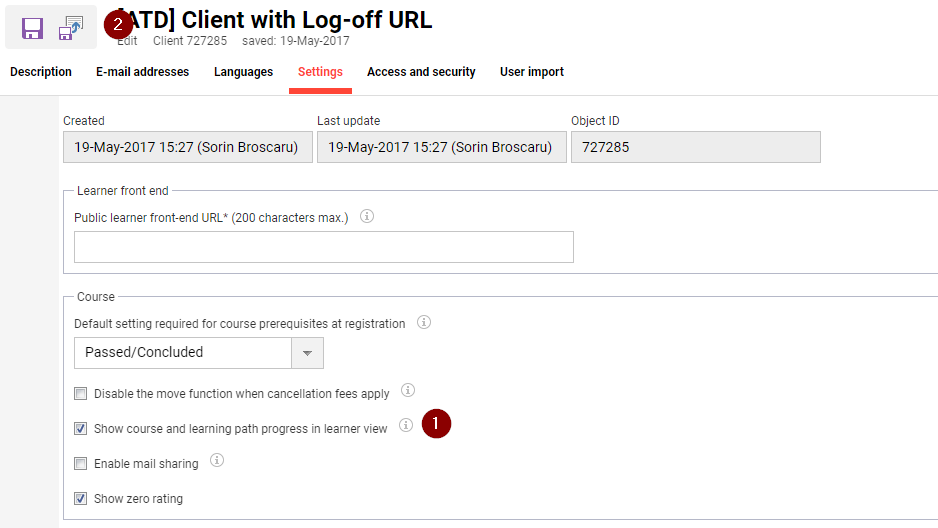
Next, click on the Settings tab. Activate or deactivate the checkbox Show course and learning path progress in learner view (1) as desired and Save your changes (2).
Course or Learning Path Progress Activation and Deactivation
When the Progress display is activated in the Clients settings, it can be further controlled per Course or Learning path to activate/deactivate. This is done using the Progress display (ID 11805) checkbox.
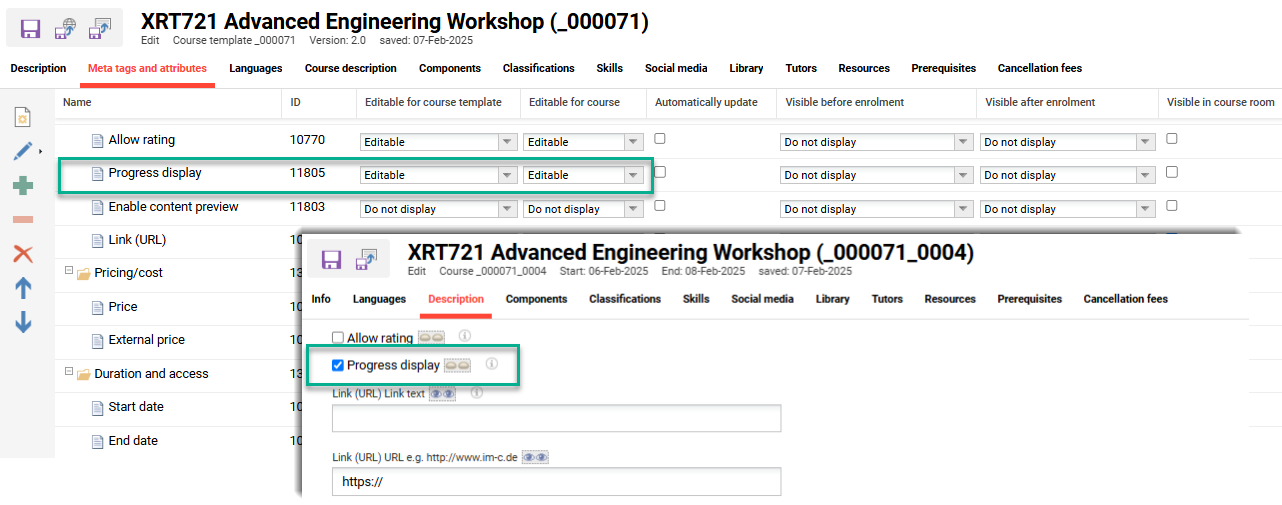
For Learning paths the standard progress bar calculates all assigned courses or course templates. There is a more advanced option though explained below:
If the Progress display meta tag is not visible in the course, check the Meta tag and attributes tab of the course template from which the course was derived.
Learning Path ‘Mandatory’ Progress Calculation
Learning path progress can additionally be gauged by the completion of mandatory courses. This takes into consideration learning logic where only a definable number of courses require completion within a syllabus folder. The setting can be enabled per learning path via the “Calculation of progress based on mandatory modules of the learning path” (ID 11880) meta tag. The meta tag can be added to learning path types and learning path templates; but was not automatically assigned to existing learning paths when introduced in IP14.24. This calculation essentially enables learners to accurately gauge progress for learning paths where not all courses require completion. This avoids the confusion with seeing incomplete progress for successfully completed learning paths.
Progress Weighting
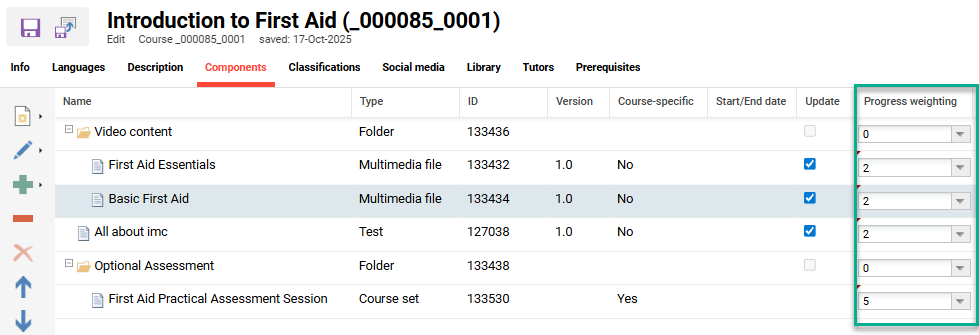
Weighting can also be applied individually to each folder and object in the Course Components tab or Learning Path Syllabus tab. Object can be weighted with a value between 0 to 10 where 0 is no weighting and a 10 is maximum rating. Therefore, completion of a 0 weighted object will not influence the progress bar. Whereas, the completion of weighted objects adjusts the progress by a calculated percentage. The default weighting value of '1' is applied to objects when added to courses or learning paths.