
How to use the platform-wide Learning Content Search correctly
The platform-wide Learning Content Search helps you find the desired learning content in Catalogues and Channels quickly, easily and efficiently. It is located in the top navigation bar and can therefore be used from anywhere in the system.

What makes this search special is that it not only understands words, but also their meaning and context. This allows you to find the desired content even if you have made a typing error, used a different word or synonym, or entered a different word form.
When a search query is entered, the titles, descriptions and keywords (tags) of content assigned to Catalogues and (if licensed) Channels are searched. You have the option of deciding whether only Catalogues, only Channels or all content should be searched.
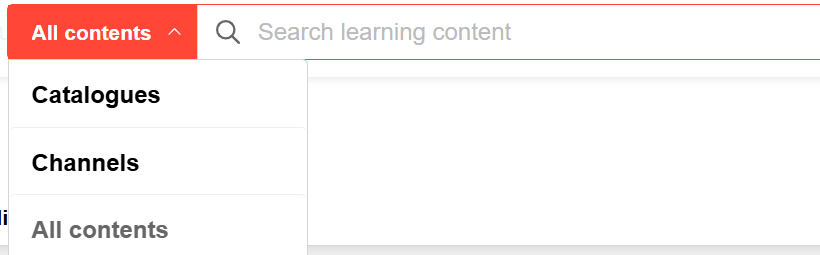
In order to use the platform-wide Learning Content Search correctly, it is important to understand exactly how it works.
How does the Platform-wide Learning Content Search work?
All content (titles, descriptions, keywords) is regularly broken down into small word modules via so-called indexing jobs and stored in a search database for quick access. As soon as you start typing in the search bar, the search engine automatically begins processing your search query in the background from the second letter you enter. Various steps are carried out in this process:
Text Identification
The words you enter are compared with the word modules stored in the search database.
Language Comprehension
Different word forms are also taken into account.
Example:
-
runs, ran, run → different word forms of the verb ‘run’ are recognised
-
conclusion → end → Ende
-
project, projects, project work → are recognised as belonging together
Error Detection
Typos are no problem – the search will still find what you mean.
Example: Input ‘Projeckt management” → Hit 'Project management’
Depending on how many letters are different, the search decides whether a word is still ‘similar enough’ to display it as a hit.
Examples:
|
Wanted |
Entered |
Difference (edit distance) |
Any hits? |
|---|---|---|---|
|
‘project’ |
‘projeckt’ |
1 letter different |
✅ Yes |
|
‘project’ |
‘proje’ |
2 letters missing |
❌ No |
|
‘project’ |
‘porject’ |
letters mixed up |
✅ Yes |
Why is ‘proje’ not found, but ‘projeckt’ is?
This is related to the so-called Fuzzy Search. This technique helps the search to find suitable results even with minor typing errors.
Example: Input ‘projeckt’ → Hit ‘project’
However, for very short terms (e.g. ‘proje’), the permitted difference between the search term and the word found is limited. Since ‘proje’ differs from ‘project’ by two letters, it is no longer considered a similar term – and therefore cannot be found.
Relevance Evaluation and Result Output
The results are sorted by relevance – that is, by how well they match the search term you entered. The best results are displayed first. The more frequently and accurately a term appears in relation to your query, the higher the relevance score will be – and the higher the result will appear.
Why do too many or inappropriate results sometimes appear?
The Fuzzy Search mentioned above compensates for typing errors, but can therefore also display terms that are only slightly relevant. For example, a search for ‘Peter Mayer’ may return results that only contain “Peter” or ‘Mayer’ individually.
Lexical vs. Semantic, AI-supported Search
Since IP25, you have the option of performing searches based not only on Lexical Search, but also on Semantic, AI-supported Search. Which search mode is used depends on the configuration.
Lexical Search
When this search mode is configured, the words from your search query are directly matched with the titles, descriptions and keywords of the learning content. This is a purely text-based search that does not involve AI.
Semantic, AI-supported Search
When this search mode is configured, both the indexed learning content and your search query are converted into vectors using AI technologies. This enables the system to recognise semantic similarities and find related content that deals with similar topics, even if it is phrased differently from the query. AI is thus used to understand the meaning of your search query.
Example:
|
Your Search |
Topics found |
|---|---|
|
‘Repairing a car’ |
Vehicle maintenance, garage, motor vehicle service |
|
‘Employee management’ |
Leadership, team management, communication |
|
‘Healthy nutrition’ |
Nutrition tips, balanced meals, food basics |
|
‘Excel sheets’ |
Data analysis, Office courses, spreadsheets |
Differences between Lexical and Semantic AI-supported Search
With Lexical Search (classic) and Semantic Search (AI-supported), the platform-wide Learning Content Search offers two different search modes that can be used depending on the configuration. Both help to find content – but in different ways:
|
Search Mode |
Functionality |
Example |
Result |
|---|---|---|---|
|
Lexical Search |
Finds related words similar to your input |
Input: ‘car’ → only finds texts containing the word ‘car’, “vehicle” or, for example, ‘Auto’ |
Only related matches |
|
Semantic Search |
Understands the meaning and context of your query |
Input: ‘Car repair’ → also finds content with ‘vehicle maintenance’ or ‘car service’ |
Similar meaning matches |
Which Search Results are Displayed (Visibility)?
Regardless of the configured search mode, the results list of the platform-wide Learning Content Search only displays content that you have access to according to your permissions. The same rights apply to Catalogues and Channels as in the LMS itself – including all navigation and visibility rules.
How is Content Updated?
New or modified content is automatically included in the search via so-called indexing jobs.
-
The indexing job is performed once a day by default (configuration in the Jobs tab of the Data Connector Configuration function).
-
All content (title, description, keywords) is searched and updated.
-
Optionally, only changes made in the last few days can be taken into account.
Once the indexing job is complete, new or modified content will appear in the search results.
If permissions or access rights (ACLs) change, the job must be run again – otherwise, content may not be displayed correctly.