
Deep Dive: Configuration of automatic enrolment of groups in mandatory courses
There are various topics that need to be rolled out to all employees or a specific group of employees through mandatory courses. This is covered by the Automatic Enrolment.
In contrast to enrolling a group of users on a course, the automatic enrolment also offers several additional configurations that will enable the use of specific enrolment messages as well as reminders once the due date for the course approaches for the course.
The simplest form of automatic enrolment is an automatic booking on a course.
Imagine the following scenario: You want to roll out a course and ask participants to finish it within 30 days.
In this case, use the following settings in the Participant administration of the respective course. Navigate to the second last tab Automatic Enrolment, which allows you to add groups to this course. You can use any group for this enrolment. Target groups are especially useful for selecting specific users in the system.
Once you choose your group to be added to this course, a small pop-up with settings for this enrolment will appear.
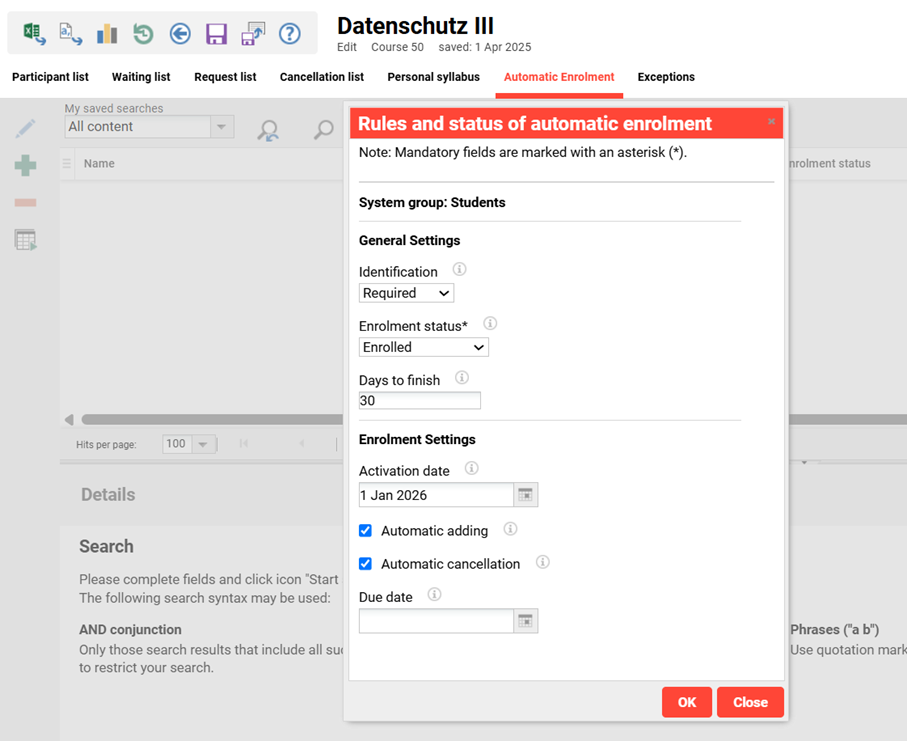
The first setting in this pop-up relates to Identification. This allows you to select an identification for your enrolment that is already available in your system. This is a useful trigger to distinguish your automatic enrolment from a regular enrolment for any notification or escalation mails you want to connect to this specific type of enrolment. Having separate email workflows for these options allows you to highlight important courses to your learners and send reminders for the course.
Via the Enrolment status drop-down menu, you can select the user's connection to the course. The most important option is being Enrolled, which will enrol the user on the course.
The Days to finish option indicates when a user should have completed the course. The system calculates the due date by adding the number of days to the enrolment date. If you prefer all users to conclude the course on the same day, you can use the Due date option to select a fixed date. If you enter both values, the system will select the earlier date. In this example choosing 30 days will give users a month to complete the course once they are enrolled. If this date has passed, the users will be Overdue for the respective course. Learners will be able to continue with their course as long as they are not restricted from accessing it by administrative changes, such as completing the course.
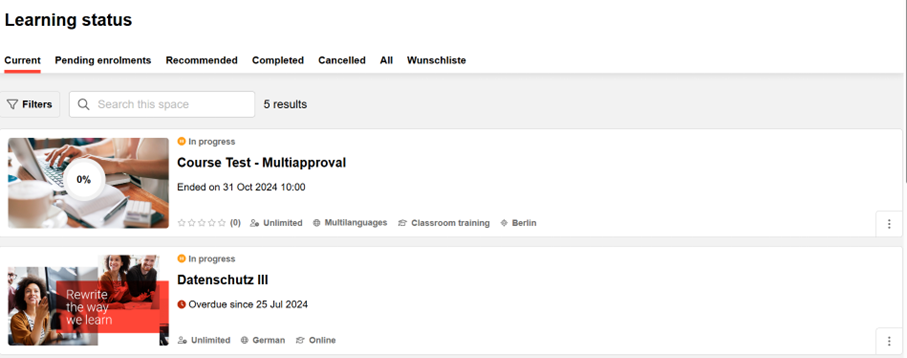
The status Overdue will be shown in the Learning status for users. More importantly, this is the trigger that allows you to configure enrolment mails relative to the due date. This allows you to remind learners of the course a few days before the due date, once it is reached, and after the due date. Furthermore, there is the option to escalate this to their superior. This can be configured in the escalation model.
If you have decided on a due date, there are three more configuration options in this pop up. The Activation date setting option determines when the automatic enrolment should be executed for the first time. If there is no entry, the automatic enrolment will take place during the next execution of the job, which is commonly set to once every night.
The checkbox Consider newly added group members will add any users that join the group, which was selected for the enrolment to the course. Disable this option if you want to enrol only users who were in the group at the time of configuration, and do not want to add users who join the group later.
The checkbox Automatic cancellation will cancel enrolment for any user in the state Enrolled or In progress who is removed from the group.
If you need your users to revisit a topic every year, we recommend checking out our Recertification.