
Course rooms are essentially design templates that determine the included information and layout in the learner’s course view. Any number of course rooms can be configured in the Course room types function and selected for use in courses. When configuring you can use the standard icons to either edit an existing Course room type, duplicate an existing Course room type, or create a new Course room type.
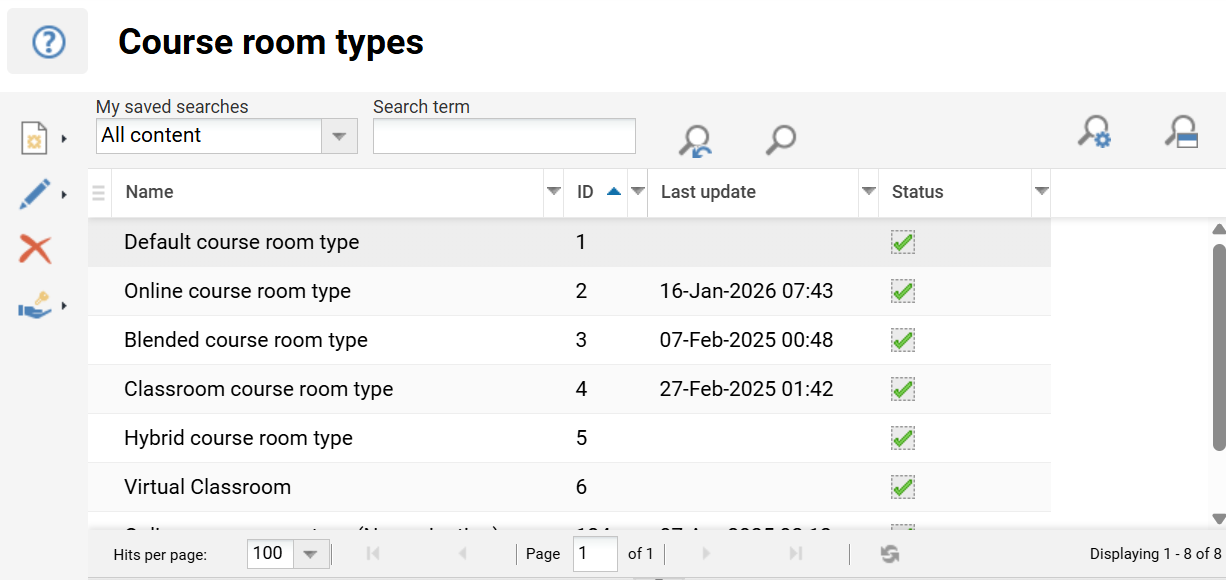
The recommendation is to use a different Course room type for each Course type.
Course room type configuration
When configuring Course room types there are two layout available types:
-
Syllabus only: A modern visual look that only includes syllabus content, with not other information including considered.
-
Configurable layout: A detailed display to learner with information and layout configurable by administrators.
The layout option is selected in the Description tab in the Course room layout field. Each of the layouts and their configuration options are explained in own sections below.
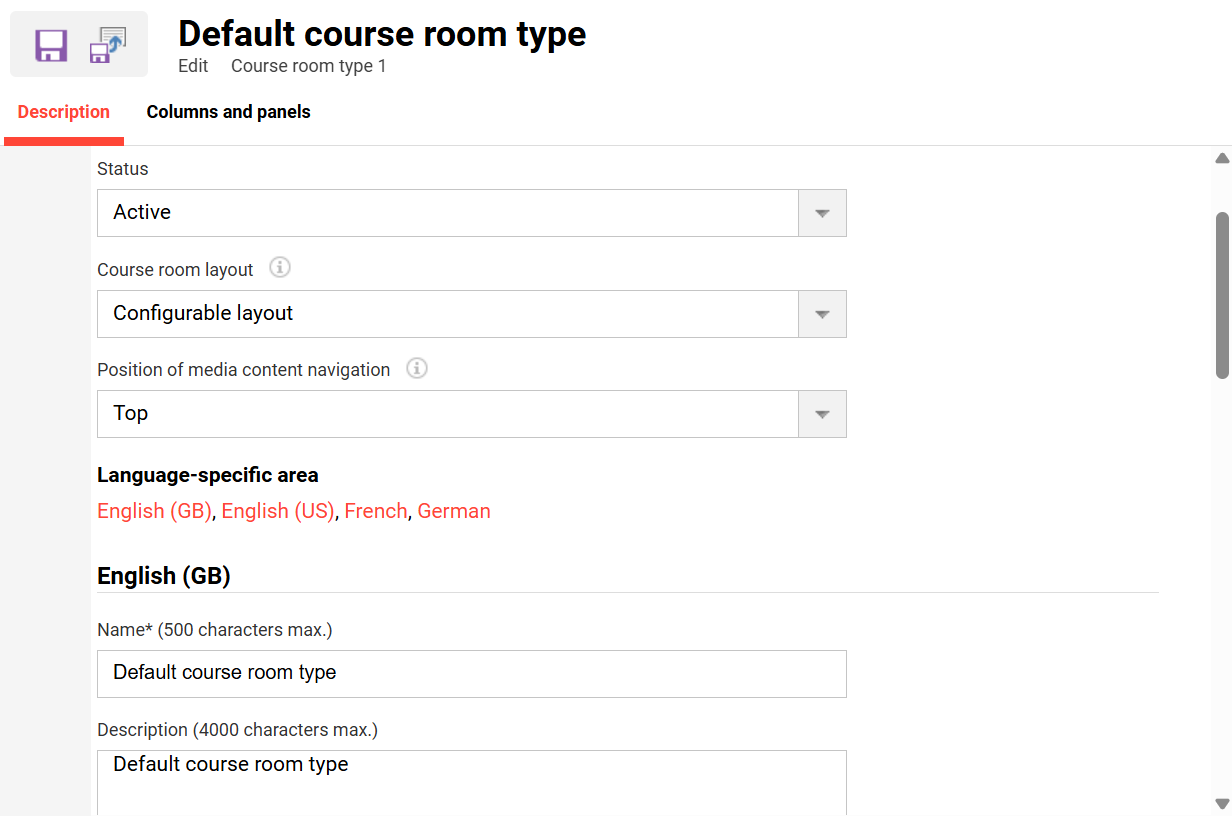
All the fields available in the Description tab are described below:
|
Name |
Name of the Course room type. Only seen by administrators when assigning to the course via the Course room type meta tag. |
|---|---|
|
Status |
Active / Inactive |
|
Course room layout |
Configurable layout / Syllabus only The Configurable layout uses the panel configuration to determine the layout of the course. The Syllabus only room is limited to the view of the curriculum with limited functionality that enables basic processing of media elements. Functions such as learning logic, manual completion of courses or media or cancellation of courses are not supported in this course type. |
|
Position of media navigation |
Top / Bottom / No Navigation It determines the position of the media content navigation in the curriculum content. If the Top option is selected, the bar will be displayed at the top so that learners can navigate to the next or previous component and also go back in the curriculum content. If the Bottom option is selected, the bar will be displayed at the bottom of the selected component. If the No Navigation option is selected, the media content navigation view is simplified by only providing the option to go back to the curriculum content. So, if this option is configured, there will be no navigation to the next or previous component. This option is relevant when the curriculum content contains a large number of components to make navigation more efficient |
Syllabus only
The ‘Syllabus only’ layout is typically used for eLearning courses as it only displays the course name, course dates, course syllabus components and a progress indicator. A background image can be added to the course and media images displayed in tiles to create an appealing design. Opening media requires a click on the tile to launch in the same window.
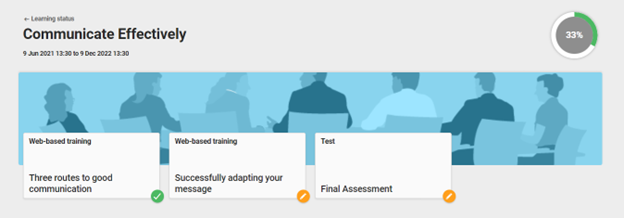
This option is not configurable with the Columns and panels tab only showing the Syllabus panel with no sub-settings. There are no other panel possibilities.
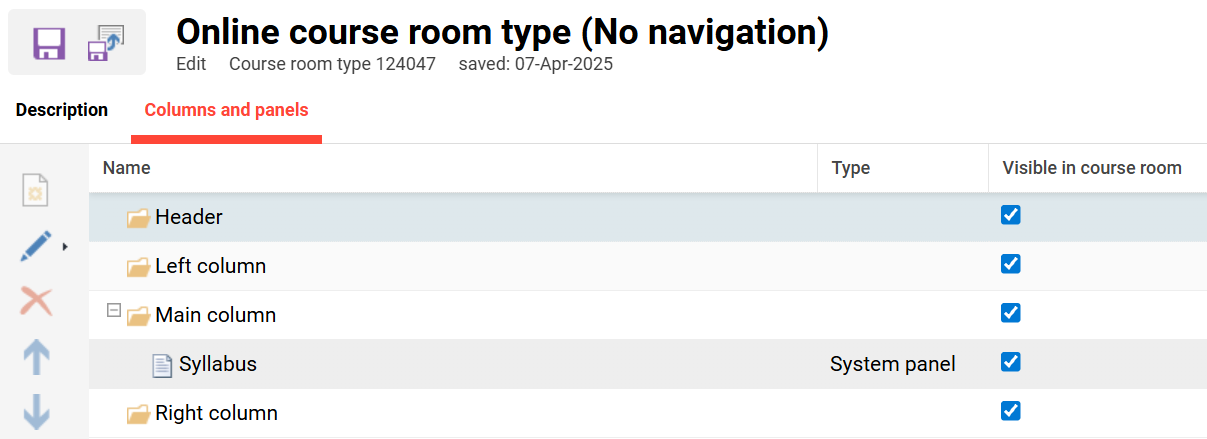
Configurable layout
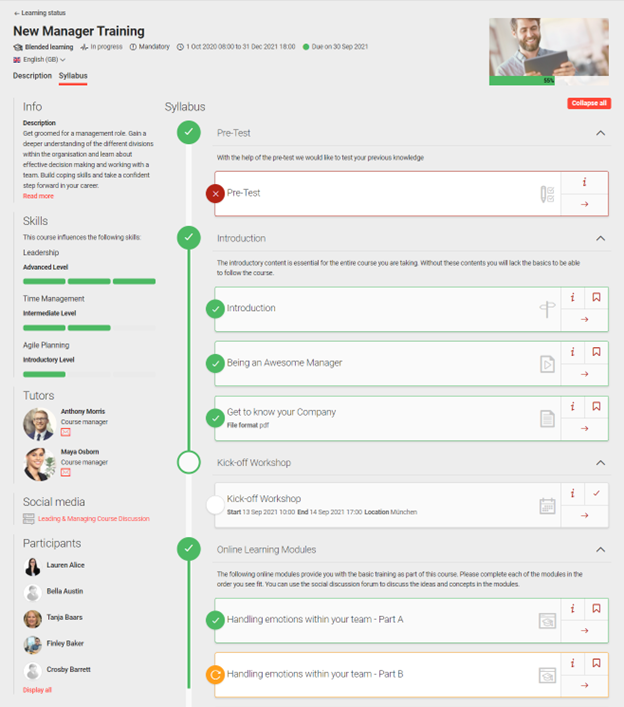
The ‘Configurable layout’ is used for detailed training courses where more information needs to be communicated in a flexible layout. Information is displayed to learners via panels which can include description details, syllabus components, media in a library, news, tutors, participants, forums, skills and certifications. On first learner access, the Description tab will be displayed that only contains the course description details. On subsequent accesses, the Syllabus tab will directly open displaying active panel information in one to three columns.
When the Course room layout field is set to be ‘Configurable layout’, you get the following view in Columns and Panels tab. Here you can move panels to desired columns, hide unwanted panels, and update Panel names or settings by highlighting then clicking on the Edit icon. Moving panels can be performed using the arrow icons, cut/paste or drag & drop.
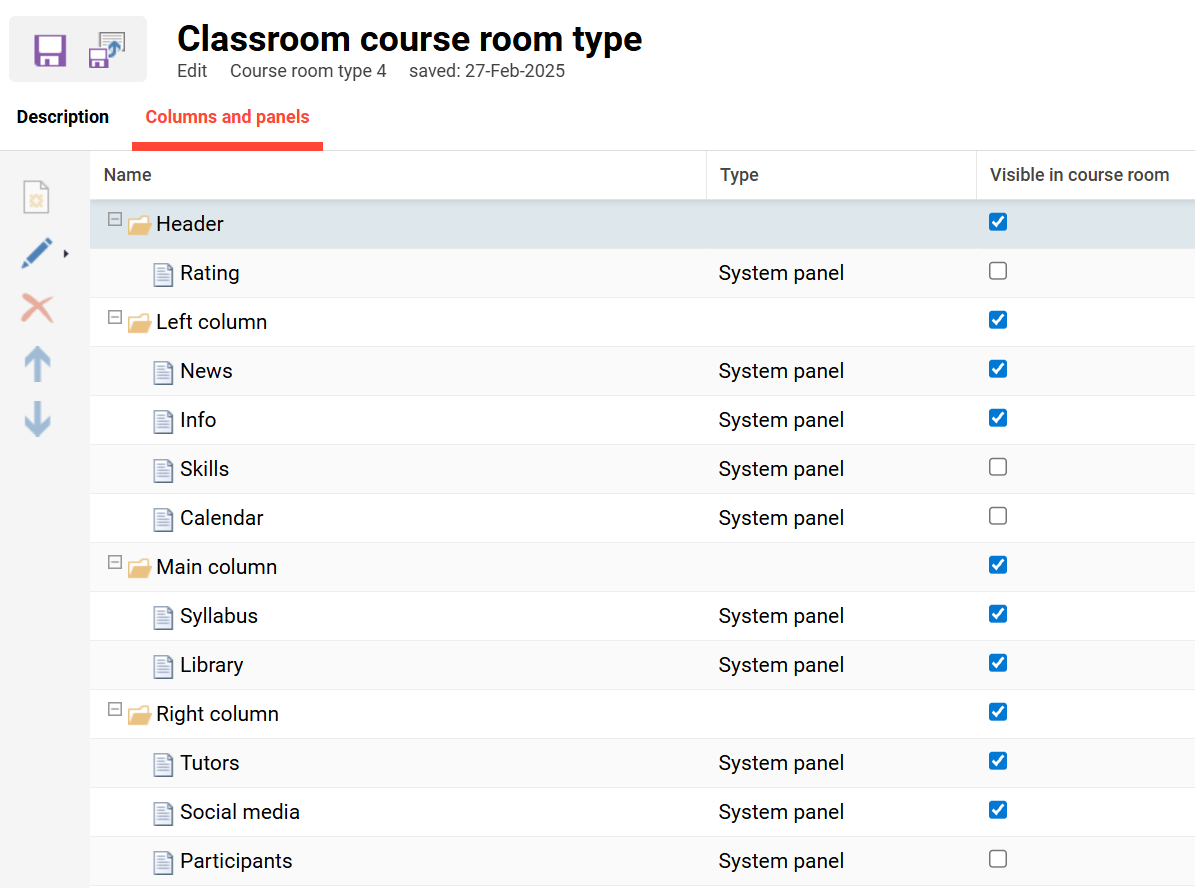
Each of the available Panels for a Configurable layout course room are explained below:
Syllabus
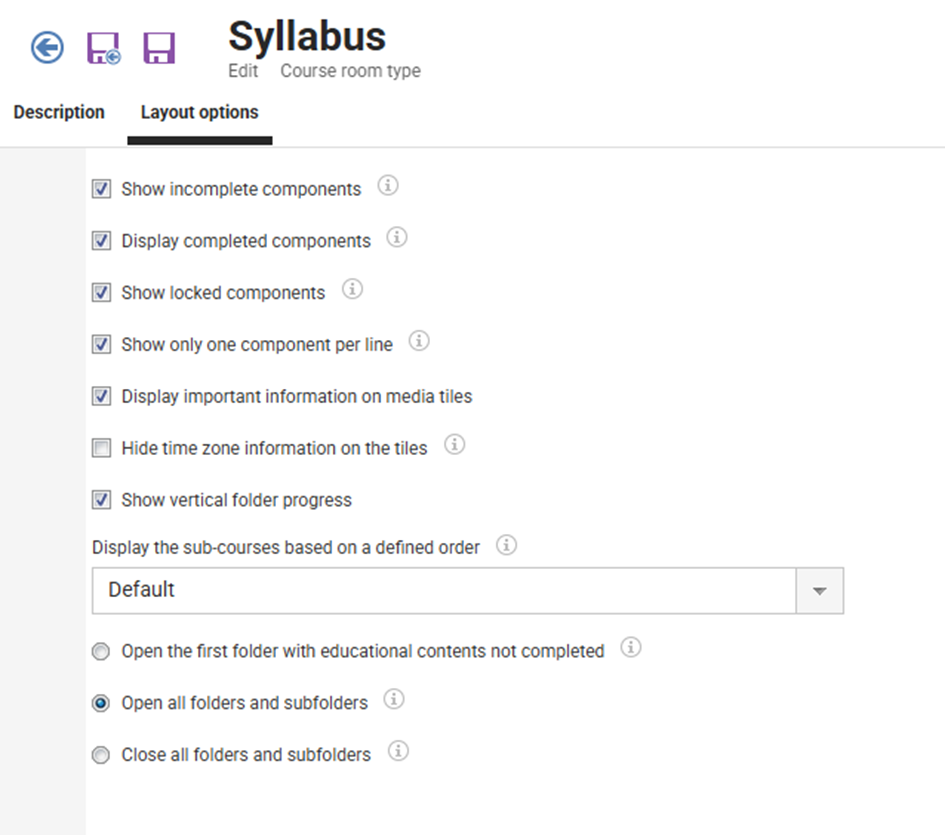
In addition to updating the Name field in the Description tab, the Syllabus has many display settings in the Layout options tab that can be updated. Each of the settings are explained with the 'i' information icon. This panel can also be duplicated if desiring multiple Syllabus panels; e.g. one for incomplete components and another for completed components.
Rating
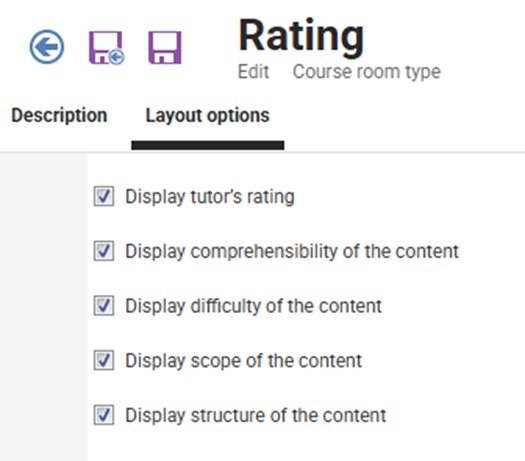
The Rating panel relates to the 5 star ratings that concluded participants can provide on the course. These ratings can be given for five areas which can be enabled/disabled via the checkboxes.
Info
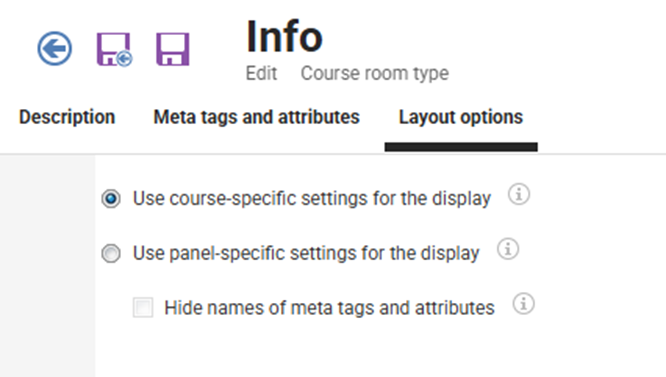
This panel essentially displays the description information contained in the course meta tags. The ‘Use course-specific settings’ will show all meta tags in the course that are set to ‘Visible in course room’. The ‘Use panel-specific settings’ will only use meta tags that have been manually added in the Meta tags and attributes tab of the course room.
Library
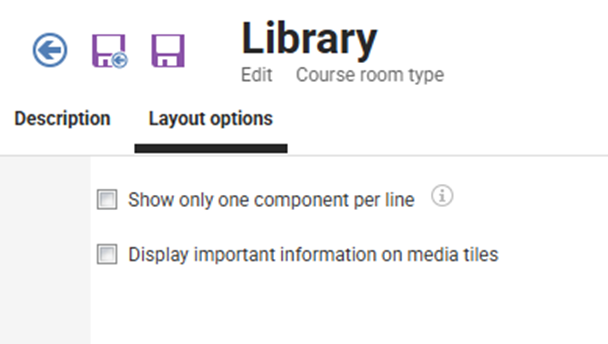
Provides the learner additional media content that is assigned to the Library tab of the course. This media is not part of the syllabus and is not assessed.
Tutors
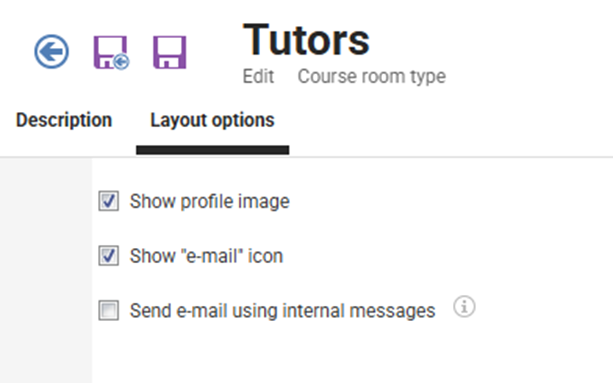
Is used for courses where the participants may need to contact the Tutors. The tutors to be displayed are flagged as ‘visible’ in the course Tutors tab. Settings define whether the tutor profile image is displayed and whether email or internal messaging is possible.
Participants
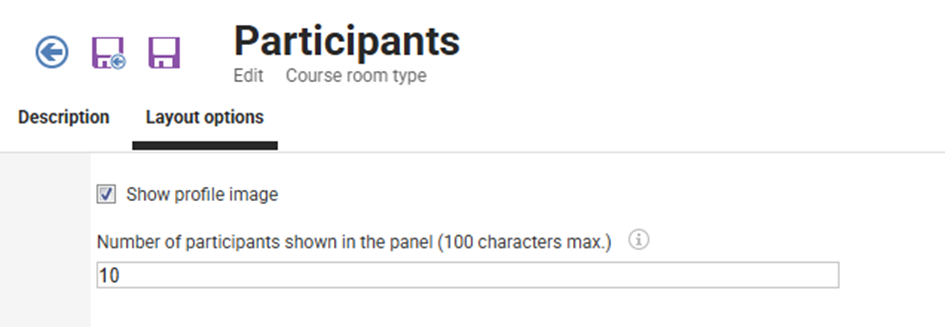
This panel will display a list of the participants on the course. This is often enabled for courses where the participants work closely with each other; e.g. leadership training. It is possible to display the participant name or profile image. When clicked the personal attributes defined in the Personal information user profile will be displayed.
Social media
This is used to display forums.
News
Used to display News items that have been assigned to the course. No configuration options.
Skills
Displays skill levels that course completion will deliver. No configuration options.
Calendar
A calendar view of date dependent course components such as Events and Virtual meetings. No configuration options.