
Deep Dive: Overview of scheduled jobs and their configuration
Crons are processing jobs that can be scheduled to run automatically at desired times or manually triggered to perform background software tasks. The use of crons is very common in web-based applications and the imc Learning Suite is no exception. The LMS utilises a large number of cron jobs to process many workflows and tasks on a regular basis.
Benefits of Scheduled Jobs
Cron jobs are highly important to maximise system efficiencies. Scheduling jobs to process automatically ensures:
-
Jobs can be consistently ran in the background,
-
Processing of related jobs occurs in a logical order,
-
Completion at desired intervals (minutes, hours, time, or days), and
-
Completion of larger jobs outside of peak usage periods reduces system loads.
Where are Crons Configured?
The crons within the imc Learning Suite were historically managed by Scheer IMC Consultants in coded configuration files, but in imc Learning Suite version 14 all crons were made available to configure direct in the GUI in the Scheduled cron jobs menu. This means that Scheer IMC customers are now able to see the active crons, view the scheduled timings, make timing changes and even activate additional crons.

If the Scheduled cron jobs function is not available it can be configured via the Navigation and would normally be created in the Settings > System Platform management folder with the identifier m_jobs.
How are Crons Configured?
During an imc Learning Suite implementation project the Scheer IMC Project Consultant would normally activate all required cron jobs at recommended time intervals. The timing of jobs is important to ensures various related jobs process in a logical order. As new cron jobs are often introduced with innovation packs there is the need to occasionally update the Scheduled cron jobs. When creating or editing a cron job the following fields are available to populate:
-
Name: Name to be given to the cron job.
-
Planned task: Ticking the checkbox indicates the cron is to be processed automatically based on the cron expression value.
-
Cron expression: Enable when Planned task checkbox is ticked. The value must be a valid Quartz cron format.
-
Client ID: For planned tasks a client can be selected. Not all crons though support client specific processing.
-
Client selection for manual job execution: Where a cron is created that is not a Planned task, this checkbox when ticked enables the administrator to select a client when manually processing the cron.
-
Execute on start: Defines if the referenced task will be executed when starting the application server, or only based on the parameter cronExpression.
-
Execute on each node: Defines if the task has to be executed on each node in an application cluster. For example, if a job needs to modify local filesystem on each node.
-
Processor name: This where the desired cron is selected from the list.
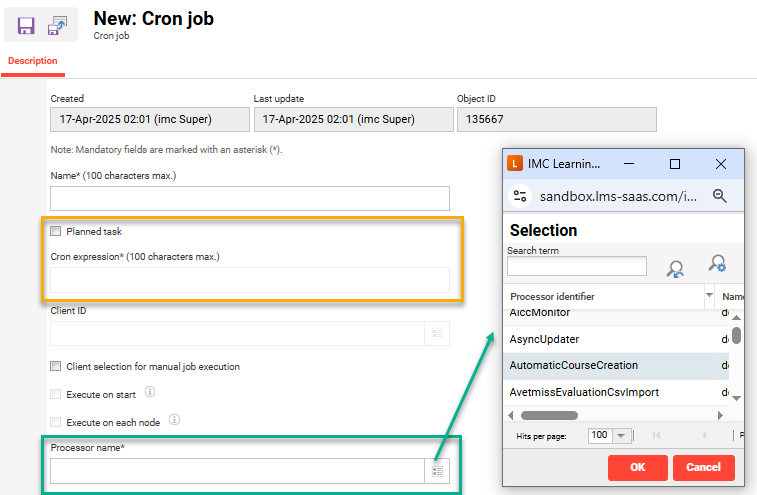
In terms of the Cron expression the imc Learning Suite uses a 'Quartz' cron format that allows scheduling by seconds, minutes, hours, day of month, month, days of week and year. Some common cron expressions with described times and intervals are below:
|
Expression |
Meaning |
|---|---|
|
0 */5 * ? * * |
Every 5 minutes |
|
0 */30 * ? * * |
Every 30 minutes |
|
0 0 6 * * ? |
Every day at 6am |
|
0 0 23 * * ? |
Every day at 11pm |
|
0 0 */3 ? * * |
Every three hours |
|
0 0 12 ? * MON-FRI |
Every Weekday at noon |
Further information on forming a quartz cron can be found at
https://www.freeformatter.com/cron-expression-generator-quartz.html
Example of Key Jobs and Sequencing
The timing and sequence of the planned jobs is very important. For example; Importing users before target group assignment, followed by automatic course enrolment, then report subscriptions, and finally notifications just before working hours. This sequence would minimise the amount of time it takes for new or updated users to be automatically enrolled in mandatory training.
Below you will find a small example of a common sequence of scheduled cron jobs required in compliance training workflows:
-
User import: Creates and updates users from a source system.
-
Identifier: UserImport
-
Timing: 0 0 1 * * ? (1am daily)
-
-
XML Group import: Creates and updates Business Unit group structure as well as assignments from a source system. Ideally after user import.
-
Identifier: XMLGroupImport
-
Timing: 0 0 2 * * ? (2am daily)
-
-
Skill expiry: Important for customers using the Skills add-on as skill gaps often determine training.
-
Identifier: SkillExpiration
-
Timing: 0 0 3 * * ? (3am daily)
-
-
Target group person assignment: Updates assignment, or removal, of users to rule-based target groups. These are heavily used in compliance workflows and best before automatic enrolment job.
-
Identifier: TargetGroupPersonAssignment
-
Timing: 0 0 4 * * ? (4am daily)
-
-
Automatic course creation: Used to automatically create courses for online recertification training.
-
Identifier: AutomaticCourseCreation
-
Timing: 0 0 5 * * ? (5am daily)
-
-
Participant automatic enrolment: Important after user import and target group person assignment to reduce time of new users being enrolled to training courses or learning paths.
-
Identifier: ParticipantAutomaticRegistration
-
Timing: 0 0 6 * * ? (6am daily)
-
-
OS Report subscription: Generating subscribed reports after user imports and training assignments gives administrators or supervisors the most current data.
-
Identifier: OSReportsSubscription
-
Timing: 0 0 7 * * ? (7am daily)
-
-
Notifications: Used to send time-based notifications such as training reminders, component scheduling, encroaching due dates, and skill expiries. Best before after other process and before general working day hours.
-
Identifier: Notification
-
Timing: 0 0 8 * * ? (8am daily)
-
In addition, it's important to avoid running multiple cron jobs at the same time. This can lead to a high database load which is not desirable during peak usage times.
There are many other related Cron jobs available that compliment training workflows and general system updates.
List of Available Cron Jobs
The full list of available cron jobs can be found in the Functional Reference on the Scheduled Jobs page. Alternatively, each cron can be seen within the LMS Scheduled jobs function when creating a new cron.
If more information or support is required to configure crons, please raise an Scheer IMC Service Desk ticket.