
How to schedule the release and access to course components
What is Scheduling?
Scheduling is a time-based workflow that allows you to control the release of course components (excluding course sets) to participants. Components can be locked and unlocked on a specific date/time or x days before/after a specific point; e.g., enrolment date, course start date or course end date. Scheduled components that are locked display a Locked symbol with hover text Blocked. This symbol is also used for components locked by learning logic.
Scheduling is not related to the Schedules function for tutor calendars or the Scheduled jobs function for automatic processing workflows.
Scheduling Use Cases
There are many use cases where controlling the release and availability of components is beneficial. Refer to these common use cases below:
-
Providing pre-access to course content such as a Pre-test or Pre-start survey before the official start date of a course
-
Slowly releasing components at defined time periods for longer courses; for example, weekly releases of content
-
Locking components after a defined period of time after start dates with reminders advising participants of the due date to complete
-
Issuing or closing feedback forms at defined periods after the course or participant end date
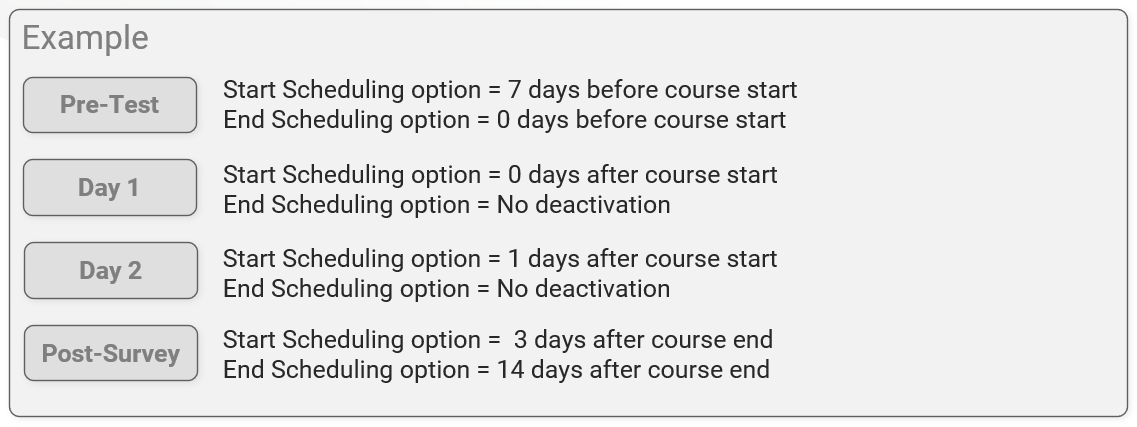
Below is a basic example workflow with Pre-test accessible 7 days before a course, Day 1 content is accessible on the course start date, Day 2 content is available 1 day after the course start date, and a Feedback survey is available 3 days after course end.
Scheduling and Learning Logic Differences
In courses you can actually use both Scheduling and Learning logic simultaneously on the same component. This could lead to some confusion with locked course components, but the two are quite different as explained below:
-
Scheduling is used to lock or unlock components with time-based triggers (e.g. x days before/after the start/end date of course/participant).
-
Learning logic sets rules to lock components either after component completion or until another component is completed.
Setting up Scheduling
You can define scheduling in the Components tab of a course by highlighting a component, clicking the Edit icon and selecting the Scheduling option. This launches a pop-up window where you can set Start (days) and End (days) fields along with various scheduling options related to time. A Create appointment checkbox can be used to create calendar appointments for media, but this can also be set directly in the media object.
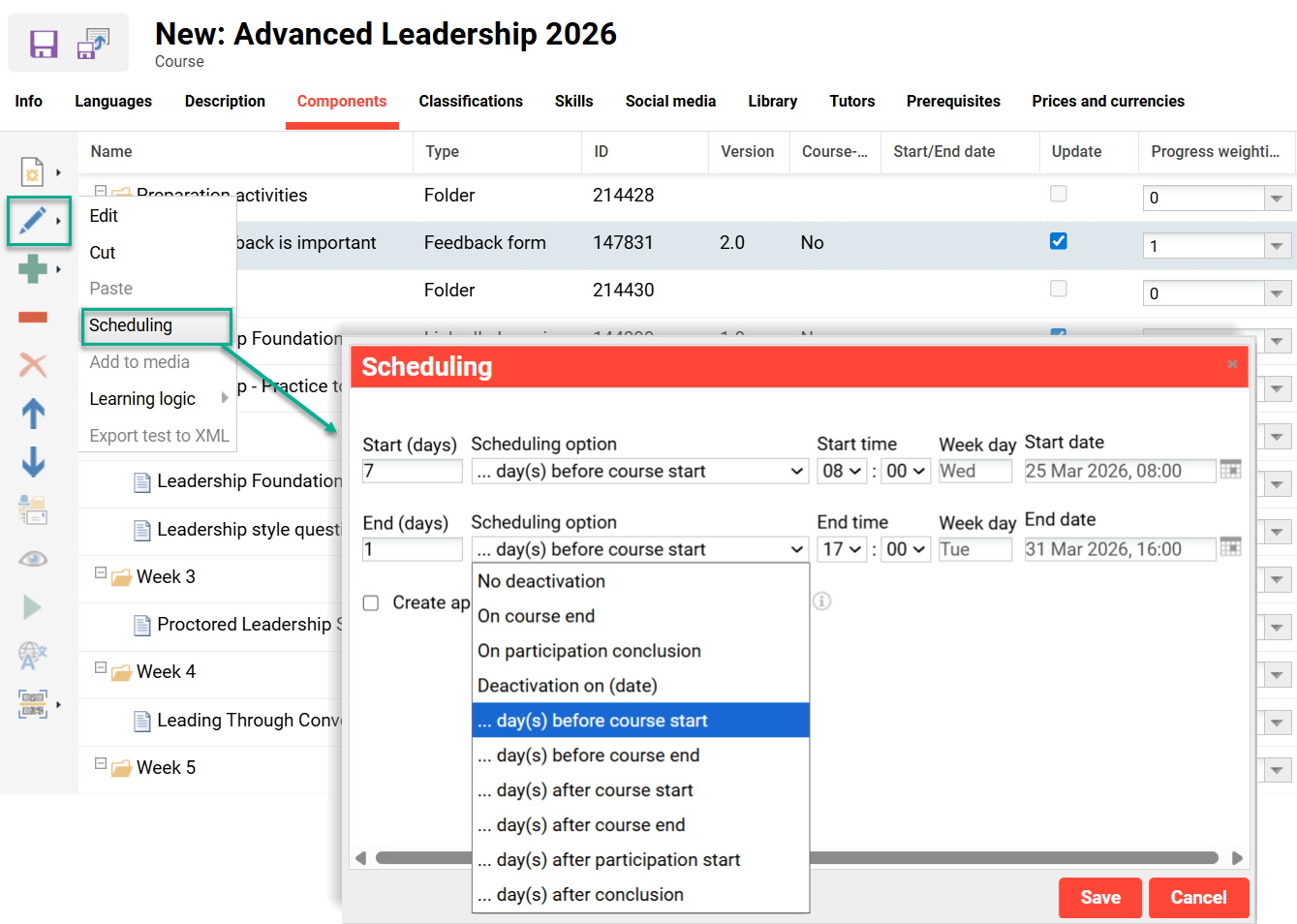
The available scheduling options slightly differ for Duration of use and Date dependent Release mode courses. Each field and Scheduling option available is detailed below:
Scheduling Options (Start: Duration of use)
The Scheduling option field start (days) values for ‘Duration of use’ courses are below:
-
Always enabled (Default value)
Components are always available and no End (days) value can be set. -
On participant start
Immediately available when participant starts the course and enables an End (days) value to be set. -
…day(s) after participant start
Component unlocks on the defined Start (days) number after the participant start date; this start date is either when the participant first accesses the course or can be directly triggered to match the enrolment date in 3rd party or automatic enrolment workflows using ‘Started’ status. -
…day(s) after conclusion
Component unlocks on defined ‘Start (days)’ after the course or participant is concluded.
Scheduling Options (Start: Date dependent)
The Scheduling option field start (days) values for ‘Date dependent’ courses are below:
-
Always enabled (Default value)
Components are always available and no End (days) option can be set. -
On course start
Immediately available on course start date/time. -
On participant start
Immediately available when participant starts the course and enables ‘End (days)’ to be set. -
Activation on (date)
Manually selected date and time to unlock. -
…day(s) before course start
Defined days before the course start date. -
…day(s) before course end
Defined days before the course end date. -
…day(s) after course start
Defined days after course start date. -
…day(s) after course end
Defined days after the course end date/time. -
…day(s) after participant start
Component unlocks on the defined Start (days) number after the participant start date; this start date is either when the participant first accesses the course or can be directly triggered to match the enrolment date in third-party or automatic enrolment workflows using Started status. -
…day(s) after conclusion
Component unlocks on defined ‘Start (days)’ after the course or participant is concluded.
Scheduling Options (End: Duration of use)
The Scheduling option field end (days) values for ‘Duration of use’ courses are below:
-
No deactivation (Default)
Once enabled components are always available. -
On course end
When the course planning status is Concluded. -
On participation conclusion
When the participant status is either Concluded: Passed or Concluded: Failed. -
…day(s) after participant start
Component unlocks on the defined Start (days) number after the participant start date; this start date is either when the participant first accesses the course or can be directly triggered to match the enrolment date in third-party or automatic enrolment workflows using Started status. -
…day(s) after conclusion
Component unlocks on defined Start (days) after the course or participant is concluded.
Scheduling Options (End: Date dependent)
The Scheduling option field end (days) values for ‘Date dependent’ courses are below:
-
No deactivation (Default)
Once enabled components are always available. -
On course end
When the course planning status is Concluded. -
On participation conclusion
When the participant status is either Concluded: Passed or Concluded: Failed. -
Deactivation on (date)
Manually selected date and time to lock. -
…day(s) before course start
Defined days before the course start date. -
…day(s) before course end
Defined days before the course end date. -
…day(s) after course start
Defined days after course start date. -
…day(s) after course end
Defined days after the course end date/time. -
…day(s) after participant start
Component unlocks on the defined Start (days) number after the participant start date; this start date is either when the participant first accesses the course or can be directly triggered to match the enrolment date in third-party or automatic enrolment workflows using Started status. -
…day(s) after conclusion
Component unlocks on defined ‘Start (days)’ after the course or participant is concluded.
Scheduling Notifications
There are multiple notifications available to advise and remind participants when scheduled components either become available or will be locked. In the Notifications function the following notifications can be sent for scheduled components:
-
A new feedback form is available (ID 51)
-
Standard notification by changes to the start or end date of a course module (11)
-
Standard notification to the exceeding deadlines of course modules (50)
-
Reminder: default feedback form (ID 54)
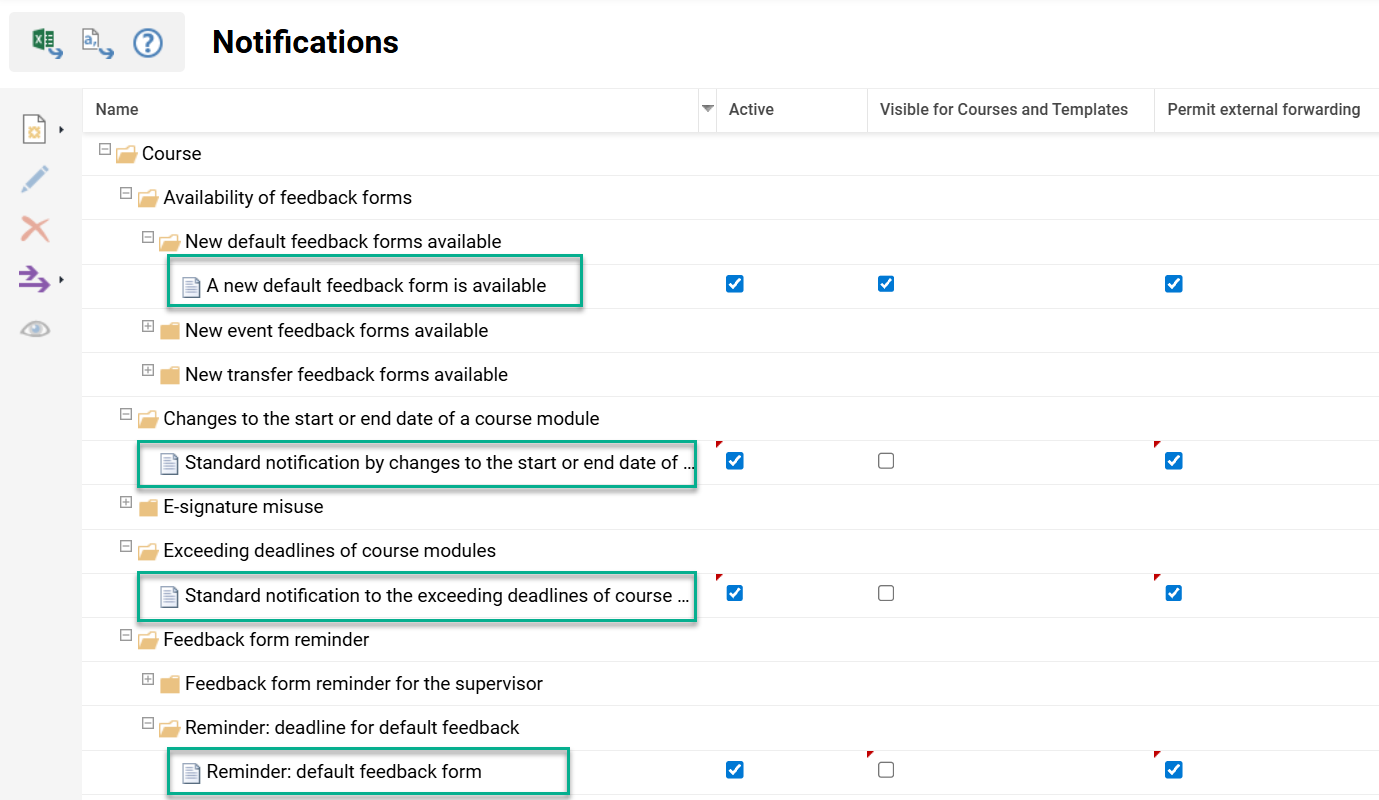
These notifications can be duplicated where multiple reminders or different texts for different providers is required. Ensure the Active checkbox and Permit external forwarding checkbox are ticked to send emails to external inboxes.
Hints and Tips
-
Upon creating course-specific media, scheduling can automatically be suggested on the basis of the selected media type (e.g. virtual meetings, events). It’s also possible to select for a component, whether this date should be created as a date in the course participants' calendar. If this setting is already active in the media, it cannot be changed in the scheduling.
-
For date-dependent courses, if scheduling access to components before the start date ensure the Pre-start accessibility (ID 10074) meta tag enables access before.
-
For date-dependent courses, if scheduling access to components after the end date ensure the Post-conclusion accessibility (ID 10065) meta tag enables access after.
-
Scheduling related to Personal start date is normally calculated from the date the participant first opens the course when the Started status is triggered. Automatic enrolment and third-party enrolment workflows can also set the enrolment status to Started to set a Personal start date on enrolment.
-
Testing scheduling is not straightforward because it is a time-based workflow. There is no similar option to the Learning logic Check logic function.
If you require further assistance, you can order second-level support to engage the Scheer IMC Learning Consulting team. Simply lodge a ticket with the Scheer IMC Service Desk.