
How to update SCORM media zip packages and versioning
WBT (SCORM) Update Overview
Updating of WBT (SCORM) media objects is performed differently than other media objects. This is mainly due to the complexity of the SCORM zip packages and often frequent update requirements. Instead of editing the existing WBT (SCORM) media to create a new version (1.0, 2.0, 3.0), you can just replace the .zip package. The article explains both the SCORM updating and editing process.
Update Package
Where you need to make small changes to SCORM media (e.g. wording corrections or image updates), it’s possible to only replace the zip package without editing the media object. The benefit of this approach is that there will be no version updates. This means that learning history of past completions is maintained and there is no reliance on correct automatic update workflows; the latter is to ensure the correct version is available in the course Components tab. Perform the changes to the SCORM package in an external authoring tool. Once you make the updates, export a new SCORM zip file package of the same type (1.2, 1.3/2004). You can now load the zip into the LMS.
The new zip package must have a matching imsmanifest.xml file to perform an update.
Update WBT Content (AICC/SCORM) in the LMS
In the LMS, go to the Media function and highlight the WBT (SCORM) object you would like to update. Click the Edit icon and select the Update WBT content (AICC/SCORM) option. In the pop-up window, you can simply upload your new zip file and click the OK button.
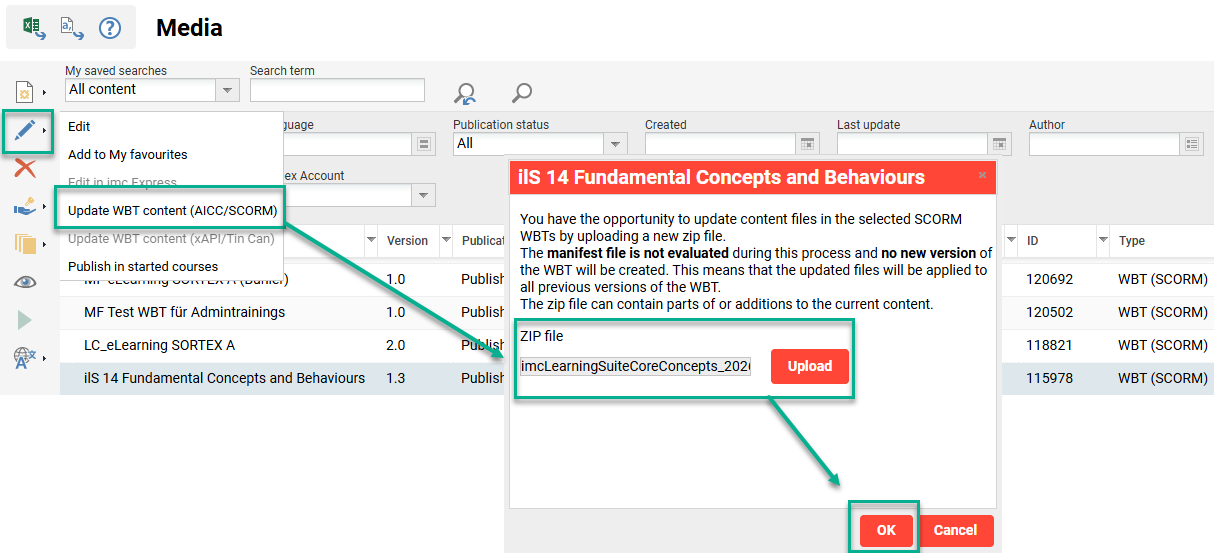
Processing the update will take approximately one minute depending on the size of the new package. Once complete, a confirmation message will temporarily display in the upper-right-hand corner. The update can now be tested.
If the zip contains a mismatching imsmanifest.xml file there will be an error message. This is usually caused by exporting to a different SCORM type or having structural changes.
Testing the Update
The media object version remains unchanged and you will need to manually view the object to confirm changes. This can be performed in the Media function using the Preview icon or directly within a course or catalogue containing the same SCORM version.
It’s recommended to clear your browser cache before testing or use incognito mode; especially if the previous package was recently viewed. Otherwise, perform a test in a different browser where the SCORM has not been viewed. This is because browsers often cache entire SCORM modules.
Version Updates
There may be times when you need to change some LMS field values or settings for the SCORM media object. This could include adding a description, uploading a preview image, adding classifications, or adjusting WBT Player settings. If you require any of these changes, you must edit the LMS media object, make the changes and publish a new version. It might also be that you have important changes in the SCORM zip package and want this reflected in a new version for tracking.
Editing a WBT (SCORM) Object
In the Media function, highlight the desired WBT (SCORM) object, click the Edit icon and select the Edit option. This will launch a new tab where desired changes can be made. Once changes are made click the Save and Publish button.
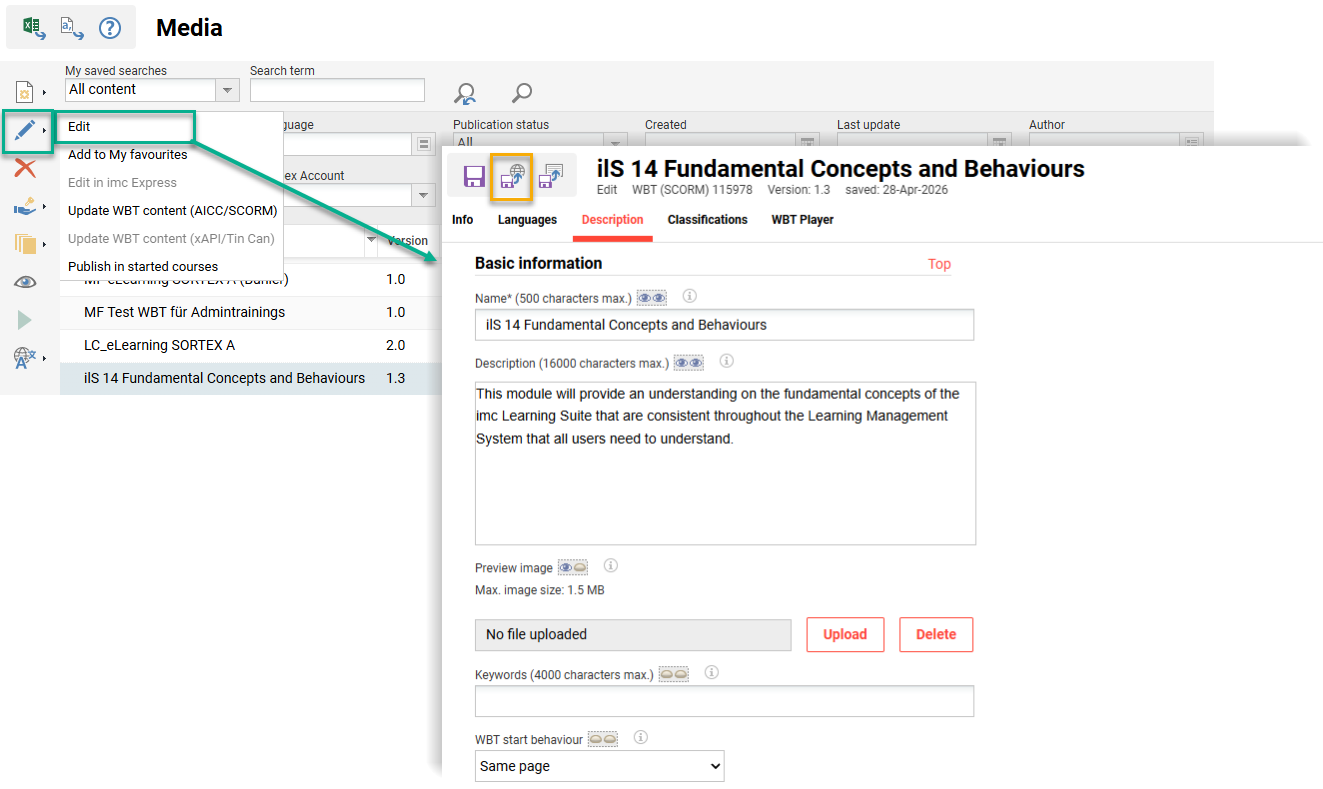
The key difference when editing compared with the initial creation process is there is no Type of WBT field or Upload Zip file field. This is because the type (1.2 and 1.3/2004) can’t be changed and the Update WBT content (AICC/SCORM) option is to be used for package updates.
When you publish a new version, the Automatic update settings determine if the latest published version is automatically updated in assigned courses and catalogues.