
How to configure automatic updates from course templates to courses
Automatic Update Overview
There are many automatic update workflows available within course templates and courses. Use these workflows to ensure that descriptions, settings, and content remain current when changes occur. This includes updating of description information, syllabus components, library content, and forums. The changes process based on version changes with the learning objects or course templates. Each meta tag and content object can be individually set to determine whether automatic update is active.
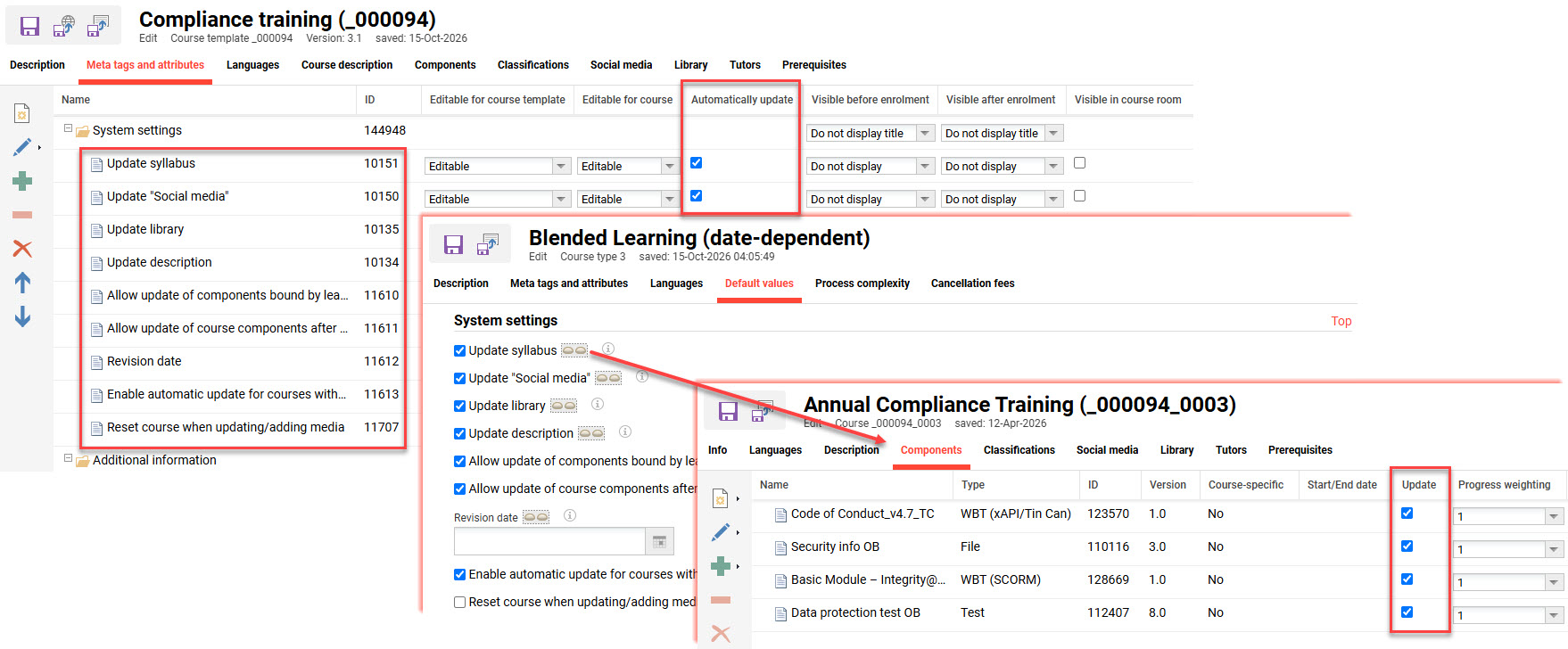
Benefits of Automatic Updates
Automatic update workflows are ideal to help keep your description fields, course settings, and learning objects remain up to date. Automating this process helps ensure your learners receive the latest information, and administrators benefit from reduced manual effort.
Common Update Scenarios
There are many possibilities with the automatic update workflows. The most common example scenarios are described below:
New media version available
Media objects such as files or videos are often assigned to multiple courses and directly to catalogues or channels. With all media being subject to versioning, if an update is required, then a new version must be published. Optional update workflows exist in course templates, courses, catalogues, and channels to automatically update desired media to the current version. This can be limited to non-started courses to avoid progress gaps for completed participants, or this could also include started courses where there is already participant progress.
New syllabus or library media for upcoming blended courses
Many courses are physically delivered by facilitators across multiple venues and dates. These courses normally contain supporting media components in the syllabus or the library. If a new media object is to be added for all future sessions, this can be performed at the course template level. The automatic update workflow can then update each non-started course that is derived from the course template.
Description field or Setting updates for non-started courses
Bulk updating of select description fields or settings of all non-started courses derived from a single course template may be required. This could be required due to a change in name, description information, enrolment workflow, certificate, or course administrator etc. Updating the detail in the course template and publishing a new version can automatically update descriptions of derived courses. This can be limited to select meta tags and courses that have not yet started.
Configuration Steps
Before using the automatic update workflows, there are some settings to first check if correctly configured in your system.
Check for the Update Meta Tags
There are nine meta tags that impact automatic update workflows that can be added to courses. Four of the meta tags relate to the base update workflows and are normally present on all course types. Five of the meta tags are more advanced and further extend the automatic update workflows; prior to IP30 these meta tags had to be manually added to course types. It's recommended that you check all course types and select course templates to ensure that these meta tags are available.
The meta tags are all described below:
|
ID |
Name |
Description |
|
Base update meta tags |
||
|
10134 |
Update description |
Determines if select description meta tags of upcoming courses are to be updated automatically when a new template version is published |
|
10135 |
Update library |
Determines if the library of upcoming courses is to be updated automatically with current content from the template library when a new template version is published |
|
10150 |
Update “Social media” |
Determines if the social-media elements of upcoming courses are updated automatically with current social-media elements from the template when a new template version is published |
|
10151 |
Update syllabus |
Defines if the syllabus and learning logic of a non-started course will be updated when a new version of the course template is published |
|
Advanced update meta tags |
||
|
11610 |
Allow update of components bound by learning logic rules |
Allows you to perform an update to the last published version of media elements marked to be updated which are bound by learning logic rules |
|
11611 |
Allow update of course components after participant start |
Allows to perform an update to the last published version of a test, feedback form or WBT(SCORM/AICC) if it was marked to be updated in the course, even if participants have already begun processing the component |
|
11612 |
Revision date |
If set, updates of components bound by learning logic rules or after participant start will only be applied after this date is reached |
|
11613 |
Enable automatic update for courses without revision date |
Allows the automatic update of courses which do not have a defined revision date |
|
11707 |
Reset course when updating/adding media |
If reset is selected, the registration status of participants will be reset to "in progress" when components are updated or added. This is not allowed in combination with learning logic |
Adding the Advanced Update Meta Tags
Prior to IP29, the advanced Update meta tags (IDs 11610, 11611, 11612, 11613, 11707) were not pre-configured in standard course types. This meant they had to be manually added to course types and course templates via the Meta tags and attributes tab.
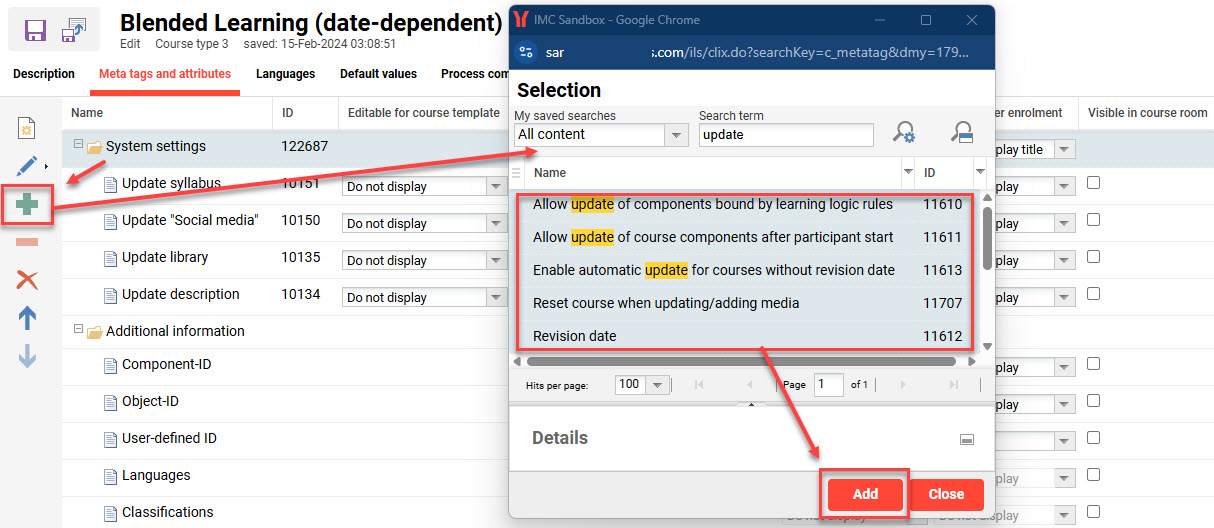
To add the meta tags, follow these steps:
-
Edit the Course type or Course template.
-
Go to the Meta tags and attributes tab.
If editing a Course template and this tab is not available, it’s because in the Process complexity tab of the parent Course type, the Meta-tag settings can be changed at course-template level checkbox was not ticked. -
Highlight the System settings folder and click the Add button.
-
In the pop-up window, search for Update.
-
Multi-select the five meta tags (IDs 11610, 11611, 11612, 11613, 11707) by holding the CTRL key, click the Add button and close the pop-up window.
-
Arrange the meta tags in the desired order.
-
Adjust the display settings. The recommendations are:
-
Editable for course template = Editable
-
Editable for course = Editable / Do not display (depending on how locked down the individual course settings need to be)
-
Automatic update = Ticked
-
Visible before enrolment = Do not display
-
Visible after enrolment = Do not display
-
Visible in course room = Unticked
-
-
Next, go to the Default values tab, or the Course description tab if editing a course template, and define the default values.
-
Once done, click the Save icon for a course type, or the Save and publish icon for a course template.
Adding these meta tags to course types will not automatically update existing course templates created from the course type. Instead, the meta tags will additionally need to be added manually in the existing course templates. This is possible when course types have the Meta-tag settings can be changed at course-template level setting enabled in the Process complexity tab.
Scheduled Cron Job
The ContentAutoUpdate cron job automatically checks for and performs required updates to courses where the ’Automatic update’ meta tag settings are enabled. Only courses that either have the Revision date meta tag populated or the Enable automatic update for courses without revision date checkbox is ticked are considered. This cron can be configured to automatically process or require manual processing but is not always pre-configured.
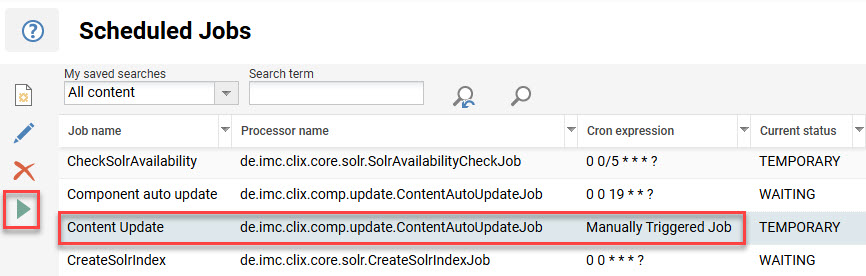
In the Scheduled jobs function, check if the ContentAutoUpdate cron is present with an automated cron expression. If the cron is not present, or the expression is set to Manually triggered job, you will need to create a new cron. This job is recommended to run at least daily to ensure content updated in course templates is regularly pushed through to derived courses with updates enabled.
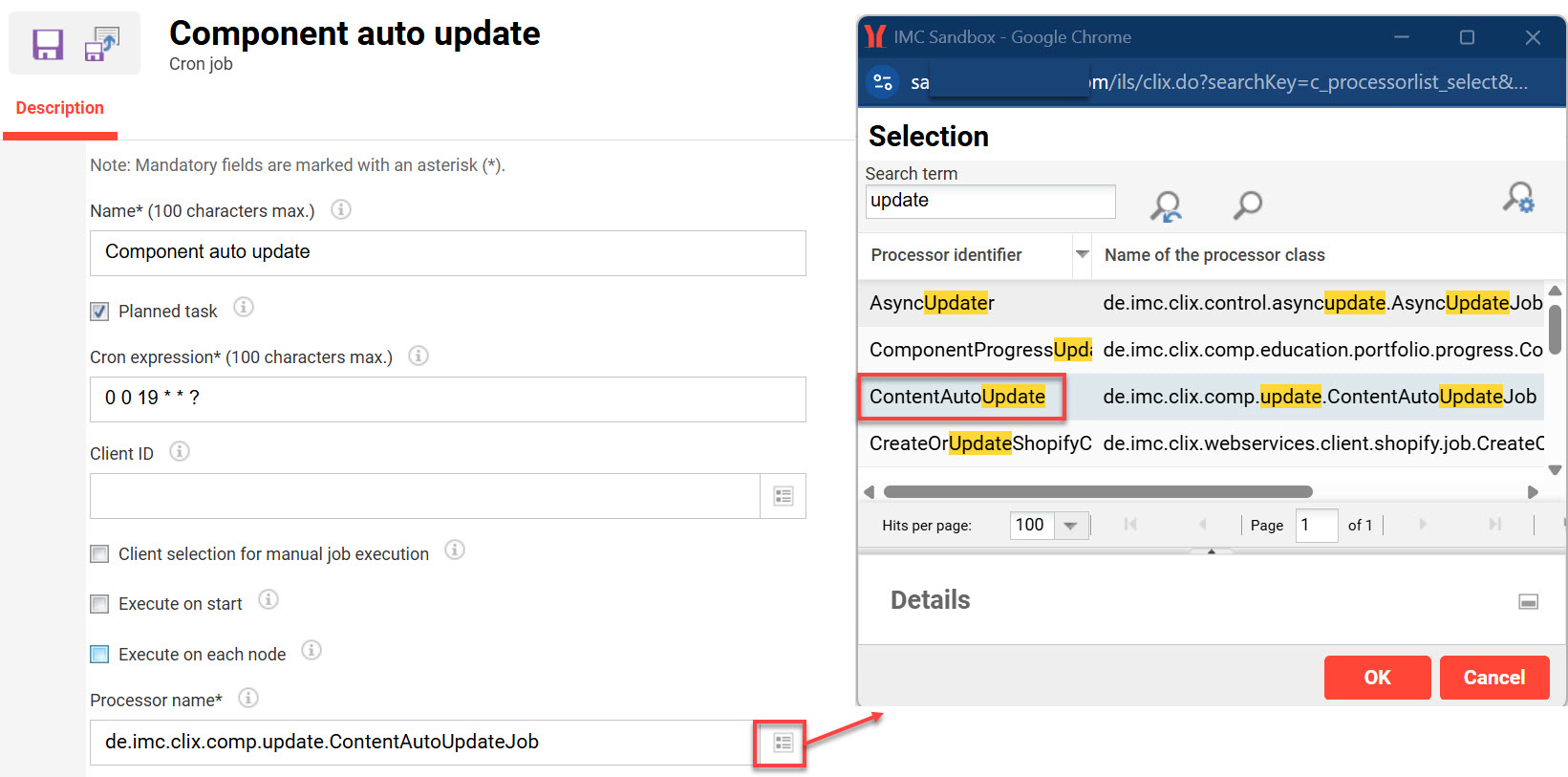
When configuring automated cron jobs, it is best to set the Cron expression to run outside of regular business hours. For example, the Cron expression 0 0 19 * * ? in the example above represents daily processing at 7pm.
Automatic Update Administration
This section will explain how to administer the steps for each automatic update workflow.
Activating Syllabus Component Updates
The Update syllabus meta tag (ID 10151) can be activated to automatically update course syllabus components in two possible ways:
-
When new media is added to the Components tab of a Course template and the template is published, this can push updates through to non-started courses derived from the course templates.
-
When ‘system wide’ media is assigned to the Components tab of a Course template or Course with the Update checkbox ticked, when newer versions of media published the media will automatically update in the non-started courses.
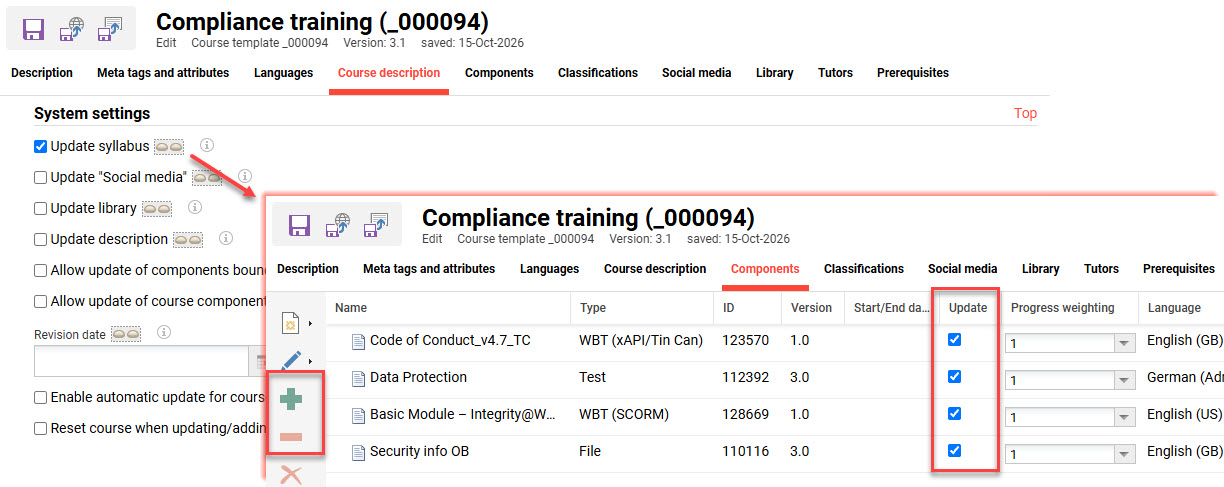
When the Update syllabus checkbox is ticked, the following basic update rules apply:
-
Tests, Feedback forms, or WBTs (AICC or SCORM): As soon as the first participant has begun processing, updating is no longer possible. This ensures that all course participants are working under equal conditions.
-
Forums that are already in progress are not updated.
-
All other components can be updated at any time.
-
Learning logic exception: if a learning logic was defined, updates can be performed via the Syllabus tab until a participant launches the course (duration-dependent courses) or until course launch (date-dependent courses). This ensures that follow-up actions are based on the same conditions for all course participants.
Updating components with Learning Logic
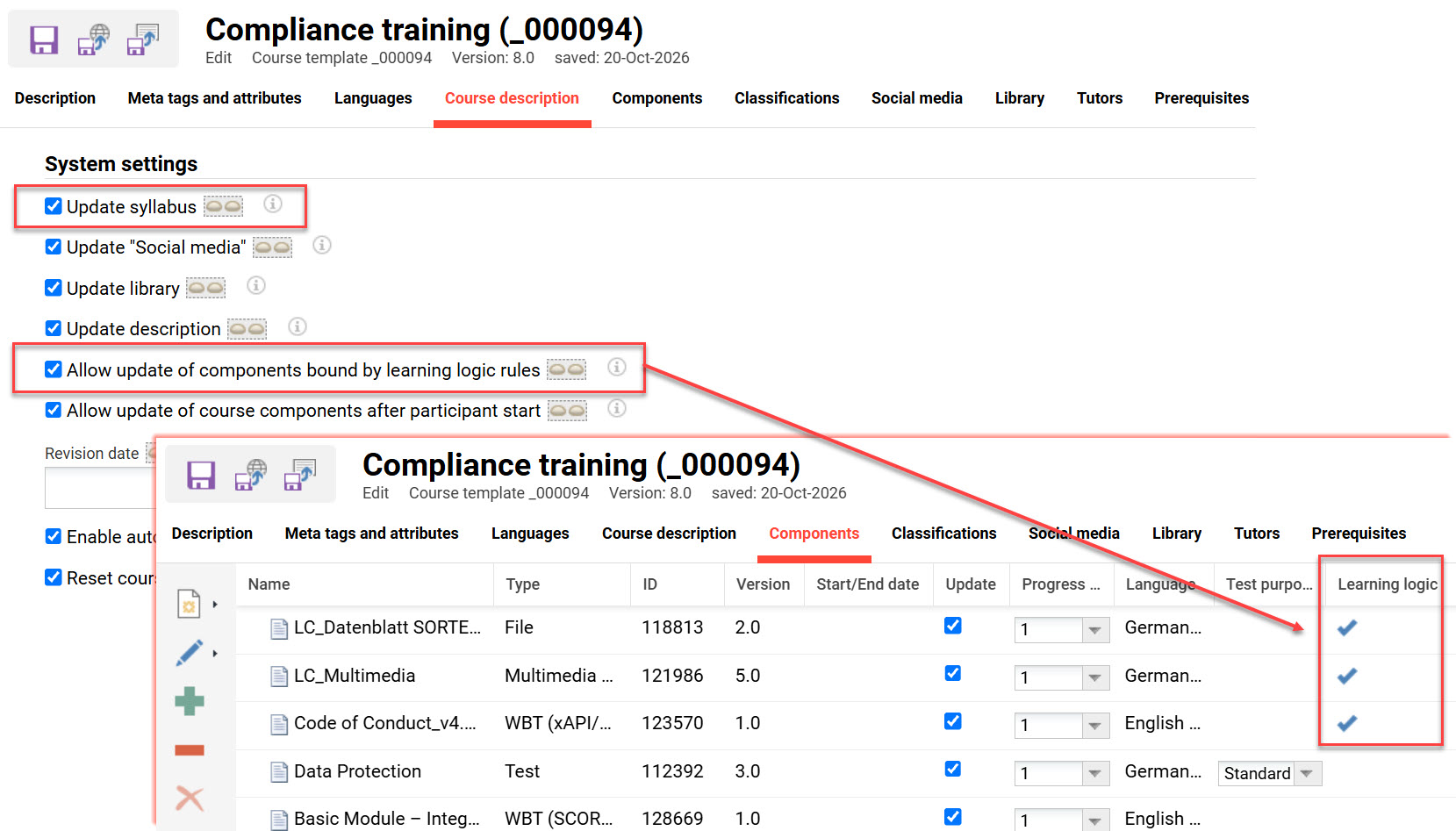
To enable automatic updates of syllabus components that have learning logic, you will additionally need to tick the Allow update of components bound by learning logic rules checkbox (ID 11610). This will also either require a date being entered in the Revision date meta tag (ID 11612) or ticking the Enable automatic update for courses without revision date checkbox (ID 11613). If a Revision date meta tag is set, updates of components will only be applied after this date is reached.
Updating components after participants have started
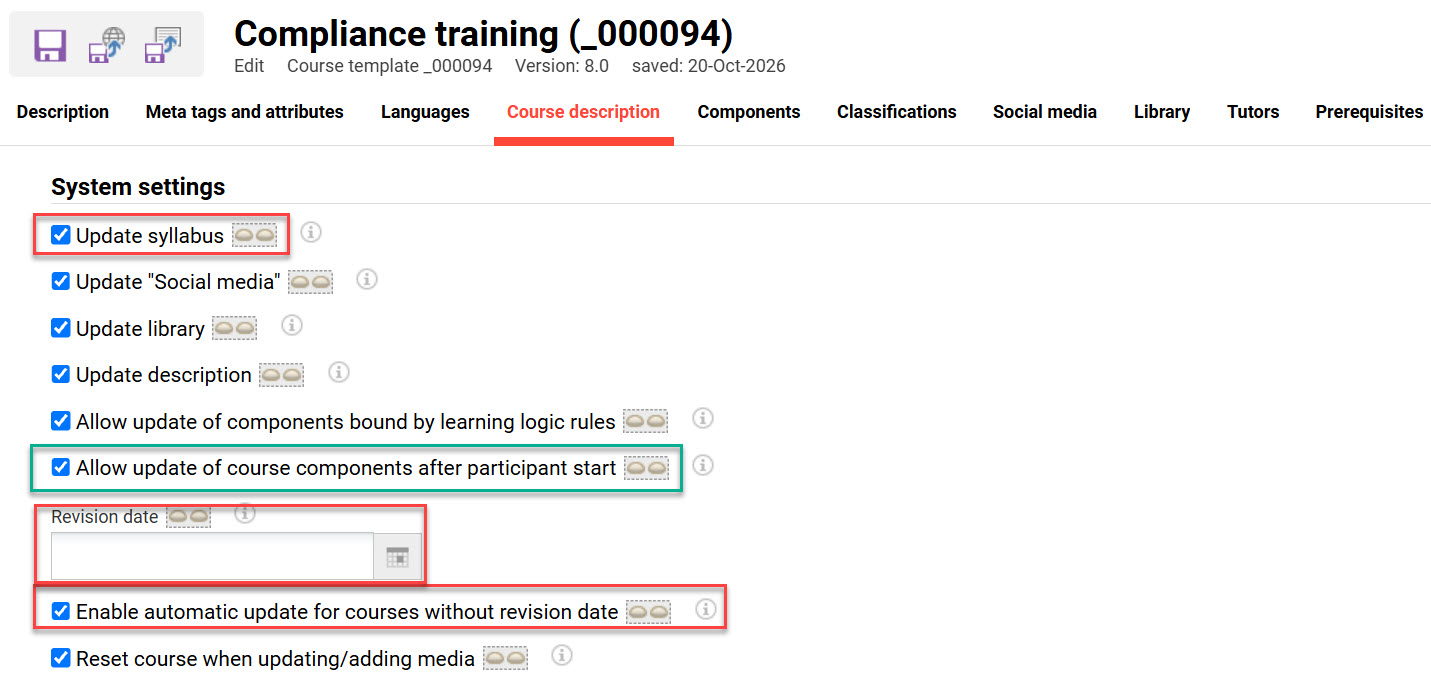
To enable automatic updates of syllabus components after the course has participant learning history, you will additionally need to tick the Allow update of course components after participant start checkbox (ID 11611). This will also either require a date being entered in the Revision date meta tag (ID 11612) or ticking the Enable automatic update for courses without revision date checkbox (ID 11613). If a Revision date is set, updates of components will only be applied after this date is reached.
Reset component status after update
When syllabus component versions are automatically updated, it’s possible reset the learning status of concluded participants. This can be enabled by ticking the Reset course when updating/adding media checkbox (ID 11707). When enabled, the enrolment status of Concluded participants will be reset to In progress and require the participant to recomplete the updated module.
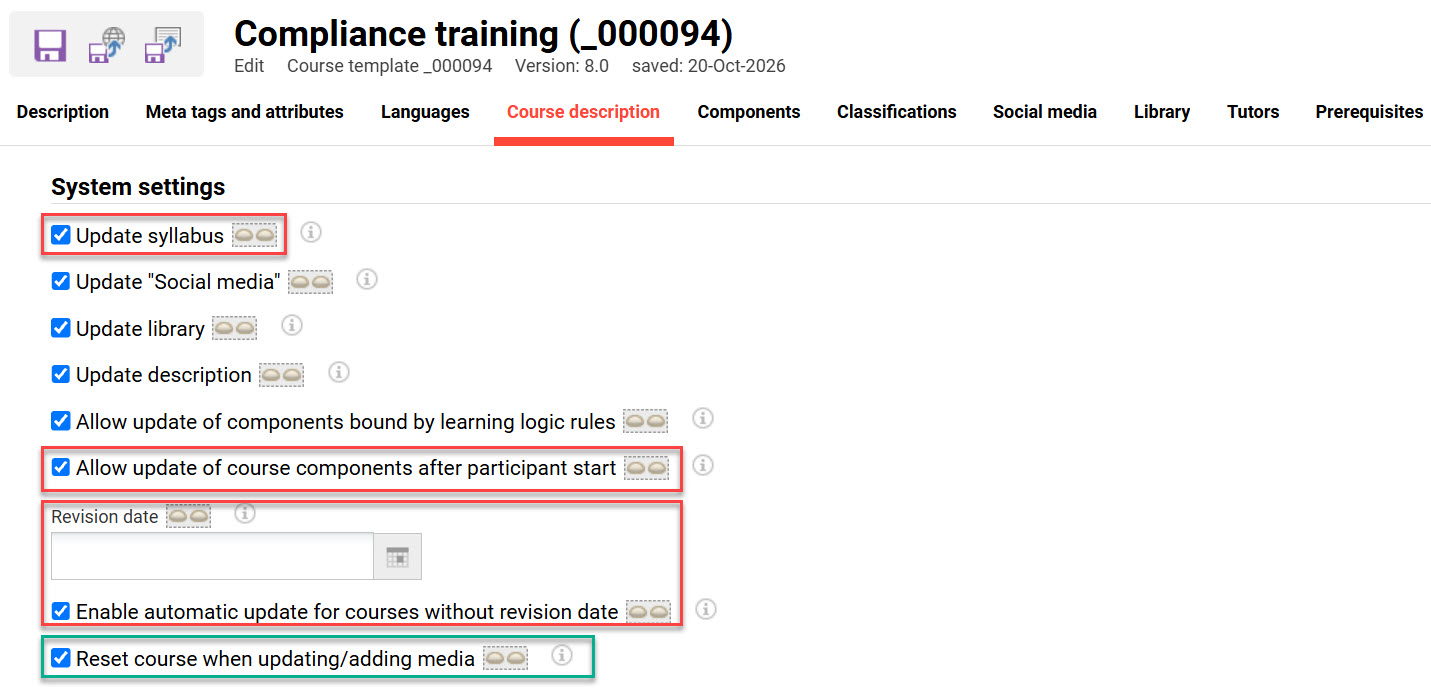
This setting also requires the Update syllabus, Allow update of course components after participant start, Revision date or Enable automatic update for courses without revision date meta tags to be enabled.
This setting can’t be used in combination with learning logic. When attempting to save a course with both enabled, saving will not be possible, and a pop-up warning message will appear.
Manually Triggering Updates
When changes to Course templates and Media objects are made, there are two manual options to immediately trigger the automatic update workflows. This can be triggered for selected courses or triggered for all courses.
Manual update for selected courses
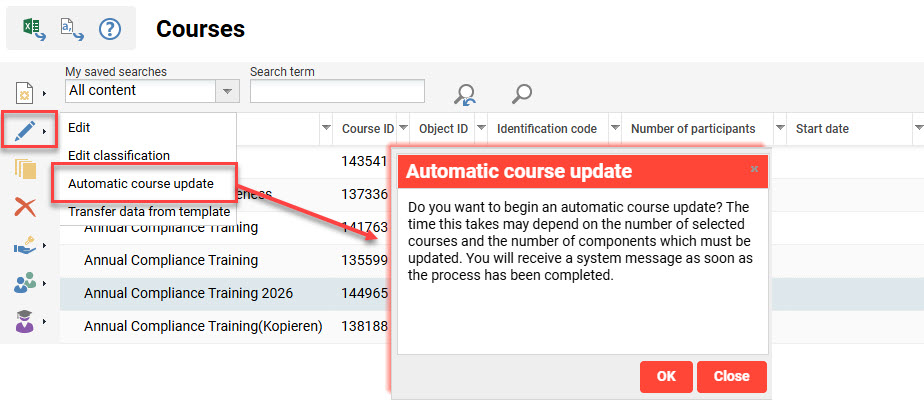
To manually trigger the automatic update workflow for selected courses, go to the Courses function and highlight the desired courses (multi-select using CTRL key). Then click the Edit icon and select the Automatic course update option. In the pop-up window click the OK button to commence the update. The update normally takes a few seconds, and a confirmation message appears in the upper right-hand corner of the screen.
Manual update of all courses
To manually trigger the automatic update workflow for all courses, go to the Scheduled jobs function, highlight the ContentAutoUpdateJob cron, and click the Start job icon. This will check all courses and course templates to see if updates are required.
Specific Component Updates
There are some component types where the update behaviour differs compared with basic media such as file-documents or multimedia. This includes WBTs, Tests, and On-the-job trainings. Each of the update behaviours are explained below:
WBT (AICC, SCORM, xAPI) Updates
When needing to update WBT files such as SCORM, this can often be performed without requiring publishing a new version. For minor changes such as wording updates where there is no change to a manifest file structure, the zip package can simply be replaced in the LMS. In the Media function, highlight the WBT, click the Edit button, select the Update WBT content option, and in the pop-up add the updated zip file. This immediately updates the package in all courses using the current published version and retains the learning history of previous completions.
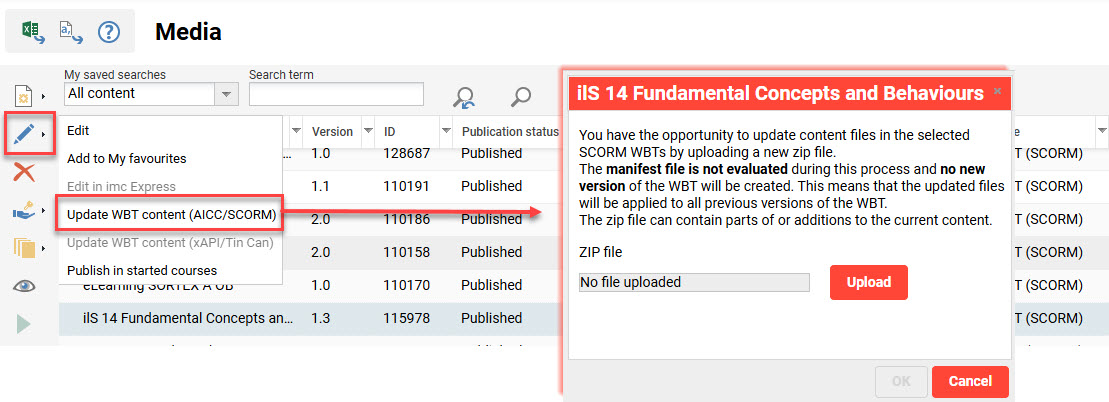
When editing a WBT, there is no Upload field to replace the zip package; therefore, it will only be possible to change metadata and settings. After publishing changes, the zip package can be replaced as described above. This approach is recommended if there are significant changes and you need to track which version of a WBT package has been completed by learners.
Viewing changes from the learner view may require clearing browser cache if the previous package has been viewed.
Test updates
Updating of Test versions in course templates and courses is also possible via automatic update workflows. One difference with Tests is that the questions within are also independent versioned options. Therefore, if a question requires updating, then the question will need to be edited then republished, the update will need to be pushed through to assigned Tests.
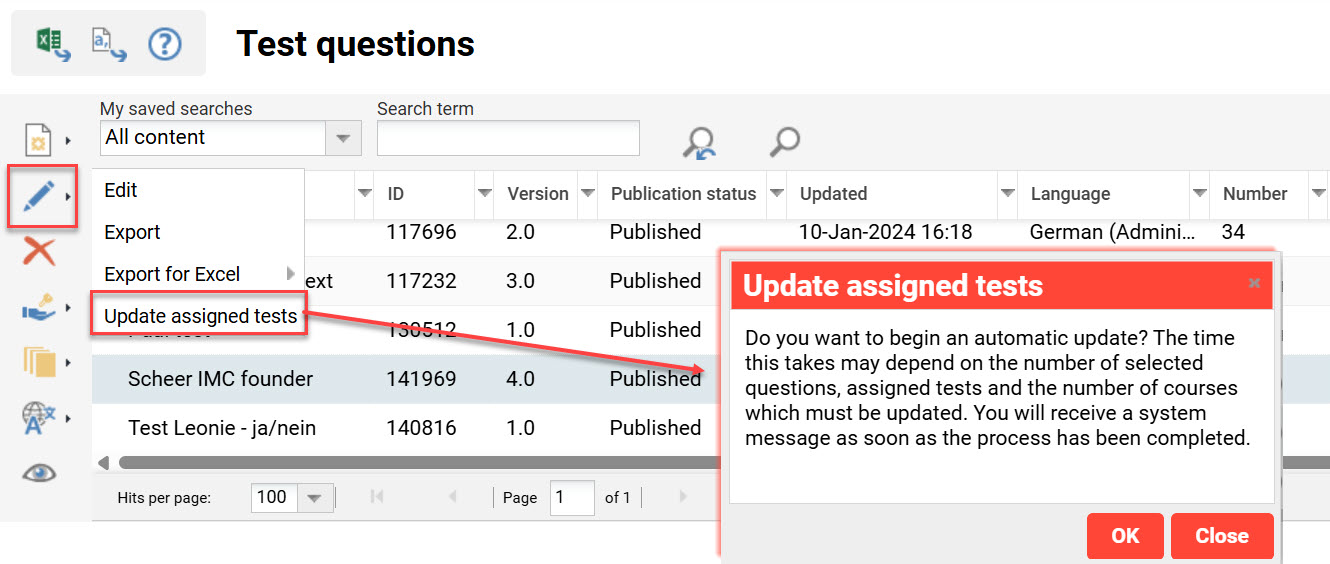
Once the Test is updated with the latest test question version, you will push the change to courses. This is done in the Tests function by highlighting the Test, clicking the Edit button, then selecting the Publish in started courses option, and in the pop-up clicking the OK button.
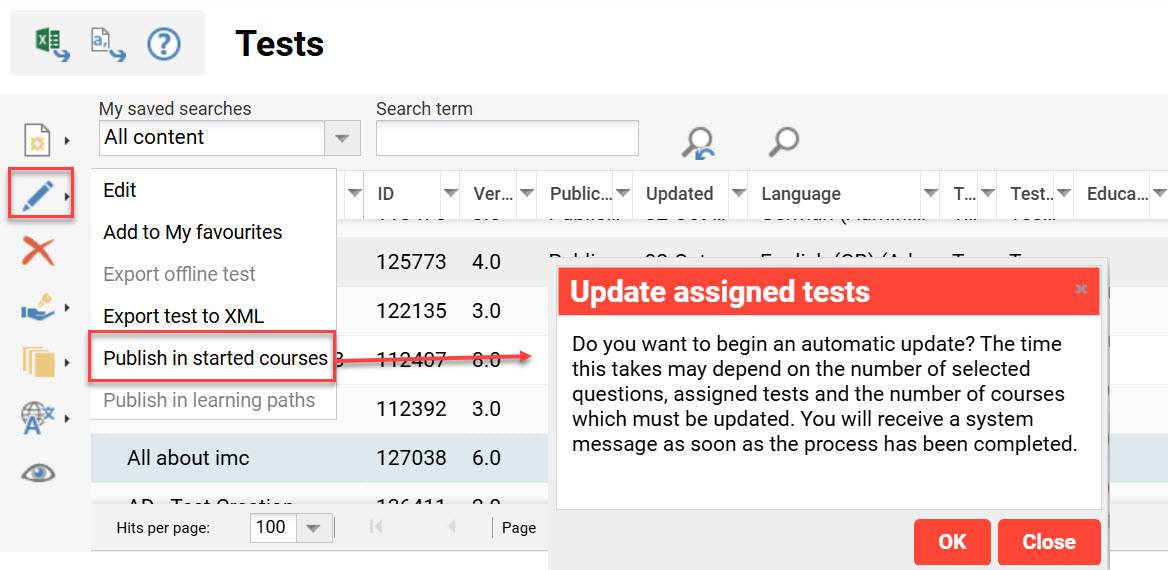
The automatic update workflows for started courses require that both the Update description checkbox (ID 10134) and Allow update of course components after participant start checkbox (ID 11611) are ticked. If the checkboxes are not ticked, or the latter is not assigned to the course template, then the Test will not be updated in started courses where there is learning history.
On-the-job tasks
On-the-job tasks are the only component that can be assigned to the Components tab that are not versioned objects. Therefore, any change made to the tasks or task template will immediately flow through to the course with no update workflow required.
Social Media
The Social media update relates to Forum media objects assigned in the Social media tab. When ticked, this will automatically update forum if a new version is published. This can be important if there are changes to the forum such as the moderator or access periods.
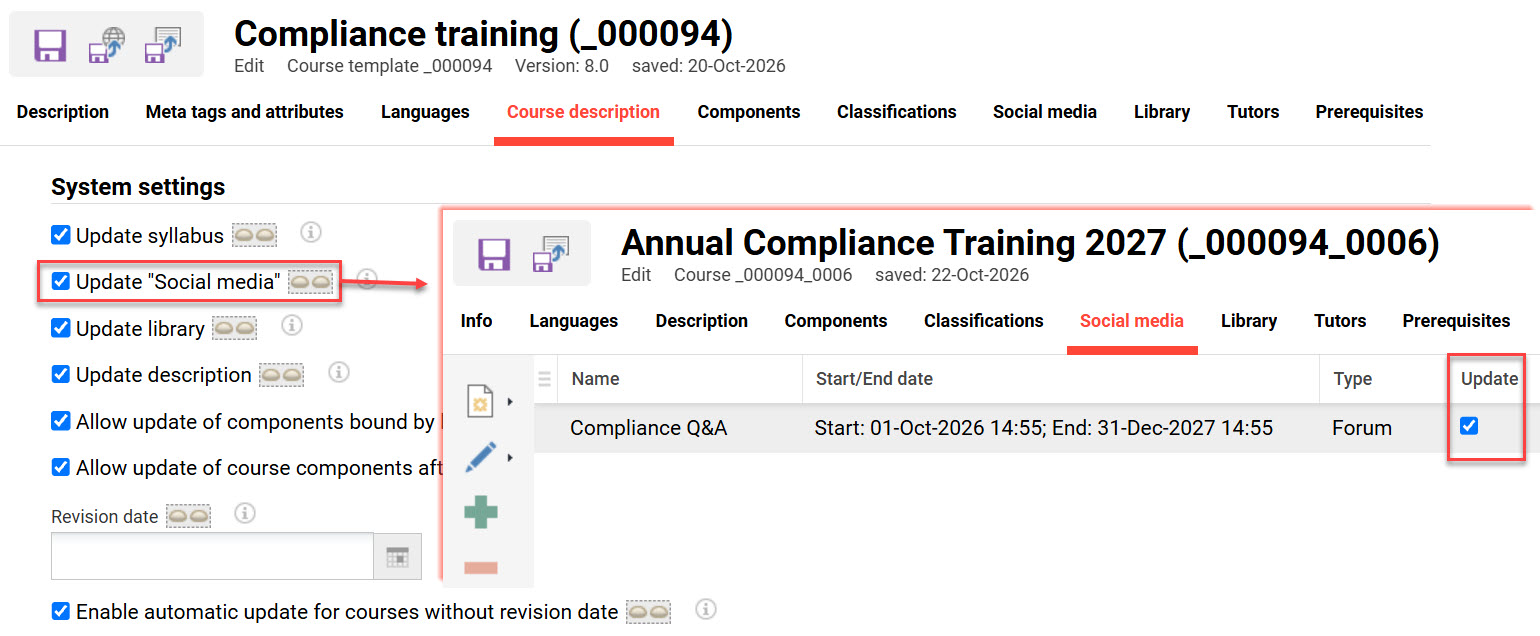
Forum media objects can also be assigned to the Components tab of a course to form part of the syllabus. In this case, the Update syllabus meta tag setting applies.
Library Updates
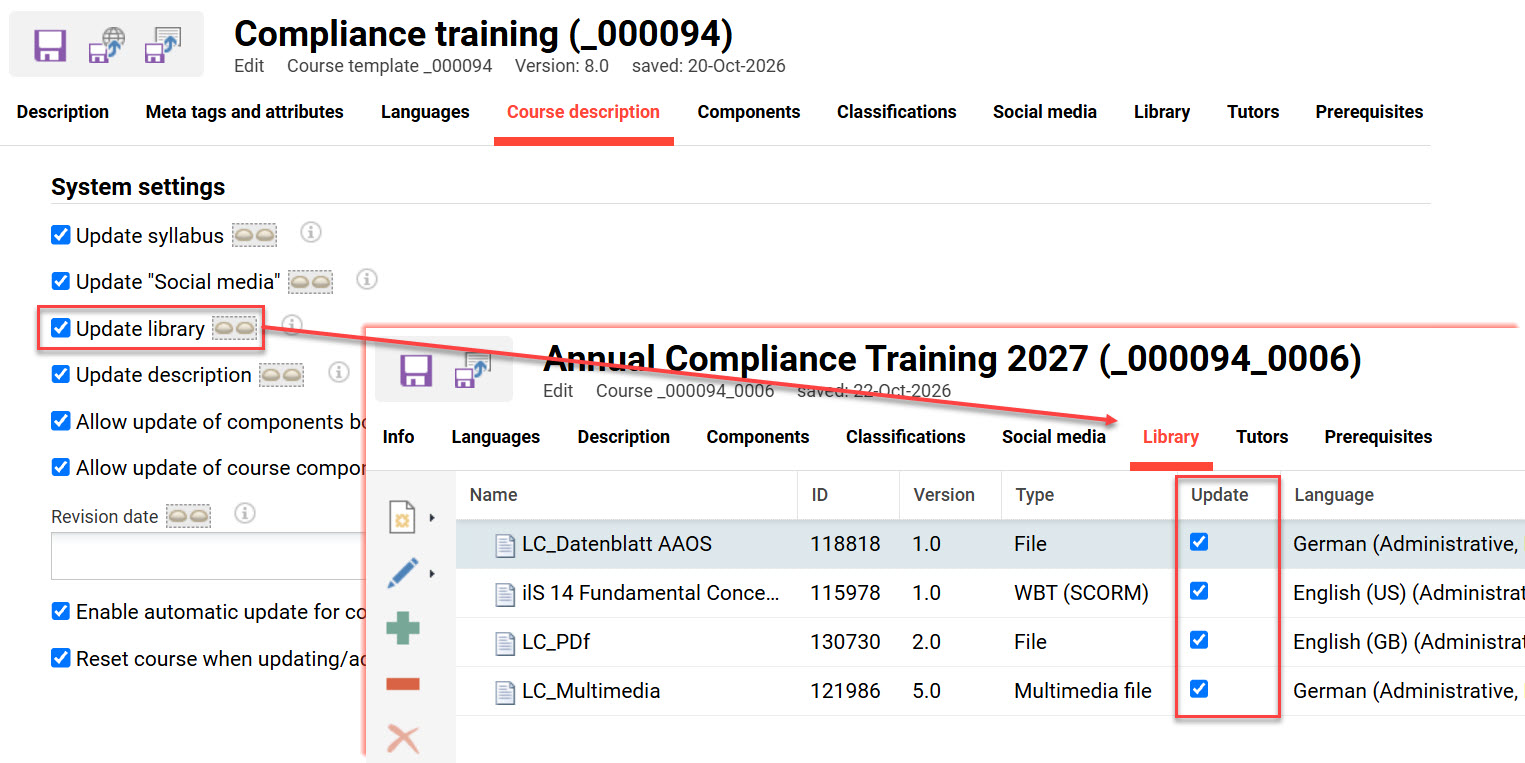
The Library tab enables providing participants with additional optional content to consume. When the Update library checkbox is ticked, the workflow will update media versions in the library of started courses. If new content is added to the Library tab of a course template, only courses derived from the template that are yet to start will be updated.
Description Updates
The course description meta tags can be configured individually to automatically update if there's a change in the template. This workflow can push new meta tags to non-started courses and update meta tag values or settings in started courses. To enable course description updates, you need to follow these steps:
-
In the Course template Meta tags and attributes tab, tick the Automatic update checkbox for meta tags that are desired to automatically update. This should only be done for meta tags where values must all be the same for each derived course; therefore, meta tags such as fixed dates or location would never be ticked.
-
In the Course template Course description tab, tick the Update description checkbox to be ticked in the course.
-
Save and publish the course template once population is complete.
-
Create a course from the course template and ensure that the Update description checkbox is ticked. There will be no indication of the individual meta tags which are configured to automatically update.
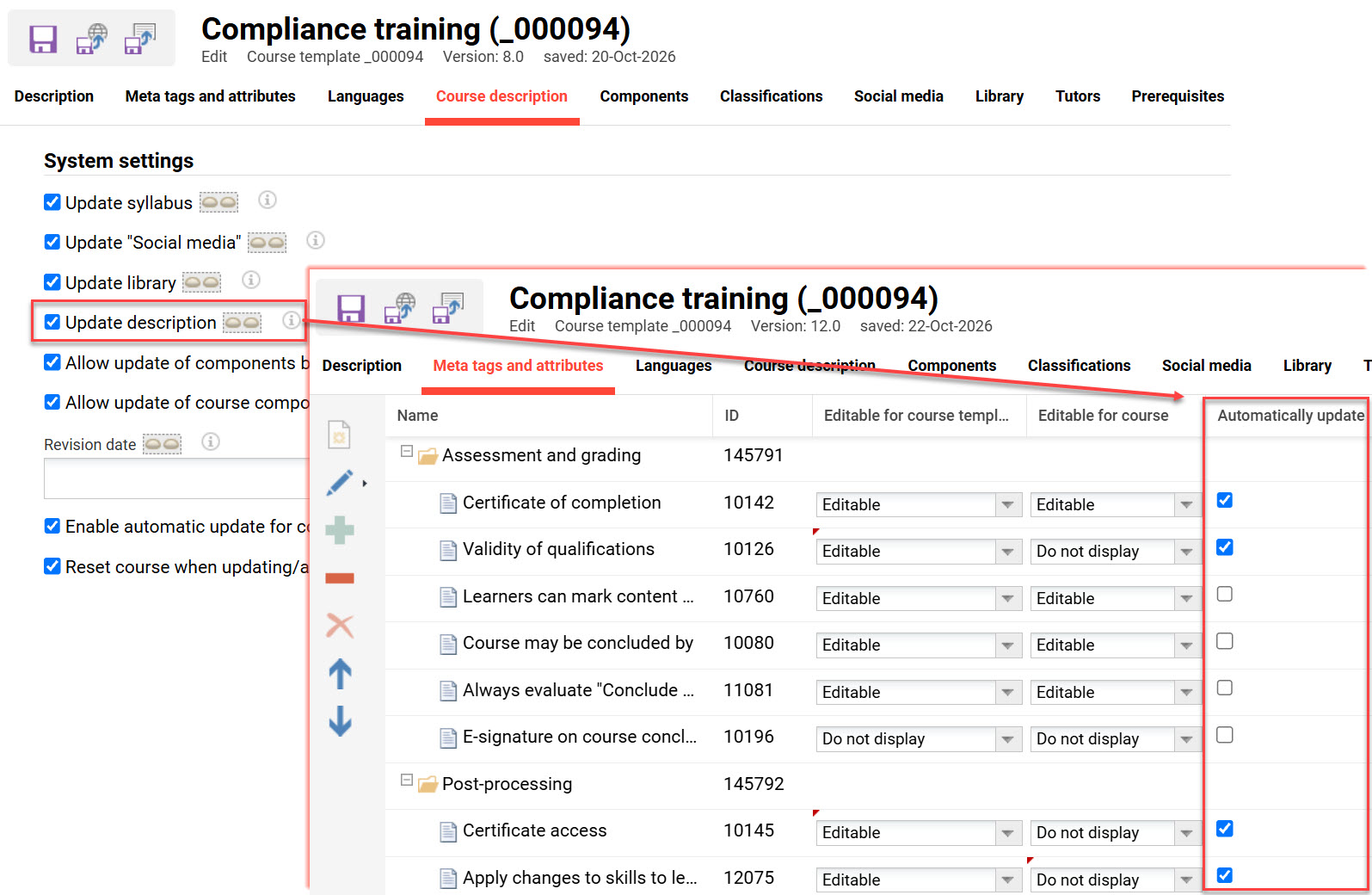
If the Meta tags and attributes tab is not available in the course template, this is because it was not enabled in the Course type Process complexity tab. Updating in the Course type will not update existing Course templates.
Setting Revision Dates
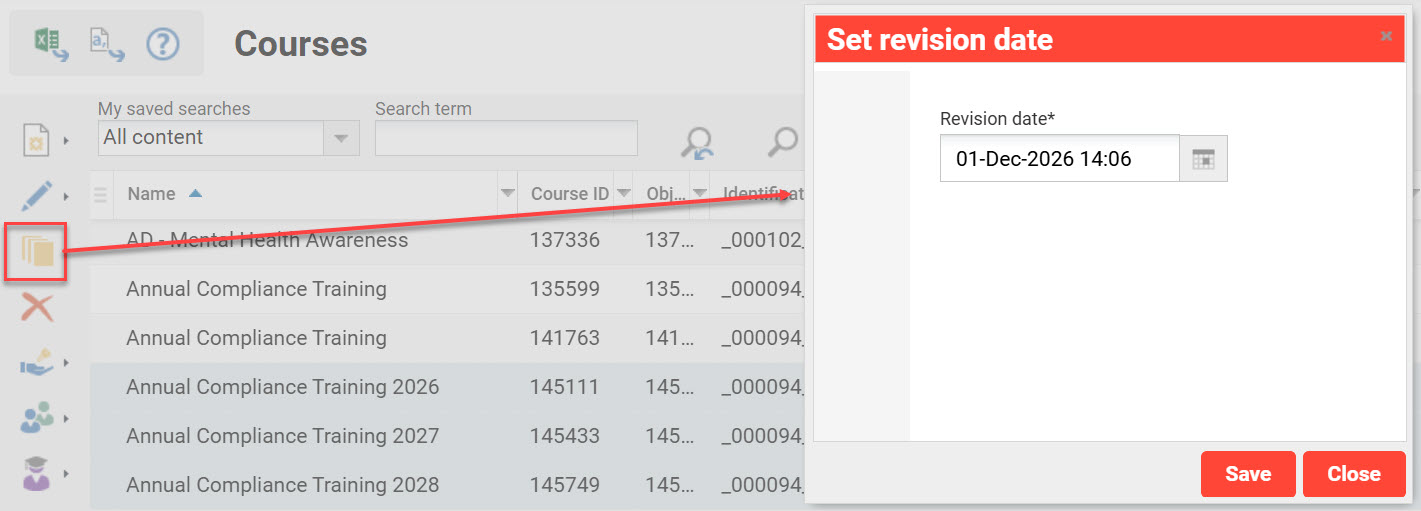
The Revision date meta tag (ID 11612) can be added to course templates and courses. When populated, the date is used by the ContentAutoUpdate scheduled job to check if updates are required. You can populate the revision date by individually editing each course or conveniently assign a revision date in bulk. For the latter, this can be performed in the Courses function by highlighting multiple courses and clicking the Set revision date icon. This launches a pop-up window where you can define the date for revision.
Summary
Automatic update workflows help keep course templates and derived courses aligned by updating descriptions, syllabus components, library content, forums, and selected settings when new versions are published. To use them effectively, ensure the relevant update meta tags are available and configured, confirm the ContentAutoUpdate scheduled job is running regularly, and choose the right update approach for each content type and course status. Use revision dates and the advanced update settings carefully, especially where learning logic or participant progress is involved, so updates improve content accuracy without disrupting learner history or course completion rules.