How to Deactivate and Delete Users
Overview
Users can be either deactivated, deleted, or anonymised when no longer required. Each of these options will prevent the user from being able to log into the LMS. It will also be no longer possible for an administrator to perform future training management (bookings, skill assessments, certification assignment) of deactivated users, unless the user is re-activated. The key differences and options of deactivation to deletion are described below:
Deactivation
Deactivation or Deregistration is when users have a Passive value set in the Authentication status personal attribute. This attribute essentially controls which users are able to log into the LMS. Users with a Passive status will not be able to login or have their training managed by an administrator, but their records will remain in the LMS without consuming an Active licence. It is more common to deactivate users than delete to retain training records. Returning deactivated users can also be reactivated.
Deletion
Deletion of a user means the user record is archived, the training data is removed from the interface, and the user cannot be used again. The deletion can be either a hard physical deletion where no record is visible, or an anonymisation where an unidentifiable record remains. The anonymised approach retains a record within training objects to ensure accurate reporting.
When deleting a record, a warning message will be displayed. If progressing with the deletion, a client setting can also determine if the deletion will be immediate or delayed.
Administration Steps
This section will detail the various deregistration and deletion methods available in the LMS. Covered in the detail will be the process, settings, and by whom the workflows can be performed.
Deactivating a User
You can use several methods to deactivate users. Each of these methods is explained below:
Manual Deactivation by Administrators
As an Administrator, you can manually deactivate a user by editing their user profile. Simply set the Authentication status personal attribute from Active to Passive.
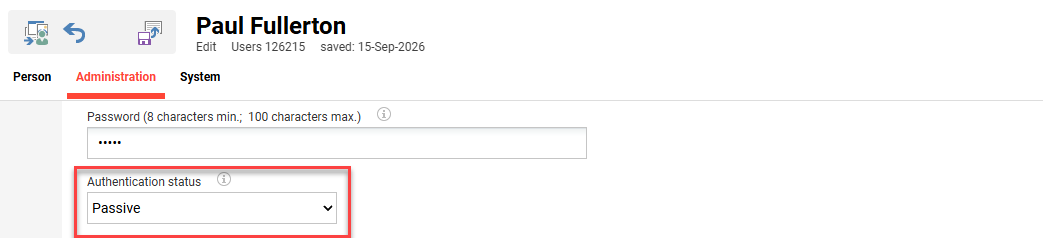
This requires the Authentication status personal attribute to be added as Editable to the Edit profile by admin profile. Supervisors could also be enabled to deactivate users in the Edit profile by superior profile.
Manual Deactivation by Privacy Policy
If an “Active” user at any time declines a Privacy Policy, their Authentication status personal attribute value will change to “Passive”. This could be either at first login, when a privacy policy has changed requiring re-acceptance, or if a user accesses via a navigation point.
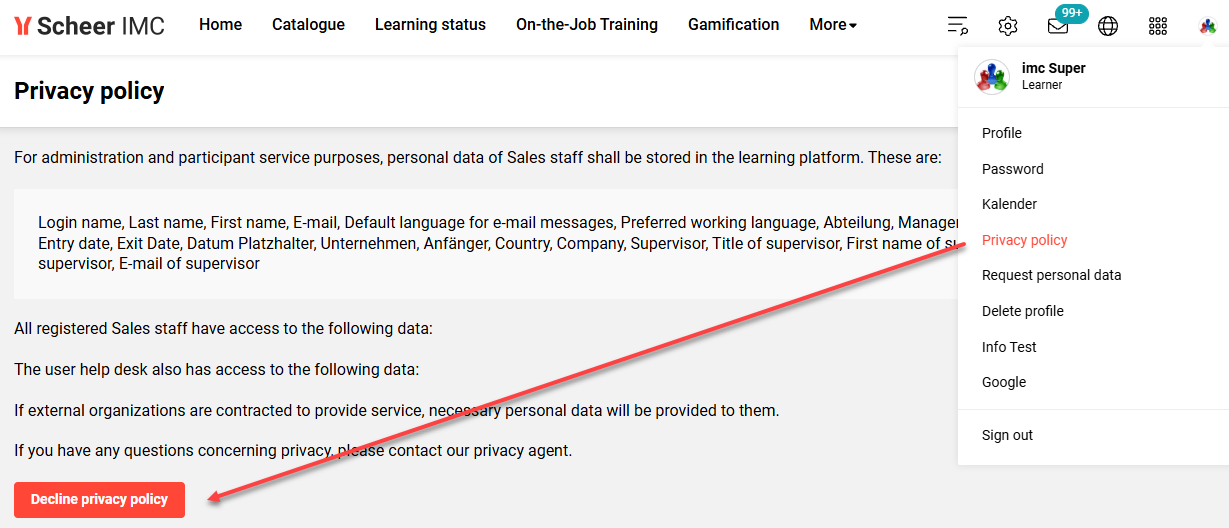
Users who decline the privacy policy will not be able to login until they accept. To prevent undesired declination most customers will not show the Privacy policy menu. It’s also recommend to have an administrator who monitors privacy policy declination emails.
Deactivation by Import
User records that are imported using .csv files can also be deactivated by .csv import. The deactivation can be triggered by a status flag on the user record or via synchronisation. Each approach is described below:
-
Status flag: A column in the .csv file that maps to the AUTHENTIFACATION_STATUS_ID attribute. The default value mapping requires 1 for Active and 2 for Passive. Often business rules are written where alternative values must be provided by the external system.
-
Synchronisation: A synchronised import requires that only Active users are to be provided in a .csv file. Any previously Active user no longer in the .csv file will be made Passive.
Deactivation by SCIM Interface
User records created by SCIM can also be deactivated by SCIM. This interface is widely used where real-time updates to user records are required, or used in conjunction to support SSO provisioning. The standard deactivation occurs via the active attribute (sourceField) containing a false value. An alternative sourceField could be used that is mapped to a different LMS personal attribute, then supported by business rules.
<mapping ignoreEmptyField="true" sourceField="active" clixField="AUTHENTIFICATION_STATUS"/>
Automatic Deactivation by Last Login
You can set the system to automatically deactivate users based on an interval after their last login date. This method is commonly used in extended enterprise scenarios. This is because external users can self-register for an account in the LMS, but there is no external system to control deregistration. The automatic deactivation helps reduce the number of Active licences required. This method can be enabled system wide or per client.
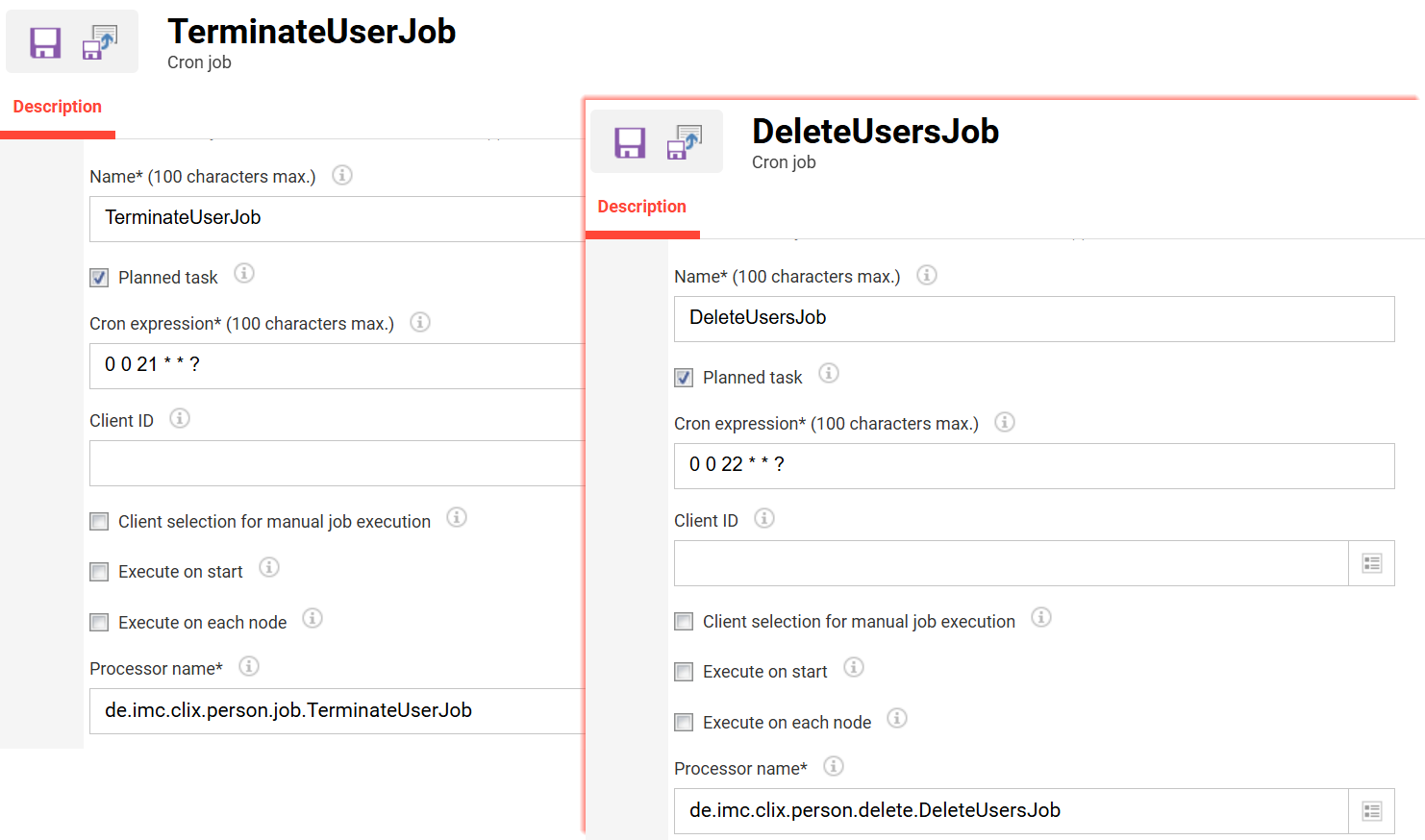
Requires an active scheduled cron with the de.imc.clix.person.job.TerminateUserJob processor name. The cron is ideally a Planned task that runs daily.
System-wide
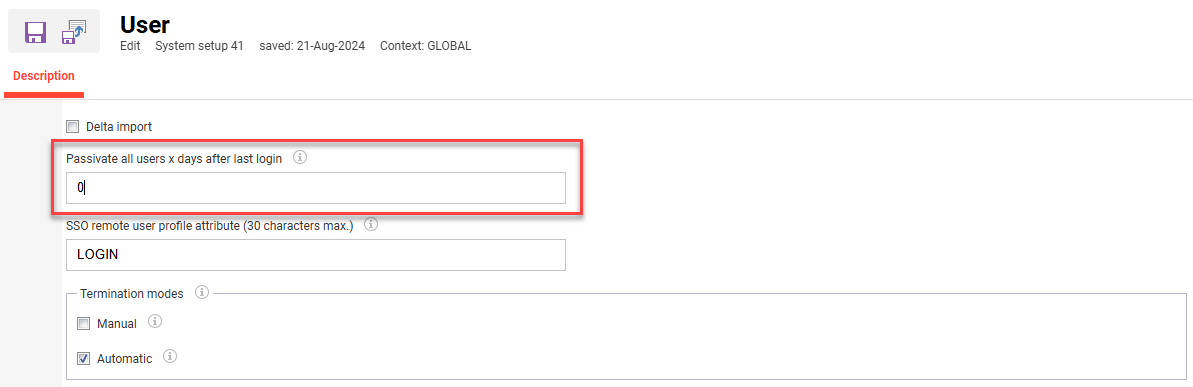
To enable system-wide deactivation by last login date, go to the Configuration function and edit the User menu. Here, there is a Passivate all users x days after last login field where a number can be set. The default value of 0 means that there will be no automatic deactivation.
Client-specific
To enable client-specific deactivation by last login date, go to the Clients function and edit the client containing external users. In the Access and security tab, there is a Passivate all users x days after last login field. This is used to define the number of days after which a user will be deactivated, if the user did not login to the system within the specified number of days.
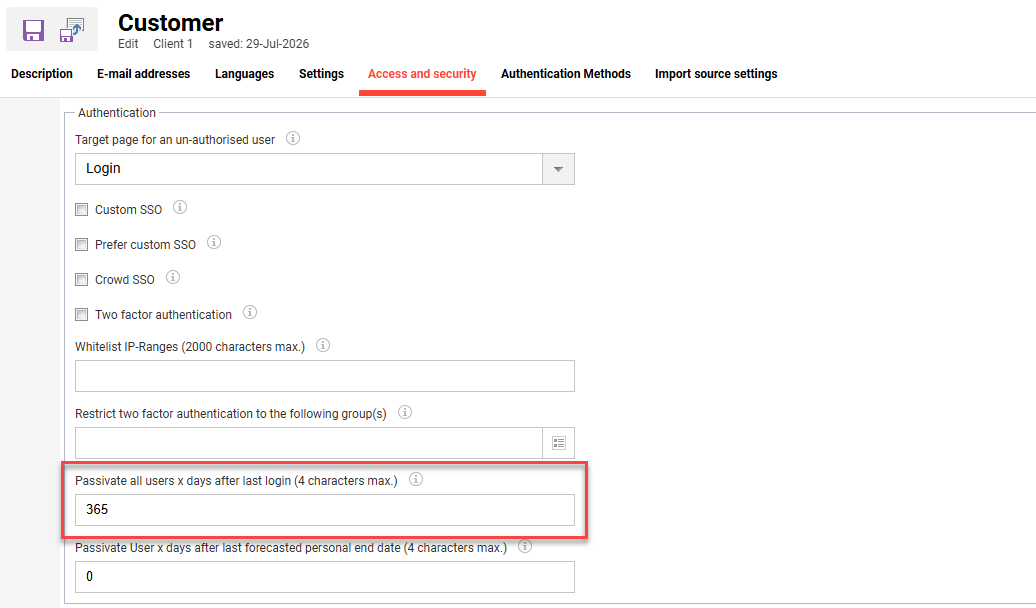
To see a client, you must either be assigned to the client or be a super user.
Automatic Deactivation by Forecasted End Date
This method defines the number of days after a forecasted end date, that users will be deactivated. The forecasted end date essentially considers if the user has active enrolments along with due dates. An enrolment is considered active if the current date is lower than the forecasted end date. This is calculated based on the end date of the course/learning path, or personal end date based on the duration of use of a course/learning path.
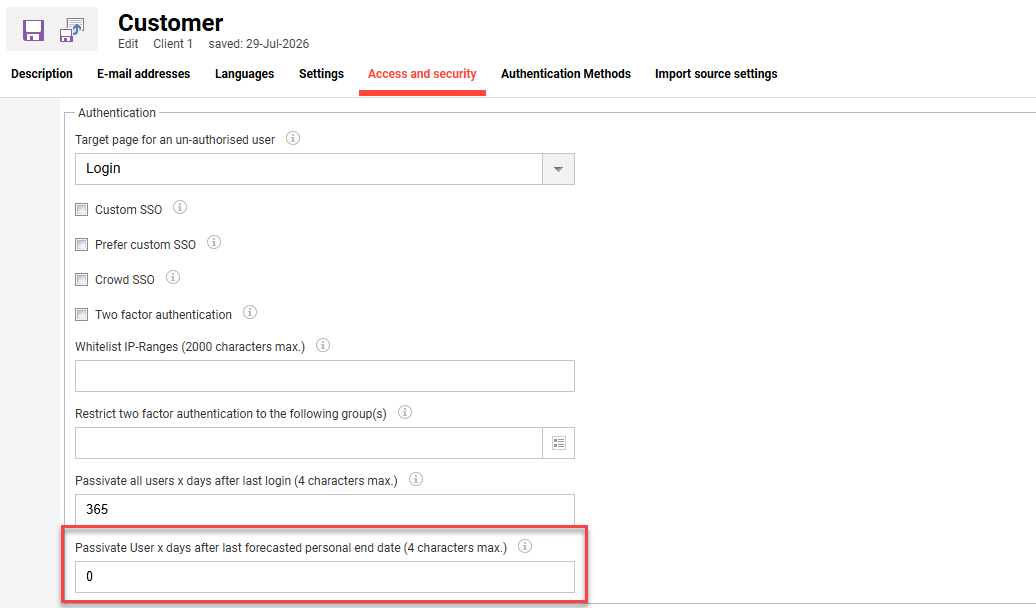
Requires an active scheduled cron with the de.imc.clix.person.job.TerminateUserJob processor name. The cron is ideally a Planned task that runs daily.
Automatic Deactivation by Scheduled Date
A scheduled deactivation date can be set for users in the future. Administrators can set this date by editing the user profile, going to the System tab, and populating the Registered until (target date) personal attribute. The Type of deregistration personal attribute will also need to be set to Automatic deregistration. When the target date arrives and a termination cron job runs, the user will be deactivated.
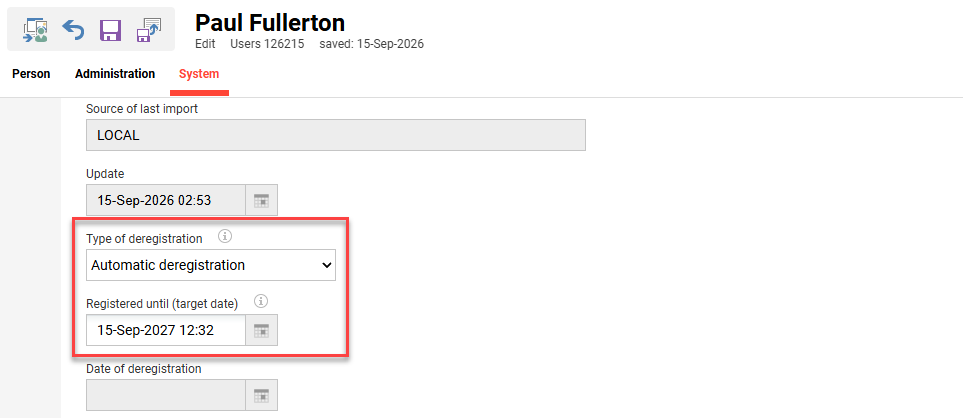
Requires an active scheduled cron with the de.imc.clix.person.job.TerminateUserJob processor name. The cron is ideally a Planned task that runs daily.
Rule-based Deactivation
Business rules can be written to deactivate users based on personal attribute values. These rules can consider multiple attribute conditions with either and or or logic. Most commonly rules are written when an external system can not provide the standard value 1 or 2 required by the Authentication status personal attribute.
<co:rule>
  <co:ruleConditions>
	<co:ruleCondition expression="STATUS" matching="EQUAL" value="Active"/>
  </co:ruleConditions>
  <co:setCommand target="AUTHENTIFICATIONSTATUS_ID" value="1"/>
</co:rule>

<co:rule>
  <co:ruleConditions>
	<co:ruleCondition expression="STATUS" matching="EQUAL" value="Inactive"/>
  </co:ruleConditions>
  <co:setCommand target="AUTHENTIFICATIONSTATUS_ID" value="2"/>
</co:rule>
Deleting a User
Deleting a user record can be performed manually or automatically. There are several possibilities to delete a record that will be covered below:
Deletion by Admin
As an administrator, you can manually delete users in the Users function. This is done by highlighting a user and clicking the Delete button. A warning message will appear to confirm deletion using the Delete button. Whether the record is immediately deleted, has deletion delayed, or anonymised depends on the Client function settings.
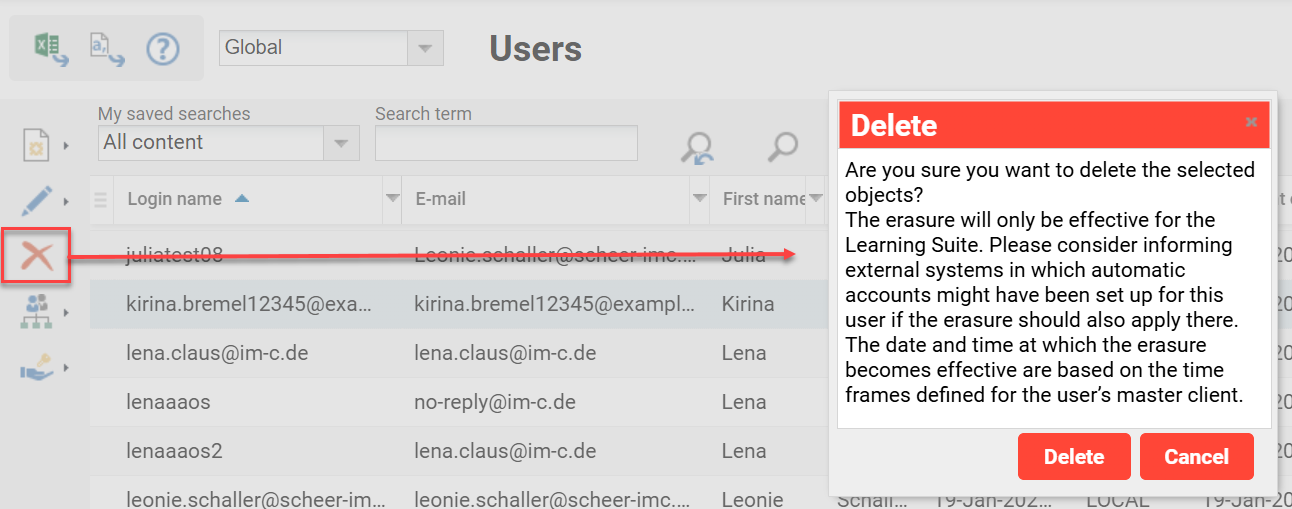
Only Administrators with both Delete clearance on the user and Delete access rights on the Users function will be able to perform deletions.
Deletion by Learner
It can be enabled for learners to delete their own profile using the Delete profile option. This can be activated in the Navigation function and is nested under the User profile folder menu.
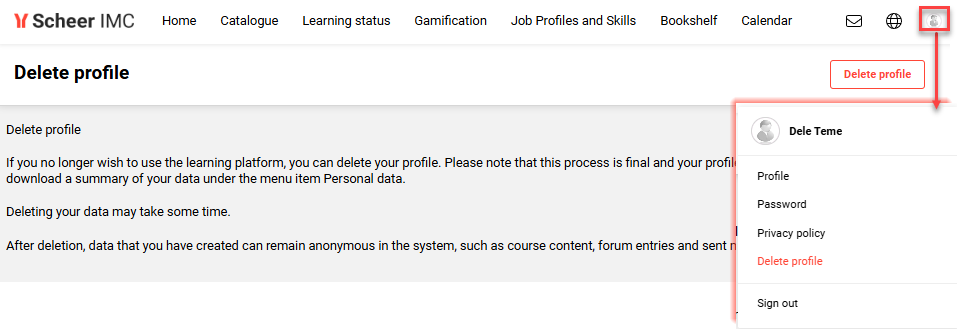
The Delete profile option is commonly used for customers with extended enterprise scenarios. This allows external users to choose to delete their profile once they have completed desired learning activities. The ability to allow deleting own information is also a GDPR requirement for many organisations.
Deletion by API
The SCIM API enables external systems to perform user deletion. This is possible using the DELETE call to the URL http://hostname/restapi/lms/scim/Users/ID . Further details can be found at Swagger UI | Delete user.
Deletion by Merge
The merge process combines two duplicate user records into a single record. After the merge is complete, the source user record will be deleted.
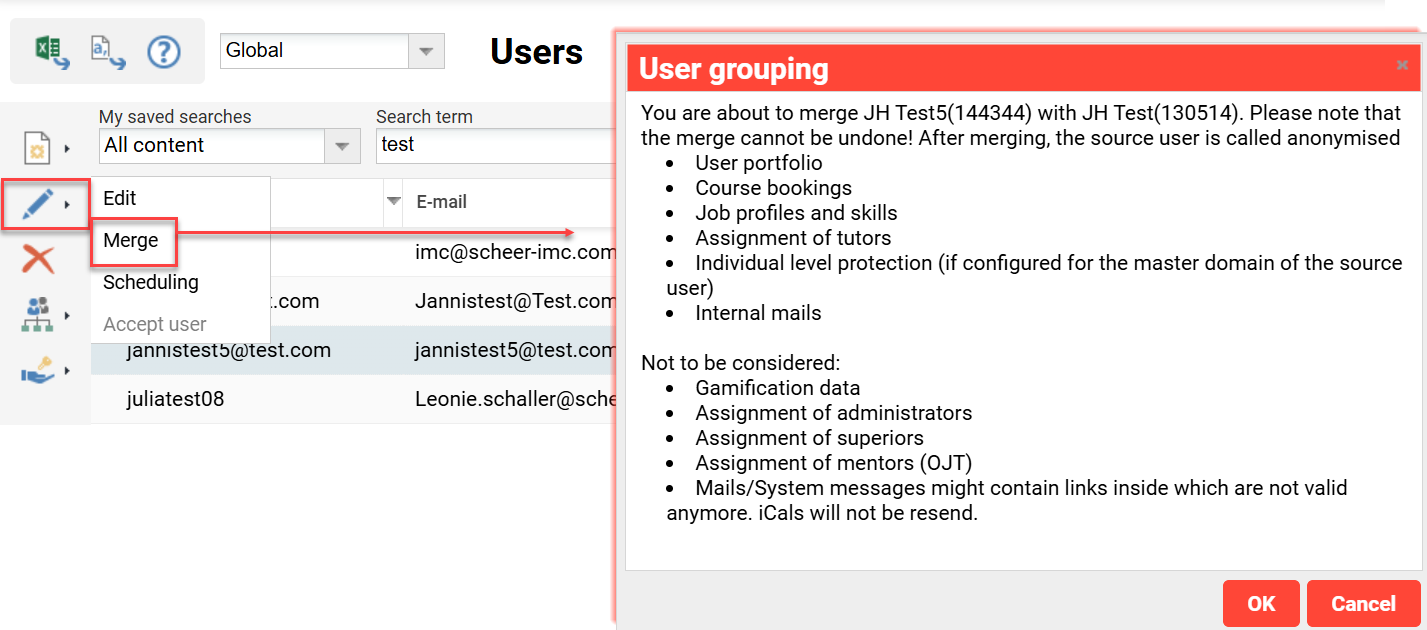
Once a merge is performed, it is not possible to undo the merge.
Automatic Deletion after Deregistration
Deletion can be automated per client based on a number of days following deregistration. This can be enabled in the Clients function by editing the desired client. In the Access and security tab there is a Delete User x days after deregistration field.
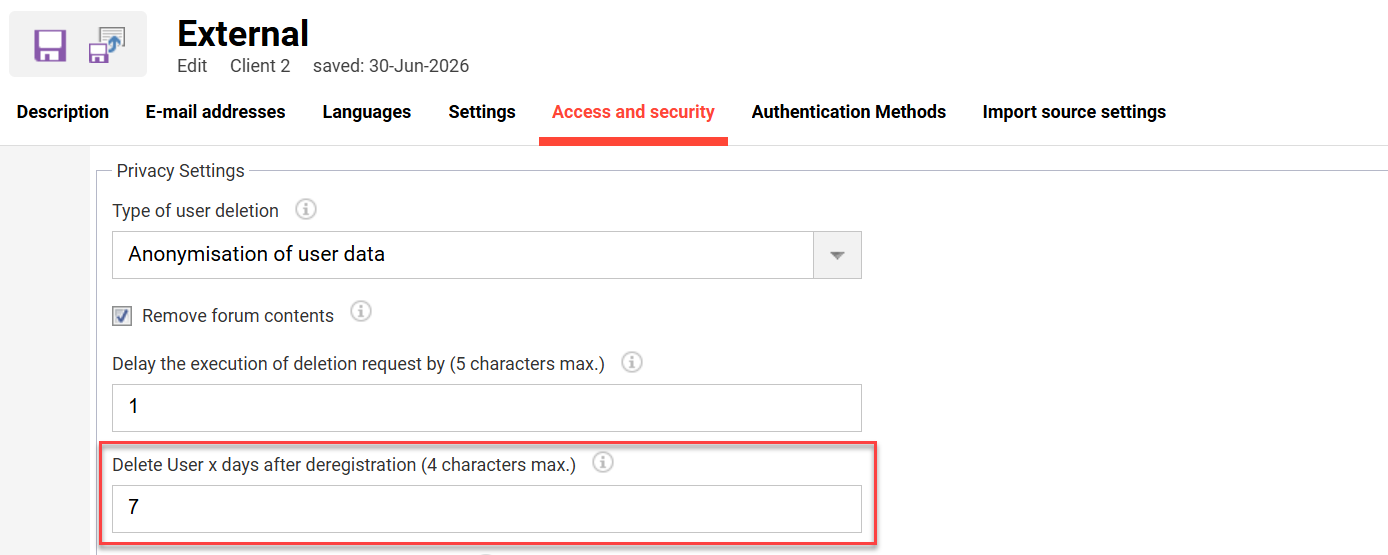
Requires an active scheduled cron with the de.imc.clix.person.delete.DeleteUsersJob processor name. The cron is ideally a Planned task that runs daily.
Automatic Deletion by Fixed Date
Deletion can be automated by entering a future date on a user’s profile. This is done in the Date of deletion personal attribute. This date can be populated manually, updated via a user interface (.csv, SCIM), or set via business rules (E.g. x years/days after last update or last login).
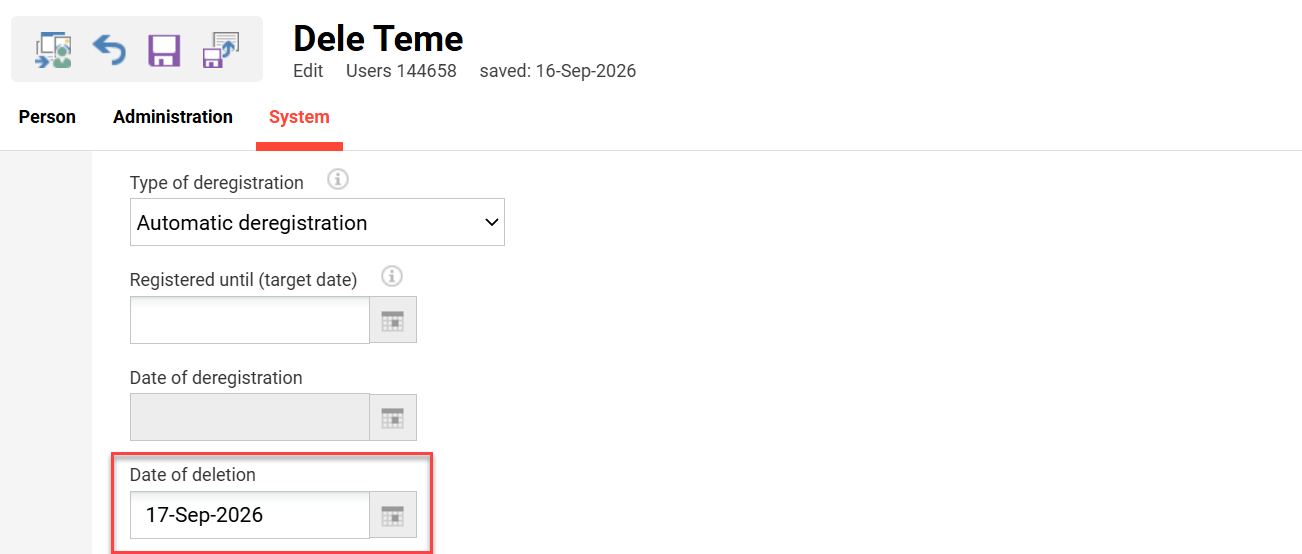
Requires an active scheduled cron with the de.imc.clix.person.delete.DeleteUsersJob processor name. The cron is ideally a Planned task that runs daily.
Further Configurations
There are some additional configurations that effect the deregistration and deletion workflows. These settings are described below:
Configuration Manager
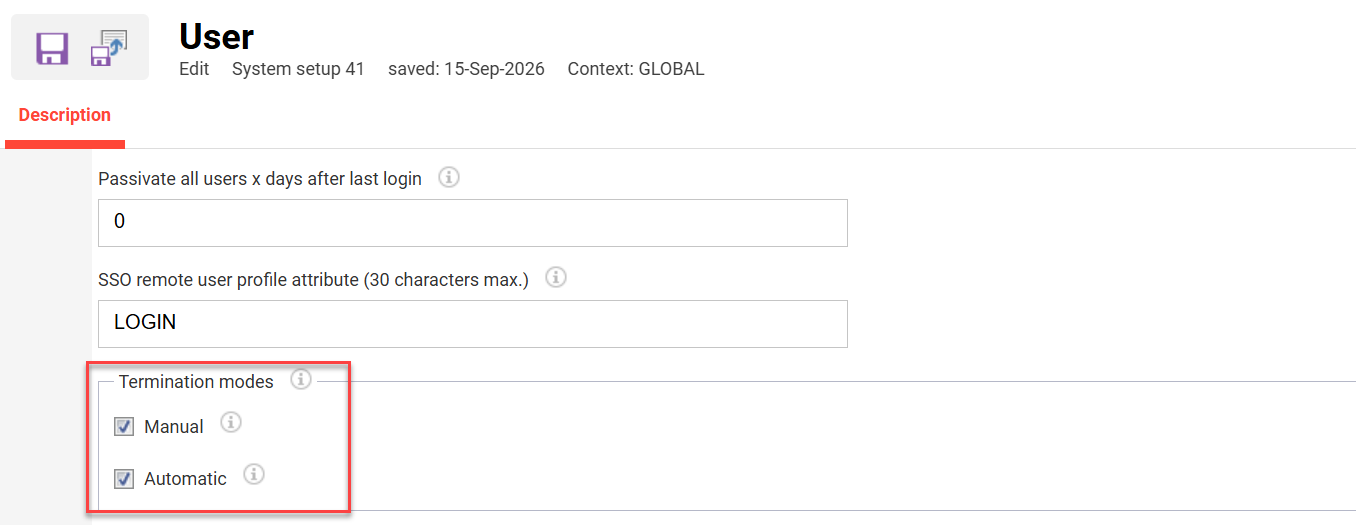
There are some system-wide configuration parameters that enable or disable manual and automatic termination modes. These are settings are contained in the Configuration function User menu in the Termination modes section.
Client Settings
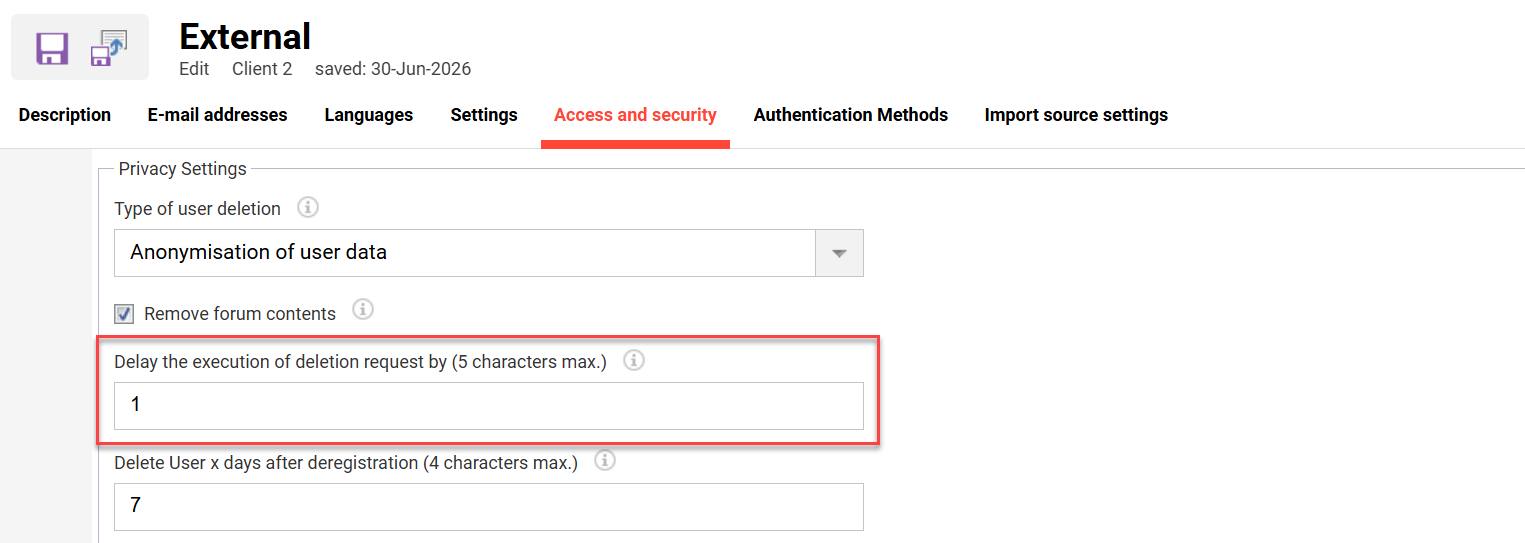
In the Clients function there is a setting per client that can delay deletion. Go to the Access and security tab where in the Privacy Settings section there is a Delay the execution of deletion request by setting. Here, a number can be entered representing months, to delay the deletion request of users in that client.
Schedule Cron Jobs
For the automatic deregistration and deletion workflows to work, two cron jobs must be configured. These are the TerminateUserJob and the DeleteUsersJob crons. As a system administrator, you can configure these in the Scheduled jobs function. The cron jobs can either be created to run manually or automatically by ticking the Planned task checkbox. Ideally the planned tasks run daily with the Cron expression* settings similar to the examples below: