
The Page Editor enables the creation of rich, customisable pages using configurable sections, columns, and in-page panels. Pages can contain text, media, image maps, and panels with design support from the Panel Manager.
Creating a Page
Pages are created and managed through the Dashboard Manager. Access control lists (ACLs) for each page are handled within the Dashboard Manager, following the same workflow as for dashboards. When editing ACLs are assigned for a page, edit rights for that page's in-page panels and view rights for standard panels are automatically granted
The live preview displayed in the page layout for the editing user is populated with data from the editing user's account.
Note:
-
the dashboard type in the dashboard pages manager is an internal dashboard.
-
creation of a page via duplication is not supported.
Page Layout
A page consists of one or more sections. The Page Layout Editor provides the tools for arranging content within these sections.
Page editor header
Each page in editing mode has a header with the following actions, from left to right:
-
Page title (set in settings)
-
Language dropdown list
-
page starts in the default language
-
The dropdown list shows the available languages in the system.
-
Changing the language allows the editing user to preview the final page in that language.
-
allows localization of in-page panels
-
-
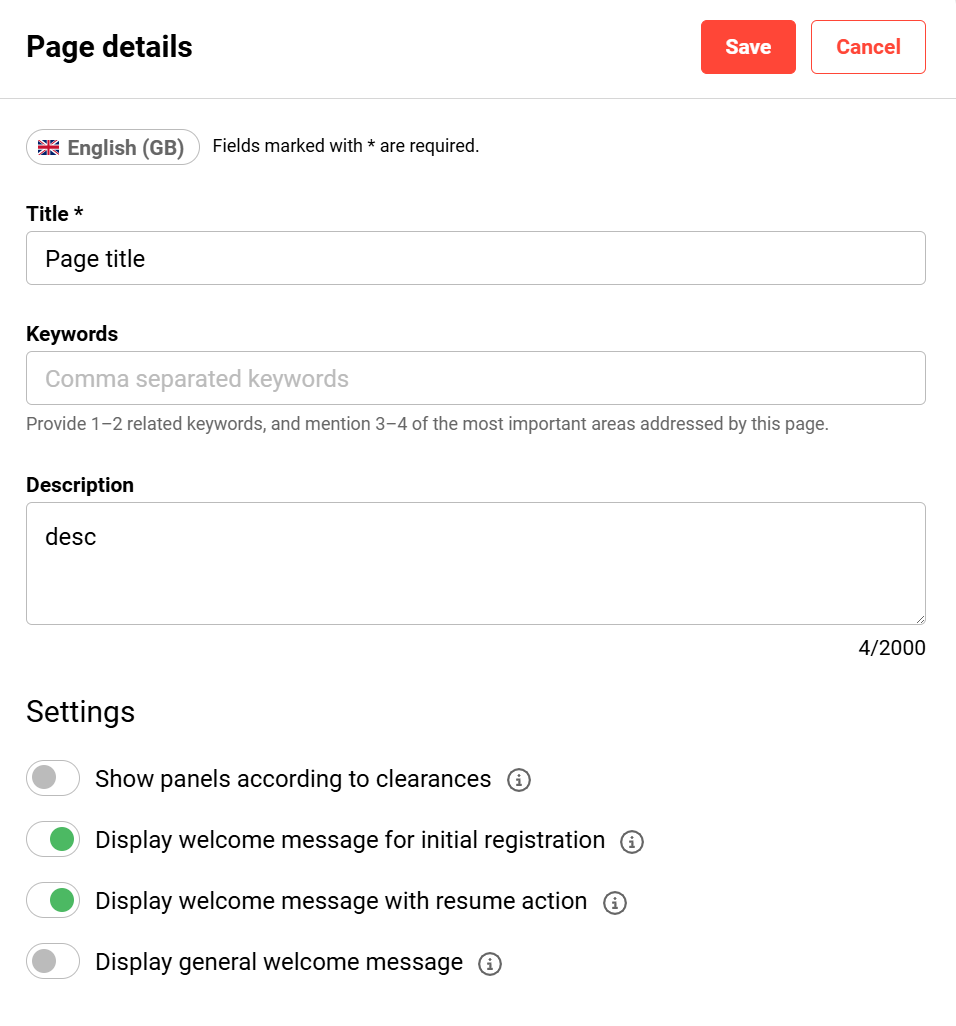
Page details/Settings
-
Title - the name of the page used in the dashboard pages manager
-
Keywords
-
Description
-
Show panels according to clearances - effect does not take place in editing mode
-
Display welcome message for initial registration - effect does not take place in editing mode
-
Display welcome message with resume action - effect does not take place in editing mode
-
Display general welcome message - effect does not take place in editing mode
-
-
Save and close
-
Cancel

Sections
Each section supports the following actions from left to right via the toolbar on the upper-left side:
-
Drag & Drop
-
For sections, the drag-and-drop functionality can be used to move a section up and down.
-
-
Section layout settings
-
one column
-
two columns
-
Three columns
-
One-third left
-
One-third right
-
-
Full width/section width
-
Delete the section

Columns
Each column supports the following actions from left to right via the toolbar on the upper-right side of the column:

-
Drag & Drop
-
For panels, the drag-and-drop functionality can be used to move a panel inside a section or to an empty column of another section.
-
-
Add/Remove visual wrapper
-
Panel settings - only available for in-page panels and a subset of standard panels
-
Language chip for the current language
-
Name
-
Description
-
Title
-
Displayed Infotext
-
Set as Global Panel - Make this panel available across multiple pages. Future edits will affect all pages using it.
-
-
Edit - only available for in-page panels and a subset of standard panels
-
Delete
Panel assignment
Panels are assigned to a page using the panel assignment drawer. Only panels with design support from the Panel Manager are available for assignment.
Panels configurable in the Page Editor
A defined subset of panels supports direct configuration inside the Page Editor through a configuration drawer. All other panels are configured exclusively in the Panel Manager. The following panel types support configuration directly in the Page Editor. Configuration changes that are saved via the drawer are directly updated in the panel manager as well and do not require the page itself to be saved.
-
Feature plugin panel
-
Entry in catalog
-
Current courses
-
Recommended learning
-
Mandatory courses
Each of these panels provides a filter option within the configuration drawer.
In-page panels
Within a page, in-page panels can be added to compose rich content around panels. The following item types are available.
Rich Text
Add and format text using the built-in rich text editor.
File Upload
Upload documents for display or download.
Image Map
Upload images, draw hotspots, and configure tooltips and links for interactive image maps.
Edit conflict handling
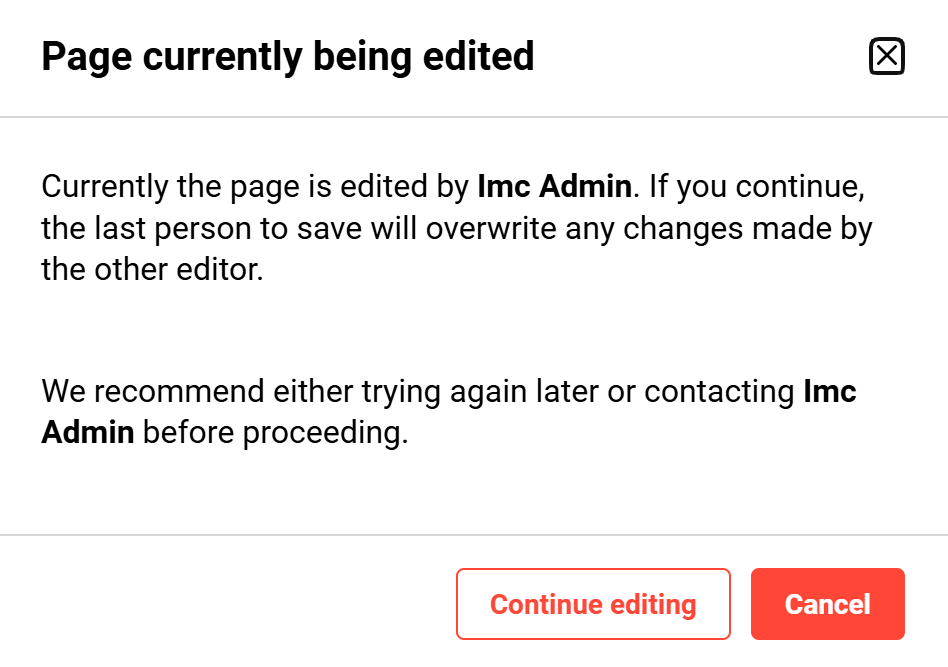
When a page is accessed through the dashboard manager or the editing URL, the system displays an edit conflict warning. This allows the second user to contact their colleague and align on which user continues editing. If more than one user continues editing the page at the same time, the last save overwrites the state of the page.
Multi-language Support
Panels configured in the panel manager
Panels configured in the Panel Manager support multiple languages. The page automatically displays the panel in the currently selected page language. The following steps are used to configure translations for a panel.
-
The Page Editor is opened.
-
The panel to configure is selected.
-
The page language is changed using the language selector at the top of the page.
-
The panel configuration drawer is opened; the active language appears as a language chip in the drawer header.
-
The translation for the selected language is adjusted.
-
Repeat for additional languages as needed.
In-page panels
Translations for in-page panels are initially generated based on the default language used when the page was created. The following steps are used to edit translations for in-page content.
-
Switch the page language at the top of the page.
-
Edit the text directly on the page in the selected language.
The active language is indicated by a language chip in the editor drawer.
Language handling summary
|
Panel type |
Where to edit |
Language selection |
How to adjust translations |
|---|---|---|---|
|
Panels configured in the Panel Manager |
Panel manager |
Follows the selected page language automatically |
Change page language, open panel configuration, edit translation |
|
in-page panels |
Directly on the page |
Based on the page's default language at creation |
Change page language, edit directly on page |
ACL considerations
In the Page Editor, users with page-editing ACLs can see all panels already added to the page, regardless of whether they hold direct ACLs on individual panels.
In view mode only: if a panel on a page is not available to a user due to missing ACLs, the system blocks the panel from view and displays an informational message explaining the restriction. This ACL behaviour applies at runtime in view mode only.
If the editing user does not have ACLs for a panel, the edit and settings buttons are greyed out and cannot be used.
Hints & Tips
-
-
Assigning one page per target group avoids missing columns caused by users who do not share the same panel ACLs.
-
The Feature Plugin Panels require adjustments in legacy configuration files when used in the Page Editor
-
For multi-language handling of in-page panels, finishing the layout and panel assignment in the default language before starting content localization is recommended.
Related functions and topics