
In addition to the featured highlights, there are many further improvements to discover in the product core modules. Core updates are listed by their category in the sections below:
Certificate Management
Certificate Validation Function
Overview: Course and Learning path certificates now have the option of including a QR code validation workflow. The update provides administrators with a new variable placeholder that can be inserted when creating or updating certificates. When the variable placeholder is inserted in a certificate, a QR code will be included on generation (assignment to learner). The QR codes can be scanned to check the validity of the learner's certificate to ensure details match.

Administrators can further decide via a checkbox in the certificate whether validation is publicly accessible or requires a login. This is possible via a new ‘Allow certificate validation access only for logged-in users’ checkbox when creating/editing certificates.
-
When ‘Allow certificate validation access only for logged-in users’ = false, the validation screen returns a publicly accessible validation page containing less information, excluding the Email Address information
-
When ‘Allow certificate validation access only for logged-in users’ = true, allows logged in users to access the validation page displaying all the information:
-
Certificate holder: user name
-
Learning object name: e.g. course name
-
Completion date of the corresponding certificate (Personal end date of the learning object (Course/Learning path))
-
Person ID
-
User’s Email Address
-
Object ID (Course/Learning path)
-
Benefits and Use Cases: Prevention and reduction of the risk of certificate duplication, falsification, and unauthorised transmission among users. Learners will be able to prove the authenticity of their certificates, when required, by using this configured QR code.
Audience: Learners, Auditors
Setup & Access: The QR code for certificate validation placeholder must be added on the certificate in order to have the QR code generated when it is downloaded. The QR code size can be configured via the Configuration manager in the PDF Export menu in the Define QR code size field (Default size 150 px).

Considerations & Limitations: Standard feature on Kubernetes architecture. The certificate validation is available for Course and Learning path certificates only. The validation screen will return initial data/info of the learner and also new data/info that changed since first generation.
Testing: In the Certificates and notification templates function create or edit a ‘Course certificate’. Go to the Content tab and click in the Content box. Populate the certificate with required details. Click the Insert variables icon to launch the pop-up and expand the User related folder. Highlight the QR code for certificate validation placeholder and click ‘OK’. Complete the certificate and Save a published version. Assign the certificate to a test course and release the course. In the Participant administration function, enrol a participant on the course and set their status to Concluded:Passed to award the certificate. To view the certificate, highlight the user and click the Certificate icon. The QR code will be included on the certificate and can be scanned with a mobile device camera. The validation screen will display details of the certificate; whether login is required depends on the ‘Allow certificate validation access only for logged-in users’ checkbox setting.
Risk rating: Low
Compliance Management
Recertification: Buffer Days per Template
Overview: This update relates to the Recertification Due Date workflow at Template level. An enhancement now provides a Buffer days setting that can be defined per rule set in the Participant administration function Automatic enrolment tab. Previously, the Buffer days setting could only be configured system wide in the Configuration function Enrolment menu.
Benefits and Use Cases: With the Buffer days setting on Template level, it is now possible to influence the date of enrolment per Template; which is calculated as ‘Next Due Date – Days to finish – Buffer days’. With this there is no need to have a high number of days to finish which gives users more time than need to do the course, because of the individual buffer days.
Audience: Compliance administrators
Setup & Access: The new Buffer days setting will be automatically available at Template level with the system wide default copied. This can be viewed in the Course templates or Learning path templates functions in the Participant administration view Automatic enrolment tab. The field is available editing an existing rule set and can be changed if needed.

Considerations & Limitations: Standard function on all systems. The system wide Buffer days setting default value will be populated in the new Participant administration function Buffer Days setting for existing rule sets. This means the value will match. After the patch is applied, changing the system wide Buffer days setting default value will not update existing rule sets.
Full details on Recertification can be found at Recertification.
Testing: As an administrator, go to the Course templates function and locate a template used for recertification. Access the Participant administration view for the template and go to the Automatic enrolment tab. When editing the rule set there will now be a Buffer days setting.
Risk rating: High
Course Management
Manual Update of Enrolment Data in Personal Syllabus
Overview: The Participant administration function for Courses and Course templates has been updated to improve the enrolment information editing options. In the Personal syllabus tab the editing options for Enrolment information now include the Identification field. Previously the Identification flag could not be set to advise if the course was mandatory or not.

The Identification field was previously only displayed when viewing the Enrolment information of automatically enrolled users.
Benefits and Use Cases: This update enables administrators to set an identification status when manually adding learners to the Personal Syllabus tab. Learners will be more aware of the expectations in relation to completing the course.
Audience: Administrators
Setup & Access: No update required as the change is automatically applied. Enabling editing of Enrolment information in the Participant administration function does require the Administrators may change enrolment data (10152) meta tag to be ticked. The default value for the Identification field will be “Optional” as per defining rules in the Automatic enrolment tab.
Considerations & Limitations: Available as standard and no migration is required. The Days to Finish field, as available in the Automatic enrolment workflow, has not been considered for the manual workflow. This is because no consideration of future enrolments is needed and the optional Due date field already exists.
Testing: As an administrator go to the Course templates function. Highlight a course template, click the Participant administration icon and select the Participant administration option. Go to the Personal syllabus tab and add a user. Highlight the user, click the Edit icon and select Enrolment information. In the pop-up there will be an Identification field that can now be edited.
The same testing can be applied in the Participant administration of Courses.
Risk rating: Low
Manage Course Restrictions by Learning Mode
Overview: The Easy Course Creator (ECC) has been enhanced to restrict displayed courses in the Manage courses function by their Learning mode. Essentially, it can now be configured which learning modes (multi-selection possible) are to be included for both the Manage courses and Course tutoring use.
Benefits and Use Cases: The update enables the prevention of undesired learning modes (e.g. Online) displaying in the Manage courses and Course tutoring functions. This can help keep a cleaner view to prioritise courses that are more important to manage in the simplified views.
Audience: Course administrators, Tutors and Supervisors
Setup & Access: This update is configurable in the Course creation workflow function. There is a new configuration option in the Entry point for Manage training to determine the learning modes.

Considerations & Limitations: The ECC functionality, although a core module, is not configured by default. Usage requires creation of the Simplified course creation default menus in the Navigation function. For Course templates and Courses to be visible in the ECC, the Usable for course creation workflow checkbox must be ticked on the Course template.
Testing: Provided that the ECC functions are already configured in the Navigation, go to the Course creation workflow function. Highlight a workflow and click the Edit icon. Go to the Entry point tab, highlight the Manage courses option and click the Edit icon. In the next screen, click the new Learning mode filter setting to select desired Learning modes. Provided the Manage training and Course tutoring menus are available and are linked to the workflow, the results will be restricted to only consider courses of the selected learning modes.
Risk rating: Low
Learning Path Cancellation Request Redirect
Overview: An update has been made to the Learning path self-cancellation request redirection. Previously, when a participant submitted a cancellation request from within the Learning path they would be redirected to the Learning status function. Now, the participant will remain in the same location from where the Cancellation request was submitted; e.g. the Description tab.
Benefits and Use Cases: Returning the participant to the same location makes more sense given cancellation is yet to occur. This will avoid any confusion where the participant may believe they are immediately cancelled.
Audience: Learning path participants
Setup & Access: The updated logic is automatically applied.
Considerations & Limitations: This logic is only updated for Cancellation requests.
Testing: Requires a Learning path where the Cancellation type (10038) meta tag is set to ‘Cancellation request’. Enrol a participant to the Learning path. Login as the participant and open the learning path. Click the Actions button and select the Cancellation request option. In the pop-up select reason or enter a comment and complete the cancellation request. At this point the redirect will remain either in the Description tab or Syllabus tab of the Learning path.
Risk rating: Low
Configuration Framework
Info Texts on the Different Sections in the PDF Export Menu
Overview: This update introduces three new info texts with instruction notes for the PDF export menu in the Configuration function. Each section has an icon i that you can click to display explanations for that section. These sections include:
-
Learner
-
Tests
-
Feedback forms

Benefits and Use Cases: Provides system administrators with explanations of the PDF export menu fields in the Configuration manager. This ensures System administrators are provided required information to understand how the options are used.
Audience: System administrators
Setup & Access: Not required. The changes are applied automatically.
Considerations & Limitations: The operating instructions ('i' buttons) are provided per section rather than per field.
Testing: As a system administrator go to the Configuration function and edit the PDF export menu. Here, each section has an icon i that you can click to open an info text about the corresponding section.
Risk rating: Low
Content Management
Easy Media Upload Time Zone Handling
Overview: The Easy Media Uploader has been updated to support defining Time Zones when creating Event media objects. This update essentially means the Time zone (11600) meta tag and Fix time zone for the learner (11630) meta tag can be displayed. Previously, the meta tags could be added to the Event media type and set to display, but would not actually show in the simplified Easy Media Upload view.
Benefits and Use Cases: This update is important for customers that deliver date-dependent training across multiple time zones. The settings ensure events can be created with participants displayed the correct time zone (not default) in which the event is being delivered.
Audience: Learners
Setup & Access: The display update logic is automatically applied with no migration necessary. What is required to see the meta tags in the Easy Media Uploader is:
-
The meta tags are configured in the ‘Event’ Media type.
-
Are configured in ‘Editable for medium' column to be ‘Editable’
Considerations & Limitations: Existing Event media objects previously created in the Easy Media Uploader will still display the default time zone. Updating the Time Zone of existing events will require editing the media objects and publishing a new version; whether the updated version is pushed to the course though depends on the various Update meta tag settings (e.g. Meta tags 10151, 11611, 11613).
Testing: First ensure the Event media type has the Time zone (11600) meta tag and Fix time zone for the learner (11630) meta tag configured. If so, as an administrator navigate to the Easy Course Creator (if configured) to create or edit a course. Go to the ‘Add content’ step and click the ‘Create content’ button. Click the ‘Event’ option and the Time Zone fields will be displayed.
Risk rating: Low
Global Search
Search to Index Learning Area
Overview: The global search has been extended to index content beyond Catalogues and Channels. This update additionally indexes content that the learner has relationships with in the Learning status (My learning) area. For example, the search now considers content in the learners assigned courses, course templates, and learning path courses where there is a learning status. The content area filter has been enhanced with a new Learning status filter in both quick search and advanced search.
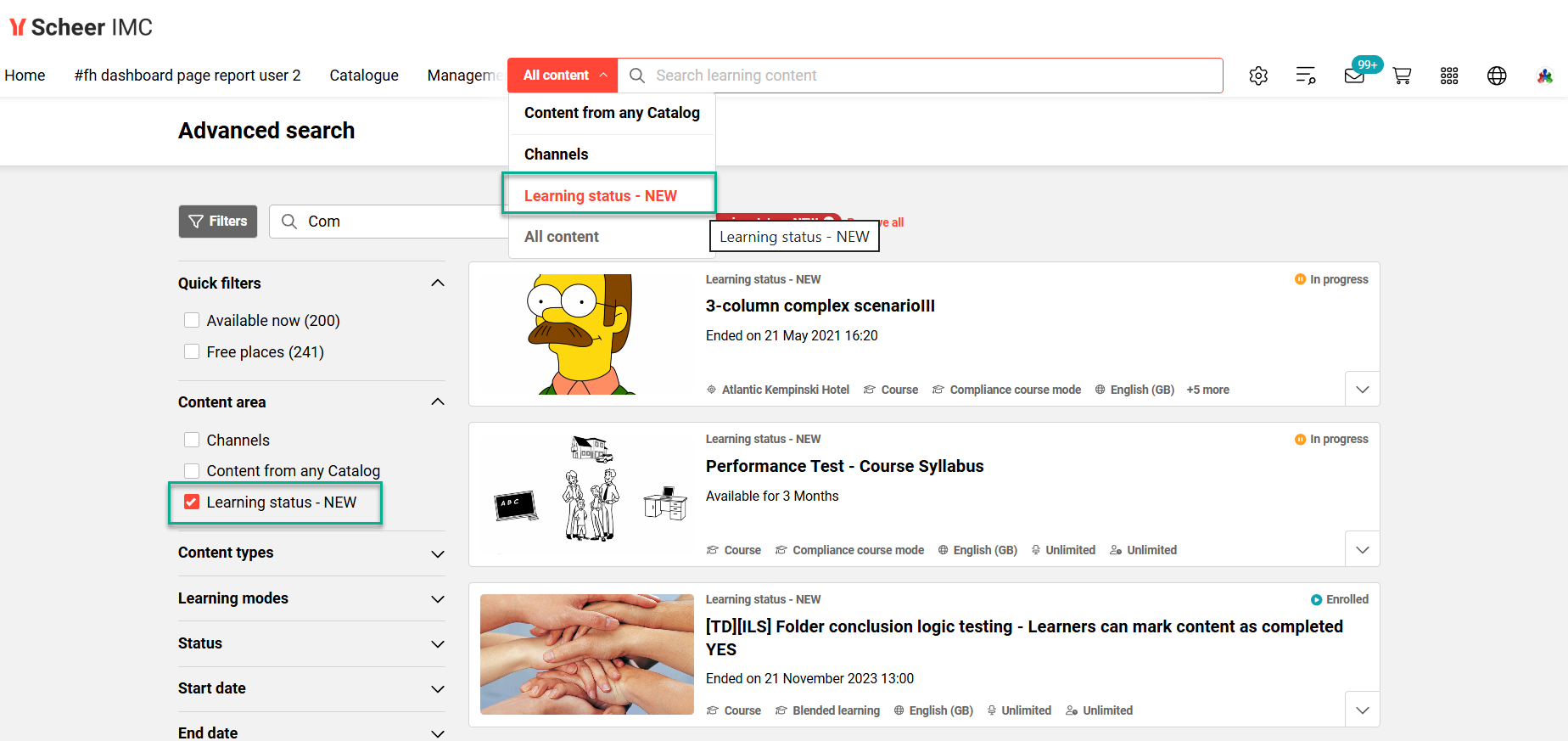
Benefits and Use Cases: Providing a deeper search area will ensure learners are able to search all content available to them. This is important as Learners often receive content (courses, media, learning paths) that are directly assigned and not available in catalogues or channels.
-
Improved discoverability: Learners can search for all content related to them, even if not in catalogues/channels.
-
Personalised search: New filters and status indicators (started, completed, etc.) make it easier to track progress.
-
Consistency: Content appears with the correct parent context (Learning Status, Catalogue, Channels) and breadcrumb navigation.
Audience: Learners
Setup & Access: A new imc-search-mylearning-plugin plugin in the Data Connector function enables administrators to choose if and when indexing processes. The plugin is automatically available and the default timing is daily at 11 pm.
Considerations & Limitations: The content contained in locked courses and learning paths will not be considered in the search results.
Testing: Requires the Global Search to be configured and available. Check the new imc-search-mylearning-plugin plugin is available in the Data Connector function. Testing requires conducting a search for a media object that is only available within a directly assigned course contained in the Learning area; not available in Catalogues or Channels.
Risk rating: Medium
Customer Specific Wording for Content Area Filters
Overview: The wording displayed in the Content area filters have been updated to utilise unique wording bundles per function. This has resulted in the following new System text function wording bundle strings:
-
Catalogue -> strPlatformSearchContentCatalog
-
Channel -> strPlatformSearchContentChannels
-
Course Template -> strPlatformSearchContentCourseTemplates
-
My Learning (Learning status) -> strPlatformSearchContentLearningStatus
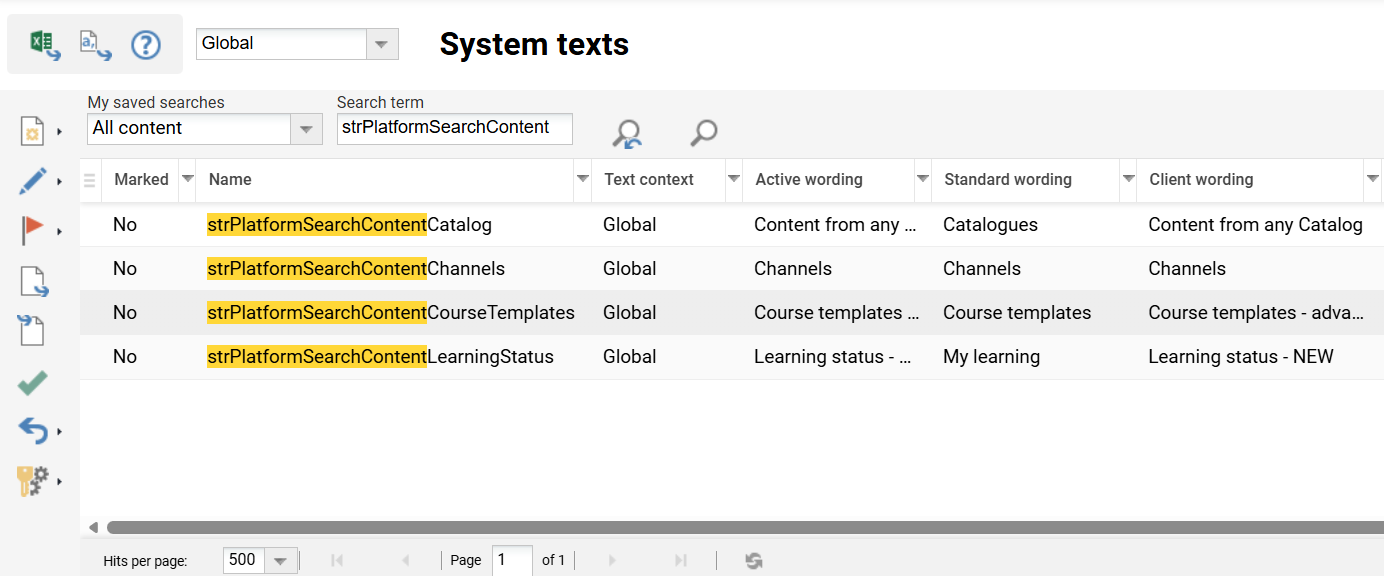
The following areas have been updated accordingly:
-
Name of content area filter on advanced search
-
Name of catalogues filter on advanced search
-
Name on tiles on advanced search
-
Multiple source links on advanced search
-
Content area filter on advanced and quick search
-
Name of course templates in content types
Benefits and Use Cases: As many customers use own terminology, it’s important that all wording remains configurable for consistency. This helps ensure that the users understand exactly where they are with:
-
Filters e.g. Catalogues, Content Area (adv. search)
-
Parent Breadcrumbs
-
Multiple Source Links
-
Quick search content area
Audience: Learners
Setup & Access: New system text bundles will be automatically applied to Catalogues, Channels, Course templates, and Learning status.
Considerations & Limitations: The new wording bundles relate to both standard and add-on modules.
Testing: In the System texts function the strPlatformSearchContent bundle strings can be edited with desired terminology, saved and activated. Then check that the new wording is visible within the various mentioned functions.
Risk rating: Low
Advanced Search Filter Ordering
Overview: The Global search Advanced search display has been updated to improve default filter ordering and display logic. This change ensures the most important filters (e.g. dates, status) are easily accessible without scrolling, even when many classification filters are added. For example, ensuring that the Start date filter and End date filter are displayed together.
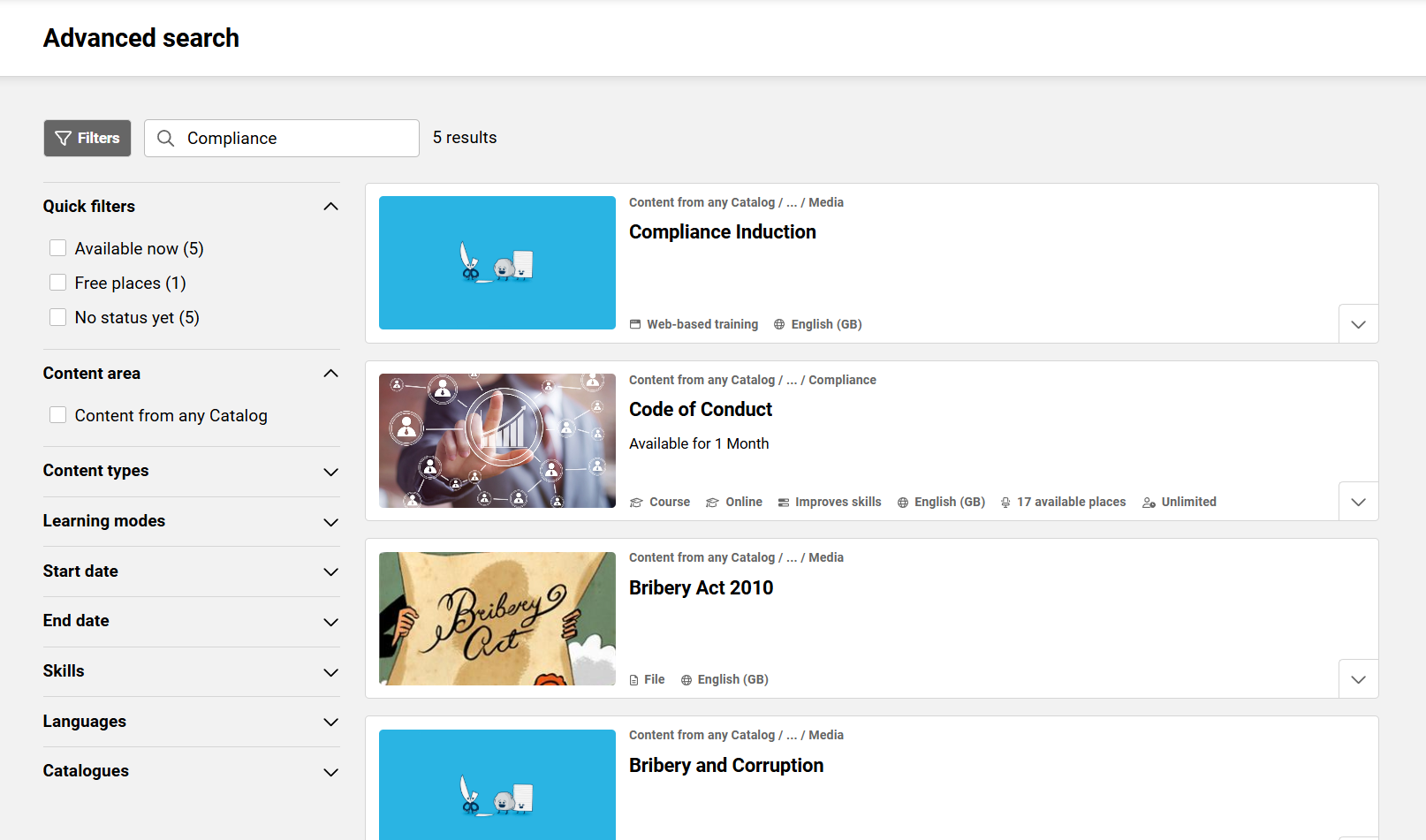
The default order of filters has been updated as below:
-
Quick filters
-
Available now
-
Free places
-
No status yet
-
-
Content area
-
Catalogue
-
Channel content (if active)
-
Learning status
-
-
Filters
-
Content types
-
Learning modes
-
Status
-
Start date
-
End date
-
Locations
-
Classifications
-
Skills (if active)
-
Languages
-
Catalogues (If only one catalogue is available, the Catalogue filter will not be shown)
-
Benefits and Use Cases: The changes improve user experience through more efficient searches. This is achieved by:
-
Reducing confusion and scrolling effort
-
Speeding up filtering
-
Ensuring quick access to key filters
Audience: Learners
Setup & Access: Not required. The filter ordering and the updated display logic are automatically applied.
Considerations & Limitations: The filter ordering is currently fixed. If a search returns no results, then no filters will be shown as there are no further filtering possibilities.
Testing: The testing of default ordering is only possible where new clients are created. The updated logic of hiding filters when there are no results can be tested by conducting a search that returns no results.
Risk rating: Low
Notification Engine
Learning Path Waitlist Notification
Overview: A new notification is available to inform waitlisted users when places become available. The notification is called Standard notification to learners on waiting list if there are places available and has ID 166.

Benefits and Use Cases: Better automated handling enrolment process for Learning paths to match Course workflows. Waitlisted users for Learning paths will be automatically informed when places become available.
Audience: Waitlisted Learners on Learning paths
Setup & Access: The notification is automatically available in the Notifications function, initially in an ‘Inactive’ state. The notification is located in the Learning path folder > Notification related to learning path start folder > Notification to learners on waiting list if there are places available folder. To utilise tick the Active checkbox and Permit external forwarding checkbox.
Considerations & Limitations: The Move up automatically (10037) meta tag in the context of the waiting list will not be supported as this is an automatic process that is incompatible with the manual payment process. Where a course requires payment, adding items in the Shopping cart does not reserve the course as successful payment is required completed. Users still need to go through the normal process and will be first come first served.
Testing: Requires a Learning path to be created with a Maximum capacity defined and waitlist enabled without the Move up automatically workflow. The new notification requires activation. Triggering the notification will require filling all available places with participants and adding at least one test user to the waitlist. When a space becomes available (e.g. cancel a user or increase capacity) the notification will send to the waitlisted user/s.
Risk rating: Low
Account Related Notification Migration
Overview: This update sees three further account registration related emails transferred from the global System texts function to the Notifications function. The notifications include:
|
ID in System texts |
Name in System texts |
ID in Notifications |
Name in Notifications |
|---|---|---|---|
|
70000 |
Employee registration request with personal information |
165 |
Standard notification for manager |
|
70002 |
Successful registration confirmation with login credentials |
167 |
Standard notification for sending login information |
|
70008 |
User requested account activation |
168 |
Standard notification for activation request |
Configuration per client will be possible through duplication of notification and adaptation of Client filter settings.

Benefits and Use Cases: Migration of these System text bundles to the Notifications function provides a more intuitive administration experience, improved editing options, and multi-client configuration capability. In multi-tenant environments, each client often requires tailored communication during user onboarding. Previously, confirmation email texts triggered by self-registration were managed globally, limiting the ability to customise messaging per client.
Audience: System administrators
Setup & Access: Each notification will require individual configuration and activation per client as explained below:
-
Notification 70000 - Employee registration request with personal information - The notification is sent only if the Client setting Display function for self-registration in the portal = enabled.
-
Notification 70002 - Successful registration confirmation with login credentials - The notification is sent only if either the Login or Password generator is used and the Client setting Send login data = enabled.
The notification is triggered when, on the self-registration page, the following conditions apply:-
LOGIN (username) field is not available as a personal attribute, OR
-
PASSWORD (and PASSWORD_CONFIRMATION) fields are not available as personal attributes.
-
-
Notification 70008 - User requested account activation - The notification is sent only if the following client settings are enabled:
-
Enable activation workflow for self-registration = enabled
-
Email to the administrator responsible for the registration = enabled.
-
If any of the above settings is disabled, the notification is not sent.
-
Notification is triggered after a user completes the self-registration process and requires activation.
-
If requiring client-specific notifications, duplicate a notification to create a client-specific version using the Client filter.
Considerations & Limitations: These notifications have only been migrated from the global System text function to the Notification function for systems where the ‘Multi-client context’ is activated. The active systems texts have been considered so that existing customers are not affected by this change. As with all notifications there is no Clearance (ACL) per notification.
Testing: As a System administrator go to the Configuration function and edit the Client menu to check if the Activate multi-client context checkbox is ticked. If ticked, go to the Notifications function and expand the new Account Activation Process folder. Check that the emails previously configured with system texts between 70000, 70002, and 70008 are available. Check the settings to ensure all Clients are considered by default.
Risk rating: Medium
Ad-hoc Messages to Message Monitor
Overview: This update provides the ability to view ad-hoc messages in the System messages function and the Message monitor function of Courses/Learning paths. These are messages that can be directly created by the administrators in the Participant administration function to be sent to selected participants. All messages are displayed in chronological view and recipient based view. The stored ad-hoc messages include the following:
-
Course template Participant administration function in System messages:
-
List of pre-bookings
-
Personal syllabus
-
-
Course and Learning Path Participant administration function in System messages and the object specific Message monitor:
-
Participant list
-
Waiting list
-
Request list
-
Cancellation list
-
Personal syllabus
-
-
Course instruction in System messages and the course Message monitor
Benefits and Use Cases: Provides a recorded history of messages that were sent to participants for Courses, Course Templates and Learning Paths available. This is helpful for serving as evidence or resending if required.
Audience: System administrators
Setup & Access: This update will require activation in the Configuration function Communication/Mail menu by ticking the Display ad-hoc messages in the message monitor checkbox.
Considerations & Limitations: When enabled, only future ad-hoc messages that have the object context and will appear in the message monitors. The checkbox is only for displaying the messages in the monitors. If the checkbox is ticked then unticked this does not influence the entries being recorded.
-
Messages sent from Staff pool and Users functions are not considered for the message monitor.
Other areas not mentioned are also not considered. -
Replies to ad-hoc messages are not displayed in the message monitor.
Testing: Firstly, enable the new Display ad-hoc messages in the message monitor setting. Then as an administrator, open the Participant administration function for a Course or Learning path. Highlight a participant and click the Send message icon. Write a message and click the Send button. Check both the Message monitor and the System messages functions to ensure the recording has occurred.
Risk rating: Low
New Course for Pre-booking Filter Update
Overview: The Standard notification to the new available courses (ID 49) notification has been updated to improve filtering. This notification is used to alert pre-booked participants on course templates when new courses become available. Previously, filtering using the Planning status attribute considered the value contained in the Course template. The logic has now been updated to now consider the Planning status (10072) meta tag value of the newly created course.
Benefits and Use Cases: Administrators are able to better automate notifications to pre-booked participants of course templates when new courses are actually ‘Released’. The use of the ‘Released’ Planning status filtering enables participants to immediately receive a notification advising of a course where they can actually enrol; this is not possible when the planning status is Fixed, Locked, Concluded and/or Cancelled.
Audience: Pre-booked Learners
Setup & Access: The updated logic is automatically applied. To apply the updated filter follow these steps:
-
In the Notifications function expand the Course template folder.
-
Expand the New course available for pre-bookings folder.
-
Edit or Duplicate the Standard notification to the new available courses (ID49) notification.
-
In the Filter tab click the Add icon and select the Add attribute option.
-
In the pop-up window select the Planning status field and click OK.
-
In the next pop-up define the parameter as Released and click the OK buttons.
-
Save the notification and ensure the Active checkbox is ticked.

Considerations & Limitations: The Planning status attribute filter logic change is automatically updated. The Planning status filter though is not aded by default in the standard notification. This is not a new notification and only an updated filter possibility.
Testing: Requires either editing or duplicating the Standard notification to the new available courses (ID 49) notification and in the Filter tab adding an Attribute condition where Planning status is “Released”. After saving the notification will need to be activated by ticking the Active checkbox. Triggering will require pre-booking a user on a course template and then creating a new course from the course template; ensuring the course Planning status meta tag is set to ‘Released’.
Risk rating: Low
Send E-Mail CC Fields in Participant List
Overview: New CC fields have been added to the Send e-mail icon pop-up window in the Participant administration function. The new field enables the ad hoc emails that can be sent to participants, to additionally include the participants' BU group superior/s and direct superior (email relationship). Previously, it was only possible to additionally CC the course tutors.
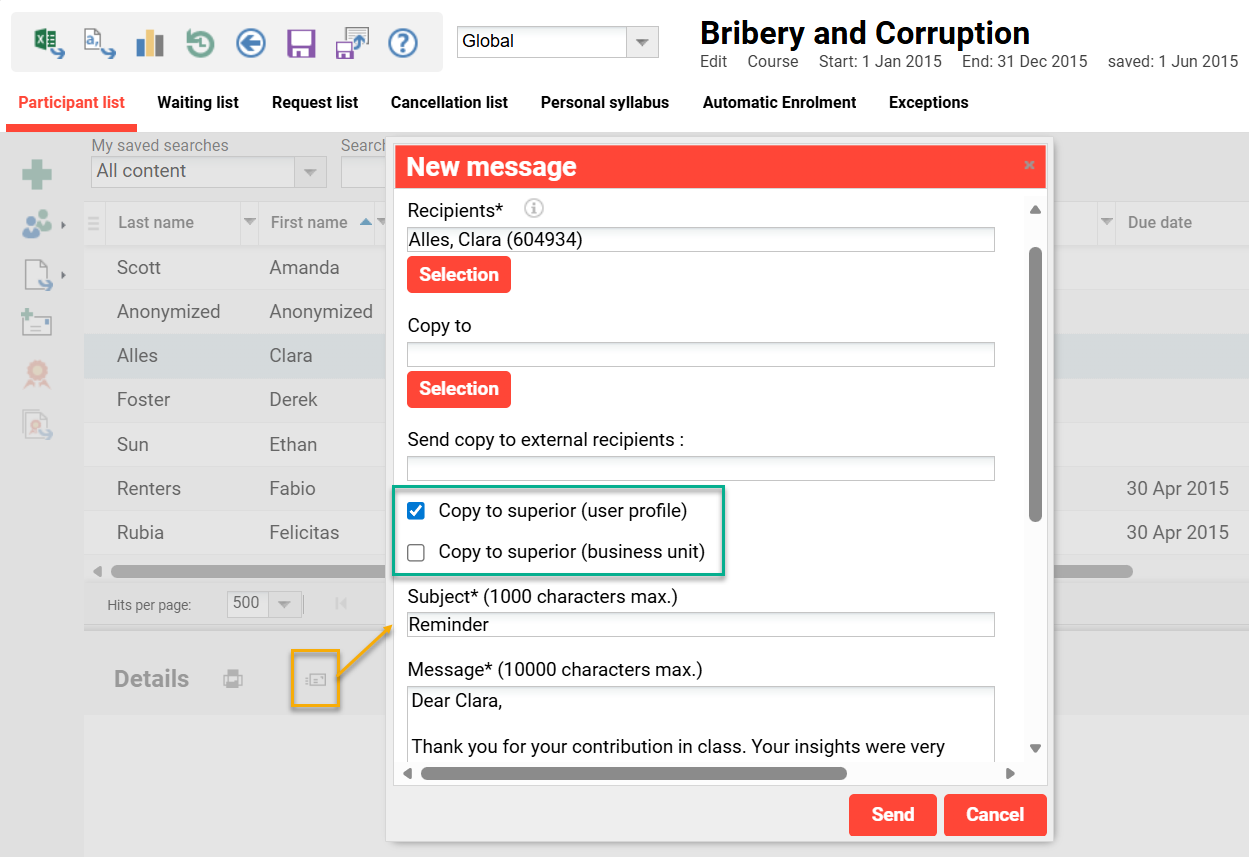
Benefits and Use Cases: Course administrators can include the participant’s supervisors on important emails. This can ensure supervisors are aware of important communication related to their training; especially for systems where not all participants actually have email addresses.
Audience: Course administrators and Supervisors
Setup & Access: The new checkbox fields will be automatically available in the Send e-mail pop-up window.
Considerations & Limitations: Standard feature where the default value for the new fields will be unticked.
Testing: Log in as an Administrator and navigate to the Courses function. Highlight a course and open the Participant administration menu. In the Participant list tab highlight a participant and click the Send e-mail icon. In the pop-up window there will be two new fields at the bottom; 1) ‘Copy to superior (user profile)’, 2) ‘Copy to superior (business unit)’. Ticking the checkboxes will CC the participant’s supervisors when sending the ad hoc email.
Risk rating: Low
Announcements ‘Do not show again’ Column
Overview: The Announcements manager has been updated with a new Do not show again column. Displayed values will be either ‘Active’ or ‘Inactive’ and will be displayed as icons; this matches the Mandatory agreement column. The new column can be added, moved, removed from view, and sorted.
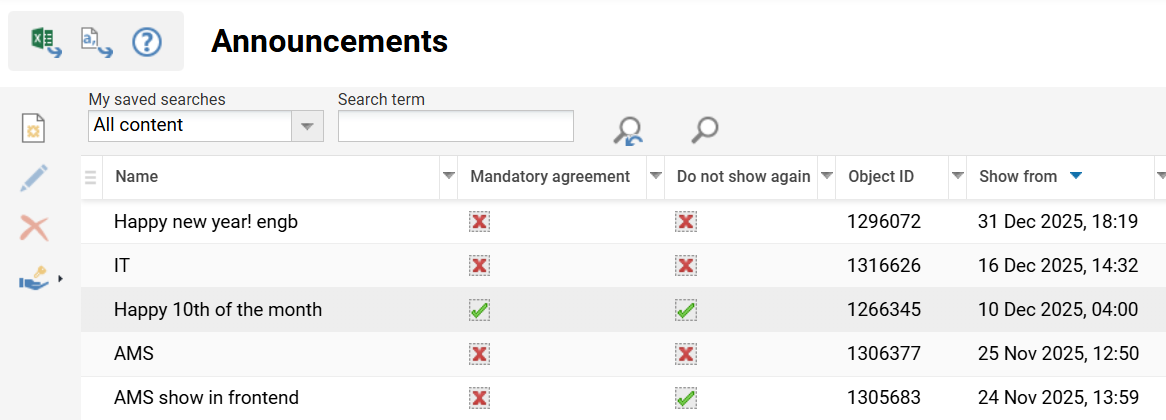
Benefits and Use Cases: The addition of the new column enables administrators to receive a quick overview of which announcements have the Do not show again option enabled.
Audience: Announcement administrators
Setup & Access: The new column is automatically available.
Considerations & Limitations: The Announcements function although standard may not be configured on all systems. If required, this can be configured by creating a new menu in the Navigation function.
Testing: As an administrator access the Announcements function and check for the new Do not show again column. Test moving, sorting, and removing the column.
Risk rating: Low
Mandatory Announcement Updated Display Logic
Overview: The display logic has been updated for announcements where the ‘Do not show again’ checkbox = ‘true’ and the ‘Mandatory agreement’ checkbox changes from ‘Unticked’ to ‘Ticked’. In this case, users who have previously checked the Do not show again option will again be presented the announcement. This is because the mandatory agreement condition has changed.
Benefits and Use Cases: Users that have previously flagged announcements as ‘Do not show again’ will again be presented should the Mandatory agreement checkbox be later ticked. This ensures all users will be presented important announcements and need to agree once mandatory.
Audience: All users
Setup & Access: Not required, the updated display logic is automatically applied.
Considerations & Limitations: None
Testing: As an administrator go to the Announcements function. Create an announcement with the ‘Do not show again’ checkbox = ‘true’ and the ‘Mandatory agreement’ checkbox = ‘false’. Log out and then log back into the system. When the announcement pop-up is presented on a dashboard page, click the ‘Do not show again’ option and close. Go back to the Announcements function and edit the same announcement to set the ‘Mandatory agreement’ checkbox = ‘true’. Once again log out and then log back in. On a dashboard the announcement will once again be presented and must be agreed to. If clicking ‘Do not show again’ the announcement will no longer be presented as it has been agreed to.
Risk rating: Low
Open API (Web Services)
REST API Meta Tag Update
Overview: An update has occurred with the REST API to enable retrieving and updating of ‘Hidden’ meta tags in course objects. Previously, the REST API only enabled retrieving and modifying meta tags that were set to ‘Editable’ in the back-end.
Benefits and Use Cases: The update allows the REST API to update any available meta tag on the Course instance and Course template, regardless of the back-end editability setting. This enables:
-
Hidden course template meta tags that can be controlled via REST API (e.g. custom interfaces)
-
Meta tags only editable at Course template level to ensure the Course instance level reflects values defined in Course templates.
Audience: REST API administrators
Setup & Access: The update is applied automatically.
-
Parameter ?showHiddenMetatag=true/false can be used with the GET calls for courses and course templates.
For PUT call for course templates there is no parameter needed as the hidden meta tags will be updated if they are configured in the body of the call. -
Parameter ?updateHiddenMetatag=true/false can be used in the PUT call to update courses.
Considerations & Limitations: The REST API is a standard available function.
Testing: The updates apply to the following REST API endpoints:
-
Get instance (view an hidden metatag with a value)
GET /ils/restapi/lms/coursedefinitions/{{courseComponentId}} -
Update instance (set value to hidden metatag)
PUT /ils/restapi/lms/coursedefinitions/{{courseComponentId}} -
Create instance (set value to hidden metatag)
POST /ils/restapi/lms/coursedefinitions/{{courseComponentId}} -
Get template (view an hidden metatag with a value)
GET /ils/restapi/lms/coursetemplate/{{templateObjectId}} -
Update template (set value to hidden metatag)
PUT /ils/restapi/lms/coursetemplate/{{templateObjectId}} -
Create template (set value to hidden metatag)
POST /ils/restapi/lms/coursetemplate/{{templateObjectId}}
Risk rating: Low
Organisation Management
Target Group Type of Role
Overview: Target groups have been updated with the Type of role field. This update matches the functionality of System and BU groups to enable automatic granting of clearances to objects created by the group members. There are two possible values:
-
Standard: No additional functionality
-
Content administration: Grants ‘Owner/Unrestricted rights’ clearance to the target group on objects created by the group participants.
Benefits and Use Cases: Setting the Type of role field to Content administration can enable specific groups to automatically grant clearance for objects created by the group’s members. The key benefit is the inclusion and excluding rules are ideal for automating assignment of users to such access groups. For example, a target group can be used to create specific administration groups like location-based training teams.
Audience: Administrators, Target group members
Setup & Access: No setup is required, as the Type of role field will be automatically added to target groups. Activation is optional per target group.
Considerations & Limitations: The Type of role field will be defaulted to be Standard meaning no clearances are automatically assigned. Once the Content administration option is set, clearance will only be granted to newly created objects; this means clearances of pre-existing object will not be updated.
Testing: As an administrator create or edit a target group in the Organisational structure and groups function. Set the Type of role field to Content administration, add required rules/conditions and click the Save & back button. Highlight the target group and click the Start target group generation icon. If the expected users have been assigned, click the Edit icon and select the Final version option. Login as a user that is assigned to the target group and create an object (e.g. a media object). Once the media is saved, check the Clearance and the target group will be in the list with Owner/Unrestricted rights.
Risk rating: Low
Enrolment Status Condition for Target Groups
Overview: Target group creation rule conditions have been enhanced to consider all enrolment statuses. Previously, it was only possible to form target group conditions based on the course or learning path Passed enrolment status. The enhancement introduces a new radio button option in target group creation that enables selecting specific enrolment statuses. Users meeting the selected statuses at the time of processing will be included to, or excluded from, the target group.
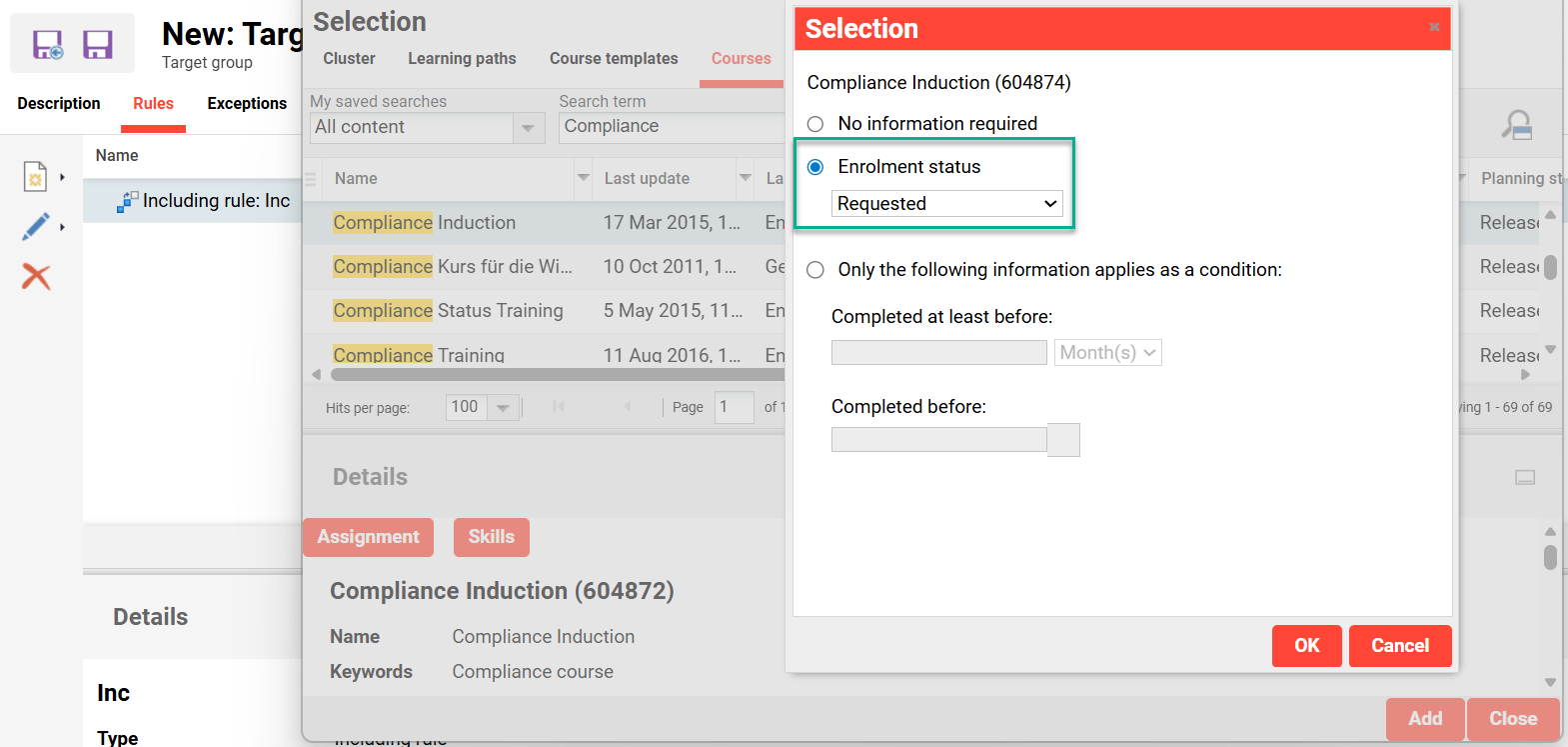
Benefits and Use Cases: Administrators will have greater flexibility with rules by considering more detailed enrolment/booking statuses. This will allow better targeting of users based on training statuses. Administrational effort can additionally be reduced by eliminating the need of manually identifying, tracking and assigning learners with NotPassed statuses.
Audience: Administrators
Setup & Access: The new option is available automatically. To utilise the new option:
-
Go to Organisational structures and groups function.
-
Create a Target group.
-
In the Rules tab create an Including rule.
-
Create a Condition.
-
In the pop-up select either the Course or Learning path tab and select an object.
-
In the second pop-up will be the Enrolment status radio button.
When clicked, a single-select drop-down list will be enabled.
Considerations & Limitations: No rules of existing target groups will be impacted. Where a target group needs to consider multiple enrolment statuses or courses/learning paths, this can be achieved using multiple rules which serve as ‘Or’ conditions.
Testing: Requires the creation of a new target group
Risk rating: Low
Reporting Engine
Report PDF Export Option
Overview: A new Full export to PDF option is available on all standard on-screen reports. This will export the full table data of the report to PDF.
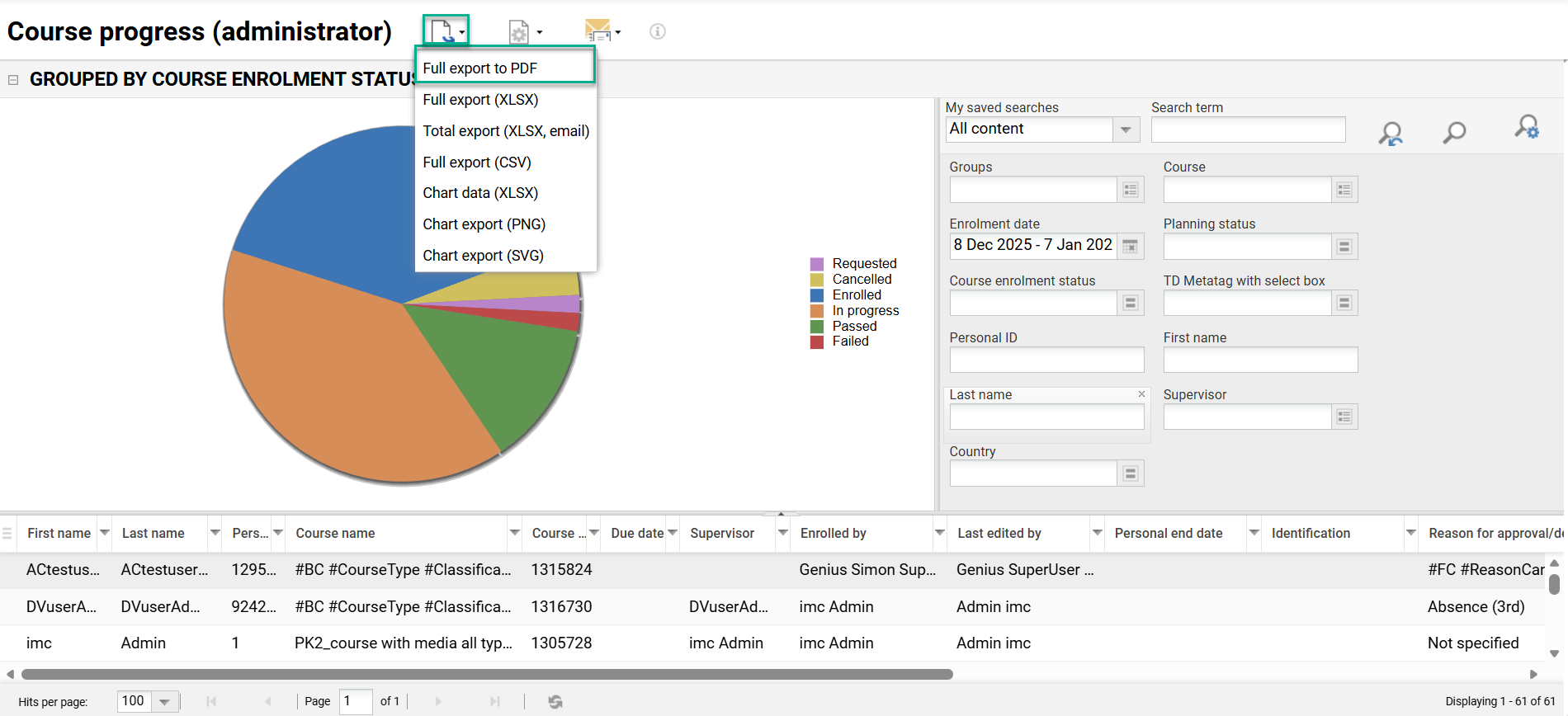
Benefits and Use Cases: Enables exporting of reports in non-editable format instead of Excel. This is ideal for auditors who require non-editable formats.
Audience: Administrators
Setup & Access: No setup required. The new option is automatically available below the Export icon in all on-screen reports.
Considerations & Limitations: Standard feature on Kubernetes architecture. The Full export to PDF option is not available for Wizard Reports.
Testing: Go to the Admin category Reports menu and open an on-screen report. Clicking the Export icon will show the new Full export to PDF option.
Risk rating: Low
Learning Path Courses Column Value Update
Overview: In the Learning path courses reports there were many unused values in the optional Status of learning path enrolment filter. The unused statuses have now been removed with only the Enrolled, Passed and Failed statuses remaining.
The following filter statuses have been removed:
-
On the wish list
-
Requested
-
Waiting
-
Cancelled
-
Deleted
-
In progress
-
Concluded
-
Deleted
-
Concluded
-
Personal Syllabus
-
Reserved for Waiting list
The updated reports are listed below:
-
Learning path courses (administrator)
-
Learning path courses (supervisor)
-
SOLR Learning path courses (administrator)
Benefits and Use Cases: This update removes confusion by ensuring report administrators only see valid statuses (Enrolled, Passed, Failed). These are the statuses that will actually impact and return results when filtering the report.
Audience: Learning path administrators
Setup & Access: Not required. The update is automatically applied.
Considerations & Limitations: None
Testing: In the Admin role, access the Reports menu and open any of the Learning path courses reports. Maximise the search filters by clicking the Minimise/maximise icon. If the Status of learning path enrolment filter is not visible, click the Manage search settings icon and select Add search criteria. In the pop-up, highlight the Status of learning path enrolment entry and click the Add button. Close the pop-up and click the Status of learning path enrolment filter. In the filter, there will only be three status options to select.
Risk rating: Low
Notification for Report Subscription Management
Overview: A new notification can be enabled to alert administrators who setup Report subscriptions for staff. This notification is triggered whenever a report is sent to subscribers they setup. Administrators are able to define the text of the notification and duplicate with specific filtering (if required). Each notification for the sent subscribed reports can also be configured (active/inactive).
Benefits and Use Cases: Administrators can be regularly alerted when report subscriptions they setup are distributed. This helps ensure that administrators are better aware of the active subscriptions to ensure appropriate users are receiving reports.
Audience: Report administrators
Setup & Access: The new notification is automatically available in the Notifications function in an inactive status. To activate, go to the Notifications function and expand the Report folder. The report is then contained in the Notification for sent subscribed reports folder and is called ‘Standard notification for sent subscribed reports’. The report can be activated by ticking the Active checkbox.
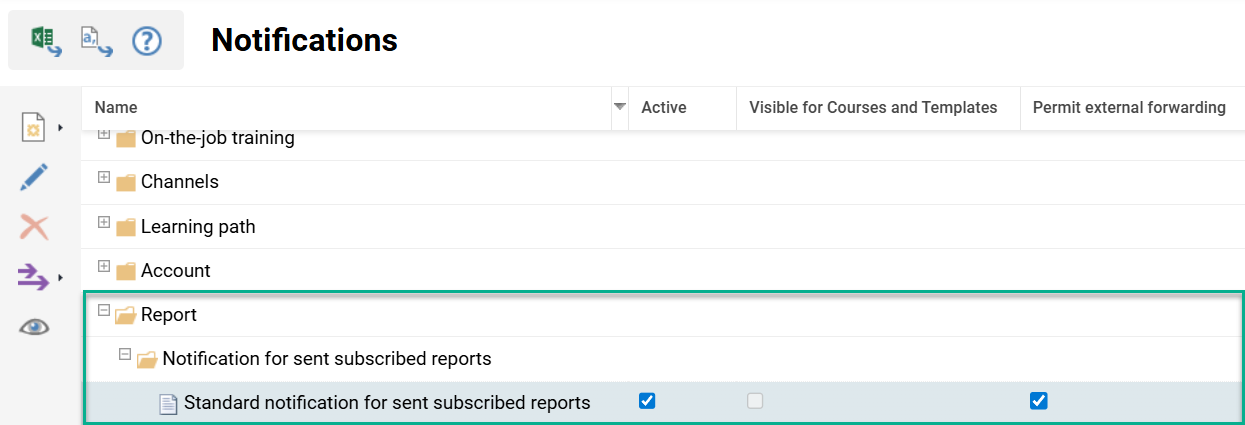
Considerations & Limitations: The Report subscription function is available as standard on Kubernetes architecture. The notification considers all report subscriptions setup by the administrator without report specific filtering.
Testing: First requires at least one subscription to be configured in the Report subscription for employees function. In the Notifications function expand the Report folder and then expand the Notification for sent subscribed reports folder. Highlight the ‘Standard notification for sent subscribed reports notification’ and tick the Active checkbox. The next time the Notifications scheduled job processes a notification will be emailed to each administrator; this is on the basis that there’s been subscribed reports sent.
The Report subscription for employees menu might require configuration in the Navigation function. This feature was introduced with IP14.26 and was not automatically created for existing customers.
Risk rating: Low