
Deep Dive: Understanding Access rights and Clearances
Access Control List Overview
The imc Learning Suite has comprehensive Access Control List (ACL) functionality that allows you to define granular permissions to both functions and objects. A function is essentially any menu in the navigation and objects are anything that can be created within or assigned to these functions. To differentiate the ACL permissions for functions and objects, the imc Learning Suite uses the terms Access rights and Clearances. Ensuring all system roles (Learners, Managers, Tutors, Administrators etc.) have the correct combination of access rights and clearances to required objects is a vital aspect of configuration.
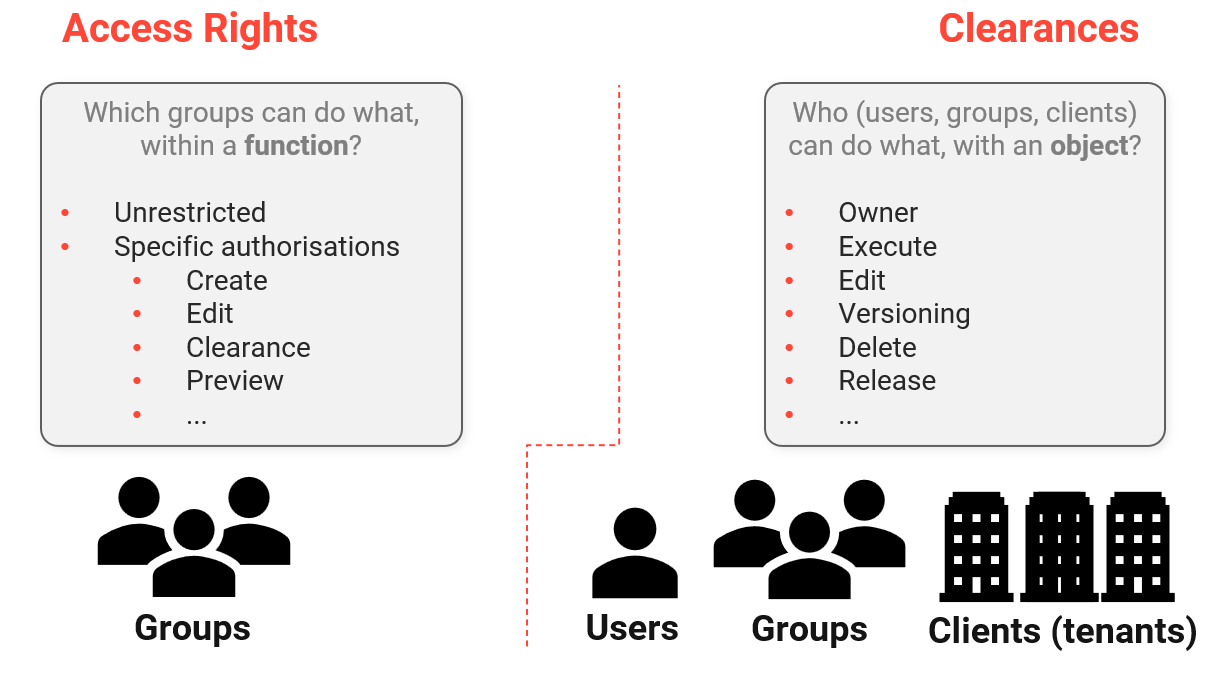
This article explores each of these terms in detail including their possibilities.
Access Rights
With Access rights, you can grant Groups permissions to access navigation menus. This is a key configuration when you setup system roles. The level of access rights granted for each function can either be configured as:
-
Owner/Unrestricted: Group members receive complete access to all sub-functions.
-
Specific authorisations: Group members receive restricted access to selected sub-functions.
This list will change per function depending on the available sub-functions.
The use of specific authorisations enables you to define granular access to control the actions within a function that each group can perform. For example, in the Course templates function you could allow a group to create and save a new template as a draft version, but not release a published version.
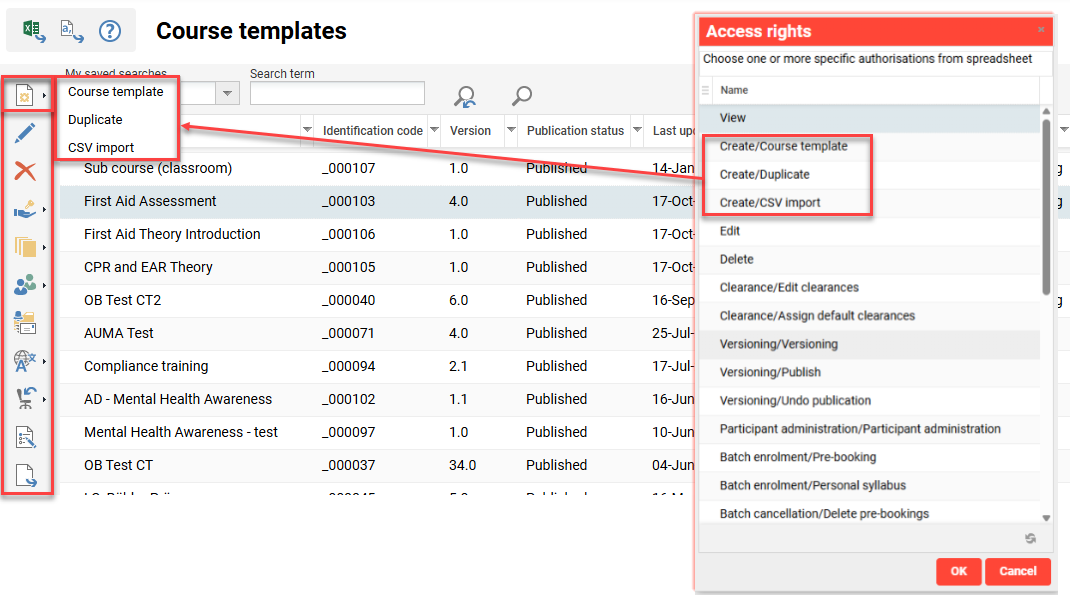
When configuring access rights, you can either do this in the Navigation function or in the Organisational structure and groups function. Each approach is described below:
Navigation Access Rights
In the Navigation function, when you create or edit a navigation point there is an Access rights tab. Here, you can add Groups and decide whether the Owner/Unrestricted or Specific authorisations access is granted. This access configuration approach is ideal when you create a new navigation menu or need check which groups have access to a menu.
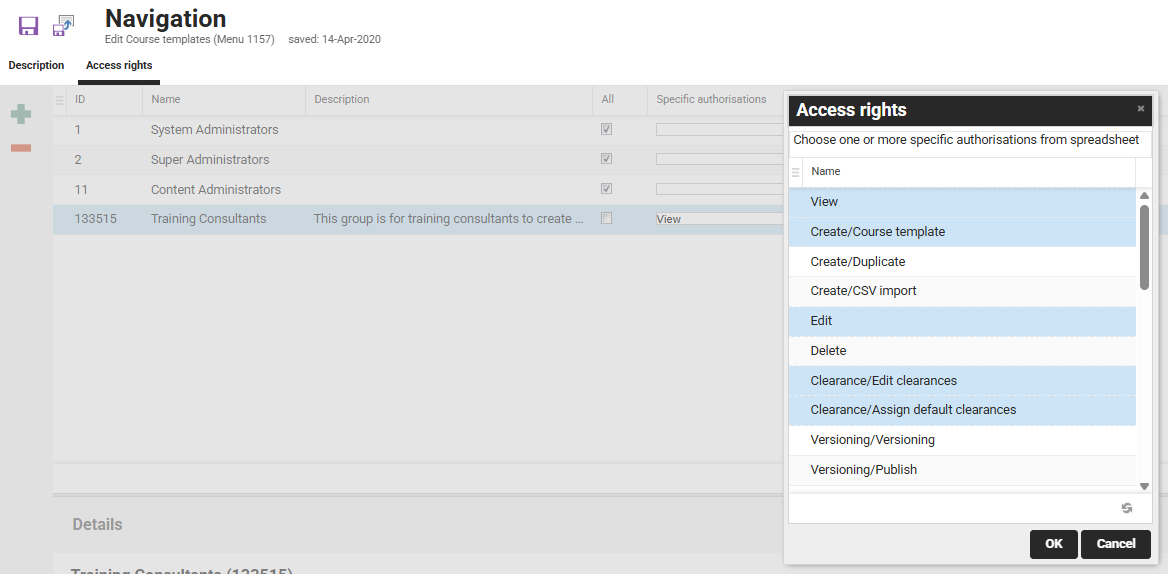
The groups displayed when Adding are based on also Clearance.
Group Access Navigation and Functions
In the Organisational structure and groups function, there is an Access navigation and functions icon. When you highlight a single group, this icon allows you to bulk grant access rights to navigation functions.
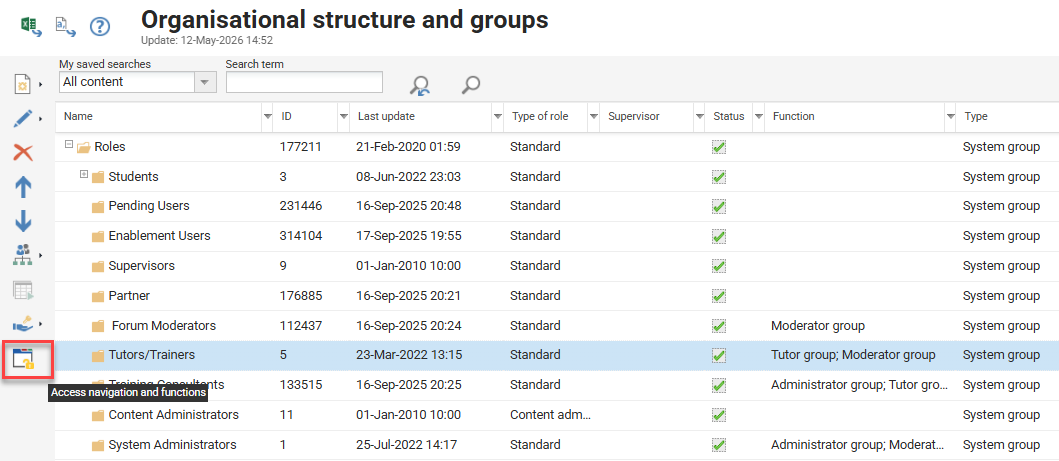
Once clicked, the new tab will display a representation of the system navigation with an All and Specific authorisations columns. Ticking the All column is used to grant full access rights to selected navigation categories, structures, and menus. Whereas, ticking the Specific authorisations checkbox allows selecting one or multiple authorisations in a pop-up window by holding the ctrl key.
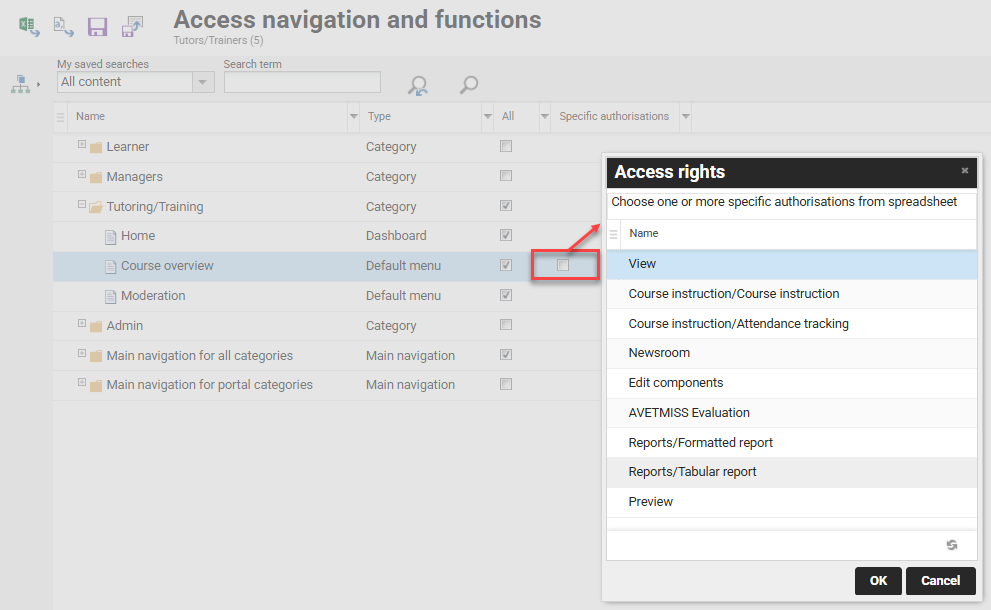
The navigation menus are displayed in their structure and only show if you have Clearance. This prevents an administrator from being able to provide access rights to a function they have no clearance for.
Clearances
Access control for objects is governed by the Clearances function. Clearances regulates the level of access your individual users, groups and/or clients have to any object. An object can be many things including media content, courses, templates, notifications, wording, dashboards, panels, catalogues, groups, reports, users, and even navigation objects (backend). Different types of objects contain varying clearance possibilities, but the minimum available clearances for all objects include Execute/View, Edit and Delete.
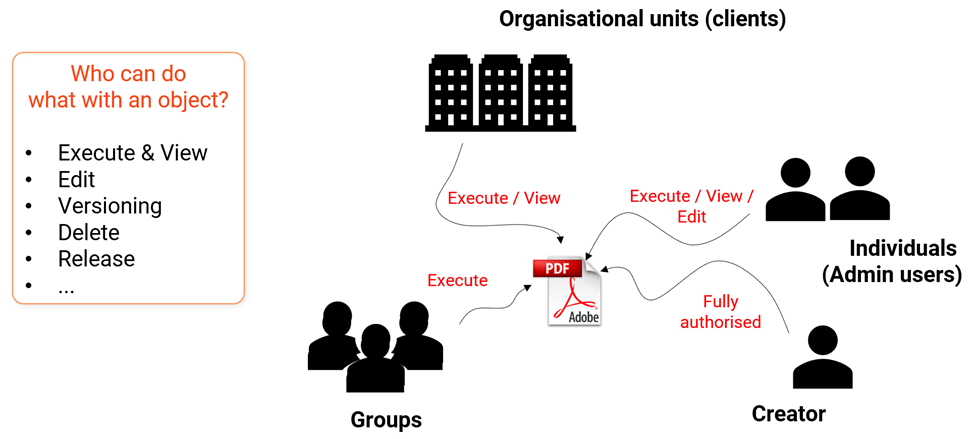
Clearances can be granted manually by administrators, or automatically by rules or content groups when objects are created. Each method is described below:
Manual Clearance Assignment
In the administrative functions views, you can assign object access permissions via the Clearance icon Edit clearances option.
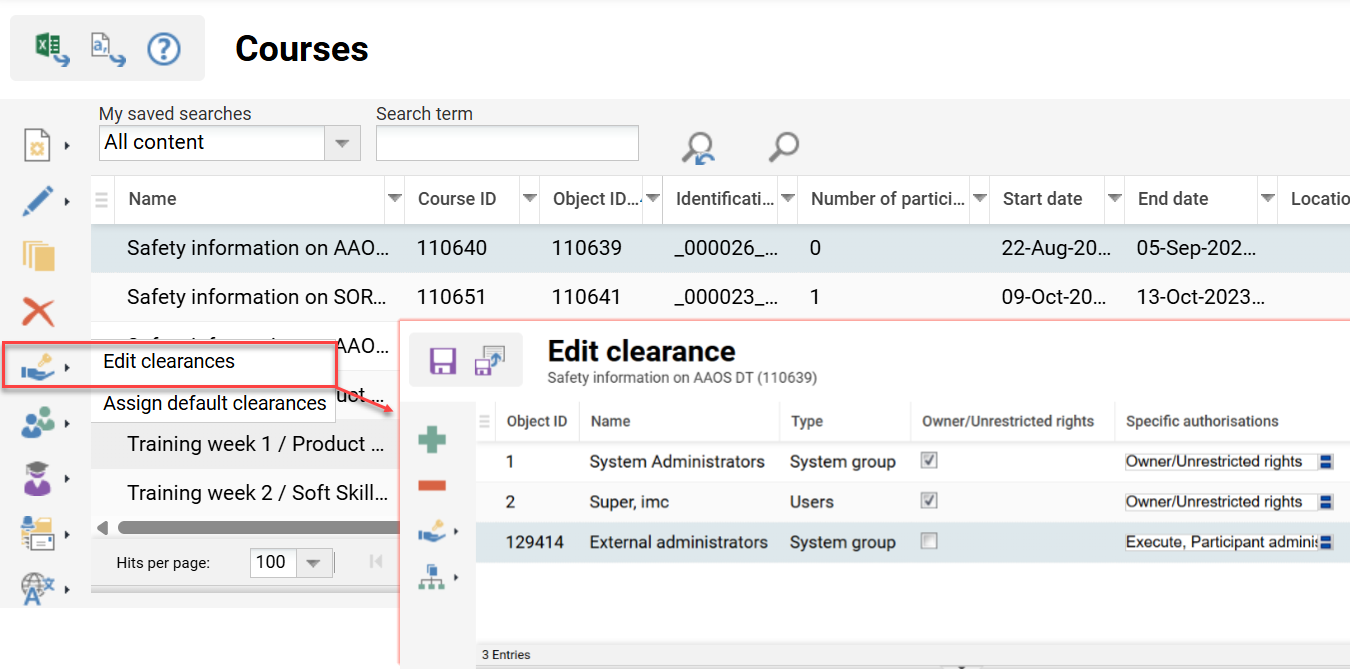
When creating an object, as the creator you will receive full Owner/Unrestricted rights. When manually assigning clearances, you will only be able to select users and groups for which you have clearance. To assign clearance to an entire client, you need to be assigned to the client.
Automatic Clearance Assignment
The use of automatic clearance assignment provides efficiency and helps ensure access control requirements are adhered to. There are three methods in which you can enable automatic assignment of clearances.
Clearances Function for Objects
Automatic clearance rules for any non-user objects can be configured in the Configuration function using the Clearances menu. This menu is available for System Administrators and Super Administrators. Here, it’s possible to view and define default clearance rules that determine which users, groups or clients automatically receive clearance to objects and to what level.
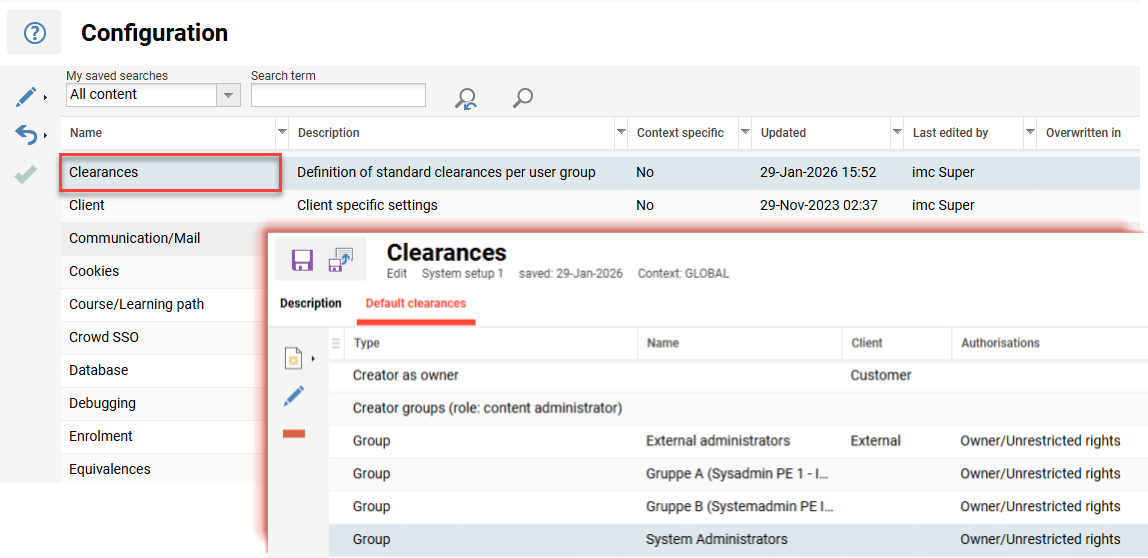
When creating rules, the most common type would be selecting the Group option to automatically grant specific authorisations to a selected group on all objects. The Valid for client field limits the rule for objects created by users belonging to the selected client; this is utilised in multi-tenant scenarios to limit clearance to client-specific admin groups.
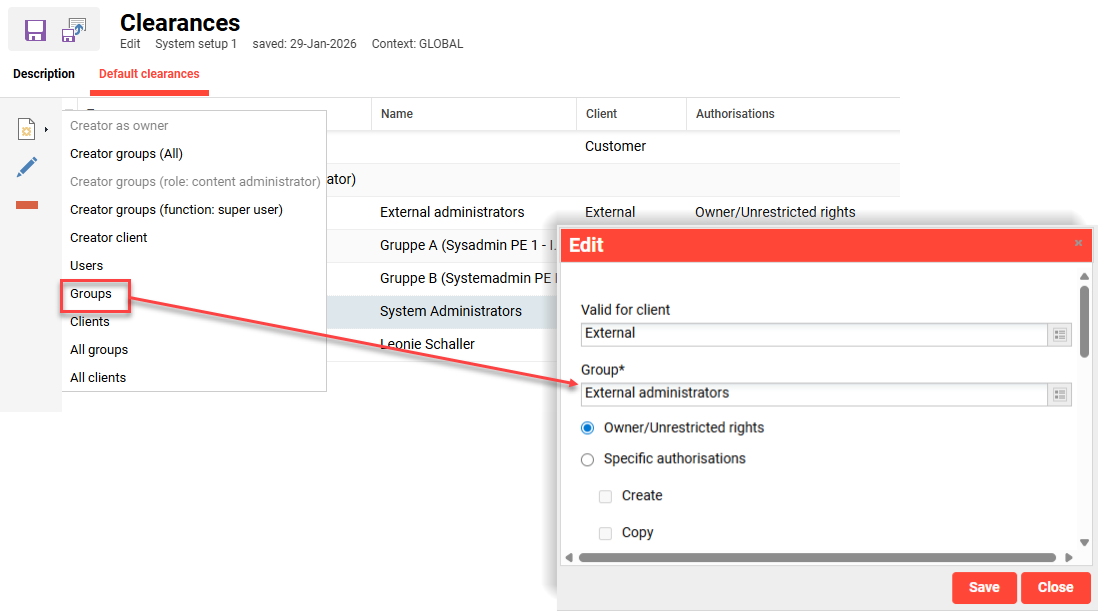
These rules will only process when objects are created and not edited. This means that the rules will not update objects created prior to the rule creation; also any Clearance updates to objects after creation will not be overwritten if objects are later edited.
Grant Rules on Users
Automatic Clearance granting on users can be configured in a business rule file using grant commands. These rules can either be uploaded in Configuration function Import menu for system-wide use, or via the Clients function for client-specific use. The rules are created in xml and require specific formatting (more info).
An example rule with no conditions that grants full Clearance on all users to the System Administrators (ID 1) and Super Administrators (ID 2) group, and view Clearance to Content administrator (ID 11) group would look like below:
<co:rule>
	<co:grantCommand context="GROUP" target="1" execute="ALWAYS" value="_full"/>
    <co:grantCommand context="GROUP" target="2" execute="ALWAYS" value="_full"/>
	<co:grantCommand context="GROUP" target="11" execute="ALWAYS" value="_view"/>
</co:rule>
You can write more advanced rules that consider either AND or OR condition logic based on personal attribute values. These rules can be used to grant groups clearances on specific subsets of users. In the example below, the rule grants clearance to specified groups on users that do not have an EMPLOYEE_NUMBER and a IS_CONTRACTOR checkbox is unticked.
<co:rule>
	<co:ruleConditions>
		<andCondition>
			<co:ruleCondition expression="EMPLOYEE_NUMBER" matching="ISEMPTY"/>
			<co:ruleCondition expression="IS_CONTRACTOR" matching="EQUAL" value="0"/>
		</andCondition>
	</co:ruleConditions>
	<co:grantCommand context="GROUP" target="127412" value="_full" execute="ALWAYS"/>
	<co:grantCommand context="GROUP" target="11" value="_view" execute="ALWAYS"/>
</co:rule>
With Grant commands, you can actually provide Clearances on the users to either a Group, a Client or a User. The level of Clearance can be unrestricted, view only or a binary combination of specific authentications. These commands will always start with <co:grantCommand followed by the desired context (i.e., Group or Client) and the target containing the Object ID. The value attribute determines the level of Clearance which can be _full or _view.
Business rules on process when a user record is created or saved. If the value execute="ALWAYS" is used then the rule only processes one time for that user.
Content Administration Groups
Members of content administration groups automatically receive full access to objects created by other members of the group. You can make any group a content administration group by setting the Type of role field to Content administration. This setting is commonly used for small training teams that need to create and share content with each other.
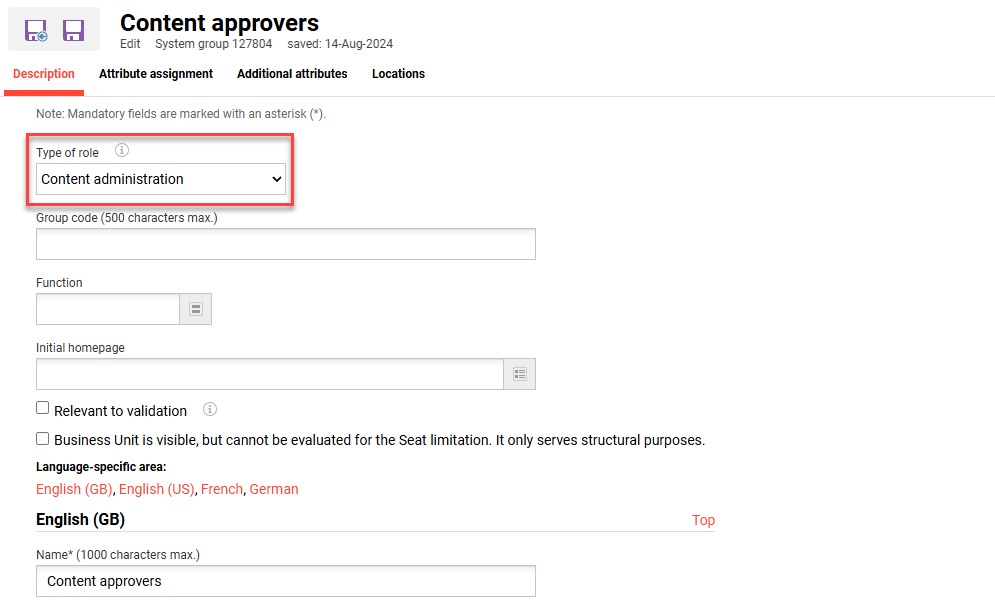
When creating a Content administration group, consider the users being assigned. These groups are often best for small groups of users that work closely together and need to share training objects; for example, location based training teams.
System Roles
Configurating system roles (groups) requires both defining access rights and clearances. Firstly, you must give the group access rights to the required navigation menus. Secondly, you need to consider the objects they will require clearance on related to their navigation access rights (e.g. Course types for Course templates, Media types for Media). Lastly, think of the other groups or users who will need clearance on the new group to perform administration tasks.
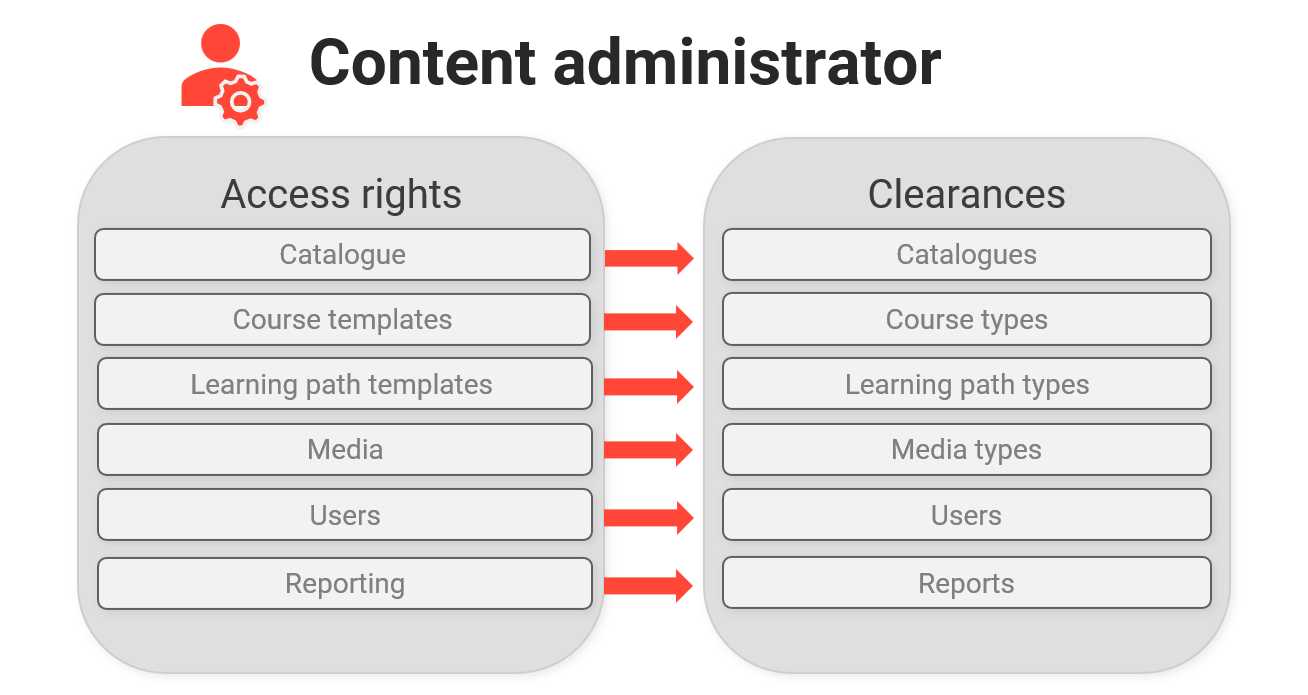
Once you have created a group for the new role, use the Access navigations and functions icon to efficiently provide access rights to required navigation items. After this, you can manually provide clearance to existing objects the role will require that related to the accessible functions. The assignment of clearances can be a timely task given automatic rules (if configured) will not apply to existing objects.
Special Clearance Considerations
While clearances are predominantly utilised for administrative purposes, there are some object types where learner roles will also require clearance.
Dashboard Pages
Any number of dashboards can be created in the Dashboard pages function. When creating a new dashboard page, you must complete these steps:
-
Assign the dashboard page to a new or existing default menu in the Navigation function.
In the Access rights tab, add groups that need to see the dashboard via the menu. -
In the Dashboard pages function, add clearance permissions to the groups and/or users that will need to view the dashboard page.
If users of groups have access rights to the navigation, but not clearance to the dashboard page, they will receive an access rights error message. If this error occurs, simply check the clearances of the dashboard page linked to the navigation menu.
Catalogues
Any number of main catalogues and sub-catalogues can be created in the admin Catalogues function. When creating a new ‘main’ catalogue, you must consider these configuration steps:
-
Assign the main catalogue to a new or existing default menu in the Navigation function of type ‘Catalogue’.
Add groups that need to see the catalogue menu in the navigation menu Access rights tab. -
In the Catalogues function, add required clearance permissions to the groups and/or users that will need to view or administer the catalogue.
With catalogues you can create multiple levels of sub-catalogues. An important consideration is that for users to view nested sub-catalogues, they will require clearance on each parent catalogue.
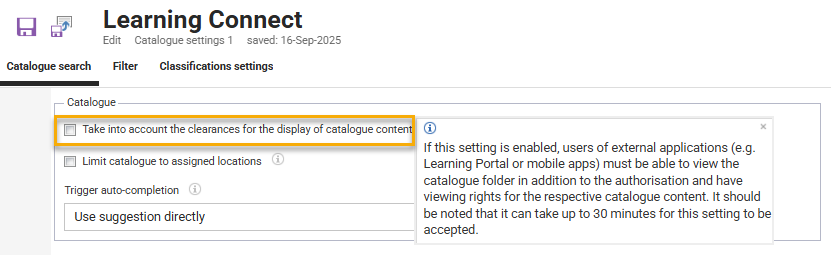
By default, learners can view all objects (media, courses, learning paths) assigned to the catalogues in which they have clearance for and navigation access rights to. In the Clients function, the Catalogue settings option contains a Take into account the clearances for the display of catalogue content setting. If you tick this setting, the learners of that client will also require clearance on the assigned objects assigned to the catalogues to view them in the catalogue.
News
When you create news articles that are assigned to News panels, you must provide Execute clearance on the article for the intended audience (users, groups, clients). For news articles intended on portal pages (pre-login), the clearance must be granted to clients.
Cancellation Reasons
When you create cancellation reasons in the Reasons for cancellation, exemption and approval function, you must provide clearance to the users/groups/clients that will need to use them. This includes providing Execute clearance to learners for self-cancellation requests.
Clients
Clients are quite unique as they are not bound by clearance. Instead, in the Clients function or various Clients selection fields, only the clients for which you are assigned will be displayed.
Super administrators are an exception as they see all objects, including clients, regardless of clearance.