
Deep Dive: LTI use case and configuration overview with examples
What is LTI?
Learning Tools Interoperability (LTI) is an integration standard developed by the IMS Global Learning Consortium. This standard is widely adopted in the education industry to simplify the process of integrating third-party learning tools or content into a Learning Management System (LMS). Such integrations enable LMS learners to seamlessly access external content or tools within their LMS. There are two main versions available, which are LTI 1.1 and LTI 1.3. The imc Learning Suite supports both versions as an LTI Consumer.
Common Use Cases
There are many use cases for LTI with the most common examples including:
-
Content Delivery: You can use LTI to integrate various forms of content from third-party providers into your LMS. This allows learners to consume external content without leaving the LMS. There are many providers that utilise LTI to offer their content centrally; e.g. Bongo.
-
Integration of Third-Party Tools: You can enhance LMS functionality by integrating tools from external applications. Example integrations can include collaboration tools, video platforms, games, plagiarism checkers, or virtual labs. The imc BizQuiz gamified assessment platform is a great example of seamlessly integrating an external platform into the LMS. Other examples could include Microsoft 365 functionality, Google Workspace functionality, and the Mahara portfolio.
-
Cross-LMS Content Sharing: LTI allows content developed in one LMS to be shared and accessed in another, supporting collaboration between institutions or departments and reducing duplication of effort. This requires that the LMS hosting the content to support LTI Provisioning.
-
Corporate Training and Compliance Programs: Companies can integrate onboarding programs, compliance training, and professional development courses from multiple providers into a single LMS. LTI ensures that all training data, including completion and performance metrics, is captured centrally whilst content is sourced externally.
-
Data Exchange and Analytics: LTI facilitates secure sharing of learner information and course context between the LMS and external tools.
-
Single Sign-On and Unified Access: LTI allows learners to access external tools such as quizzes, video libraries, simulations, or proctoring systems directly from their LMS without separate logins, providing a seamless user experience and reducing authentication complexity for administrators.
LTI Benefits
The key benefits for LTI use include:
-
Standardised process for integrating third-party learning tools or content into your LMS
-
Cost efficient method of expanding content and functionality offering within the LMS
-
Specifies guidelines for developers to ensure the LMS and learning tools are compatible
-
A broader scope than traditional content focused standards like SCORM, AICC or xAPI
Learning applications can be anything from Open Educational Resources (OER) repositories, e-books, interactive assessments, games, chats, collaboration tools, virtual labs (e.g. for chemistry or physics), and access to popular applications (e.g. Office 365, Dropbox).
Differences between LTI 1.1 and LTI 1.3
LTI 1.3 is a significant upgrade from LTI 1.1 with more modern and secure authentication. Whilst LTI 1.1 is still highly used in many platforms, the industry is definitely shifting towards LTI 1.3. The significant key differences are explained below:
LTI 1.1
LTI 1.1 was introduced in 2012 and is still the most widely used version of the LTI standard. This version allows external tools such as quiz modules, e-learning content, and other learning resources to be integrated into learning environments (LMS) via a standard single sign-on (SSO). This gives users direct access to tools without the need for multiple logins. LTI 1.1 enables basic data transfer and was introduced to save time and effort when integrating tools into a single learning environment.
LTI 1.3
LTI 1.3 was launched in 2019 to meet growing demands for enhanced security and data management with stronger authentication protocols. LTI 1.3 integrates OAuth 2.0 and OpenID Connect to provide a more secure authentication process. This enables safer integrations, expanded data exchange capabilities, and improved connectivity between platforms. LTI 1.3 also allows for a single, global registration of tools, simplifying the setup for administrators compared to LTI 1.1.
Configuration Steps
Configuration of LTI connections and content is similar for each version. The core setup steps you need to complete include:
-
creating Media types in the LMS
-
creating an LTI provider in the LMS
-
establishing connection with the LTI Provider
-
creating or accessing LTI content of the LTI Provider
-
creating the linked LTI media object in the LMS
Each of these configuration steps are described in detail in own sections below:
Media Types
Firstly, in the Media types function, check in the Type column if there are existing objects created for External tool (LTI 1.1) and External tool (LTI 1.3). If not, click the Create icon and select either External LTI 1.1 tool or External LTI 1.3 tool.
External LTI 1.1 Tool
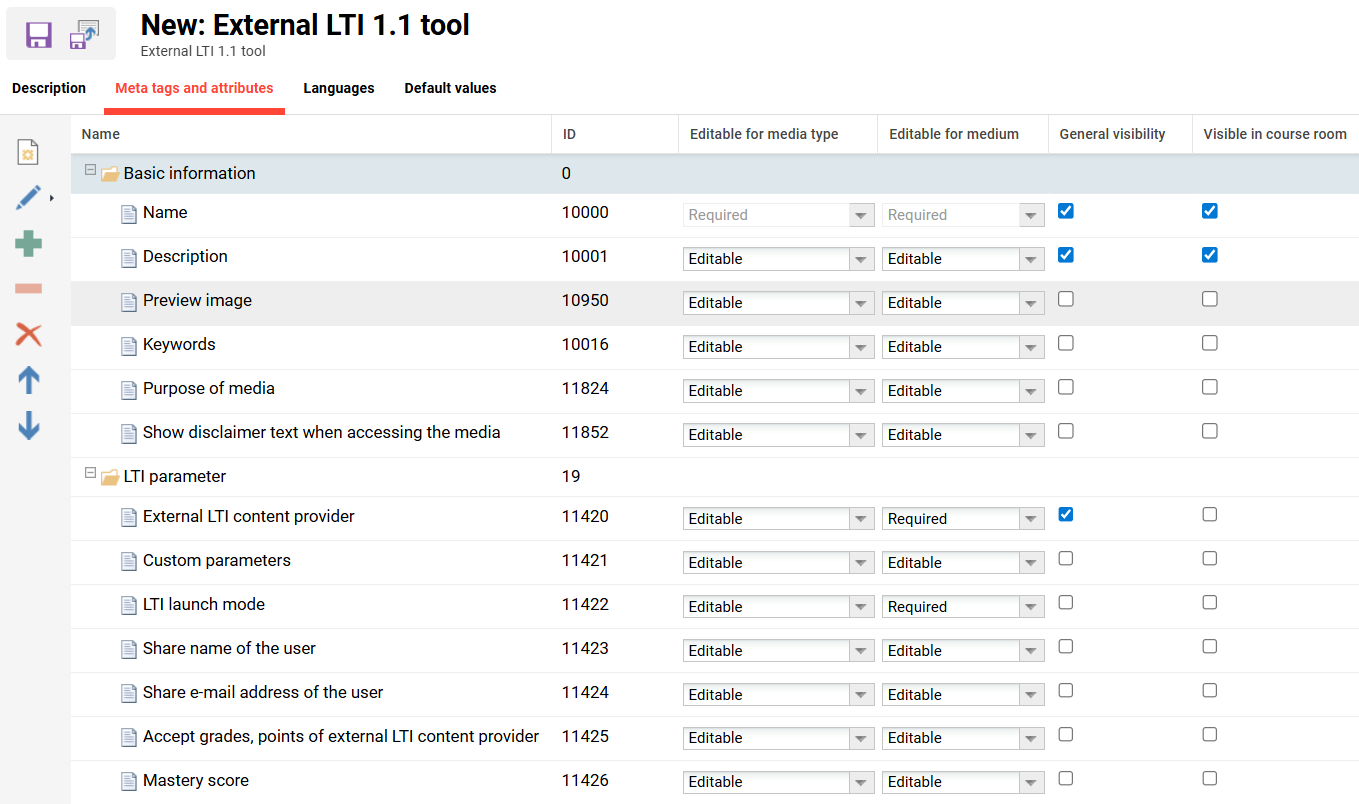
When creating an External LTI 1.1 Tool media type, the fields shown in the screenshot below are available in the Meta tags and attributes tab. There is not normally a reason to change the defaults, but many customers often create a specific media type per LTI provider where the provider offers many tools.
External LTI 1.3 Tool
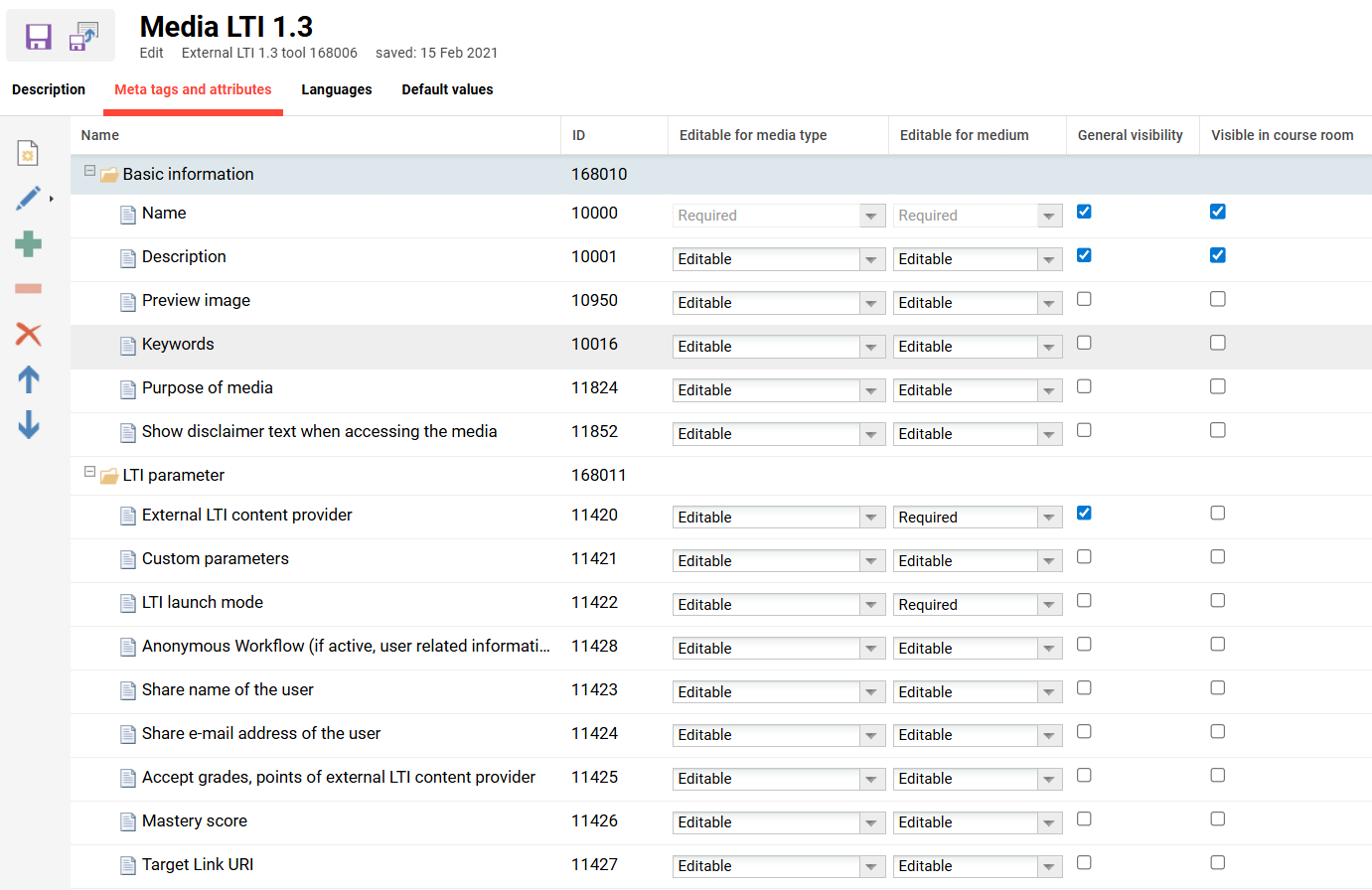
When creating an External LTI 1.3 tool media type, the following fields are available. The only additional meta tag compared to 1.1 is the Anonymous Workflow (11428) meta tag. There is not normally a reason to change the defaults, but many customers often create a specific media type per LTI provider where the provide offers many tools.
External Service Provider
An entry for each LTI Provider must be created in the External Service Provider function. An LTI Provider might offer a single tool, many offer multiple tools, and in case of a content providers can be hundreds of tools in their repository. In order to avoid specifying the common values (e.g. launch url, key, and secret) for each single media entry, they are combined in a meta element. A new LTI Provider can be created in the External Service Provider function. Here, there are two options.
Please specify a unique Name for the External Service Provider so that the provider can be identified when assigning the provider during the creation of LTI media.
External Tool (LTI 1.1)
The fields required to populate for an LTI 1.1 Provider are very basic.
-
Name: Used to identify the Provider and possibly a specific tool where the provider has multiple.
-
LTI 1.1 Launch URL: Please specify the Launch URL, which is the URL given by the provider that should be called to launch the tool. This might be provided in a GUI screen on the Provider system or in an XML file.
-
Consumer key: Optional and only populated if required by the Provider; usually for paid integrations. This might be provided in a GUI screen on the Provider system or in an XML file.
-
Shared secret: Optional and only populated if required by the Provider; usually for paid integrations. This might be provided in a GUI screen on the Provider system or in an XML file.
-
LTI Organiser ID: A clear identification for this LMS. The DNS name of the organisation is usually used. If this field is empty, the host name of the learning platform is used.
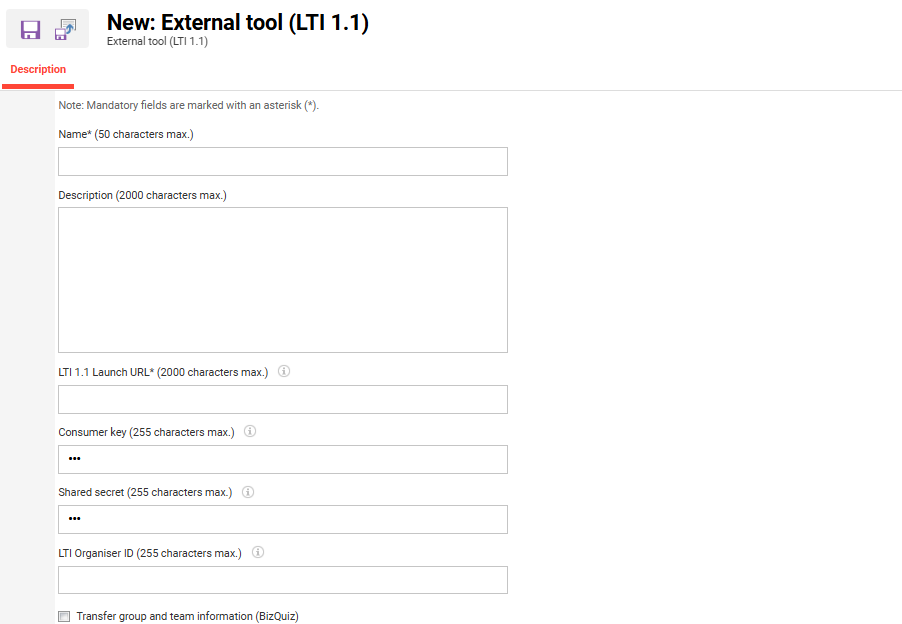
The values for LTI Launch URL, Consumer key and Shared secret values are supplied by the LTI Provider. This can be via settings in their admin GUI, a link, or via an XML file.
External Tool (LTI 1.3)
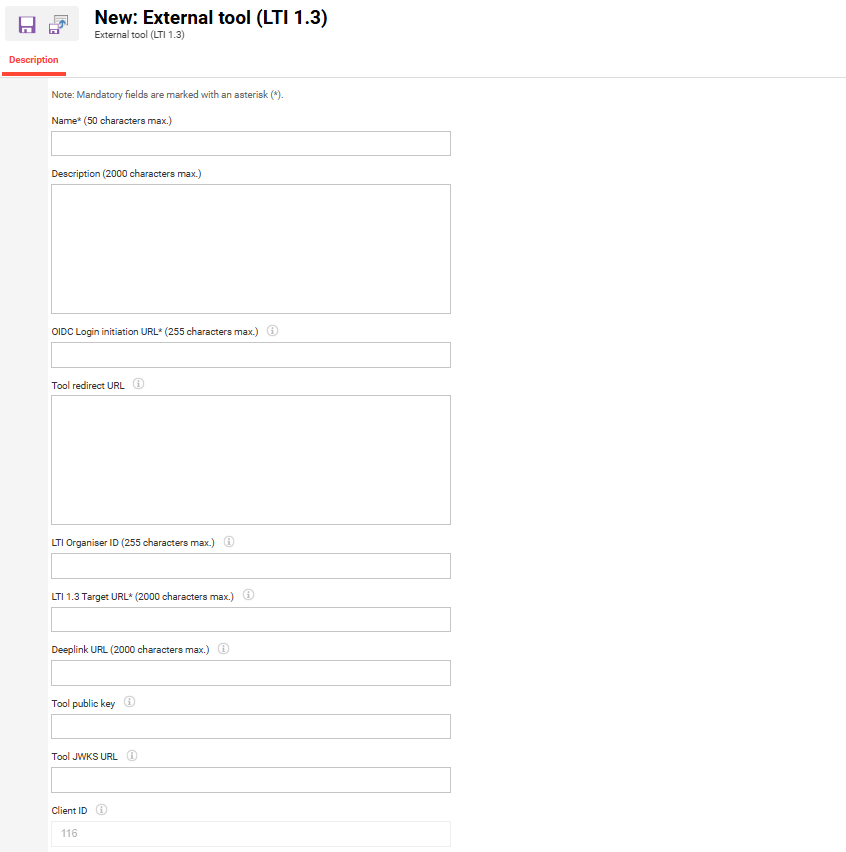
The use of LTI 1.3 in the imc Learning Suite requires a license activation and Kubernetes architecture.
-
OIDC Login initiation URL: The Open ID URL is provided by the LTI Tool Provider.
-
Tool redirect URL: The tool redirect URL is provided by the LTI Tool Provider.
-
LTI Organiser ID: A clear identification for this LMS. The DNS name of the organisation is usually used. If this field is empty, the host name of the learning platform is used.
-
LTI 1.3 Target URL: The URL of the provider, with which the media can be launched.
-
Tool public key: The tool public key is provided by the LTI Tool Provider and must be entered in this field. This might be provided as a .json link or a large integer value.
-
Client ID: This value is ID generated by the LMS and is normally populated in the LTI tool.
Example LTI Providers
There are hundreds of LTI providers who offer educational tools and content. For example, more than 200 LTI Providers are listed at https://www.eduappcenter.com/. Below are two example content providers that offer free 14 day trials and setup instructions.
Example 1: Goodhabitz 1.1
Goodhabitz provides online training content to help your team build skills in leadership, teamwork, wellbeing, and digital literacy. There are over 250 courses available in 20 languages.
-
Sign up for a 14 day trial at https://www.goodhabitz.com/. Once you receive an active trial account follow the steps below.
-
In the External service providers function, create an External tool (LTI 1.1) provider. The following fields will require details from GoodHabitz:
-
LTI Launch URL
-
Consumer key
-
Shared secret
-
-
In the Media types function create an External LTI 1.1 tool media type and link the provider.
-
In the Media function create a media with the new provider specific External LTI 1.1 tool media type.
-
The media will required target link from the provider content URL:
-
Open media using the Preview icon.
-
-
Assign the media object to a Course.
-
Enrol a learner to the Course.
-
Launch the course (as learner) and open the LTI media object.
Example 2: h5p by H5P SaaS 1.3
H5P is a content creation tool that allows creation of 58 interactive content formats such as crosswords, maps, memory games etc.
-
Sign up for 14 days free trial at https://h5p.com/
-
In h5p.com go to Manage Organization tab and click Connect LMS and Add LMS Connection option.
-
Select your LMS: Other
-
Connection name: IMC LMS (or some other label)
-
LTI version: LTI v1.3
-
-
In the imc Learning Suite LMS, create an External Service Provider using LTI 1.3 option and populate with information from the LTI Provider:
-
Use the following Login URL: https://im-c.h5p.com/lti/login
-
Use the following Redirect URL: https://im-c.h5p.com/lti/launch
-
Use the provided Public key URL or Public key given by LTI provider:
If the Provider shows a .json link such as https://lti13.h5p.com/lti/jwks/1291254321827.json, you can convert the URL the following way: https://<organization>.h5p.com/lti/pem/ID.pem for example https://lti13.h5p.com/lti/pem/1291254321827.pem. The will then show the Public key that can be copied and entered into the imc Learning Suite.
-
-
Once you've made a LMS connection, in http://h5p.com add the Deployment ID and Client ID values from your LMS platform to the Connection info button. Register the configuration.
-
In http://h5p.com go to the Manage content tab, create some content and click Publish button.
Copy the direct link to the created content as this will be required in the LMS (e.g. https://im-c.h5p.com/content/1291250754620523077). -
In the LMS, create a new Media with the LTI 1.3 media type.
-
Name the media, select the LTI Provider and add the copied link to the Target Link URI field.
-
Change other settings as required and click the Save & Publish button.
-
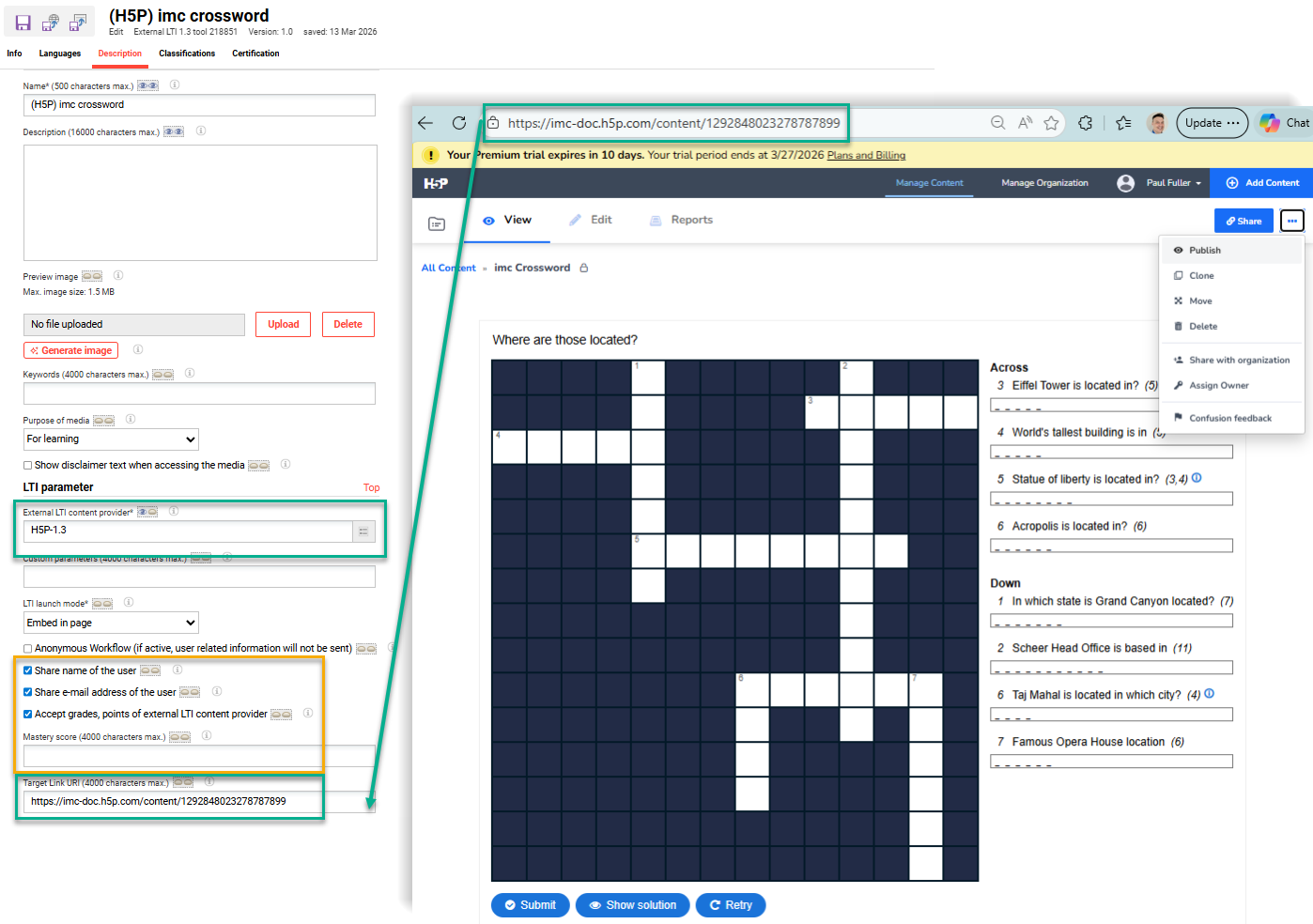
-
In the Media function, highlight the newly created media and open using the Preview icon.
If the media displays as expected, the media can be added to a course or a catalogue. -
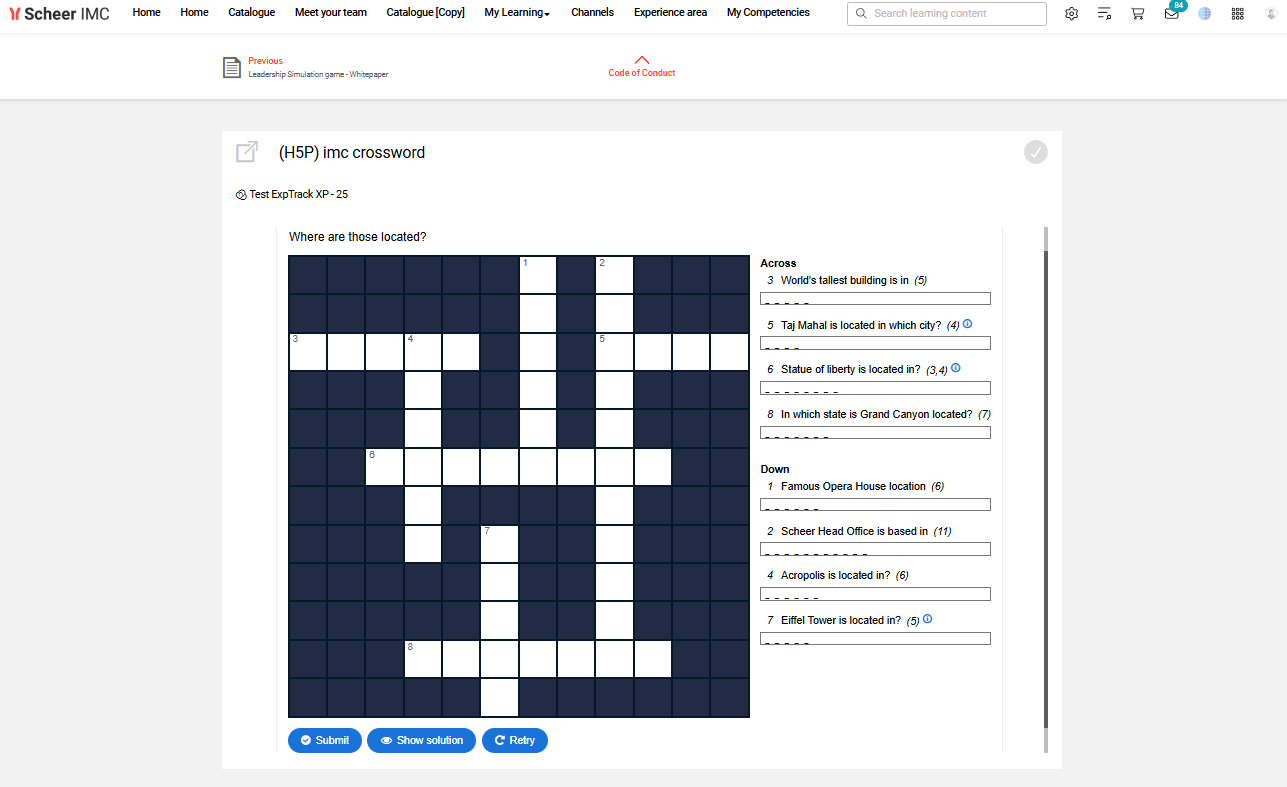
Launch the LTI media as learner via the catalogue or in a course. The LTI content will be displayed and can be completed.
IMC Support Service
With LTI being a standardised approach, customers are generally responsible for the full integration. This includes the investigation of whether the external tool is compatible, configuration, testing and debugging. Where Scheer IMC consulting assistance is required, this is available as a charged service. Licensing requirements for LTI 1.3 use can be discussed with you Scheer IMC Account Manager.
The imc Learning Suite does not support being an LTI 1.3 Tool Provider. Being a Provider enables sharing content hosted in the LMS to be consumed by external LMS’s that support LTI 1.3 consumption. Scheer IMC has previously explored this possibility, but not pursued due to lack of customer interest and demand.
Related Articles