
Information considered for recommendations
The recommender system evaluates the following user-related information:
-
Assigned courses The user must have at least one assigned course for course-based recommendations.
-
Interests The user’s interests must be entered in the Interests personal attribute (ID 71). These are mapped to course and media classifications.
Default workflow
|
Assigned courses |
Failed courses |
Interests |
Outcome |
Tuning via Panel configuration |
|---|---|---|---|---|
|
Yes |
Yes |
Yes |
Recommendations based on Failed courses and the learner's interests |
Specify the type of content that should be recommended by using: |
|
Yes |
No |
Yes |
Recommendation based on the assigned courses and the learner's interests |
Specify which course status to be taken into account by using |
|
Yes |
Yes |
No |
Recommendations based on Failed courses |
|
|
Yes |
No |
No |
Recommendations based on assigned courses |
Specify which course status to be taken into account by using |
|
No |
No |
Yes |
Recommendations based on the learner's interests |
Specify which content type to be recommended by using |
|
No |
No |
No |
Recommendations based on popular courses if available, otherwise random recommendations.<br>The popularity is determined by the number of booked users for courses or by the number of users who added a certain media item to their bookshelf |
Weights can be used to specify which information is more important:<br>ex: |
Recommender system – technical details
The recommender system is implemented as an Apache Solr extension. Architecturally, it provides a new Apache Solr request handler (and thus a URL) that can be used as a REST web service. This request handler works in combination with the ACLTransformer search component, which filters out resources for which the users do not have access rights. This document describes the URL parameters of the recommender system, the different recommendation strategies, and how they can be configured via URL parameters.
The URL parameters
The following URL parameters are allowed:
-
rows
-
Sets the maximum number of items the recommender system should return.
-
If fewer matching resources exist, fewer than the specified number may be returned.
-
-
user
-
The ID of the user for whom recommendations should be generated.
-
-
type (multi-value)
-
List of resource type IDs used to filter out unwanted media types.
-
Maps to the
mainTypeIdfield in the Apache Solr index.
-
-
bs (multi-value)
-
List of booking state IDs used to customize the
CourseRecommendationStrategy. -
Corresponds to the
bookedPersonsfield in Apache Solr.
-
-
recf (multi-value)
-
List of fields the recommender system should use for matching.
-
Supports weighted fields using Solr’s
^notation (e.g.,title^5 description^1.7). -
Multiple fields can be separated by spaces.
-
-
interest (multi-value)
-
List of interest IDs or strings used for the
InterestRecommendationStrategyandInterestAndCourseRecommendationStrategy. -
Mapped to
classificationIdsandclassificationLabelsin the Solr index.
-
-
aclPerson / aclPersons (multi-value)
-
ACL person IDs generated by the ACL Transformer search component.
-
-
clientId / aclClients (multi-value)
-
ACL client IDs provided by the ACL Transformer search component.
-
-
groupId / aclGroups (multi-value)
-
ACL group IDs provided by the ACL Transformer search component.
-
None of the URL parameters are required. However, some strategies require some URL parameters. For instance, if no user is given than the CourseRecommendationStrategy will not be used.
If the URL is too long due to browser size limits for an HTTP GET request, you can also use a POST request with the URL parameters in the body.
The recommendation strategies
The recommender system uses different strategies to try to ensure that in all cases, items are recommended. The flowchart below details the conditions for selecting the different recommendation strategies.
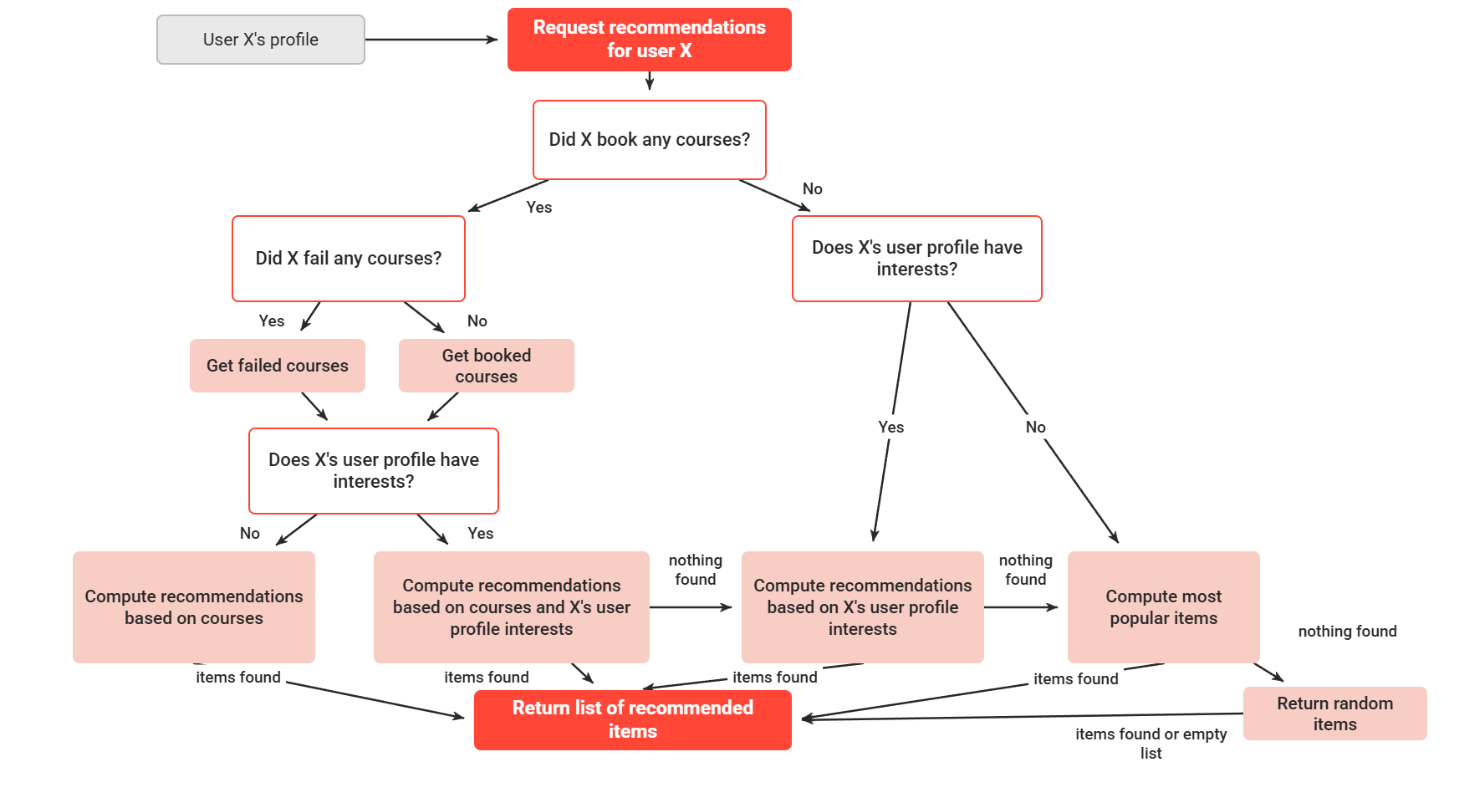
The order of the recommendation strategies can be changed by editing the de.imc.recommender.solr.handlers.recommender.builder.queue.PriorityRSQueueBuilder or implement a new de.imc.recommender.solr.handlers.recommender.builder. queue.RecommendationStrategyQueueBuilder. Below, the different strategies are discussed, along with how each can be tuned.
CourseRecommendationStrategy
The course recommendation strategy uses the user ID to find all courses that the user has booked. Then all the searchText fields across all courses are concatenated and used as the query to retrieve similar documents using the MoreLikeThis Solr functionality. This strategy is used in two different flavours, one is configured to query the booked courses where the user failed, did not complete or quit the course (stati: REFUSED=5, WAITING=6, CANCELLED=7, DELETE=13, FAILED=12, NOT_SUCCESSFULLY_COMPLETED=21). And another strategy is configured to query the booked courses that the user completed succesfully (stati: SELECTED=1, AGREED=3, BOOKED=8, STARTED=9, FINISHED=10, PASSED=11, NOT_EVALUATED=14, UNBLOCKED=15, PREBOOKED=16, INDIVIDUAL_LEARNING_PLAN=17, RESERVED_ON_PARTICIPANT_LIST=18, RESERVED_ON_WAITING_LIST=19, SUCCESSFULLY_ COMPLETED=20).
Required URL parameters:
-
user
Tuning:
If you want to change these statuses, you can pass your preferred statuses via the URL parameters (use a bs parameter for each status id). When bs parameters are passed, a single CourseRecommendationStrategy is added to the queue (the failed and successful course strategies are not used). You can also tune the boost weights to change the order of the recommendations by using the recf parameter with a weight on the following fields: title and description.
InterestRecommendationStrategy
The interest recommendation strategy will find courses and media that have the same interest id (the classificationIds field in the Solr index is used) or will do a textual match using the interest strings (taking the classificationLabels field in the Solr index). The interest ids or strings should be passed via the URL via the interest parameter. If there is one ID (a slash separated numerical pattern, like this 000/000/000), it will use the ID matching because it is more precise. However, string matching will likely yield more varied recommendations.
Required URL parameters:
-
interest
In order to have content recommended based on interests for a learner, the Interest personal attribute must be available in the user profile, where the learner can input their interests. Based on the available values, the mapping will be applied to content with matching classification values.
InterestAndCourseRecommendationStrategy
This strategy combines the interest and course data. The course data is used in the same way as in the CourseRecommendationStrategy: all course descriptions and titles are concatenated and used in a MoreLikeThis query. The interest data is used in a similar manner as in the InterestRecommendationStrategy. The main advantage of this strategy is that the importance of the course data and interest data can be weighted, using the recf parameter. Again, two of these strategies are added to the queue by default: one for successful bookings and one for failed bookings. One can provide specific booking states, as in the CourseRecommendationStrategy (see tuning).
Required URL parameters:
-
user
-
interest
Tuning:
If you want to change the booking status, you can pass your preferred status via the URL parameters (use a bs parameter for each status id). When bs parameters are passed, a single InterestAndCourseRecommendationStrategy is added to the queue (the failed and successful strategies are not used). You can also tune the boost weights to change the order of the recommendations by using the recf parameter with a weight on the following fields: title, description, classificationIds, and classificationLabels.
PopularityRecommendationStrategy
The popularity strategy aims to return the most popular items based on whether users have booked the course or put the resources on their bookshelf. This strategy should be the fallback option if no other strategies can return results. It will fail if the system is freshly set up, where no courses are booked yet, and all bookshelves are empty. To get the popular items, a facet query is done to get all booked persons' user IDs, and another facet query is done to get all user IDs who have items on their bookshelf. Then a query is done to get the courses that match any of the collected booked persons' user IDs, or any resource matching any of the bookshelf user IDs. Thanks to Apache Solr's ordering algorithms, the documents where more matches occur will rank higher, which results in a popularity ordering.
The strategy might not provided the most popular items first, but it will be an approximation. This is due to the performance tuning of Apache Solr, which sets a maximum number of boolean clauses. If this maximum is reached, the left-over user IDs will not be appended to the query, so we might lose some accuracy. If a perfect popularity is wanted, an extra field could be added to the index that contains the number of booked persons and how many times the document appears on a bookshelf. The additional benefit would be a faster performance for this strategy, because only one query should be executed.
Required URL parameters:
-
(None)
Tuning: This strategy can be adjusted to adjust the ratio of recommended courses to media. This can be done using the recf field with the bookedPersons and bookshelfPersons, e.g. recf=bookedPersons^55&recf=bookshelfPersons^3. The default weights are for bookedPersons: 10 and for bookshelfPersons: 1. However, this can differ depending on the content of the Solr index. If more courses are available and less media, the weights might need to be tuned.
RandomRecommendationStrategy
The random strategy is a last resort strategy. If no other strategy has returned results, the random strategy will be used. This strategy just returns the results if you query Apache Solr with a wildcard (i.e. *:*). Required URL parameters: – (None) Tuning: – (None)
Using recommendations in ILP
Because the recommendation engine is based on the Solr catalog index, the catalog panel can display recommended learning materials to users.
Basic configuration of the catalog panel
A catalog panel can easily be configured to display recommended learning material for the currently logged-in user. First, you duplicate an existing catalog panel and enter the following basic settings:
-
In the "Catalog search for the Learning Portal" field:
-
Enter the term “recommender” or
recommender?type=3&type=43&type=45&type=48&type=84
(content types may need to be adjusted depending on your setup).
-
-
Number of shown contents:
-
Select how many items should be displayed on the panel.
-
This directly corresponds to the
rowsURL parameter.
-
-
Layout selection:
-
Choose one of the three available layouts.
-
This defines how content items are displayed on the panel.
-
-
Provide a name and title for the panel:
-
Name: Displayed in the ILS backend.
-
Title: Displayed on the ILP dashboard.
-
-
Optional: Add a description and infotext:
-
Description: Shown in the ILS backend.
-
Infotext: Shown on the ILP dashboard.
-
As a result, the catalogue panel in ILP will use the recommendation engine instead of the catalogue search.
The user parameter, together with the userId of the currently logged-in user, is appended to the URL automatically by the panel, so it must not be added as a parameter here
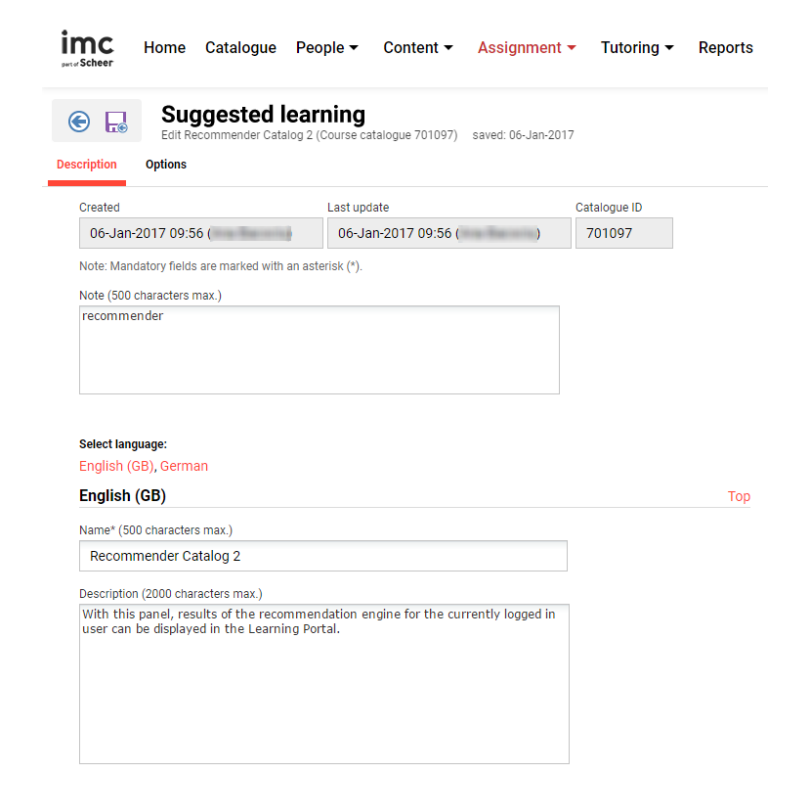
Afterwards, the panel must be added to the ILP internal dashboard. As a consequence, the content recommended by the recommendation engine for the currently logged-in user is displayed on the corresponding panel on the dashboard:

Advanced configuration
The catalog panel configuration can also be used to fine-tune the recommender according to the options described above. All of the URL parameters described above can be used by adding them to the "recommender" string in the "Catalogue search for the Learning Portal" field. For example, if you want to configure the recommendation engine to only recommend courses based on a user's courses that he has currently started, you need to put the following in the field:
recommender?type=3&bs=9
Possible values for the "type" parameter. The "type" parameter maps to the mainTypeId field in Solr, which corresponds to a content type.
|
mainTypeId |
Content type |
|---|---|
|
3 |
Course |
|
43 |
File |
|
45 |
WBT |
|
48 |
Link |
|
84 |
Media File |
Possible values for the "bs" parameter. With the "bs" parameter, you can specify which booking states for users and courses to include in recommendations.
|
Booking state ID |
Course booking state |
|---|---|
|
0 |
IN_PROCESS |
|
1 |
SELECTED |
|
2 |
ORDERED |
|
3 |
AGREED |
|
4 |
NOTIFIED |
|
5 |
REFUSED |
|
6 |
WAITING |
|
7 |
CANCELLED |
|
8 |
BOOKED |
|
9 |
STARTED |
|
10 |
FINISHED |
|
11 |
PASSED |
|
12 |
FAILED |
|
13 |
DELETE |
|
14 |
NOT_EVALUATED |
|
15 |
UNBLOCKED |
|
16 |
PREBOOKED |
|
17 |
INDIVIDUAL_LEARNING_PLAN |
|
18 |
RESERVED_ON_PARTICIPANT_LIST |
|
19 |
RESERVED_ON_WAITING_LIST |
|
20 |
SUCCESSFULLY_COMPLETED |
|
21 |
NOT_SUCCESSFULLY_COMPLETED |
Test cases: How to create the Recommender Panel:
|
# |
Step actions |
Expected results |
|---|---|---|
|
1 |
Log in to ILS with |
The panel can be duplicated. |
|
2 |
Set the following:<br>- for "Catalogue search for the Learning Portal" put "recommender"<br>- for number of shown contents: 10<br>- set a name and title for the panel and Save and Close. |
Panel was successfully created. |
|
3 |
Navigate to Dashboard administration > Dashboard pages.<br>Search and edit dashboard Internal dashboard page (ILP) (7). |
|
|
4 |
On Contents tab add the recommender panel you just created > Save and close. |
A panel was added to the dashboard. |
|
5 |
Select the dashboard Internal dashboard page (ILP) (7) and Edit Clearences. |
For the panel to be visible, you must add the client/user with Execute rights. |
How to use the course recommendation strategy:
|
# |
Step actions |
Expected results |
|---|---|---|
|
1 |
Login to ILS with user |
|
|
14 |
Return to ILP and refresh the page.<br>Take a look at the available content on the "Recommended for you" panel. |
Refresh is done.<br>"Recommended for you" panel displays only content of type Media file. |
|
15 |
Return to ILS and change the input of the field "Catalogue search for the Learning Portal" to |
Changes can be done. |
|
16 |
Return to ILP and refresh the page.<br>Take a look at the available content on the "Recommended for you" panel. |
Refresh is done.<br>"Recommended for you" panel displays only courses that have similar title or description with the courses that the user has started. |
|
17 |
Return to ILS and change the input of the field "Catalogue search for the Learning Portal" to |
Changes can be done. |
|
18 |
Return to ILP and refresh the page.<br>Take a look at the available content on the "Recommended for you" panel. |
Refresh is done.<br>"Recommended for you" panel displays only courses that have similar title or description with the courses that the user has failed. |
|
19 |
Return to ILS and change the input of the field "Catalogue search for the Learning Portal" to |
Changes can be done. |
|
20 |
Return to ILP and refresh the page.<br>Take a look at the available content on the "Recommended for you" panel. |
Refresh is done.<br>"Recommended for you" panel displays only courses that have similar title or description with the courses that the user is on waiting state. |
|
21 |
Return to ILS and change the input of the field "Catalogue search for the Learning Portal" to |
Changes can be done. |
|
22 |
Return to ILP and refresh the page.<br>Take a look at the available content on the "Recommended for you" panel. |
Refresh is done.<br>"Recommended for you" panel displays only courses that have similar title or description with the courses that the user has cancelled. |
|
23 |
Return to ILS and change the input of the field "Catalogue search for the Learning Portal" to |
Changes can be done. |
|
24 |
Return to ILP and refresh the page.<br>Take a look at the available content on the "Recommended for you" panel. |
Refresh is done.<br>"Recommended for you" panel displays only courses that have similar title or description with the courses that the user has passed. |
How to use the popularity strategy:
|
# |
Step actions |
Expected results |
|---|---|---|
|
1 |
Login to ILS with user |
Recommended panel was successfully saved. |
|
2 |
Login in ILP with user |
Login is possible.<br>User does not have any assigned courses nor failed courses.<br>User does not have any interest defined on User Profile page. |
|
3 |
Take a look at the content of the "Recommended for you" panel from Home. |
The recommendations that are displayed on the panel are currently displayed based on the popularity strategy.<br>Two courses are displayed: Recommender Test Course (cat image) and Course for recommender (The popularity is determined by the number of booked users for a course).<br>And one media: File gif (the panel displays media that was added to the bookshelf by a number of users). |
|
4 |
Go back to ILS, navigate to Dashboard administration > Panels.<br>Edit the "Recommended for you" panel and change:<br>- for "Catalogue search for the Learning Portal": |
Changes can be done.<br>First the media will be shown and then the courses because the weight value of the |
|
5 |
Navigate to Catalog assignment and trigger an "Update search index". |
Update is done. |
|
6 |
Return to ILP, trigger a refresh and take a look at the "Recommended for you" panel. |
The panel displays first the media and then the courses, because weights were used to specify which information is more important to display first.<br>Shown content are media "File gif" and the two courses Recommender Test Course (Cat image) and Course for recommender. |
|
7 |
Go back to ILS, navigate to Content administration > Courses.<br>Search for the Recommender Test Course (cat image) and Course for recommender courses.<br>Open Participant administration and remove all users from the two courses > Save and close.<br>Then navigate to Content administration > Bookshelf assignment > search for media File gif and remove all users > Save and close. |
Changes can be done.<br>Users were removed. |
|
8 |
Navigate to Catalog assignment and trigger an "Update search index". |
Update is done. |
|
9 |
Return to ILP, trigger a refresh and take a look at the "Recommended for you" panel. |
The panel displays random items (because user does not have any courses assigned, no interest, no popular items). |
How to use the interest strategy: Case 1: user has NO courses, NO failed courses but has Interests
|
# |
Step actions |
Expected results |
|---|---|---|
|
1 |
Login to ILP with user "recommend5".<br>NOTE: user should have NO courses assigned or failed courses. |
Login is possible. |
|
2 |
Login to ILS with user |
New Classification "Violet" was created. |
|
3 |
Navigate to Content administration > Courses.<br>Search and edit course "Interest strategy course".<br>Go to tab "Classifications" and add Classification "Violet".<br>Save and close. |
Classification is added to the course. |
|
4 |
Navigate to Content administration > Media.<br>Search and edit media "Interest_link".<br>Go to tab "Classifications" and add Classification "Violet".<br>Save and publish. |
Changes can be done. |
|
5 |
Navigate to Customizing > Profiles and edit "Edit profile (Frontend)".<br>On "Categories and attributes" tab, add attribute REC_INTERESTS.<br>Save and close. |
Attribute "Interest" can be added to the Edit profile (Frontend). |
|
6 |
Navigate to Dashboard administration > Panels.<br>Edit the "Recommended for you" panel and change:<br>- for "Catalogue search for the Learning Portal": |
Changes can be done. |
|
7 |
Navigate to User > Manage Account and add as in Interests "Violet" > Save. |
Profile can be updated. |
|
8 |
Return to ILP and navigate HOME and check the content of the "Recommended for you" Panel. |
The panel displays course "Interest strategy" and media "Interest_link" because these two have the same Classification as the user Interests. |
|
9 |
Return to ILP and navigate HOME and check the content of the "Recommended for you" Panel. |
The panel displays just media "Interest_link" because the media has the same Classification as the user Interests and the panel setting is to show only media of type link. |
|
10 |
Return to ILS > navigate to Catalogue assignments and Update search index.<br>Wait for the update to be done. |
Search index can be updated. |
|
11 |
Return to ILS and navigate to Dashboard administration > Panels.<br>Edit the "Recommended for you" panel and change:<br>- for "Catalogue search for the Learning Portal": |
Changes can be done. |
Case 2: user has assigned courses, NO failed courses and has Interests
|
# |
Step actions |
Expected results |
|---|---|---|
|
1 |
Follow the below Steps 2 - 5 if not done before. |
Steps can be executed. |
|
2 |
Login to ILS with user |
New Classification "Violet" was created. |
|
3 |
Navigate to Content administration > Courses.<br>Search and edit course "Interest strategy course".<br>Go to tab "Classifications" and add Classification "Violet" (if it was not added before).<br>Save and close. |
Classification is added to the course. |
|
4 |
Navigate to Dashboard administration > Panels.<br>Edit the "Recommended for you" panel and change:<br>- for "Catalogue search for the Learning Portal": |
Changes can be done. |
|
5 |
Navigate to Customizing > Profiles and edit "Edit profile (Frontend)".<br>On "Categories and attributes" tab, add attribute REC_INTERESTS.<br>Save and close. |
Attribute "Interest" can be added to the Edit profile (Frontend). |
|
6 |
Login to ILP with user "recommend3".<br>Navigate to Catalog > Recommender Catalog 2 and enroll user on course "Recommender Test Course" (Cat image).<br>NOTE: user has NO failed courses and NO interests. |
Login is possible.<br>User is enrolled on course "Recommender Test Course" (Cat image).<br>User has NO Interests.<br>User has NO failed courses. |
|
7 |
Return to ILS > navigate to Catalogue assignments and Update search index.<br>Wait for the update to be done. |
Search index can be updated. |
|
8 |
Return to ILP and navigate HOME and check the content of the "Recommended for you" Panel. |
The panel displays courses "Recommender Test Course", "Interest strategy course" and media "Recommender Test Course" because these two courses and the media's TITLE or description are similar to the course that the user is booked to. |
|
9 |
Navigate to user profile > Manage account and add as Interest "Violet" > Save. |
Profile can be updated. |
|
10 |
Navigate HOME and check the content of the "Recommended for you" Panel. |
The panel displays only course "Interest strategy course" (because the course is similar to the one that the user is enrolled to and has the same Interest). |