
Access in the imc Learning Suite is controlled on three levels: navigation and function access per group, clearances on individual objects, and roles on a course. This page explains each level and how the levels combine.
At a Glance
|
Level |
Controls |
Set In |
Example |
|---|---|---|---|
|
Navigation and function access |
Which navigation items the members of a group see and which functions are available within them |
"Access navigations and functions" icon in "Organisational structure and groups"; Navigation Manager |
Tutors get access to the course manager but may not edit or delete existing courses |
|
Clearances |
Which users, groups and clients may access an individual object, and at which level |
"Clearance" icon on the object; default clearances in the configuration manager; business rules for users |
A group receives Execute clearance on a catalogue so its members can see its contents |
|
Tutor roles |
Which functions an assigned tutor can use in one specific course |
"Tutors" tab of the course |
A "Trainer" sees the participants and can e-mail them; a "Guest instructor" only receives e-mail updates |
Navigation and Function Access
For each group, it can be determined which navigation items are visible to its members and which functions are available within these navigation items. The menus a user sees are determined by the access rights of the groups the user belongs to.
Navigation access is granted by highlighting the group in "Organisational structure and groups" and selecting the "Access navigations and functions" icon. The screen shows the system navigation. Ticks in the "All" column grant access to navigation categories, structures and menus. If only specific functions of a menu are to be available, the "Specific authorisations" checkbox displays all available actions within the function. The available functions vary by navigation item.
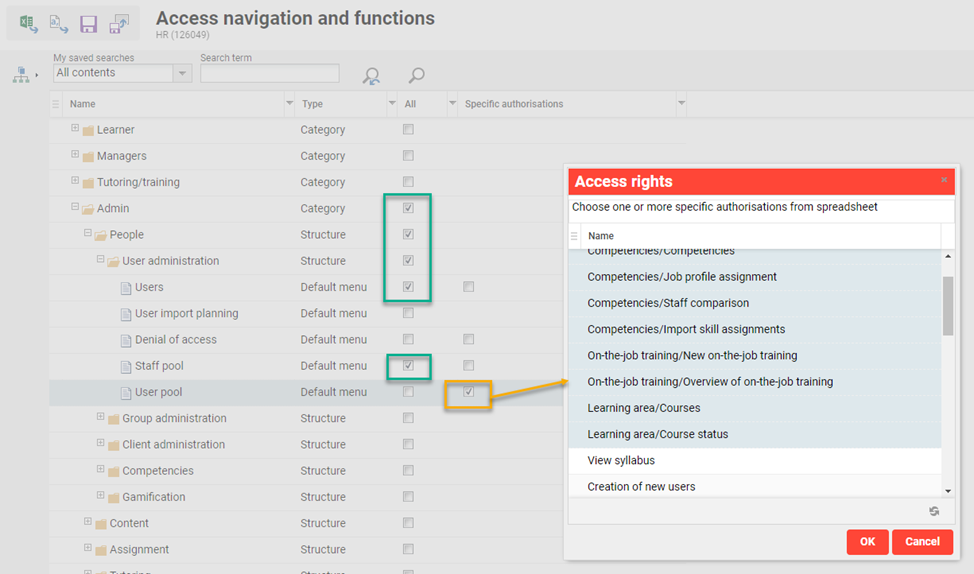
In the "Navigation Manager", the access to navigation items and their functions can be determined for each group, user or client. It can also be specified which actions a user can execute on a page, for example that supervisors (group) can assign users (action) on "My Staff" (navigation item).
Roles and the Role Switch
The LMS is role-based: users are assigned to roles, which are represented by groups. The standard roles are learner, tutor/trainer, manager/supervisor and administrator, and they can be extended individually. By default, all users have the learner role. Users with more than one role switch between them with the "Role switch" icon. A user in several groups receives the sum of all access rights and clearances of these groups.
More information: Navigation Manager, Organisational Structure and Groups Administration and System User Roles.
Clearances
Clearances regulate the access of users, groups and clients to objects, for example content, catalogues, reports or users. In the administrative section, they give administrator groups access to objects. In the learner section, they govern group access to catalogue contents and news.
When an object is created, the creator receives full unrestricted clearance, and the default clearances stored in the system are written. Further clearances are assigned via the "Clearance" icon. Users, groups and clients added there only have Execute clearance by default. When assigning clearances manually, a user can only select users and groups that the user has clearance to view.
Clearance Levels
Which clearances are available depends on the navigation item and the object. Versioning, for example, is not available at course level because courses cannot be versioned. Examples:
-
Execute: required to see and select an object.
-
Edit and Delete.
-
Duplicate: for course templates only; controls who can duplicate them.
-
Assign clearances: allows assigning clearances. Only clearances that the assigning person holds can be assigned.
-
Versioning: allows versioning of objects, except for courses.
-
Participant Manager: allows viewing and editing the registration status of course participants and adding participants.
-
Course Supervision: for courses only; gives administrators access to course supervision in the course manager without being assigned as tutors.
-
Newsroom, Notifications and Audit log.
Owners and fully entitled groups can edit objects without restrictions. Which clearances are available on an object is indicated by the toolbar functions available when the object is selected.
Default Clearances
Default clearance rules for objects are set in "Settings → System Platform Management → Configuration → Clearances". A rule can, for example, grant a group specific authorisations automatically; the field "Valid for client" limits the rule to objects created by users of a specific client. Default clearances on users are granted via business rules, uploaded as an XML file in "Configuration → Import" or in the client manager.
More information: Clearance and Configuration Manager - Clearances.
Tutor Roles
Tutors are assigned to a course on the "Tutors" tab when the course is created or edited. The administrator can add tutors from the users that the administrator has clearance on and that are also assigned to a tutor group. Each assigned tutor then receives a course-specific tutor role that determines the functions available for this course:
-
Course manager: all functions in "Course overview" and "Course instruction" except "What's new".
-
Tutor: all functions in "Course overview" and "Course instruction" except "Audit log".
-
Trainer: views the course in "Course overview", sees participants in "Course instruction", communicates with participants by e-mail, views test and feedback submissions and previews the course.
-
Expert: views the course in "Course overview", sees participants in "Course instruction" and receives communication.
-
Guest instructor: no functional access to the course, but receives e-mail updates.
Correctors can also be assigned to a course; only users in a group with the function "Corrector Group" are available. Course administrators are selected from groups with the function "Administrator Group".
More information: Tutor / Trainer Role.
How They Work Together
Each level answers a different question. Navigation access decides which functions a user can reach, clearances decide which objects the user can see and change within them, and the tutor role decides what a tutor can do in one course. The Navigation Manager describes navigation access rights, client settings for global functions and the access control list for element-specific access as the parts that together limit user access.
An administrator therefore needs both levels to work with a course: access to the course manager through a group, and a clearance on the course itself. Without Execute clearance, the course cannot be seen or selected; editing requires the Edit clearance. The same applies to tutors: a user must be in a tutor group, and the administrator needs clearance on this user, before the user can be assigned as a tutor.
Two exceptions exist. The Course Supervision clearance gives administrators access to course supervision without a tutor assignment. The super administrator automatically has full access to every function and object without any navigation or business rule configuration.
Example
A new administrator role first needs a new system group with the required group function and functional access via the "Access navigations and functions" icon. On top of that come default clearances on objects, set via "Configuration / Clearances", and updated registration rules so that the role also receives clearance on the required users. For existing objects the role needs, such as reports, course types or media types, clearances may also have to be assigned manually.
The super administrator role has unrestricted access to all system configuration, including settings that are irreversible once changed. Assign it only to a very limited number of trained technical users.
Typical Scenarios
|
Goal |
Use |
|---|---|
|
Show a menu only to a certain role |
Navigation access for the role's group via "Access navigations and functions" |
|
Allow a group to open a menu but only use some of its functions |
"Specific authorisations" instead of the "All" column |
|
Let a group see and select a specific course or catalogue |
Execute clearance on the object |
|
Give a group access to all new objects of a type automatically |
Default clearance rule in the configuration manager |
|
Control who may duplicate a course template |
Duplicate clearance on the course template |
|
Let a tutor only view the course and e-mail participants |
Tutor role "Trainer" on the course |
|
Give an administrator access to course supervision without assigning them as a tutor |
Course Supervision clearance on the course |
Hints & Tips
-
After importing users, check the clearances for the new users. For technical reasons, no default clearance can be written during an import.
-
Objects assigned to a catalogue only appear there once the index has been updated via "Update search index".
-
If the "Role switch" icon is not displayed to a user with several roles, their group usually lacks the access rights for "Main navigation for all categories → Categories switch".
-
Whether clearances given to a group also apply to other groups in its hierarchy depends on the setting "Use explicit group membership" in the configuration manager. It is recommended to check this setting before clearances are assigned via group hierarchies.
-
Selecting all specific clearances for a user, group or client does not automatically give them the status "Owner" or "Fully entitled".
Related Topics
Configuration Manager - Clearances