
A sub-course is a course used as a syllabus component of another course, in the same way media, tests, or on-the-job trainings are. One or more sub-courses are grouped in a course set, which lets a learner choose between alternative sessions of the same training, for example different locations or dates of a face-to-face session.
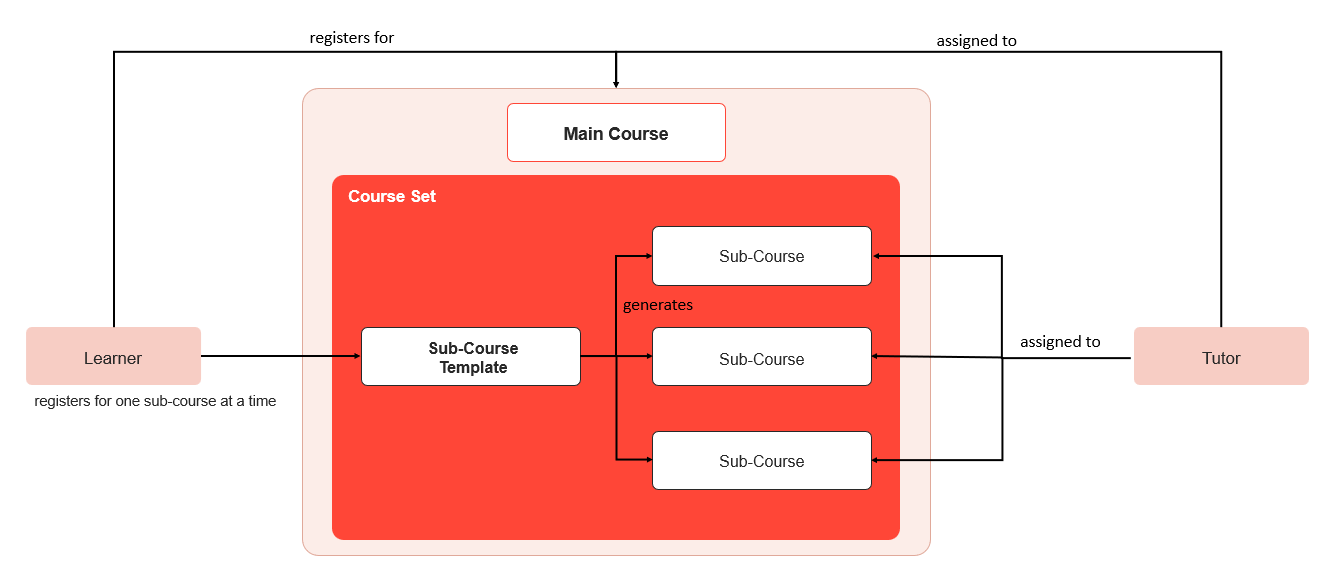
Some existing pages, for example Course Administration, refer to this same concept as a "component course".
Sub-Course Restrictions
A sub-course is a course or course template added to a course set.
It must be based on a course type created as a 'Sub-course type', a separate creation path from a standard 'Course type' offered in 'Course types' administration. A course or course template built on a standard course type does not appear in the course set's Contents selection dialog and cannot be added to it.
Creating a sub-course therefore follows this order: a 'Sub-course type' is created first, then a course template based on that type, from which individual courses can be created. Either the course template itself or an individual course built on it can then be added to a course set's Contents; the steps are set out in detail below.
Once added, it differs from a standalone course in the following ways:
-
Pre-booking is not available on a sub-course template.
-
The 'Process complexity' tab and the 'Display options' tab offer a reduced set of settings compared with a standalone course template.
-
The meta tag 'Hide sub-courses in "My Courses"' is only available on a sub-course. It hides the sub-course from the learner's personal course list once the sub-course is part of a course set.
Apart from these restrictions, a sub-course supports the same settings as a normal course, including its own components, tutors, and meta tags.
Creating a Sub-Course
The following steps set up a sub-course from scratch, using the fictional example main course "Onboarding" and its sub-course "Welcome Session".
"Onboarding" and "Welcome Session" are fictional example names used to illustrate the steps below; substitute the relevant course and course set names.
Part 1: Creating a Sub-Course Type
This part can be skipped if a 'Sub-course type' suitable for the sub-course already exists.
Step 1
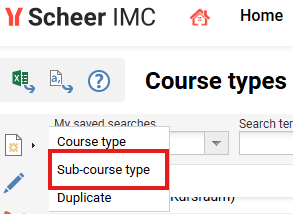
In 'Course types', click New, then select Sub-course type rather than Course type.
Step 2
Configure the new type's Description, Meta tags and attributes, Languages, Default values, Process complexity, and Cancellation fees tabs the same way as for a standard course type, then save.
Part 2: Creating a Sub-Course Template
Step 1
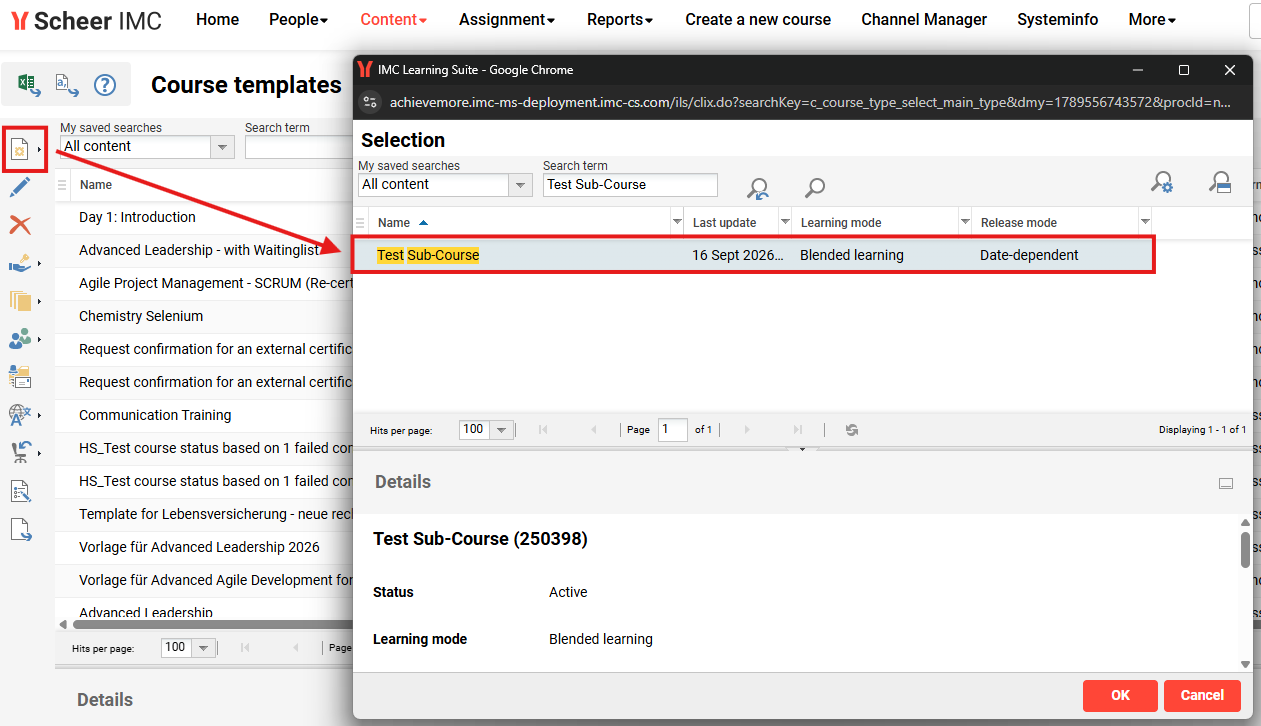
Navigate to Course Templates, click New, then select the 'Sub-course type' created in Part 1.
Step 2
Enter the template name, 'Welcome Session', and identification code on the Description tab. The mandatory Course room type field sits on the separate Course description tab; the template cannot be saved while any of these three fields are empty.
Step 3
Save the template. Individual sub-courses can now be created from it the same way as from any other course template.
Part 3: Adding the Sub-Course to a Course Set
Step 1
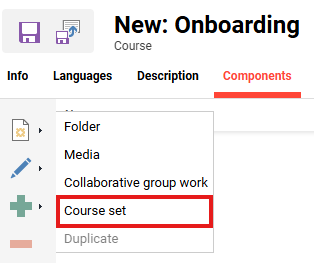
Open the main course, 'Onboarding', and go to its 'Components' tab to create a new course set, or open an existing one.
Step 2
In the course set's 'Contents' tab, click the add icon, then search for 'Welcome Session' in the 'Sub-course templates' list, or for an individual sub-course in the 'Sub-courses' list. Only courses and course templates based on a 'Sub-course type' appear in either list.
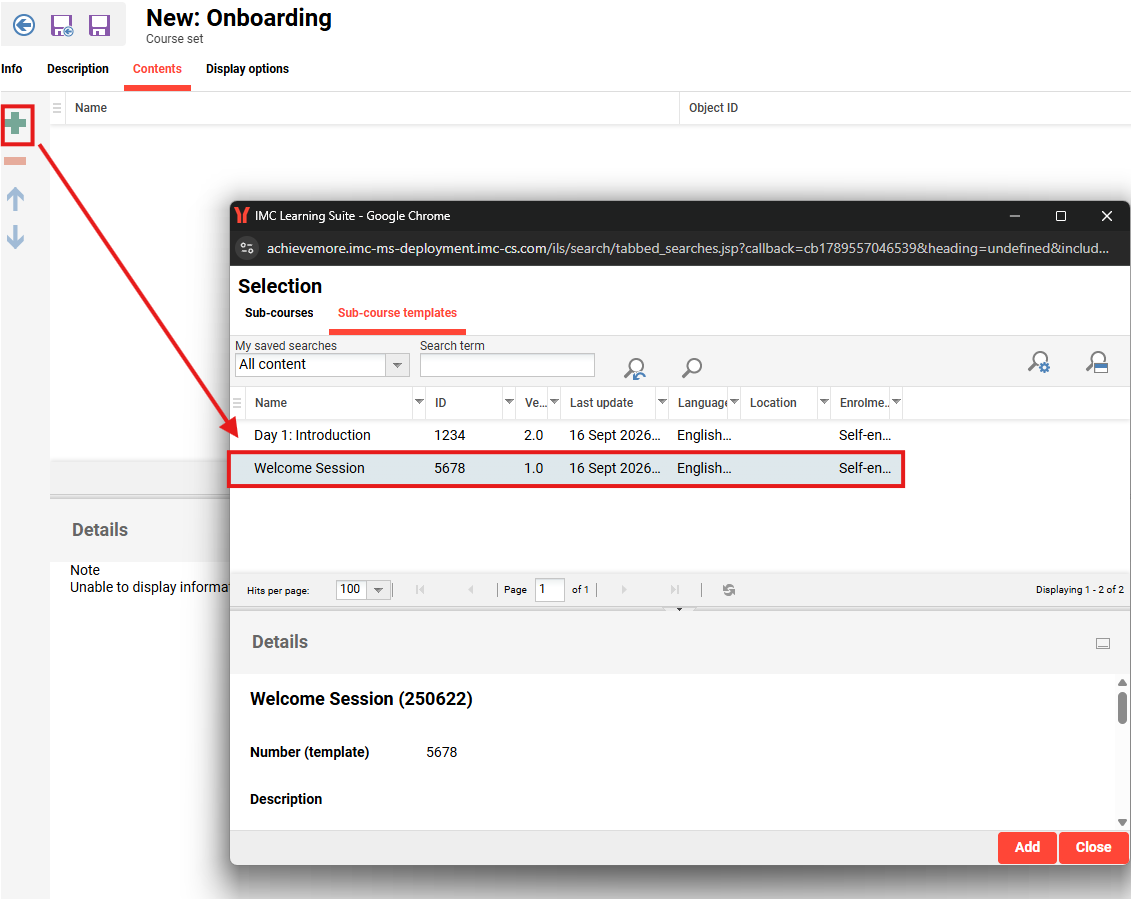
Step 3
Confirm the selection and save the course set. 'Welcome Session' now appears in the syllabus of 'Onboarding' for learners to register for.
Course Sets
A course set is the component that groups one or more sub-courses inside a superordinate course. It is created from the 'Components' tab of a course, not of a course template, and has several tabs, including:
|
Tab |
Description |
|---|---|
|
Description |
Holds the name and description shown to the learner, entered per language |
|
Contents |
Adds sub-courses or sub-course templates, offered as two separate lists in the selection dialog. When a sub-course template is added instead of an individual sub-course, the learner sees every sub-course created from that template. |
|
Display options |
Selects a single field, either 'Name', 'Location', 'Tutors', 'Language', or 'Available Places', shown as the main information for every sub-course in the course set. If that field is not filled in for a given sub-course, the sub-course's name is shown instead. |
The order in which sub-courses are shown to the learner (the default order, or by ascending or descending start date) is configured separately as part of the course's syllabus panel settings, not on the course set itself. A learning logic cannot be defined for a course set.
Display for Learners
In the syllabus of the main course, the sub-courses of a course set are shown and can be registered for directly.
-
Only one sub-course of a course set can be registered at a time; this is not configurable.
-
To register for a different sub-course in the same set, the existing registration has to be cancelled first.
-
A sub-course can be opened directly from the syllabus to show information relevant to its face-to-face session.
Tutor View
A tutor is assigned separately to the main course and to each of its sub-courses. The course instruction of a sub-course opens directly, or via the 'Sub courses overview' function reached from the main course's syllabus. This overview provides the same functions as 'Course instruction' and is also reachable from the 'Course progress per participant' view.
Reporting
Reports can be configured to show or hide sub-courses, depending on which information about the main course is relevant.
Limitations
-
A course belonging to an assigned course template is not shown in the syllabus of the administrator view.
-
A course or course template cannot be added to a course syllabus without being part of a course set.
-
A main course and its sub-courses have no direct relation for registration purposes; each is registered independently.
-
Automatic registration has to be configured separately for a main course and for each of its sub-courses.
-
The translation export does not include sub-courses; they have to be translated separately.
-
The 'Planning status' of a sub-course is not taken into account by the course set.
-
A course set cannot be scheduled.
-
A course template assigned to a course set is not available for pre-booking. This is also not supported on mobile devices or in the learner-facing course portal, since neither offers a shopping cart.
-
When a course set is locked, every booking action on its sub-courses is suppressed.
Automatic registration configured on the main course does not carry over to its sub-courses. Configuring it only on the main course leaves learners unenrolled from the sub-course they need; automatic registration has to be set up separately for the main course and for each sub-course.
Hints & Tips
If a sub-course template or sub-course does not appear in the Contents selection dialog of a course set, check that it is based on a type created as 'Sub-course type' rather than a standard 'Course type'; only courses and course templates of that type are selectable there.
If the main course and its sub-courses behave inconsistently for learners, check that the 'Learning mode' set on each sub-course template matches what the main course expects.