
The "Fill in the Blank" test question type presents a text with free-text or drop-down gaps that need to be filled in.
How It Is Built
The "Fill in the Blank" type is configured through a tabbed structure covering the question's description, its available languages, the question content itself, the possible answers for each gap, and the gapped text.
Description
Holds the question's basic metadata.
|
Setting |
Description |
|---|---|
|
Name |
The administrative name will be used during the management of the question and when selecting questions during the creation of a test or feedback. It is based on the name shown to the learner when opening the test/feedback. |
|
Description |
The administrative description will be used during the management of the question and when selecting questions during the creation of a test or feedback. It is based on the name shown to the learners when opening the test/feedback. |
|
Keywords |
Search terms associated with the question, used to find it in the question pool. |
|
Test Mode |
The test mode describes the purpose of a test or test question. When adding questions to a test, a targeted search can be carried out with a specific learning test mode. The test mode saved in each test file includes a reference points indicating which questions should be selected. |
|
Average Processing Time (Seconds) |
The completion for test questions are added together and equate to the total completion times for the test containing these test questions. If “No time limit” is selected here, no time will be planned in for the question when adding up. This option should only be selected if, in principle, no completion time controls will be used in tests. When the test is configured to use the timer per test, this value will be used as a countdown on the question itself.
|
|
Level of Educational Objectives |
The level of educational objectives describes the reason why a question has been included in the test. When adding questions to a test, a targeted search can be carried out with a specific level of educational objectives. The level of educational objectives saved in each test file includes a reference points indicating which questions should be selected. |
|
Active |
If disabled, the question which was in its previous version added to a test or feedback, will be removed as part of the automatic update process, if configured to run. |
Languages
Manages the languages the question is available in. Each language can be flagged as "Administrative", "Basis", or "Default", and its "Language Translation Status" is tracked (for example "Translated").
Question
Holds the content connected with the question itself, entered per language, together with the grading configuration.
|
Setting |
Description |
|---|---|
|
Overall Points for the Question |
A single point value awarded for the whole question, used when grading is not split per answer. |
|
Points for Each Possible Answer |
Awards points individually per gap instead of one overall value. |
|
Award 0 Points if No Answer Was Checked |
Explicitly awards zero points when a gap is left blank, rather than leaving the outcome undefined. |
|
Name |
The displayed name will be managed in several languages and displayed to the learner when they open the question. It is based on the name used for management. |
|
Attachment to Questions |
An optional file uploaded alongside the question. |
|
Question |
The question text as it is presented to the learner. |
|
Instructions for Online Tests |
The text provided here explains to the learner how to process the question if the test is directly accessed in the system, e.g. “Click the box next to the correct answer”. |
|
Instructions for Offline Tests |
The text provided here explains to the learner how to process the question if the test is completed in a printed form, e.g. “Mark the correct answer with an X”. |
|
Response When Answered Correctly |
The text entered here will be displayed to learners after assessing the question if it has been answered correctly. The display of the response depends on the test player’s settings. |
|
Response When Answered Incorrectly |
The text entered here will be displayed to learners after assessing the question if it has been answered incorrectly. The display of the response depends on the test player’s settings. |
Possible Answers
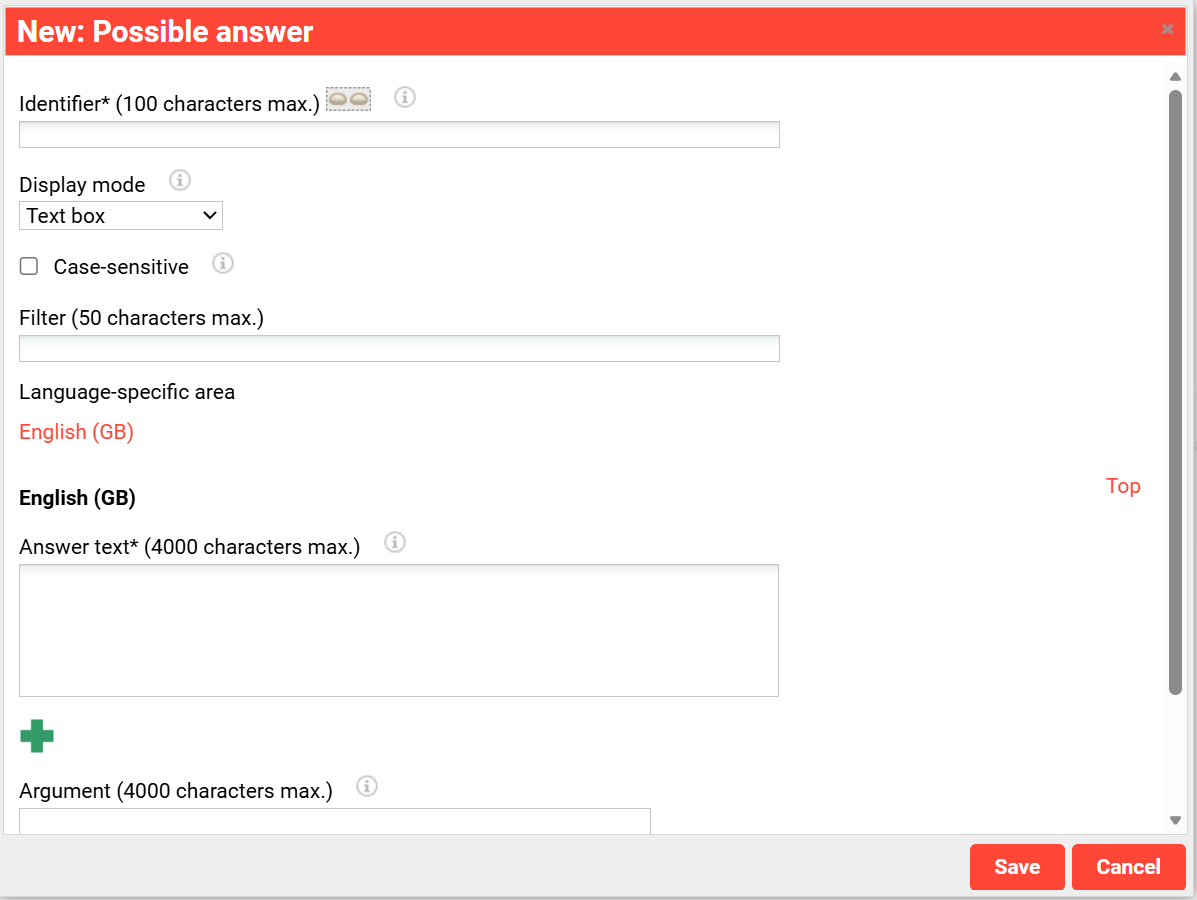
Holds the correct answer for each gap.
|
Setting |
Description |
|---|---|
|
Identifier |
The answer option (gap) is added to the “Gap test” register as a placeholder in a text. The identification is the name, under which the gap can be found in the list of placeholders. |
|
Display Mode |
Three types of gaps can be defined:
|
|
Case-Sensitive |
If this option is activated, the responds of the learner are only correct if the upper and lower-case letters used correspond to those in the field "Answer text" |
|
Filter |
Restricts which characters are accepted in the answer. |
|
Answer Text |
A possible answer is entered here. If an alternative solution is recognised or can be selected, a further response field can be created by clicking on the Add symbol and the alternative solution can be entered there. |
|
Argument |
The text entered here provides more detailed explanations about the sample solution. |
Cloze Test
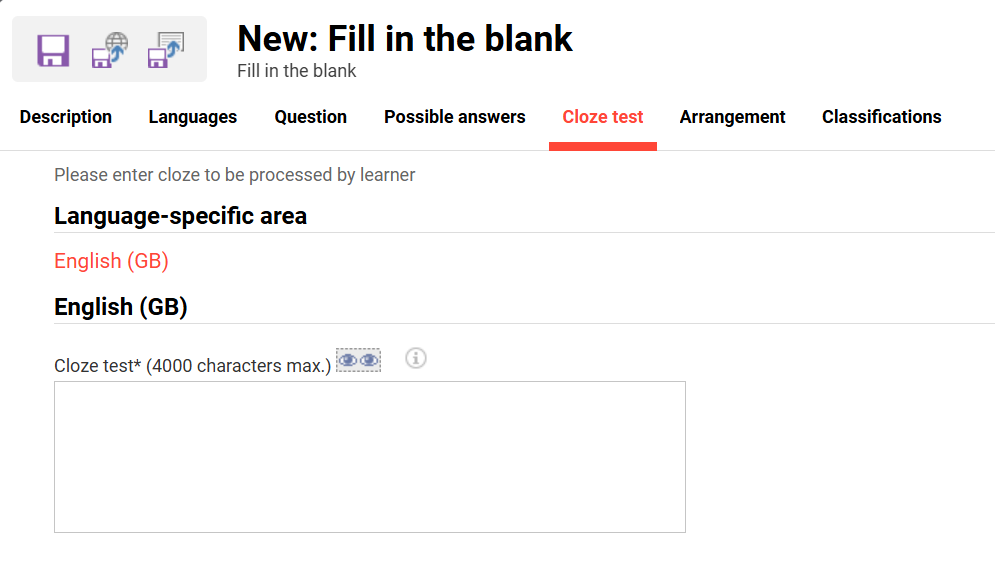
Defines the gapped text that the learner completes. The text is entered and formatted per language and is displayed to the learner as the task text. The function "Placeholder" inserts a gap at the cursor position. Each gap refers to an identifier created on the "Possible Answers" tab.
Classifications
Applies classification categories to the question, supporting its selection and management within the wider test framework.
See Classifications
Arrangement
Positions the answer area to the left of, right of, above, or below the question text.
Creating a Fill in the Blank Question
The cloze text and its gaps are defined on the "Cloze Test" tab, and the correct answer for each gap is defined on the "Possible Answers" tab, linked to its gap via a shared identifier. Each gap can be displayed as a text box or as a selection, optionally case-sensitive, with a character filter restricting accepted input.
Scoring
Points can be awarded either as a single overall value for the question or individually for each possible answer. No answer being selected can optionally be configured to award zero points explicitly.
Example
"Mount Everest was first climbed by … in the year … ."