
The "Drag & Drop" (1 to 1) test question type distributes elements to target areas using the mouse, with only one element permitted per target area.
How It Is Built
The "Drag & Drop" type is configured through a tabbed structure covering the question's description, its available languages, the question content itself, the draggable elements, the target areas, and the correct assignment between them.
Description
Holds the question's basic metadata.
|
Setting |
Description |
|---|---|
|
Name |
The administrative name will be used during the management of the question and when selecting questions during the creation of a test or feedback. It is based on the name shown to the learner when opening the test/feedback. |
|
Description |
The administrative description will be used during the management of the question and when selecting questions during the creation of a test or feedback. It is based on the name shown to the learners when opening the test/feedback. |
|
Keywords |
Search terms associated with the question, used to find it in the question pool. |
|
Test Mode |
The test mode describes the purpose of a test or test question. When adding questions to a test, a targeted search can be carried out with a specific learning test mode. The test mode saved in each test file includes a reference points indicating which questions should be selected. |
|
Average Processing Time (Seconds) |
The completion for test questions are added together and equate to the total completion times for the test containing these test questions. If “No time limit” is selected here, no time will be planned in for the question when adding up. This option should only be selected if, in principle, no completion time controls will be used in tests. When the test is configured to use the timer per test, this value will be used as a countdown on the question itself.
|
|
Level of Educational Objectives |
The level of educational objectives describes the reason why a question has been included in the test. When adding questions to a test, a targeted search can be carried out with a specific level of educational objectives. The level of educational objectives saved in each test file includes a reference points indicating which questions should be selected. |
|
Active |
If disabled, the question which was in its previous version added to a test or feedback, will be removed as part of the automatic update process, if configured to run. |
Manages the languages the question is available in. Each language can be flagged as "Administrative", "Basis", or "Default", and its "Language Translation Status" is tracked (for example "Translated").
Question
Holds the content connected with the question itself, entered per language, together with the grading configuration.
|
Setting |
Description |
|---|---|
|
Overall Points for the Question |
A single point value awarded for the whole question, used when grading is not split per answer. |
|
Points for Each Possible Answer |
Awards points individually per element-target assignment instead of one overall value. |
|
Award 0 Points if No Answer Was Checked |
Explicitly awards zero points when no assignment was made, rather than leaving the outcome undefined. |
|
Name |
The displayed name will be managed in several languages and displayed to the learner when they open the question. It is based on the name used for management. |
|
Attachment to Questions |
An optional file uploaded alongside the question. |
|
Question |
The question text as it is presented to the learner. |
|
Instructions for Online Tests |
The text provided here explains to the learner how to process the question if the test is directly accessed in the system, e.g. “Click the box next to the correct answer”. |
|
Instructions for Offline Tests |
The text provided here explains to the learner how to process the question if the test is completed in a printed form, e.g. “Mark the correct answer with an X”. |
|
Response When Answered Correctly |
The text entered here will be displayed to learners after assessing the question if it has been answered correctly. The display of the response depends on the test player’s settings. |
|
Response When Answered Incorrectly |
The text entered here will be displayed to learners after assessing the question if it has been answered incorrectly. The display of the response depends on the test player’s settings. |
Elements
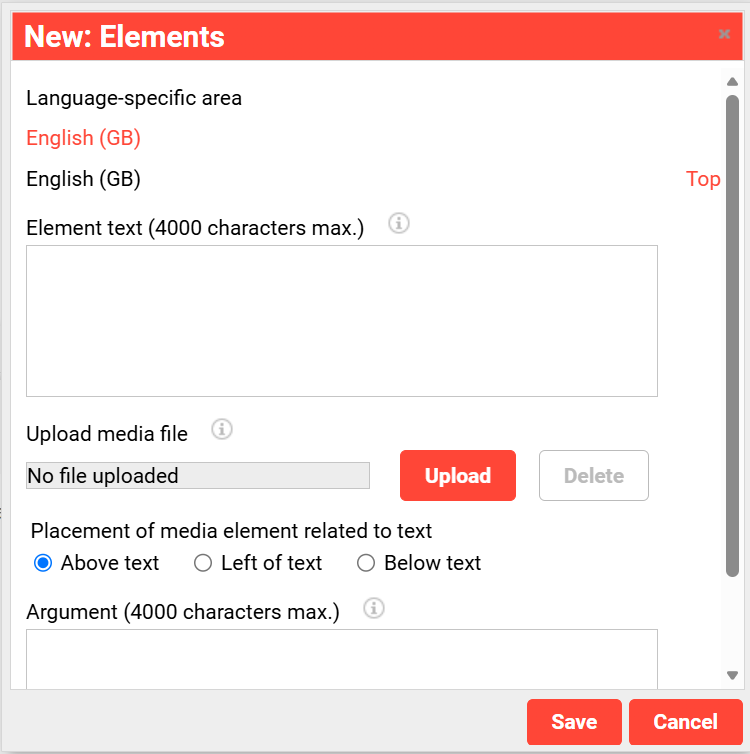
Defines the draggable elements. Each element is entered per language and can optionally carry a media file.
|
Setting |
Description |
|---|---|
|
Element Text |
The text to be displayed as an answer option for the question is displayed here
|
|
Upload media file |
The file selected here will also be displayed in a transferrable element. |
|
Media Placement |
Positions the uploaded media above, to the left of, or below the element's text. |
|
Argument |
The text entered here provides more detailed explanations about the sample solution. |
Targets
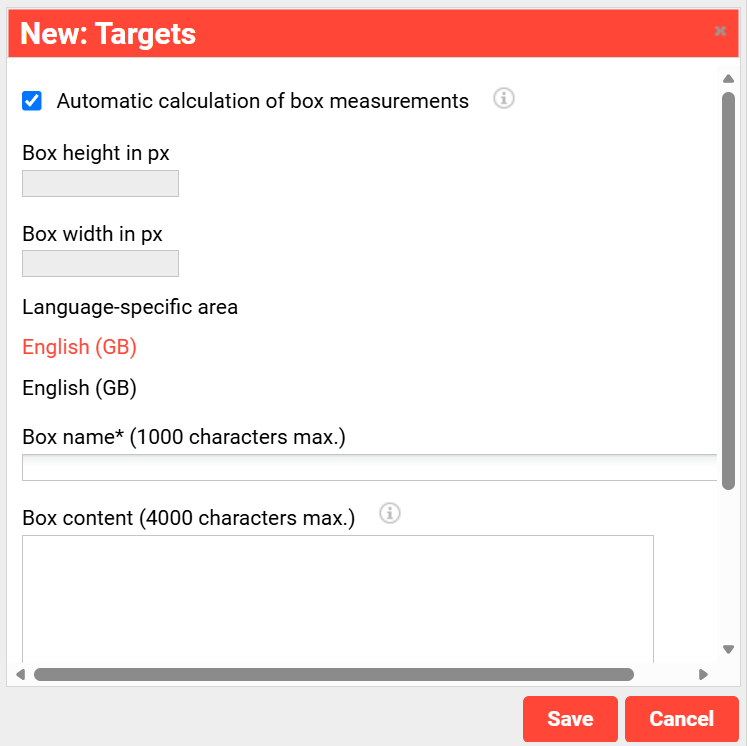
Defines the target areas the elements are dropped onto.
|
Setting |
Description |
|---|---|
|
Automatic Box Measurements |
The size of the target box will be automatically determined on the basis of the size of the movable elements. Alternatively, it is possible to manually enter the height and width of the target box. |
|
Box Height / Width (px) |
Sets the target box's dimensions manually, when automatic calculation is disabled. |
|
Box Name |
The target's internal name. |
|
Box Content |
If required, a text can be entered here which will be displayed in the target box. |
Answer
Establishes the correct assignment between elements and target areas. Elements and targets must be defined first; the tab shows a prompt to complete those tabs otherwise.
Classifications
Applies classification categories to the question, supporting its selection and management within the wider test framework.
See Classifications
Arrangement
Sets where the drag-and-drop area sits relative to the question text: to its left, to its right, above it, or below it.
Creating a Drag & Drop Question
Elements and target areas are defined per language, each optionally carrying a media file, and the correct assignment between them is established on the "Answer" tab. A target's size is calculated automatically by default, or set manually by disabling automatic calculation.
Scoring
Points can be awarded either as a single overall value for the question or individually for each element-target assignment. No answer being selected can optionally be configured to award zero points explicitly.
Example
Dragging the correct flag into its corresponding country field, with only one object permitted per field.