
The "On-the-job training" menu is where the Learner can access both forms of On-the-Job Training assignments, and those assigned to a Course can additionally be accessed within the Course itself. Three tabs are used to divide the On-the-Job Trainings according to their status, where "Current" is not completed, "Pending" is awaiting assessment, and "Completed" is successfully processed.
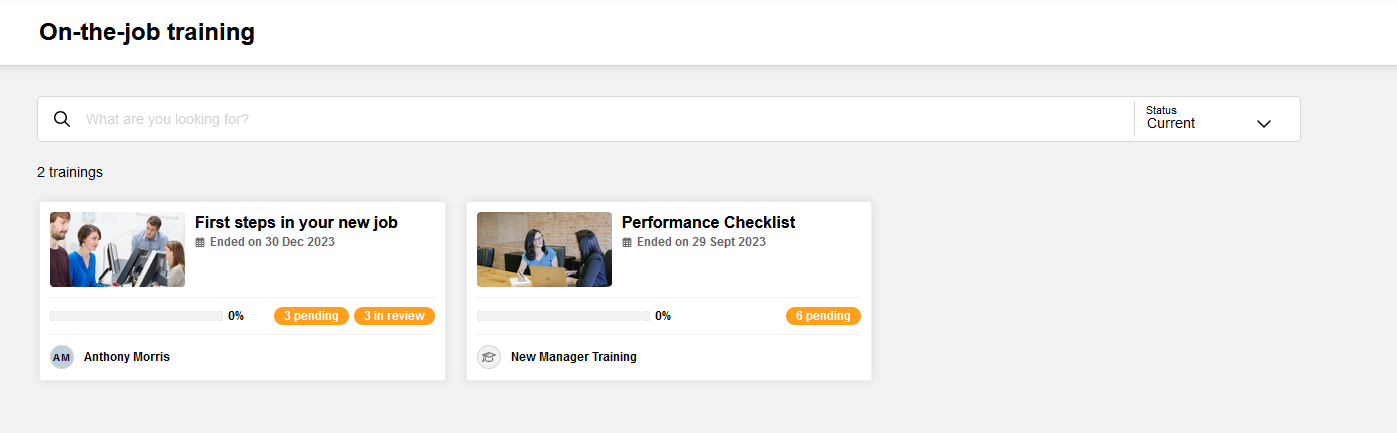
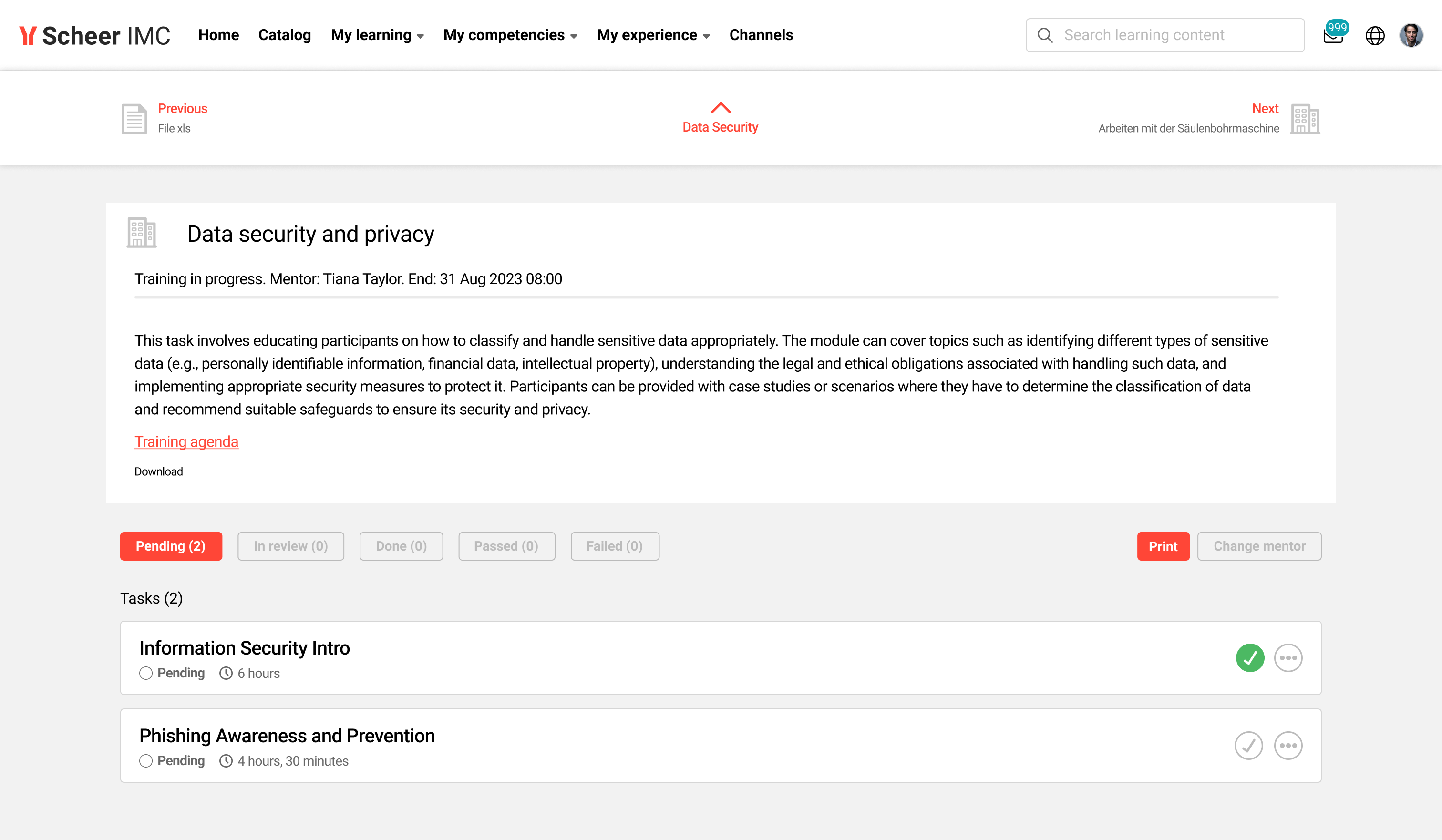
An On-the-Job Training is opened by selecting its tile, which opens the selected On-the-Job Training in an extended view. When opened, the current status along with a due date (if there is one) is displayed at the top, followed by a description of the on-the-job training requirements, then buttons to filter the linked On-the-Job Training Tasks (Pending, In review, Passed, Failed), and at the bottom, a list of all the linked and filtered tasks. The way in which the On-the-Job Training was assigned can be identified by the listed Mentor for a direct assignment or by the displayed Course name.
-20260408-083751.png?cb=8b72b1c891874f59fca985ead77bedaf)
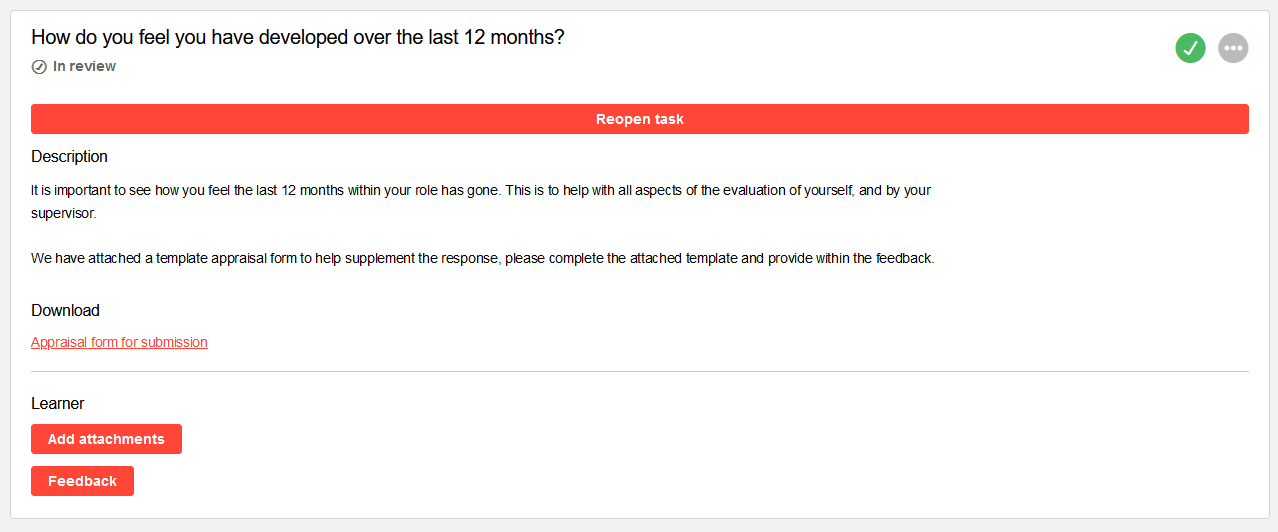
With the On-the-Job Training Tasks, a green tick identifies the Tasks that are already completed, and each Task can be expanded by selecting the circle icon with the three dots.
Once expanded, each On-the-Job Training Task provides a further explanation of what is needed to complete the Task. Depending on the Task, there might be a document to download, evidence to upload via the "Add attachments" button, and/or comments to add via "Feedback" to complete the tasks.
When the requirements have been completed, the "Mark done" button either completes the task or submits it for review by the Mentor/Assessor. For Tasks marked "In review" and requiring assessment, further feedback can be provided by the Mentor or Assessor, and the status can be changed back to "Pending" if more work is needed to complete the task requirements. Some Tasks may also have limited attempts.
Once all Tasks have been satisfactorily completed, the On-the-Job Training will be set to a concluded status. Some tasks may also be marked by the Mentor/Assessor as Passed or Failed and given a percentage grade.
Learner‑Selected OJT Mentor
Selecting a mentor
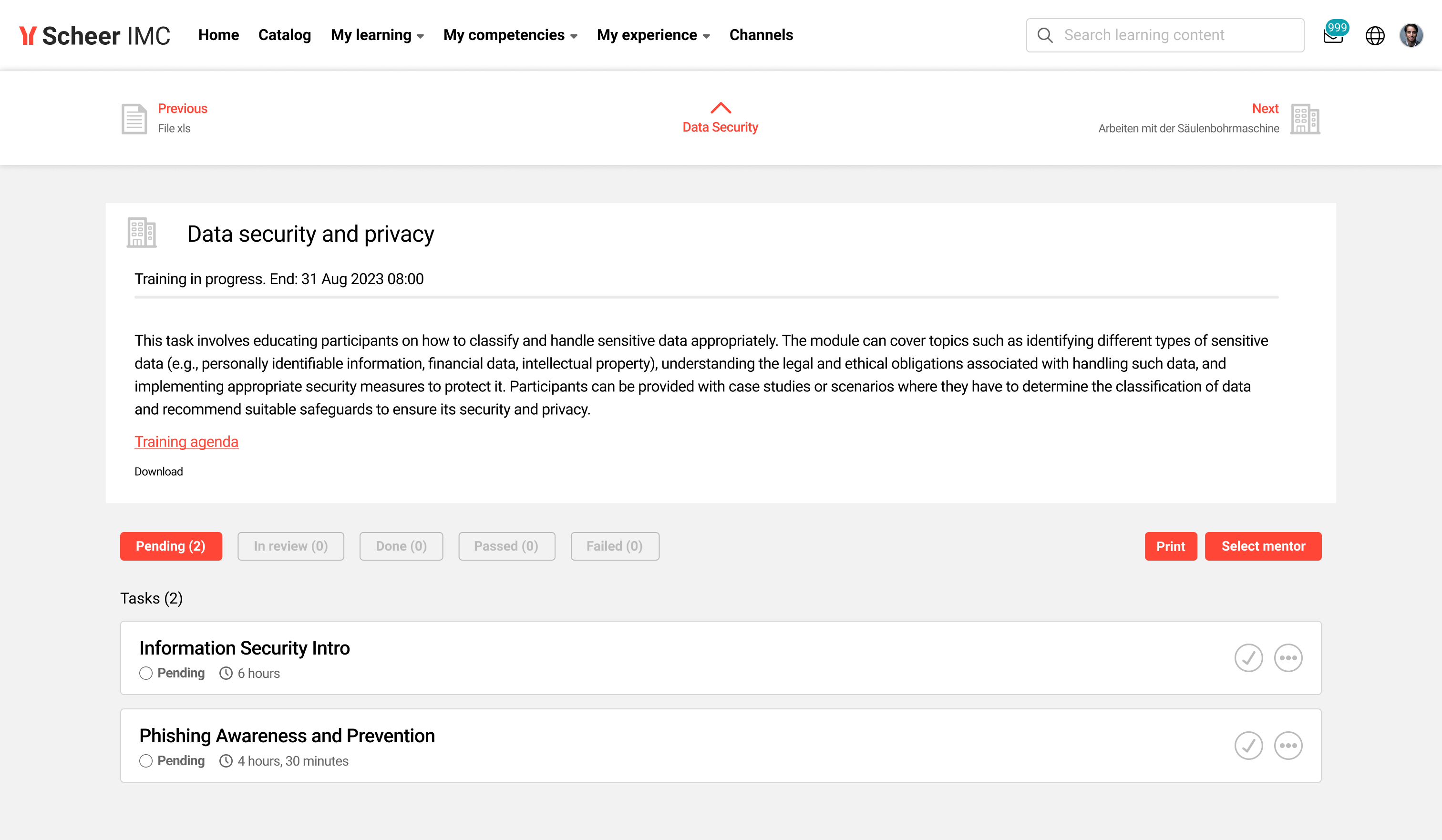
When the On-the-Job Training is opened in a course that uses an OJT template with “Allow learners to select mentor” enabled:
-
An option to select a mentor (OJT tutor) is displayed.
-
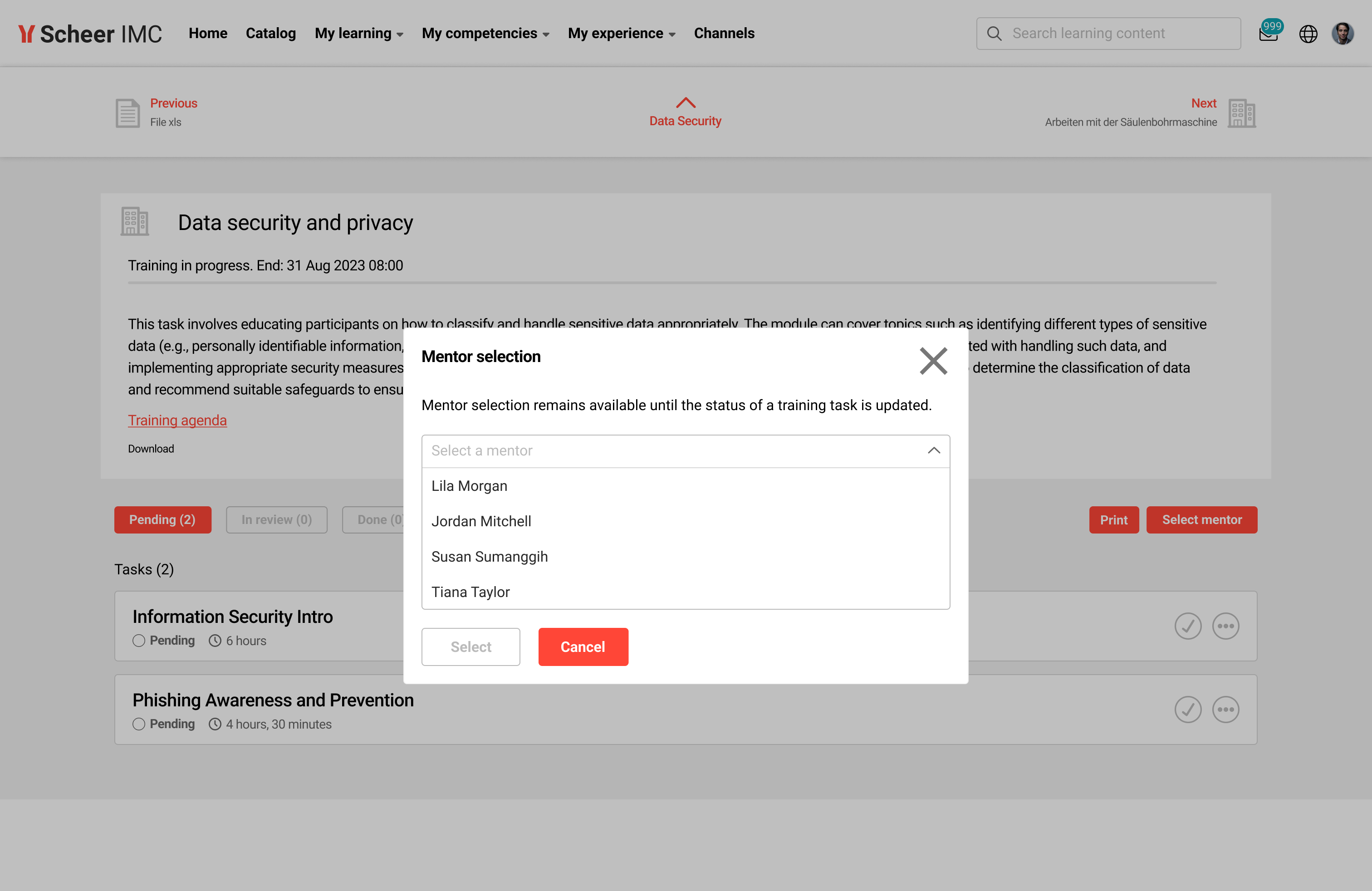
A dialog shows the list of all OJT tutors defined for the course.
-
The following action is performed:
-
One mentor is selected from the list (single selection).
-
After confirmation:
-
The selected mentor becomes the nominated assessor for that learner’s OJT in the course.
-
The mentor receives a notification that they have been selected as the learner’s OJT assessor.
Task submission & locking
Once a mentor is selected and confirmed:
-
All OJT task submissions from the learner in that course are assigned only to the selected mentor.
-
The mentor is notified about these submissions as usual.
-
As soon as the learner submits the first OJT task, the mentor selection is locked:
-
The learner cannot change the mentor for this OJT anymore.
-
If the selected mentor becomes unavailable
If the selected mentor leaves the company or is deactivated (set to passive in the LMS):
-
The learner’s OJT mentor selection is effectively cleared.
-
The learner is then prompted again to select a new mentor from the list of currently active OJT tutors for the course.
-
After selecting and confirming a new mentor, task routing and notifications continue with the newly selected mentor.
Hints & Tips
When using a mobile device or tablet, the camera can be used when performing an Upload. This is useful for uploading live videos.