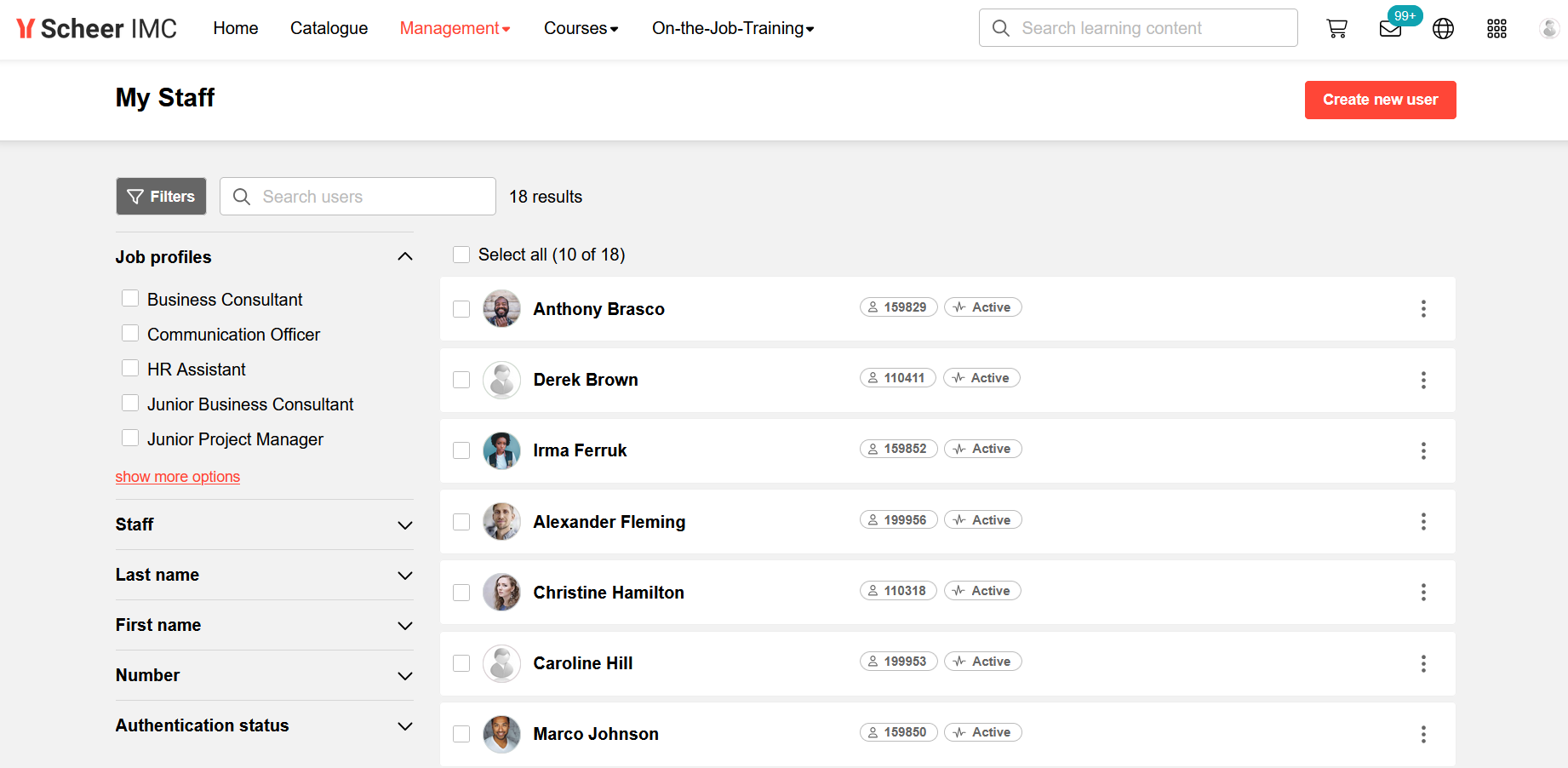
Based on a dedicated user creation profile, supervisors have the ability to create new users themselves. This enables line managers to independently set up user accounts for the purpose of processing enrolments on behalf of those users.
When the LMS has an existing user data interface used to create user accounts this "Create new user" button needs to be used cautiously as duplicate user accounts can be created. If duplicate accounts occur a System Administrator would be needed to perform an account Merge.
Access rights configuration
Before a supervisor can create users, the following configuration steps must be completed by an administrator:
-
Grant the "Create new users" access right
The supervisor requires the "Create new users" access right on the "My staff" navigation entry.
-
Define the registration profile
The profile data to be collected for new users is configured under the "Profiles" navigation item, using the registration profile "Registration (Supervisor) (501)".
-
Enable user confirmation (optional)
If newly created users should require confirmation before being able to log in, this must be activated at client level. Name of the option is “Users created by the supervisor have to be confirmed”.
Notification e-mails regarding status changes can also be enabled here.
User creation workflow
Supervisor workflow
-
Navigate to "My staff" in the supervisor menu. The "Create user" button is accessible from this view.
-
Alternatively, the button is also accessible from the multiple registration page.
-
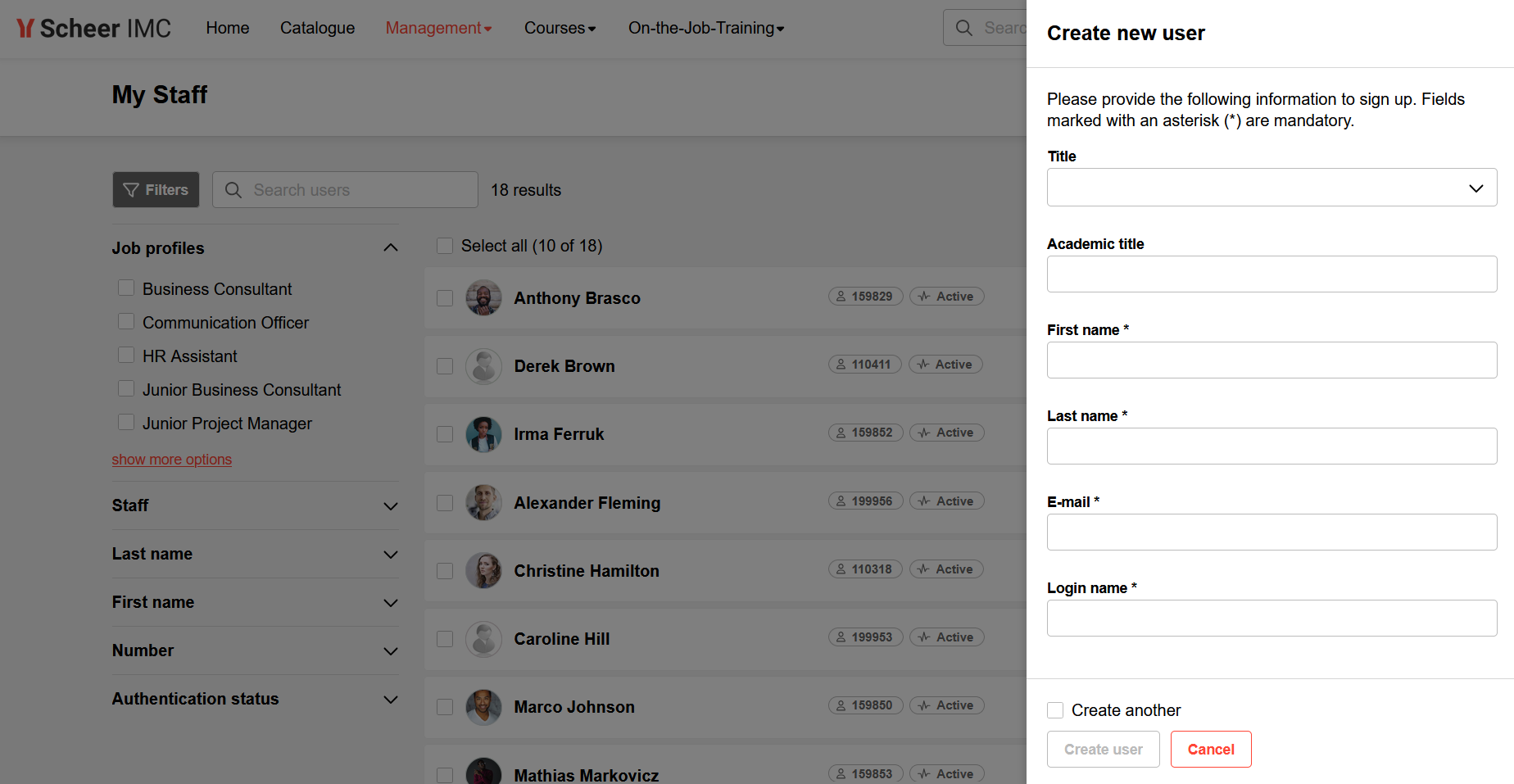
Clicking the button opens the user creation form, which has been pre-configured in the "Profiles" area.
-
Fill in the required fields and, at the bottom of the page, select one of the following options:
-
Create user — saves the new user account
-
Cancel — discards the process
-
Create another user — saves the current entry and opens a blank form immediately
-
-
Once a new user has been created:
-
The supervisor is automatically granted clearance on that user.
-
The supervisor is automatically set as the responsible supervisor for this user.
-
Administrator workflow (confirmation required)
If the client-level setting requiring user confirmation before login has been activated, an additional administrative step is necessary:
-
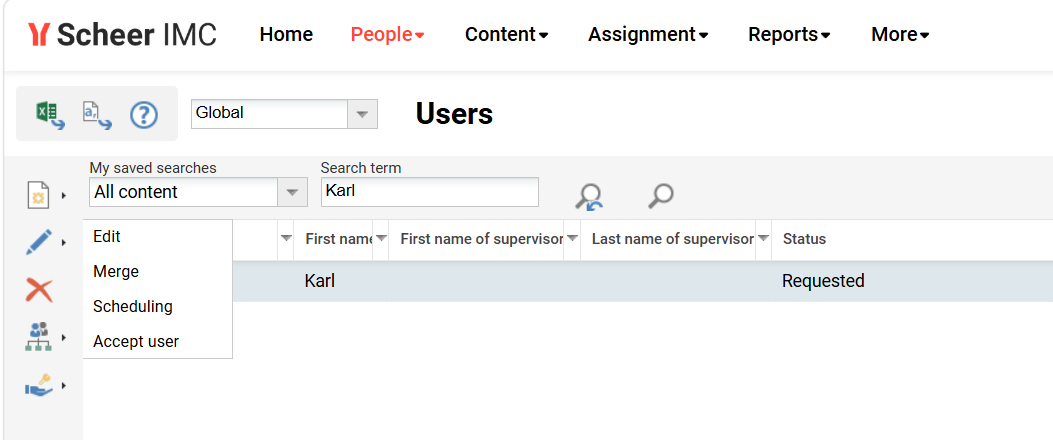
Navigate to the user administration menu.
-
Select the appropriate client and search for the newly created user.
-
In the toolbar, use the edit button and select the "Accept user" option to activate the account.