
When an employee submits a course enrolment request through the Catalogue, approval from their Supervisor may be required, depending on how the system is configured. This kind of approval step lets Supervisors see which courses their staff want to attend and decide accordingly, say when a course costs money or takes someone out of work for a day. This page covers how Supervisors identify, review, and approve or reject those requests.
Enrolment Workflows requiring Approval
Several self-enrolment workflows can be configured for training courses that require Supervisor approval:
|
Workflow |
Process |
|---|---|
|
Self-enrolment with confirmation by the Supervisor and enrolment by the administrator |
Two-stage process: The employee requests the training via the Catalogue, the Supervisor grants initial approval, and the training administrator makes the final enrolment decision. |
|
Enrolment request with direct enrolment by the Supervisor |
Single-stage process: The employee requests the training via the Catalogue; the Supervisor either confirms or rejects the enrolment directly. |
|
Multi-approval |
Configurable, multi-stage process: The enrolment request goes through several approval stages in succession. |
How to get notified about open Requests
-
Email: an enrolment email is sent to the Supervisor as soon as an employee's registration status changes to "Requested," provided the enrolment-email trigger is enabled and/or the "Send enrolment emails" meta tag is set for the training course.
-
Dashboard pages panel: all pending requests appear in the "Booking Request" panel on the Supervisor dashboard.
Viewing requests in the Enrolment Request Panel
The dashboard includes a panel where all of a Supervisor's outstanding enrolment requests are displayed together. Approving requests through this panel is efficient, since every request is visible in one place and can be processed in a few clicks.
Filter options
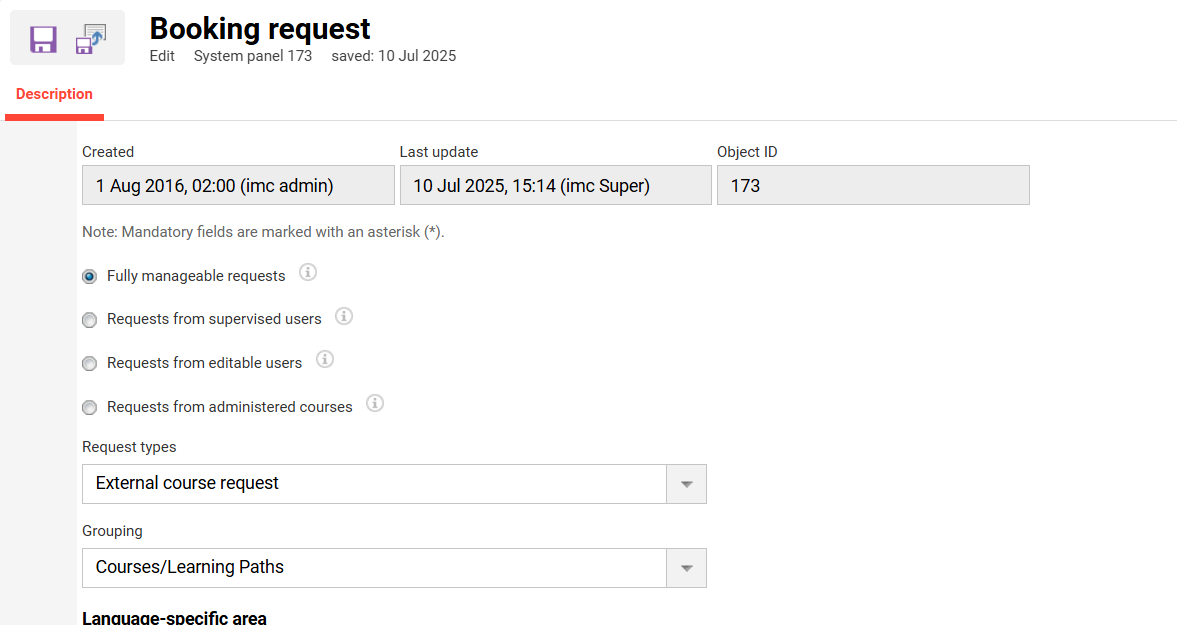
Depending on the Supervisor's permissions, the panel offers up to four filters for displaying requests:
|
Filter |
Displays |
|---|---|
|
All visible requests |
All enquiries to which the Supervisor or registration manager has access. |
|
Requests from staff |
Only requests from employees directly assigned to you. |
|
Requests from users with editing rights |
Requests from all users for whom editing permissions have been granted (typically administrators). |
|
Requests from managed courses |
Only enquiries from courses managed by the relevant course administrator. |
View by Course or by user
-
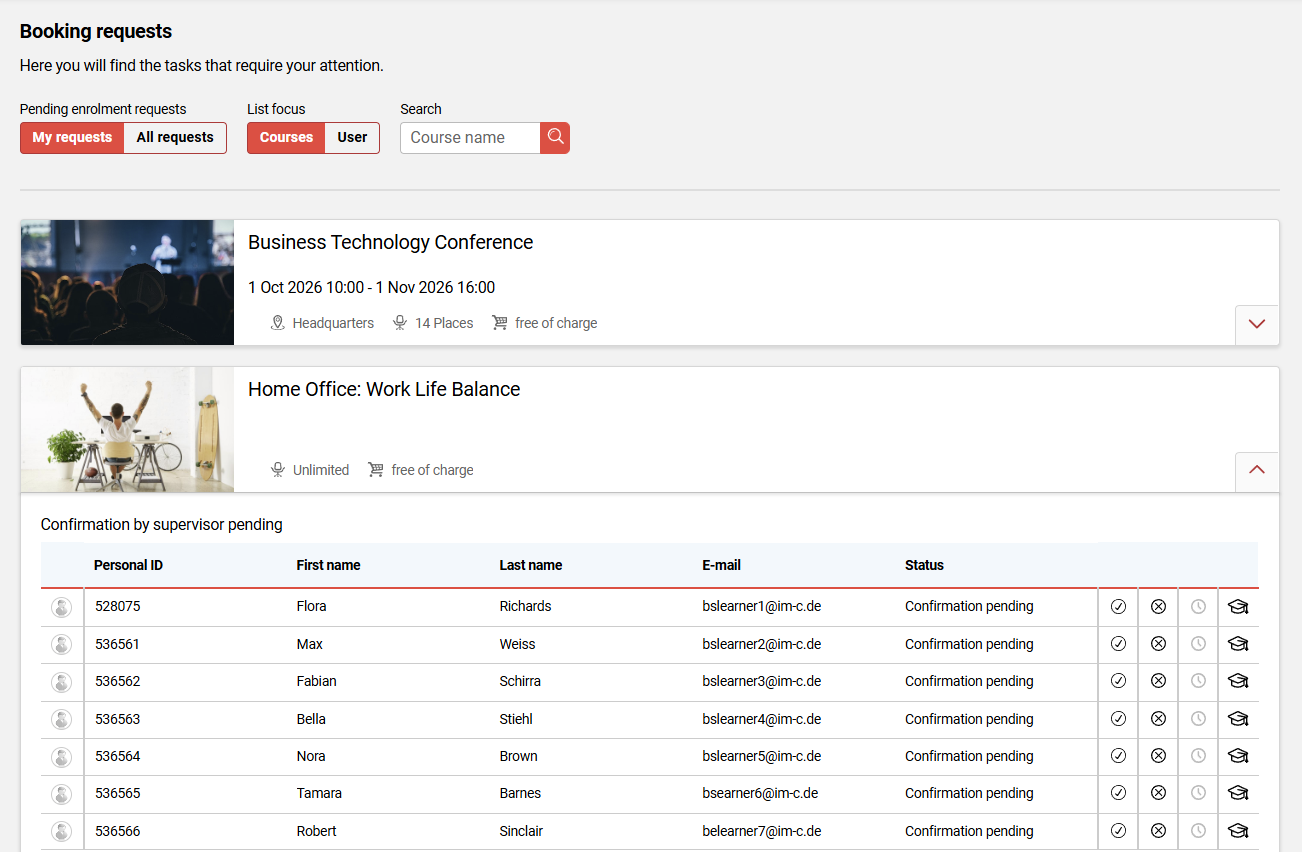
"By course" view (default): course tiles can be expanded to show staff members with pending enquiries for that course.
-
"By user" view: staff are listed alphabetically by surname; each staff tile can be expanded to show the courses with an open enquiry.
Approve or reject a request
Depending on the view, the following icons are available in the row for the relevant request:
|
Icon |
Action |
Available in |
|
Tick |
Approve enquiry |
View by Course and by user |
|
Cross |
Reject request |
View by Course and by user |
|
Hat |
Open course description |
View by Course |
|
‘i’ (history icon) |
Opens the approval history to date – only active for multiapproval |
View by Course |
Clicking the tick may open an additional screen, provided a Supervisor's enrolment form has been set up for the course, for example to specify a reason for approval or a priority for a multi-stage process. If no such form has been configured, a single click on the icon is enough; the same applies to rejection
Approval by email
Requests requiring approval can also be processed directly from the notification email. It contains two token-based, personalised links, "Approve" (or "Register") and "Reject." Clicking either link immediately approves or cancels the request.
It is not possible to select a reason for approval or rejection by email; this can only be done through the panel in the LMS.
What happens after the decision
-
Single-stage process (direct enrolment by Supervisor): Upon approval, the employee is enroled directly onto the Course.
-
Two-stage process: Following your approval, the request is forwarded to the training administrator for final enrolment.
-
Multi-approval: Once you have approved the request, the next approver in the chain is notified.
-
If the request is rejected, the enrolment request is cancelled.
-
In all cases, the request then disappears from your own list of pending tasks in the dashboard.
Tips & Tricks
-
There are no automatic reminder emails for requests that remain unprocessed for a long time – it is advisable to keep an eye on outstanding request emails manually.
-
You cannot link directly to the specific request for a particular participant or Course from the “Booking Request” panel.
Related Topics
Cancellation, Exception and Approval Reasons