
Courses can be set to passed or failed based on the attendance time of learners in the contained Webex meetings. Two options are available for calculating the course status from the attendance time:
-
Percentage of the total attendance time of all meetings in the course. A percentage is specified on course level and relates to the sum of all meeting durations. If the attendance time of a learner across all meetings
-
reaches this percentage, the learner passes the course.
-
does not reach this percentage, the learner is set to failed after the last meeting has ended.
-
-
Required time in each single meeting. A percentage (the “Passed from” value) is specified in each Webex meeting and relates to that meeting only.
-
If all meetings are passed, the learner is set to passed.
-
If one meeting is not passed, the learner is set to failed in the course immediately.
-
This setting will be displayed to the learner as meta tag in the description tab of the course.
Points to Consider
-
Partial attendance times within one meeting are added up.
-
The component status is independent of the course status, because it always relates to the “Passed from” value. In the first option, for example, all meetings can be passed while the required total attendance time is not reached, so the course has the status failed.
-
If the course is set to be concluded by Webex media, only the contained Webex media determine the course status. The status of all other course components is ignored.
Examples:
-
Percentage calculated on total time across all WebEx meetings
A 50% attendance requirement is set for 2 sessions of 40 and 20 minutes (60 minutes in total). A learner who attends 30 minutes meets the requirement, even if the 30 minutes were all in the first session and none in the second.
-
Percentage calculated on each session
A 50% attendance requirement is set per Webex meeting for the same 2 sessions (40 + 20 = 60 minutes). To pass the course, a learner must attend 20 minutes of the first session and 10 minutes of the second.
-
A learner who does not stay long enough in one meeting, or misses it, is set to failed.
Required Configuration
-
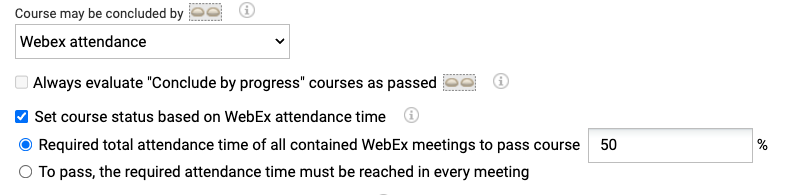
Set the meta tag “Course may be concluded by” to “Webex attendance” and select the meta tag “Set the course status based on the attendance time” (to be added in the course template).
-
-
Select the first option and specify a percentage of the total attendance time of all meetings in the course, that is required to pass it or
-
Select the second option and specify in each WebEx meeting of the course the “passed from” percentage, which defines the time you need to attend the meeting
-
Set up the cron jobs that update the attendance time information:
-
WebexParticipantAttendancePortfolioUpdate retrieves the attendance times from the Webex server (Webex provides them about 10 to 30 minutes after the meeting ends).
-
WebexCourseStatusAttendanceJob calculates the course status for all courses that are set to be concluded by Webex attendance. It has to run after WebexParticipantAttendancePortfolioUpdate.