
The "Course Overview" function provides tutors with a complete list of the courses to which they are assigned, since tutors are often assigned to a course without direct notification.
All functions tutors need are accessible from here, including attendance tracking, course instruction, news creation, component editing, report generation, and course preview.
What Is the Course Overview?
The "Course Overview" function provides tutors with a list of all courses for which they are responsible, together with summary information. Results return courses for which the logged-in user is an assigned tutor; unlike other course functions, results are based on clearances. Results can be sorted, filtered, and saved in many ways. Important information displayed in the summary includes the ability to view upcoming training deliveries, identify whether something has changed in a course, and know which courses have specific tasks for the tutor to action, for example tests available for grading.

The functions available to a tutor vary per course according to the "Tutor Role" assigned within that course. The standard tutor roles are configured under "Configuration" → "Tutoring":
|
Tutor Role |
Access |
|---|---|
|
Course Manager |
Access to all functions in "Course Overview" and "Course Instruction", except "What's New". |
|
Tutor |
Access to all functions in "Course Overview" and "Course Instruction", except "Audit Log". |
|
Trainer |
Can view the course in "Course Overview", view participants in "Course Instruction", communicate with participants by e-mail, view test and feedback submissions, and preview the course. |
|
Expert |
Can view the course in "Course Overview", view participants in "Course Instruction", and receive communication. |
|
Guest Instructor |
No functional access to the course. Receives e-mail updates only. |
Course Instruction
The "Course Instruction" icon provides two functions, "Course Instruction" and "Attendance Tracking", which allow a tutor to mark participant attendance and grade component completions, for example confirming a participant's completion of a component or downloading test certificates.
-
Participants: Displays a progress summary for each participant, participant enrolment details, and functions to communicate with participants by e-mail, mark progress, award certificates, and export participant lists.
-
Syllabus: Displays the course syllabus and progress per component, and provides functions to generate attendance QR codes, grade tests, assess on-the-job tasks, launch virtual classroom meetings, view feedback, and run reports.
-
Social Media: Moderates forums assigned to the course.
The range of functions available to a tutor in the "Course Instruction" function varies according to the "Tutor Role" assigned in the course "Tutors" tab.
Course Progress per Participant
The "Course Progress per Participant" function displays the course component overview and progress for a selected participant.
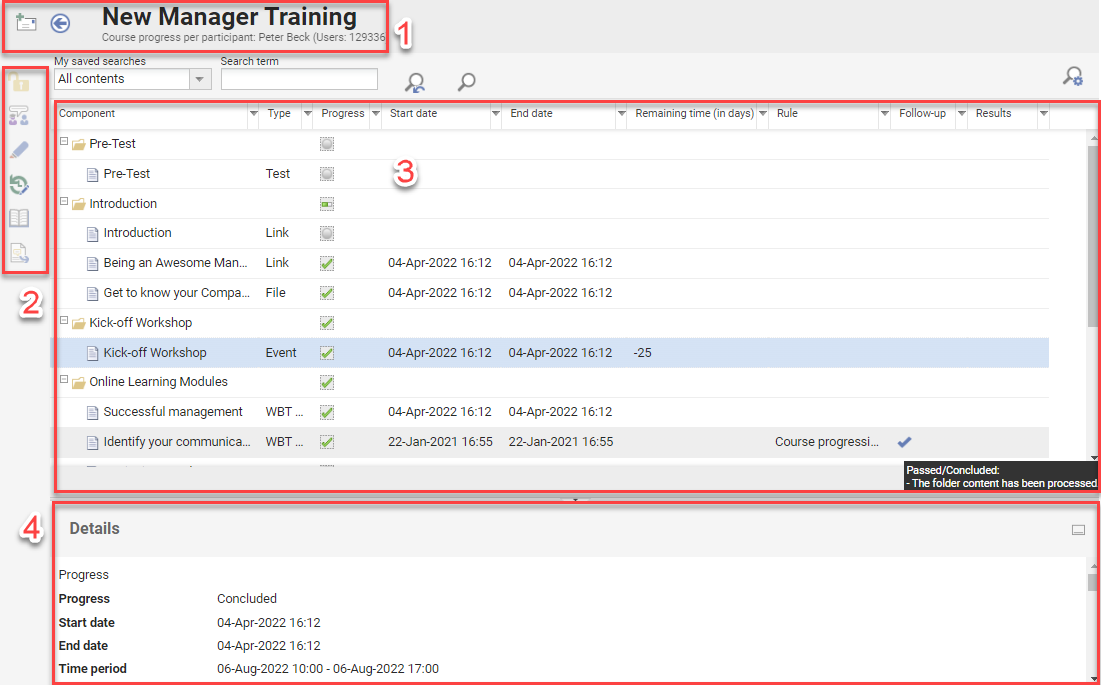
Header (1)
Displays the course name, the participant name, and buttons for "Send Message" and "Back". Changes are saved automatically, so navigating "Back" does not lose any changes.
Sidebar Icons (2)
Six icons allow the tutor to interact with a highlighted component. Each icon is greyed out and only becomes active when a relevant component is selected.
-
Confirm Processing: Confirms the processing of a component for which learning logic rules require tutor confirmation after participant processing, releasing the configured follow-up action, typically a follow-up component or the course conclusion.
-
Supervise On-the-job Training: Allows assessment of tasks marked as complete by the participant for components with "On-the-job Training" enabled. Assessing a task before it is marked complete requires the participant to have an "In Progress" status on the course.
-
Free-Text Question Submitted for Correction: Opens submitted tests for grading free-text questions, normally against a rubric with a sample answer.
-
Edit Learning Progress per Component and User: Opens a pop-up to change the participant's status for the component, enter start and end dates, and flag whether completion was confirmed by the tutor or the participant.
-
Sub-Course Overview: Opens the "Course Instruction" function of the sub-course. There is no function to navigate back to the main course from here.
-
Effectiveness Check: Opens a feedback form, the "Effectiveness Check", in which the tutor can view or provide feedback comparing before-and-after reviews by the tutor, the participant, and the supervisor.
Main Area (3)
Displays the course components in structured, expandable folders, with the following columns:
|
Column |
Description |
|---|---|
|
Component |
Name of the media component. |
|
Type |
The media type the component was created from. |
|
Progress |
The participant's current status, for example "Not Started", "In Progress", "Concluded: Passed", or "Concluded: Failed". |
|
Start Date |
The date the participant first opened the component. |
|
End Date |
The date the participant concluded the component. |
|
Last Access |
The date the participant last opened the component. |
|
Accesses |
The number of times the participant accessed a component of type Test, WBT, or On-the-job Training. |
|
Remaining Time |
The number of days remaining for the participant to complete the component, displayed when scheduling is active. |
|
Points / Results |
The percentage score for graded tests, WBTs with tests, and On-the-job Training. |
|
Rule |
An instructional comment shown when learning logic rules are configured for the component. |
|
Follow Up |
A tick indicates a learning logic rule with a follow-up action; hovering displays the action. |
Details (4)
Displays the description and general information of the component highlighted in the main area, for example the number of requests for the component and the learner's start date.
Learning logic configured for the component, including any follow-up hierarchy and the follow-up action triggered by a tutor, is also displayed here in table form. The "Confirm Processing" toolbar function executes both the confirmation of processing and the release of the follow-up action.
Certificate
Certificates of completion or attendance can be assigned to a course and downloaded as PDF files. Certificate distribution can be configured to make a certificate directly available to the participant on completion, or to require it to be awarded by the tutor or administrator. In the latter case, the tutor selects the "Certificate" icon to print a certificate for a participant with a "Concluded" status.
See Course Instruction for the full set of functions, including messaging, edit history, and exports.
Attendance Tracking
The "Attendance Tracking" function is a simplified, mobile-friendly alternative to "Course Instruction" for marking participant attendance and component completions, either in bulk or individually. Multiple clicks or taps toggle between statuses shown with colours and symbols.

Certain media types can be excluded from marking at client level, shown with a lock symbol, since types such as SCORM and WBT normally mark themselves when configured correctly. The following media types are available for marking by default:
-
Adobe Connect / Webex / GoToMeeting meeting
-
Event (used for attendance and QR codes)
-
File - document
-
Multimedia
-
WBT
-
SCORM WBT
The tutor group requires navigation access to the "Attendance Tracking" authorisation for this function to appear in "Course Overview".
Cancellation Reason
A cancellation reason can be defined via a speech-bubble icon in "Attendance Tracking" when a participant's status is changed to "Cancelled", individually or in bulk. Any relevant cancellation fees are calculated and displayed.
Newsroom
The "Newsroom" function is available to the "Course Manager" and "Tutor" roles and allows the creation of course-specific news, such as articles or blog posts, shown in the news panel within the course room. Content can include text, links, images, and videos, and is sorted chronologically by publication date. News from the main "News" function, which primarily serves to display news in portal dashboards and personal homepages, can also be displayed in courses. Creating course-specific news through "Newsroom" works the same way as standard news, without needing to assign dashboard panels or clearances.
Edit Components
The "Edit Components" function is available to the "Course Manager" and "Tutor" roles and allows tutors to edit the course "Components", "Library", and "Social Media" tabs to add, remove, or rearrange media, so tutors can participate in designing the course to their preferred delivery methods. If participants have already started processing the course, further changes should remain an exception, in particular for progress hierarchies and scheduling dates.
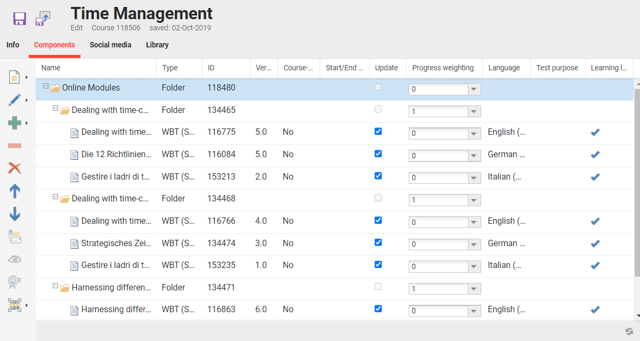
See Edit Components for the full set of functions.
Reports
The "Reports" function is available to the "Course Manager" and "Tutor" roles and provides two CSV exports giving a complete overview of participant progress for each course component:
|
Report |
Description |
|---|---|
|
Formatted Report |
Displays results in individual sections per participant, each with a progress overview row and detailed rows for component completion. |
|
Tabular Report |
Displays results in a single table, with the course and participant name repeated across rows, one row per participant per course component. |