
A HAR file records what happens between your browser and our platform, so we can find the cause of an issue faster. The files can be created with the browser.
Before you start: Open the affected page, close unrelated tabs, and log in before recording unless logging in is part of the issue. If your browser offers a sanitized HAR option, choose it unless support asks otherwise.
What to send to support
-
HAR file from your browser’s Network tools
-
Console log saved as a text file
-
A short note with the exact time the issue happened, including timezone, and the action you performed
Protect sensitive information: Be aware HAR files can contain passwords, cookies, session tokens, page content, and request details. Record only the issue, and log out after sending the file.
Google Chrome
-
Open Google Chrome browser and go to the page where the issue occurs.
-
Open Developer Tools: Press
F12on Windows/Linux orCmd + Option + Ion macOS. You can also select Chrome menu → More Tools → Developer Tools. -
Select the Network tab.
-
Enable the Keep log checkbox.
-
Enable the Disable cache checkbox.
-
Make sure recording is active. The Record button should be red.
-
Clear the network log.
-
Refresh the page and reproduce the issue.
-
Click the Export HAR icon in the Network toolbar and choose the sanitized option if available.

Google Chrome Network tab -
Open the Console tab, right-click inside the console area, and select Save as....
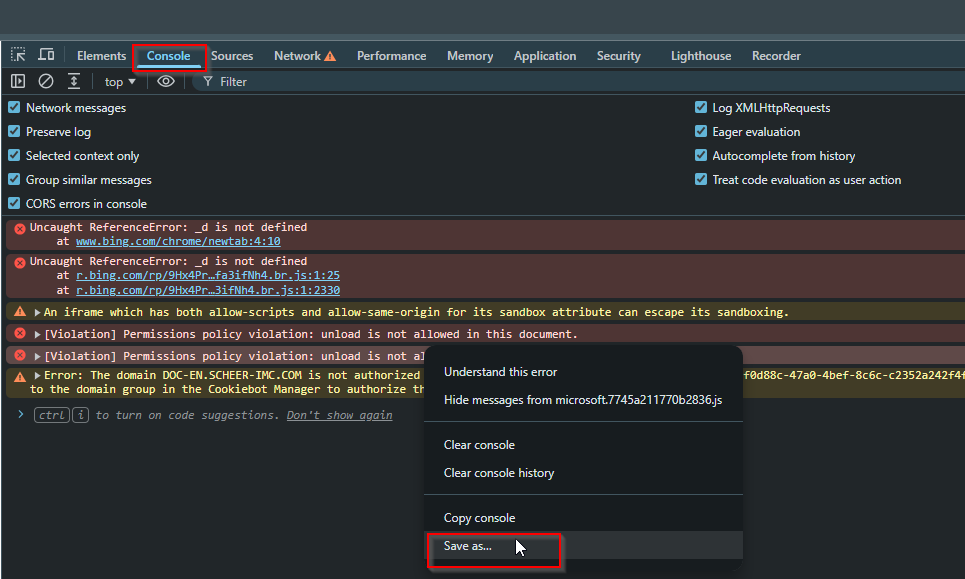
Google Chrome Console tab -
Upload both files to your ticket.
Microsoft Edge
-
Open Microsoft Edge browser and go to the page where the issue occurs.
-
Open Developer Tools: Press
F12on Windows/Linux orCmd + Option + Ion macOS. You can also select Settings and more → More tools → Developer tools. -
Select the Network tab.
-
Enable the Keep log checkbox.
-
Enable the Disable cache checkbox.
-
Make sure recording is active.
-
Clear the network log.
-
Refresh the page and reproduce the issue.
-
Click the Export HAR icon in the Network toolbar and choose the sanitized option if available.
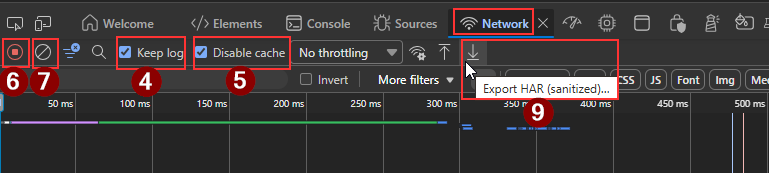
Microsoft Edge Network tab -
Open the Console tab, right-click inside the console area, and select Save as....
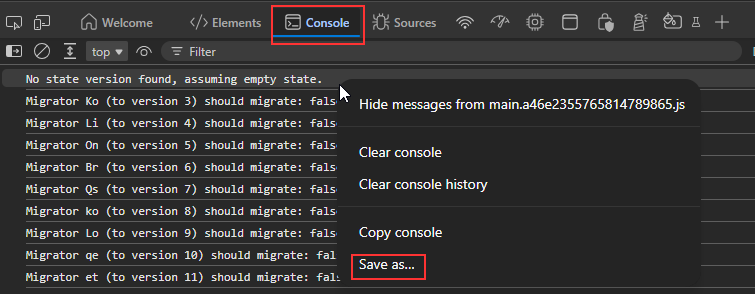
Microsoft Edge Console tab -
Upload both files to your ticket.
Mozilla Firefox
-
Open the Mozilla Firefox browser and go to the page where the issue occurs.
-
Open Developer Tools: press
F12on Windows/Linux orCmd + Option + Ion macOS. You can also select Menu → More tools → Web Developer Tools. -
Select the Network tab.
-
Enable the Persist Logs option.
-
Enable the Disable Cache checkbox.
-
Make sure recording is active.
-
Clear the network log.
-
Refresh the page and reproduce the issue.
-
Click on the Network Settings icon and select the Save All As HAR option.

Mozilla Firefox Network tab -
Open the Console tab, right-click in the console area, and select the Save all Messages to File option.
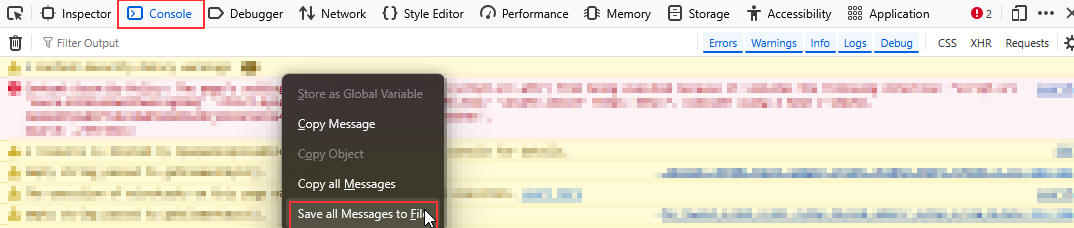
Mozilla Firefox Console tab -
Upload both files to your ticket.
Safari
-
Open the Safari browser and go to the page where the issue occurs.
-
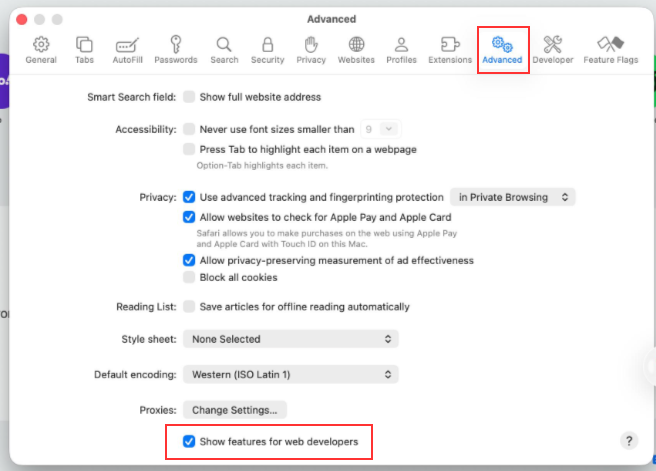
If the Develop menu is hidden, enable it in Safari → Settings → Advanced. Enable the Show features for web developers checkbox.
-
Open Web Inspector: Press
Cmd + Option + I, or select Develop → Connect Web Inspector.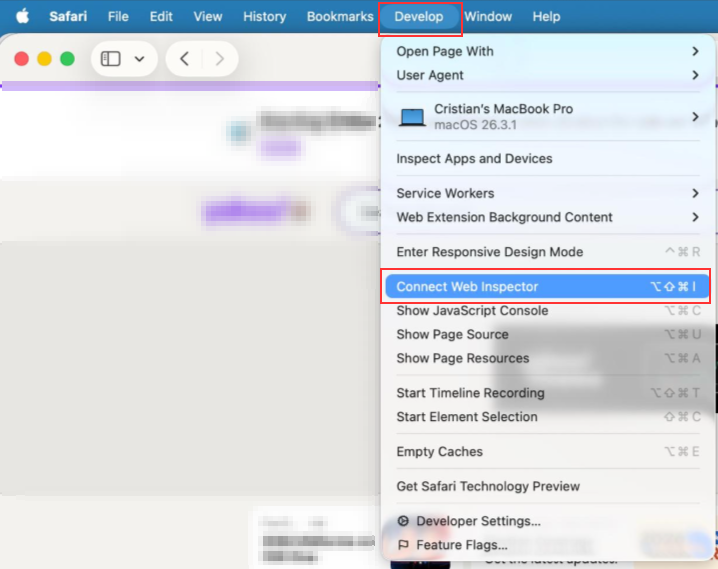
-
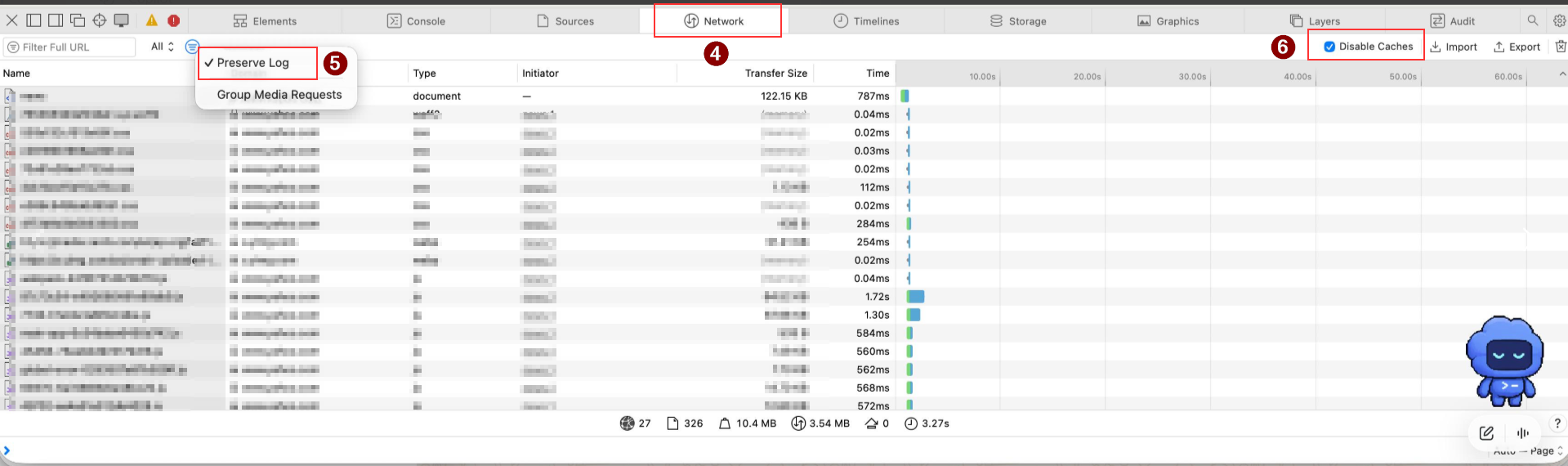
Select the Network tab.
-
Enable the Preserve log option.
-
Enable the Disable Caches option.
-
Make sure recording is active, then clear the network log.
-
Refresh the page and reproduce the issue.
-
Click the Export button in the Network tab toolbar.

-
Open the Console tab, highlight the relevant messages and choose the Save Selected option to save them as a
.txtfile.
-
Upload both files to your ticket.
Helpful Tips
-
Use clear file names, such as
chrome-har.harandchrome-console.txt(the same applies to the other browsers). -
If you cannot find the saved file, check your Downloads folder.
-
If the file is too large, zip it first. If it is still too large, ask support for another upload method.