
In this article, you will find helpful answers to frequently asked questions about the Service Desk of Scheer IMC.
Under Requesting imc Service Desk Access you can already find information on
-
access to the Jira Service Desk of Scheer IMC
-
adding or removing access to Jira Service Desk of Scheer IMC
-
the login procedure
Receiving E-Mail Notifications from Jira Service Desk
Good to know: Ticket visibility and e-mail notifications are two different things. A ticket may be visible to you even if you are not currently receiving e-mail notifications about its updates.
How can I activate notifications?
-
Open the relevant ticket in the imc Service Desk portal.
-
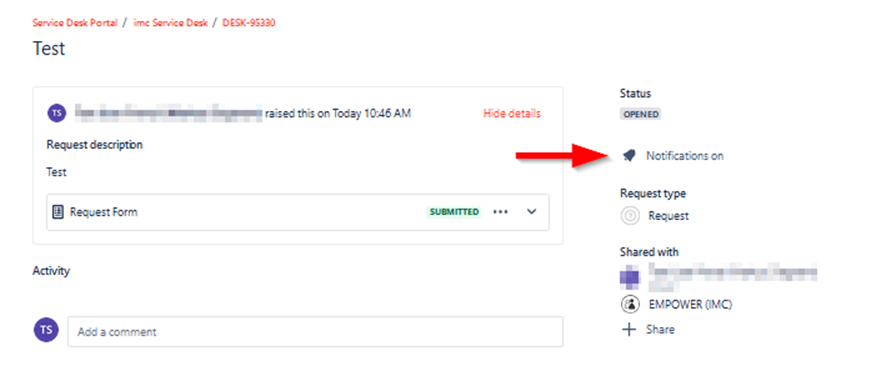
On the right-hand side, below the ticket status, locate the Notification setting.
-
Check the current setting:
-
If Notifications on is displayed your notifications are already activated and you should receive all ticket update notifications.
-
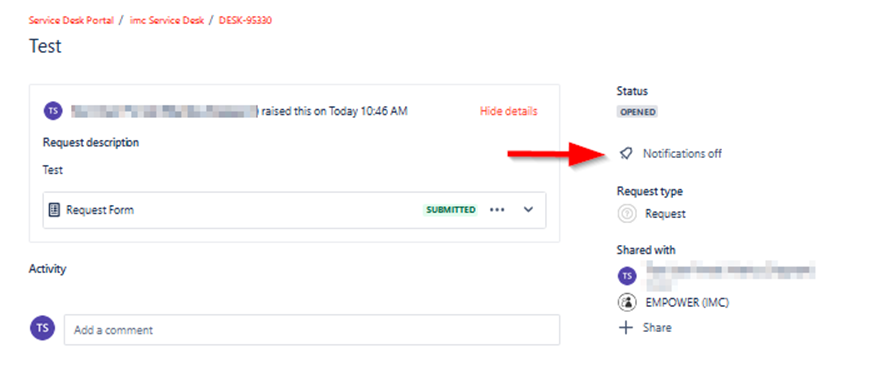
If Notifications off is displayed you are currently not receiving notifications. Click it to turn notifications on.
-
How can I deactivate notifications?
-
Open the relevant ticket in the imc Service Desk portal.
-
On the right-hand side, below the ticket status, locate the Notification setting.
-
Check the current setting:
-
If Notifications off is displayed your notifications are deactivated and you are receiving only the first notification, when a ticket was created by a member of your organisation.
-
If Notification on is displayed click on it to deactivate notifications.
-
Good to know: The setting applies to your user account and the respective ticket.
Sharing Tickets With Your Organisation
How can I Share a Ticket with Colleagues?
When creating a ticket, you will find the Share with dropdown menu below the Attachment field.
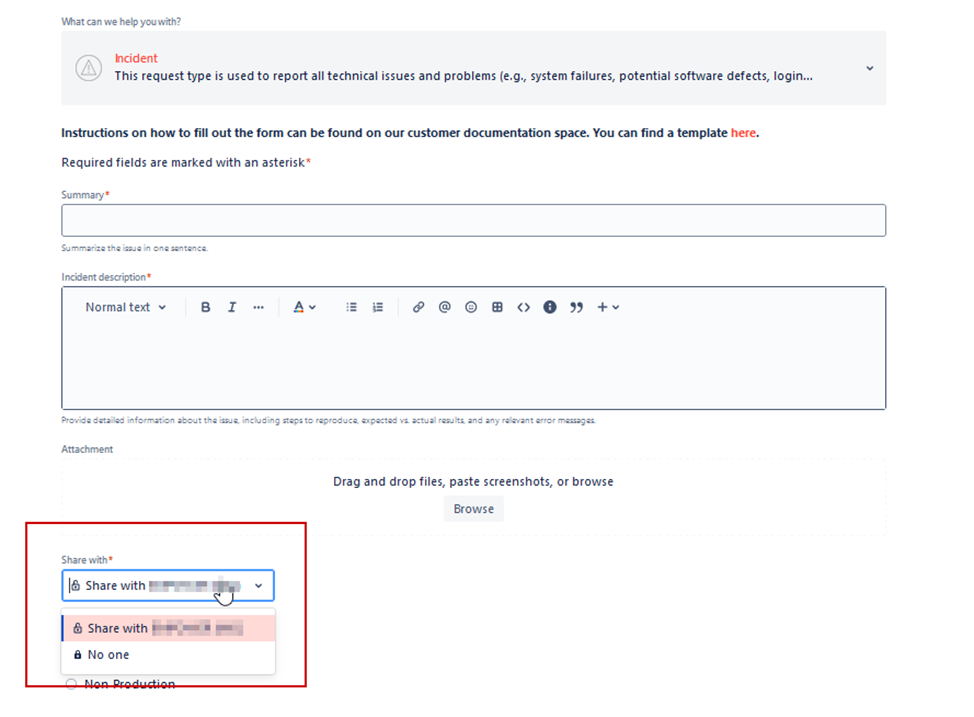
In the imc Service Desk, an organisation is the group containing the Service Desk users belonging to your company or institution.
If you share a ticket with your organisation, other Service Desk users assigned to the same organisation can view the ticket.
If you do not share the ticket, it can only be viewed by you and the Scheer IMC teams responsible for processing it.
Please note: Sharing a ticket with your organisation gives other organisation members access to the ticket. It does not automatically subscribe them to all future e-mail notifications. They can activate notifications for the ticket individually if required.
Creating Tickets by E-mail
For time-critical issues: Please use the imc Service Desk portal instead of e-mail to report an Incident, particularly in the case of a system outage or another critical service disruption.
Selecting the correct Ticket Type ensures that the appropriate support processes and notifications are triggered immediately.
Resolving and Closing Tickets
Resolved does not yet mean Closed.
The ticket remains in this status to give you the opportunity to review the answer or solution and confirm that the issue has been resolved satisfactorily.
How can I close a resolved ticket?
If the solution is satisfactory, you can:
-
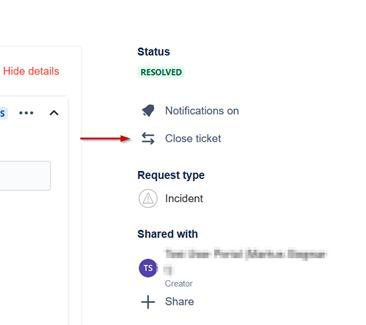
select the Close ticket option in the imc Service Desk portal, or
-
confirm in a ticket comment that the ticket can be closed.
If you still require assistance, simply add a comment to the ticket.
If we do not receive further feedback within 40 days, we will assume that the provided answer or solution was satisfactory and the ticket will be closed automatically.
Login and Password
How can I Reset my Password?
-
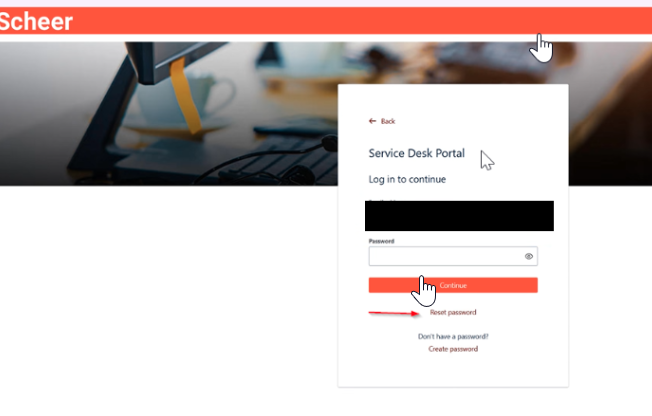
Open the imc Service Desk login page.
-
Select the Reset password option.
-
Enter the e-mail address registered for your imc Service Desk account.
-
Follow the instructions sent to that e-mail address to create a new password.
If you do not receive the password reset e-mail, please also check your spam or junk folder.