
“Channels" is designed to help streamline content organisation, facilitate targeted communication, and enhance user engagement within the learning environment. Channels allow administrators or subject matter experts to organise topic-specific, bite-sized content for flexible, on-demand learning. Employees can explore channels aligned with their interests or support needs, enabling self-paced learning and easy access to key information. This feature enhances retention, supports immediate problem-solving, and creates a centralised repository for ongoing development.
This guide will walk you through the most efficient ways to set up, manage, and utilize Channels for an optimized learning experience.
Best Practices
The following chapters describe best practices and guidelines, explaining the scenarios in which channels can be used and the guidelines that should be considered. By following these recommended practices, the impact of Channels can be maximised, ensuring that employees can easily access relevant content and stay informed.
General Guidelines
Some guidelines for the usage of channels are independent of a specific use case and should always be considered.
Select the Structure Based on Needs
The structure of channels should always depend on how a channel is used. It can be structured around a timeline, e.g. a curriculum or calendar weeks, or organised into sections with topics. Administrators or subject matter experts can set up the structure based on topics and add subtopics within the channels.
Provide Small Learning Nuggets and Variety of Formats
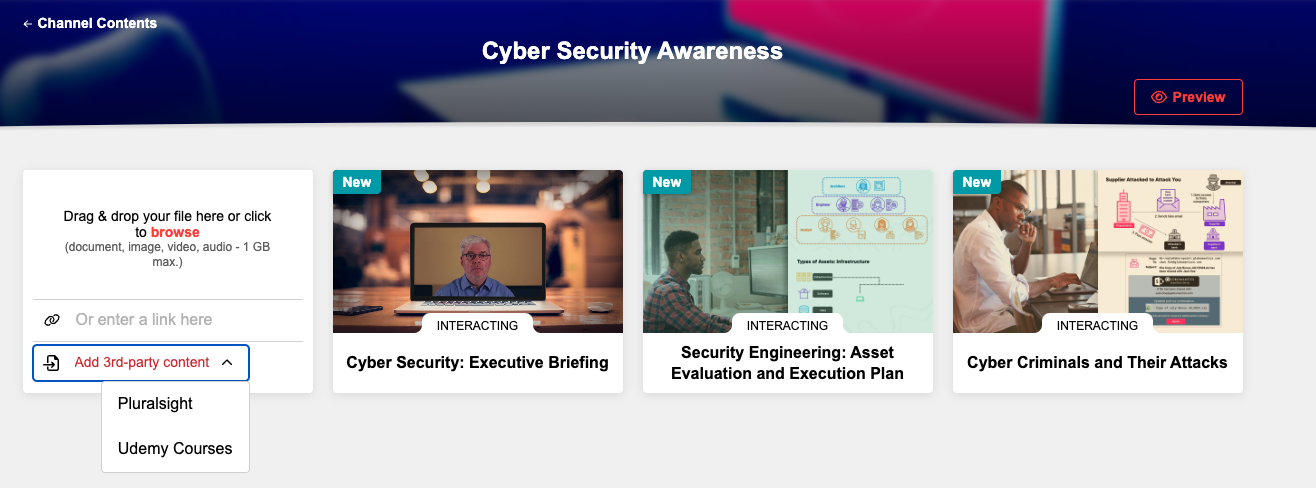
Adding “learning nuggets” in different formats is recommended to keep learners engaged and motivated instead of providing time-consuming content. These nuggets provide quick, targeted insights, making it easier for learners to absorb information without being overwhelmed and in their desired format. Third-party content, such as content from platforms like Udemy or Pluralsight, can be incorporated into channels to provide learners with access to a wider array of learning opportunities and formats.
Plan Scheduled Contents
Adding content regularly is advisable to ensure that the library stays dynamic and engaging while meeting the evolving needs of learners. This can be achieved by setting up an editorial plan that schedules new content releases, such as weekly updates. A scheduling feature is also valuable, allowing administrators to publish content at specific times to maintain a steady flow of information. Periodic reviews and adjustments ensure that channels remain current, while timely notifications keep learners informed and engaged.
Self-Driven or Mandatory Subscription?
Learners should have the flexibility to choose channels based on their interests and preferences. This self-directed approach allows them to explore content at their own pace and convenience. By subscribing to a channel, learners can also receive notifications when new content is added or updated, ensuring that they are always informed. The different channels can be made available to various user groups depending on the topic, ensuring that each group only sees the channels relevant to them.
Additionally, an option for automatic subscription is available to push information to the desired target group. This functionality provides a way to ensure that important updates reach the right audiences in a timely manner. Learners still have the possibility to unsubscribe from a channel.
Enable Subject Matter Experts to Easily Contribute to Channels
The "Easy media upload" function requires no administrative access. Content creators can view only the channels they have permission to edit, allowing a channel for content creation to be selected and the process to be started immediately. Various content types are available, including files, links, multimedia, and third-party content. For instance, with a simple drag-and-drop action, subject matter experts can upload PDFs by dragging them into the designated field, which opens a new page where only metadata such as name, description, or translations need to be completed. If possible, the system generates a preview image automatically.
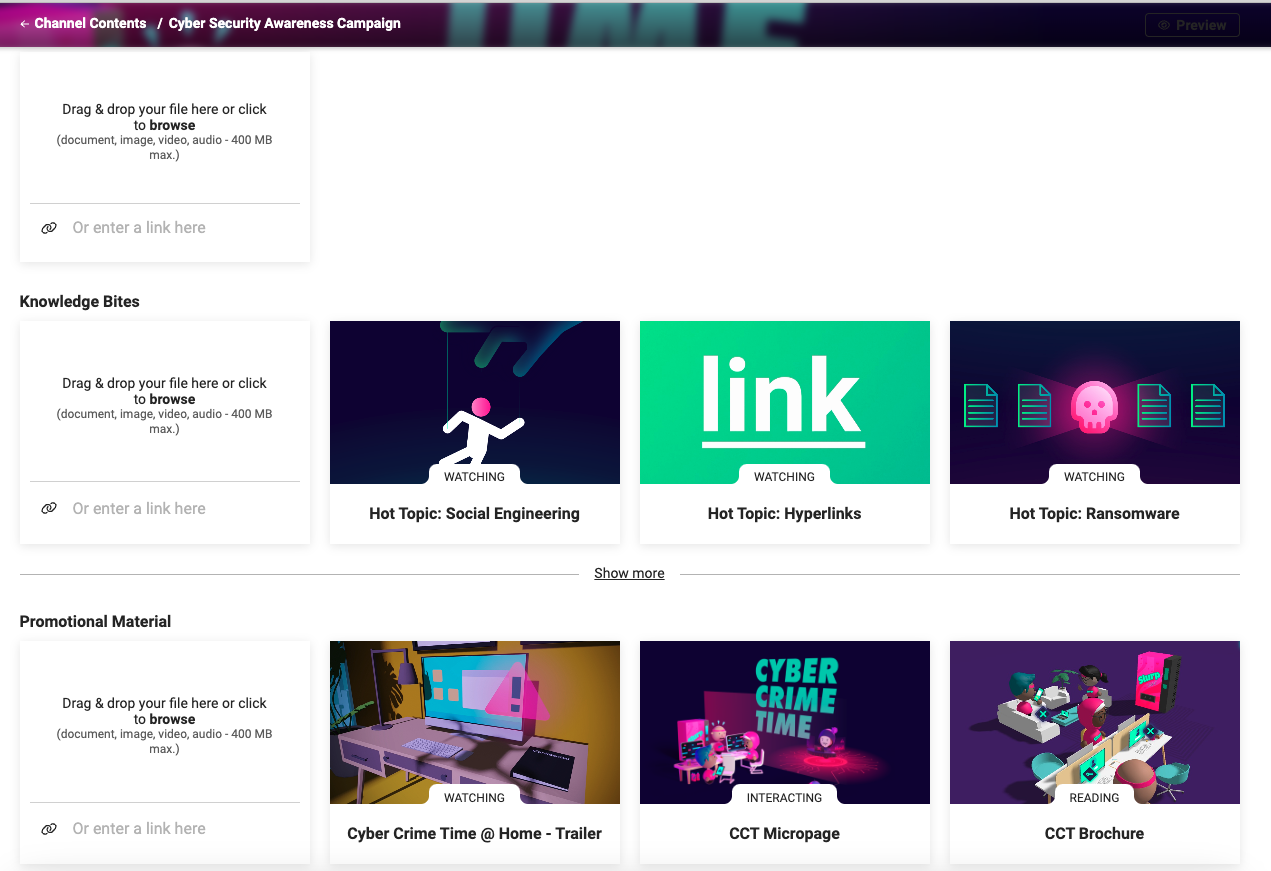
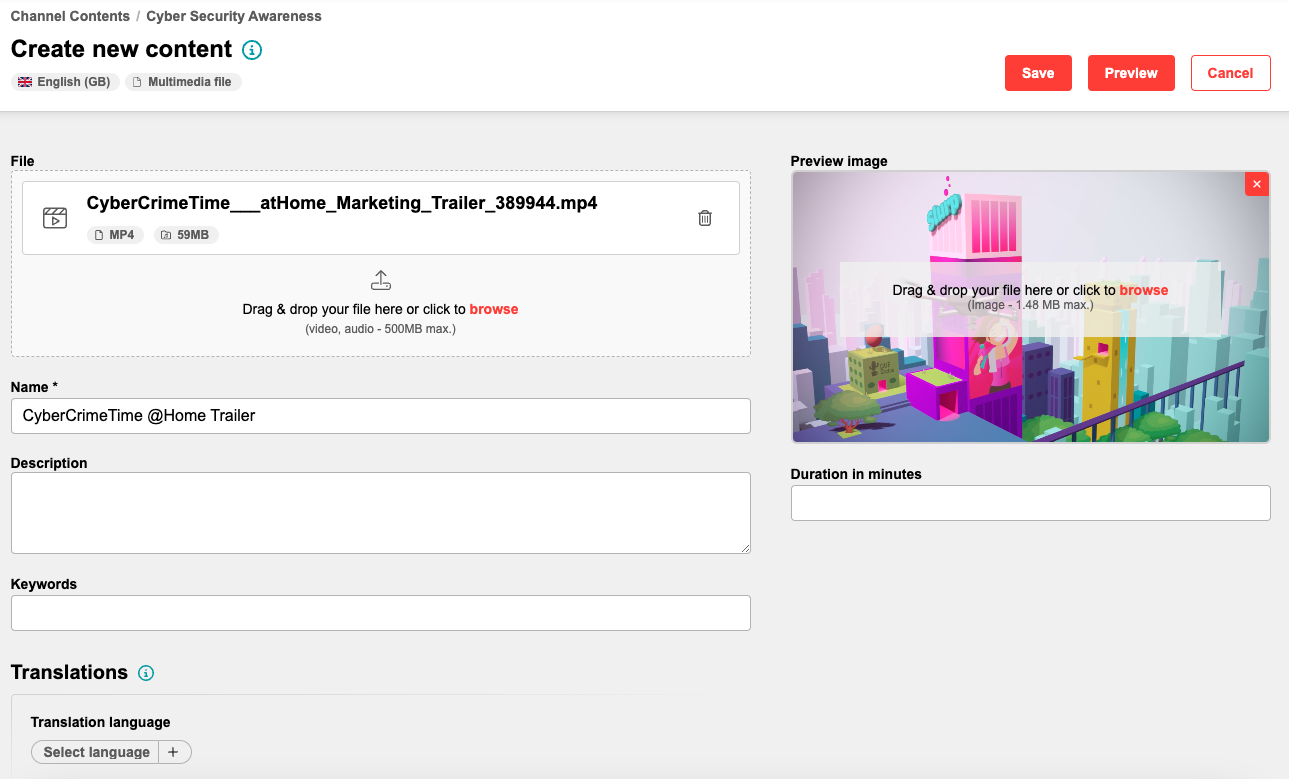
Content creators can also preview how their content will appear to learners, ensuring it displays as intended. Once saved, the content is immediately available, and Channel subscribers are notified of the new addition. Existing content can also be edited using this feature, making updates and adjustments seamless. For learners, new or updated content is marked with a flag, making it easy to identify recent changes.
Use Cases
Different use cases for channels are available depending on the customer scenario.
Use Case “On Demand Knowledge Library”
On-demand knowledge libraries are a central hub for all topic-related information, including learning nuggets and training, allowing learners to subscribe to topics that interest them. With easy, on-demand access through microlearning and playlist mode, learners can browse and engage with content whenever it fits their schedule and an answer is needed.
To establish an effective knowledge library, dedicated channels should be created for each topic. This approach ensures that only content directly related to each topic is placed in its respective channel, keeping the information streamlined and relevant.
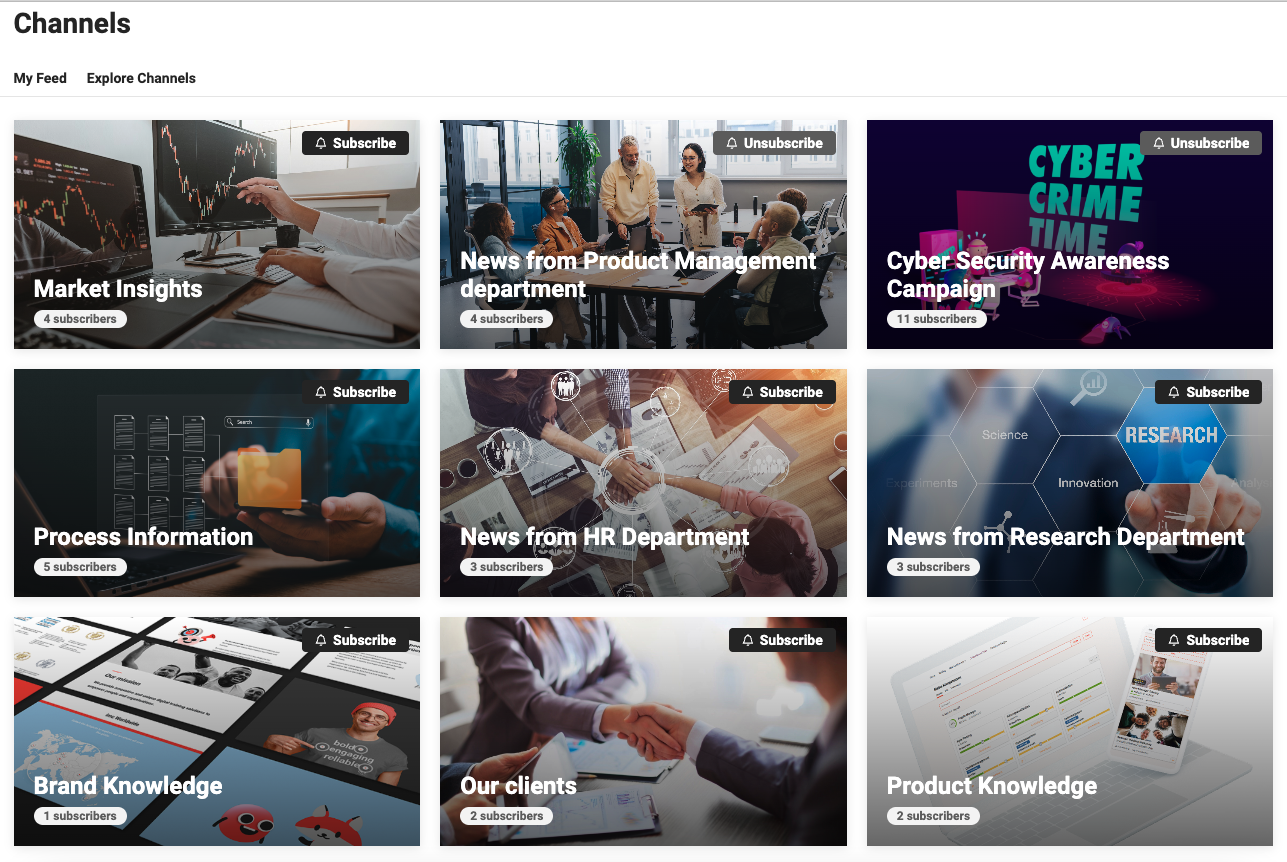
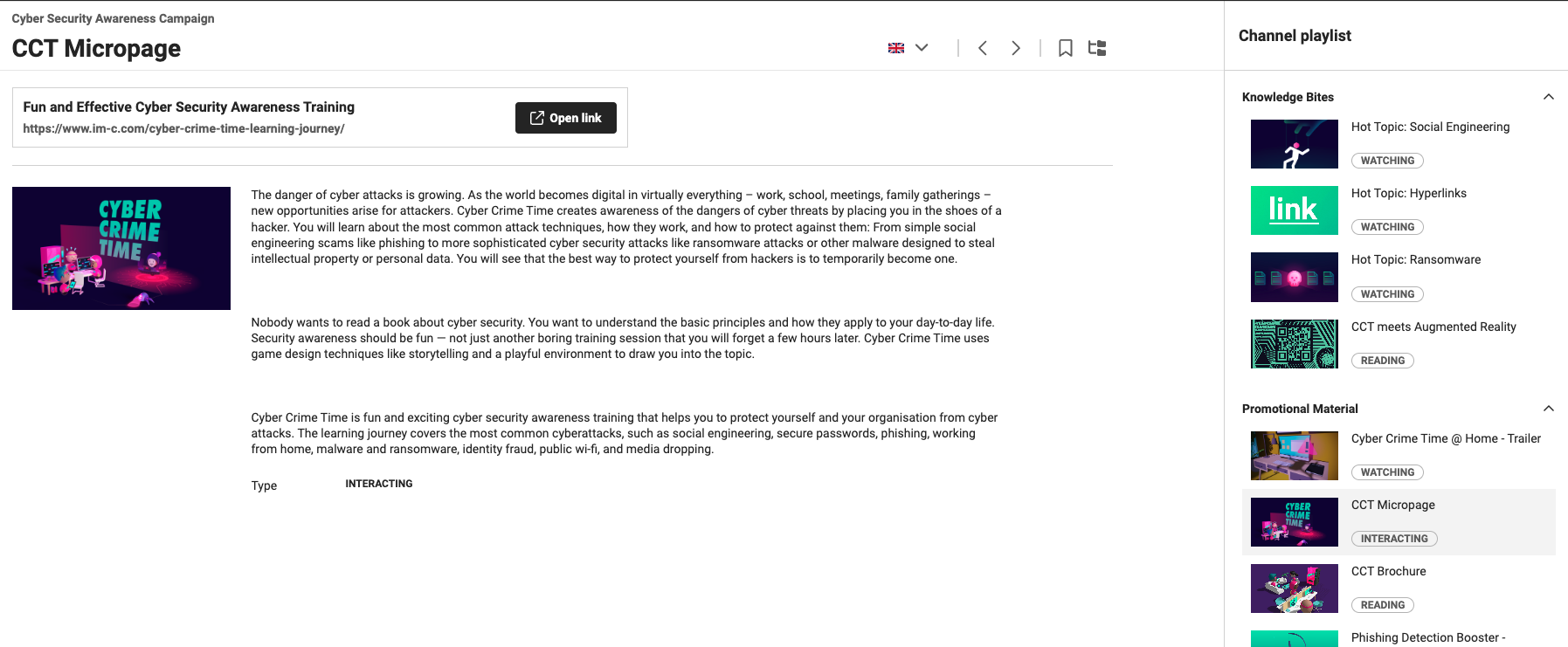
It is recommended that content be published regularly to maintain learners’ attention and grow the knowledge library over time. Scheduling content and updating it with the latest information is an effective way to keep the on-demand knowledge library current and attractive for learners.
Use Case “Fast Lane Provisioning”
Fast-lane provisioning enables information to be shared and updated quickly through channels, whether it is learning content or news, without the need to configure the catalogue in greater detail or set up a course.
Using the “Easy media upload” with a dedicated navigation entry for subject matter experts helps avoid dependence on a system administrator’s availability to create content in the system and publish it to a channel. Content creators often lack access to the administrative area of the system or may not have the technical knowledge to navigate it effectively. Creating and placing content where needed typically requires multiple steps within the system. This makes it quick and easy to provide content.
Use Case “Promote Paid Content”
Structured and visually appealing information boards can be created by combining free and paid content to provide value for learners and organisations. Engaging learning nuggets can be used as introductory "appetizers" to generate interest and guide learners toward linked paid content for deeper exploration.
Channels function as versatile tools for engaging learners and promoting (paid) courses and learning paths. Through channel administration, topic-specific training courses can be seamlessly integrated into channels. Additionally, courses and learning paths can be configured to display related channels on their description pages, creating a reciprocal connection that enhances content discovery and navigation.
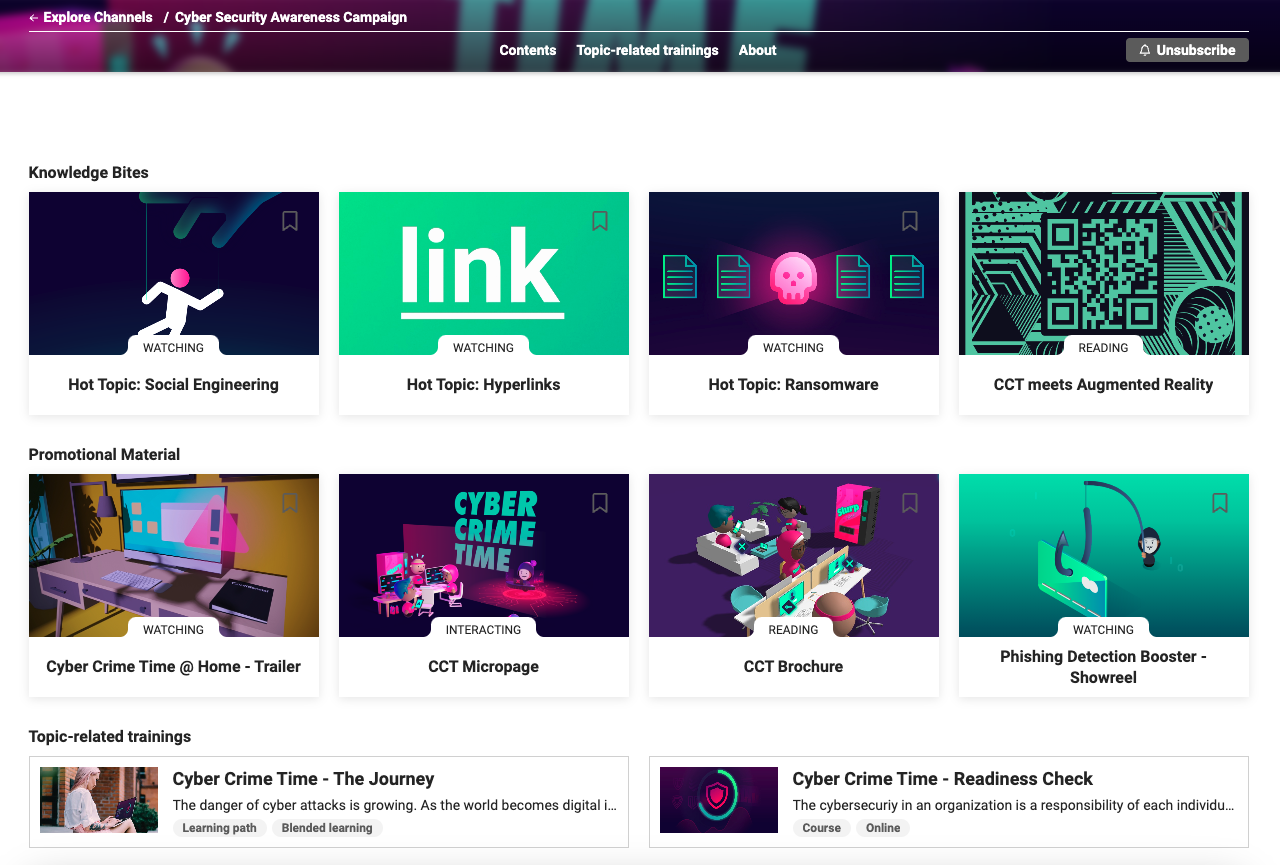
This functionality enables channels to offer curated learning snippets, providing concise insights into course content. These snippets are designed to generate interest, encourage exploration, and motivate learners to engage with the full course. By delivering clear value and showcasing the relevance and quality of paid content, they play a crucial role in driving conversions.
A structured channel overview that combines both free and paid content is an effective approach for enhancing the user experience.
Can a Channel Be Used to Replace a Course?
No, channels are not designed to track learning progress. Content cannot be marked as completed in the way it is known from a course context. Once the content is opened, it is automatically marked as viewed, which also removes the “New” or “Update” flag from the content.
Steps to Configure “Channels”
-
License needs to be activated to use channels
-
Navigation entries for learners and administrator need to be created so that every target group can access channels. If the easy media upload should be used, the “Channel content” navigation entry needs to be created in addition.
-
Configuration of “New” flag to define how long a hint for new or updated content is shown to the learner
-
Configuration of channel notifications to define about which events learners should be notified
Steps to Provide a Channel for Learners
-
Create a new channel to be used as a container for the contents
-
Check clearance of the channel to be sure that learners can see the channel
-
Create new section (optional) to be able to structure the channel even more
-
Manage content to add media or topic-related courses
-
Promotion of channels in courses and learning paths (optional) to engage user to also check out the channels
-
Define automatic subscription of a channel (optional) to reach the pre-defined group of users
-
Set channel specific notifications (optional) if the standard setting shouldn’t be used
Steps to Configure Channels “Easy Media Upload”
-
Content creators need to have access to the navigation entry “Channel contents” to be able to create and save media.
-
Clearances for “Channel contents” should be checked; content creators need to have at least the “Edit” right for the channels on which they are working.
-
“Easy media upload” should be configured in client administration to enable the functionality per client and define the desired media types to be used.
-
Clearances for media types should be checked: Content creators need at least “View” rights for the media type specified in the client manager for the upload.
-
The file formats to be used for the easy media upload should be checked or adapted to ensure that the correct ones are configured.
-
The upload size of files should be checked or adapted if the upload size of files is to be limited to a certain size or left unrestricted.
-
The platform URL should be configured because it is needed to construct proper URLs.