
How Does the Catalogue Work?
Catalogues are used to contain and section courses, course templates, learning paths and media items.
There can be many sub-catalogues under a main catalogue to further section off.
You can then adjust clearances to provide access to certain groups to specific catalogues.
To keep the catalogue search fast and efficient, it is built upon solr indexing so that snapshots of the catalogue are taken in frequent intervals. Once this snapshot is taken, the data can be recalled much more faster than how a standard search would function (which would query the database and cause pressure on system resourcing while it searched across massive amounts of data).
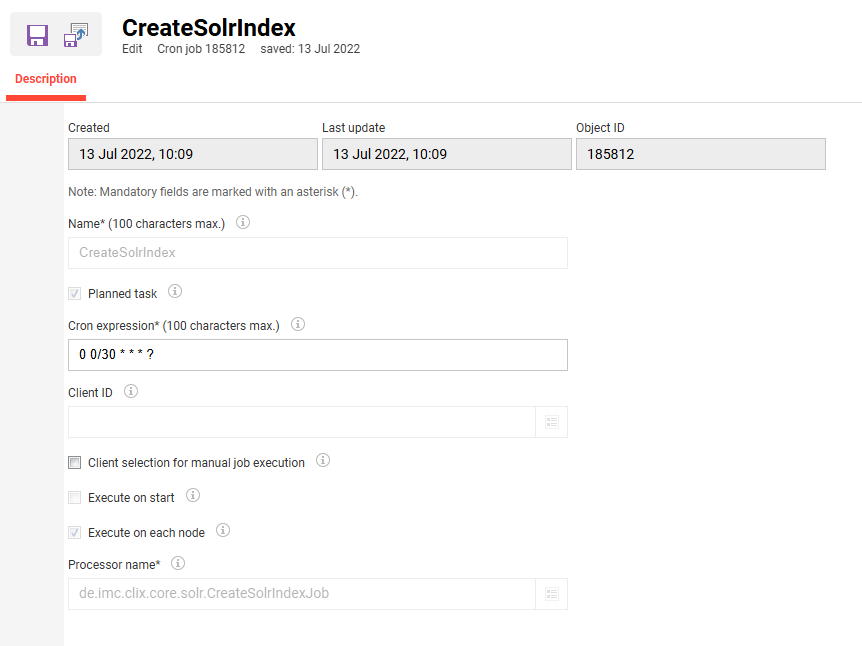
Snapshots are taken whenever the scheduled job CreateSolrIndex is ran.
Users of the LMS can add and remove content as they like via the Assignment menu item in the Catalogues function. Being in the catalogue, allows content to be visible to learners via the Catalogue function.
Content doesn’t appear instantly as soon as it’s added, the catalogue needs to be updated via scheduled job or manually.
Automatic Updating
Automatic updating of catalogues is done by the scheduled job CreateSolrIndex.
Typically, this job runs every 30 minutes to an hour, and is not recommended to run more frequently than that, as this would create greater load on the database and resourcing, which can cause performance issues for the LMS. Frequency is set in the Cron expression* field.
Manual Updating
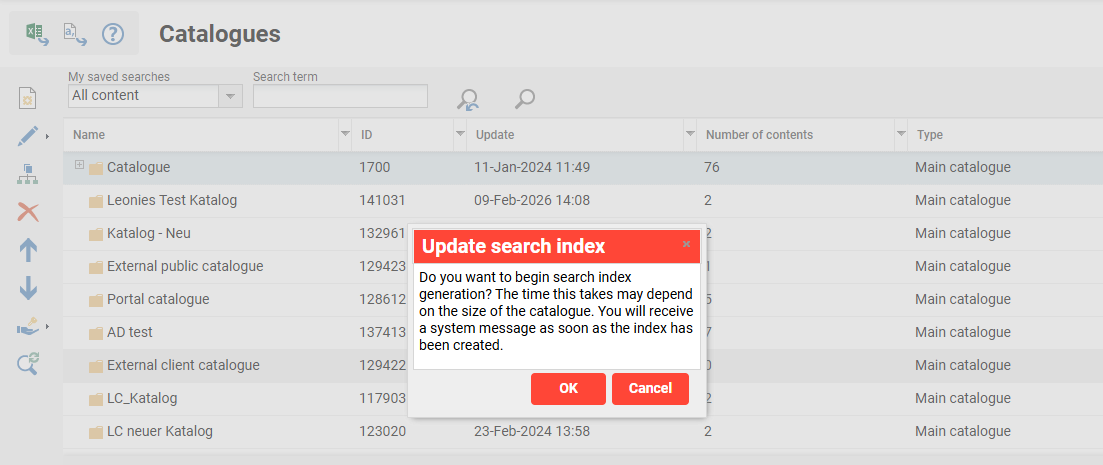
In the Catalogues function, you can manually update the catalogue using the Update search index icon down below. This will begin the indexing immediately for the selected catalogue.
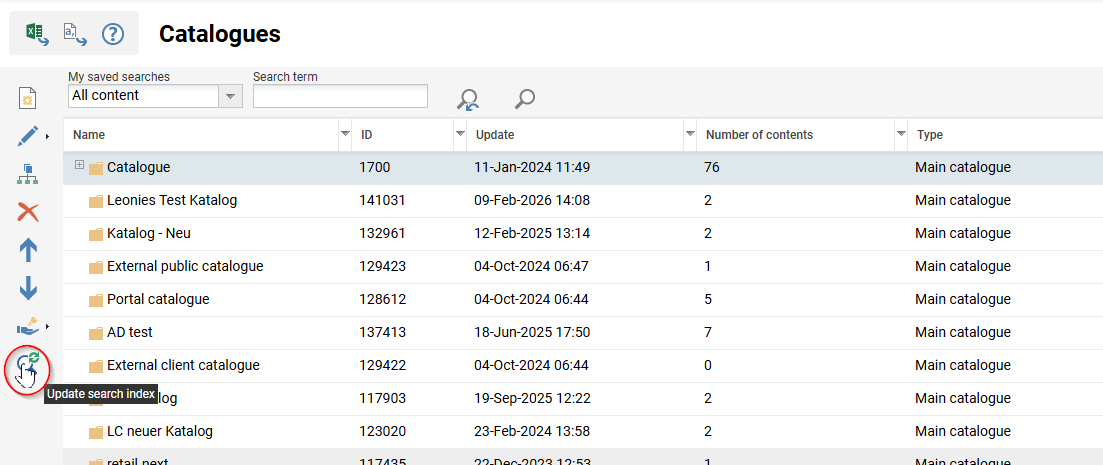
The length of time depends on how much contents are in that catalogue, and the scaling of the system.
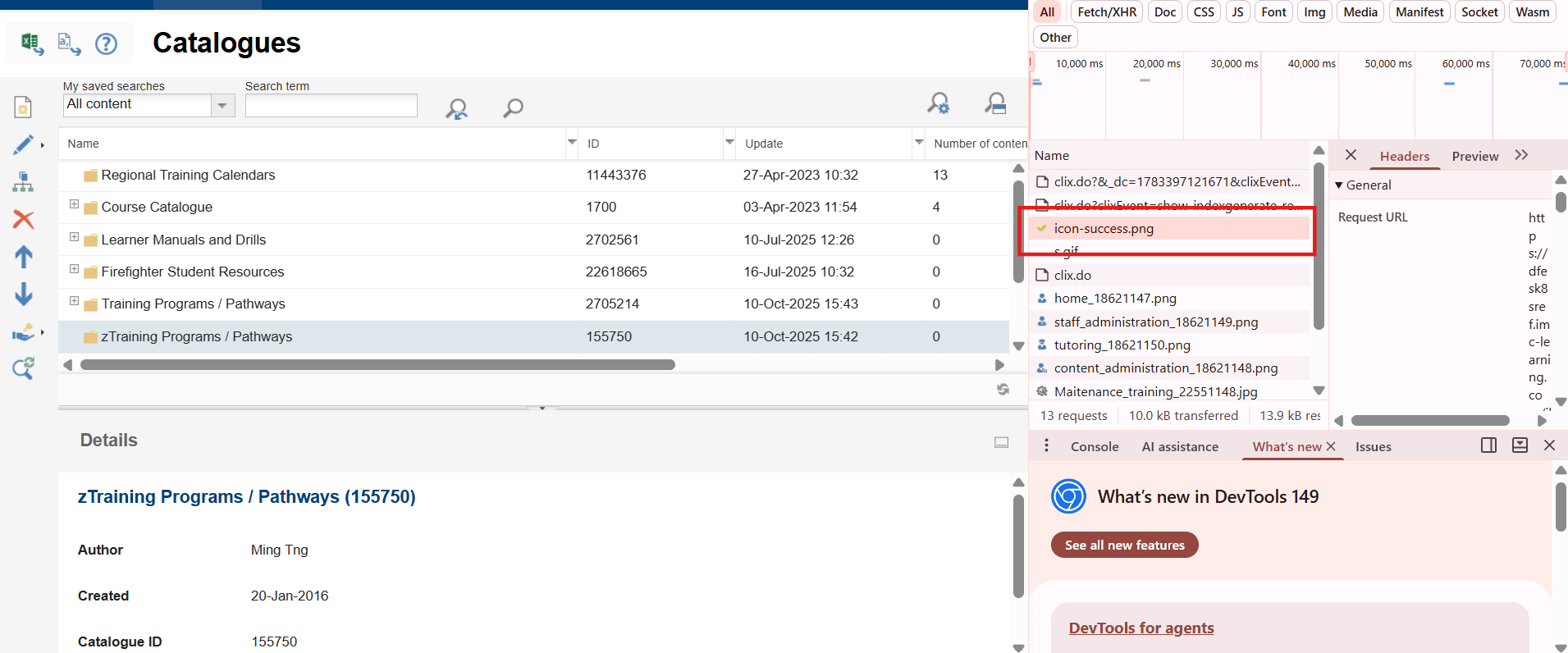
A confirmation notification will appear when the update has been completed in the top right corner. This notification disappears quite quickly. Opening DEV tools and opening the Network tab can be another way to check if the update has completed instead of waiting for the notification to appear. Leaving the Network tab open after you press the update, it will record network activity from there and display the icon-success.png that displays with the notification message, along with successful XHR updates.
Troubleshooting the Catalogue
A common issue that is reported is that the catalogue hasn’t updated/not showing new courses or an error is appearing when trying to manually update the catalogue.
This can be attributed to:
Environment Resourcing / Slowness
Depending on the size of your database, the size of your catalogue and the resource scaling of your environment, it may just take a long time to update.
If this is after a manual update, you can try to perform it during periods of low usage in the system so other activities are not taking up limited resourcing.
If this is after a scheduled job, you can check the scheduling jobs and ILS logs to see if any other scheduled jobs or activities are running at the same time and causing high resource usage. If it is a common occurrence, scheduled jobs may need to be adjust to run at different times.
To get confirmation if resourcing is an issue, you can raise a ticket via the Scheer IMC Service Desk and the Scheer IMC Support team can check.
Solr Issues
Other times, you may encounter errors when trying to update the system. It could appear on-screen in the Catalogue assignments function, or may appear in the ILS logs. This is usually resolved with a restart of the system or the SOLR pod that the catalogue uses.
Report this to the Scheer IMC Service Desk via a ticket with detailed information about what you experienced and the error, and the Scheer IMC Support team can assist.
FAQ
|
Frequently Asked Questions |
|
|---|---|
|
How to automatically update the catalog? |
The scheduled CreateSolrIndex job can be set to run at desired intervals to ensure newly added courses and changes are up to date. For further information refer to Scheduled Jobs. |
|
How to configure catalogues in the front-end? |
Catalogue Settings in Client Manager explains configuration options in a client setting. |
|
General catalogue creation and configurations |
For further information refer to Catalogue Manager. |
|
Catalogue configuration settings in Configuration Manager & Client Level |
For further information refer to Configuration Manager - Catalogue. |